BASIC Authentication
Browser-prompt authentication with usernames and passwords stored locally in SafeSquid. No directory infrastructure required; credentials are managed locally in SafeSquid or via OS users. Use when you need identity-based access control without Active Directory or LDAP.
When to use BASIC authentication
| Use BASIC When | Use Directory Services Instead |
|---|---|
| No Active Directory or LDAP | Enterprise with existing AD/LDAP |
| Small organization (<50 users) | Need centralized identity management |
| Isolated environment | SSO requirement |
| Quick proof of concept | Audit requires directory-backed auth |
BASIC authentication sends credentials in base64 encoding (not encrypted). Use only on:
- Internal networks, or
- HTTPS proxy connections, or
- With SSL inspection enabled
For production deployments with external access, use Directory Services with TLS.
- SafeSquid deployed and operational
- Admin access to SafeSquid configuration interface (
http://safesquid.cfg/— embedded Rest UI, NOT DNS-resolved) - Browser configured to use SafeSquid as proxy (see Connect Your Client)
Enable browser authentication
-
Access SafeSquid Configuration
Openhttp://safesquid.cfg/through a browser using the SafeSquid proxy. -
Navigate to Access Restrictions
Application Setup → Access Restrictions → Allow List
Click the orange + icon to add a new entry.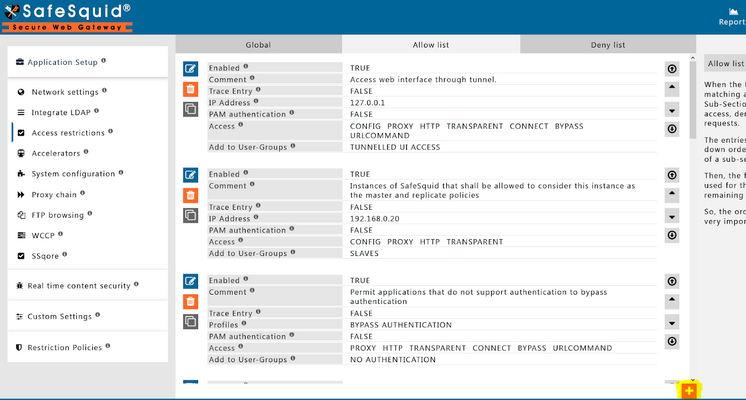
-
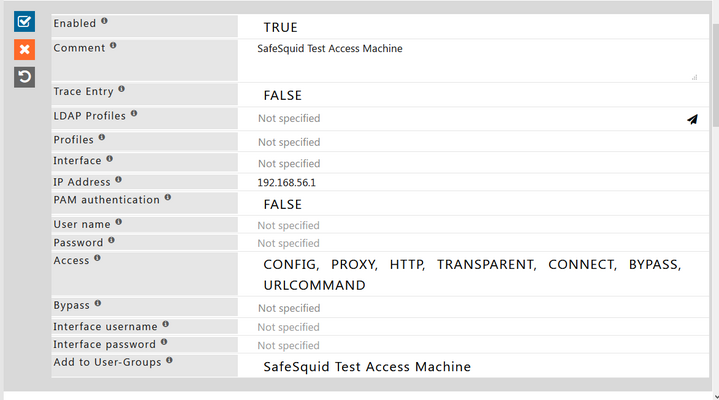
Configure Authentication
In the new rule window:- Set PAM Authentication to FALSE (we're using local credentials, not OS PAM)
- Leave Username and Password empty to apply authentication to all users (or enter specific username/password to restrict this rule to a single user)
-
Save the Configuration
Click the checkmark to save the rule.
This creates the authentication requirement. Users will be prompted for credentials when browsing. Next step: add users.
After adding users or modifying access rules, click Apply in the Access Restrictions section to activate the changes immediately without restarting SafeSquid.
Add users
- SafeSquid Credential Store
- OS User Accounts (PAM)
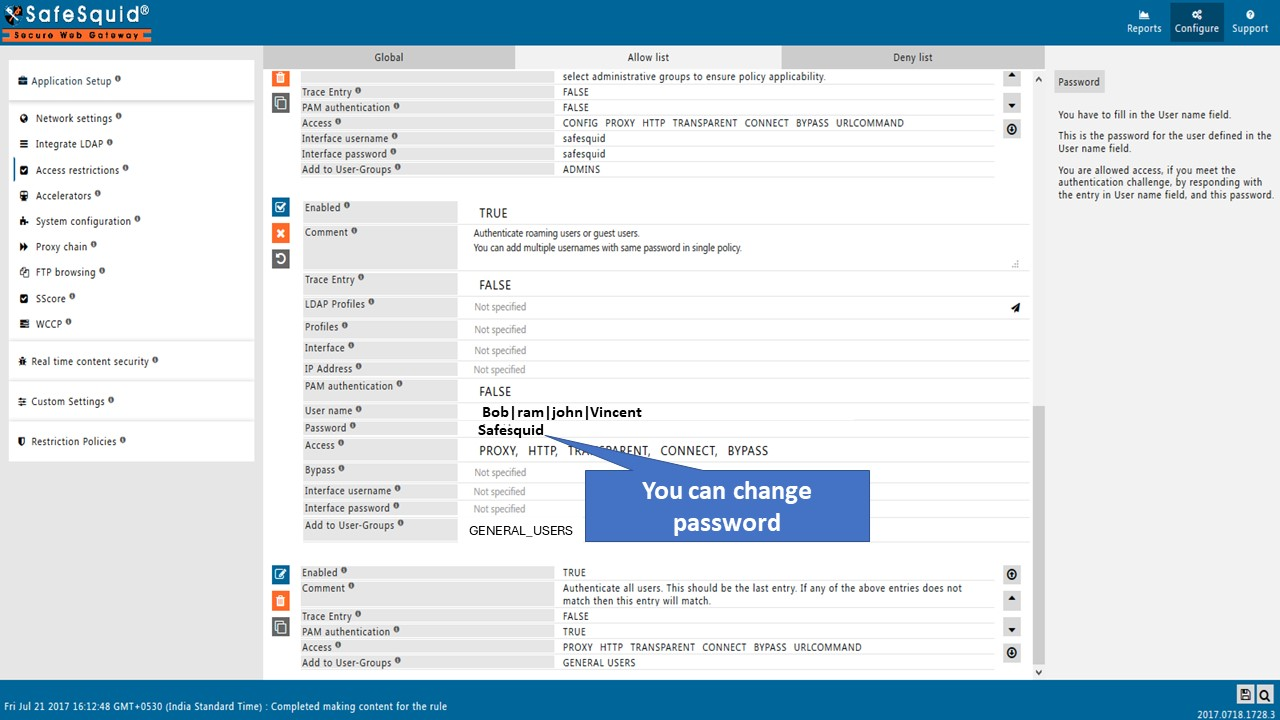
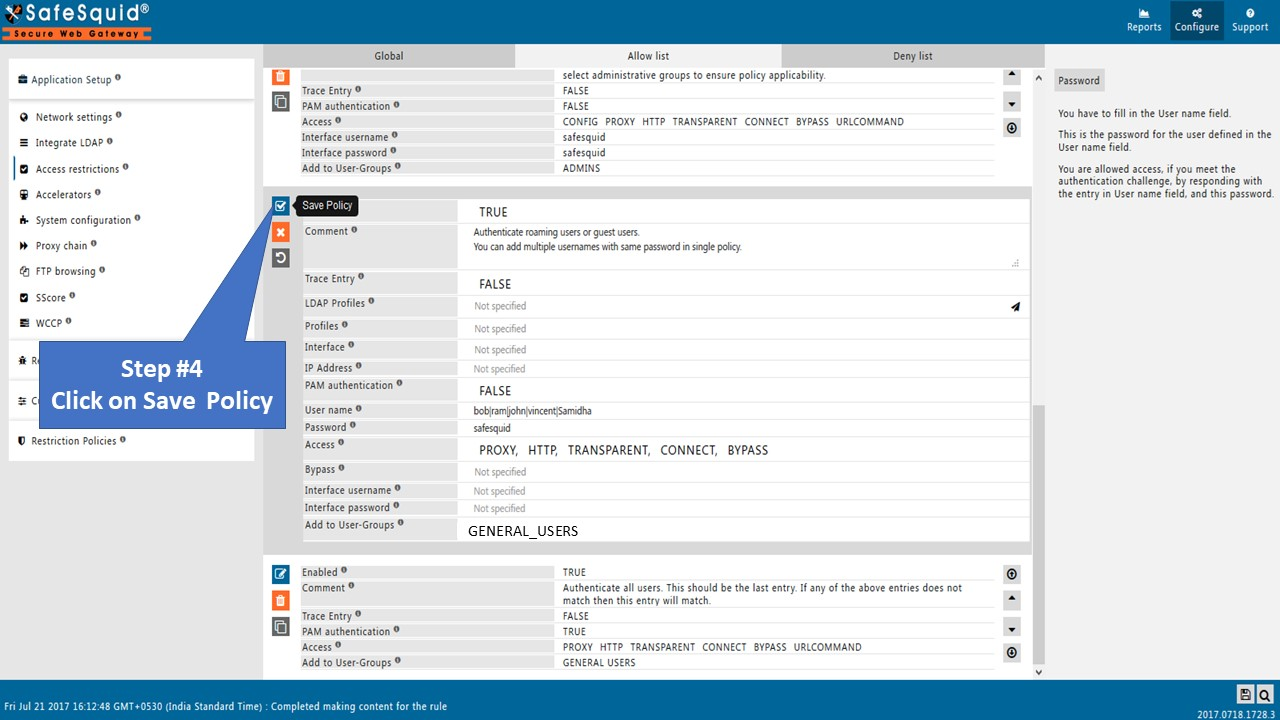
Best for: Adding individual users with SafeSquid-only access
-
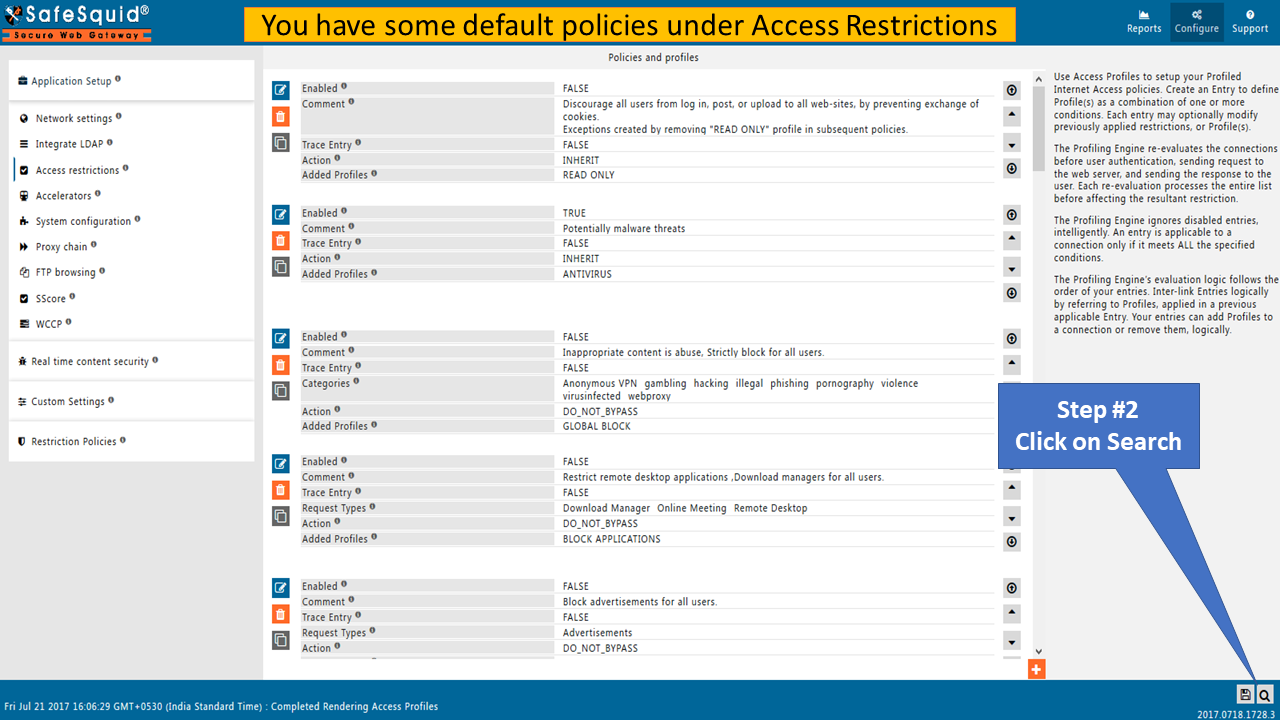
Navigate to Access Profiles
Click Configure → Search → Access Profiles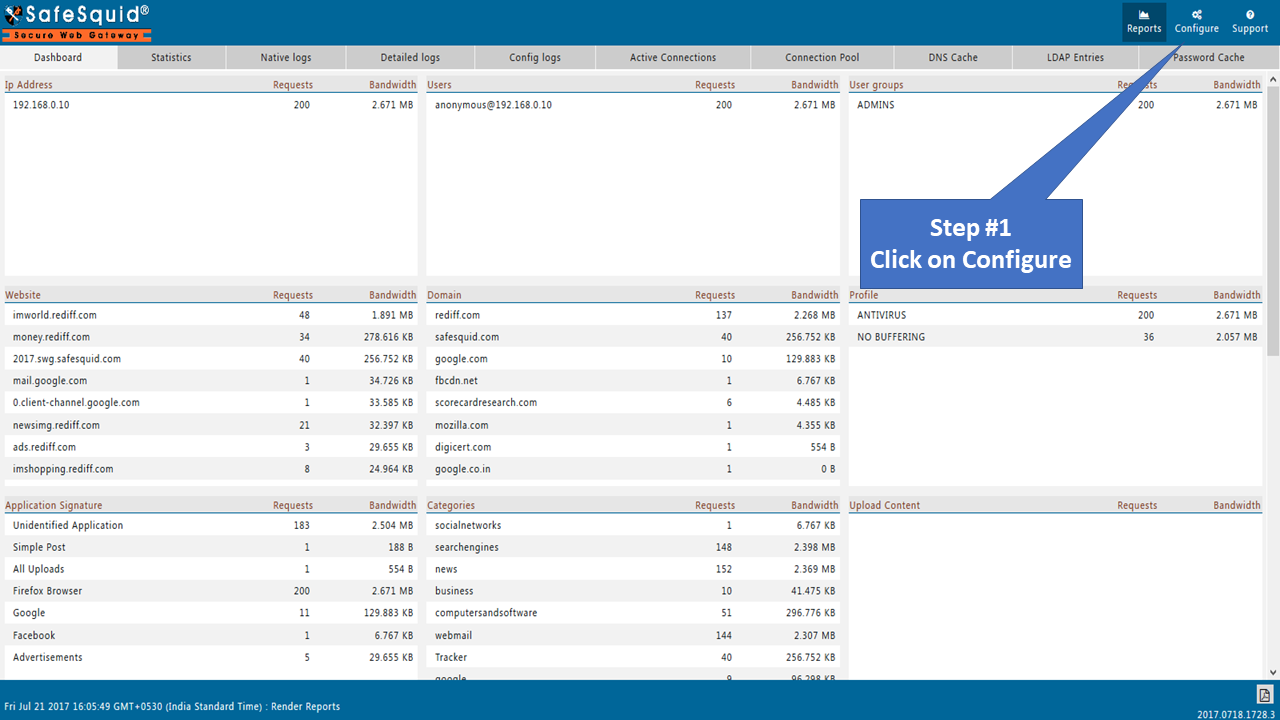
-
Create User Entry
Click Add New → Select BASIC authentication type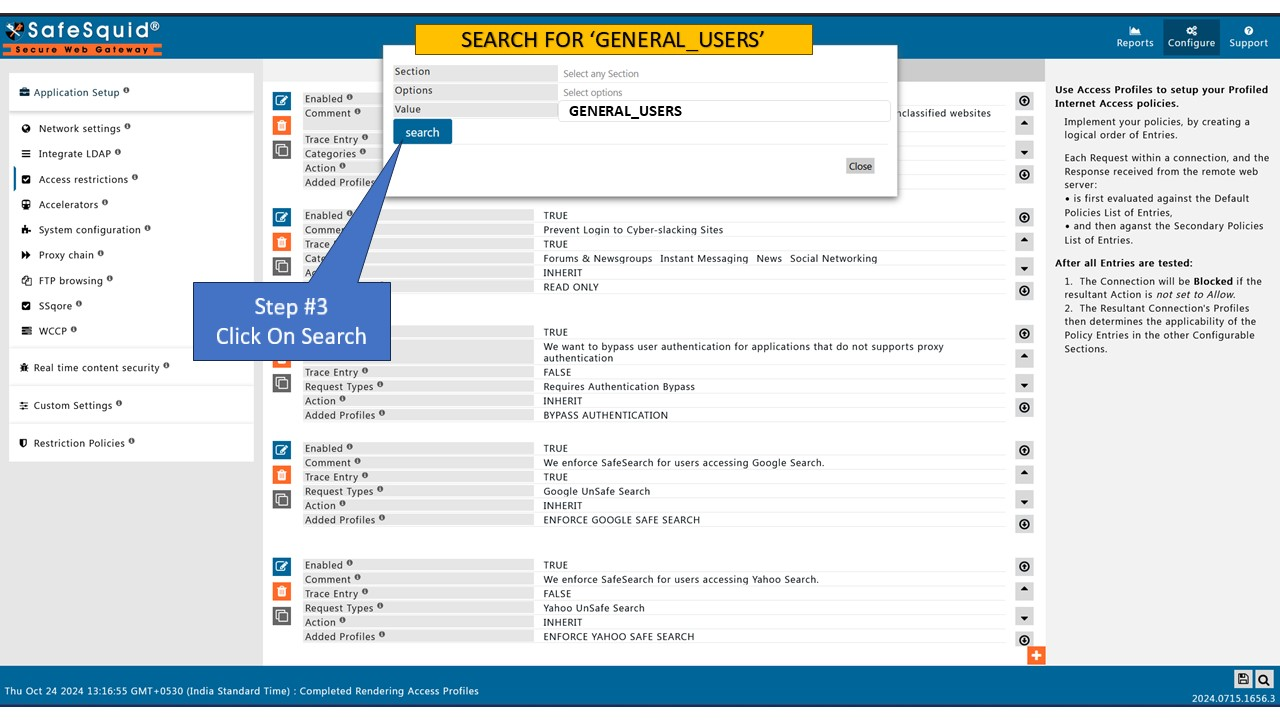
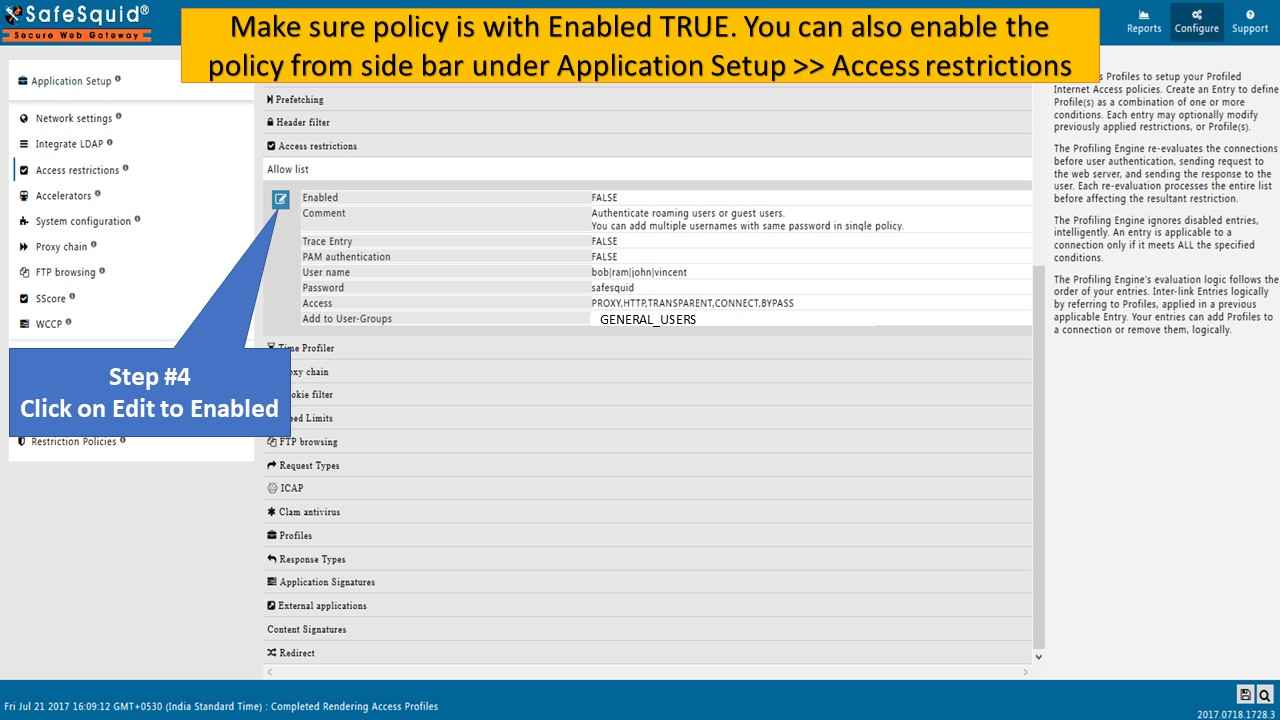
-
Enter Credentials
Add username and password for the user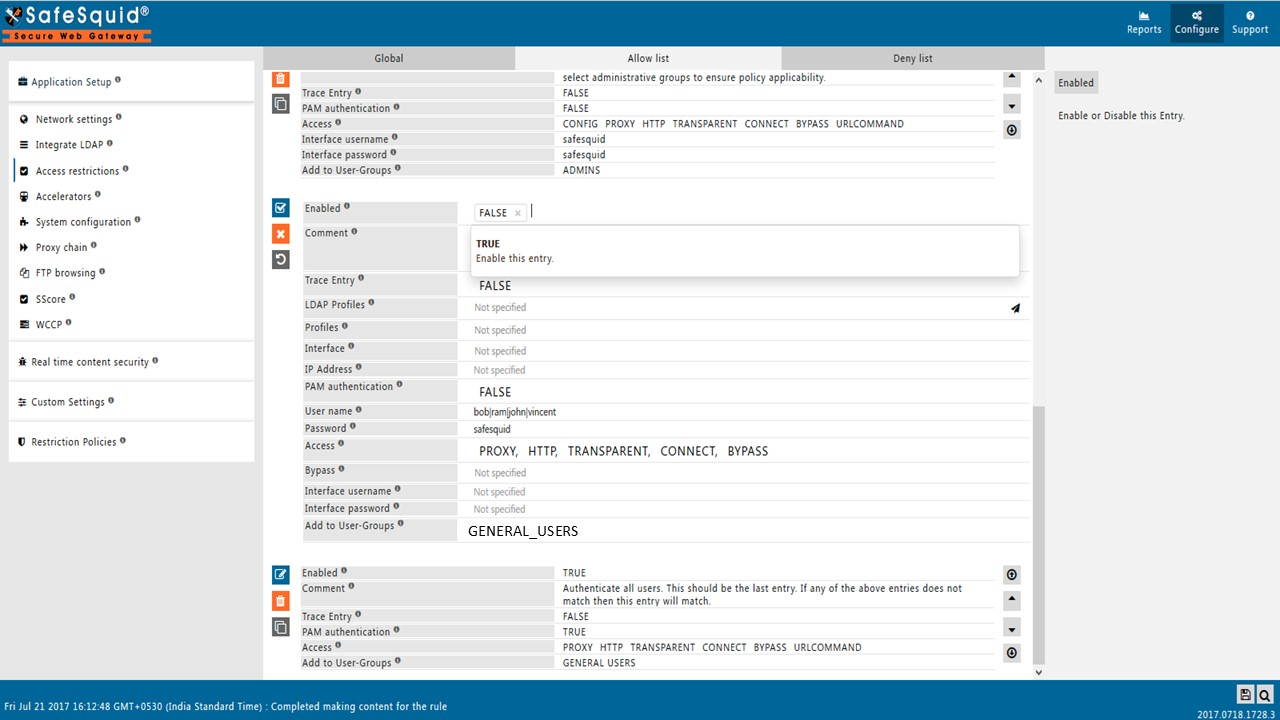
-
Save and Apply
Save the user entry and apply to the access restriction rule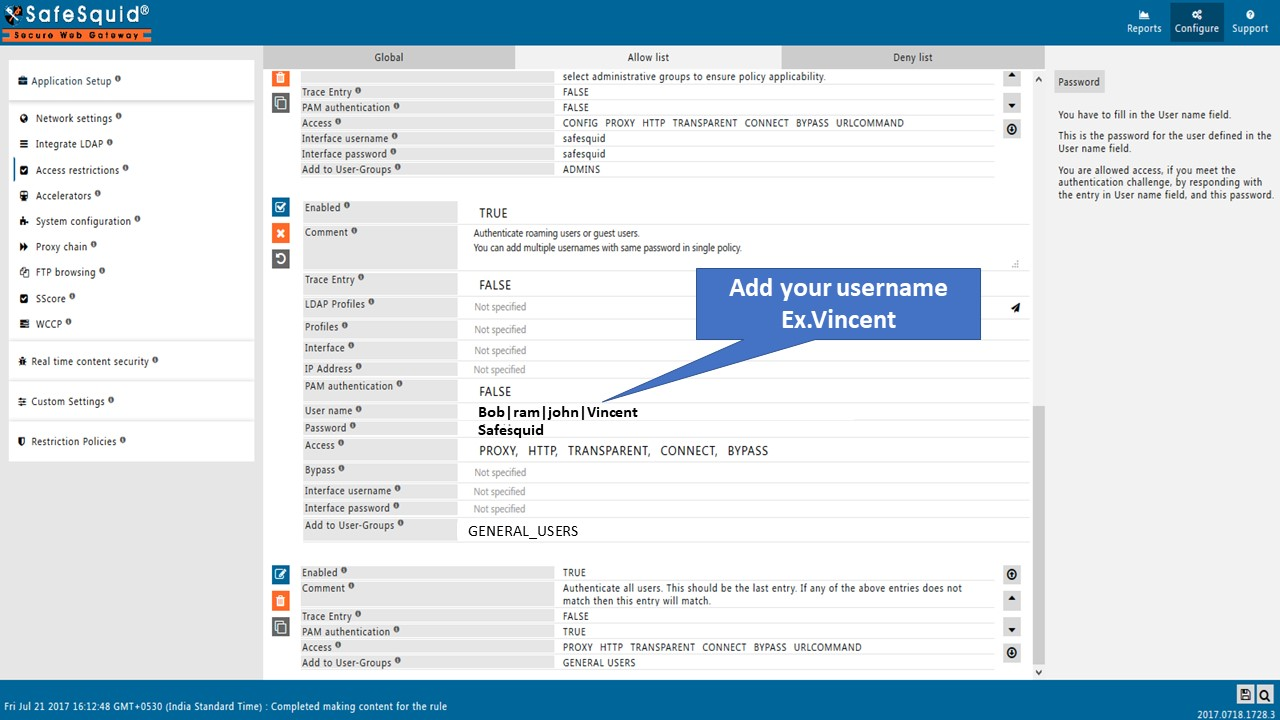
Best for: Users who also need OS login access
-
Create a New User
useradd name_of_the_user -
Set the Password
passwd name_of_the_userEnter and confirm the new password when prompted.

-
Enable PAM in Access Rule
In SafeSquid Access Restrictions → Allow List, edit your access rule and set PAM Authentication to TRUE. This allows SafeSquid to validate against OS users.
Use this method when you want proxy credentials to match OS login credentials (single credential set).
Verification
-
Test Authentication Flow
- Open a browser configured to use SafeSquid as proxy
- Browse to any external site (e.g.,
http://example.com) - Authentication prompt should appear
- Enter configured credentials
- Access is granted when authentication succeeds
-
Verify in Interface
Access Restrictions → Allow List shows the rule with authentication enabled -
Check Logs
tail -f /var/log/safesquid/identity.logYou should see entries with authenticated usernames for proxied requests.
Troubleshooting
| Symptom | Likely Cause | Fix |
|---|---|---|
| No login prompt appears | Authentication not enabled in access rule | Set PAM Authentication to TRUE (for OS users) or FALSE (for SafeSquid credential store); ensure rule matches client IP |
| Login fails repeatedly | Incorrect credentials or misconfigured rule | Verify username/password; check if using PAM (OS users) vs SafeSquid credential store |
| Some users can't login | User not added or wrong method | Confirm user exists (OS or SafeSquid interface) and matches the authentication method configured (PAM vs BASIC) |
| Rule not applied | IP mismatch or rule order | Ensure client IP matches the rule; check rule order in Allow List |
Credential management best practices
SafeSquid's local credential store does not enforce password policies automatically. Implement these manually:
- Password strength: Require min 12 chars with complexity when creating accounts
- Rotation: Manually update credentials every 90 days for compliance
- Audit: Review
/var/log/safesquid/identity.logmonthly for unauthorized attempts - Segregation: Create separate user accounts for different roles/groups
For automated password policy enforcement, migrate to Directory Services.
Next steps
- Add group-based policies: Combine authentication with Access Restriction to enforce different rules per user or group
- Attribute HTTPS traffic: Enable SSL Inspection so encrypted traffic shows authenticated usernames in logs
- Upgrade to directory: Migrate to Directory Services when user count grows or centralized identity is required
- IP-based fallback: Use Network Signature for devices that cannot authenticate
- Bypass apps: Configure Bypass Authentication for OS updates and automatic processes