Setup Active Directory Integration
Establish a connection between SafeSquid and Active Directory (AD) to synchronize user and group entities. This is the foundational step for both Simple and SSO authentication.
Prerequisites
- SafeSquid installed and operational.
- Windows Server with Active Directory installed and reachable from the SafeSquid server.
- LDAP Admin installed (optional, used for verifying AD structure).
- A domain account with read permissions to the directory (Administrator or a dedicated service account).
1. Verify Active Directory structure
Before configuring SafeSquid, ensure your users and groups are organized in AD. Use Active Directory Users and Computers on your Windows Server.
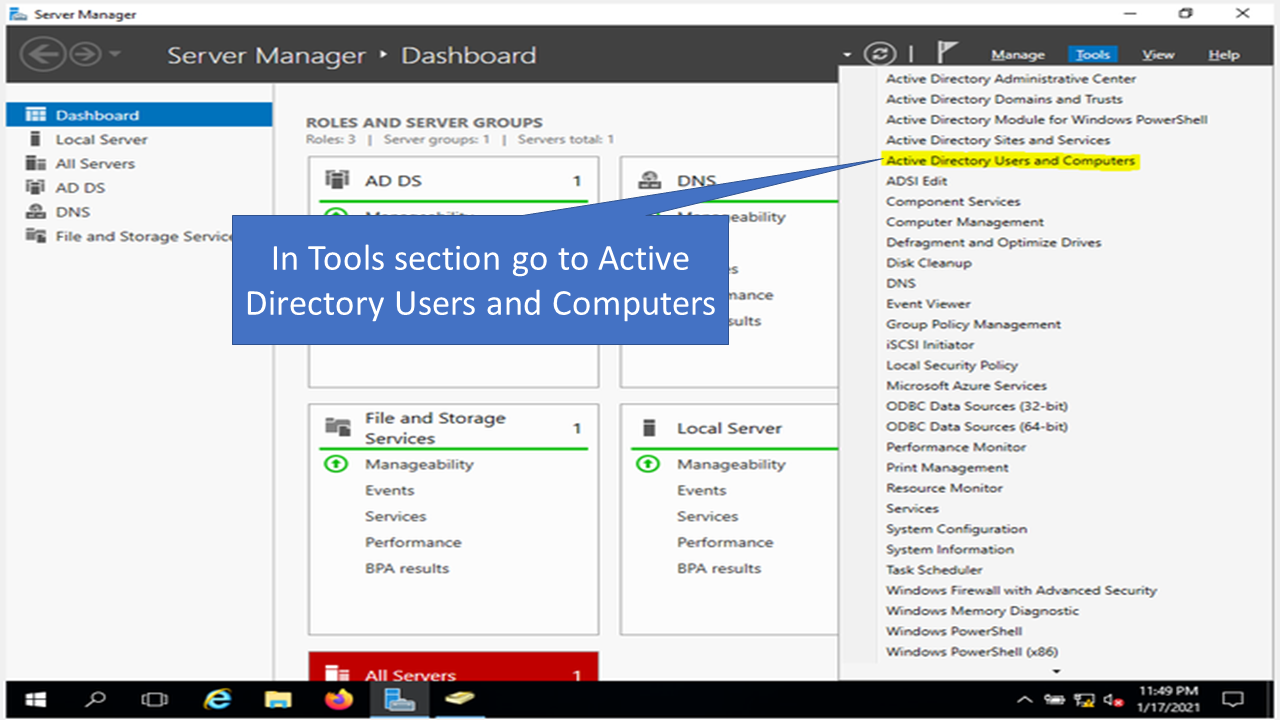
Note the Base DN
Your Base DN usually follows your domain name. Example: safesquid.test → DC=safesquid,DC=test.
2. Link LDAP Admin with AD (Optional Verification)
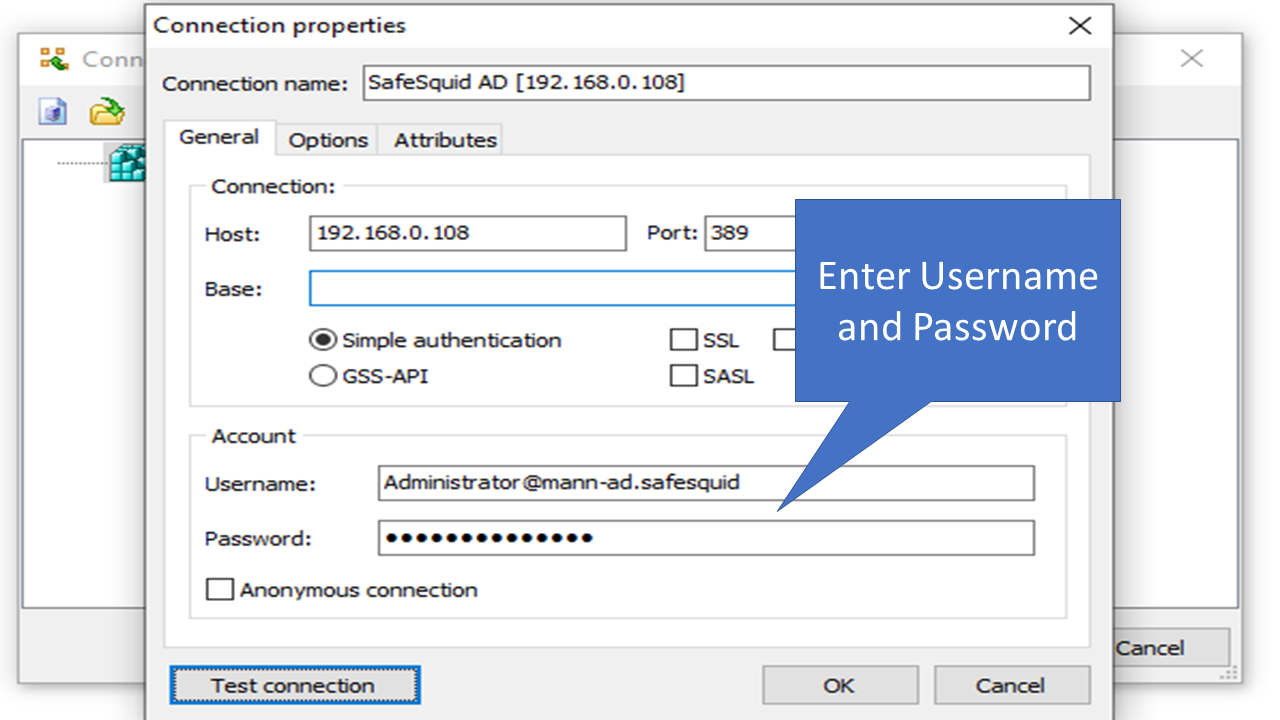
Use LDAP Admin to test connectivity and find the correct DNs (Distinguished Names) for your configuration.
- New Connection: Enter the AD Host IP and your credentials.
- Test Connection: Click Test connection to verify connectivity before proceeding to SafeSquid.
- Fetch DNs: If the tree is empty, right-click the connection → Properties → Fetch DNs.
3. Integrate LDAP with SafeSquid
- Access SafeSquid Interface: Open the Configuration Portal and click Configure.
- Navigate to LDAP Integration: Application Setup → Integrate LDAP. Click the + (Add new) icon.
- Configure Connection Details:
- LDAP Server FQDN / IP: Enter your AD server details.
- Bind DN: Enter the service account username (e.g.,
Administrator@safesquid.test). - Password: Click the arrow to enter and confirm the password.
- Base DN: Enter your directory base (e.g.,
DC=safesquid,DC=test). - LDAP Domain: Enter your AD domain (e.g.,
safesquid.test).
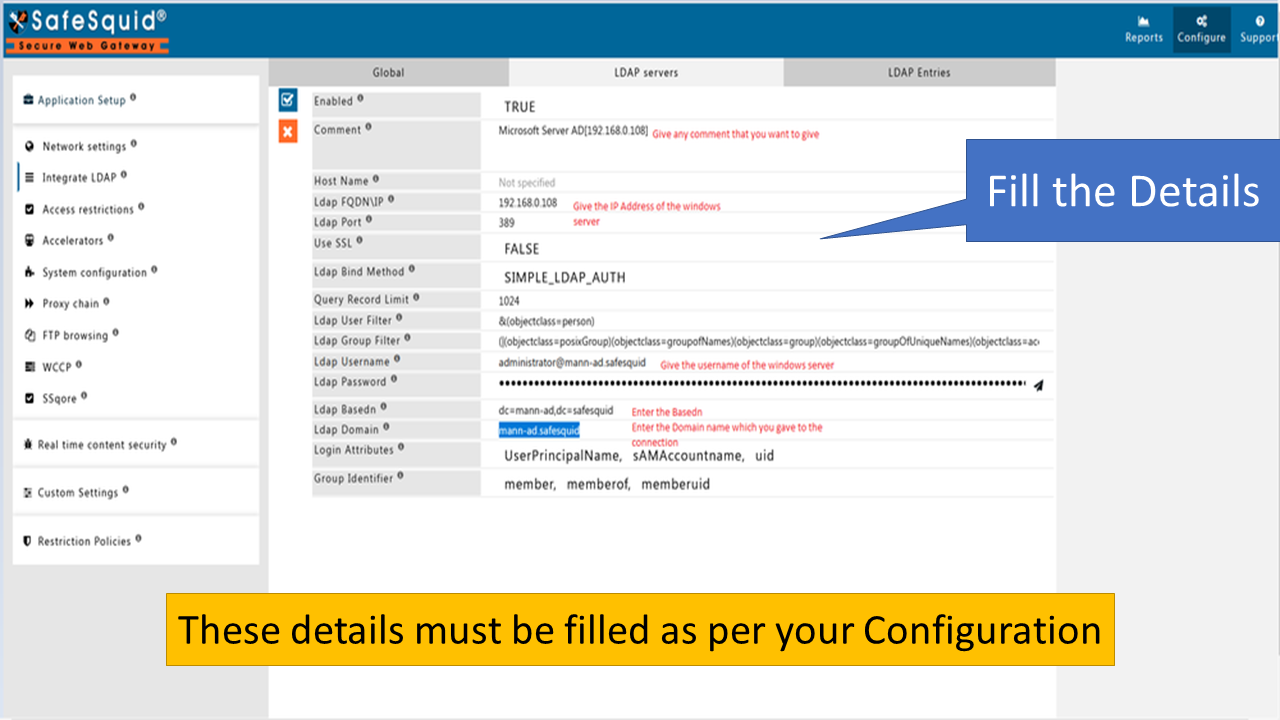
- Save Policy: Click the checkmark to save.
Verification
| Step | Action | Expected Result |
|---|---|---|
| Check Entities | Go to LDAP Entities in the SafeSquid interface. | You should see a list of users and groups fetched from AD. |
| Log Review | Run tail -f /var/log/safesquid/safesquid.log | Look for "LDAP bind successful" or "fetched X entries" messages. |
| Test Rule | Create an access rule with an AD group in LDAP Profiles. | The rule should correctly identify members of that group. |
Troubleshooting
| Symptom | Likely Cause | Fix |
|---|---|---|
| No LDAP entries fetched | Incorrect Base DN or Bind DN | Verify DNs using LDAP Admin; ensure the Bind DN is in UPN format (user@domain.com). |
| Authentication failed | Wrong password or account locked | Re-enter the password in the encrypted password field; check AD for account lockouts. |
| Connection timeout | Network or firewall block | Ensure port 389 (LDAP) or 636 (LDAPS) is open from SafeSquid to AD. |
| Empty LDAP Entries | Permissions issue | Ensure the bind account has read permissions for the target OUs/Containers. |
Next steps
- Configure Simple Authentication (Browser Prompt)
- Configure SSO Authentication (Kerberos/Transparent)
- Access Restriction (Apply policies by AD group)