Network Signature
Maps client IP addresses or ranges to user-groups so access restriction rules and reporting apply by network segment. No user login required; policy is enforced by source IP or subnet. Use when user identity is unavailable (device-only access, legacy apps, shared kiosks).
SafeSquid evaluates Network Signature rules (Allow List) top to bottom and applies the first matching rule. Place specific IP rules above broader ranges to ensure correct policy application. See Rule Order Matters below for details.
When to use Network Signature
| Use Network Signature When | Use User Authentication Instead |
|---|---|
| IoT devices, printers, shared kiosks | User workstations with logins |
| Legacy apps without proxy auth support | Modern apps with credential prompts |
| Policy by location/VLAN/segment | Policy by individual user |
| Device-level accountability acceptable | User-level attribution required (SOC 2, PCI DSS) |
- SafeSquid deployed and operational
- Admin access to Configuration Portal
- Known client IP addresses or subnets (static or predictable ranges)
Network Signature attributes traffic to IP/subnet and group, not to a named user. Where regulations require user-level attribution (e.g., PCI DSS, HIPAA), combine with user authentication or document the scope of IP-only policies for auditors.
Configure IP-based user-groups
-
Access SafeSquid Configuration
Open the Configuration Portal and click Configure.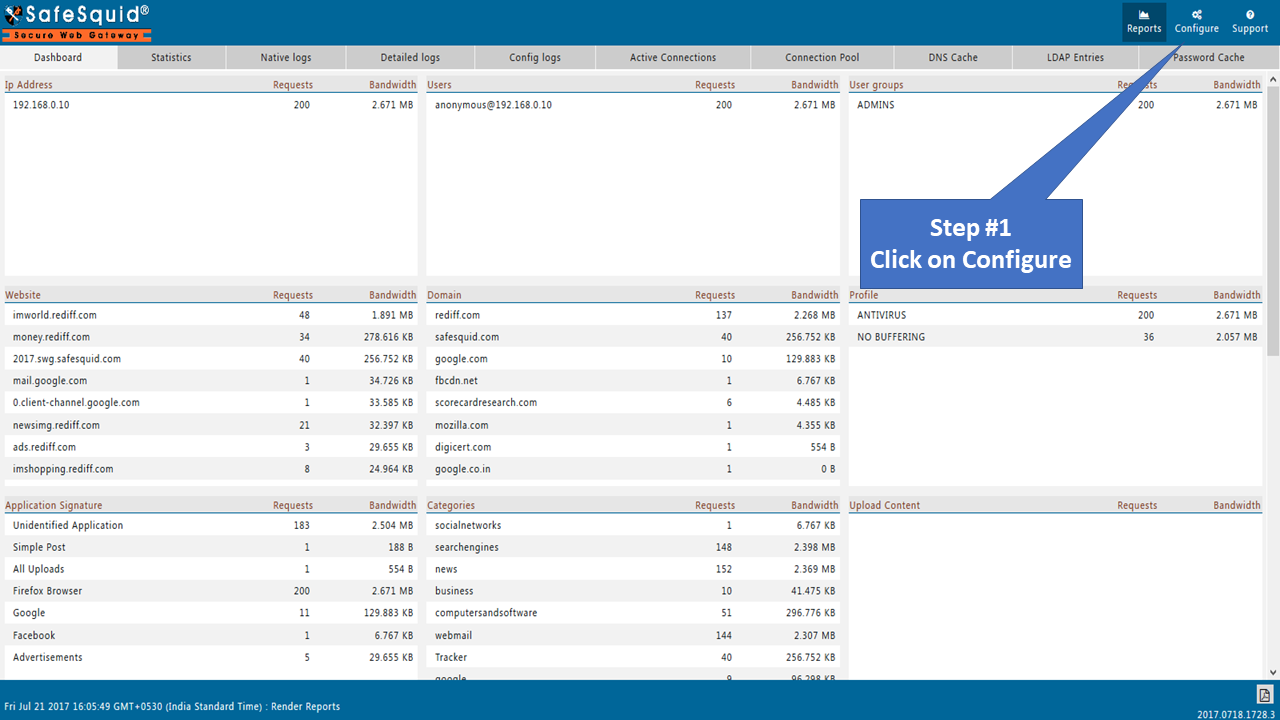
-
Navigate to Access Restrictions
Application Setup → Access Restrictions → Allow List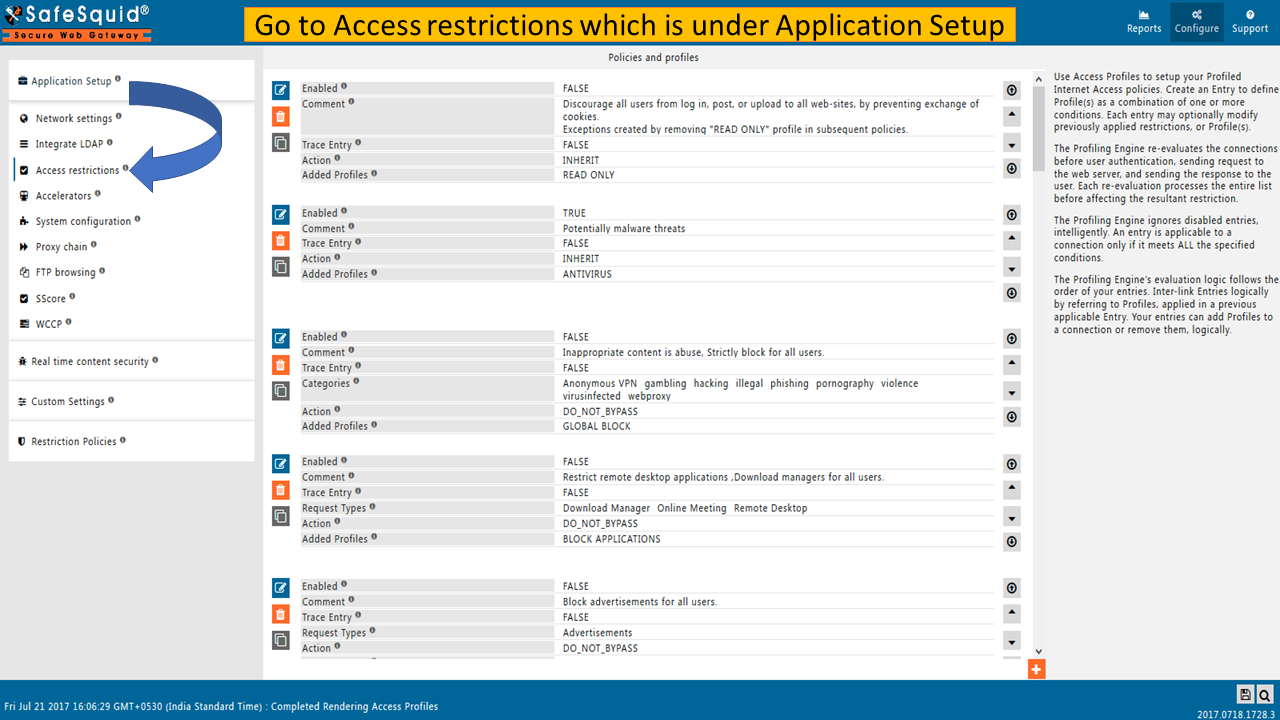
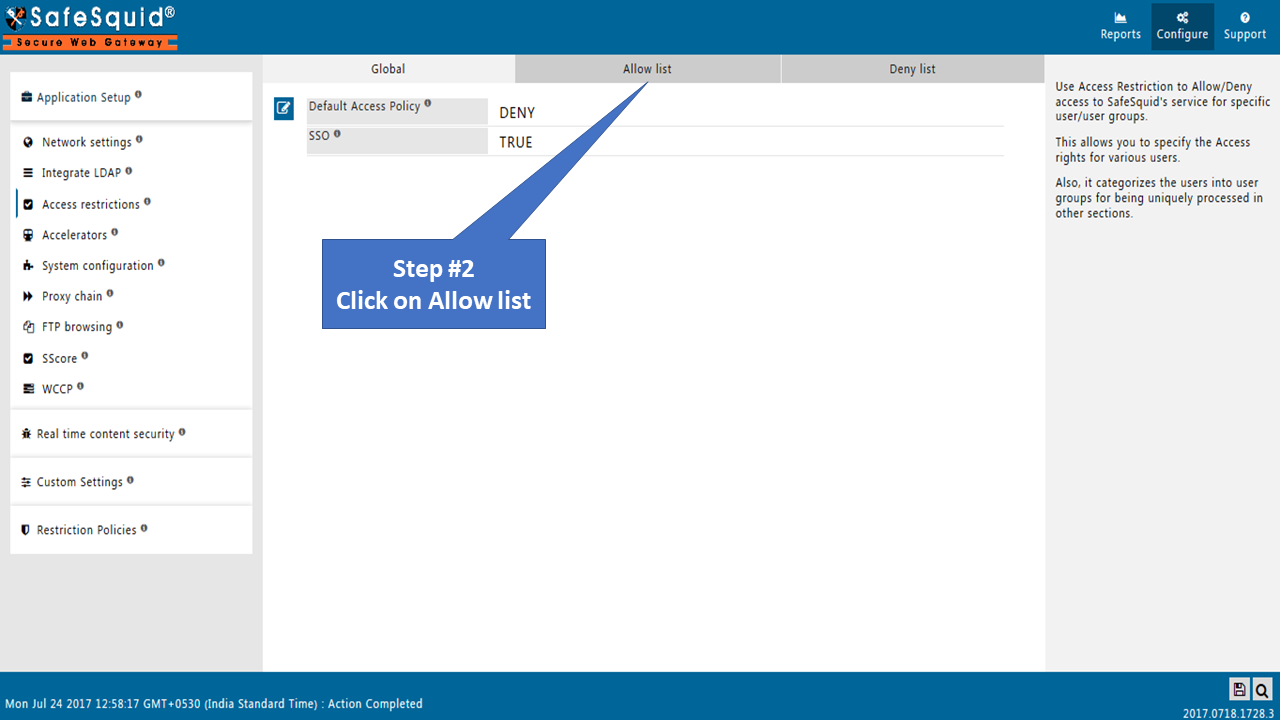
-
Create New Policy
Click Add New.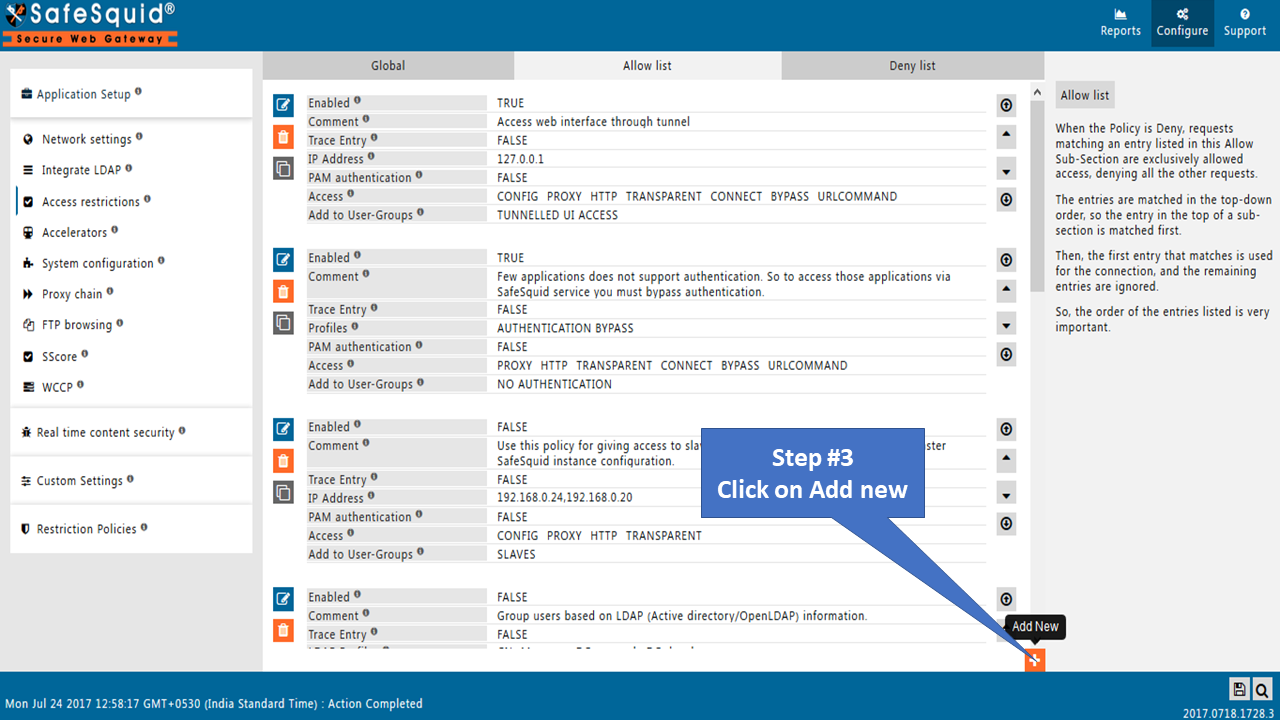
-
Define IP Range
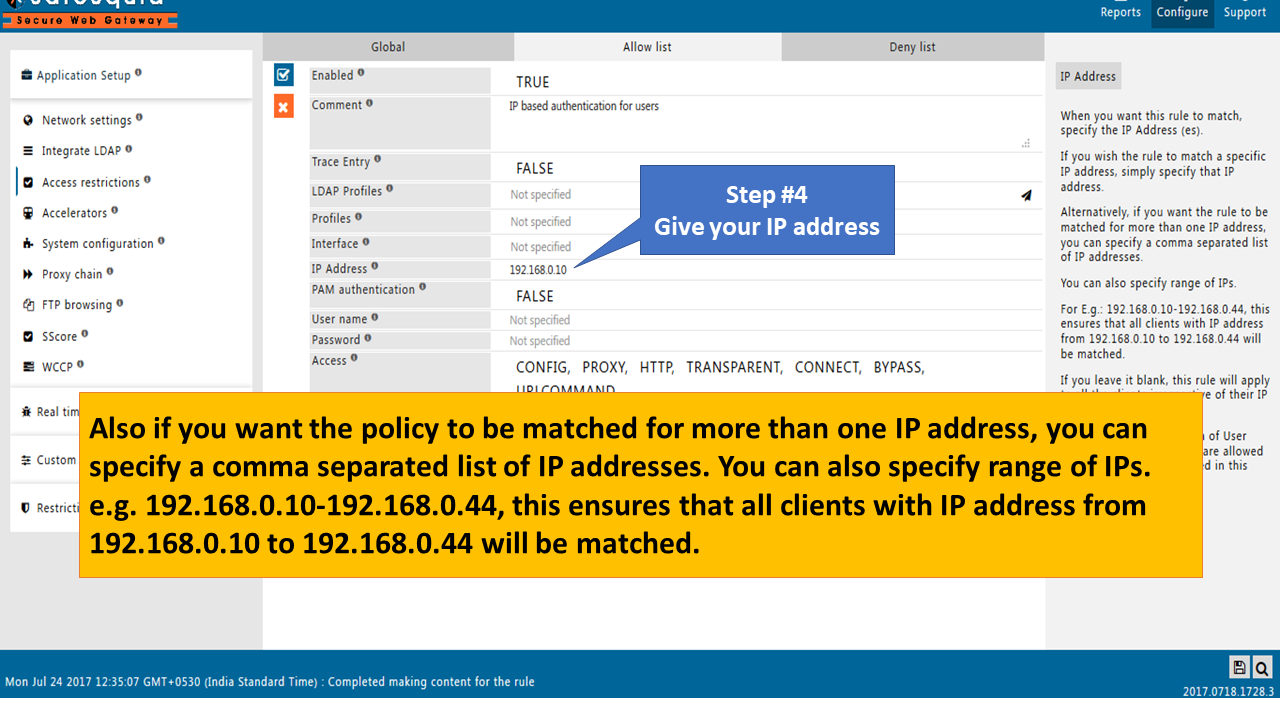
Enter the IP address or range in the IP Address field.Supported formats:
- Single IP:
192.168.1.50 - Multiple IPs:
192.168.1.50, 192.168.1.51, 192.168.1.52 - IP range:
192.168.1.50-192.168.1.100 - CIDR notation:
192.168.1.0/24
- Single IP:
-
Assign User-Group
In Add to User-Groups, specify a unique group name (e.g.,FINANCE_DEVICES,GUEST_KIOSKS,IOT_SENSORS).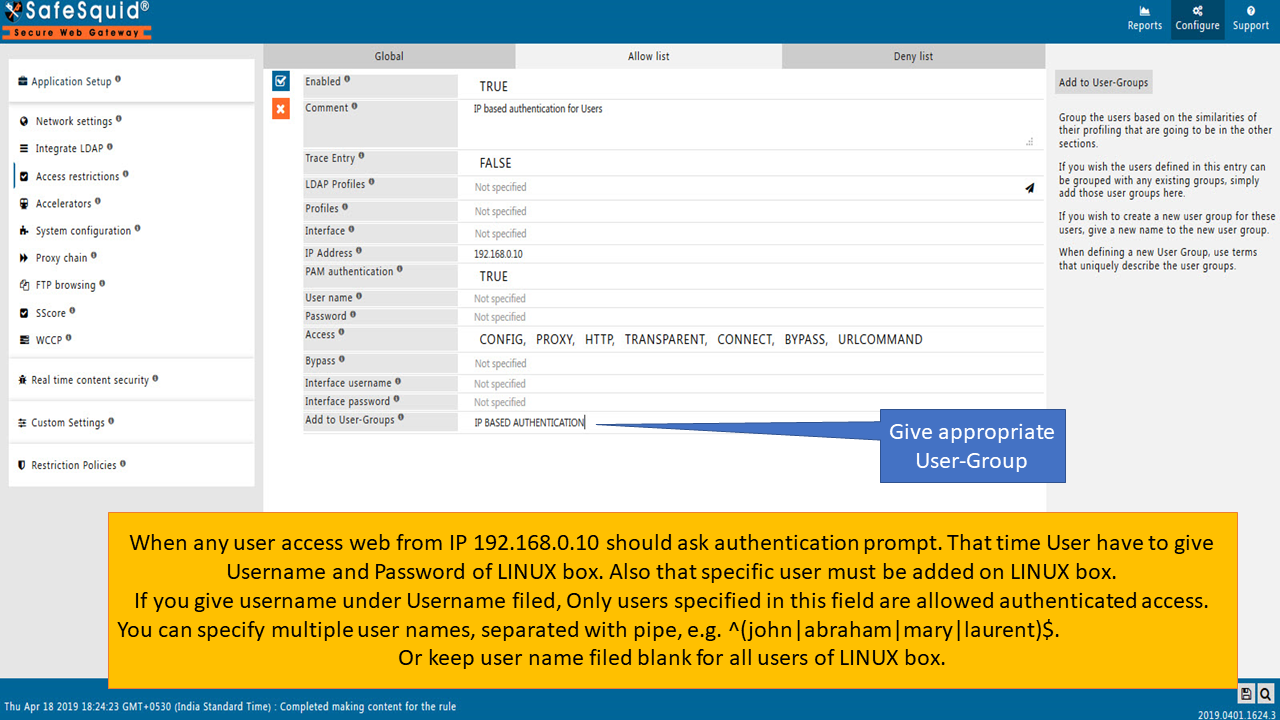
-
Save Policy
Click the checkmark to save.
Set PAM Authentication to TRUE or add Username/Password if you want that IP range to also require user login. This allows "IP range + user authentication" for specific segments.
Example: Segmented network policies
| Segment | IP Range | User-Group | Authentication | Policy Goal |
|---|---|---|---|---|
| Finance workstations | 192.168.10.0/24 | FINANCE | PAM required | User-level + department policy |
| Guest kiosks | 192.168.20.10-20 | GUEST_KIOSKS | None | Restricted browsing, no login |
| IoT devices | 192.168.30.0/24 | IOT_DEVICES | None | Update servers only |
| Executive floor | 192.168.5.0/24 | EXECUTIVES | AD/LDAP required | Premium access + audit |
Verification
-
Test from Client
Send traffic through the proxy from a client in the configured IP range. The client is assigned the configured user-group and matching access rules apply. -
Check Interface
Access Restrictions → Allow List shows the rule with IP range and user-group -
Review Logs
tail -f /var/log/safesquid/identity.logOr Reports → Detailed Logs
Logs show client IP and assigned user-group -
Confirm Policy Application
Access a restricted site from the client; confirm the group-specific policy is enforced (allowed/blocked as configured)
Troubleshooting
| Symptom | Likely Cause | Fix |
|---|---|---|
| Wrong policy applied | Client IP not in range or rule order issue | Verify client IP is within the configured range; check rule order in Allow List (more specific rules should be above broader ones) |
| No group assigned | IP mismatch or typo in range | Confirm IP field syntax; test from a known IP in the range |
| Unexpected auth prompt | Rule has PAM or credentials set | For IP-only policy (no user login), ensure PAM is set to FALSE and username/password fields are empty |
| Overlapping ranges | Multiple rules match same IP | Consolidate rules or use more specific ranges; SafeSquid uses first matching rule |
SafeSquid evaluates Allow List rules top to bottom. Place narrow, specific IP rules above broad ones:
- 192.168.10.50 (single executive IP with premium access)
- 192.168.10.0/24 (department subnet with standard access)
- 0.0.0.0/0 (default policy for all others)
Advanced: Dynamic IP assignment
For environments with DHCP where client IPs change:
- DHCP reservations: Assign static IPs via DHCP for critical devices
- VLAN-based ranges: Use predictable ranges per VLAN; map VLAN subnets to user-groups
- Combine with MAC-based DHCP: Tie MAC addresses to IP reservations, then use Network Signature on those IPs
- Upgrade to user auth: For dynamic endpoints (laptops, mobile), use Directory Services instead
Next steps
- Add user authentication: Combine Network Signature with Directory Services or BASIC for user-aware policies
- Refine access rules: Use Access Restriction to define what each user-group can access
- Enable SSL Inspection: Configure SSL Inspection to inspect HTTPS traffic from IP-based groups
- Report by group: Use SafeSquid reports to analyze bandwidth and activity per user-group