Import SafeSquid Root CA into Chrome or Internet Explorer
Chrome, Edge, and Internet Explorer use the Windows certificate store. Follow this guide to import the SafeSquid Root CA into Trusted Root Certification Authorities so HTTPS inspection works without certificate warnings.
Time to complete: 2-5 minutes per machine
For enterprise environments, deploy the certificate via Group Policy (GPO) instead of manual installation:
- Copy certificate to
\\domain.com\SYSVOL\domain.com\Policies\ - GPO → Computer Configuration → Policies → Windows Settings → Security Settings → Public Key Policies → Trusted Root Certification Authorities
- Import → Select SafeSquid certificate → Apply
Firefox uses its own certificate store and ignores the Windows trust store. See Import certificate into Firefox.
Prerequisites
- SafeSquid Root CA certificate downloaded (from Self-Service Portal or SafeSquid Configuration Portal)
- Windows machine with administrative privileges
- Chrome, Edge, or Internet Explorer installed
Import Steps
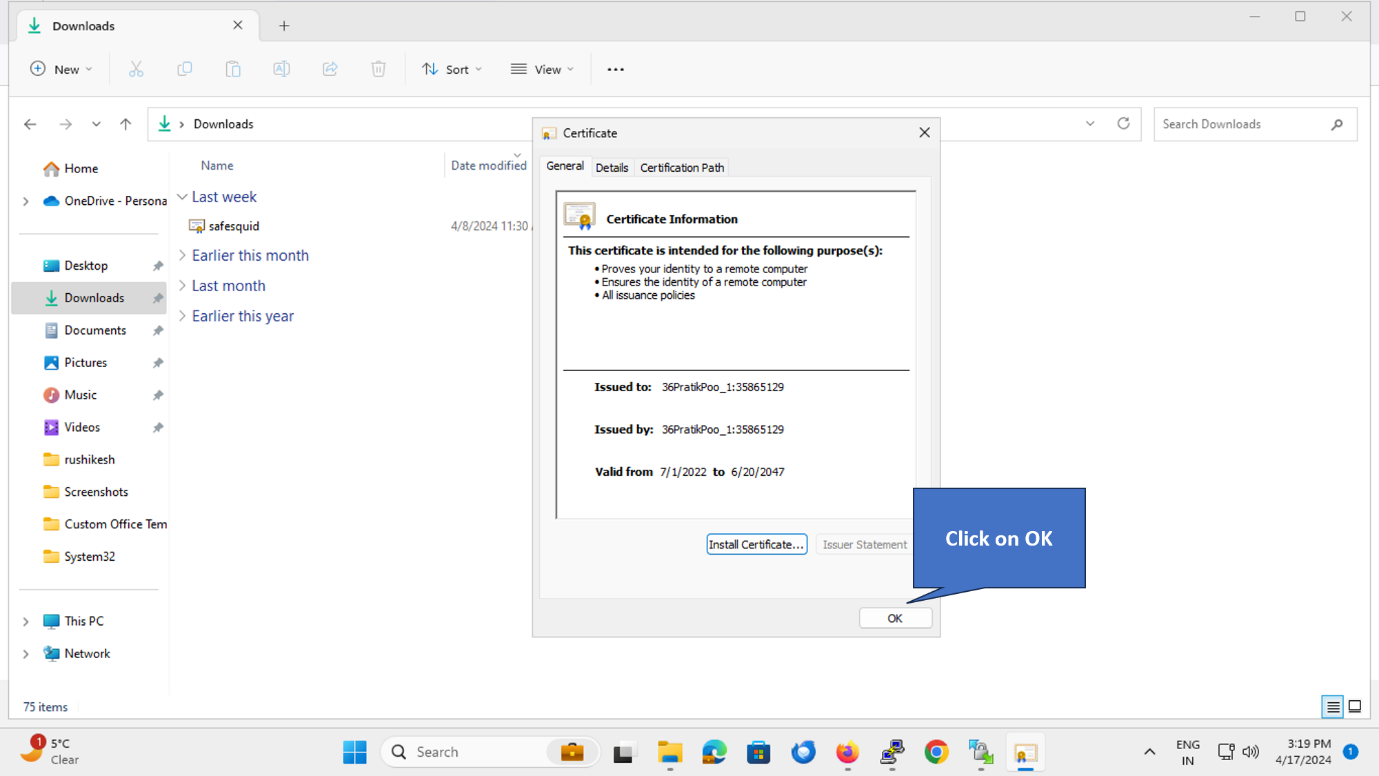
1. Open the Certificate File
Double-click the downloaded SafeSquid certificate file (usually safesquid.crt or safesquid.cer).
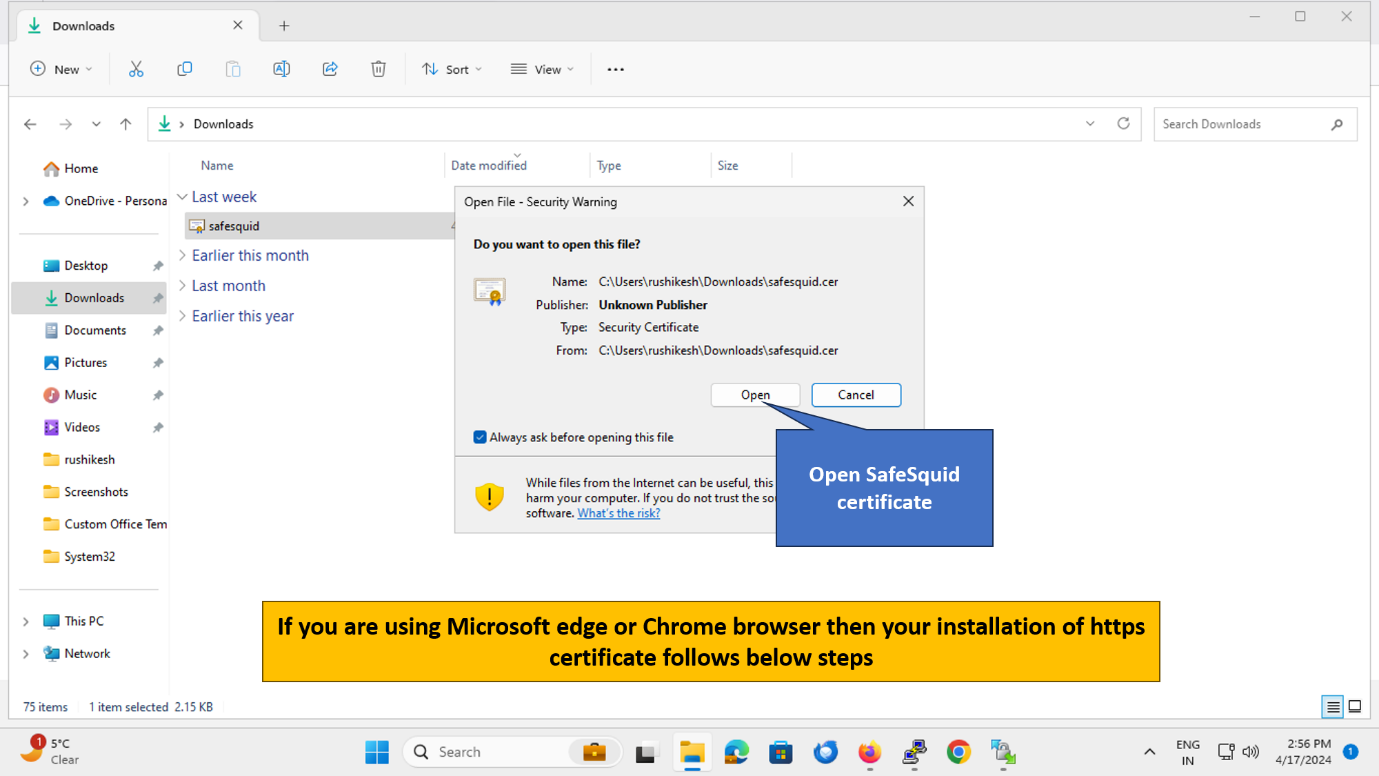
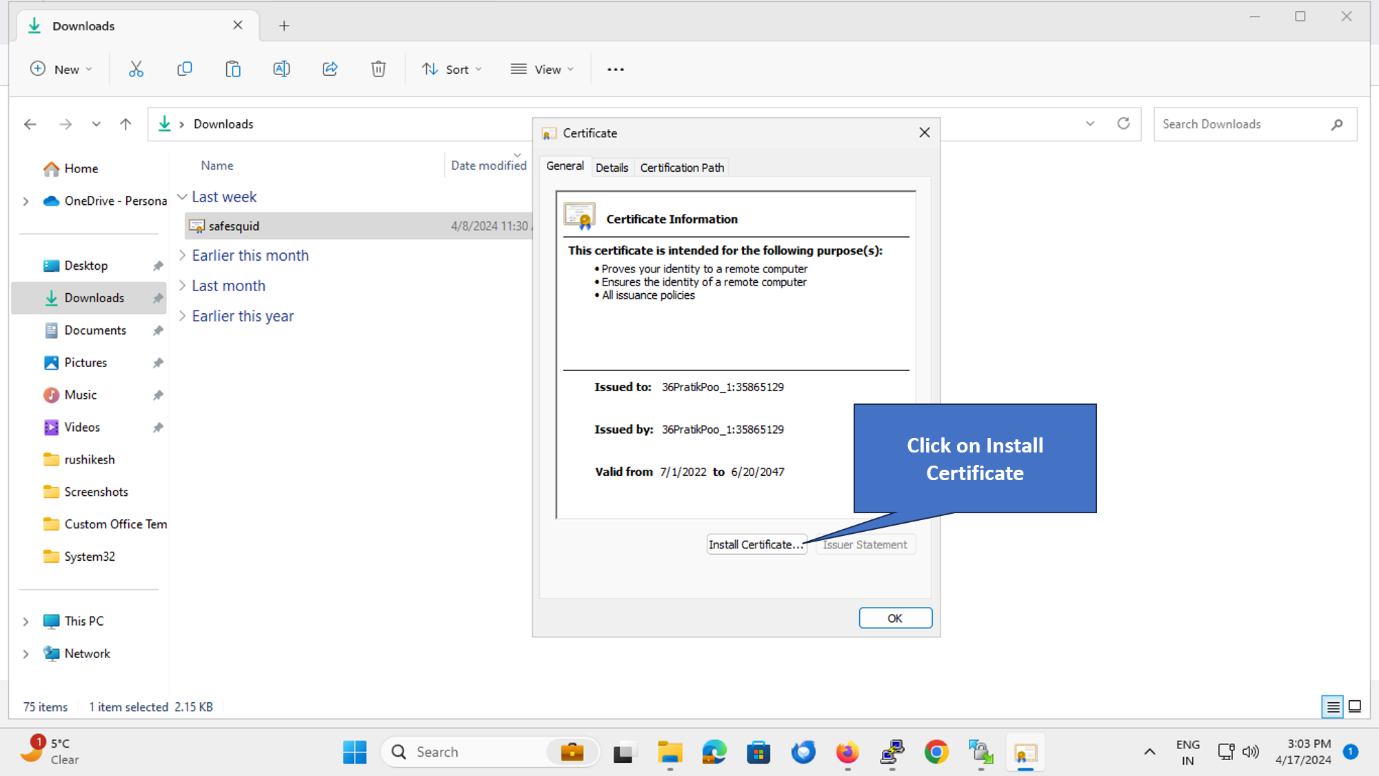
2. Click "Install Certificate"
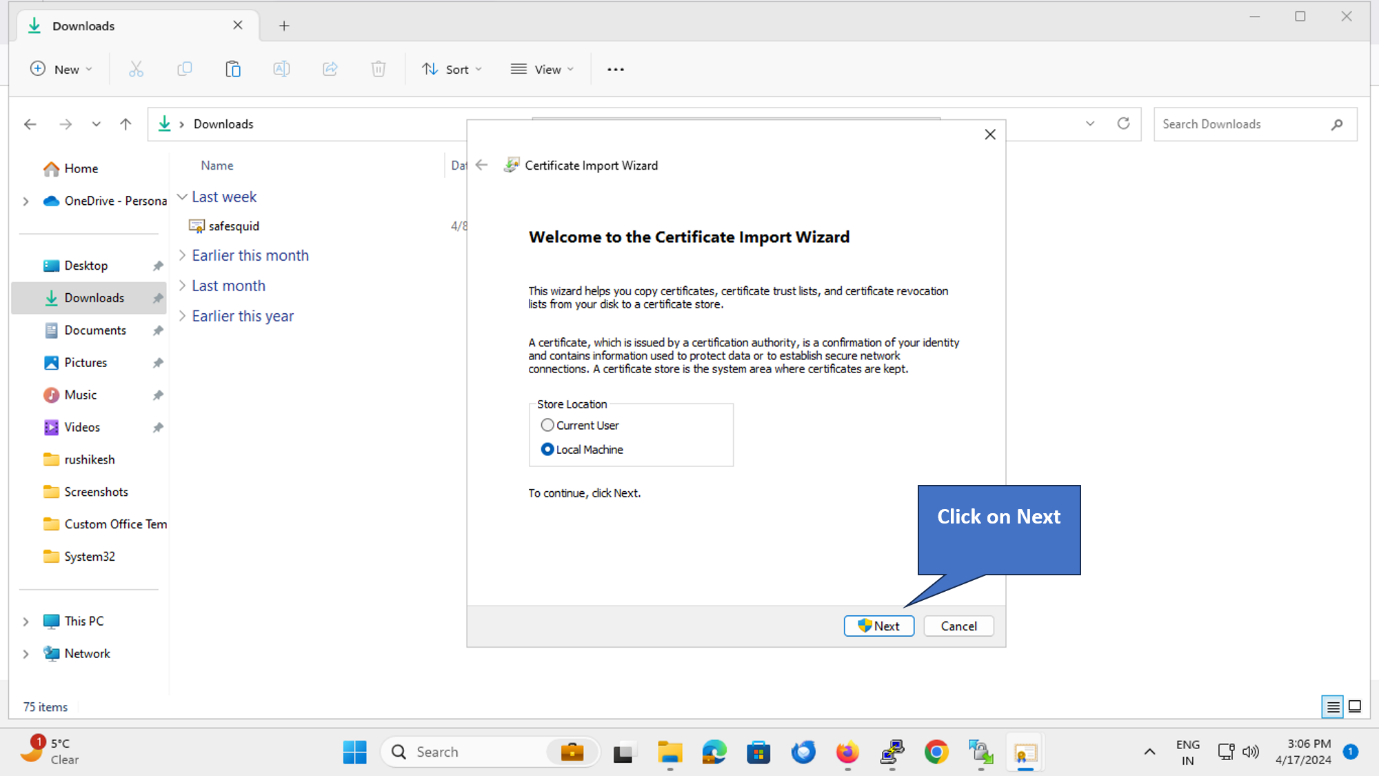
3. Select Store Location
Choose "Local Machine" (for all users on this computer) or "Current User" (for your account only).
Recommended: Local Machine (requires admin rights, applies to all users)
Click Next.
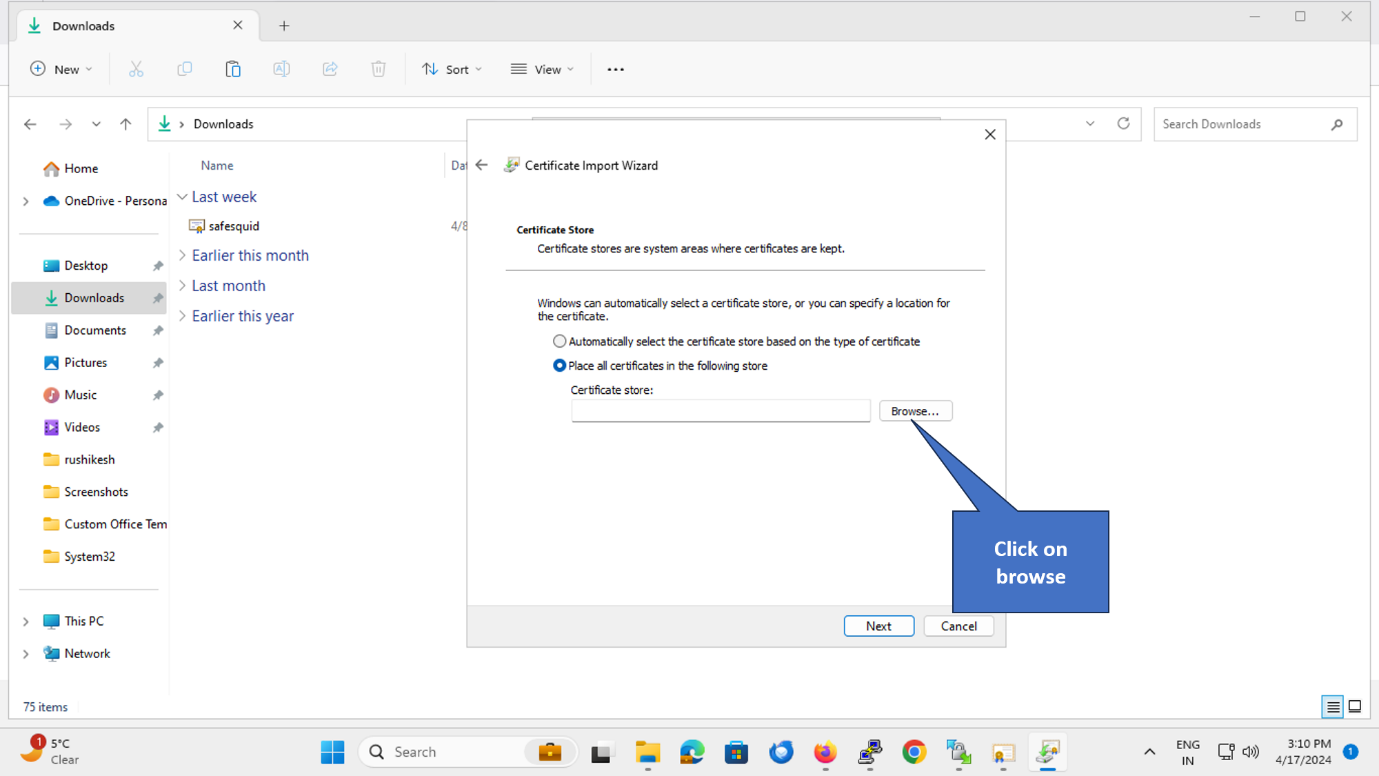
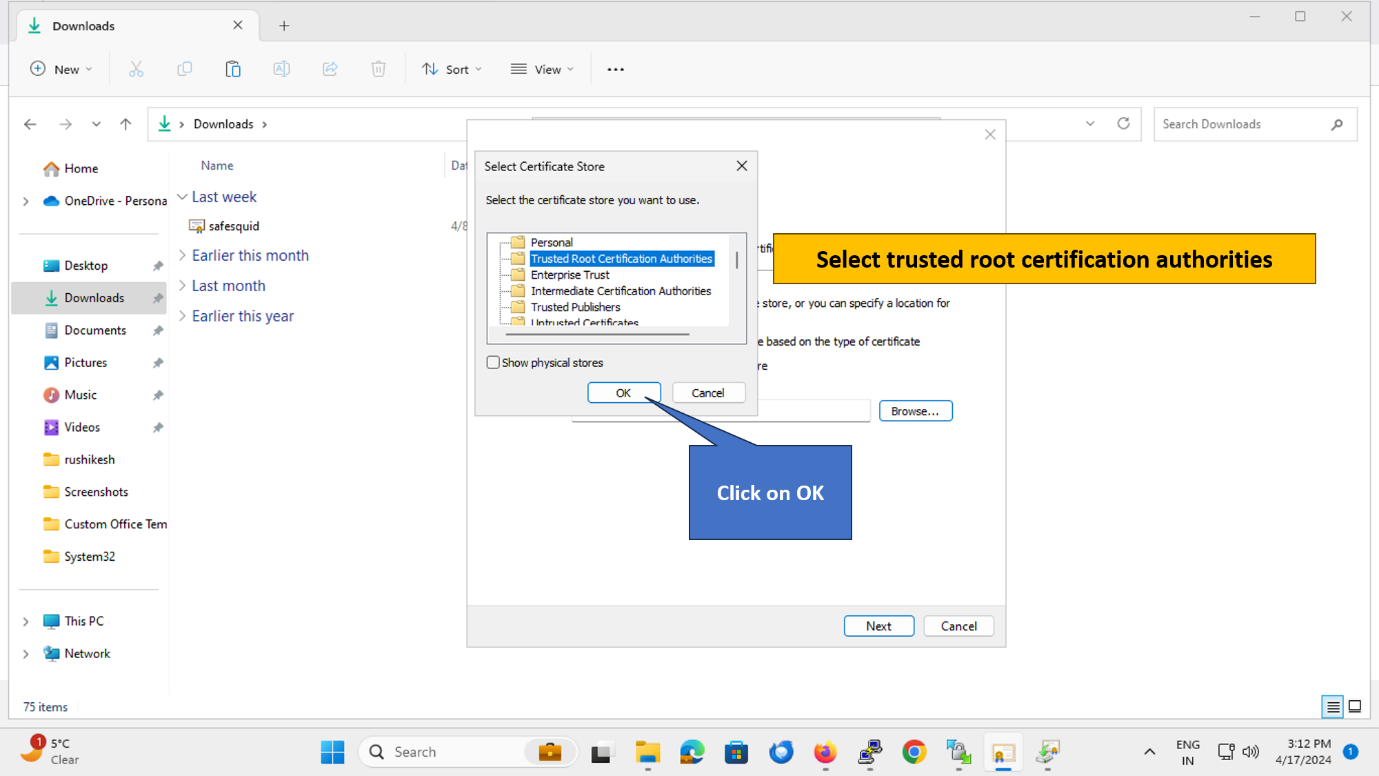
4. Select Certificate Store
Click "Browse" to select the certificate store.
5. Choose "Trusted Root Certification Authorities"
Important: Select "Trusted Root Certification Authorities" (NOT "Intermediate Certification Authorities").
Click OK.
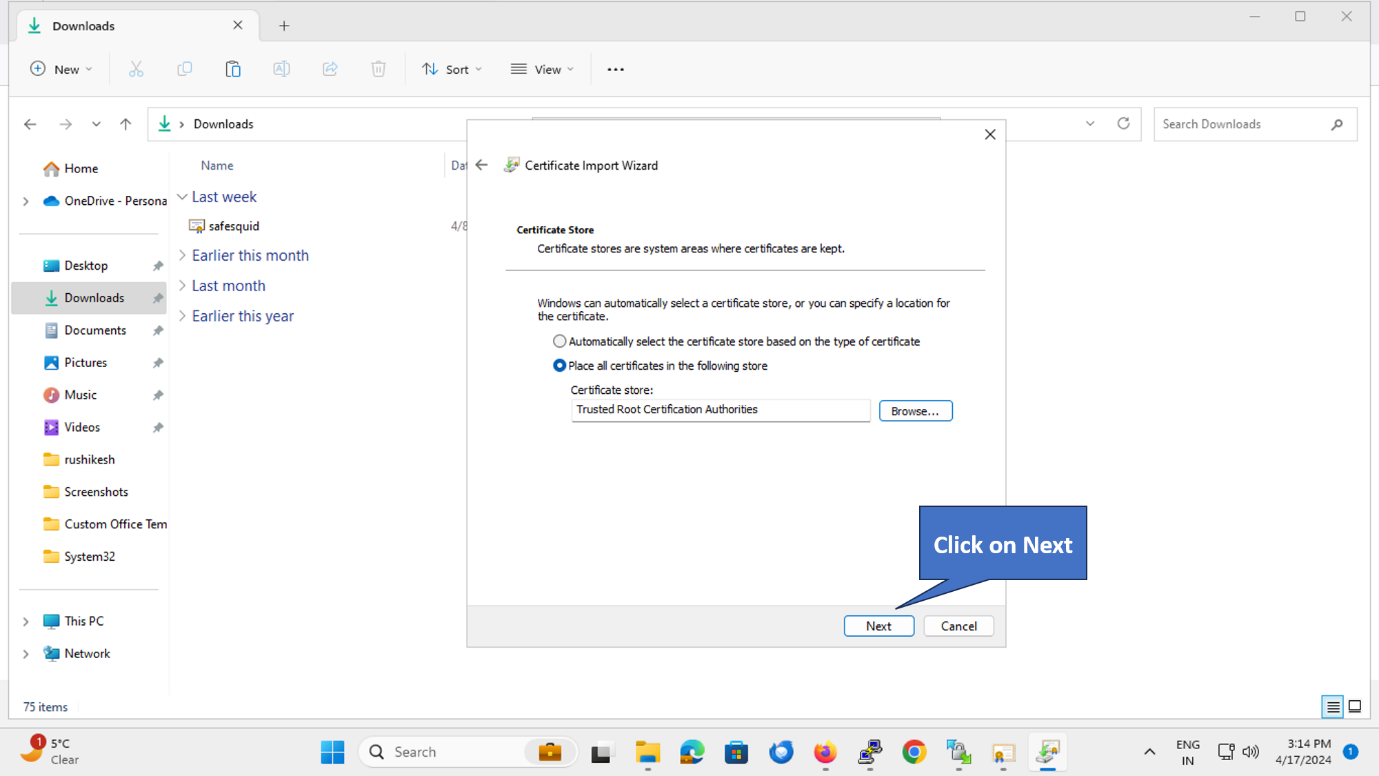
6. Continue with Import
Click Next to continue.
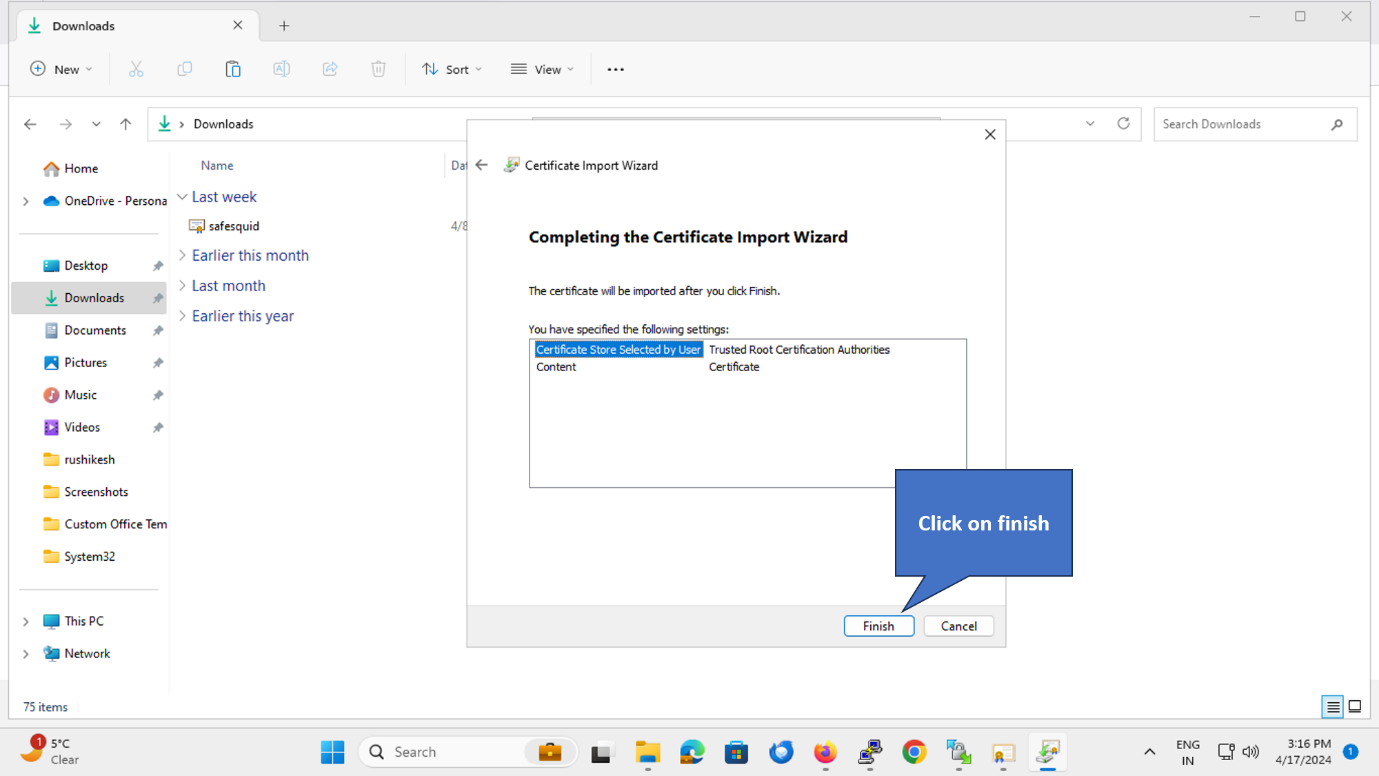
7. Finish Import
Click Finish to complete the import.
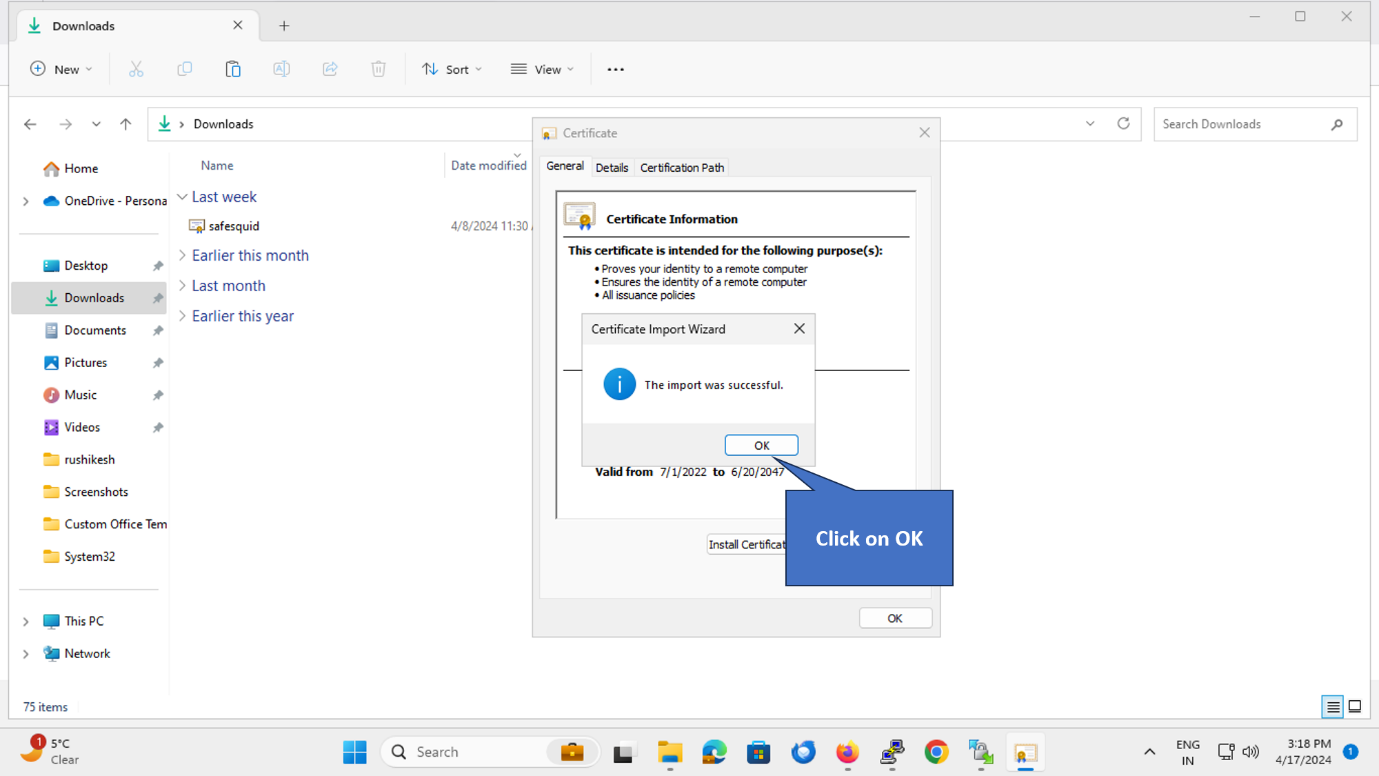
8. Confirm Success
A confirmation message appears: "The import was successful."
Click OK.
Verify Installation
Test in Chrome/Edge
- Open Chrome or Edge
- Browse to
https://www.google.com(via SafeSquid proxy) - Click the padlock in the address bar → Connection is secure → Certificate
- Verify: Certificate chain shows SafeSquid Root CA as the issuer
Expected: No certificate warnings, padlock shows secure connection.
Verify Certificate is in Trust Store
- Press Windows + R → Type
certmgr.msc→ Enter - Expand "Trusted Root Certification Authorities" → Certificates
- Find "SafeSquid" (or your organization name) in the list
Expected: SafeSquid certificate appears with expiry date and issuer information.
Troubleshooting
| Issue | Likely Cause | Fix |
|---|---|---|
| Still seeing certificate warnings | Certificate installed in wrong store | Verify certificate is in Trusted Root Certification Authorities (not Intermediate) |
| "Windows cannot access the file" | No admin privileges | Right-click certificate → Run as administrator |
| Import succeeds but warnings persist | Browser cache | Clear browser cache and restart browser: chrome://settings/clearBrowserData |
| Certificate not visible in certmgr | Installed for Current User instead of Local Machine | Re-install, select "Local Machine" in step 3 |
| Some sites work, others don't | HTTPS Inspection not enabled or partial bypass | Check SafeSquid Configuration Portal → HTTPS Inspection → Global = True |
Still not working?
- Restart browser completely (close all windows)
- Check proxy settings:
- Chrome:
chrome://net-internals/#proxy - Edge:
edge://net-internals/#proxy
- Chrome:
- Verify SafeSquid HTTPS Inspection is enabled:
- Navigate to SafeSquid Configuration Portal
- Real-time Content Security → HTTPS Inspection → Global → Enabled = True
Next Steps
- Configure HTTPS Inspection — Complete setup guide (if you haven't enabled inspection yet)
- Import certificate into Firefox — Firefox uses separate trust store
- Deploy to all clients:
- Windows enterprise: Use GPO (see tip at top of page)
- macOS: Use MDM or manual Keychain import
- Mobile: Use MDM or manual installation
- Verify Your Setup — Confirm proxy and SSL Inspection are working
Related: SSL Inspection Overview | Troubleshooting