Whitelisted Websites Blocked
Whitelisted sites still blocked
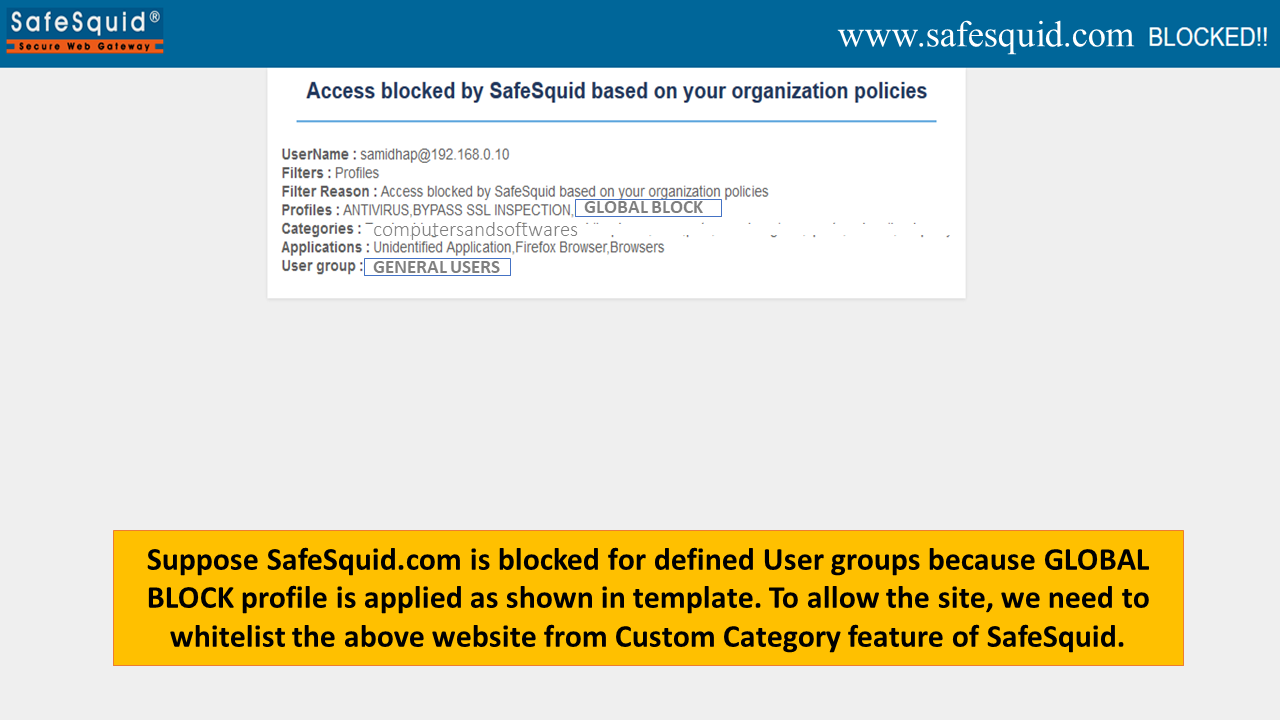
Company policy blocks the social network category for all employees, but a few social networking sites must be whitelisted. Those sites are added to the whitelist category yet still show a block template. Similarly, after whitelisting the corporate website, employees may still be unable to access it.
| Symptom | Likely cause | Resolution | Verification |
|---|---|---|---|
| Whitelisted site still shows block template | Site not in whitelist category; policy order wrong; policy disabled | Add site to whitelist in Categorize Web-sites; enable default whitelist policy and place above GLOBAL BLOCK | Open site from client; page loads without block |
| Corporate site blocked after whitelist | sscore/categorization not loaded or category not applied | Enable sscore; add site to whitelist category; ensure policy enabled and above block | Check Categorize Web-sites for site category; retest access |
Note: Whitelist category is the category to allow. Blacklist category is the category to block.
Enable sscore and add site to whitelist category
Ensure the sscore section is enabled and the categorization engine is loaded. Verify from the SafeSquid Statistics page in the interface. See the Reporting Module. Add the corporate website to the whitelist category from Custom Settings → Categorize Web-sites in the SafeSquid UI.
Procedure
- Access the SafeSquid interface
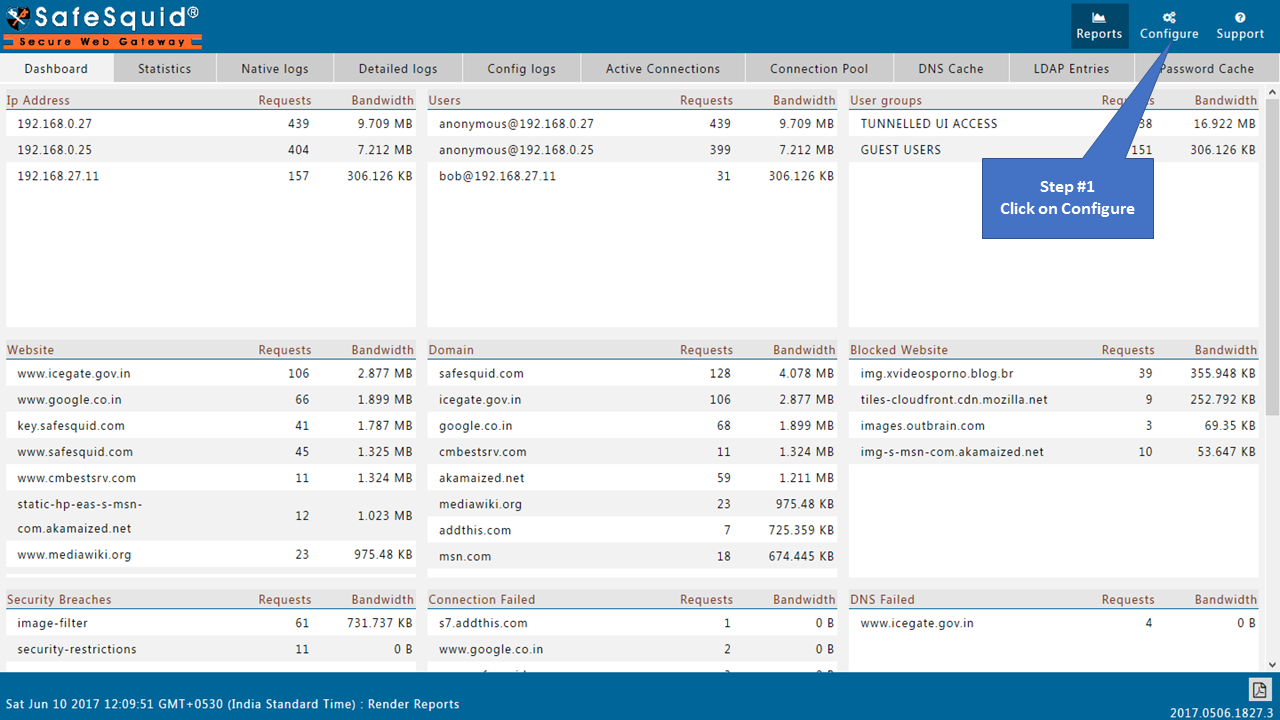
- Go to configure page
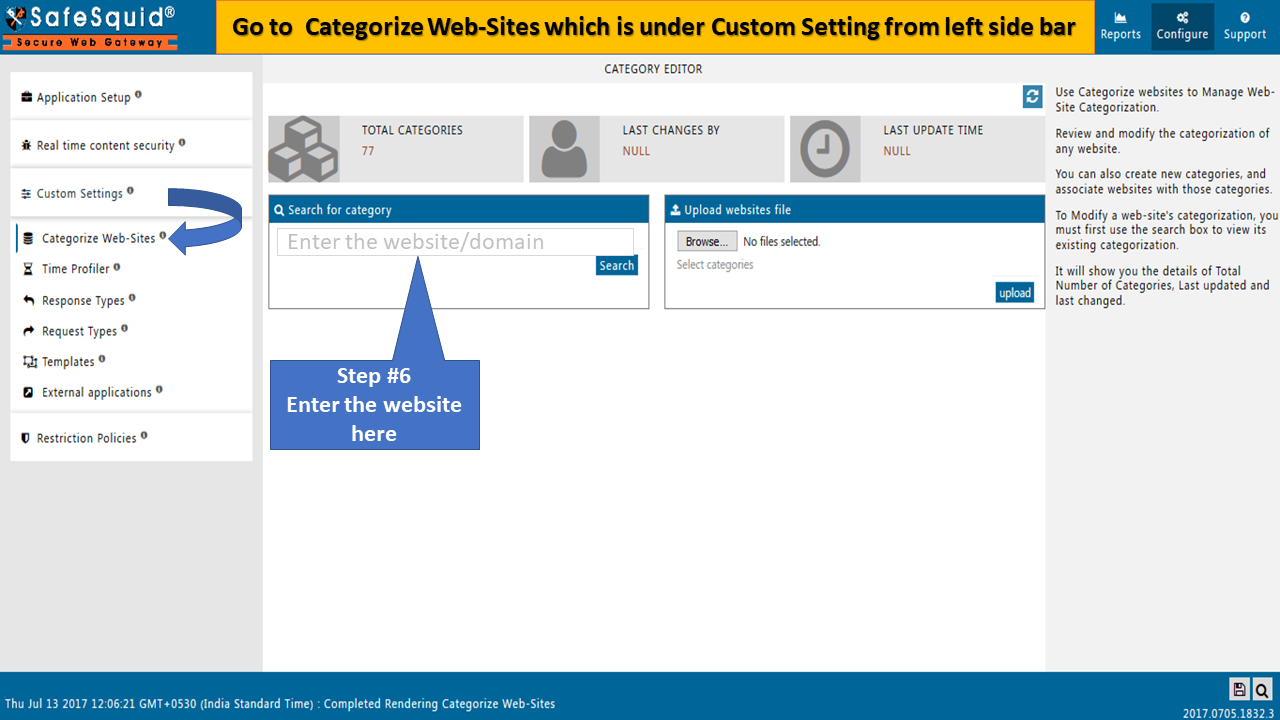
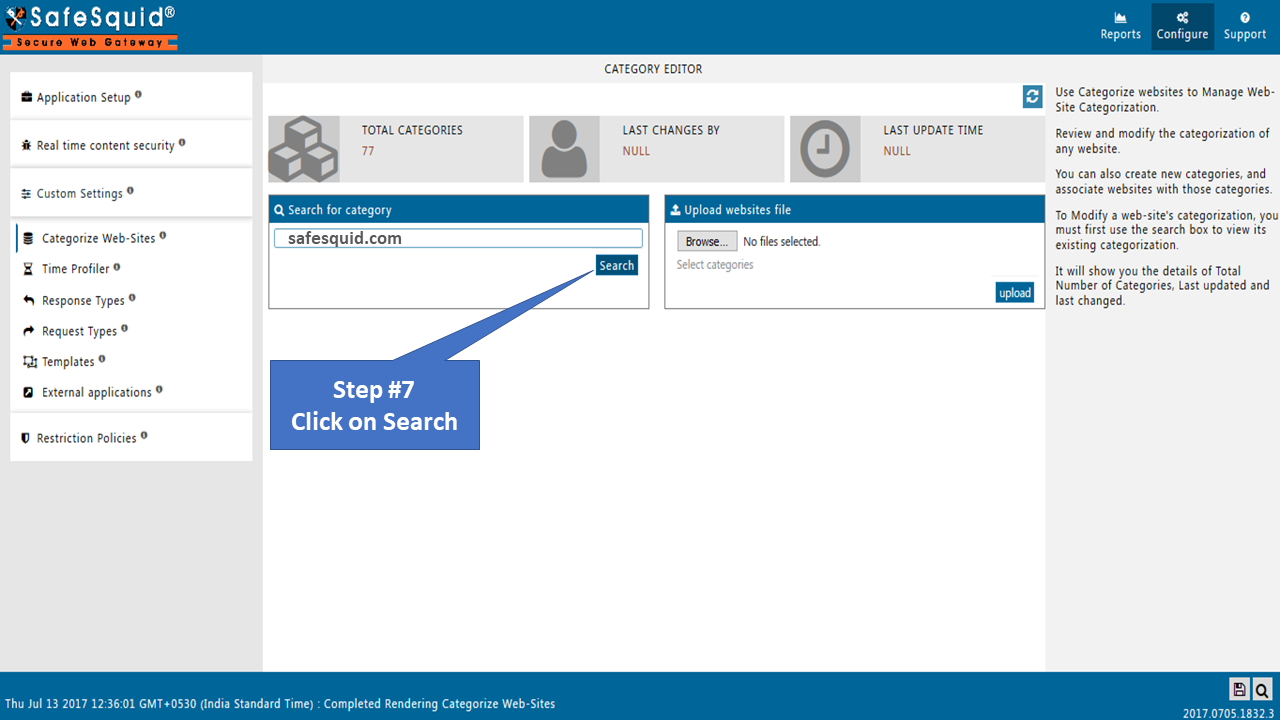
- Go to the Categorize Web-sites section under Custom Settings and search website/domain from the search for category option.
- Modify that website with a whitelist category. (A whitelist is a custom category that is made to allow blocked websites)
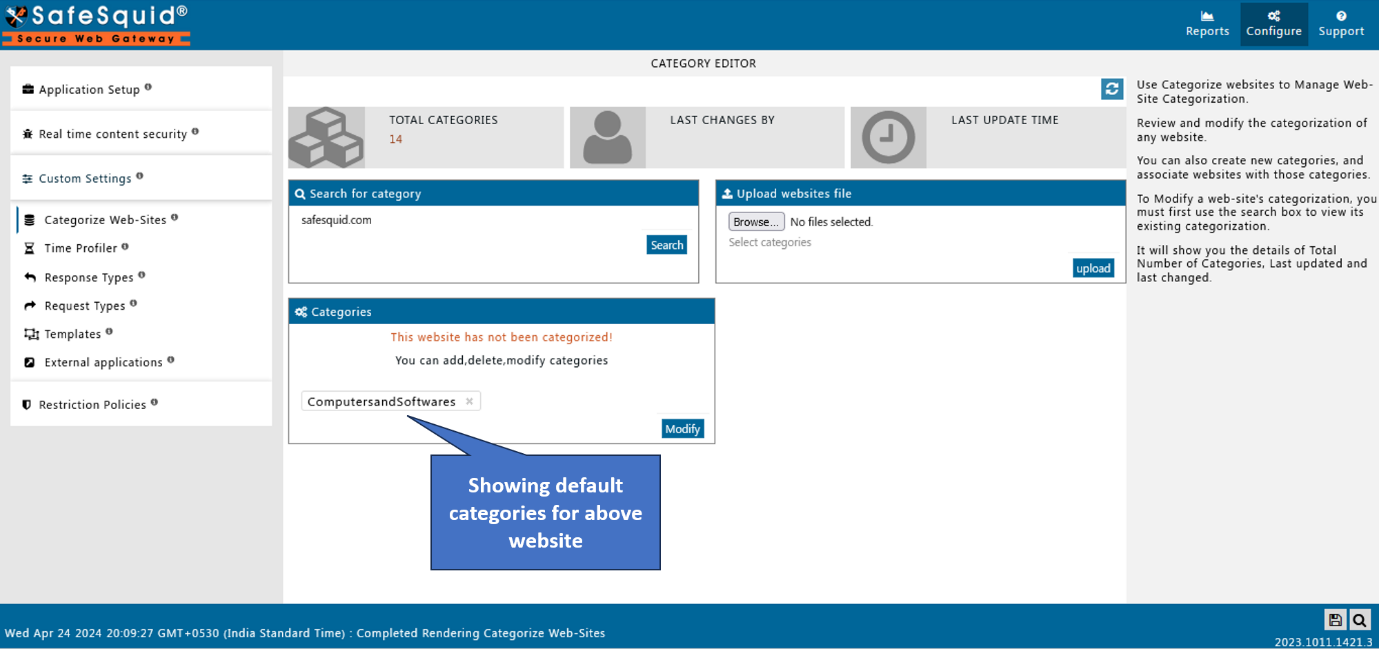
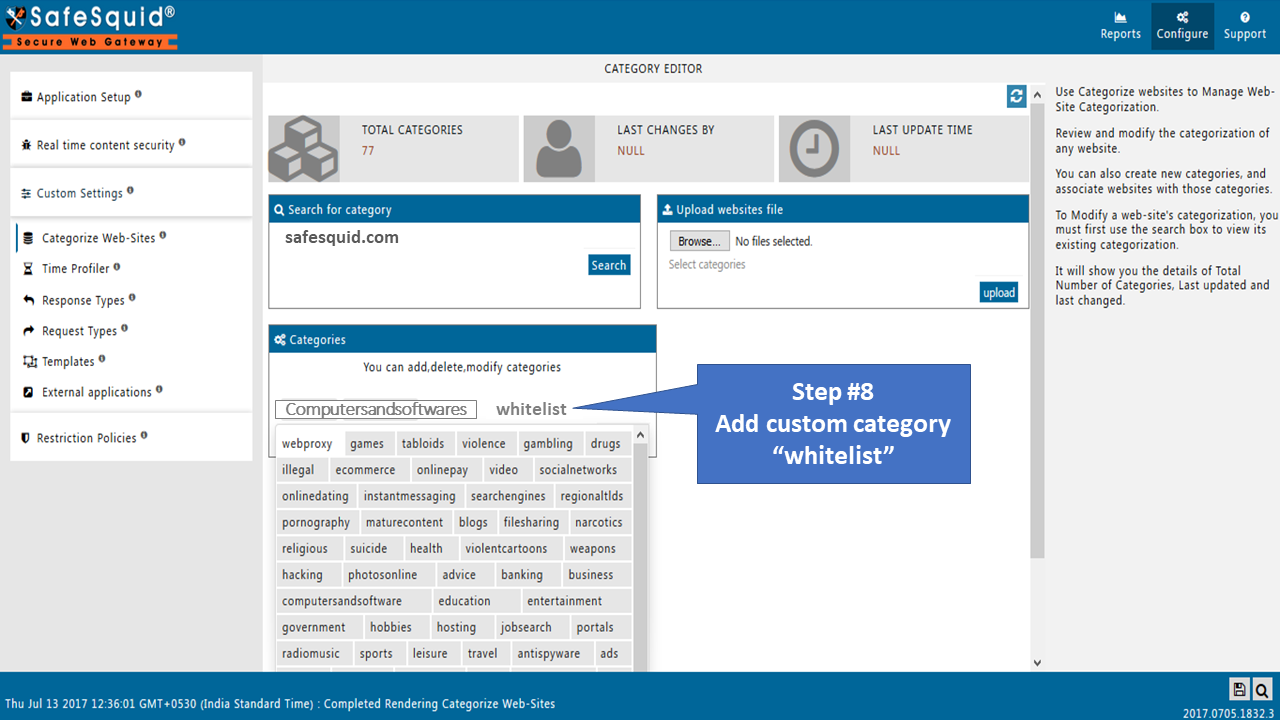
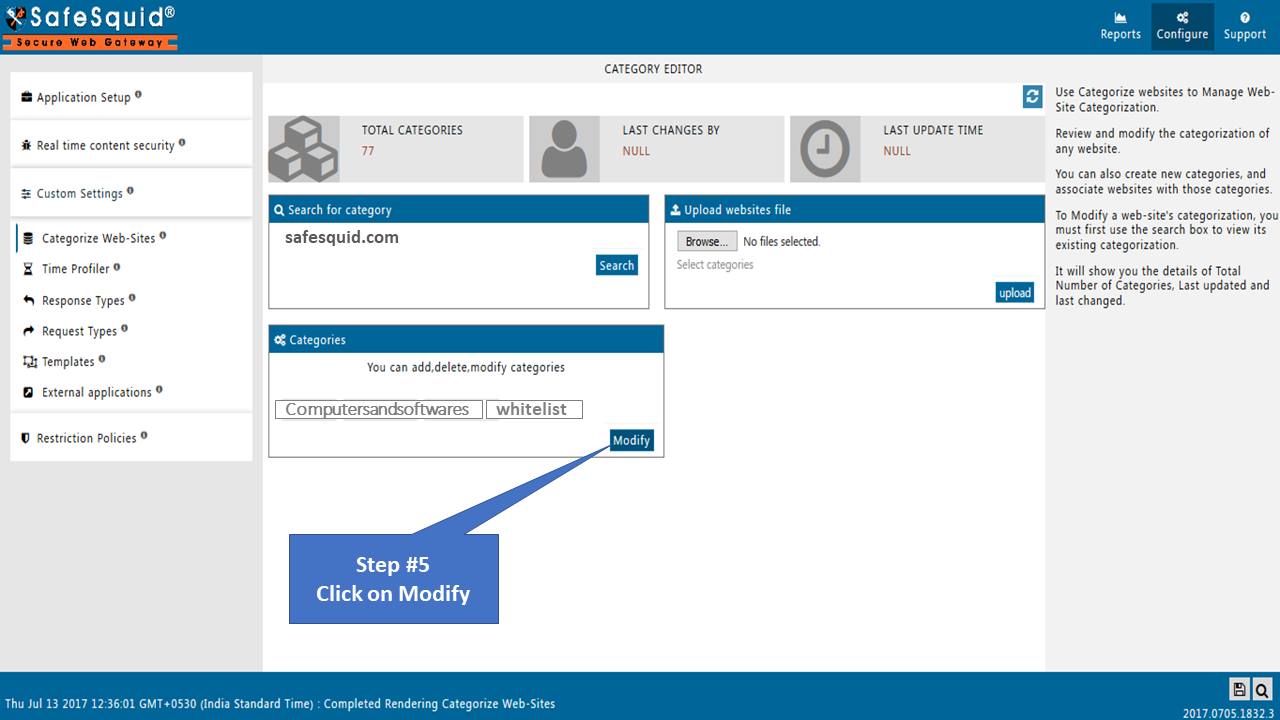
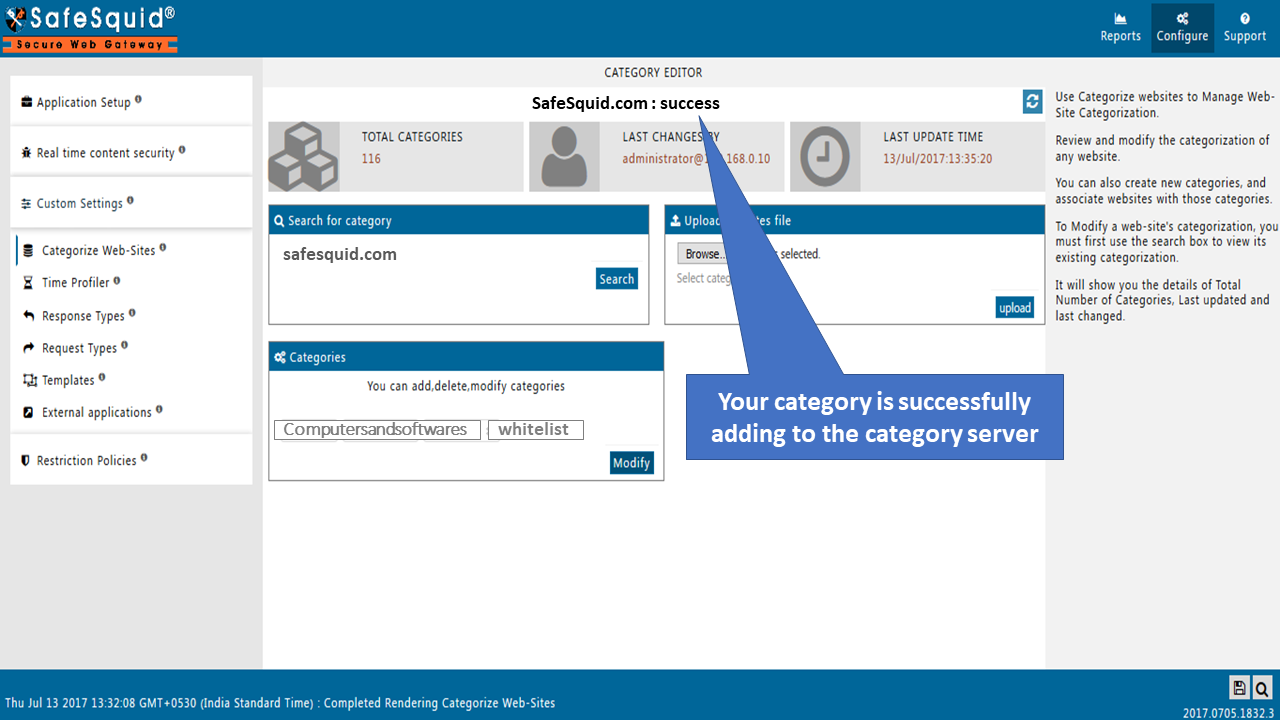
- Go to Access profiles for default policy and verify whether the policy is enabled or not. (Make it enabled)
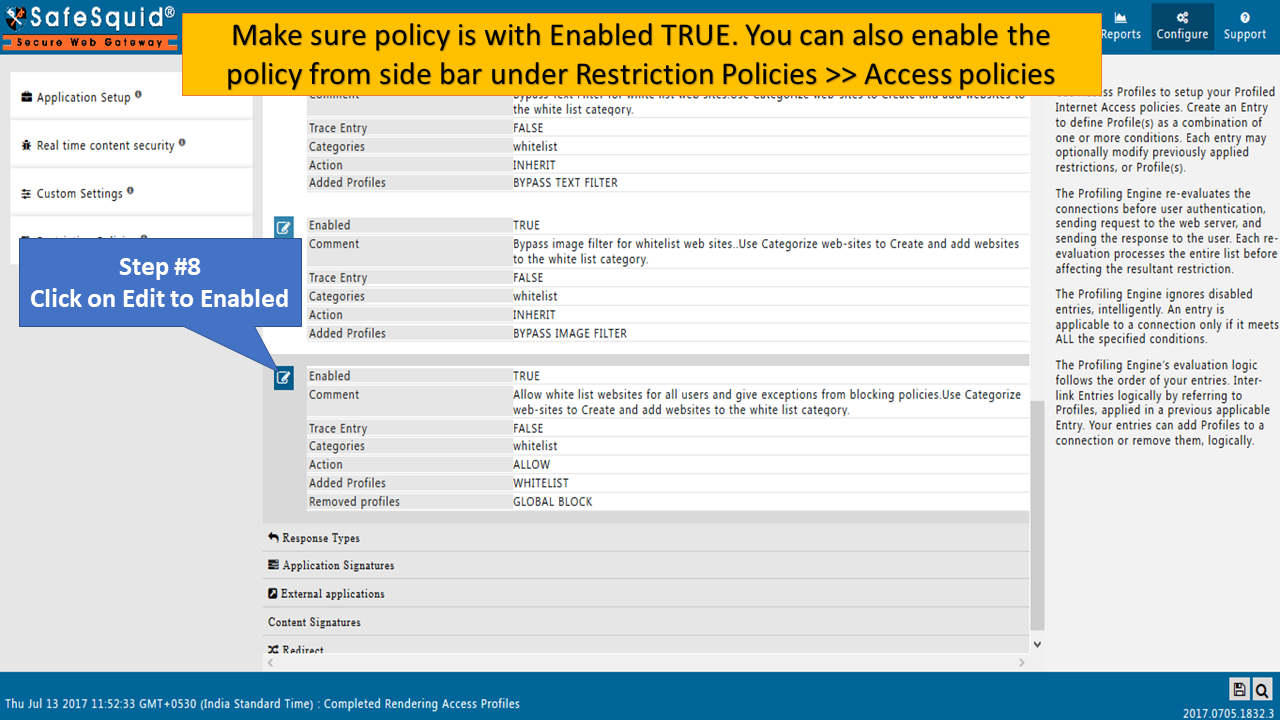
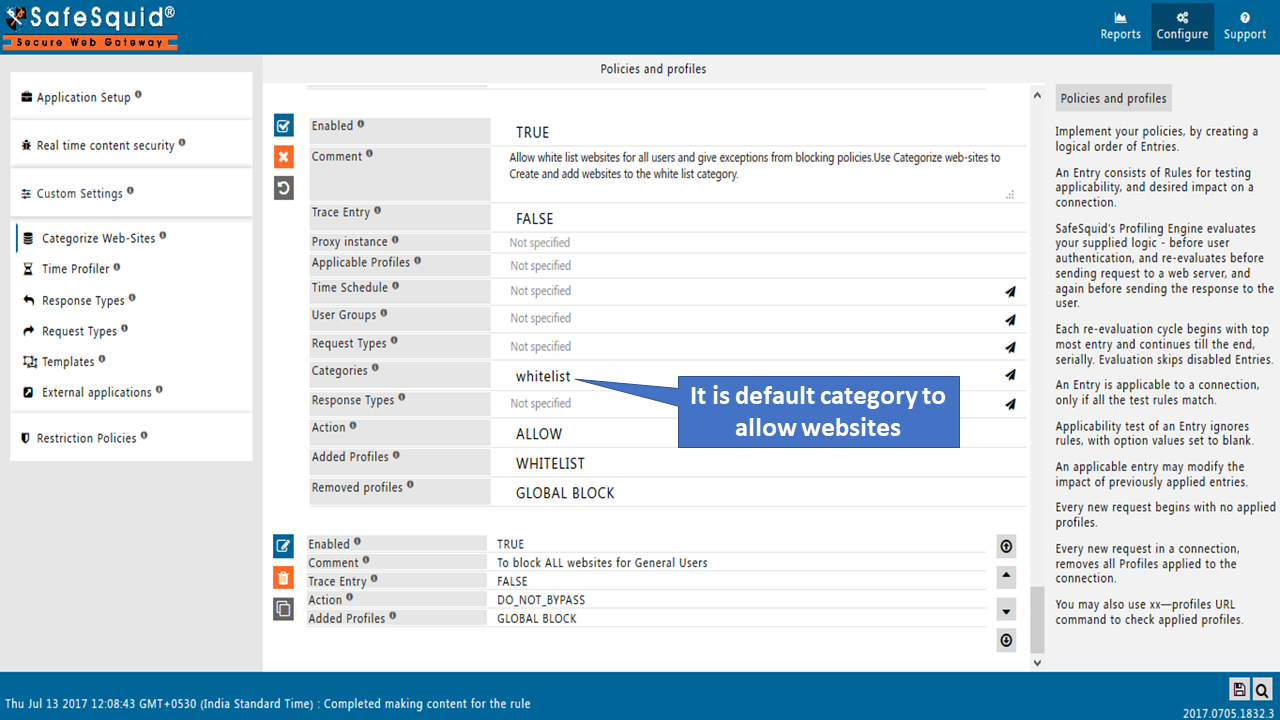
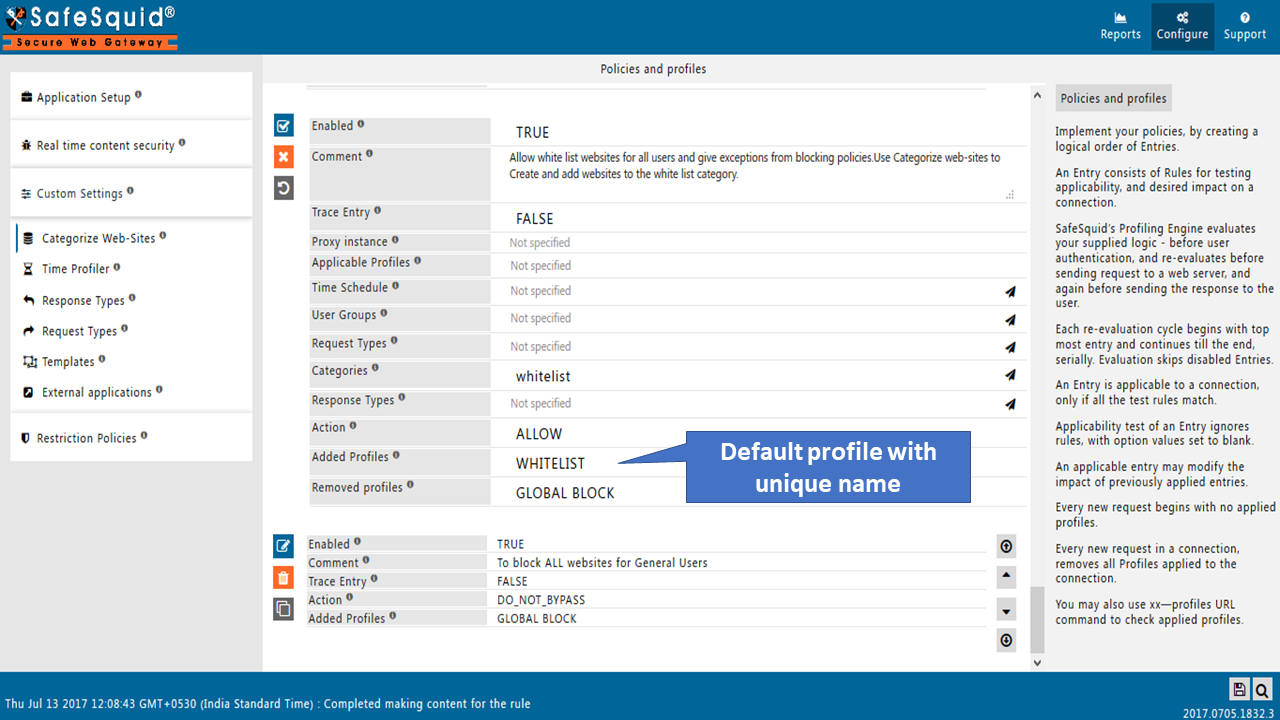
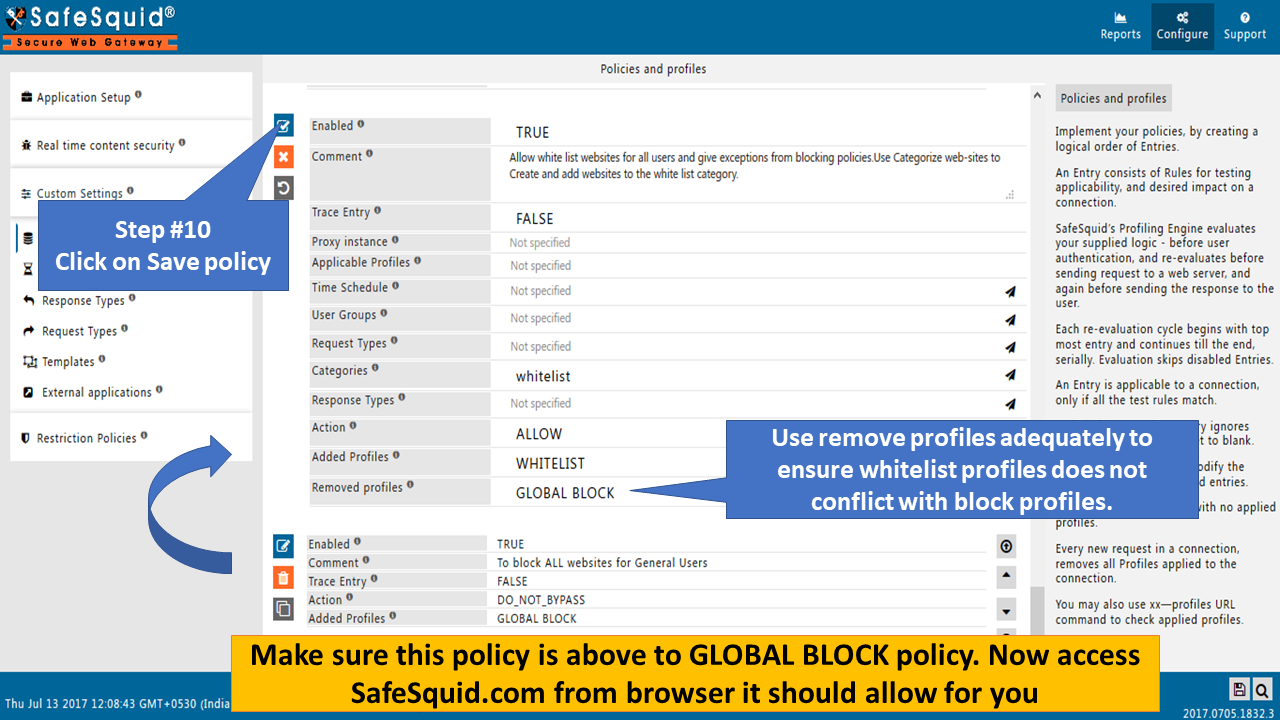
Use Categorize websites to Create and add websites to the "whitelist category".
Verification and Evidence
- Interface Checks: In Configuration Portal, Custom Settings → Categorize Web-sites: site shows whitelist category. Restriction Policies → Access profiles: default whitelist policy is enabled and above GLOBAL BLOCK.
- Log Analysis: Access logs show allowed response for the whitelisted URL; no block template or category block for that domain.
- Performance Validation: From a client, open the whitelisted site; page loads without block template.
Related: Web Categorization, Access Restriction, Reporting, Troubleshooting