Block advertisements and banners
Ads create security risk, waste bandwidth, and hurt user experience
Ad networks can deliver malware, tracking, and unwanted scripts; ads also increase load time and bandwidth use. Blocking ads at the gateway reduces exposure to ad-based threats, improves performance, and supports acceptable-use policy. SafeSquid BLOCK ADVERTISEMENT policy replaces ad content with a configurable template so users see cleaner pages without client-side ad blockers.
Key benefits
Reduces malware and tracking exposure from ad networks. Lowers bandwidth and CPU use. Cleaner pages with fewer distractions. Evidence for auditors: policy is visible in Configure → Access Profiles (or Templates); access logs show traffic that matched the policy. Limitation: Some sites may break if they depend on specific ad endpoints; use bypass or allow rules for exceptions.
Prerequisites
SafeSquid-side: HTTPS Inspection enabled so SafeSquid can inspect and modify HTTPS content. See Configure HTTPS Inspection if not yet enabled. Admin access to the Configuration Portal.
Client-side: No change required; blocking is transparent.
Enable BLOCK ADVERTISEMENT policy
- Access the SafeSquid interface via the Configuration Portal — web interface for policy and system settings. In the interface header, click Configure to open the configuration menu.
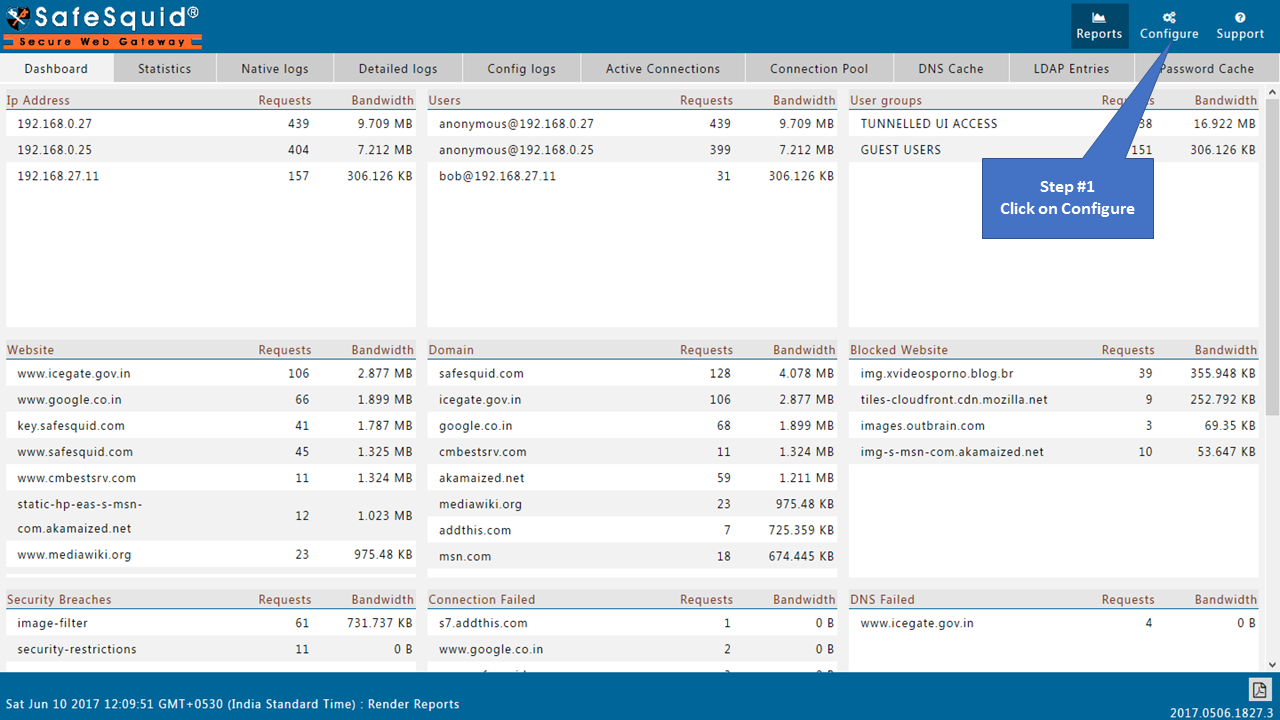
- In Access Profiles (or Templates), use the search box to find the default policy; search for BLOCK ADVERTISEMENT.


- Open the policy: click Edit on the BLOCK ADVERTISEMENT row to open the policy editor. Set Enabled to TRUE, then click Save (or the equivalent save control in the policy section) to save the policy.


- Alternatively, enable from Templates in custom settings: open the BLOCK ADVERTISEMENT template, set Enabled to TRUE, and save.


Verification and Evidence
- Interface: Configure → Access Profiles (or Templates) shows BLOCK ADVERTISEMENT with Enabled TRUE.
- Traffic: Open a site that normally shows ads (e.g. https://www.youtube.com/); ads should be replaced by the SafeSquid template.

- Audit: Access logs and reports show traffic matching the policy; export reports from the Reporting Module for evidence.
Administrators can replace the default template with a custom template.
Troubleshooting
| Symptom | Likely cause | Resolution | Verification |
|---|---|---|---|
| Ads still visible | HTTPS Inspection not enabled or policy not applied | Enable HTTPS Inspection; ensure BLOCK ADVERTISEMENT is enabled and profile applied to the connection | Reload page; confirm template replaces ads |
| Site broken or login fails | Site depends on blocked ad domain | Add bypass or allow rule for that domain or path | Retest site after rule change |
| Policy not in list | Default policies not loaded | Restore defaults or contact support for policy set | Search again in Access Profiles |
Next steps
- Block inappropriate images using Image Analyzer for visual content filtering.
- Header Re-Write for header filtering and privacy.
- Content Modifier for custom regex-based content rewriting.