> ## Documentation Index
> Fetch the complete documentation index at: https://docs.safesquid.com/llms.txt
> Use this file to discover all available pages before exploring further.
# Speed Limits
```mermaid theme={null}
flowchart TB
req[Request on connection] --> match[Evaluate every enabled row matching Profiles]
match --> reqLimit{Request limit exceeded?}
reqLimit -->|Yes| block429[HTTP 429 + row Template]
reqLimit -->|No| bytes{Remaining transfer bytes reach 0 tightest cap?}
bytes -->|Yes| blockXfer[Block further transfer + row Template]
bytes -->|No| rate[Throttle at lowest non-zero Download rate among matching rows]
rate --> counters[Increment counters unless Per-request limit or cache excluded]
```
## Overview
The `Limits` section allows administrators to constrain bandwidth, connection counts, and data transfer sizes on a per-profile basis.
It shares bandwidth fairly and stops any single user or profile from consuming too much capacity. Unlike Access restrictions (first-match-wins) and System configuration's Compression and buffering policies (also first-match-wins), **Speed Limits is cumulative** — every enabled entry whose Profiles condition matches applies, not just the first.
## Core Mechanics (C++ Source Validation)
Token-bucket rate, quota counters, request cap enforcement.
* **Bandwidth Shaping**: SafeSquid utilizes a token-bucket mechanism. Connections are assigned to a specific `LimitGroup`. The traffic shaper enforces the `downloadrate` throttle globally across all connections in that group.
* **Quota Tracking**: Global and per-user transfer quotas (`maxdownloadbytes`, `maxuploadbytes`, `maxrequests`) are updated incrementally as payloads are flushed. Cached payloads (`CONNECTION_CACHING`) can be configured to bypass quota deductions (`LIMIT_CACHE`).
* **Enforcement**: If a connection violates `maxrequests`, the connection action is instantly set to block, serving the block template with a `LMS_TOO_MANY_REQUESTS` status and generating a `TCP_DENIED` log entry.
## Schema Fields
### Global Fields
* **Enabled (enabled)**: Toggles the entire Limits subsystem on or off.
### Rule-Based Fields (Per Connection Tuning)
* **Enabled (enabled)**: Toggles the specific rule.
* **Comment (comment)**: User description of the rule.
* **Profiles (profiles)**: The trigger condition. The rule applies if the connection has this tag. Blank matches every connection; a Profile written with a leading `!` matches connections that do not carry it.
* **Action (action)**: `Allow` or `Deny`. Verified on this build to have no runtime effect — see the note below.
* **Template (templ)**: Name of the block-page template shown when this entry matches. Blank uses `blocked`. Built-in examples: `maxbandwidth`, `maxrequests`.
* **Download transfer limit (maxdownloadbytes)**: Maximum bytes a client can download before being blocked, counted since the last counter reset (\~10 s). `0` = no cap from this row for that direction.
* **Upload transfer limit (maxuploadbytes)**: Maximum bytes a client can upload before being blocked, counted since the last counter reset (\~10 s). `0` = no cap from this row for that direction.
* **Request limit (maxrequests)**: Maximum number of HTTP requests allowed within the tracking window (\~10 s). `0` = unlimited. Exceeded → HTTP 429.
* **Download rate (downloadrate)**: Bandwidth throttle (e.g., bytes per second) applied to downloads. `0` = no rate from this row. Lowest non-zero matching rate wins.
* **Adjust Transfer Limits (flags)**: Modifier flags for how limits are enforced or tracked.
## Troubleshooting
Check `/var/log/safesquid/native/safesquid.log` for limit enforcement messages. A client hitting a quota will typically receive a 429 with a specific limit-exceeded template.
## How SafeSquid processes the list
1. On each relevant request, every enabled row matching profiles is evaluated.
2. **Request limit** exceeded → HTTP 429 and the row Template block page, regardless of the row's **Action** field — see the note below.
3. **Download / upload transfer limits** — remaining bytes are the tightest cap among matching rows; when remaining reaches 0, further transfer on matching connections is blocked and the row's Template block page is shown (built-in example: `maxbandwidth`).
4. **Download rate** — lowest non-zero rate among matching rows wins for throttling.
5. **Adjust Transfer Limits** flags: Limit cache transfers (count cached responses), Per-request limit (do not accumulate row counters at connection end — each request gets full quota), Group limit (share download rate bucket across matching connections).
6. After connections complete, byte and request counters increment for matching rows (unless Per-request limit or cache exclusion applies); counters clear on the periodic reset.
**Action has no runtime effect.** The console's own field help describes Action as enforced — set `Deny` and matching requests are blocked outright, set `Allow` and limits apply until a cap is reached — but a live behavioural test (a disposable profile tag, Action set to `Deny`, numeric caps set high enough to never trigger) showed the connection tagged and evaluated correctly, then proceeding past this section entirely rather than being blocked. Only the numeric caps (Download/Upload transfer limit, Request limit, Download rate) actually gate a connection; set `Action` to whichever value documents your intent, since either behaves identically.
## Important entry fields
* **Profiles** — Limit to connections with these Access Profile tags. Typical tags: `RESTRICTED DOWNLOAD TRANSFER RATES`, `RESTRICTED UPLOAD TRANSFER RATES`.
* **Action** — Verified to have no runtime effect on this build; the console's own field help describes it as enforced, but only the numeric caps below actually block a connection. See the note above.
* **Template** — Block page shown when this entry matches. Blank uses `blocked`. This same field also covers download/upload transfer-limit overruns: the console names a `maxbandwidth` template for excessive bandwidth, paired with `maxrequests` for excessive requests — both are shown to the user through this field, not a separate default/bypass path.
* **Download / Upload transfer limit** — Maximum bytes counted against this row since last counter reset (\~10 s). `0` = no cap from this row for that direction.
* **Request limit** — Maximum requests counted since last reset. `0` = unlimited. Exceeded → HTTP 429.
* **Download rate** — Throttle in bytes/sec. `0` = no rate from this row. Lowest non-zero matching rate wins.
* **Adjust Transfer Limits** — Limit cache transfers, Per-request limit, Group limit — see processing order above.
## Examples
Open **Configure → Restriction Policies → Speed Limits → Set limits**. Each row shows Enabled,
Comment, Profiles, Action, Download/Upload transfer limit, Request limit, Download rate, and
Adjust Transfer Limits.
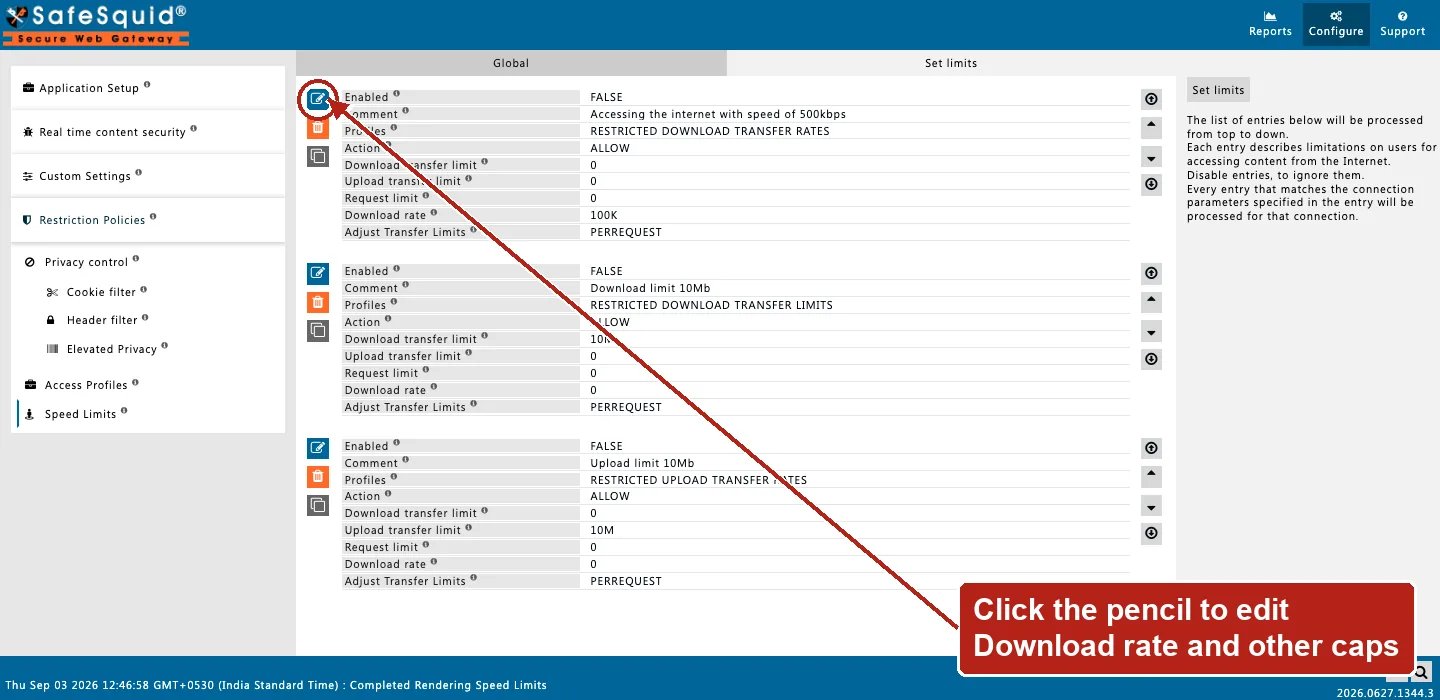 ### 1 — Guest download cap and throttle
* Profiles: `Guest`
* Download transfer limit: 50 MB, Download rate: 512000 bytes/sec
**Result:** Guest connections download at most \~500 KB/s and stop receiving data once 50 MB is consumed within the current counter window; other profiles without matching rows are unaffected.
### 2 — Request flood cap
* Request limit: **100**, Template: `too-many-requests`
**Result:** after 100 counted requests in the reset window, the next matching request gets HTTP 429 and the template block page.
### 3 — Per-request 5 MB (not shared window)
* Download transfer limit: 5 MB, Adjust Transfer Limits: **Per-request limit**
**Result:** each single request may transfer up to 5 MB; counters are not accumulated at connection end for this row, so the cap applies per request rather than shared across the \~10 s window.
### 4 — Two matching rows tighten together
* Row A: Download rate 1 MB/s
* Row B: Download rate 256 KB/s, same profiles
**Result:** both rows match; lowest non-zero rate (256 KB/s) is applied; if both set byte caps, the tightest remaining bytes win.
## How to verify
1. Assign a test profile and reproduce large download or many parallel requests.
2. Enable LIMITS in `LOG_LEVEL` for native `limits:` download/upload limit and rate lines.
3. Open **Reports → Detailed logs**; blocked transfers show `filter_name` for limits and reason such as `Max Requests` or upload limit text.
4. Confirm counter reset behaviour by waiting \~10 seconds and retrying after hitting a window cap.
5. If an entry seems to have no effect at all, check the section-wide **Enabled** switch first, then confirm the entry's **Profiles** actually matches the connection under test — and remember **Action** has no bearing on whether the entry is active.
### 1 — Guest download cap and throttle
* Profiles: `Guest`
* Download transfer limit: 50 MB, Download rate: 512000 bytes/sec
**Result:** Guest connections download at most \~500 KB/s and stop receiving data once 50 MB is consumed within the current counter window; other profiles without matching rows are unaffected.
### 2 — Request flood cap
* Request limit: **100**, Template: `too-many-requests`
**Result:** after 100 counted requests in the reset window, the next matching request gets HTTP 429 and the template block page.
### 3 — Per-request 5 MB (not shared window)
* Download transfer limit: 5 MB, Adjust Transfer Limits: **Per-request limit**
**Result:** each single request may transfer up to 5 MB; counters are not accumulated at connection end for this row, so the cap applies per request rather than shared across the \~10 s window.
### 4 — Two matching rows tighten together
* Row A: Download rate 1 MB/s
* Row B: Download rate 256 KB/s, same profiles
**Result:** both rows match; lowest non-zero rate (256 KB/s) is applied; if both set byte caps, the tightest remaining bytes win.
## How to verify
1. Assign a test profile and reproduce large download or many parallel requests.
2. Enable LIMITS in `LOG_LEVEL` for native `limits:` download/upload limit and rate lines.
3. Open **Reports → Detailed logs**; blocked transfers show `filter_name` for limits and reason such as `Max Requests` or upload limit text.
4. Confirm counter reset behaviour by waiting \~10 seconds and retrying after hitting a window cap.
5. If an entry seems to have no effect at all, check the section-wide **Enabled** switch first, then confirm the entry's **Profiles** actually matches the connection under test — and remember **Action** has no bearing on whether the entry is active.