> ## Documentation Index
> Fetch the complete documentation index at: https://docs.safesquid.com/llms.txt
> Use this file to discover all available pages before exploring further.
# Activate Your License
> Upload the SafeSquid activation key, verify licensed state, and capture evidence before configuring production policy.
# Activate Before Policy Rollout
SafeSquid must be activated before the deployment can be treated as ready for enforcement. Activation ties the instance to the Self-Service Portal, unlocks licensed capability, and gives operators a checkpoint before SSL inspection, authentication, URL controls, malware scanning, and DLP are enabled.
## Know what activation unlocks
SafeSquid offers two licensing tiers, and an unactivated instance runs with limited
capability regardless of which tier you hold. See
[Licensing Requirements](/deployment/licensing_requirements) for the tier comparison and
what each one excludes.
## Validate prerequisites
Before activation, confirm:
* The `activation_key` file was downloaded from the [Self-Service Portal](/getting_started/register).
* SafeSquid service is running.
* A pilot browser can reach `http://safesquid.cfg/` through the proxy path.
* The administrator is on an approved management network.
* Outbound DNS and HTTPS access are available for license and subscription validation.
* The change record includes rollback steps for client routing and firewall changes.
## Allow subscription paths
Activation requires outbound reachability to `key.safesquid.com` and `api.safesquid.net`
on `443`. Updates and categorization need a wider set, which activation success does not
prove is reachable. Confirm both groups in
[Ports and Firewall Rules](/deployment/ports_and_firewall_rules) before the cutover window.
Only one endpoint has to be reachable for activation itself to succeed. The rest affect ongoing updates, so a blocked path there produces a licensed gateway with stale intelligence rather than a failed activation — a quieter failure, and an easier one to miss.
**Required for activation**
| Host | Port | Purpose |
| ------------------- | ----: | ------------------ |
| `api.safesquid.net` | `443` | License activation |
**Required for ongoing updates**
| Host | Port | Purpose |
| --------------------------- | ----: | ------------------------------------ |
| `swgupdates2.safesquid.net` | `443` | Subscription and malware definitions |
| `swgupdates.safesquid.net` | `80` | Seqrite updates |
| `sslupdates.safesquid.com` | `443` | SSL certificate updates |
| `category.safesquid.net` | `443` | Category database updates |
| `download.quickheal.com` | `80` | Virus signature updates |
**URL categorization engines, commercial licence only**
Each of these is reached on port `8080` at the path `/URLCategorizerService/URLCategorize`:
| Host |
| -------------------------- |
| `prourl.itsecure.co.in` |
| `encurl.itsecure.co.in` |
| `klassify.itsecure.co.in` |
| `prourl.itonlinesecure.in` |
| `encurl.itonlinesecure.in` |
If categorization is blocked while everything else is reachable, policies that depend on category matching will fail open rather than error, so verify this group explicitly rather than inferring it from a working activation.
## Upload the activation key
Configure the pilot browser to use SafeSquid as proxy, open `http://safesquid.cfg/`, and sign in with the approved administrator account.
Confirm the [Configuration Portal](/safesquid_swg/interface/configuration_portal) loads through the SafeSquid proxy path.
If `safesquid.cfg` does not load, recheck pilot browser proxy settings and SafeSquid listener reachability.
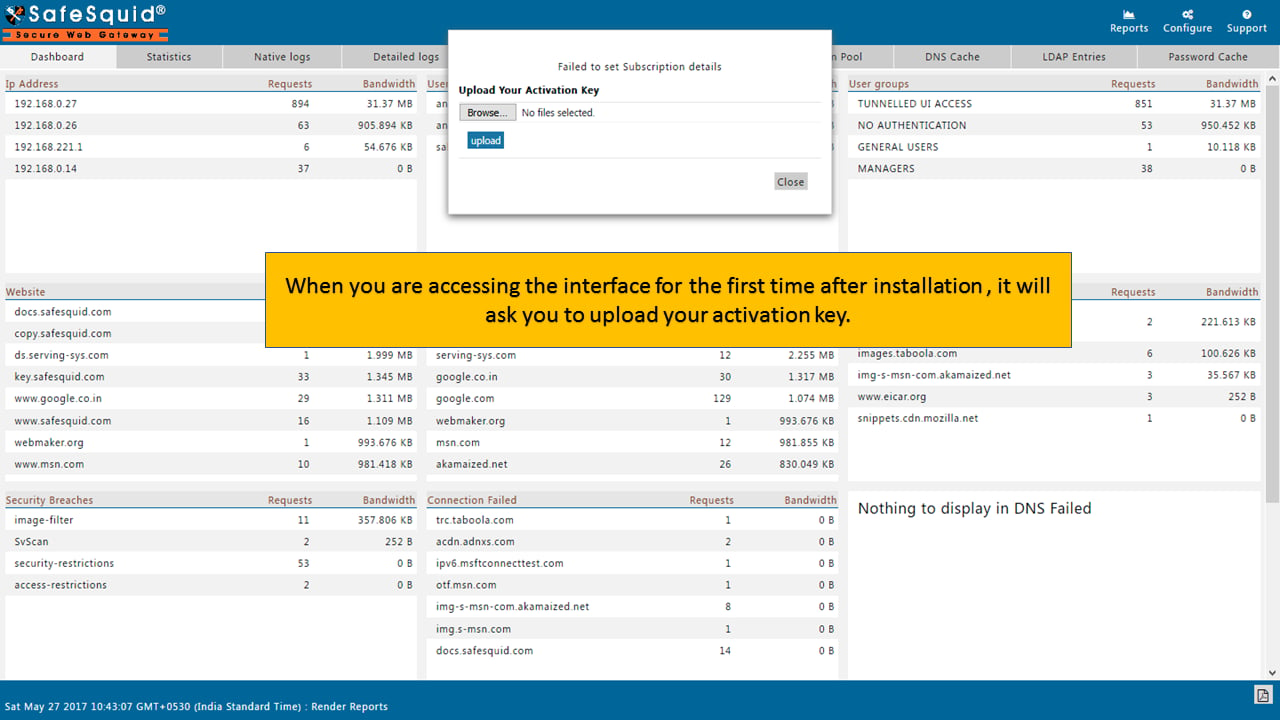 When the first-run activation prompt appears, click **Choose File** or the file-selector control and select the `activation_key` file from the approved secure location.
Confirm the selected file is named exactly `activation_key`.
If the key is missing or renamed, retrieve the original file from approved secure storage or re-download it from the Self-Service Portal.
When the first-run activation prompt appears, click **Choose File** or the file-selector control and select the `activation_key` file from the approved secure location.
Confirm the selected file is named exactly `activation_key`.
If the key is missing or renamed, retrieve the original file from approved secure storage or re-download it from the Self-Service Portal.
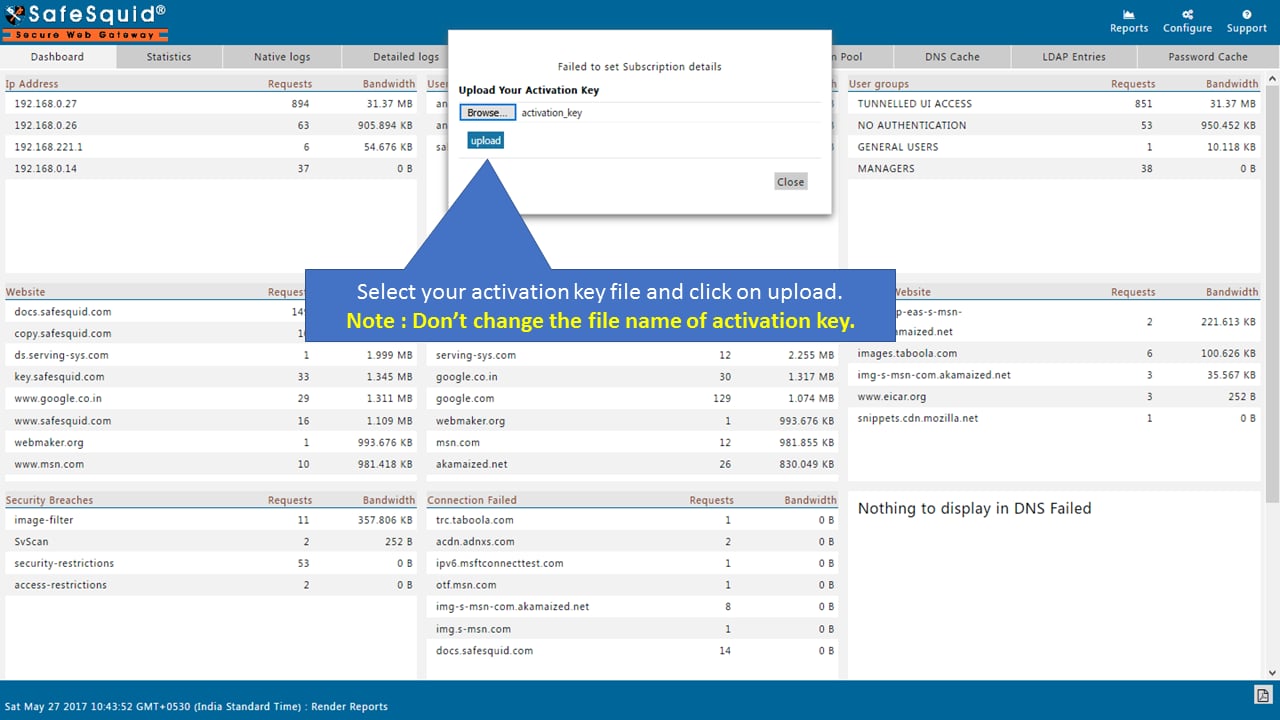 Click **Upload**, then click **Restart** when the interface prompts you to apply the license.
Confirm the interface accepts the upload and presents the restart action.
If upload fails, verify file name, file contents, and outbound subscription reachability before retrying.
Click **Upload**, then click **Restart** when the interface prompts you to apply the license.
Confirm the interface accepts the upload and presents the restart action.
If upload fails, verify file name, file contents, and outbound subscription reachability before retrying.
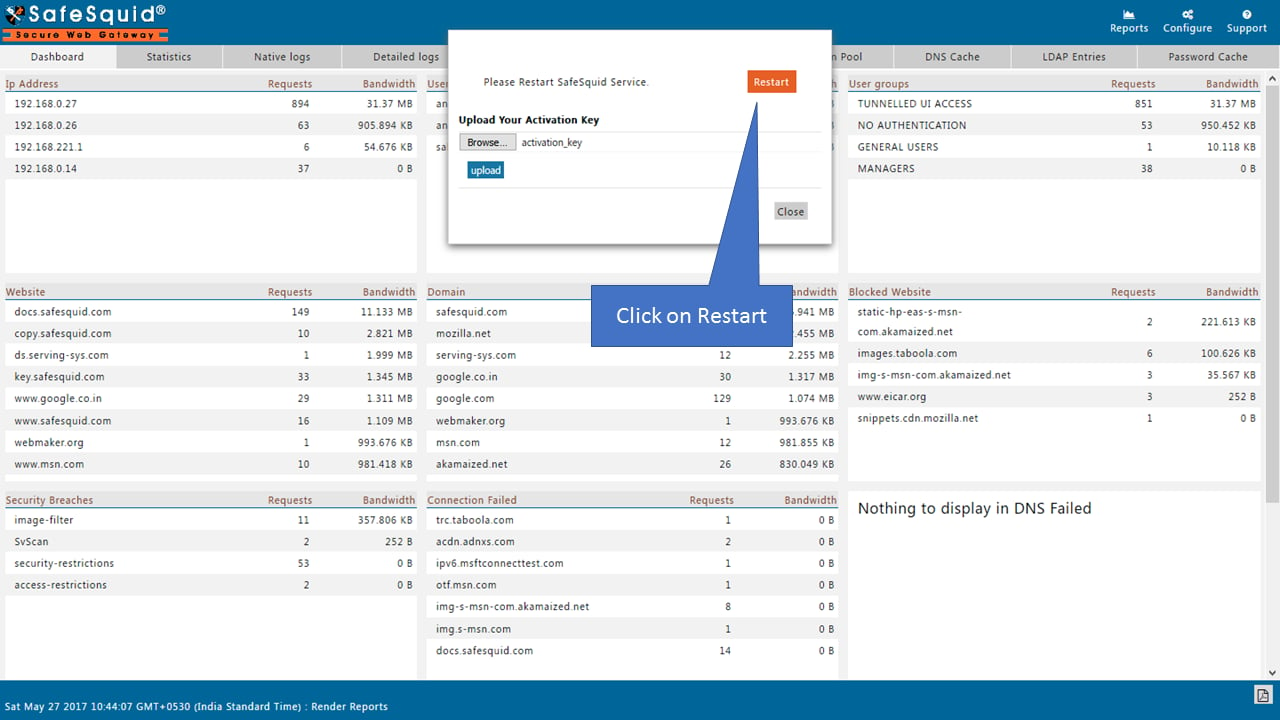 Wait for SafeSquid to restart and reload the Configuration Portal before running evidence checks.
Confirm the portal reloads after restart and accepts administrator sign-in.
If the proxy refuses connections, check service state from the server console before routing users.
Do not route production users until activation has been verified and logged.
**License evidence:** The activation key is not the audit artifact. Store the key securely, and capture license-state evidence from the Configuration Portal plus service, listener, and access-log checks.
## Verify activation evidence
Run these checks immediately after activation.
Run the service-state check and confirm there are no recent startup errors.
```bash theme={null}
systemctl status safesquid --no-pager
```
Confirm the service is active and no startup error appears in the recent log.
If the service is inactive, inspect the service journal and restart SafeSquid from the server console after correcting the cause.
Verify that `/usr/local/safesquid/security/activation_key` exists and has not been renamed.
```bash theme={null}
ls -l /usr/local/safesquid/security/activation_key
```
Confirm a file named exactly `activation_key` exists.
If it is missing or renamed, re-upload the downloaded key file.
Confirm SafeSquid listens on the approved proxy port.
```bash theme={null}
ss -lntp | grep ':8080'
```
Confirm SafeSquid listens on the approved proxy port.
If no listener appears, verify service state, startup logs, and the configured proxy port.
Open **Support** and inspect **Activation Details** for product and subscription state.
Wait for SafeSquid to restart and reload the Configuration Portal before running evidence checks.
Confirm the portal reloads after restart and accepts administrator sign-in.
If the proxy refuses connections, check service state from the server console before routing users.
Do not route production users until activation has been verified and logged.
**License evidence:** The activation key is not the audit artifact. Store the key securely, and capture license-state evidence from the Configuration Portal plus service, listener, and access-log checks.
## Verify activation evidence
Run these checks immediately after activation.
Run the service-state check and confirm there are no recent startup errors.
```bash theme={null}
systemctl status safesquid --no-pager
```
Confirm the service is active and no startup error appears in the recent log.
If the service is inactive, inspect the service journal and restart SafeSquid from the server console after correcting the cause.
Verify that `/usr/local/safesquid/security/activation_key` exists and has not been renamed.
```bash theme={null}
ls -l /usr/local/safesquid/security/activation_key
```
Confirm a file named exactly `activation_key` exists.
If it is missing or renamed, re-upload the downloaded key file.
Confirm SafeSquid listens on the approved proxy port.
```bash theme={null}
ss -lntp | grep ':8080'
```
Confirm SafeSquid listens on the approved proxy port.
If no listener appears, verify service state, startup logs, and the configured proxy port.
Open **Support** and inspect **Activation Details** for product and subscription state.
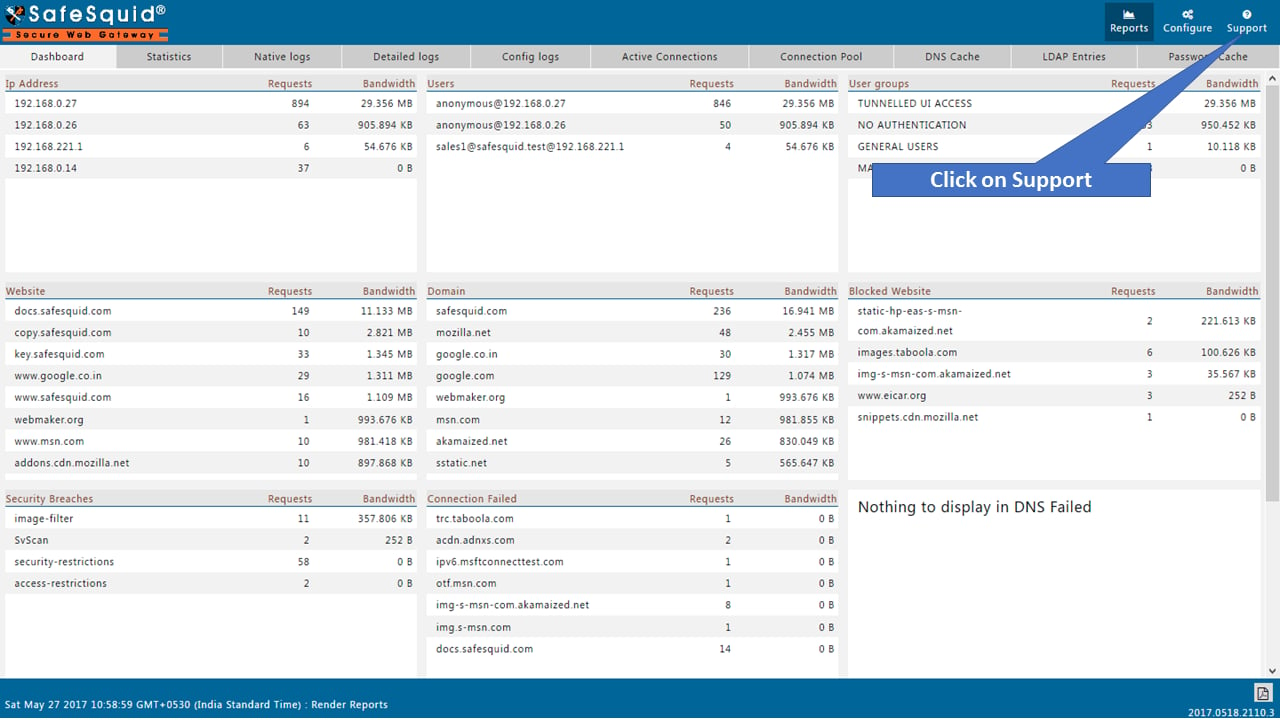
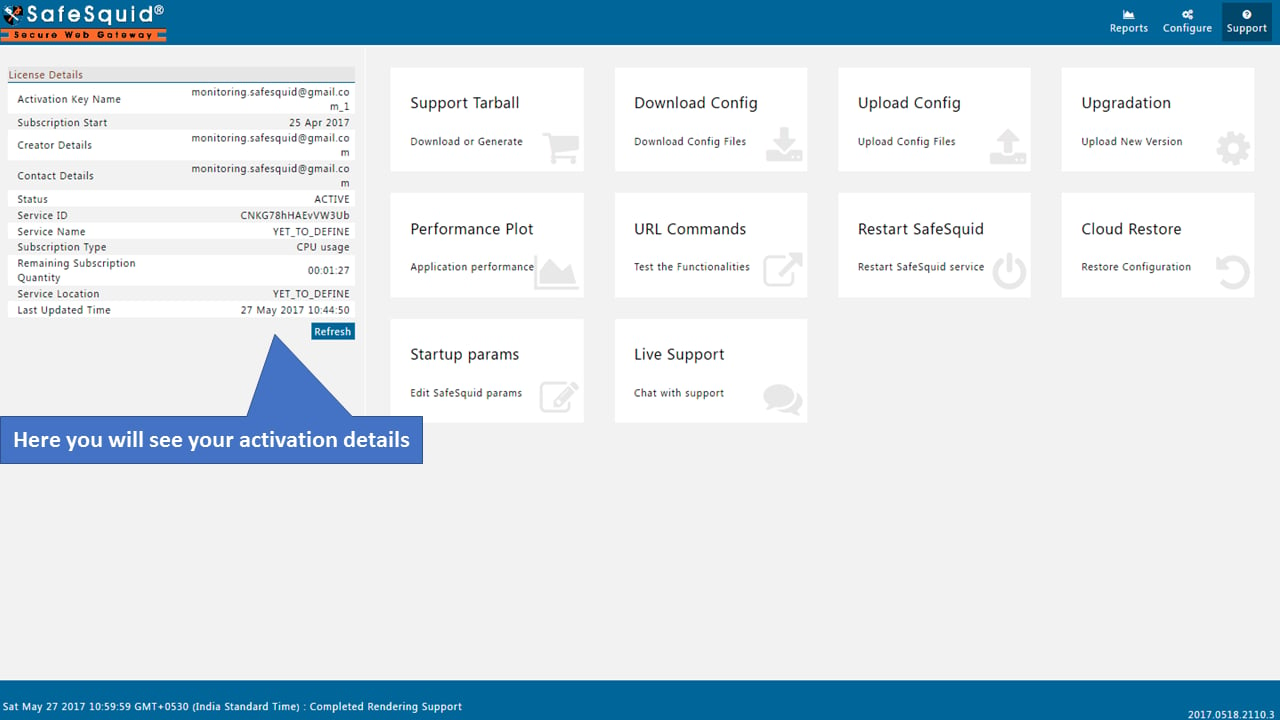 Confirm product type, subscription state, or activation details are populated.
If details are missing, verify subscription reachability and re-upload the correct activation key.
Send one pilot HTTP request through SafeSquid and confirm a new record appears in `/var/log/safesquid/access/extended.log`.
```bash theme={null}
curl -I --proxy http://SAFESQUID-IP:8080 http://example.com
```
```bash theme={null}
tail -20 /var/log/safesquid/access/extended.log
```
Confirm the access log records source, destination, timestamp, and action.
If no log appears, confirm the client is using SafeSquid and inspect `/var/log/safesquid/access/extended.log`.
## Capture activation evidence
Store these artifacts with the deployment record:
* Activation key ownership record from the Self-Service Portal.
* Screenshot or change record showing active license state.
* SafeSquid service status output.
* Listener check for the approved proxy port.
* Access-log entry for a pilot HTTP request.
* Subscription path reachability result.
* Root CA rollout plan before HTTPS inspection.
## Troubleshoot activation
| Symptom | Likely cause | Fix |
| ----------------------------------------------------------- | ------------------------------------------------------ | --------------------------------------------------------------------------------------------------------------------------------------------------------------------------------------------------------- |
| `safesquid.cfg` does not load | Browser is not using SafeSquid as proxy | Recheck pilot proxy settings and retry `http://safesquid.cfg/` |
| `Failed to set Subscription details` | Key file is missing, renamed, or not loaded | Verify `/usr/local/safesquid/security/activation_key` and re-upload the correct file |
| Proxy refuses connections after upload | Service restart failed | Check service state and start SafeSquid from the server console if needed |
| Subscription server is unreachable | DNS, routing, or firewall block | Test `nslookup swgupdates2.safesquid.net` and restore outbound access |
| HTTP request succeeds but no log appears | Client bypasses SafeSquid or wrong log path checked | Confirm proxy path and inspect `/var/log/safesquid/access/extended.log` |
| HTTPS warning appears | Root CA is not trusted or SSL inspection is incomplete | Deploy the Root CA through the approved trust path before retesting HTTPS |
| Commercial subscription is expiring | Renewal or conservation period was not planned | Confirm renewal status in the Self-Service Portal and record any approved conservation-period action |
| Commercial features are inert after a successful activation | A free-tier key was uploaded, or the key has expired | Open **Support** and check **Activation Details**: Product Type should read Commercial and Expiry should be in the future. If not, download the correct key from the Self-Service Portal and re-upload it |
A commercial subscription that expires degrades the deployment rather than stopping it,
and the degradation is silent. See
[Manage Subscription State](/deployment/manage_subscription_state) for what changes and how
to renew or extend.
## Move toward production
Activation unlocks the controls; it does not configure them. Enable them in a deliberate
order so certificate, routing, and scanning failures do not overlap during troubleshooting:
SSL inspection, then authentication, then DNS and access controls, then content security,
then reporting.
[Policy Enforcement](/getting_started/configure_web_security_policies) carries that sequence
with a verification step for each control.
## Next steps
* [Policy Enforcement](/getting_started/configure_web_security_policies) - apply the baseline control sequence.
* [Connect Your Client](/getting_started/client_configuration/connect_your_client) - expand from pilot routing to managed rollout.
* [Troubleshooting](/troubleshooting/troubleshooting) - diagnose activation, routing, certificate, and policy failures.
## Related topics
- [Register Your Key](/getting_started/register.md)
- [Manage Subscription State](/deployment/manage_subscription_state.md)
- [Licensing Requirements](/deployment/licensing_requirements.md)
- [SafeSquid Appliance Builder](/getting_started/install_safesquid/safesquid_appliance_builder.md)
- [Access the Interface](/getting_started/access_the_interface.md)
Confirm product type, subscription state, or activation details are populated.
If details are missing, verify subscription reachability and re-upload the correct activation key.
Send one pilot HTTP request through SafeSquid and confirm a new record appears in `/var/log/safesquid/access/extended.log`.
```bash theme={null}
curl -I --proxy http://SAFESQUID-IP:8080 http://example.com
```
```bash theme={null}
tail -20 /var/log/safesquid/access/extended.log
```
Confirm the access log records source, destination, timestamp, and action.
If no log appears, confirm the client is using SafeSquid and inspect `/var/log/safesquid/access/extended.log`.
## Capture activation evidence
Store these artifacts with the deployment record:
* Activation key ownership record from the Self-Service Portal.
* Screenshot or change record showing active license state.
* SafeSquid service status output.
* Listener check for the approved proxy port.
* Access-log entry for a pilot HTTP request.
* Subscription path reachability result.
* Root CA rollout plan before HTTPS inspection.
## Troubleshoot activation
| Symptom | Likely cause | Fix |
| ----------------------------------------------------------- | ------------------------------------------------------ | --------------------------------------------------------------------------------------------------------------------------------------------------------------------------------------------------------- |
| `safesquid.cfg` does not load | Browser is not using SafeSquid as proxy | Recheck pilot proxy settings and retry `http://safesquid.cfg/` |
| `Failed to set Subscription details` | Key file is missing, renamed, or not loaded | Verify `/usr/local/safesquid/security/activation_key` and re-upload the correct file |
| Proxy refuses connections after upload | Service restart failed | Check service state and start SafeSquid from the server console if needed |
| Subscription server is unreachable | DNS, routing, or firewall block | Test `nslookup swgupdates2.safesquid.net` and restore outbound access |
| HTTP request succeeds but no log appears | Client bypasses SafeSquid or wrong log path checked | Confirm proxy path and inspect `/var/log/safesquid/access/extended.log` |
| HTTPS warning appears | Root CA is not trusted or SSL inspection is incomplete | Deploy the Root CA through the approved trust path before retesting HTTPS |
| Commercial subscription is expiring | Renewal or conservation period was not planned | Confirm renewal status in the Self-Service Portal and record any approved conservation-period action |
| Commercial features are inert after a successful activation | A free-tier key was uploaded, or the key has expired | Open **Support** and check **Activation Details**: Product Type should read Commercial and Expiry should be in the future. If not, download the correct key from the Self-Service Portal and re-upload it |
A commercial subscription that expires degrades the deployment rather than stopping it,
and the degradation is silent. See
[Manage Subscription State](/deployment/manage_subscription_state) for what changes and how
to renew or extend.
## Move toward production
Activation unlocks the controls; it does not configure them. Enable them in a deliberate
order so certificate, routing, and scanning failures do not overlap during troubleshooting:
SSL inspection, then authentication, then DNS and access controls, then content security,
then reporting.
[Policy Enforcement](/getting_started/configure_web_security_policies) carries that sequence
with a verification step for each control.
## Next steps
* [Policy Enforcement](/getting_started/configure_web_security_policies) - apply the baseline control sequence.
* [Connect Your Client](/getting_started/client_configuration/connect_your_client) - expand from pilot routing to managed rollout.
* [Troubleshooting](/troubleshooting/troubleshooting) - diagnose activation, routing, certificate, and policy failures.
## Related topics
- [Register Your Key](/getting_started/register.md)
- [Manage Subscription State](/deployment/manage_subscription_state.md)
- [Licensing Requirements](/deployment/licensing_requirements.md)
- [SafeSquid Appliance Builder](/getting_started/install_safesquid/safesquid_appliance_builder.md)
- [Access the Interface](/getting_started/access_the_interface.md)