> ## Documentation Index
> Fetch the complete documentation index at: https://docs.safesquid.com/llms.txt
> Use this file to discover all available pages before exploring further.
# Block Specific YouTube Channel
> Block a specific YouTube channel using SafeSquid by creating policies based on Channel-ID and List-ID for targeted video restriction.
## Problem
Security teams need predictable control over app and web usage to reduce policy bypass and data-risk exposure.
## Benefits
You can enforce policy decisions consistently with SafeSquid while preserving legitimate business workflows.
## Advantages
You keep actionable policy control close to operations, with verifiable outcomes in logs and policy behavior.
## Call to action
Use the steps in this guide to implement the control, then validate behavior with a real user-flow test.
# Block one YouTube channel while allowing other content
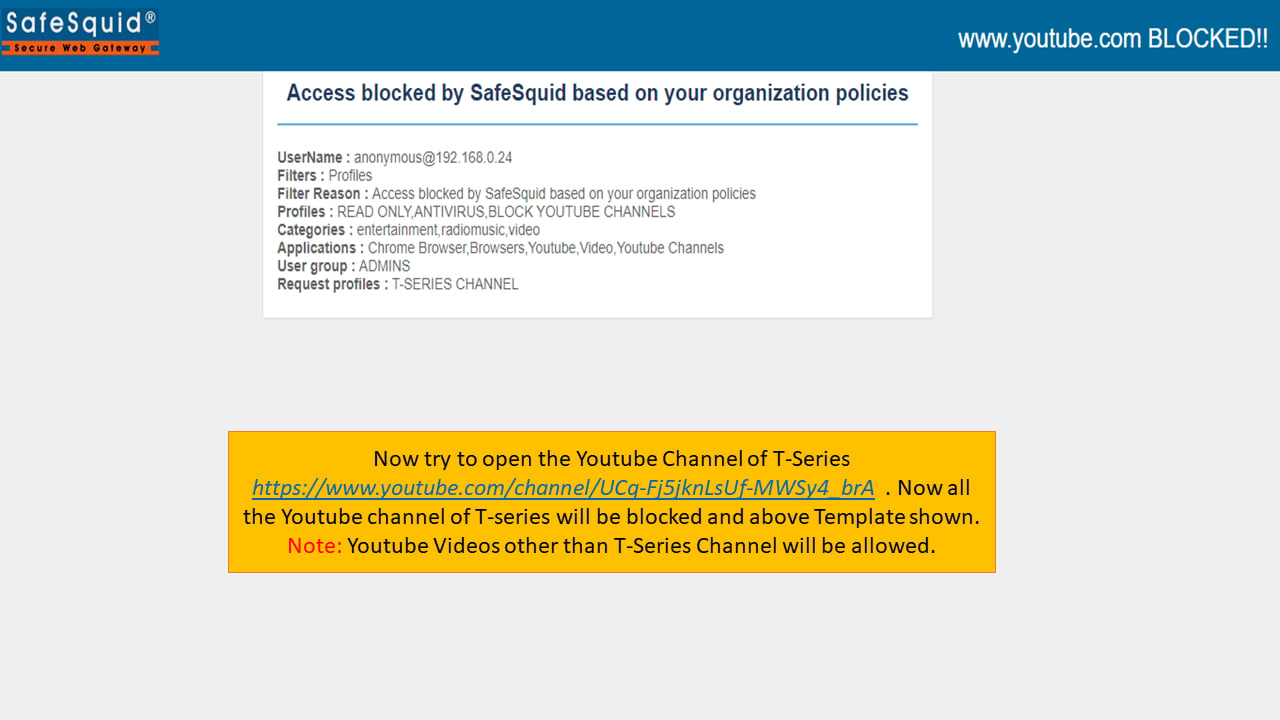
Block access to specific YouTube channels (e.g., T-Series) while allowing other YouTube content.
:::note
Blocking specific YouTube channels while allowing other videos is a common policy need. The steps below demonstrate blocking a specific channel and its playlist videos.
:::
## Prerequisites
* HTTPS Inspection must be enabled in SafeSquid. See [How to enable HTTPS Inspection](/SSL_Inspection).
* Extract the YouTube **Channel-ID** and **List-ID** from the target channel URL
## Extract Channel-ID and List-ID
1. Open the YouTube channel to block (e.g., T-Series).
2. Extract the **Channel-ID** from the URL (the portion after `channel/`):
* URL: `https://www.youtube.com/channel/UCq-Fj5jknLsUf-MWSy4_brA`
* **Channel-ID:** `UCq-Fj5jknLsUf-MWSy4_brA`
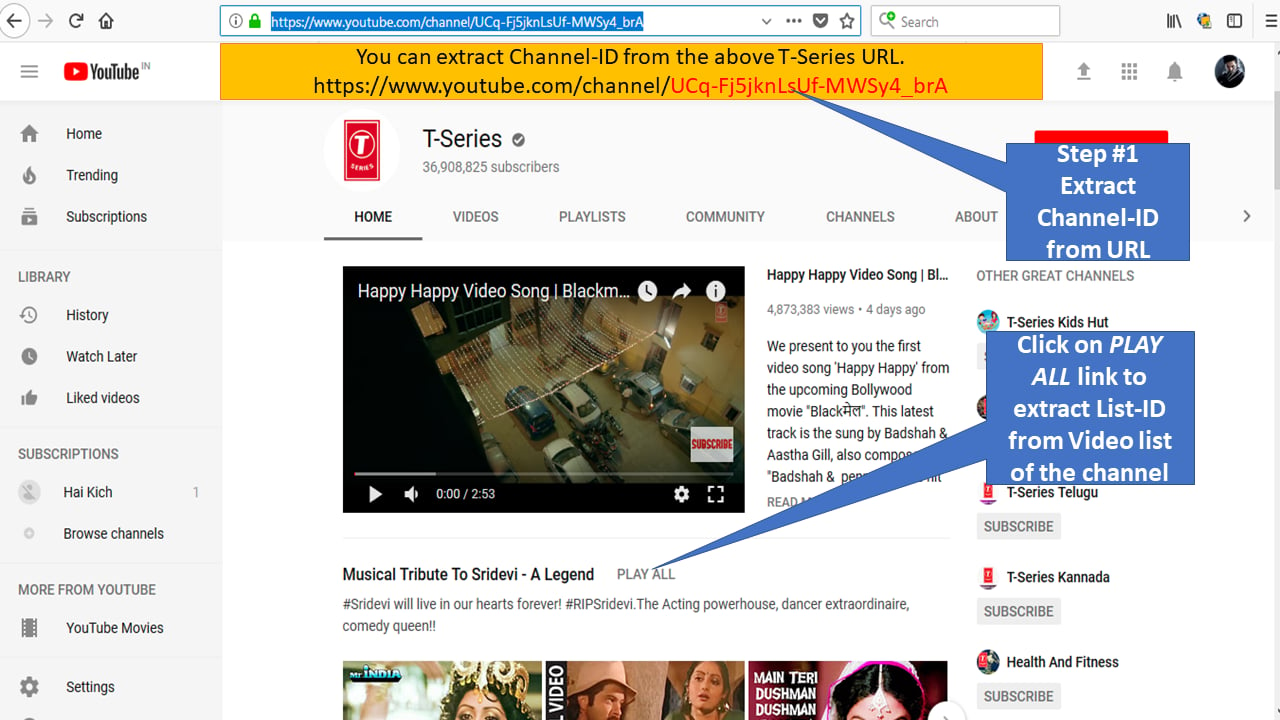 3. Click **PLAY ALL** on the channel page to access a playlist.
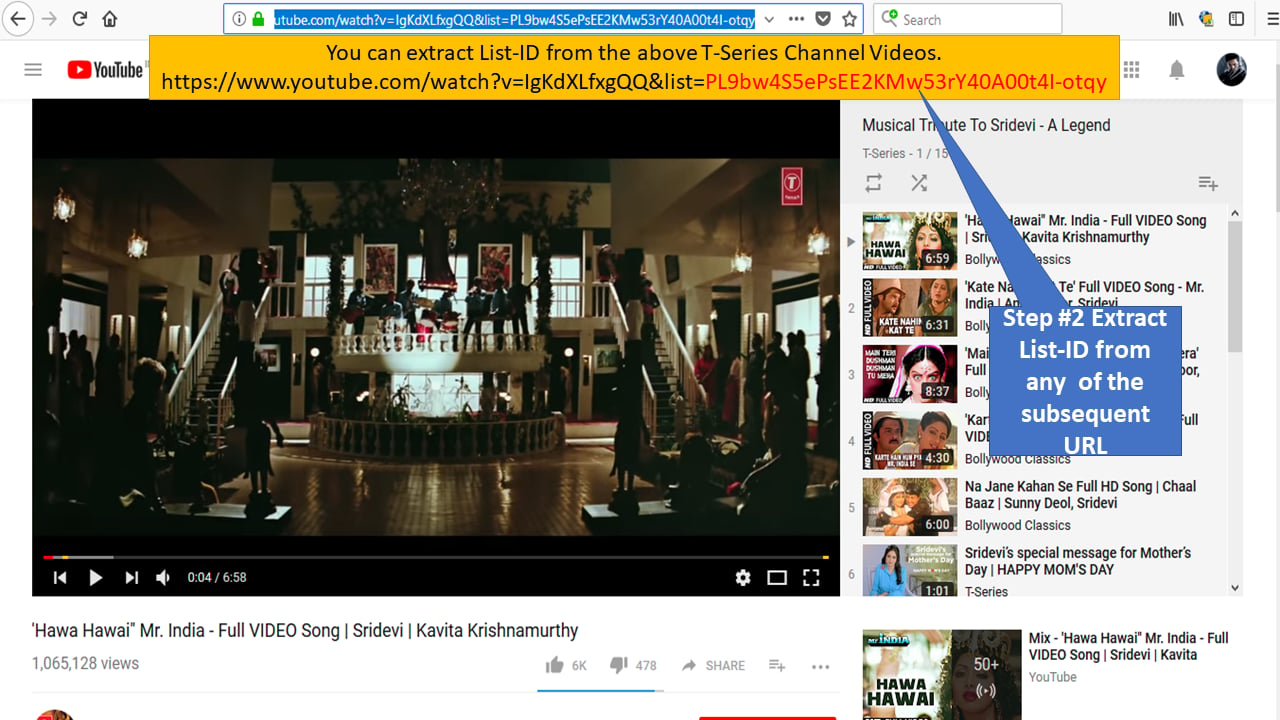
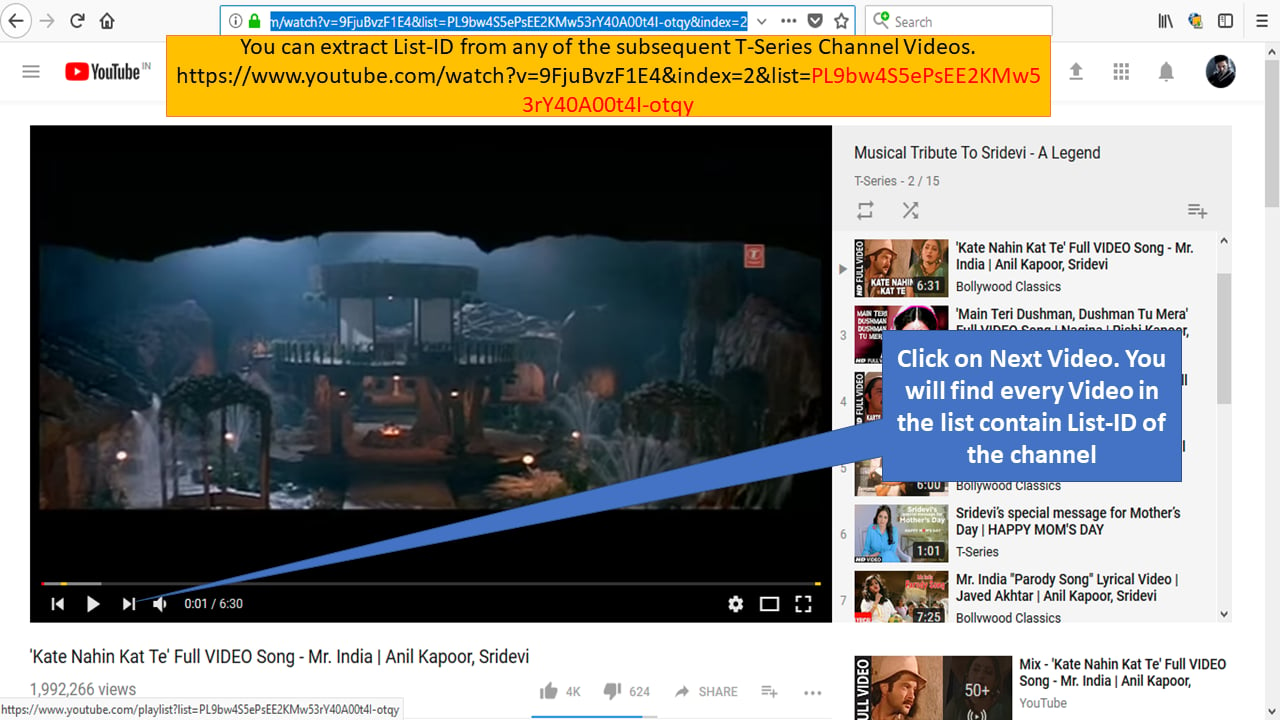
4. Extract the **List-ID** from the playlist URL (the portion after `&list=`):
* URL: `https://www.youtube.com/watch?v=IgKdXLfxgQQ&list=PL9bw4S5ePsEE2KMw53rY40A00t4I-otqy`
* **List-ID:** `PL9bw4S5ePsEE2KMw53rY40A00t4I-otqy`
3. Click **PLAY ALL** on the channel page to access a playlist.
4. Extract the **List-ID** from the playlist URL (the portion after `&list=`):
* URL: `https://www.youtube.com/watch?v=IgKdXLfxgQQ&list=PL9bw4S5ePsEE2KMw53rY40A00t4I-otqy`
* **List-ID:** `PL9bw4S5ePsEE2KMw53rY40A00t4I-otqy`
 ## Create Request Types Policy
5. Open SafeSquid WebGUI and click **Configure**.
## Create Request Types Policy
5. Open SafeSquid WebGUI and click **Configure**.
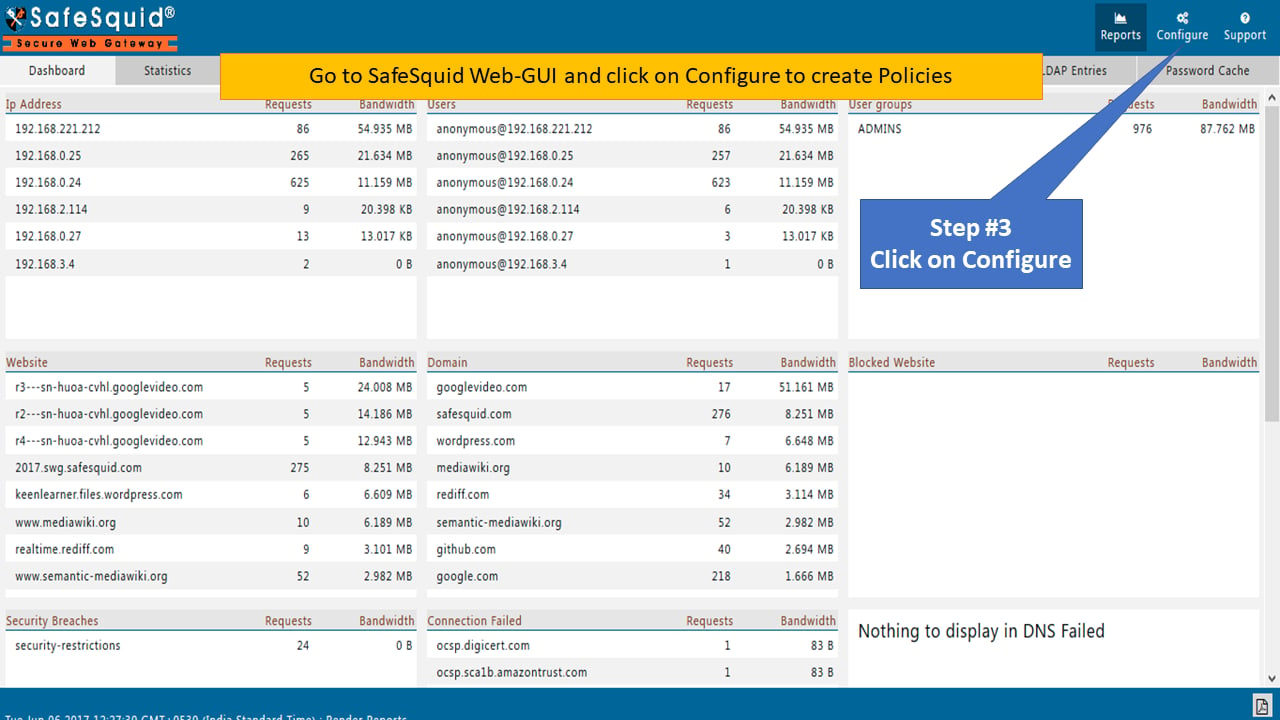 6. Click **Custom Settings** to open the Request Types section.
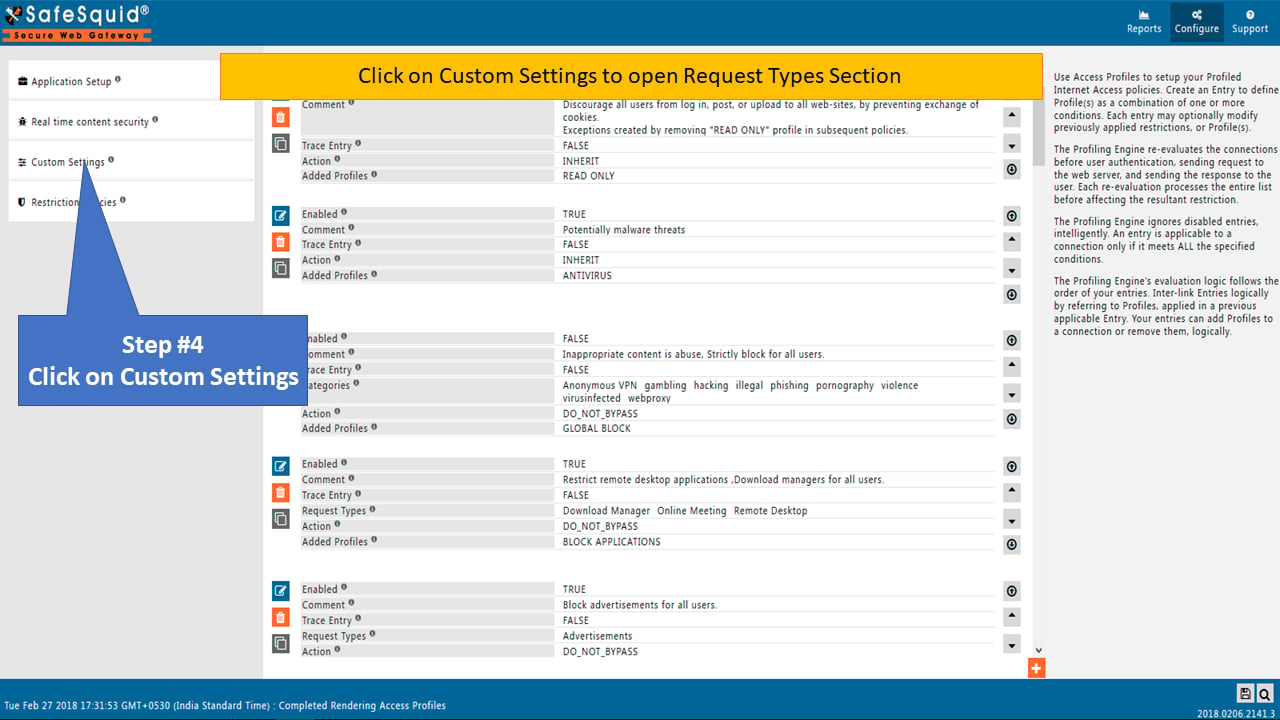 7. Ensure the **Global** setting in Request Types is set to **True**.
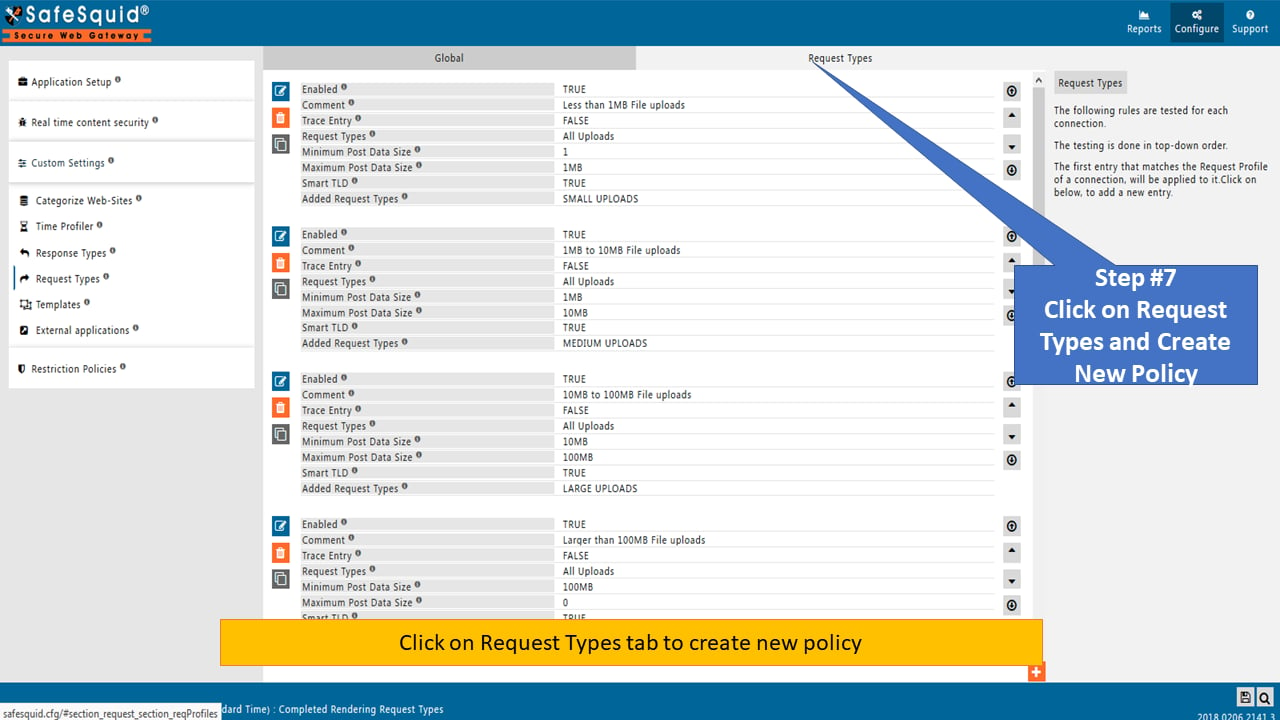
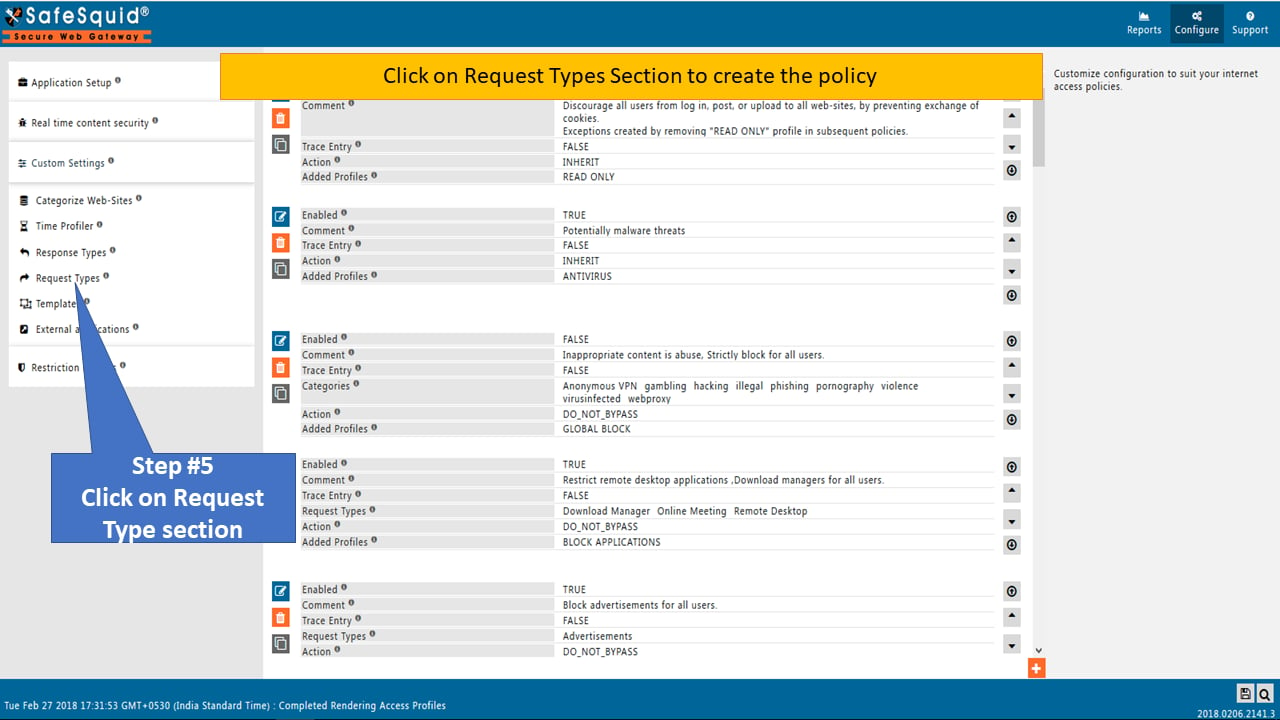 8. Click the **Request Types** tab to create a new policy.
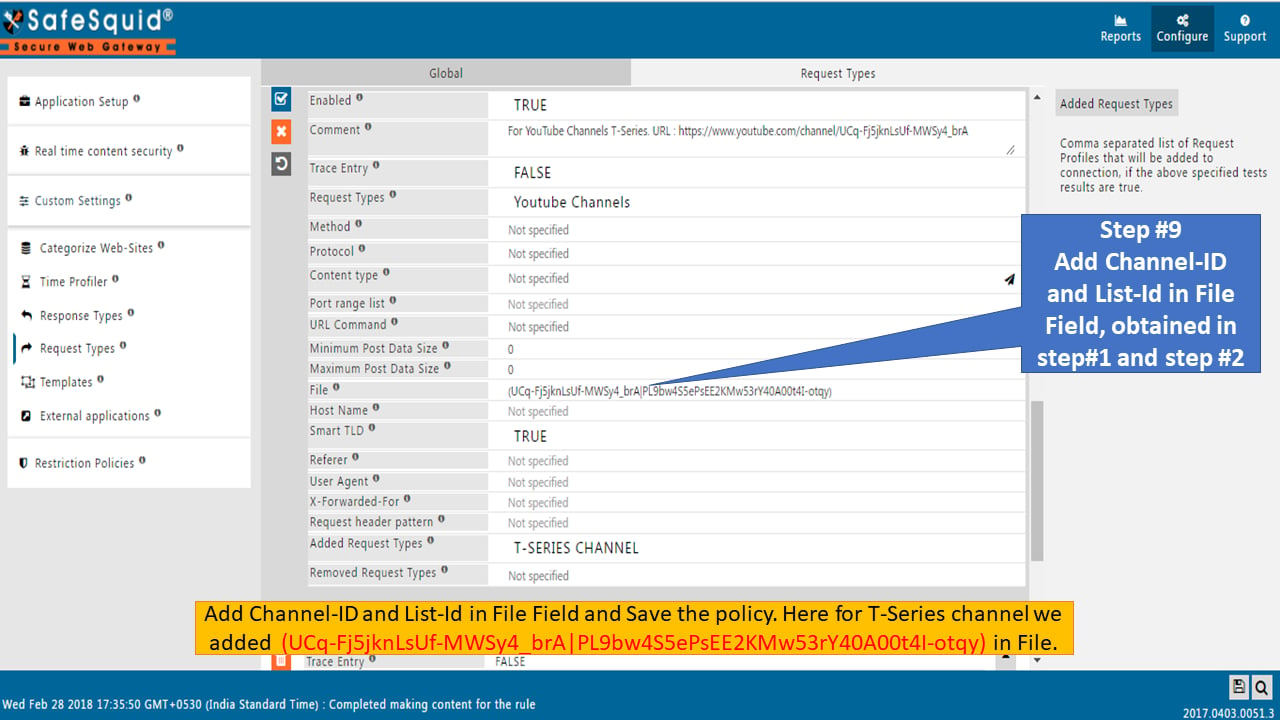
 9. Create a new Request Profile named **T-SERIES CHANNEL** in the Added Request Types field.
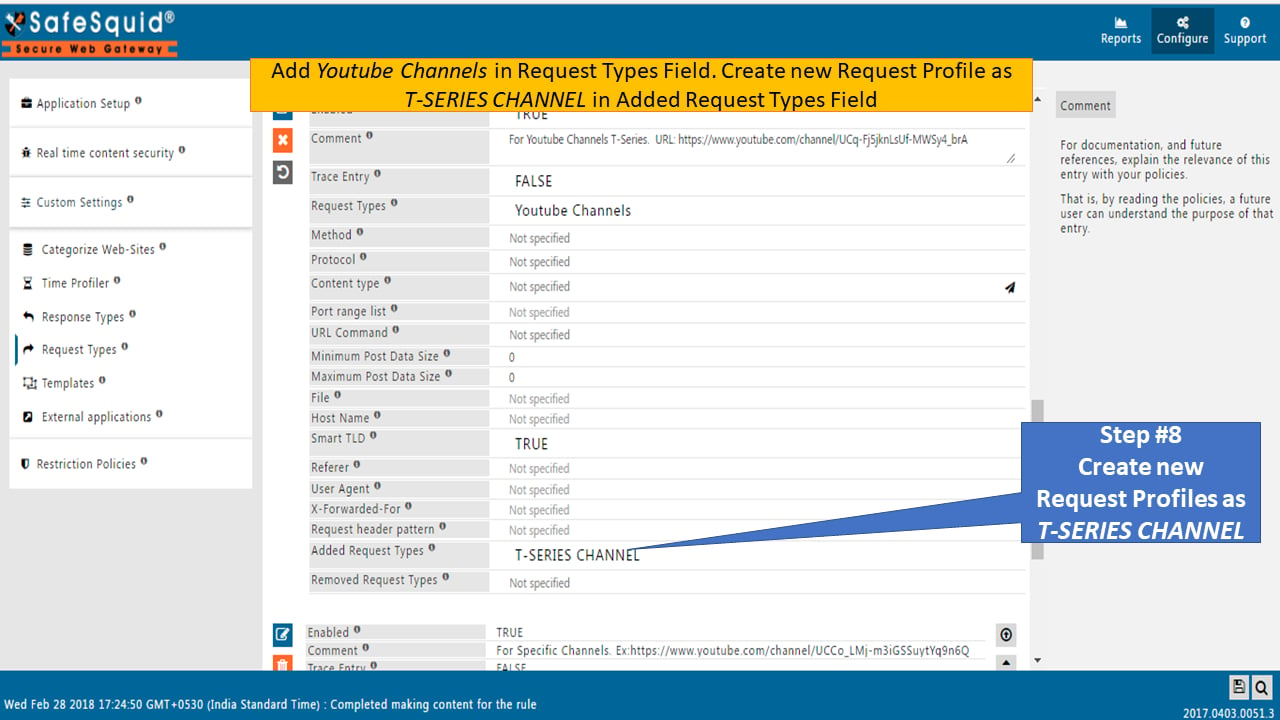 10. Add the Channel-ID and List-ID to the **File** field using the format:
```
(UCq-Fj5jknLsUf-MWSy4_brA|PL9bw4S5ePsEE2KMw53rY40A00t4I-otqy)
```
Save the policy.
10. Add the Channel-ID and List-ID to the **File** field using the format:
```
(UCq-Fj5jknLsUf-MWSy4_brA|PL9bw4S5ePsEE2KMw53rY40A00t4I-otqy)
```
Save the policy.
 ## Create Access Profiles Policy
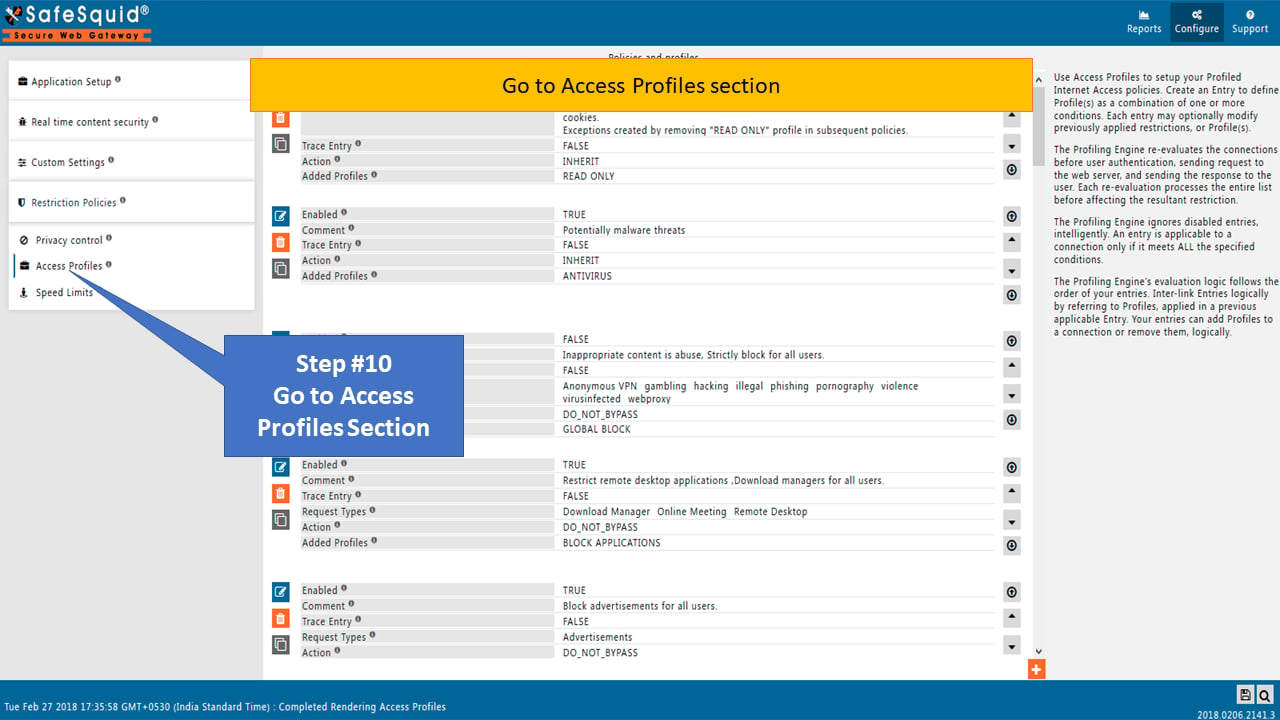
11. Navigate to the **Access Profiles** section.
## Create Access Profiles Policy
11. Navigate to the **Access Profiles** section.
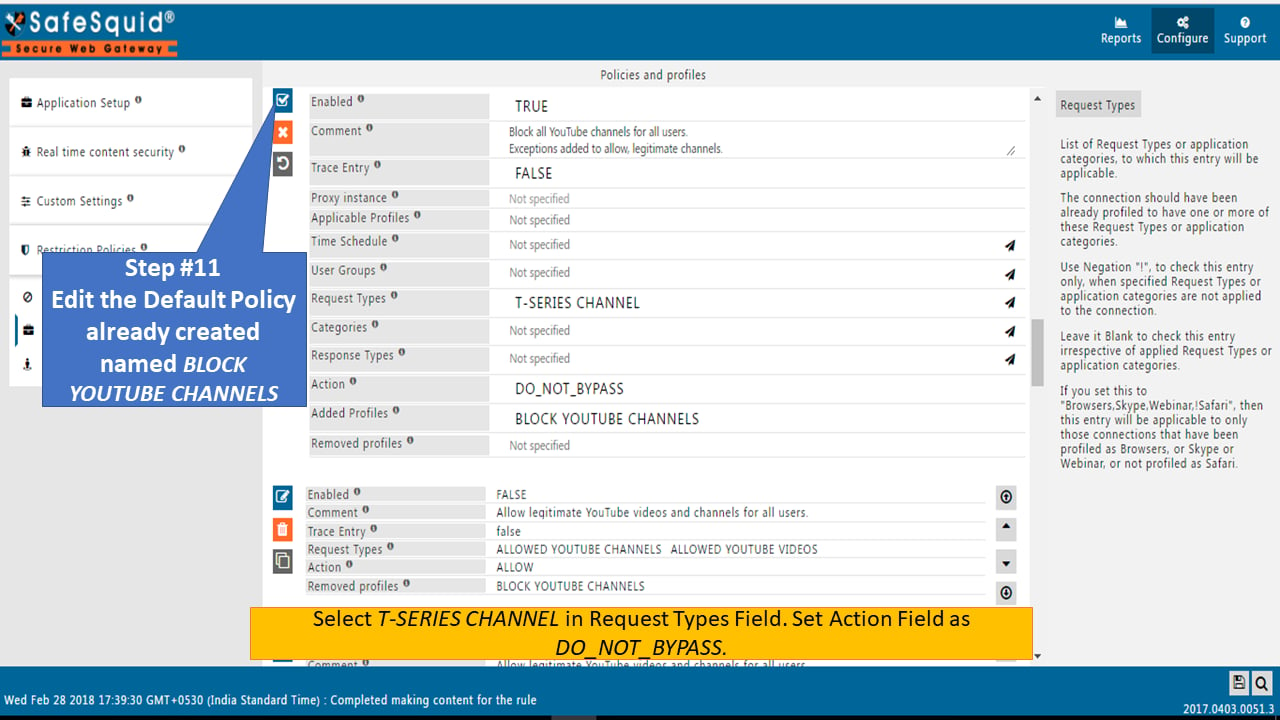
 12. Edit the default policy **BLOCK YOUTUBE CHANNELS**:
* Select **T-SERIES CHANNEL** in the Request Types field
* Set Action to **DO\_NOT\_BYPASS**
12. Edit the default policy **BLOCK YOUTUBE CHANNELS**:
* Select **T-SERIES CHANNEL** in the Request Types field
* Set Action to **DO\_NOT\_BYPASS**
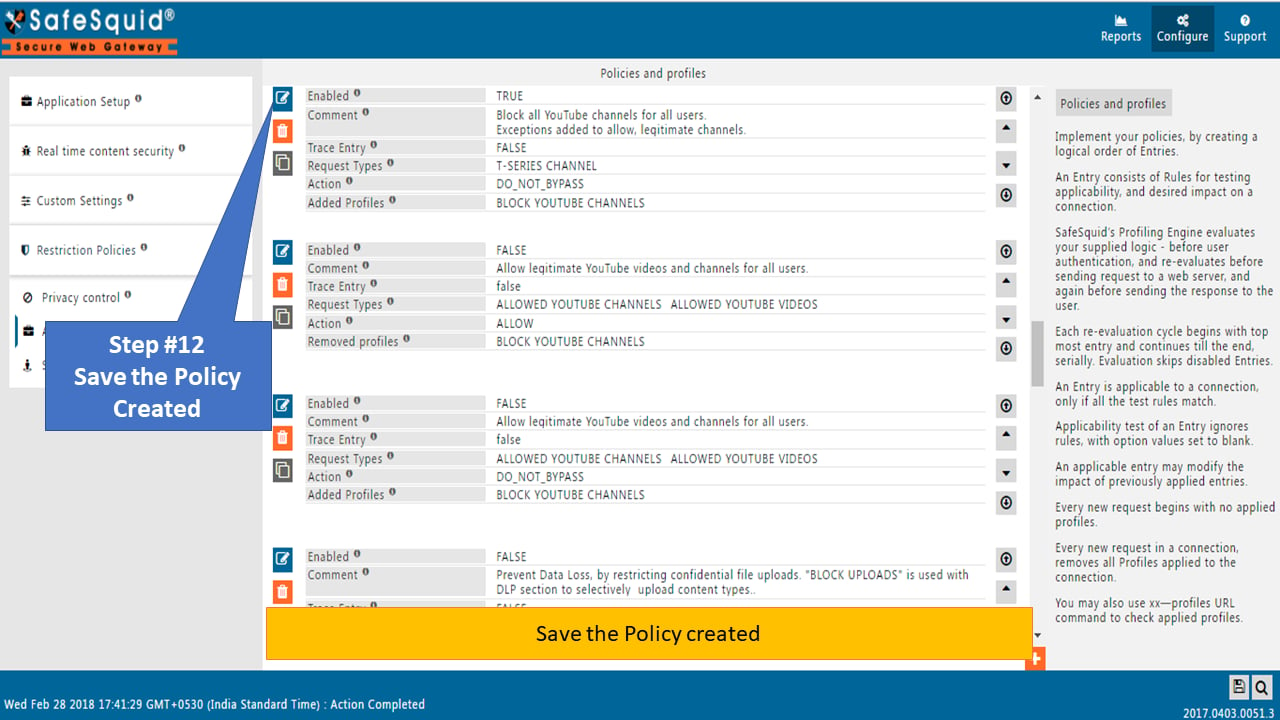
 13. Save the policy.
 ## Verification and Evidence
14. Access the T-Series channel URL: `https://www.youtube.com/channel/UCq-Fj5jknLsUf-MWSy4_brA`
The channel displays the Access Blocked template.
## Verification and Evidence
14. Access the T-Series channel URL: `https://www.youtube.com/channel/UCq-Fj5jknLsUf-MWSy4_brA`
The channel displays the Access Blocked template.
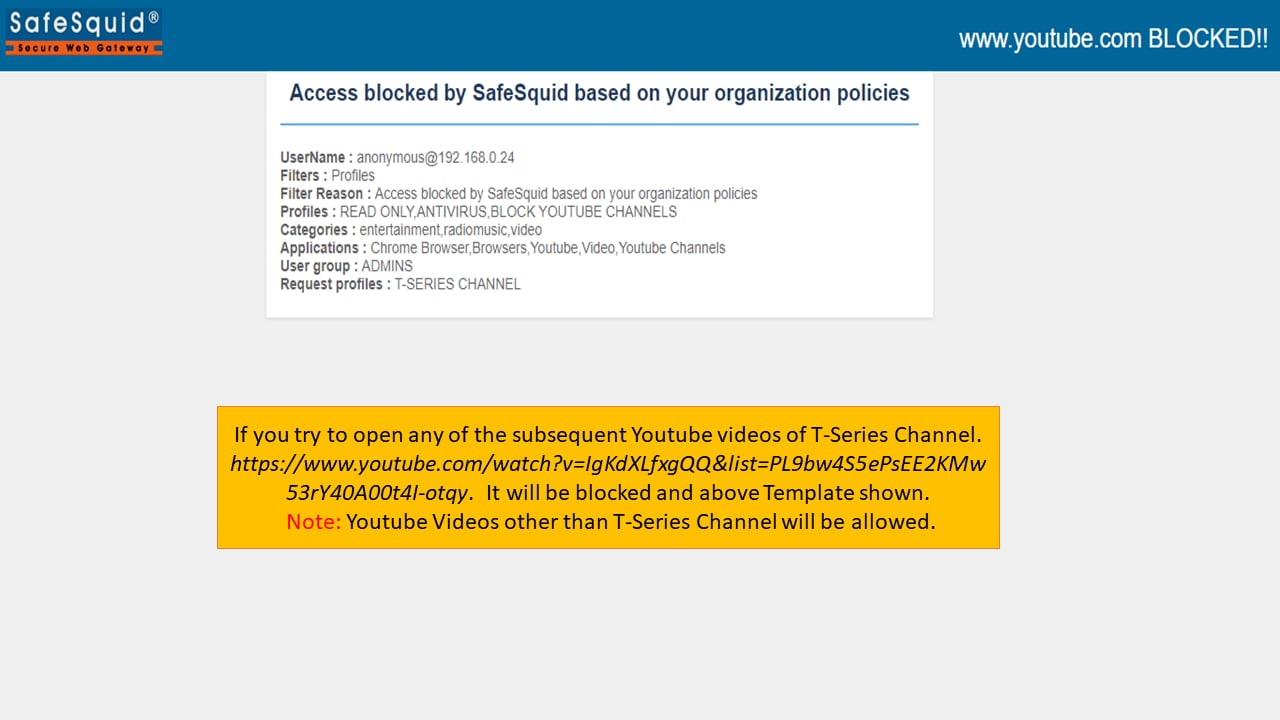
 15. Access any T-Series playlist video to confirm blocking.
 :::note
This configuration blocks videos accessed from the channel page only. Videos from feed links or embedded YouTube videos are not blocked.
To block all videos from a channel, add all playlist List-IDs and individual video file portions to the Request Types File field.
:::
## Next steps
* [Allow Specific YouTube Channel and Its Playlist](/Allow_Specific_YouTube_Channel_and_its_Playlist) to allow only approved channels.
* [Access Restriction](/Access_Restriction) for policy and profile configuration.
## Related topics
- [Allow Specific YouTube Channel and its Playlist](/use_cases/access_restriction/allow_specific_youtube_channel_and_its_playlist.md)
- [YouTube API Integration](/use_cases/access_restriction/youtube_api_integration_with_safesquid_to_allow_specific_youtube_videos.md)
- [Profiling Engine](/use_cases/profiling_engine/profiling_engine.md)
- [Header Filter Configuration and Reference](/use_cases/header_rewrite/header_filter_configuration.md)
- [Content rewrite](/admin_guide/filtering_and_privacy/content_modifier.md)
:::note
This configuration blocks videos accessed from the channel page only. Videos from feed links or embedded YouTube videos are not blocked.
To block all videos from a channel, add all playlist List-IDs and individual video file portions to the Request Types File field.
:::
## Next steps
* [Allow Specific YouTube Channel and Its Playlist](/Allow_Specific_YouTube_Channel_and_its_Playlist) to allow only approved channels.
* [Access Restriction](/Access_Restriction) for policy and profile configuration.
## Related topics
- [Allow Specific YouTube Channel and its Playlist](/use_cases/access_restriction/allow_specific_youtube_channel_and_its_playlist.md)
- [YouTube API Integration](/use_cases/access_restriction/youtube_api_integration_with_safesquid_to_allow_specific_youtube_videos.md)
- [Profiling Engine](/use_cases/profiling_engine/profiling_engine.md)
- [Header Filter Configuration and Reference](/use_cases/header_rewrite/header_filter_configuration.md)
- [Content rewrite](/admin_guide/filtering_and_privacy/content_modifier.md)