> ## Documentation Index
> Fetch the complete documentation index at: https://docs.safesquid.com/llms.txt
> Use this file to discover all available pages before exploring further.
# Local Credential Store
> Configure SafeSquid for browser-based user authentication without Active Directory using local credential storage.
# BASIC Authentication
Browser-prompt authentication with usernames and passwords stored locally in SafeSquid. No directory infrastructure required; credentials are managed locally in SafeSquid or via OS users. Use when you need identity-based access control without Active Directory or LDAP.
## Problems addressed
Some sites lack Active Directory or LDAP. Operators still need **named** identities in logs and access rules instead of anonymous client IPs.
## Outcomes operators expect
* Browser prompts and successful binds recorded in `identity.log` when configured correctly.
* Identity-aware Allow List rules without directory infrastructure.
## Advantages vs directory-backed authentication
BASIC avoids directory rollout cost and suits small or isolated footprints. Trade-off: local credential hygiene, no central SSO, and transport caveats in **Security consideration** below.
## Acquire, deploy, use
Follow **Enable browser authentication** through **Verification**; then combine with [Access Restriction](/Access_Restriction) and optional [SSL Inspection](/SSL_Inspection).
## When to use BASIC authentication
| Use BASIC When | Use Directory Services Instead |
| ------------------------------- | ------------------------------------ |
| No Active Directory or LDAP | Enterprise with existing AD/LDAP |
| Small organization (\<50 users) | Need centralized identity management |
| Isolated environment | SSO requirement |
| Quick proof of concept | Audit requires directory-backed auth |
:::caution
**Security consideration**
BASIC authentication sends credentials in base64 encoding (not encrypted). Use only on:
* Internal networks, or
* HTTPS proxy connections, or
* With SSL inspection enabled
For production deployments with external access, use [Directory Services](/Directory_Services) with TLS.
:::
:::note
**Prerequisites**
* SafeSquid deployed and operational
* Admin access to SafeSquid configuration interface (`http://safesquid.cfg/` — embedded Rest UI, NOT DNS-resolved)
* Browser configured to use SafeSquid as proxy (see [Connect Your Client](/Connect_Your_Client))
:::
## Enable browser authentication
1. **Access SafeSquid Configuration**\
Open `http://safesquid.cfg/` through a browser using the SafeSquid proxy.
2. **Navigate to Access Restrictions**\
**Application Setup** → **Access Restrictions** → **Allow List**\
Click the orange **+** icon to add a new entry.
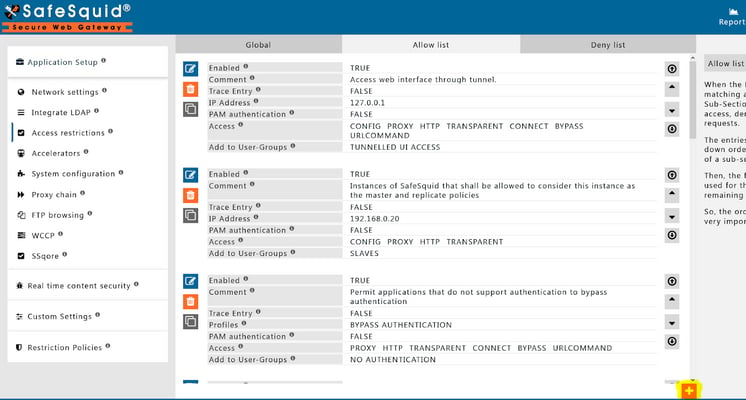 3. **Configure Authentication**\
In the new rule window:
* Set **PAM Authentication** to **FALSE** (we're using local credentials, not OS PAM)
* Leave **Username** and **Password** empty to apply authentication to all users (or enter specific username/password to restrict this rule to a single user)
3. **Configure Authentication**\
In the new rule window:
* Set **PAM Authentication** to **FALSE** (we're using local credentials, not OS PAM)
* Leave **Username** and **Password** empty to apply authentication to all users (or enter specific username/password to restrict this rule to a single user)
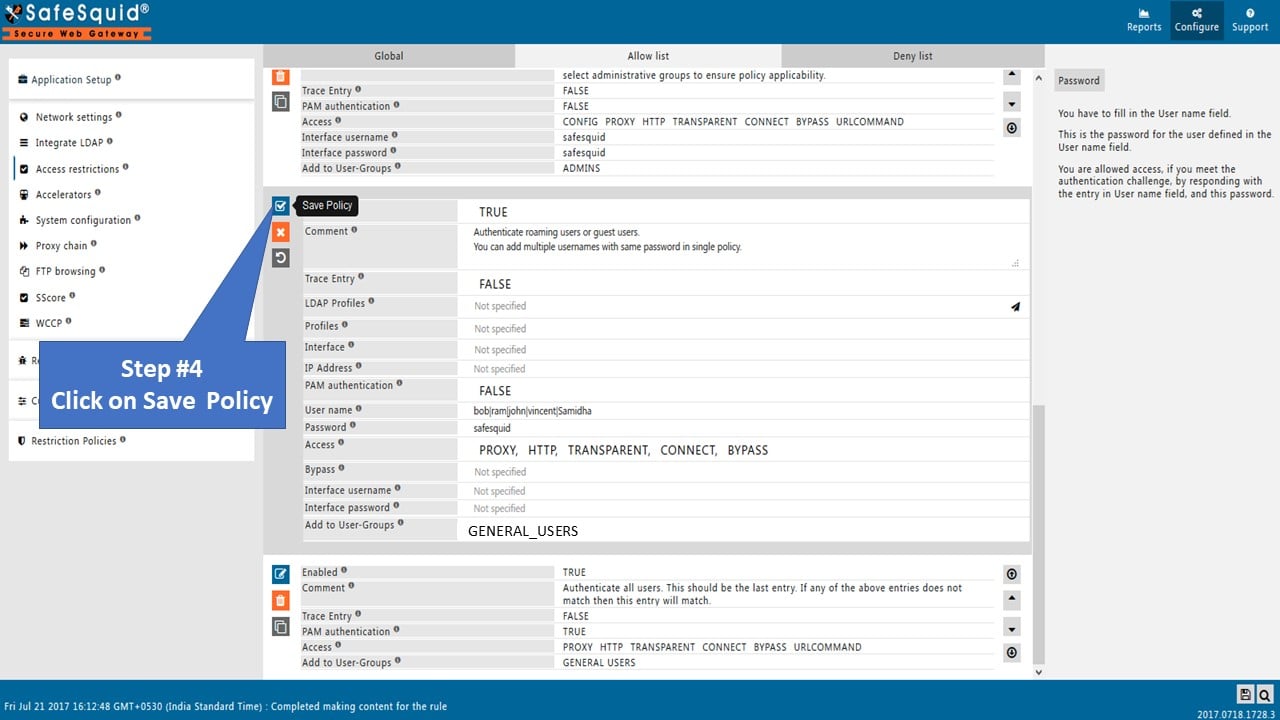
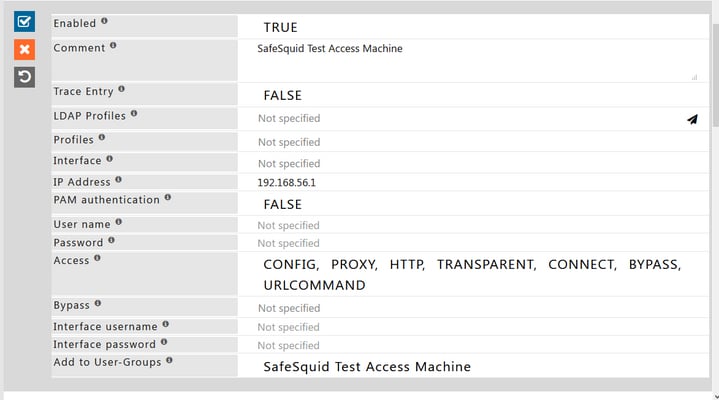 4. **Save the Configuration**\
Click the checkmark to save the rule.
:::tip
This creates the authentication requirement. Users will be prompted for credentials when browsing. Next step: add users.
:::
:::tip
**Apply changes**
After adding users or modifying access rules, click **Apply** in the Access Restrictions section to activate the changes immediately without restarting SafeSquid.
:::
## Add users
**Best for:** Adding individual users with SafeSquid-only access
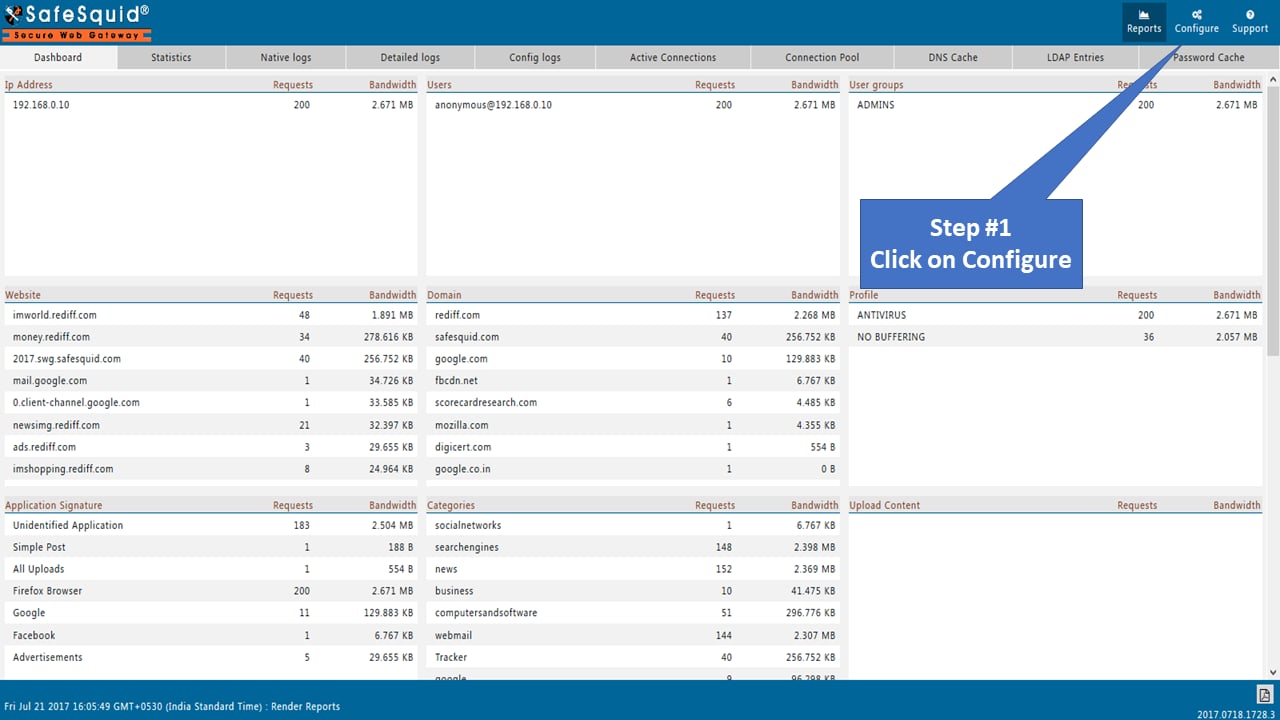
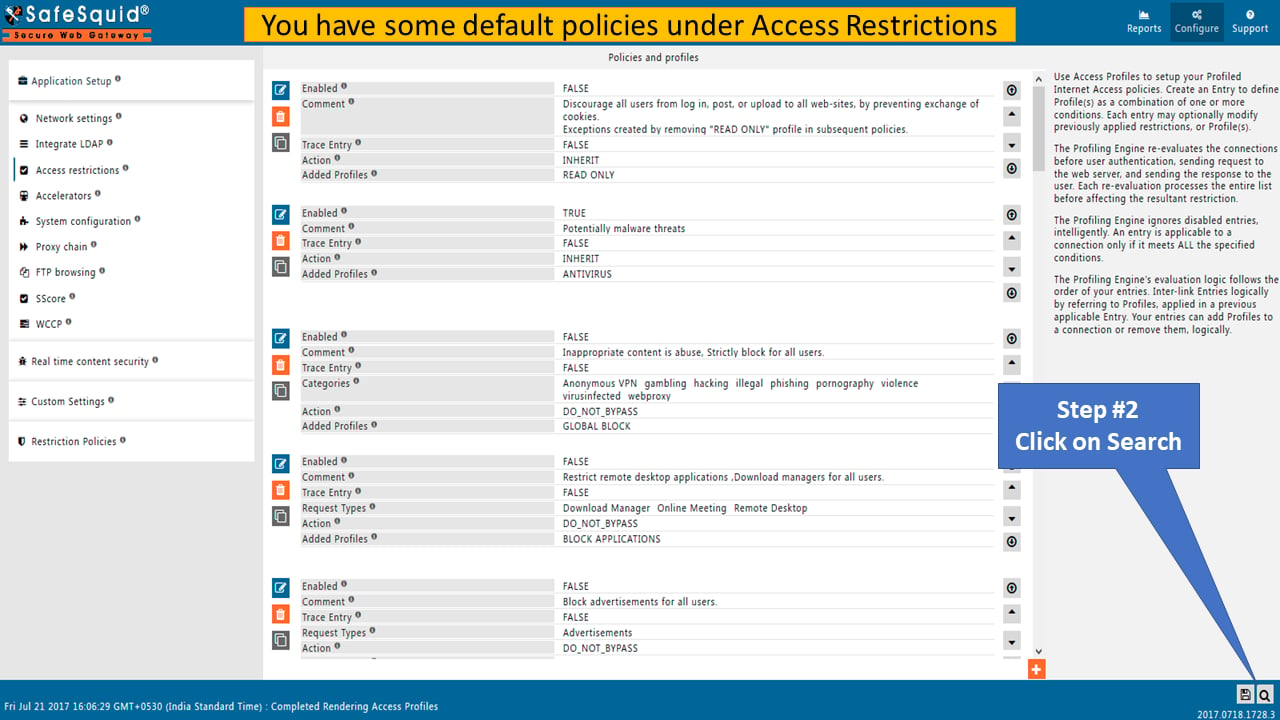
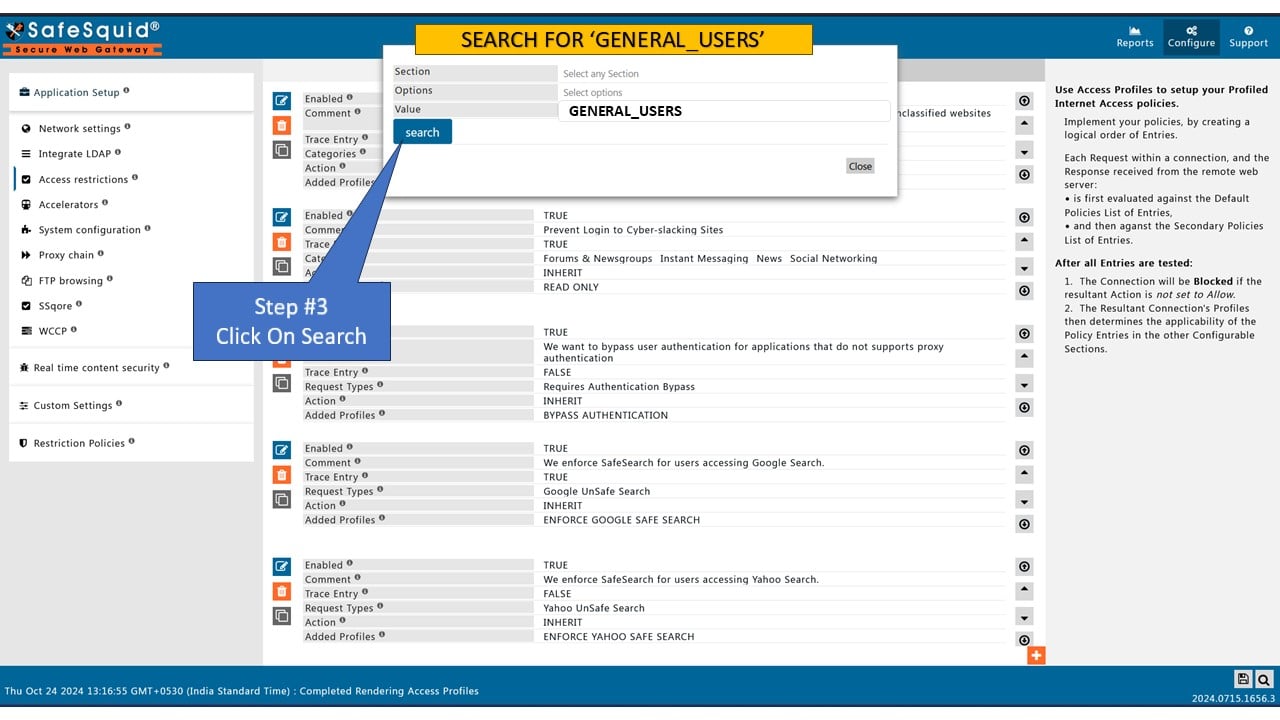
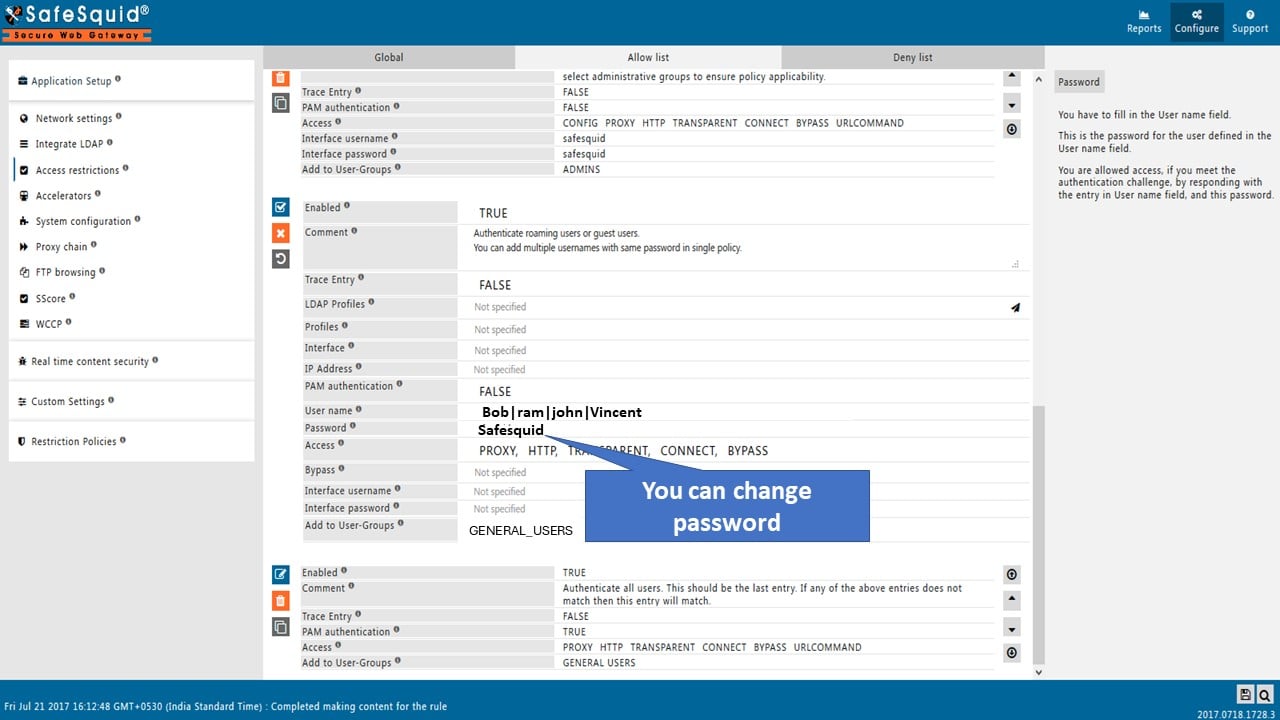
1. **Navigate to Access Profiles**\
Click **Configure** → **Search** → **Access Profiles**
4. **Save the Configuration**\
Click the checkmark to save the rule.
:::tip
This creates the authentication requirement. Users will be prompted for credentials when browsing. Next step: add users.
:::
:::tip
**Apply changes**
After adding users or modifying access rules, click **Apply** in the Access Restrictions section to activate the changes immediately without restarting SafeSquid.
:::
## Add users
**Best for:** Adding individual users with SafeSquid-only access
1. **Navigate to Access Profiles**\
Click **Configure** → **Search** → **Access Profiles**
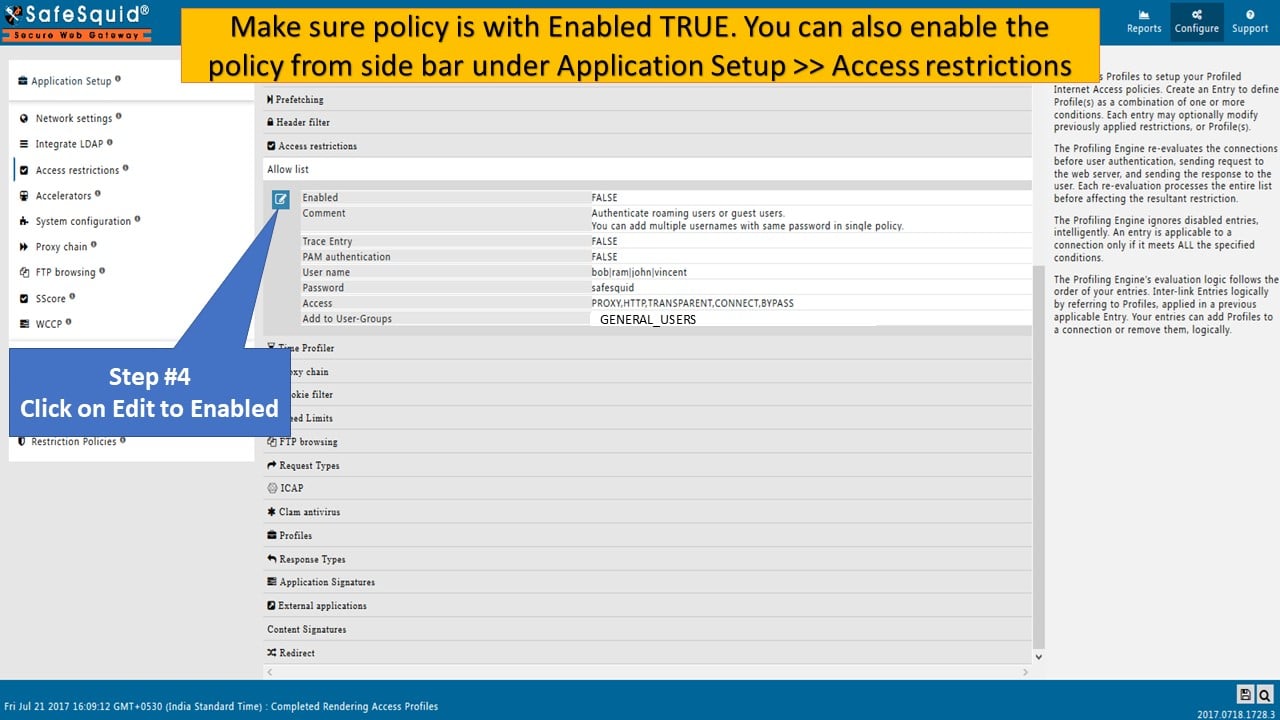
 2. **Create User Entry**\
Click **Add New** → Select **BASIC** authentication type
2. **Create User Entry**\
Click **Add New** → Select **BASIC** authentication type
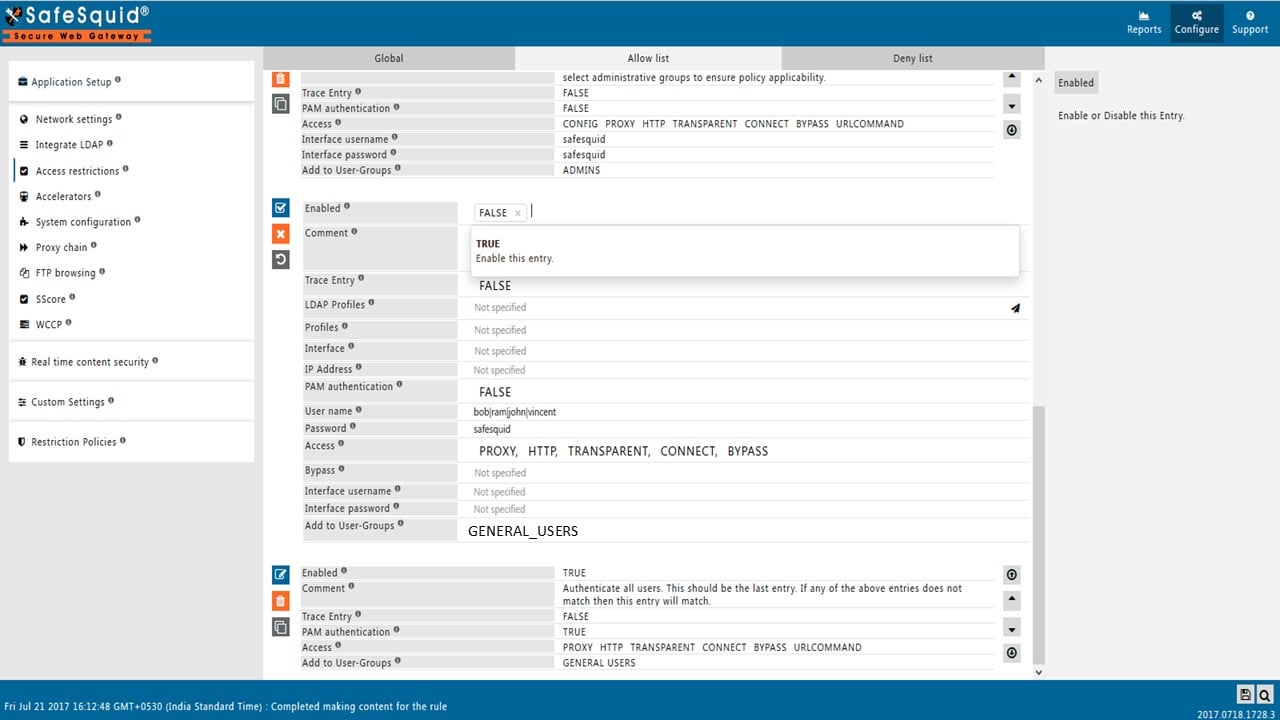
 3. **Enter Credentials**\
Add username and password for the user
3. **Enter Credentials**\
Add username and password for the user
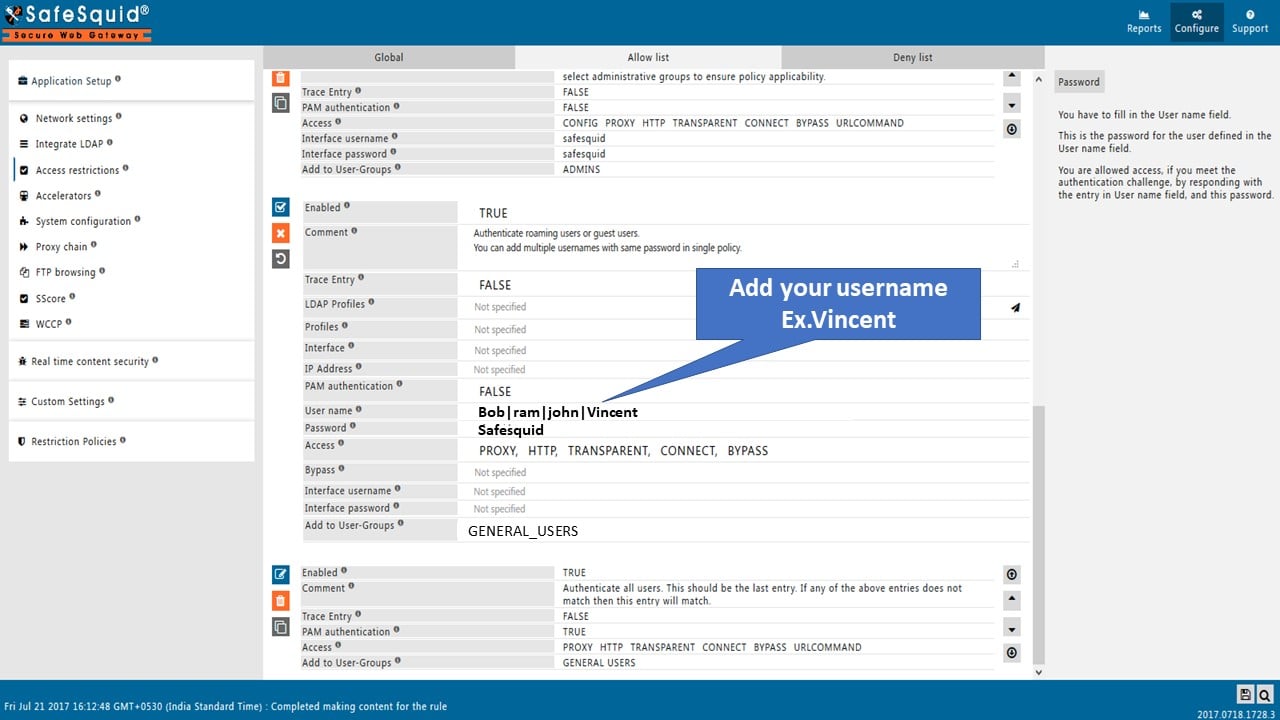
 4. **Save and Apply**\
Save the user entry and apply to the access restriction rule
4. **Save and Apply**\
Save the user entry and apply to the access restriction rule
 **Best for:** Users who also need OS login access
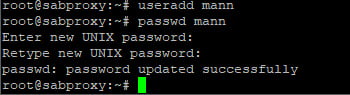
1. **Create a New User**
```bash theme={null}
useradd name_of_the_user
```
2. **Set the Password**
```bash theme={null}
passwd name_of_the_user
```
Enter and confirm the new password when prompted.
**Best for:** Users who also need OS login access
1. **Create a New User**
```bash theme={null}
useradd name_of_the_user
```
2. **Set the Password**
```bash theme={null}
passwd name_of_the_user
```
Enter and confirm the new password when prompted.
 3. **Enable PAM in Access Rule**\
In SafeSquid **Access Restrictions** → **Allow List**, edit your access rule and set **PAM Authentication** to **TRUE**. This allows SafeSquid to validate against OS users.
:::tip
Use this method when you want proxy credentials to match OS login credentials (single credential set).
:::
## Verification
1. **Test Authentication Flow**
* Open a browser configured to use SafeSquid as proxy
* Browse to any external site (e.g., `http://example.com`)
* Authentication prompt should appear
* Enter configured credentials
* Access is granted when authentication succeeds
2. **Verify in Interface**\
**Access Restrictions** → **Allow List** shows the rule with authentication enabled
3. **Check Logs**
```bash theme={null}
tail -f /var/log/safesquid/identity.log
```
You should see entries with authenticated usernames for proxied requests.
## Troubleshooting
| Symptom | Likely Cause | Fix |
| ----------------------- | ------------------------------------------- | ---------------------------------------------------------------------------------------------------------------------- |
| No login prompt appears | Authentication not enabled in access rule | Set PAM Authentication to TRUE (for OS users) or FALSE (for SafeSquid credential store); ensure rule matches client IP |
| Login fails repeatedly | Incorrect credentials or misconfigured rule | Verify username/password; check if using PAM (OS users) vs SafeSquid credential store |
| Some users can't login | User not added or wrong method | Confirm user exists (OS or SafeSquid interface) and matches the authentication method configured (PAM vs BASIC) |
| Rule not applied | IP mismatch or rule order | Ensure client IP matches the rule; check rule order in Allow List |
## Credential management best practices
SafeSquid's local credential store does not enforce password policies automatically. Implement these manually:
* **Password strength:** Require min 12 chars with complexity when creating accounts
* **Rotation:** Manually update credentials every 90 days for compliance
* **Audit:** Review `/var/log/safesquid/identity.log` monthly for unauthorized attempts
* **Segregation:** Create separate user accounts for different roles/groups
For automated password policy enforcement, migrate to [Directory Services](/Directory_Services).
## Source register
| Topic | Status | Source |
| ------------------------------------ | ------------- | -------------------------- |
| RFC 7617 BASIC flow | **Confirmed** | This page, UI paths |
| Local credential store vs PAM toggle | **Confirmed** | This page |
| `identity.log` evidence | **Confirmed** | Verification section above |
## Next steps
* **Add group-based policies:** Combine authentication with [Access Restriction](/Access_Restriction) to enforce different rules per user or group
* **Attribute HTTPS traffic:** Enable [SSL Inspection](/SSL_Inspection) so encrypted traffic shows authenticated usernames in logs
* **Upgrade to directory:** Migrate to [Directory Services](/Directory_Services) when user count grows or centralized identity is required
* **IP-based fallback:** Use the [Architecture hub](/safesquid_swg/architecture/safesquid_swg) for devices that cannot authenticate
* **Bypass apps:** Configure [Bypass Authentication](/Bypass_Authentication) for OS updates and automatic processes
## Related topics
- [PAM Authentication](/use_cases/authentication/pam.md)
- [Internal User Authentication](/use_cases/authentication/internal_users.md)
- [User Identification](/use_cases/authentication/user_identities.md)
- [Application-Specific Configuration](/getting_started/client_configuration/application_specific_configuration.md)
- [Policy, Security, and UI Files](/safesquid_swg/files_and_folders/policy_security_and_ui_files.md)
3. **Enable PAM in Access Rule**\
In SafeSquid **Access Restrictions** → **Allow List**, edit your access rule and set **PAM Authentication** to **TRUE**. This allows SafeSquid to validate against OS users.
:::tip
Use this method when you want proxy credentials to match OS login credentials (single credential set).
:::
## Verification
1. **Test Authentication Flow**
* Open a browser configured to use SafeSquid as proxy
* Browse to any external site (e.g., `http://example.com`)
* Authentication prompt should appear
* Enter configured credentials
* Access is granted when authentication succeeds
2. **Verify in Interface**\
**Access Restrictions** → **Allow List** shows the rule with authentication enabled
3. **Check Logs**
```bash theme={null}
tail -f /var/log/safesquid/identity.log
```
You should see entries with authenticated usernames for proxied requests.
## Troubleshooting
| Symptom | Likely Cause | Fix |
| ----------------------- | ------------------------------------------- | ---------------------------------------------------------------------------------------------------------------------- |
| No login prompt appears | Authentication not enabled in access rule | Set PAM Authentication to TRUE (for OS users) or FALSE (for SafeSquid credential store); ensure rule matches client IP |
| Login fails repeatedly | Incorrect credentials or misconfigured rule | Verify username/password; check if using PAM (OS users) vs SafeSquid credential store |
| Some users can't login | User not added or wrong method | Confirm user exists (OS or SafeSquid interface) and matches the authentication method configured (PAM vs BASIC) |
| Rule not applied | IP mismatch or rule order | Ensure client IP matches the rule; check rule order in Allow List |
## Credential management best practices
SafeSquid's local credential store does not enforce password policies automatically. Implement these manually:
* **Password strength:** Require min 12 chars with complexity when creating accounts
* **Rotation:** Manually update credentials every 90 days for compliance
* **Audit:** Review `/var/log/safesquid/identity.log` monthly for unauthorized attempts
* **Segregation:** Create separate user accounts for different roles/groups
For automated password policy enforcement, migrate to [Directory Services](/Directory_Services).
## Source register
| Topic | Status | Source |
| ------------------------------------ | ------------- | -------------------------- |
| RFC 7617 BASIC flow | **Confirmed** | This page, UI paths |
| Local credential store vs PAM toggle | **Confirmed** | This page |
| `identity.log` evidence | **Confirmed** | Verification section above |
## Next steps
* **Add group-based policies:** Combine authentication with [Access Restriction](/Access_Restriction) to enforce different rules per user or group
* **Attribute HTTPS traffic:** Enable [SSL Inspection](/SSL_Inspection) so encrypted traffic shows authenticated usernames in logs
* **Upgrade to directory:** Migrate to [Directory Services](/Directory_Services) when user count grows or centralized identity is required
* **IP-based fallback:** Use the [Architecture hub](/safesquid_swg/architecture/safesquid_swg) for devices that cannot authenticate
* **Bypass apps:** Configure [Bypass Authentication](/Bypass_Authentication) for OS updates and automatic processes
## Related topics
- [PAM Authentication](/use_cases/authentication/pam.md)
- [Internal User Authentication](/use_cases/authentication/internal_users.md)
- [User Identification](/use_cases/authentication/user_identities.md)
- [Application-Specific Configuration](/getting_started/client_configuration/application_specific_configuration.md)
- [Policy, Security, and UI Files](/safesquid_swg/files_and_folders/policy_security_and_ui_files.md)