> ## Documentation Index
> Fetch the complete documentation index at: https://docs.safesquid.com/llms.txt
> Use this file to discover all available pages before exploring further.
# Network Signature
> Network Signature reference and operational guidance for SafeSquid SWG administrators.
# Network Signature
Maps client IP addresses or ranges to user-groups so access restriction rules and reporting apply by network segment. No user login required; policy is enforced by source IP or subnet. Use when user identity is unavailable (device-only access, legacy apps, shared kiosks).
SafeSquid evaluates Network Signature rules (Allow List) **top to bottom** and applies the **first matching rule**. Place specific IP rules above broader ranges to ensure correct policy application. See [Rule Order Matters](#troubleshooting) below for details.
## When to use Network Signature
| Use Network Signature When | Use User Authentication Instead |
| -------------------------------------- | ------------------------------------------------ |
| IoT devices, printers, shared kiosks | User workstations with logins |
| Legacy apps without proxy auth support | Modern apps with credential prompts |
| Policy by location/VLAN/segment | Policy by individual user |
| Device-level accountability acceptable | User-level attribution required (SOC 2, PCI DSS) |
* SafeSquid deployed and operational
* Admin access to [Configuration Portal](/safesquid_swg/architecture/safesquid_swg)
* Known client IP addresses or subnets (static or predictable ranges)
Network Signature attributes traffic to IP/subnet and group, **not to a named user**. Where regulations require user-level attribution (e.g., PCI DSS, HIPAA), combine with user authentication or document the scope of IP-only policies for auditors.
## Configure IP-based user-groups
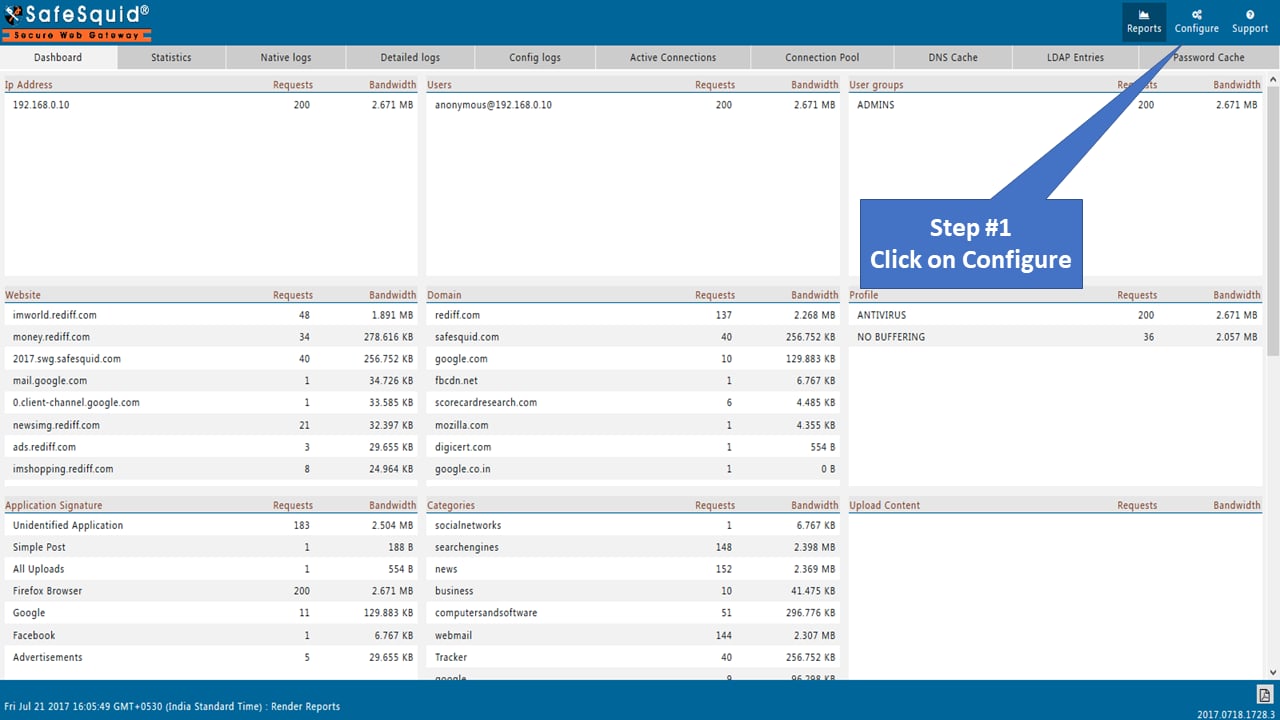
1. **Access SafeSquid Configuration** Open the [Configuration Portal](/safesquid_swg/architecture/safesquid_swg) and click **Configure**.
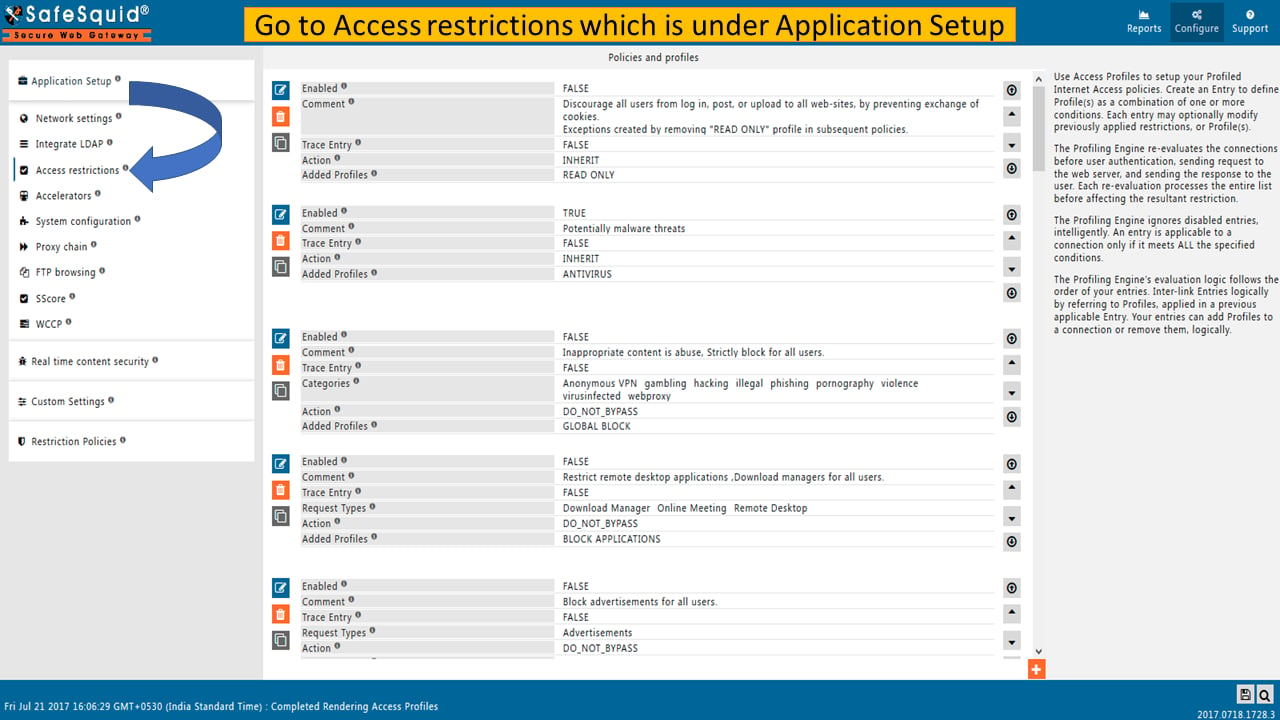
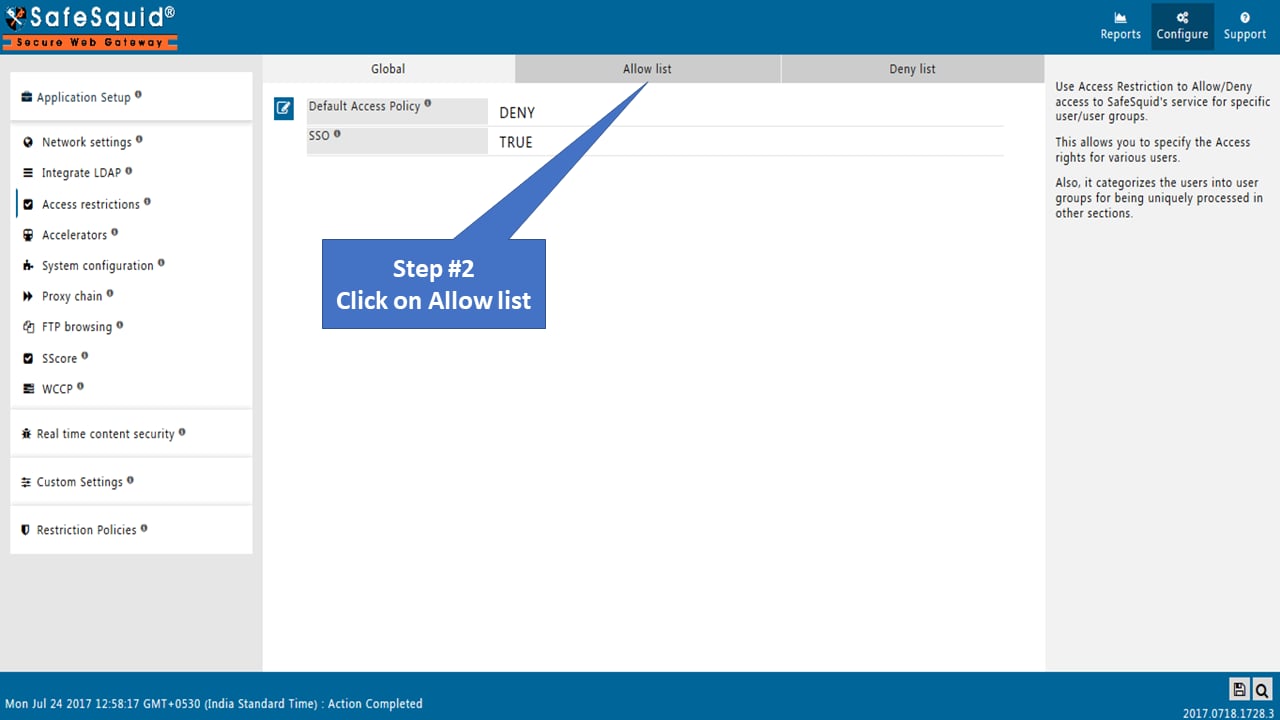
2. **Navigate to Access Restrictions** **Application Setup** -> **Access Restrictions** -> **Allow List**
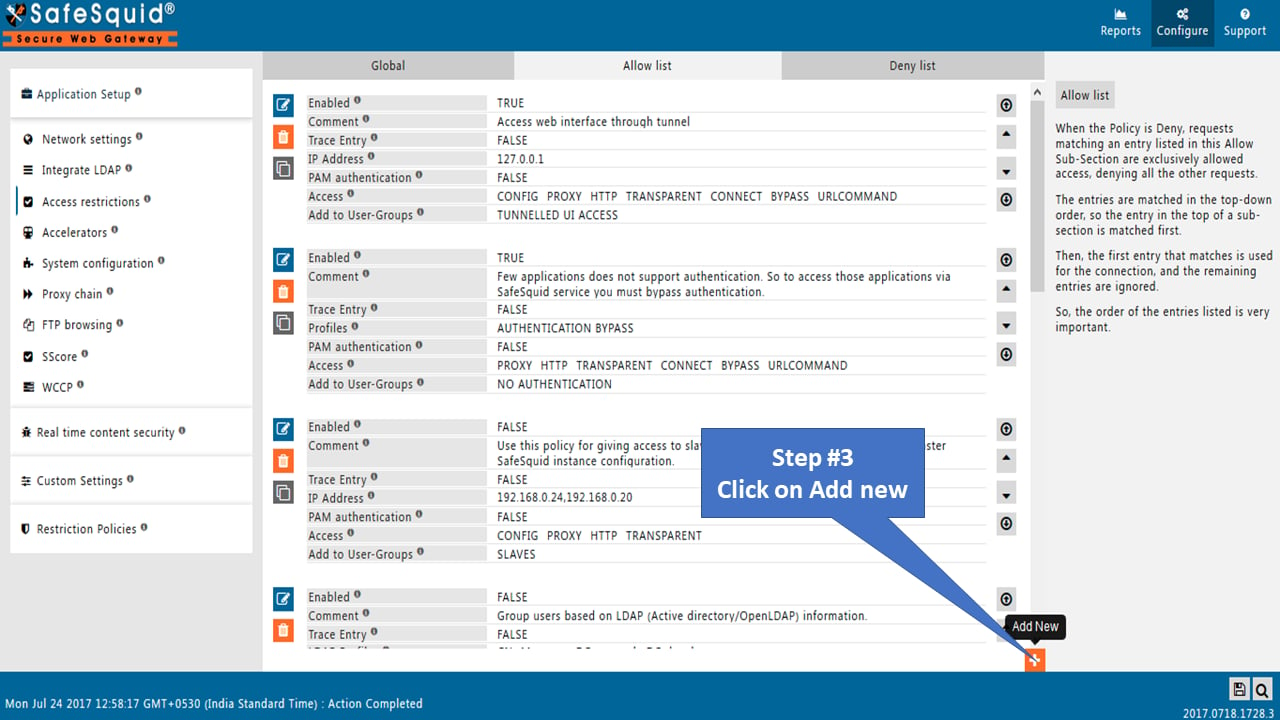
3. **Create New Policy** Click **Add New**.
4. **Define IP Range** Enter the IP address or range in the **IP Address** field. **Supported formats:** Single IP: `192.168.1.50` Multiple IPs: `192.168.1.50, 192.168.1.51, 192.168.1.52` IP range: `192.168.1.50-192.168.1.100` CIDR notation: `192.168.1.0/24`
5. **Assign User-Group** In **Add to User-Groups**, specify a unique group name (e.g., `FINANCE_DEVICES`, `GUEST_KIOSKS`, `IOT_SENSORS`).
6. **Save Policy** Click the checkmark to save.
Set **PAM Authentication** to **TRUE** or add **Username/Password** if you want that IP range to *also* require user login. This allows "IP range + user authentication" for specific segments.
## Configuration screenshots
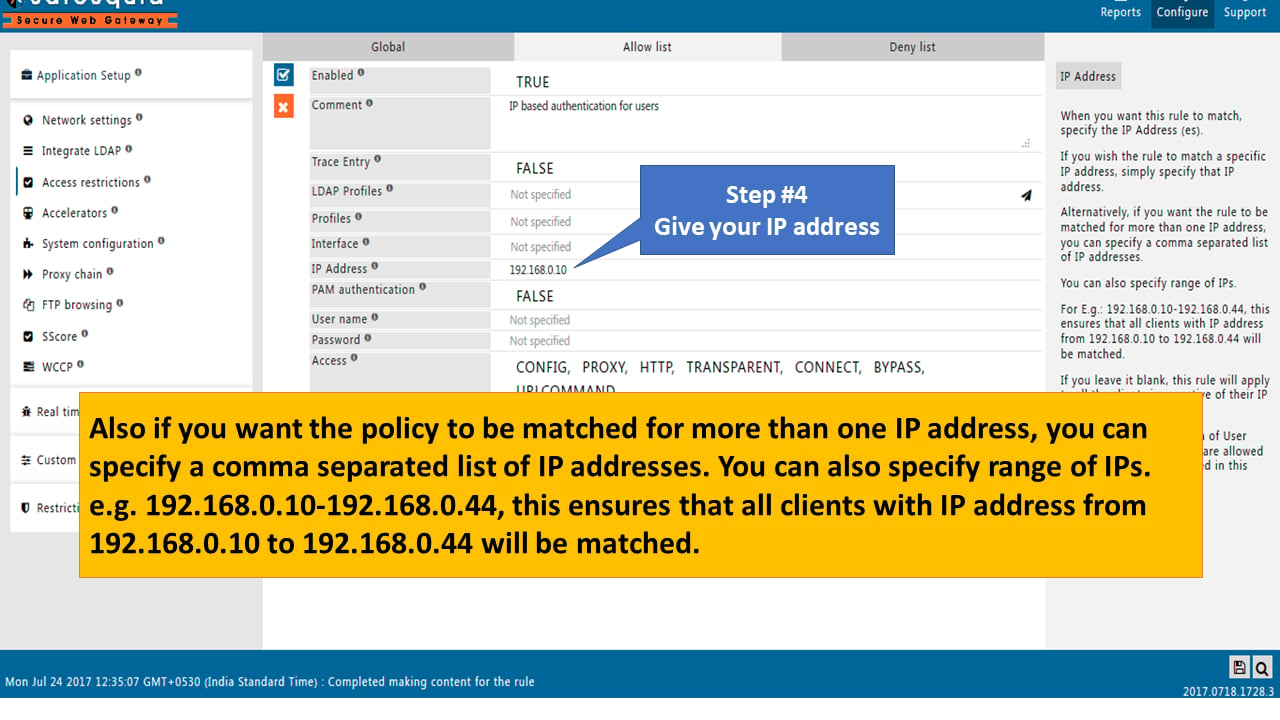
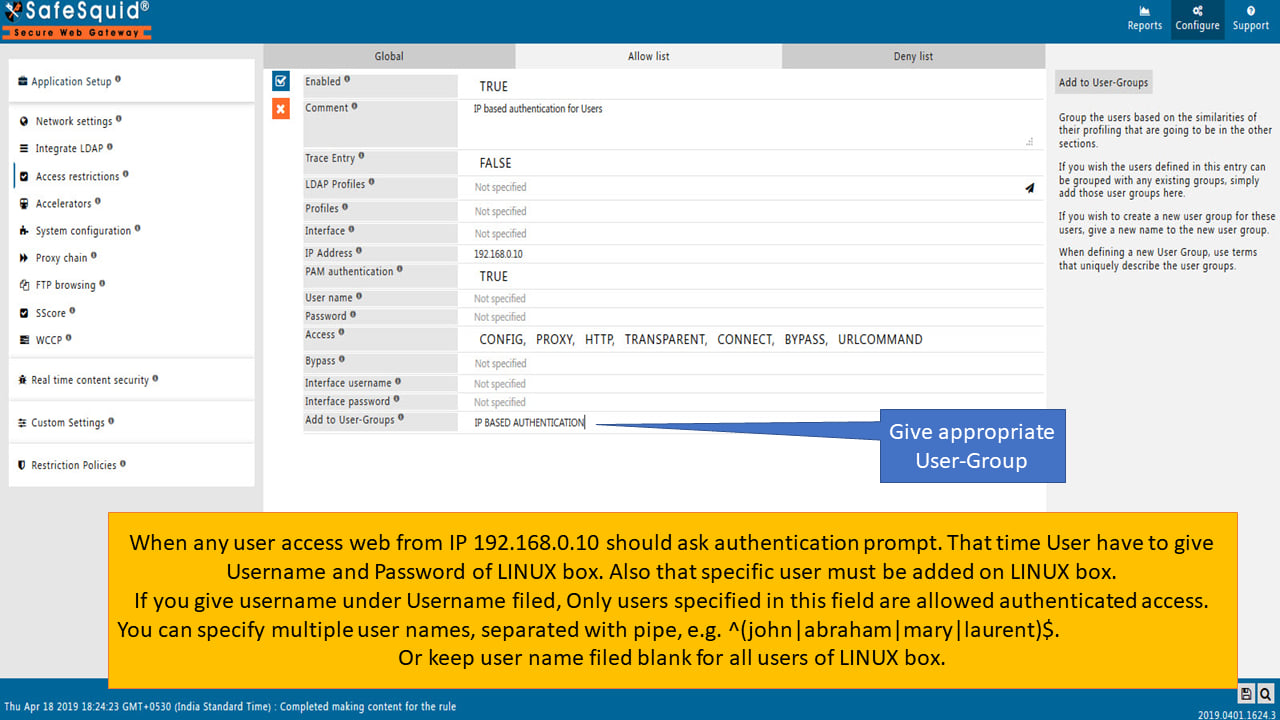 ## Example: Segmented network policies
| Segment | IP Range | User-Group | Authentication | Policy Goal |
| -------------------- | ---------------- | ------------- | ---------------- | ------------------------------ |
| Finance workstations | 192.168.10.0/24 | FINANCE | PAM required | User-level + department policy |
| Guest kiosks | 192.168.20.10-20 | GUEST\_KIOSKS | None | Restricted browsing, no login |
| IoT devices | 192.168.30.0/24 | IOT\_DEVICES | None | Update servers only |
| Executive floor | 192.168.5.0/24 | EXECUTIVES | AD/LDAP required | Premium access + audit |
## Verification
1. **Test from Client** Send traffic through the proxy from a client in the configured IP range. The client is assigned the configured user-group and matching access rules apply.
2. **Check Interface** **Access Restrictions** -> **Allow List** shows the rule with IP range and user-group
3. **Review Logs** `tail -f /var/log/safesquid/identity.log` Or **Reports** -> **Detailed Logs** Logs show client IP and assigned user-group
4. **Confirm Policy Application** Access a restricted site from the client; confirm the group-specific policy is enforced (allowed/blocked as configured)
## Troubleshooting
| Symptom | Likely Cause | Fix |
| ---------------------- | ------------------------------------------ | ---------------------------------------------------------------------------------------------------------------------------------- |
| Wrong policy applied | Client IP not in range or rule order issue | Verify client IP is within the configured range; check rule order in Allow List (more specific rules should be above broader ones) |
| No group assigned | IP mismatch or typo in range | Confirm IP field syntax; test from a known IP in the range |
| Unexpected auth prompt | Rule has PAM or credentials set | For IP-only policy (no user login), ensure PAM is set to FALSE and username/password fields are empty |
| Overlapping ranges | Multiple rules match same IP | Consolidate rules or use more specific ranges; SafeSquid uses first matching rule |
SafeSquid evaluates Allow List rules **top to bottom**. Place narrow, specific IP rules above broad ones:
1. 192.168.10.50 (single executive IP with premium access)
2. 192.168.10.0/24 (department subnet with standard access)
3. 0.0.0.0/0 (default policy for all others)
## Advanced: Dynamic IP assignment
For environments with DHCP where client IPs change:
1. **DHCP reservations:** Assign static IPs via DHCP for critical devices
2. **VLAN-based ranges:** Use predictable ranges per VLAN; map VLAN subnets to user-groups
3. **Combine with MAC-based DHCP:** Tie MAC addresses to IP reservations, then use Network Signature on those IPs
4. **Upgrade to user auth:** For dynamic endpoints (laptops, mobile), use [Directory Services](/use_cases/authentication/authentication) instead
## Next steps
* **Add user authentication:** Combine Network Signature with [Directory Services](/use_cases/authentication/authentication) or [BASIC](/use_cases/authentication/authentication) for user-aware policies
* **Refine access rules:** Use [Access Restriction](/use_cases/access_restriction/access_restriction) to define what each user-group can access
* **Enable SSL Inspection:** Configure [SSL Inspection](/use_cases/ssl_inspection/ssl_inspection) to inspect HTTPS traffic from IP-based groups
* **Report by group:** Use SafeSquid reports to analyze bandwidth and activity per user-group
## Related topics
- [Authentication](/use_cases/authentication/authentication.md)
- [Application Signatures](/admin_guide/policies_and_profiles/application_signatures.md)
- [Content Signatures](/admin_guide/policies_and_profiles/content_signatures.md)
- [Allow Remote Applications to Particular Users](/use_cases/access_restriction/allow_remote_applications_to_particular_users.md)
## Example: Segmented network policies
| Segment | IP Range | User-Group | Authentication | Policy Goal |
| -------------------- | ---------------- | ------------- | ---------------- | ------------------------------ |
| Finance workstations | 192.168.10.0/24 | FINANCE | PAM required | User-level + department policy |
| Guest kiosks | 192.168.20.10-20 | GUEST\_KIOSKS | None | Restricted browsing, no login |
| IoT devices | 192.168.30.0/24 | IOT\_DEVICES | None | Update servers only |
| Executive floor | 192.168.5.0/24 | EXECUTIVES | AD/LDAP required | Premium access + audit |
## Verification
1. **Test from Client** Send traffic through the proxy from a client in the configured IP range. The client is assigned the configured user-group and matching access rules apply.
2. **Check Interface** **Access Restrictions** -> **Allow List** shows the rule with IP range and user-group
3. **Review Logs** `tail -f /var/log/safesquid/identity.log` Or **Reports** -> **Detailed Logs** Logs show client IP and assigned user-group
4. **Confirm Policy Application** Access a restricted site from the client; confirm the group-specific policy is enforced (allowed/blocked as configured)
## Troubleshooting
| Symptom | Likely Cause | Fix |
| ---------------------- | ------------------------------------------ | ---------------------------------------------------------------------------------------------------------------------------------- |
| Wrong policy applied | Client IP not in range or rule order issue | Verify client IP is within the configured range; check rule order in Allow List (more specific rules should be above broader ones) |
| No group assigned | IP mismatch or typo in range | Confirm IP field syntax; test from a known IP in the range |
| Unexpected auth prompt | Rule has PAM or credentials set | For IP-only policy (no user login), ensure PAM is set to FALSE and username/password fields are empty |
| Overlapping ranges | Multiple rules match same IP | Consolidate rules or use more specific ranges; SafeSquid uses first matching rule |
SafeSquid evaluates Allow List rules **top to bottom**. Place narrow, specific IP rules above broad ones:
1. 192.168.10.50 (single executive IP with premium access)
2. 192.168.10.0/24 (department subnet with standard access)
3. 0.0.0.0/0 (default policy for all others)
## Advanced: Dynamic IP assignment
For environments with DHCP where client IPs change:
1. **DHCP reservations:** Assign static IPs via DHCP for critical devices
2. **VLAN-based ranges:** Use predictable ranges per VLAN; map VLAN subnets to user-groups
3. **Combine with MAC-based DHCP:** Tie MAC addresses to IP reservations, then use Network Signature on those IPs
4. **Upgrade to user auth:** For dynamic endpoints (laptops, mobile), use [Directory Services](/use_cases/authentication/authentication) instead
## Next steps
* **Add user authentication:** Combine Network Signature with [Directory Services](/use_cases/authentication/authentication) or [BASIC](/use_cases/authentication/authentication) for user-aware policies
* **Refine access rules:** Use [Access Restriction](/use_cases/access_restriction/access_restriction) to define what each user-group can access
* **Enable SSL Inspection:** Configure [SSL Inspection](/use_cases/ssl_inspection/ssl_inspection) to inspect HTTPS traffic from IP-based groups
* **Report by group:** Use SafeSquid reports to analyze bandwidth and activity per user-group
## Related topics
- [Authentication](/use_cases/authentication/authentication.md)
- [Application Signatures](/admin_guide/policies_and_profiles/application_signatures.md)
- [Content Signatures](/admin_guide/policies_and_profiles/content_signatures.md)
- [Allow Remote Applications to Particular Users](/use_cases/access_restriction/allow_remote_applications_to_particular_users.md)