> ## Documentation Index
> Fetch the complete documentation index at: https://docs.safesquid.com/llms.txt
> Use this file to discover all available pages before exploring further.
# Setup Active Directory Integration
> Link SafeSquid with Active Directory to synchronize users and groups for identity-based web security policies.
# Setup Active Directory Integration
Establish a connection between SafeSquid and Active Directory (AD) to synchronize user and group entities. This is the foundational step for both Simple and SSO authentication.
## Problem statement
If SafeSquid cannot reliably read AD users and groups, every later authentication flow becomes brittle. This setup step is where directory truth enters the proxy.
:::note
**Prerequisites**
* SafeSquid installed and operational.
* Windows Server with Active Directory installed and reachable from the SafeSquid server.
* [LDAP Admin](https://sourceforge.net/projects/ldapadmin/) installed (optional, used for verifying AD structure).
* A domain account with read permissions to the directory (Administrator or a dedicated service account).
* Working DNS and time synchronization between SafeSquid and the AD environment.
:::
## 1. Verify Active Directory structure
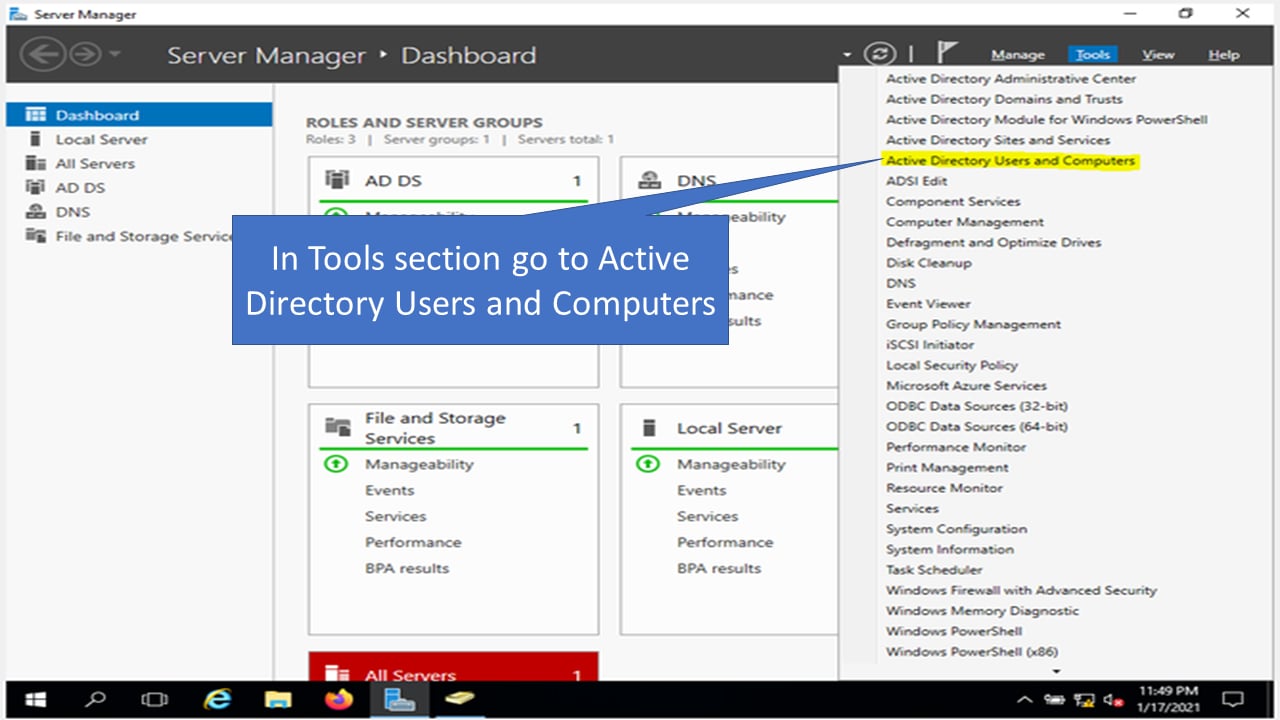
Before configuring SafeSquid, ensure your users and groups are organized in AD. Use **Active Directory Users and Computers** on your Windows Server.
 :::tip
**Note the Base DN**
Your Base DN usually follows your domain name. Example: `safesquid.test` → `DC=safesquid,DC=test`.
:::
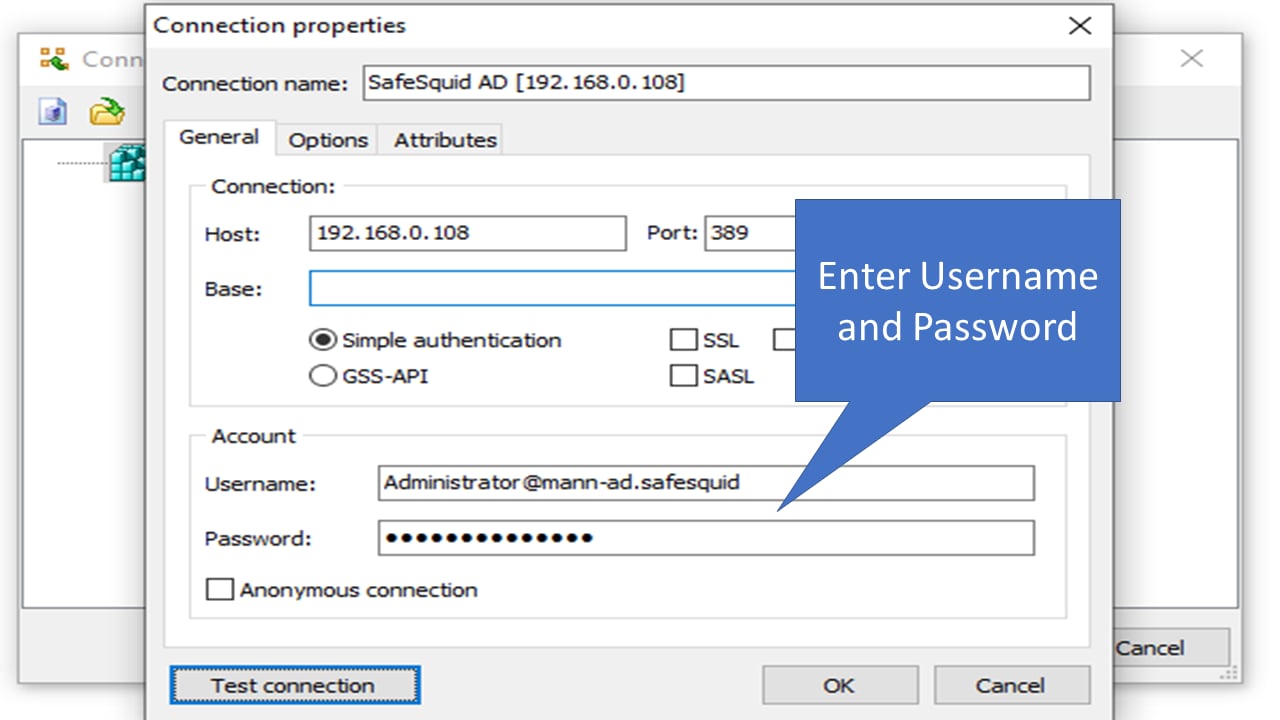
## 2. Link LDAP Admin with AD (Optional Verification)
Use LDAP Admin to test connectivity and find the correct DNs (Distinguished Names) for your configuration.
1. **New Connection:** Enter the AD Host IP and your credentials.
2. **Test Connection:** Click **Test connection** to verify connectivity before proceeding to SafeSquid.
3. **Fetch DNs:** If the tree is empty, right-click the connection → **Properties** → **Fetch DNs**.
:::tip
**Note the Base DN**
Your Base DN usually follows your domain name. Example: `safesquid.test` → `DC=safesquid,DC=test`.
:::
## 2. Link LDAP Admin with AD (Optional Verification)
Use LDAP Admin to test connectivity and find the correct DNs (Distinguished Names) for your configuration.
1. **New Connection:** Enter the AD Host IP and your credentials.
2. **Test Connection:** Click **Test connection** to verify connectivity before proceeding to SafeSquid.
3. **Fetch DNs:** If the tree is empty, right-click the connection → **Properties** → **Fetch DNs**.
 ## 3. Integrate LDAP with SafeSquid
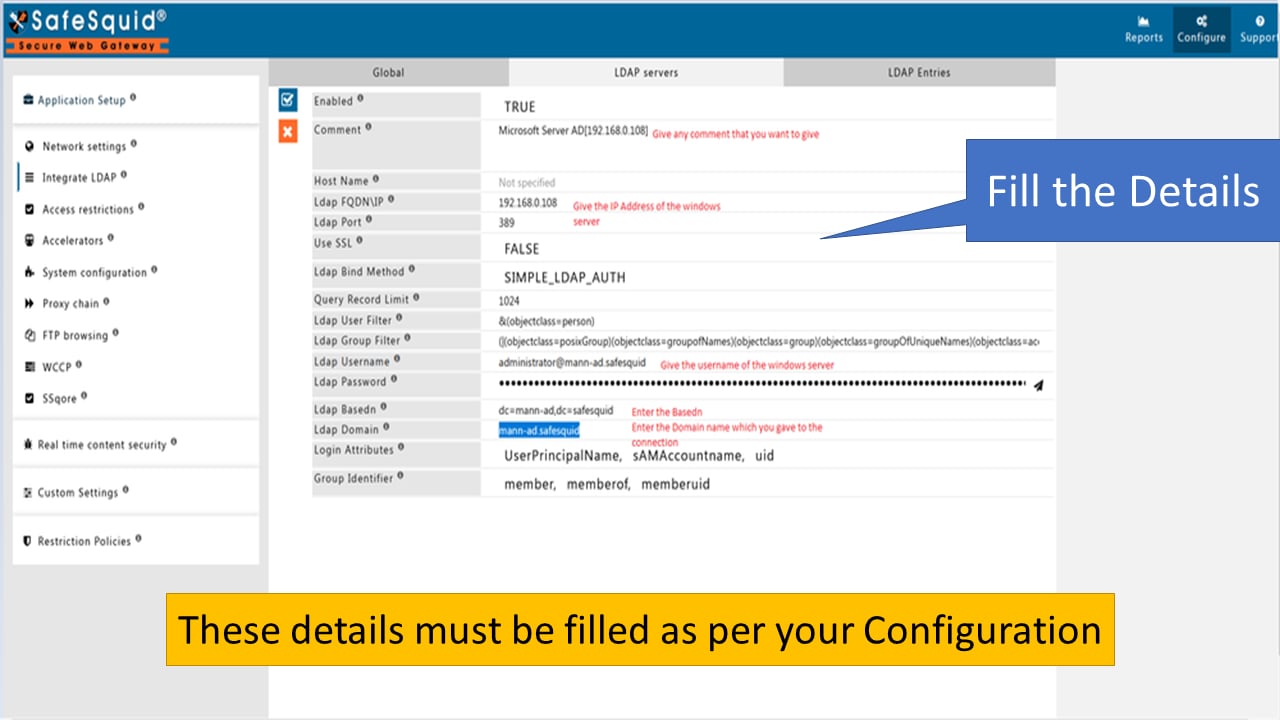
1. **Access SafeSquid Interface:** Open the [Configuration Portal](/Configuration_Portal) and click **Configure**.
2. **Navigate to LDAP Integration:** **Application Setup** → **Integrate LDAP**. Click the **+** (Add new) icon.
3. **Configure Connection Details:**
* **LDAP Server FQDN / IP:** Enter your AD server details.
* **Bind DN:** Enter the service account username (e.g., `Administrator@safesquid.test`).
* **Password:** Click the arrow to enter and confirm the password.
* **Base DN:** Enter your directory base (e.g., `DC=safesquid,DC=test`).
* **LDAP Domain:** Enter your AD domain (e.g., `safesquid.test`).
## 3. Integrate LDAP with SafeSquid
1. **Access SafeSquid Interface:** Open the [Configuration Portal](/Configuration_Portal) and click **Configure**.
2. **Navigate to LDAP Integration:** **Application Setup** → **Integrate LDAP**. Click the **+** (Add new) icon.
3. **Configure Connection Details:**
* **LDAP Server FQDN / IP:** Enter your AD server details.
* **Bind DN:** Enter the service account username (e.g., `Administrator@safesquid.test`).
* **Password:** Click the arrow to enter and confirm the password.
* **Base DN:** Enter your directory base (e.g., `DC=safesquid,DC=test`).
* **LDAP Domain:** Enter your AD domain (e.g., `safesquid.test`).
 4. **Save Policy:** Click the checkmark to save.
## Operational notes
* Use a dedicated service account where possible instead of embedding broad administrative dependency in the long-term configuration.
* Record the Base DN, bind format, and LDAP domain values in deployment notes so later troubleshooting does not begin from guesswork.
* This step establishes the data plane for later simple-auth or Kerberos-based flows, but it does not by itself prove end-user authentication is working.
## Verification
| Step | Action | Expected Result |
| ------------------ | ------------------------------------------------------------ | ---------------------------------------------------------------- |
| **Check Entities** | Go to **LDAP Entities** in the SafeSquid interface. | You should see a list of users and groups fetched from AD. |
| **Log Review** | Run `tail -f /var/log/safesquid/safesquid.log` | Look for "LDAP bind successful" or "fetched X entries" messages. |
| **Test Rule** | Create an access rule with an AD group in **LDAP Profiles**. | The rule should correctly identify members of that group. |
## Troubleshooting
## Troubleshooting
| Symptom | Likely Cause | Fix |
| ----------------------- | ---------------------------------------- | ------------------------------------------------------------------------------------- |
| No LDAP entries fetched | Incorrect Base DN or Bind DN | Verify DNs using LDAP Admin; ensure the bind format matches your AD environment. |
| Authentication failed | Wrong password or account locked | Re-enter the password in the encrypted password field; check AD for account lockouts. |
| Connection timeout | Network, firewall, DNS, or routing issue | Ensure the required LDAP path is reachable from SafeSquid to AD. |
| Empty LDAP Entities | Permissions issue | Ensure the bind account has read permissions for the target OUs or containers. |
## Source register
| Topic | Status | Source |
| --------------------------------- | ------------- | ------------------------------------------- |
| LDAP bind, Base DN, LDAP Entities | **Confirmed** | This page |
| Ports **389** / **636** | **Confirmed** | Troubleshooting table (standard LDAP/LDAPS) |
## Next steps
* [Configure Simple Authentication](/AD_Simple_Authentication) (Browser Prompt)
* [Configure SSO Authentication](/AD_SSO_Authentication) (Kerberos/Transparent)
* [Access Restriction](/Access_Restriction) (Apply policies by AD group)
## Related topics
- [Active Directory](/use_cases/authentication/active_directory.md)
- [Simple Authentication](/use_cases/authentication/ad_simple_authentication.md)
- [SSO Authentication](/use_cases/authentication/ad_sso_authentication.md)
- [User Identification](/use_cases/authentication/user_identities.md)
- [Directory Services](/use_cases/authentication/directory_services.md)
4. **Save Policy:** Click the checkmark to save.
## Operational notes
* Use a dedicated service account where possible instead of embedding broad administrative dependency in the long-term configuration.
* Record the Base DN, bind format, and LDAP domain values in deployment notes so later troubleshooting does not begin from guesswork.
* This step establishes the data plane for later simple-auth or Kerberos-based flows, but it does not by itself prove end-user authentication is working.
## Verification
| Step | Action | Expected Result |
| ------------------ | ------------------------------------------------------------ | ---------------------------------------------------------------- |
| **Check Entities** | Go to **LDAP Entities** in the SafeSquid interface. | You should see a list of users and groups fetched from AD. |
| **Log Review** | Run `tail -f /var/log/safesquid/safesquid.log` | Look for "LDAP bind successful" or "fetched X entries" messages. |
| **Test Rule** | Create an access rule with an AD group in **LDAP Profiles**. | The rule should correctly identify members of that group. |
## Troubleshooting
## Troubleshooting
| Symptom | Likely Cause | Fix |
| ----------------------- | ---------------------------------------- | ------------------------------------------------------------------------------------- |
| No LDAP entries fetched | Incorrect Base DN or Bind DN | Verify DNs using LDAP Admin; ensure the bind format matches your AD environment. |
| Authentication failed | Wrong password or account locked | Re-enter the password in the encrypted password field; check AD for account lockouts. |
| Connection timeout | Network, firewall, DNS, or routing issue | Ensure the required LDAP path is reachable from SafeSquid to AD. |
| Empty LDAP Entities | Permissions issue | Ensure the bind account has read permissions for the target OUs or containers. |
## Source register
| Topic | Status | Source |
| --------------------------------- | ------------- | ------------------------------------------- |
| LDAP bind, Base DN, LDAP Entities | **Confirmed** | This page |
| Ports **389** / **636** | **Confirmed** | Troubleshooting table (standard LDAP/LDAPS) |
## Next steps
* [Configure Simple Authentication](/AD_Simple_Authentication) (Browser Prompt)
* [Configure SSO Authentication](/AD_SSO_Authentication) (Kerberos/Transparent)
* [Access Restriction](/Access_Restriction) (Apply policies by AD group)
## Related topics
- [Active Directory](/use_cases/authentication/active_directory.md)
- [Simple Authentication](/use_cases/authentication/ad_simple_authentication.md)
- [SSO Authentication](/use_cases/authentication/ad_sso_authentication.md)
- [User Identification](/use_cases/authentication/user_identities.md)
- [Directory Services](/use_cases/authentication/directory_services.md)