> ## Documentation Index
> Fetch the complete documentation index at: https://docs.safesquid.com/llms.txt
> Use this file to discover all available pages before exploring further.
# Block Advertisements And Banners
> Block ads and banners in SafeSquid to improve load time, security, and bandwidth and reduce distractions.
## Problem
Security teams need predictable control over app and web usage to reduce policy bypass and data-risk exposure.
## Benefits
You can enforce policy decisions consistently with SafeSquid while preserving legitimate business workflows.
## Advantages
You keep actionable policy control close to operations, with verifiable outcomes in logs and policy behavior.
## Call to action
Use the steps in this guide to implement the control, then validate behavior with a real user-flow test.
# Block advertisements and banners
## Ads create security risk, waste bandwidth, and hurt user experience
Ad networks can deliver malware, tracking, and unwanted scripts; ads also increase load time and bandwidth use. Blocking ads at the gateway reduces exposure to ad-based threats, improves performance, and supports acceptable-use policy. SafeSquid BLOCK ADVERTISEMENT policy replaces ad content with a configurable template so users see cleaner pages without client-side ad blockers.
## Key benefits
Reduces malware and tracking exposure from ad networks. Lowers bandwidth and CPU use. Cleaner pages with fewer distractions. Evidence for auditors: policy is visible in **Configure** → **Access Profiles** (or **Templates**); access logs show traffic that matched the policy. **Limitation:** Some sites may break if they depend on specific ad endpoints; use bypass or allow rules for exceptions.
## Prerequisites
**SafeSquid-side:** HTTPS Inspection enabled so SafeSquid can inspect and modify HTTPS content. See [Configure HTTPS Inspection](/Configure_HTTPS_Inspection) if not yet enabled. Admin access to the Configuration Portal.
**Client-side:** No change required; blocking is transparent.
## Enable BLOCK ADVERTISEMENT policy
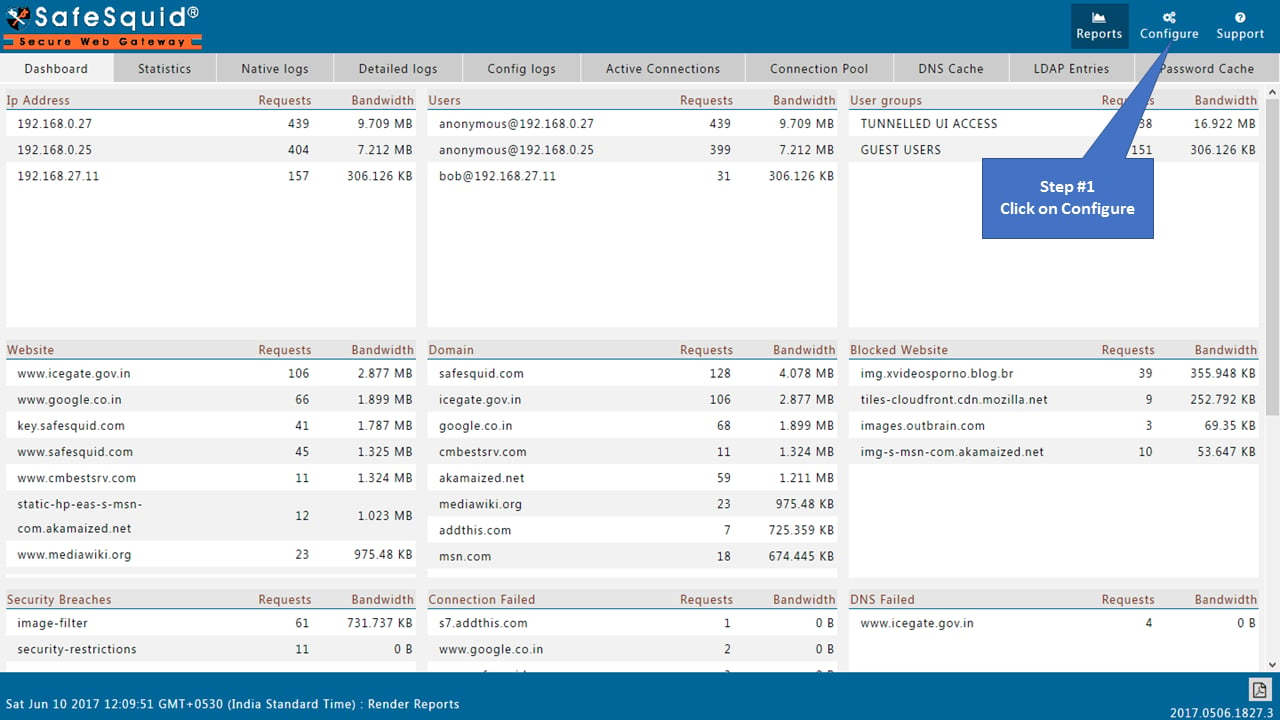
1. Access the SafeSquid interface via the [Configuration Portal](/Configuration_Portal) — web interface for policy and system settings. In the interface header, click **Configure** to open the configuration menu.
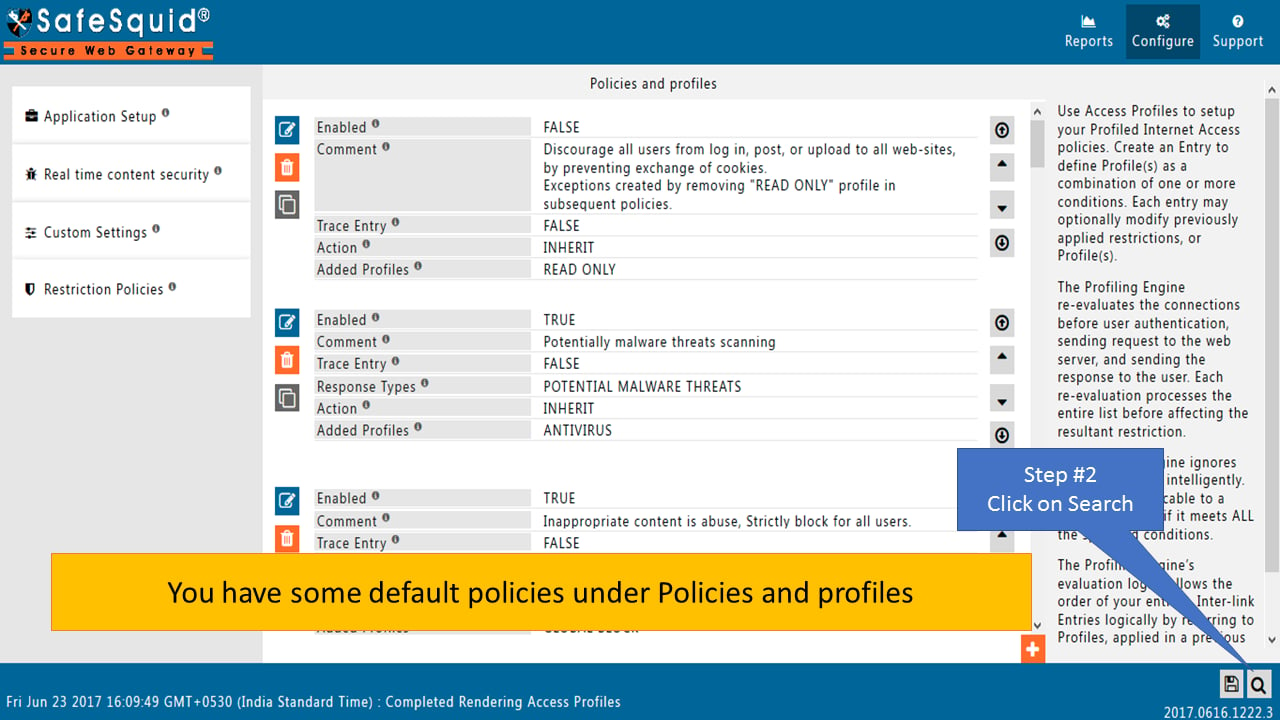
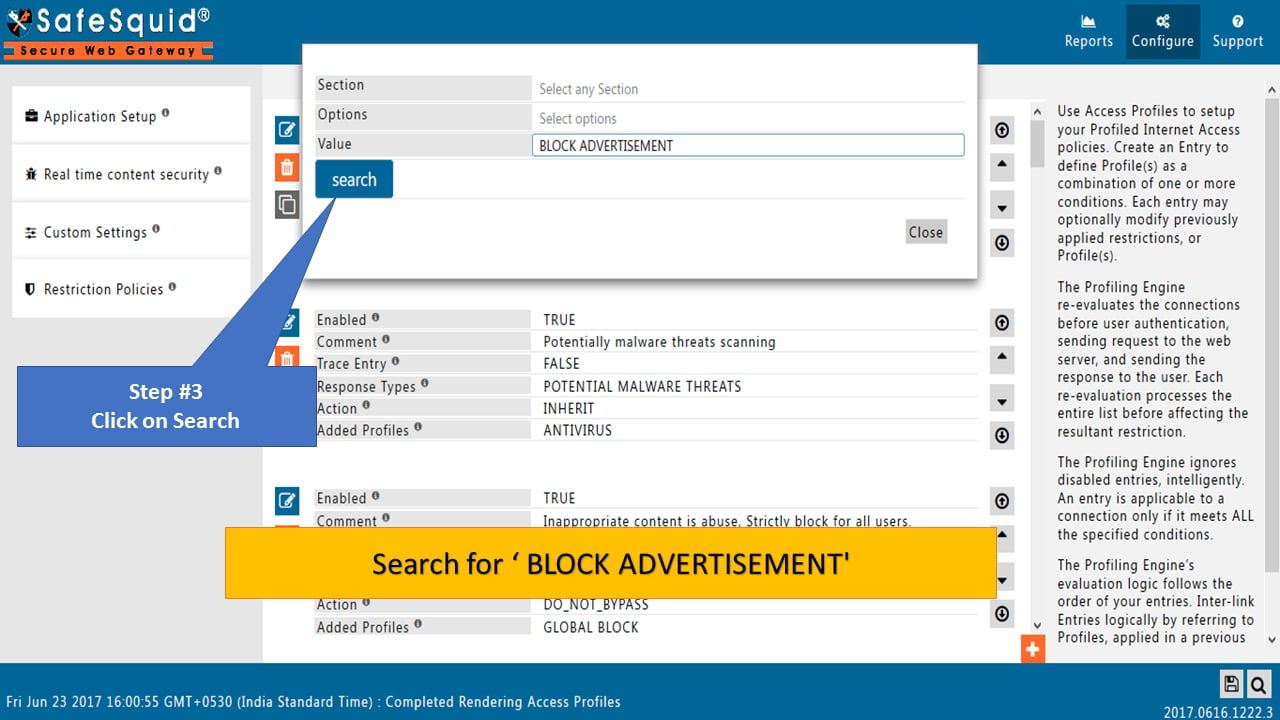
 2. In **Access Profiles** (or **Templates**), use the search box to find the default policy; search for **BLOCK ADVERTISEMENT**.
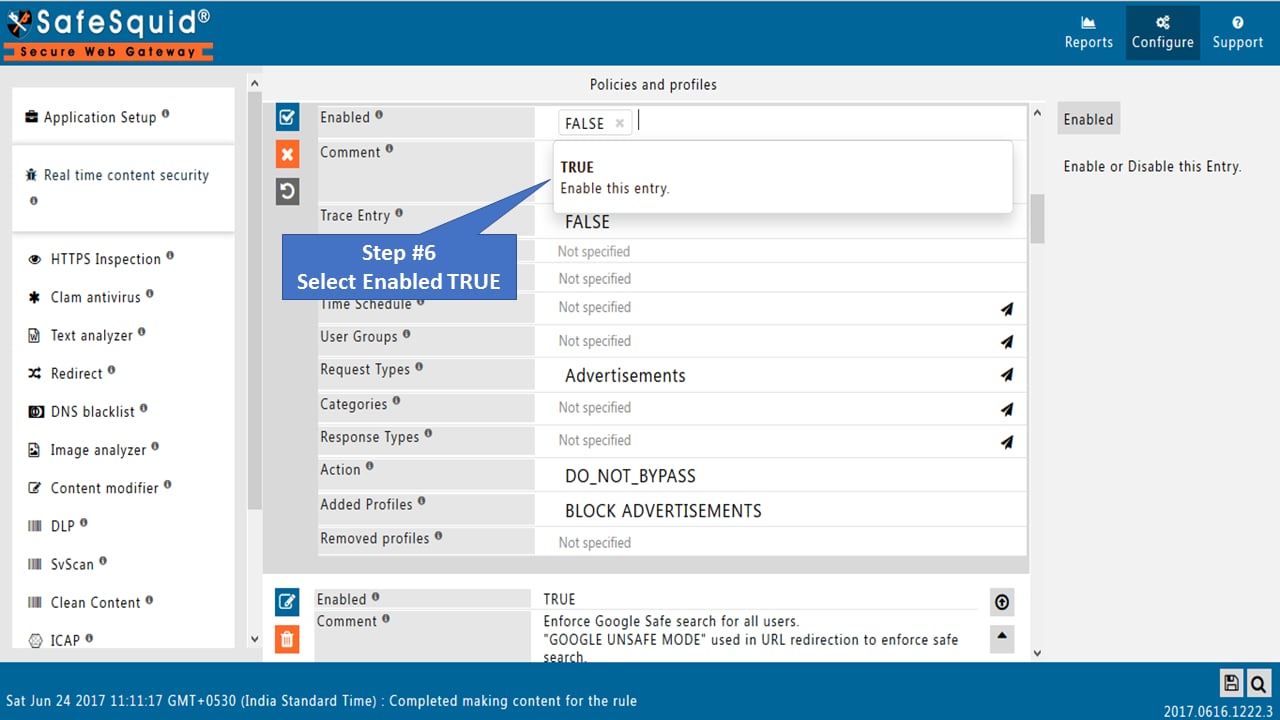
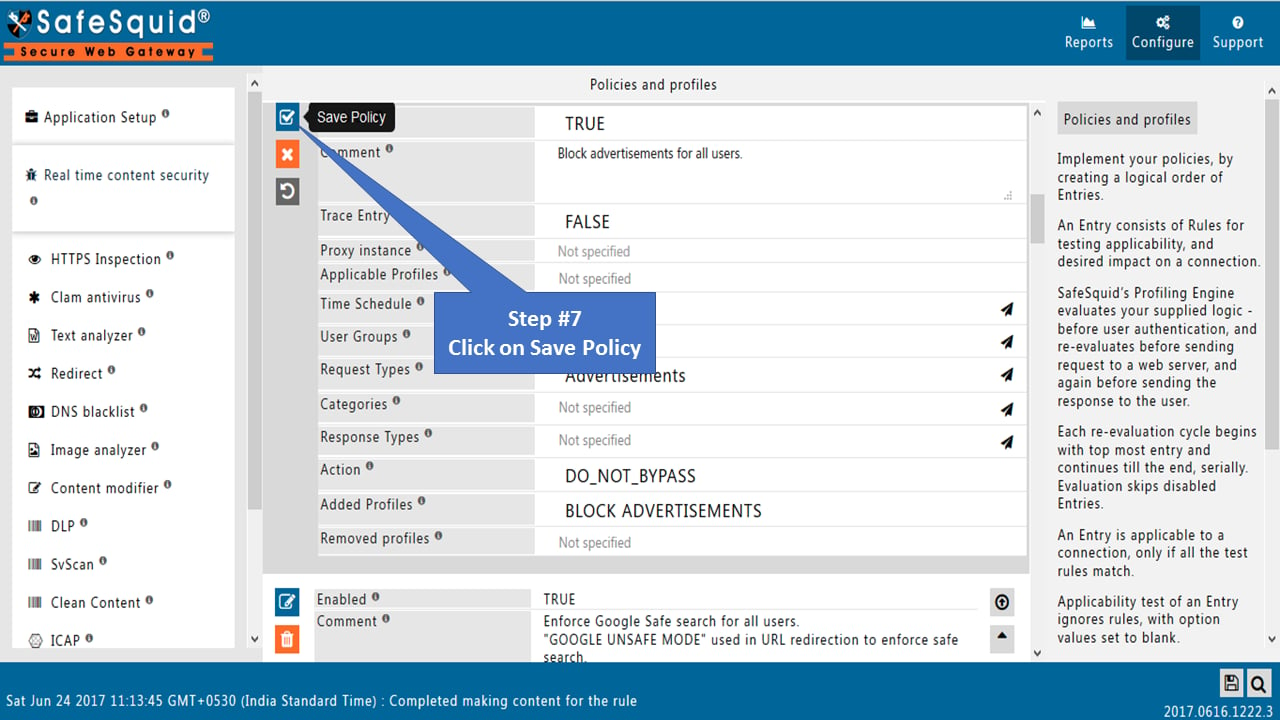
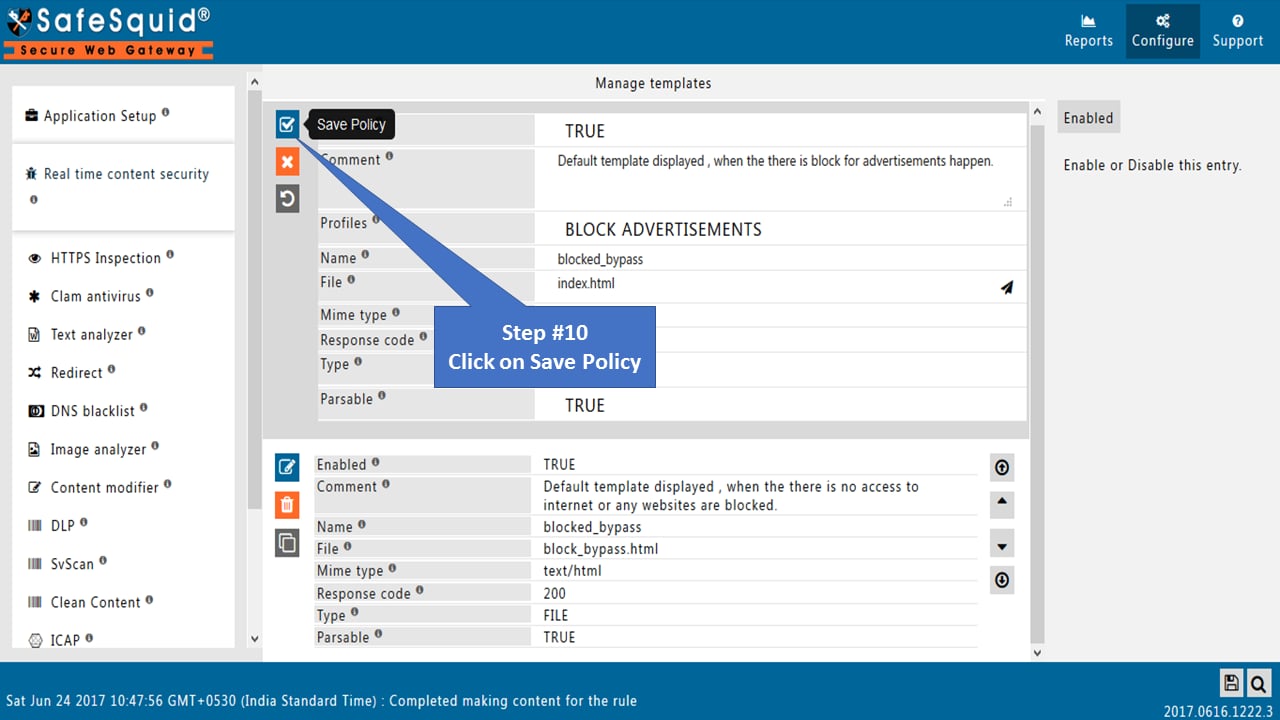
 3. Open the policy: click **Edit** on the BLOCK ADVERTISEMENT row to open the policy editor. Set **Enabled** to **TRUE**, then click **Save** (or the equivalent save control in the policy section) to save the policy.
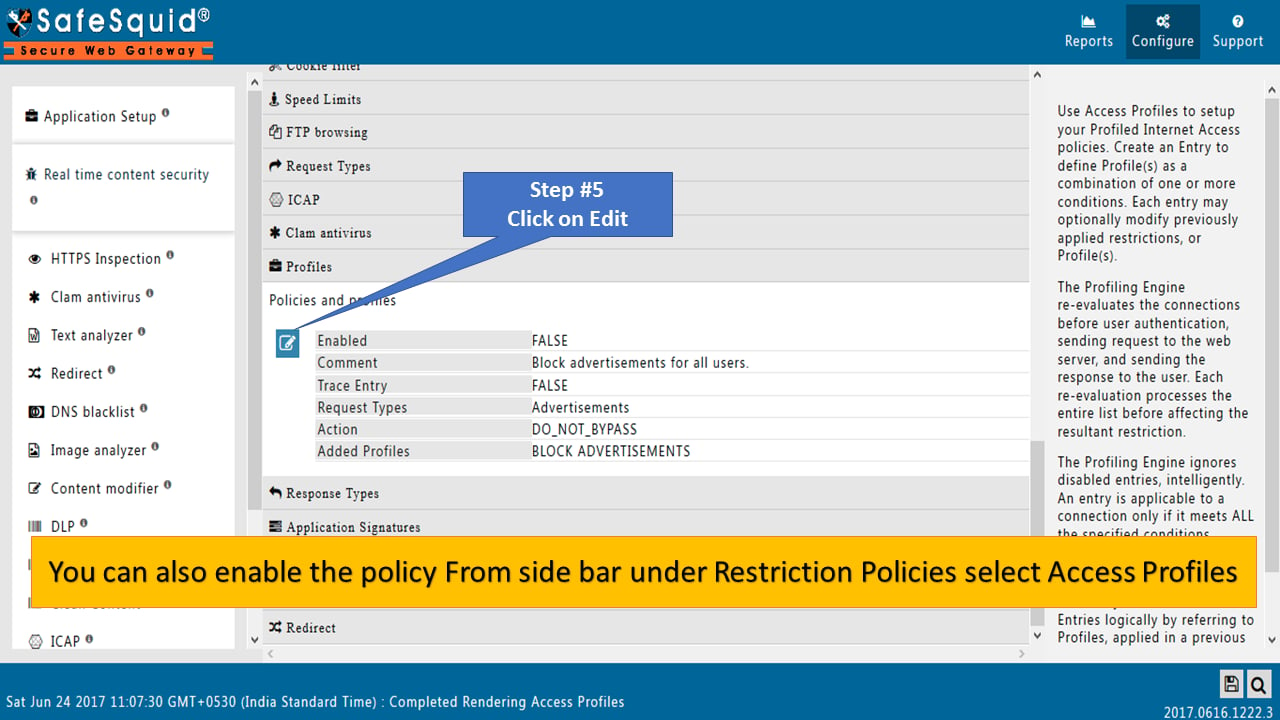
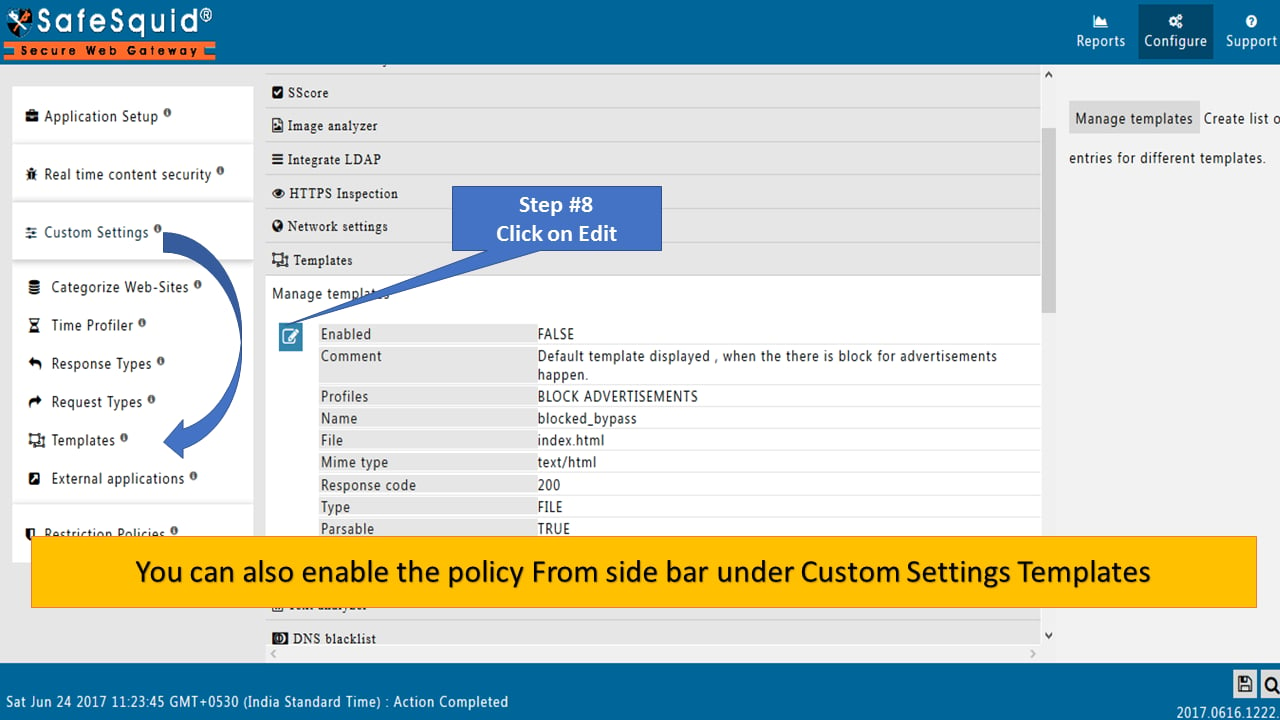
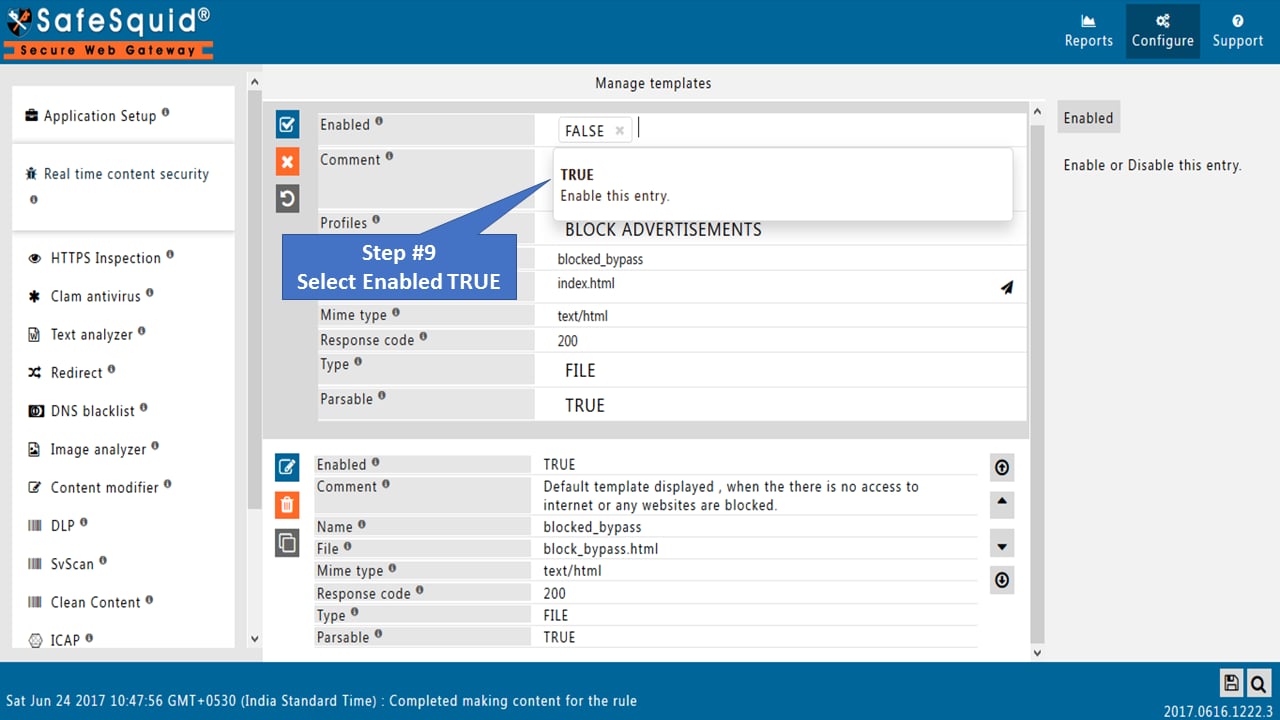
 4. Alternatively, enable from **Templates** in custom settings: open the BLOCK ADVERTISEMENT template, set **Enabled** to **TRUE**, and save.
 ## Verification and Evidence
* **Interface:** **Configure** → **Access Profiles** (or **Templates**) shows BLOCK ADVERTISEMENT with **Enabled** TRUE.
* **Traffic:** Open a site that normally shows ads (e.g. [https://www.youtube.com/](https://www.youtube.com/)); ads should be replaced by the SafeSquid template.
## Verification and Evidence
* **Interface:** **Configure** → **Access Profiles** (or **Templates**) shows BLOCK ADVERTISEMENT with **Enabled** TRUE.
* **Traffic:** Open a site that normally shows ads (e.g. [https://www.youtube.com/](https://www.youtube.com/)); ads should be replaced by the SafeSquid template.
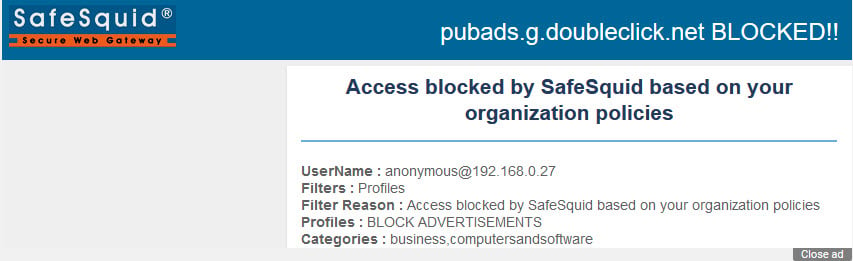 * **Audit:** Access logs and reports show traffic matching the policy; export reports from the [Reporting Module](/Reporting_Module) for evidence.
:::note
Administrators can replace the default template with a custom template.
:::
## Troubleshooting
| Symptom | Likely cause | Resolution | Verification |
| -------------------------- | -------------------------------------------------- | ---------------------------------------------------------------------------------------------------- | ------------------------------------------ |
| Ads still visible | HTTPS Inspection not enabled or policy not applied | Enable HTTPS Inspection; ensure BLOCK ADVERTISEMENT is enabled and profile applied to the connection | Reload page; confirm template replaces ads |
| Site broken or login fails | Site depends on blocked ad domain | Add bypass or allow rule for that domain or path | Retest site after rule change |
| Policy not in list | Default policies not loaded | Restore defaults or contact support for policy set | Search again in Access Profiles |
## Next steps
* [Block inappropriate images using Image Analyzer](/Block_inappropriate_images_by_using_Image_Analyzer) for visual content filtering.
* [Header Re-Write](/Header_Obfuscation) for header filtering and privacy.
* [Content Modifier](/Content_Modifier) for custom regex-based content rewriting.
## Related topics
- [Content rewrite](/admin_guide/filtering_and_privacy/content_modifier.md)
- [Header filter](/admin_guide/filtering_and_privacy/header_filter.md)
- [High Availability with Monit and Keepalived](/use_cases/scaling_and_high_availability/ha_monit_keepalived.md)
- [Manage Subscription State](/deployment/manage_subscription_state.md)
- [Block Specific YouTube Channel](/use_cases/access_restriction/block_specific_youtube_channel.md)
* **Audit:** Access logs and reports show traffic matching the policy; export reports from the [Reporting Module](/Reporting_Module) for evidence.
:::note
Administrators can replace the default template with a custom template.
:::
## Troubleshooting
| Symptom | Likely cause | Resolution | Verification |
| -------------------------- | -------------------------------------------------- | ---------------------------------------------------------------------------------------------------- | ------------------------------------------ |
| Ads still visible | HTTPS Inspection not enabled or policy not applied | Enable HTTPS Inspection; ensure BLOCK ADVERTISEMENT is enabled and profile applied to the connection | Reload page; confirm template replaces ads |
| Site broken or login fails | Site depends on blocked ad domain | Add bypass or allow rule for that domain or path | Retest site after rule change |
| Policy not in list | Default policies not loaded | Restore defaults or contact support for policy set | Search again in Access Profiles |
## Next steps
* [Block inappropriate images using Image Analyzer](/Block_inappropriate_images_by_using_Image_Analyzer) for visual content filtering.
* [Header Re-Write](/Header_Obfuscation) for header filtering and privacy.
* [Content Modifier](/Content_Modifier) for custom regex-based content rewriting.
## Related topics
- [Content rewrite](/admin_guide/filtering_and_privacy/content_modifier.md)
- [Header filter](/admin_guide/filtering_and_privacy/header_filter.md)
- [High Availability with Monit and Keepalived](/use_cases/scaling_and_high_availability/ha_monit_keepalived.md)
- [Manage Subscription State](/deployment/manage_subscription_state.md)
- [Block Specific YouTube Channel](/use_cases/access_restriction/block_specific_youtube_channel.md)