> ## Documentation Index
> Fetch the complete documentation index at: https://docs.safesquid.com/llms.txt
> Use this file to discover all available pages before exploring further.
# Configure Cloud Restore
> Required setup, how Cloud Restore works, and step-by-step configuration to restore SafeSquid configuration and SSL certificates from the cloud.
# Configure Cloud Restore
Cloud Restore links backup and restore behavior to the SafeSquid activation key. It is useful for replacing or rebuilding appliances, but it does not restore the full operating environment.
## How Cloud Restore works
**Backup process:**
1. You make configuration changes in SafeSquid Configuration Portal
2. Click **Support → Restart SafeSquid** and select **Yes** for cloud backup
3. SafeSquid uploads `config.xml` and SSL certificates to cloud storage (linked to your activation key)
**Restore process:**
1. Install SafeSquid on new or rebuilt appliance
2. Activate with the same activation key used for backup
3. Click **Cloud Restore** in Configuration Portal
4. SafeSquid downloads and applies the backed-up configuration and SSL certificates
5. Restart SafeSquid to apply restored settings
**Files restored:**
* `/usr/local/safesquid/security/policies/config.xml` (all policies and settings)
* `/usr/local/safesquid/security/ssl/ROOT_X509File.cer` (SSL root certificate)
* `/usr/local/safesquid/security/ssl/ROOT_PrivateKeyFile.pem` (SSL private key)
The restore prompt appears only when SafeSquid finds a cloud backup matching your activation key.
## Prerequisites
* SafeSquid installed and activated with the same activation key on both backup and restore appliances
* Internet connectivity to SafeSquid cloud storage
* Monit service running (required for automatic service restart after restore)
* A recovery runbook for settings Cloud Restore does **not** restore, such as network configuration and third-party integration secrets
**Check Monit status:**
```bash theme={null}
systemctl status monit
```
If Monit is not running:
```bash theme={null}
systemctl start monit
systemctl enable monit
```
## Configure Cloud Restore
## [Access the SafeSquid User Interface](/Configuration_Portal)
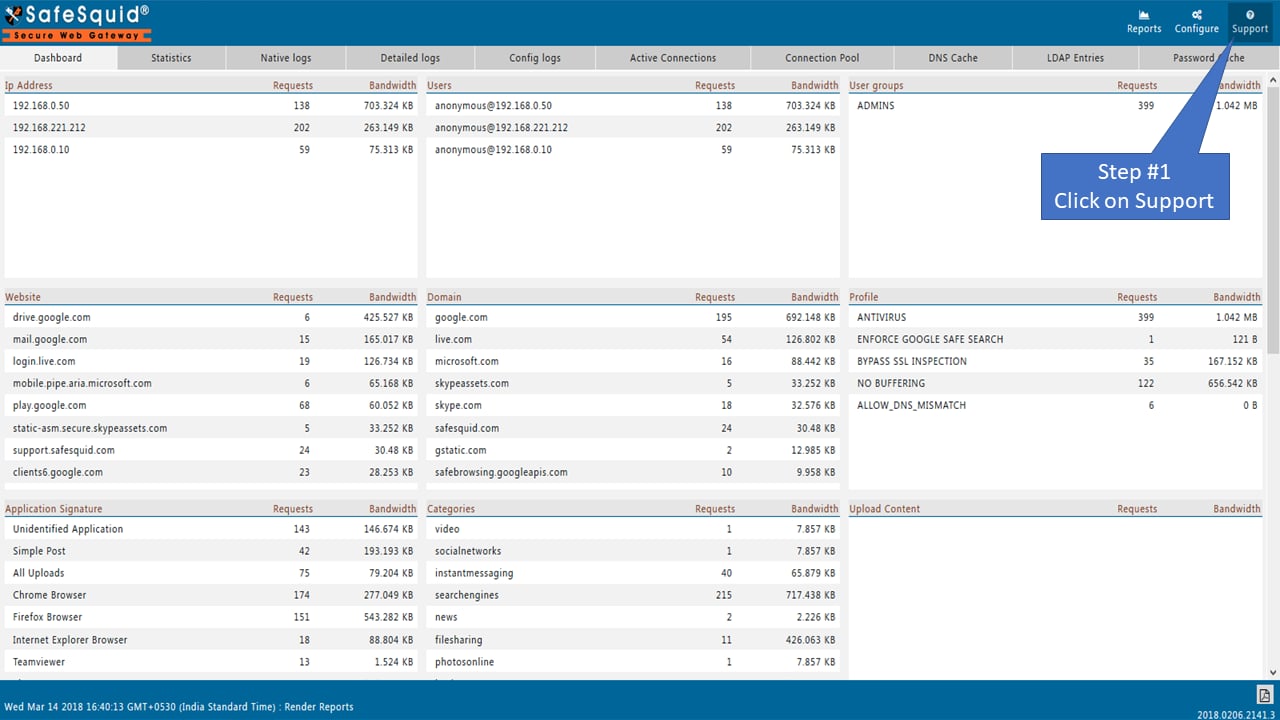
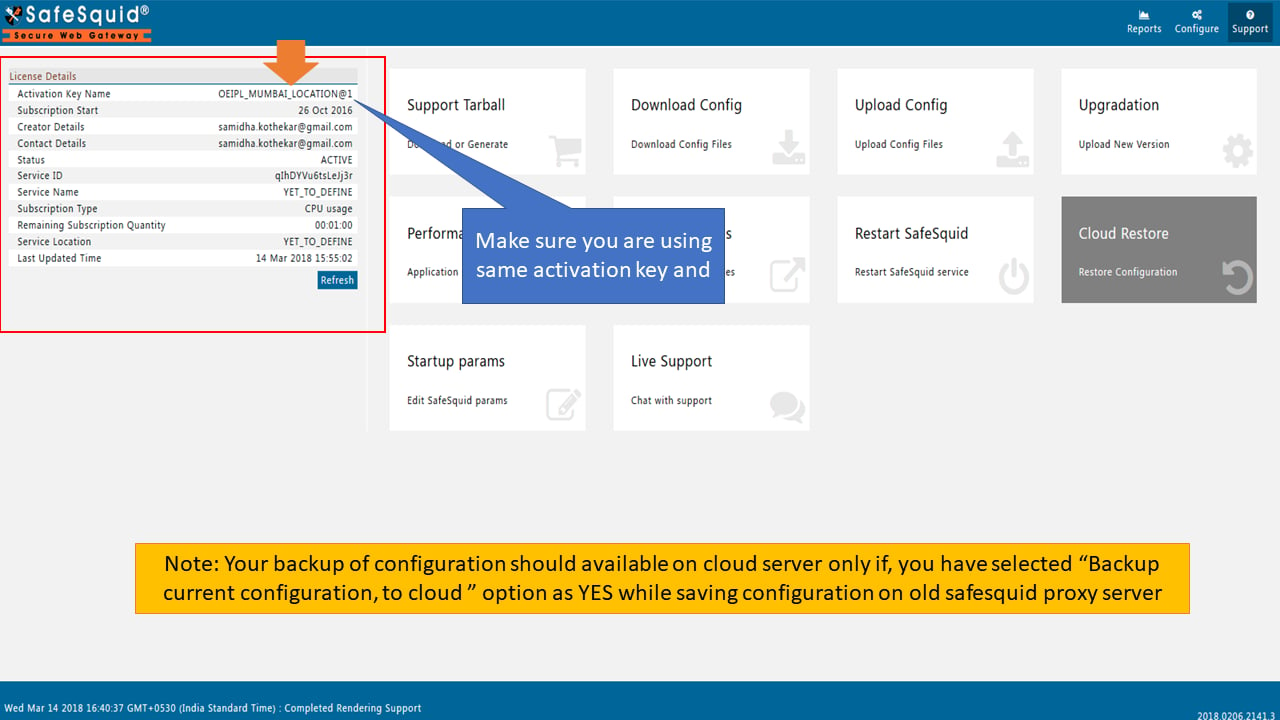
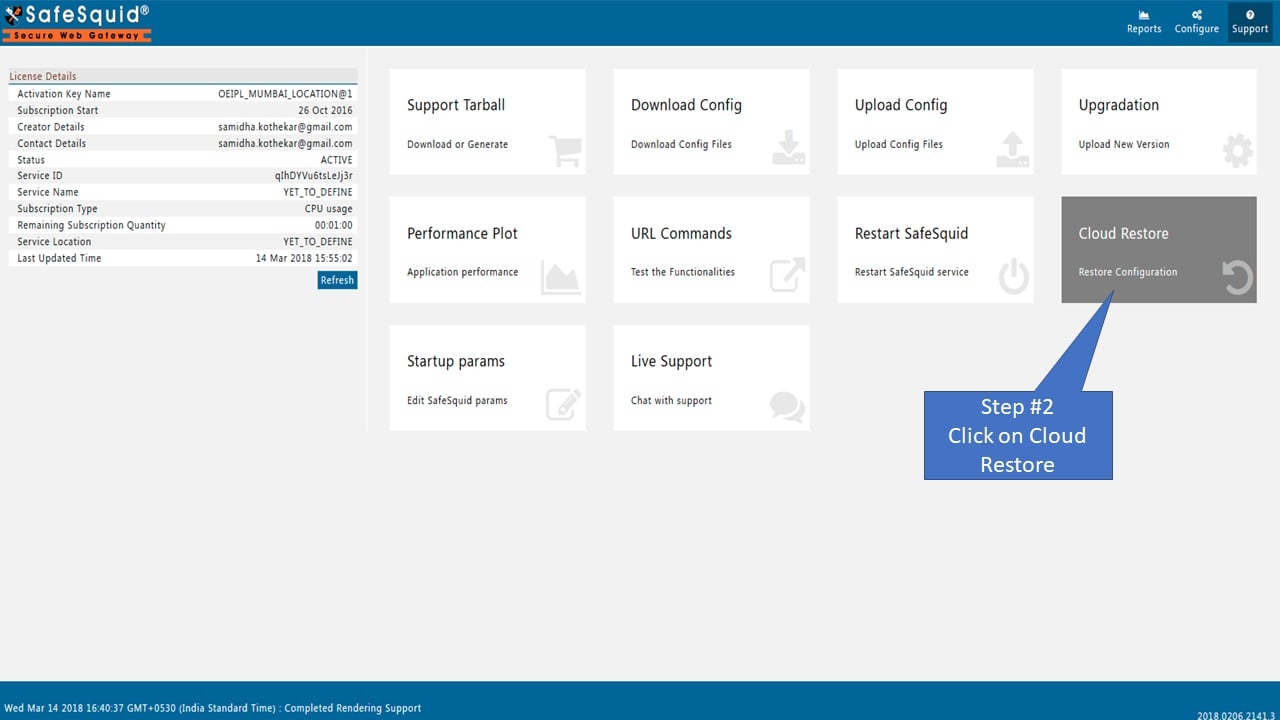
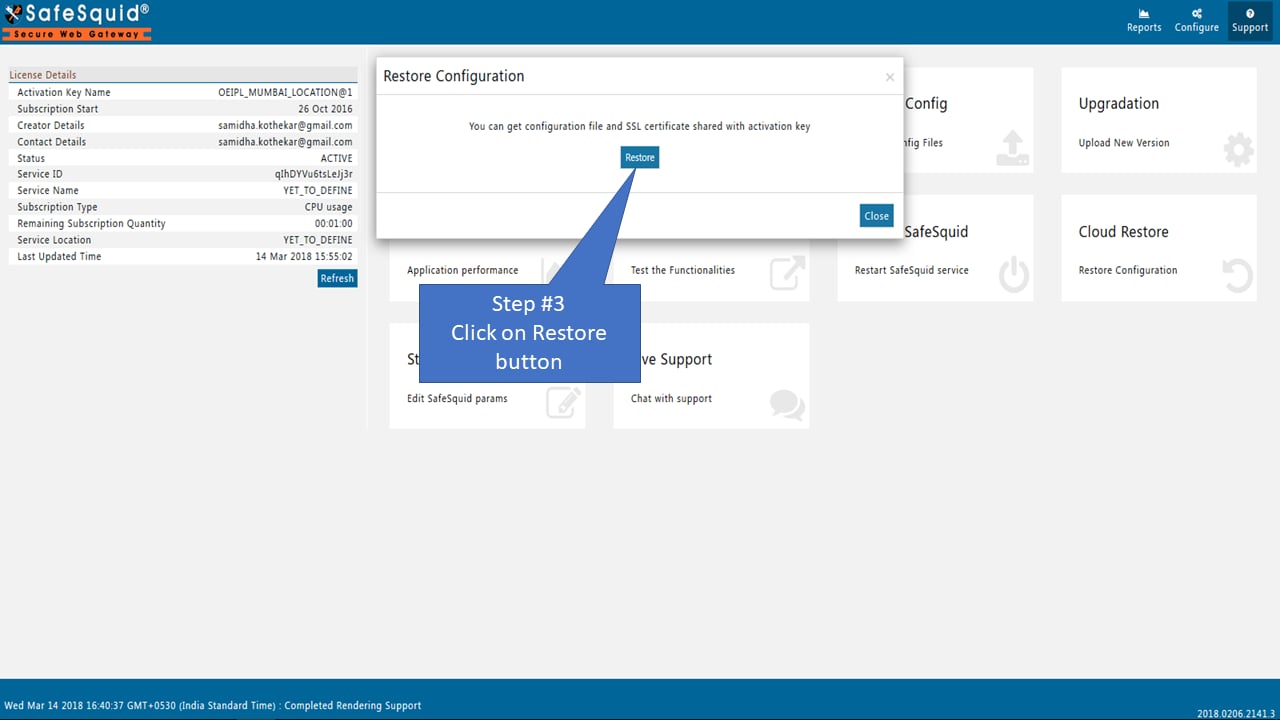
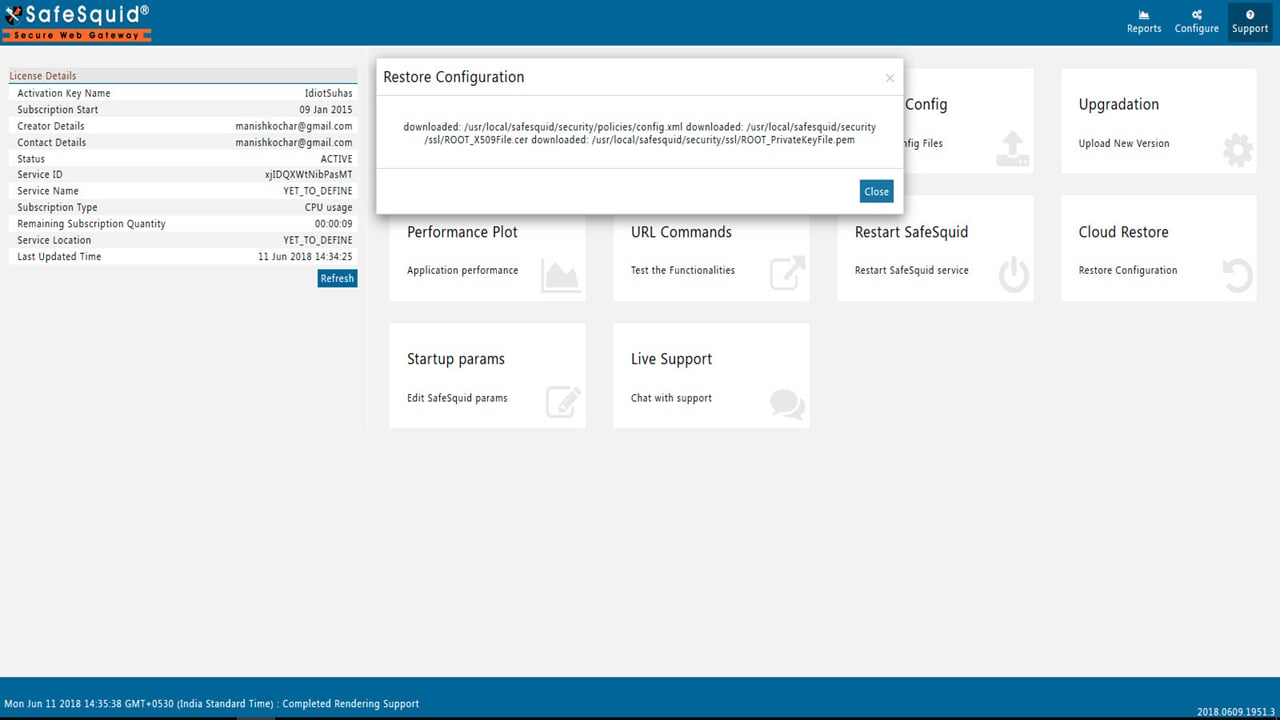 After restore completes, SafeSquid restarts automatically. Wait 1-2 minutes for the service to fully start.
## Verify restoration
1. Open Configuration Portal: `http://:8888`
2. Navigate to Configure → Access Restriction (or any configured section)
3. Confirm policies match the state from your original appliance
4. Check SSL certificate: Configuration Portal → SSL Inspection → View certificate details
5. Test client connection to verify proxy functionality
**Expected result**: All policies, user groups, and SSL certificates should match the backed-up configuration.
Also verify the non-restored items separately:
* interface IP and routing
* DNS and NTP behavior
* directory integration secrets or external connector settings
* traffic flow through the rebuilt appliance
## Trigger manual backup before major changes
Before making risky configuration changes, trigger a manual backup:
1. Configuration Portal → Support → Restart SafeSquid
2. Select **Yes** when prompted "Backup current configuration to cloud?"
3. Click **Submit**
This creates a restore point you can revert to if changes cause issues.
## Troubleshooting
**"No cloud backup found" error:**
* Verify you're using the same activation key that was used for backup
* Check internet connectivity: `ping cloud.safesquid.com` (or SafeSquid cloud endpoint)
* Ensure a backup was actually created (restart with "Yes" for cloud backup on original appliance)
**Restore completes but policies missing:**
* Verify you restarted SafeSquid after restore: Configuration Portal → Support → Restart SafeSquid
* Check file permissions: `ls -l /usr/local/safesquid/security/policies/config.xml` (should be owned by safesquid user)
* Check logs: `tail -f /var/log/safesquid/extended.log` (look for restore errors)
**SSL certificates not working after restore:**
* Verify certificate files exist:
```bash theme={null}
ls -l /usr/local/safesquid/security/ssl/ROOT_X509File.cer
ls -l /usr/local/safesquid/security/ssl/ROOT_PrivateKeyFile.pem
```
* Reimport SSL certificate to client browsers if needed: [Import Certificate](/Import_Certificate_Chrome_IE)
**Monit not restarting SafeSquid automatically:**
* Check Monit status: `systemctl status monit`
* Verify Monit configuration includes SafeSquid: `monit status`
* Manually restart if needed: `systemctl restart safesquid`
**Related**: [Disaster Recovery overview](/Disaster_Recovery), [Proxy Clustering](/Proxy_Clustering), [Troubleshooting](/Troubleshooting)
## Related topics
- [Restore Configuration and Certificates](/deployment/restore_configuration_and_certificates.md)
- [Backup Strategy](/use_cases/scaling_and_high_availability/disaster_recovery.md)
- [Licensing Requirements](/deployment/licensing_requirements.md)
- [Cloud Deployment](/getting_started/install_safesquid/cloud_deployment.md)
- [Deployment Overview](/deployment/deployment_planning.md)
After restore completes, SafeSquid restarts automatically. Wait 1-2 minutes for the service to fully start.
## Verify restoration
1. Open Configuration Portal: `http://:8888`
2. Navigate to Configure → Access Restriction (or any configured section)
3. Confirm policies match the state from your original appliance
4. Check SSL certificate: Configuration Portal → SSL Inspection → View certificate details
5. Test client connection to verify proxy functionality
**Expected result**: All policies, user groups, and SSL certificates should match the backed-up configuration.
Also verify the non-restored items separately:
* interface IP and routing
* DNS and NTP behavior
* directory integration secrets or external connector settings
* traffic flow through the rebuilt appliance
## Trigger manual backup before major changes
Before making risky configuration changes, trigger a manual backup:
1. Configuration Portal → Support → Restart SafeSquid
2. Select **Yes** when prompted "Backup current configuration to cloud?"
3. Click **Submit**
This creates a restore point you can revert to if changes cause issues.
## Troubleshooting
**"No cloud backup found" error:**
* Verify you're using the same activation key that was used for backup
* Check internet connectivity: `ping cloud.safesquid.com` (or SafeSquid cloud endpoint)
* Ensure a backup was actually created (restart with "Yes" for cloud backup on original appliance)
**Restore completes but policies missing:**
* Verify you restarted SafeSquid after restore: Configuration Portal → Support → Restart SafeSquid
* Check file permissions: `ls -l /usr/local/safesquid/security/policies/config.xml` (should be owned by safesquid user)
* Check logs: `tail -f /var/log/safesquid/extended.log` (look for restore errors)
**SSL certificates not working after restore:**
* Verify certificate files exist:
```bash theme={null}
ls -l /usr/local/safesquid/security/ssl/ROOT_X509File.cer
ls -l /usr/local/safesquid/security/ssl/ROOT_PrivateKeyFile.pem
```
* Reimport SSL certificate to client browsers if needed: [Import Certificate](/Import_Certificate_Chrome_IE)
**Monit not restarting SafeSquid automatically:**
* Check Monit status: `systemctl status monit`
* Verify Monit configuration includes SafeSquid: `monit status`
* Manually restart if needed: `systemctl restart safesquid`
**Related**: [Disaster Recovery overview](/Disaster_Recovery), [Proxy Clustering](/Proxy_Clustering), [Troubleshooting](/Troubleshooting)
## Related topics
- [Restore Configuration and Certificates](/deployment/restore_configuration_and_certificates.md)
- [Backup Strategy](/use_cases/scaling_and_high_availability/disaster_recovery.md)
- [Licensing Requirements](/deployment/licensing_requirements.md)
- [Cloud Deployment](/getting_started/install_safesquid/cloud_deployment.md)
- [Deployment Overview](/deployment/deployment_planning.md)