> ## Documentation Index
> Fetch the complete documentation index at: https://docs.safesquid.com/llms.txt
> Use this file to discover all available pages before exploring further.
# Custom Templates
> Create custom templates in SafeSquid for error pages, branding, and blocked-content replacement using HTML, images, or executables.
# Replace blocked or error pages with custom content
SafeSquid uses templates to replace pages that cannot be displayed (filtering, error, or other conditions). Custom templates support non-English messages, company logos, and contact text (e.g. "If this site was blocked in error, contact [helpdesk@mycompany.com](mailto:helpdesk@mycompany.com)"). Templates can be HTML, images, audio, or executables. Built-in examples include tinygif, checkeredgif, and tinyswf; checkeredgif is the default replacement for images blocked by the pornographic image filter.
## Prerequisites
Create your own html file and place that file in the below paths
for windows version of SafeSquid:
**c:ProgramDatausrlocalsafesquidui\_roottemplates**
The path for Linux version of SafeSquid is:
**/usr/local/safesquid/ui\_root/templates/**
**Note**: If you want to use any images in the html file make sure that the image also exist in the same path.
## Example:
Here i am creating below html page:
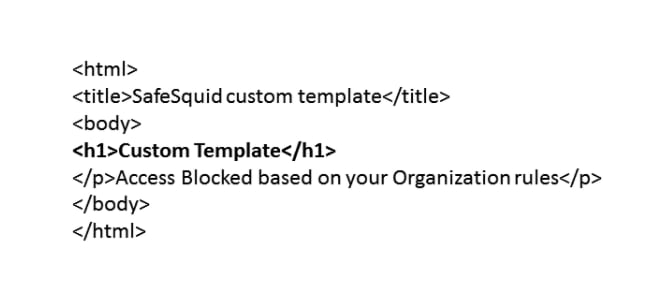 I Am saving this file with name:
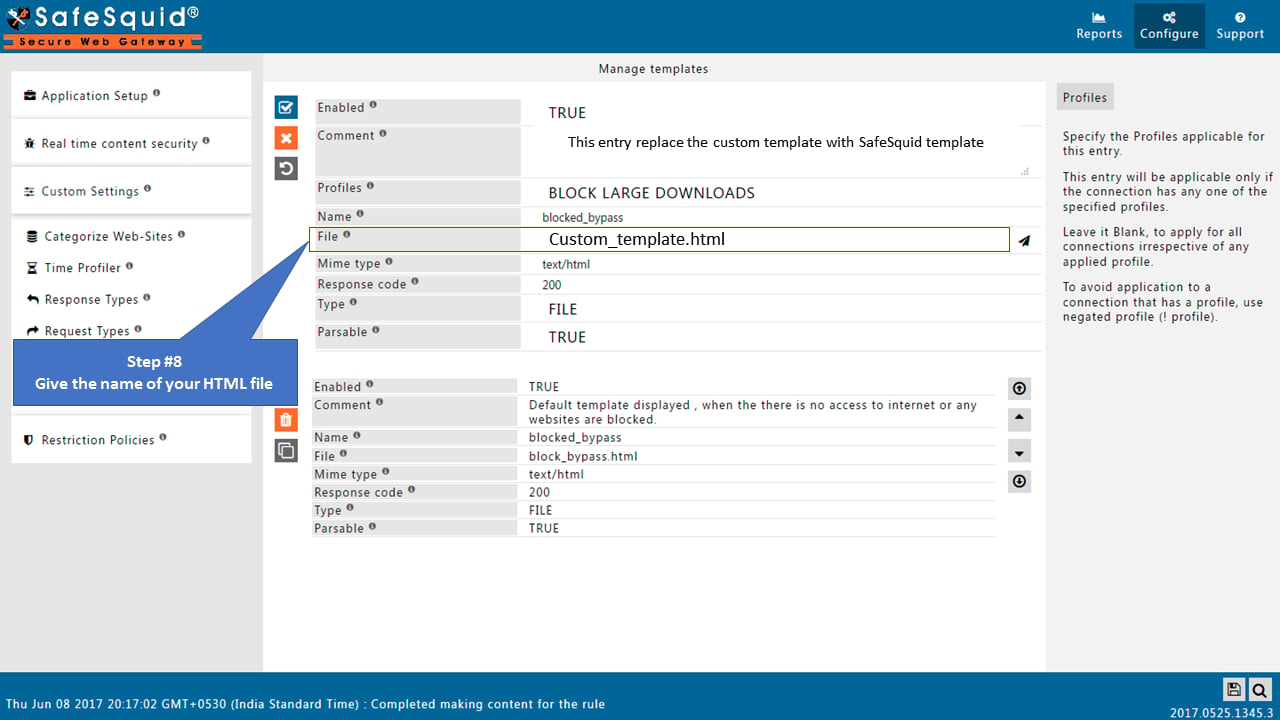
**Custom\_template.html**
I will use this file in the below configuration
## [Access the SafeSquid user interface](/Configuration_Portal)
### Go to Configure Page
I Am saving this file with name:
**Custom\_template.html**
I will use this file in the below configuration
## [Access the SafeSquid user interface](/Configuration_Portal)
### Go to Configure Page
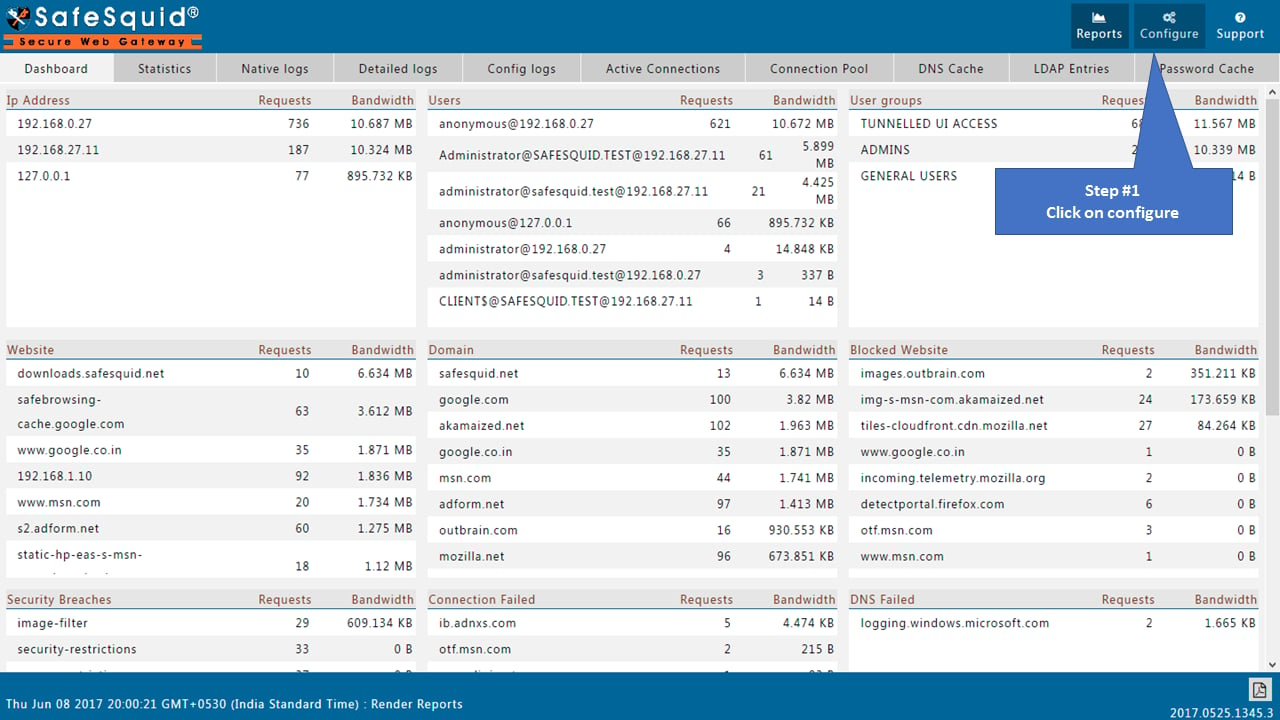 ### Go to Custom Settings
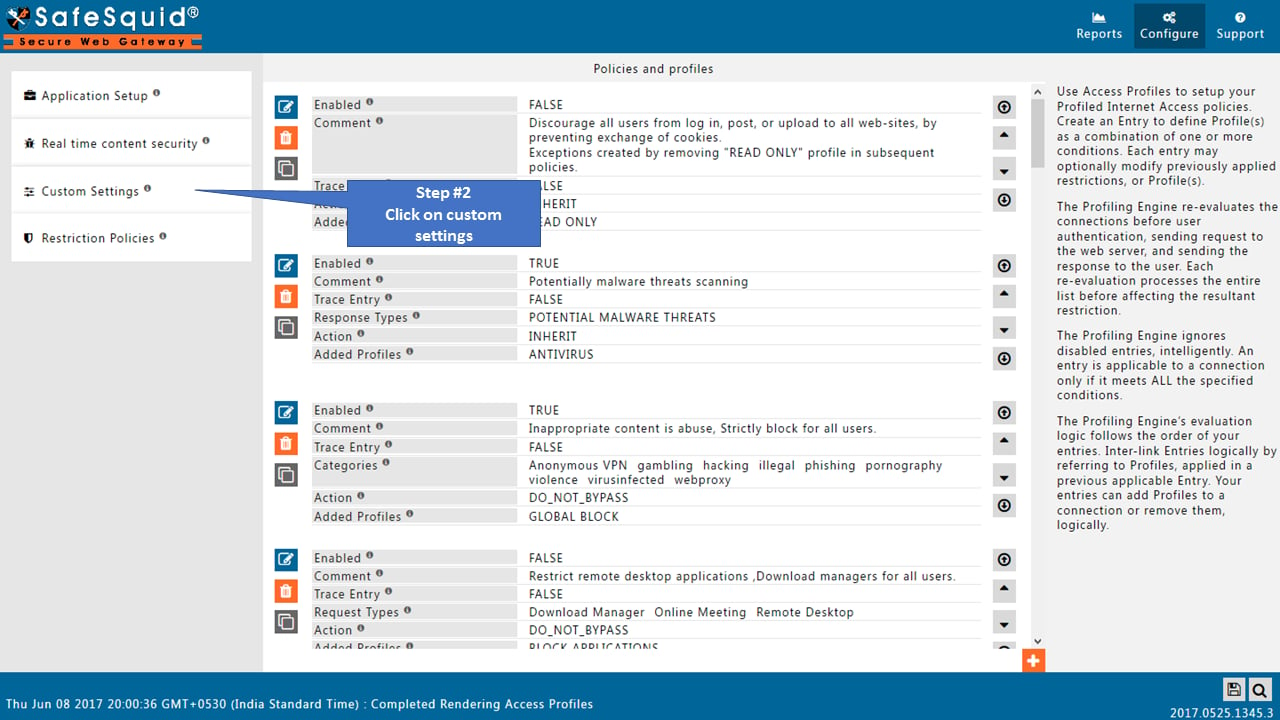 ### Go to Templates
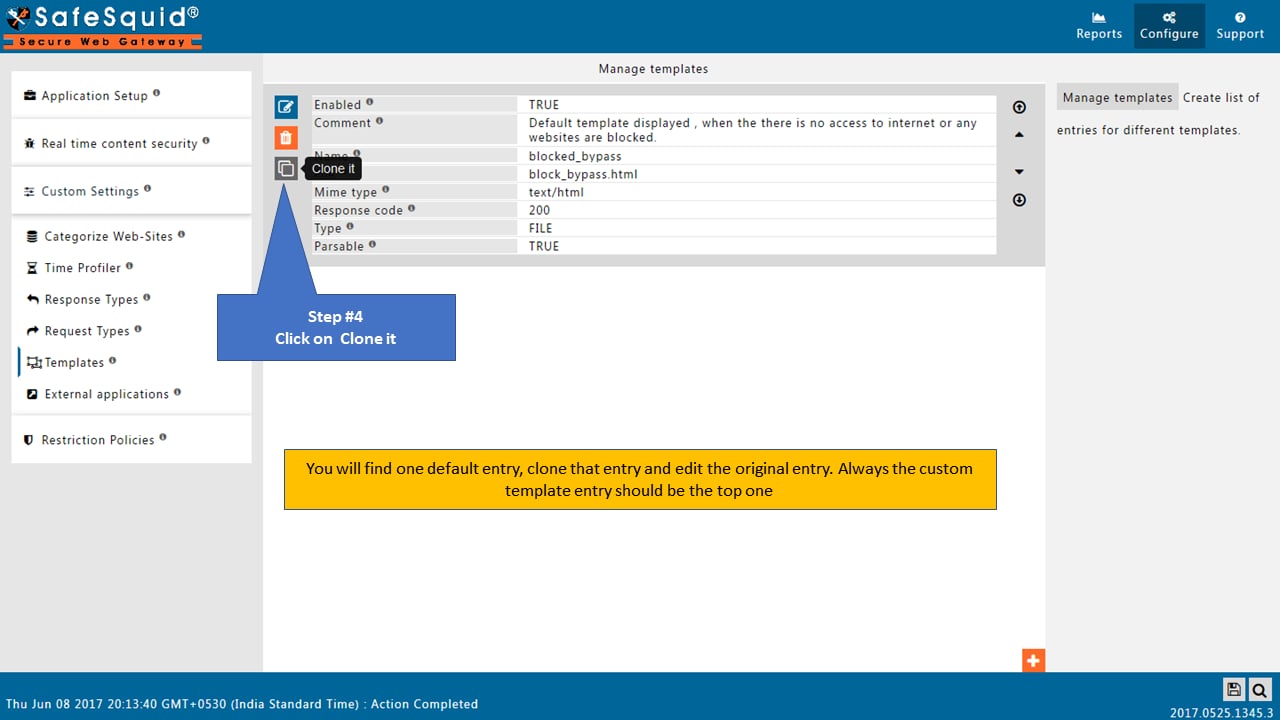
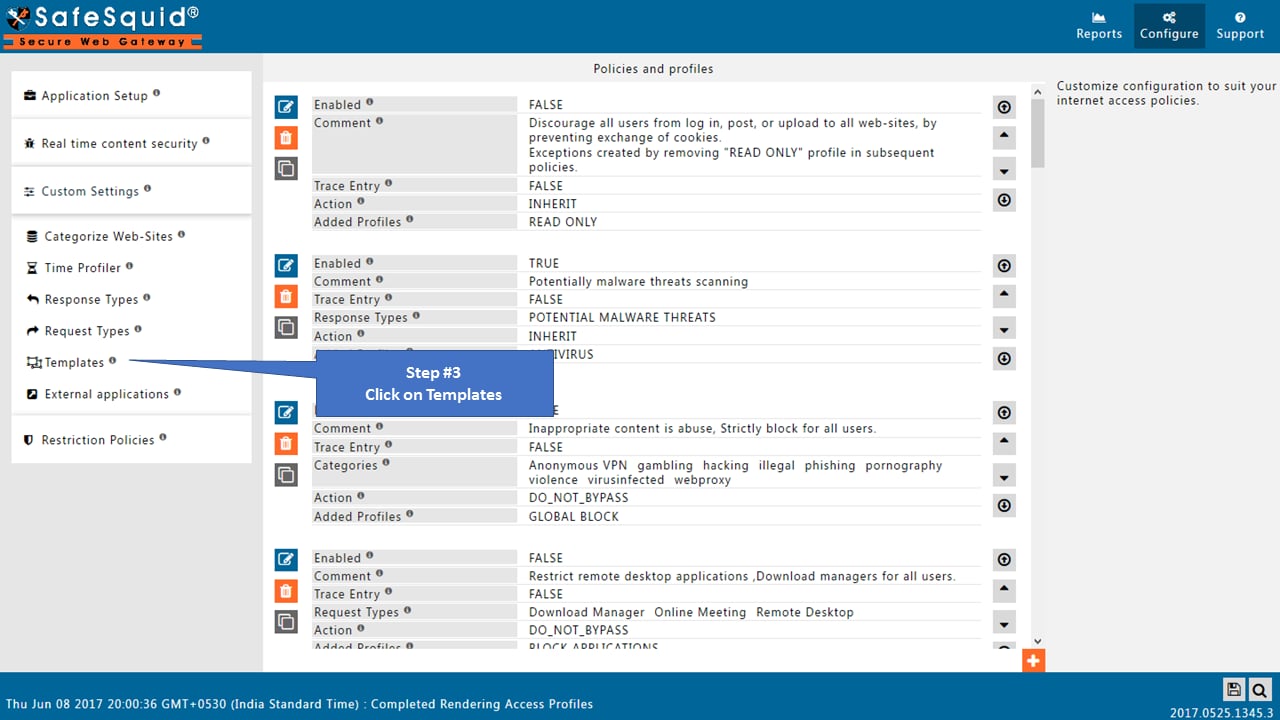 ### Clone existing entry
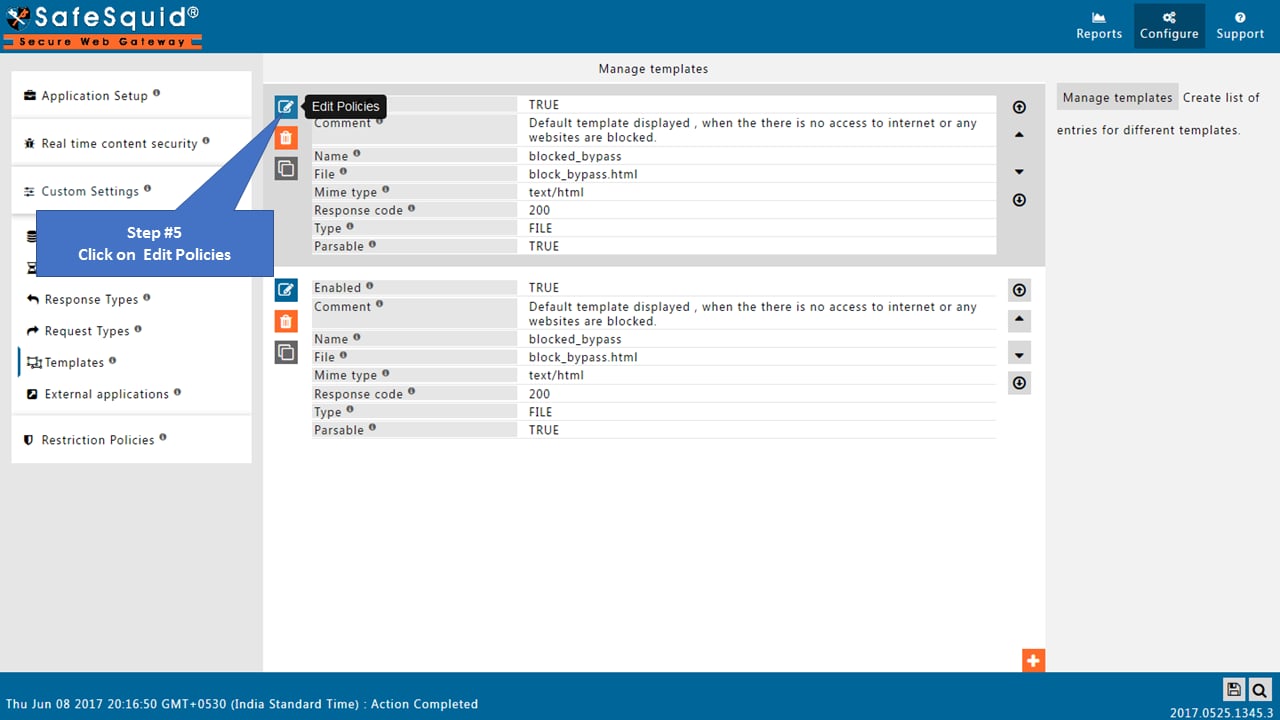
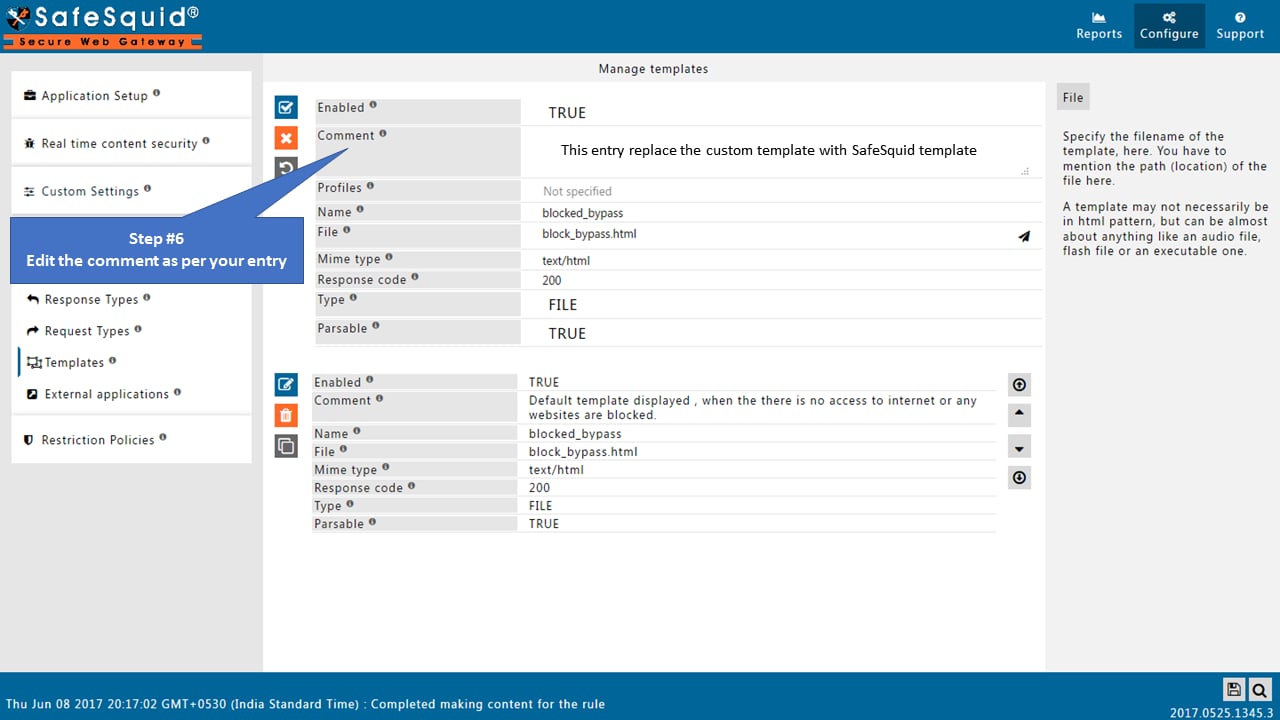
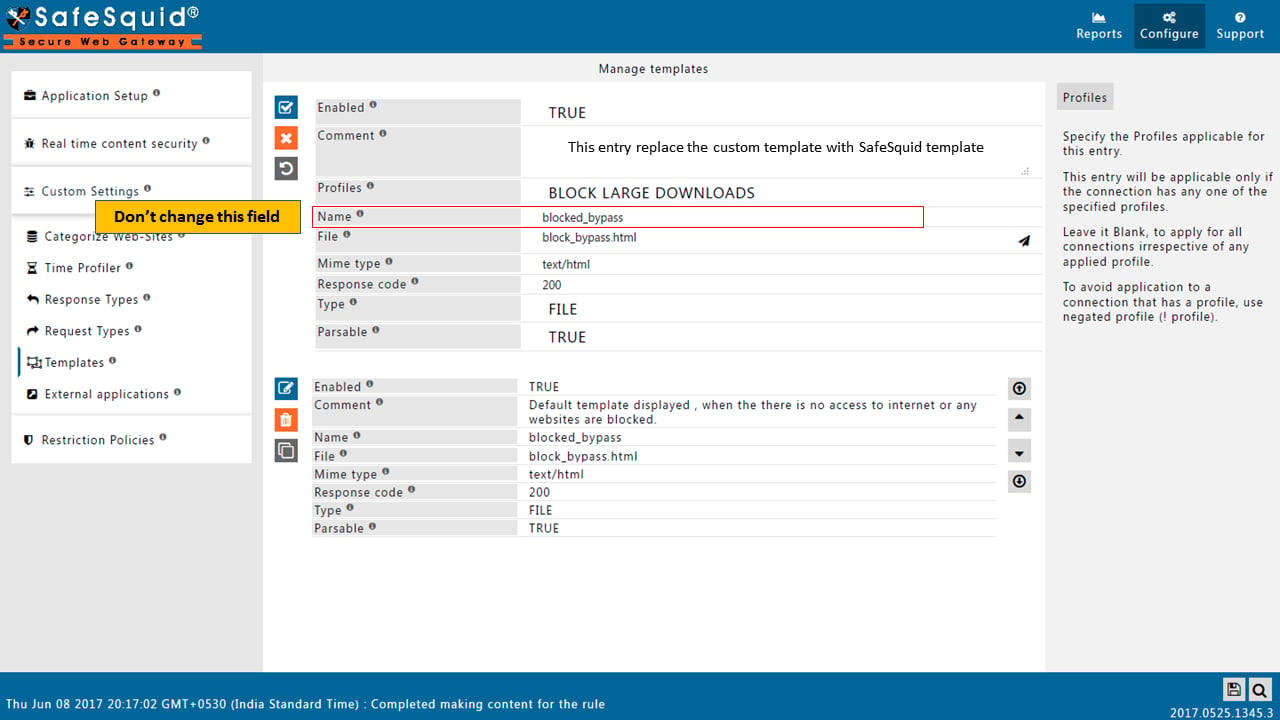
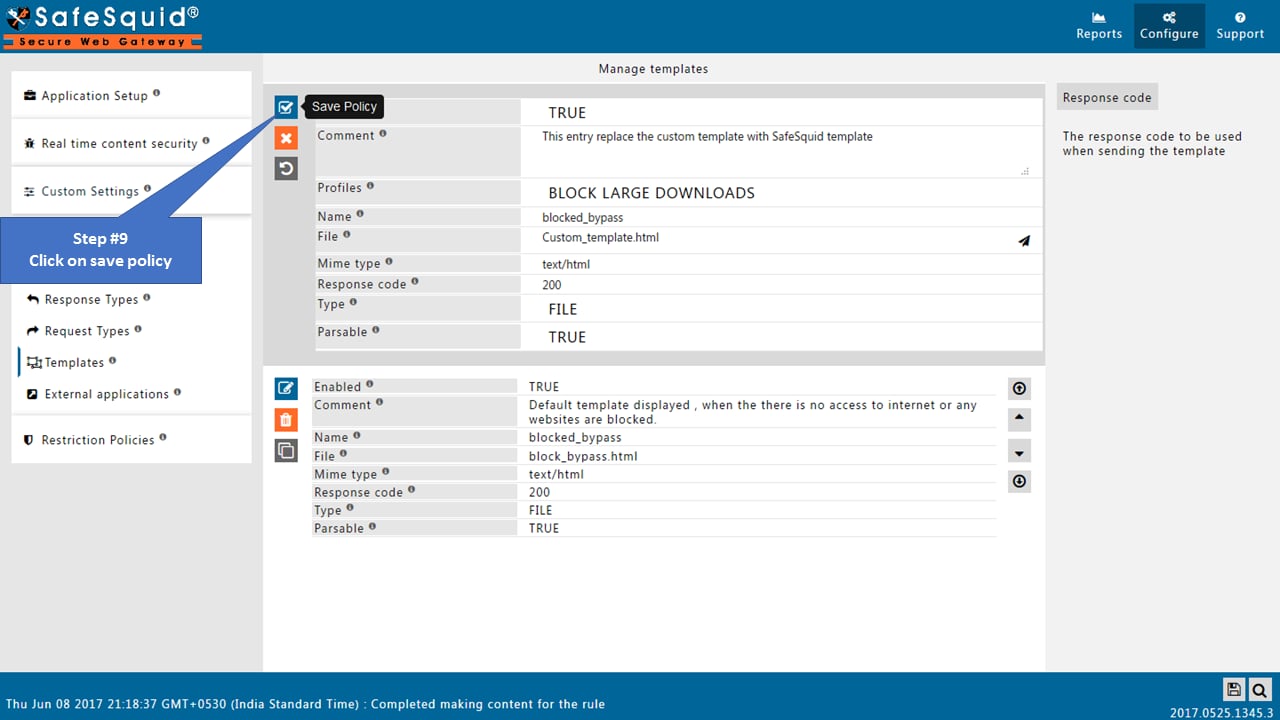
 ### Edit the original entry
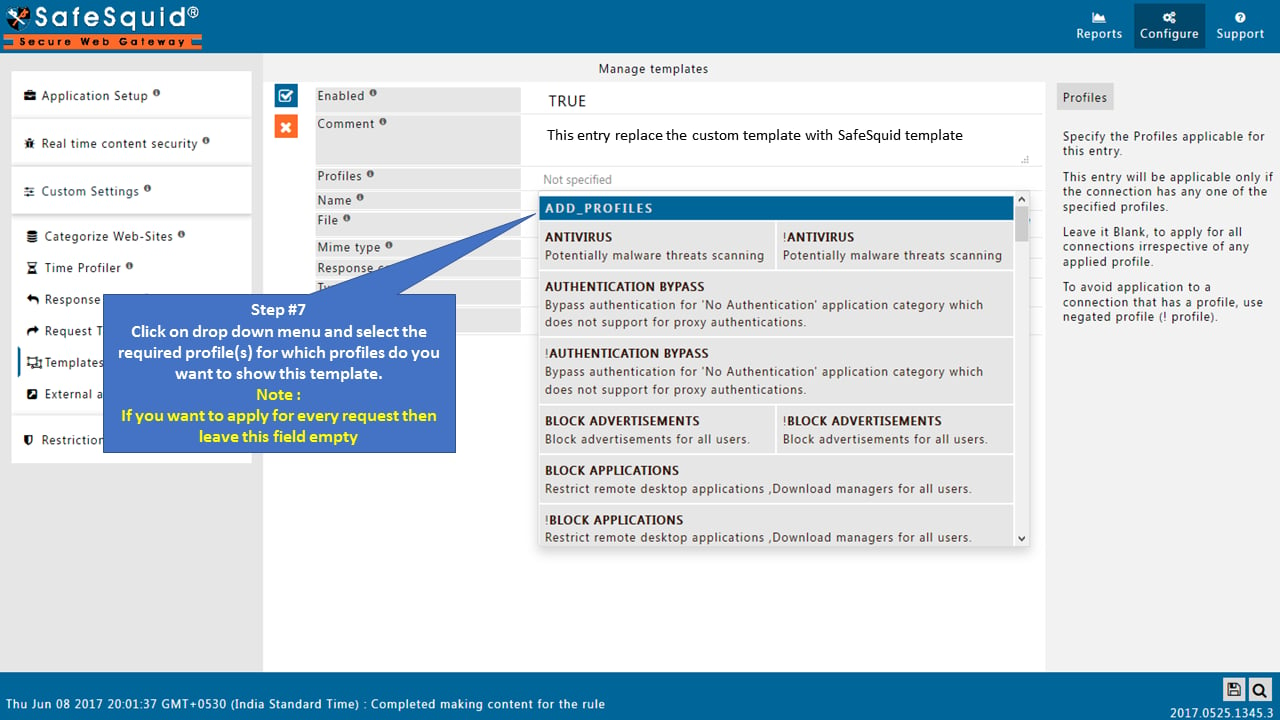
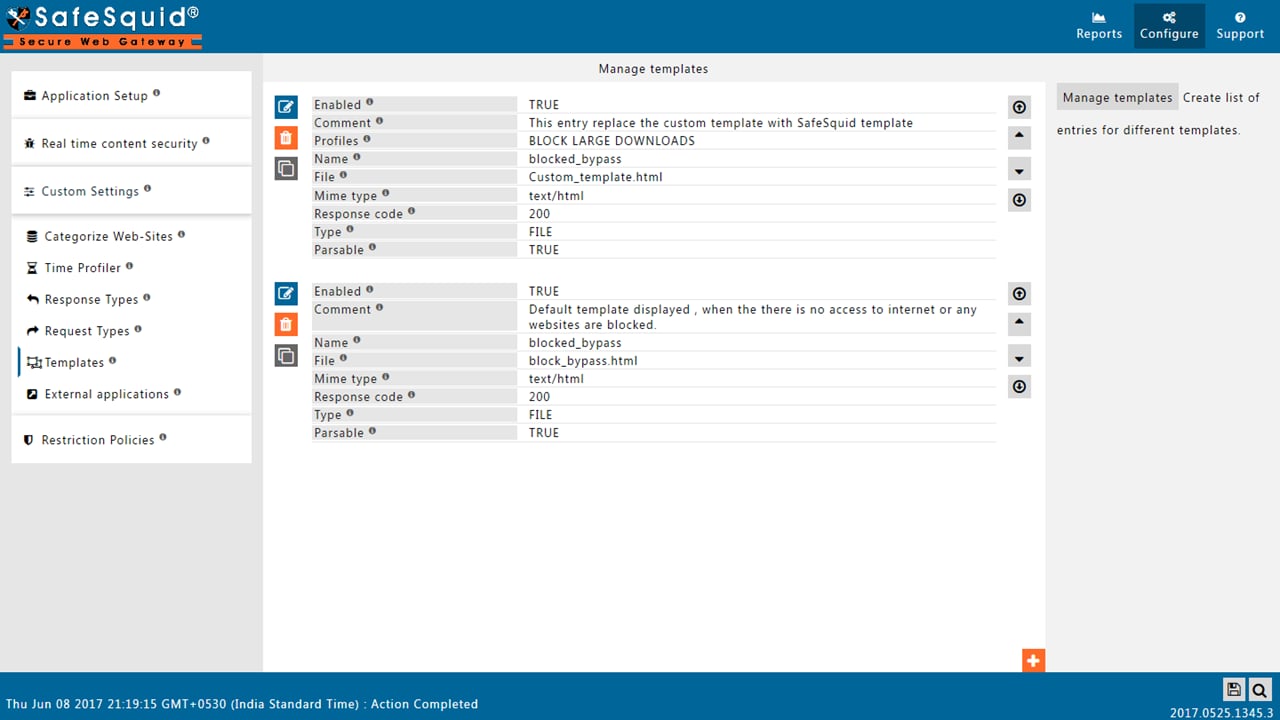
 You must edit the original entry, because the entries in template section are processed from top to bottom
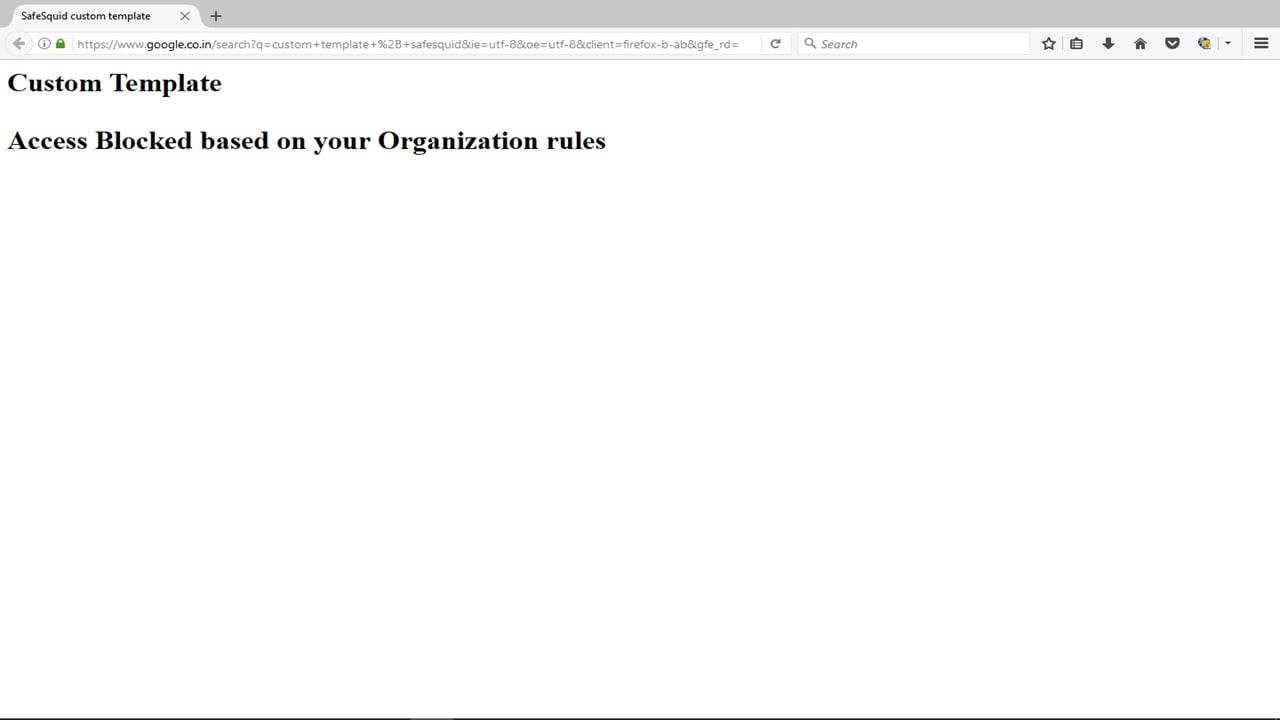
 ## Testing
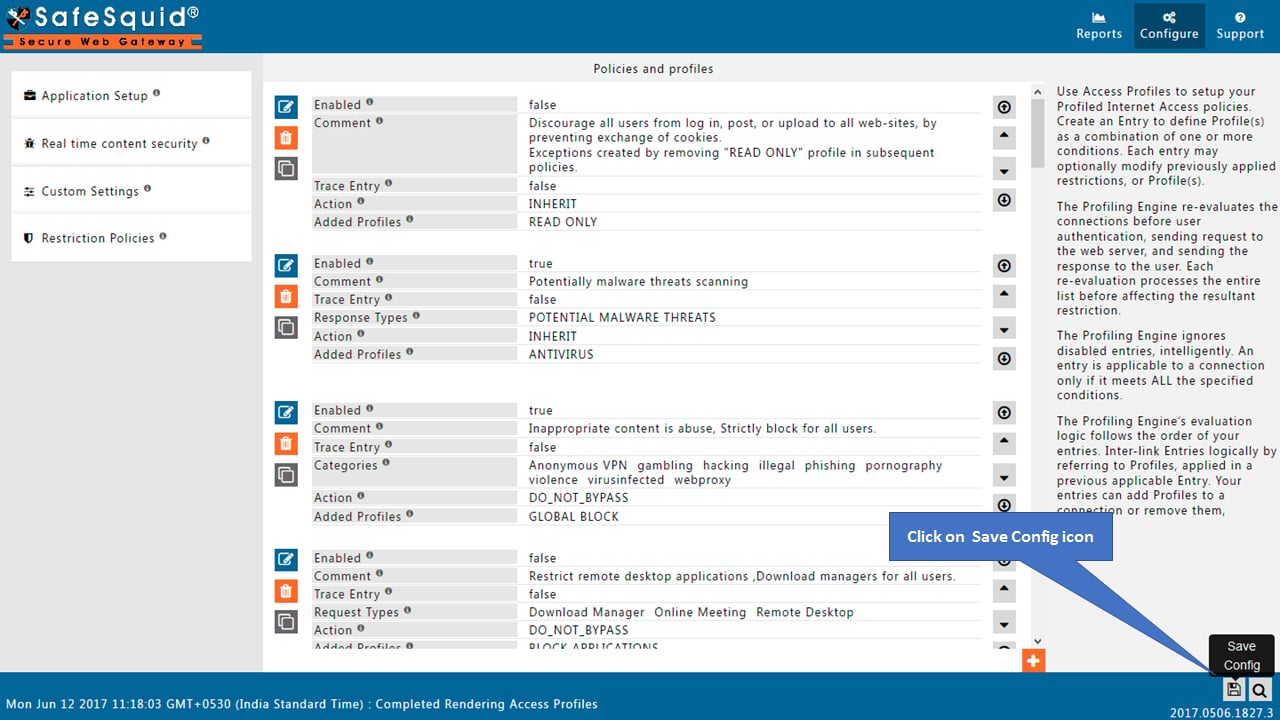
 ## Saving the Configuration
 ## Verification and Evidence
* **Interface Checks**: In [Configuration Portal](/Configuration_Portal), Custom Settings → Custom Templates: new template appears in the list with correct content and is assigned to the intended policy or block page.
* **Log Analysis**: When a block or redirect occurs, the custom template is served; config logs show the template change if applicable.
* **Performance Validation**: Trigger a block or use case that invokes the template; the custom message or page displays as designed.
**Related**: [Startup Parameters](/Startup_Parameters), [Customisation](/Customisation), [Access Restriction](/Access_Restriction), [Troubleshooting](/Troubleshooting)
## Related topics
- [Compliance Templates](/use_cases/access_restriction/compliance_templates.md)
- [Customisation](/use_cases/customisation/customisation.md)
- [Block Advertisements And Banners](/use_cases/content_modifier/block_advertisements_and_banners.md)
- [Templates](/admin_guide/policies_and_profiles/templates.md)
- [Data Leakage Prevention](/use_cases/data_leakage_prevention/data_leakage_prevention.md)
## Verification and Evidence
* **Interface Checks**: In [Configuration Portal](/Configuration_Portal), Custom Settings → Custom Templates: new template appears in the list with correct content and is assigned to the intended policy or block page.
* **Log Analysis**: When a block or redirect occurs, the custom template is served; config logs show the template change if applicable.
* **Performance Validation**: Trigger a block or use case that invokes the template; the custom message or page displays as designed.
**Related**: [Startup Parameters](/Startup_Parameters), [Customisation](/Customisation), [Access Restriction](/Access_Restriction), [Troubleshooting](/Troubleshooting)
## Related topics
- [Compliance Templates](/use_cases/access_restriction/compliance_templates.md)
- [Customisation](/use_cases/customisation/customisation.md)
- [Block Advertisements And Banners](/use_cases/content_modifier/block_advertisements_and_banners.md)
- [Templates](/admin_guide/policies_and_profiles/templates.md)
- [Data Leakage Prevention](/use_cases/data_leakage_prevention/data_leakage_prevention.md)