> ## Documentation Index
> Fetch the complete documentation index at: https://docs.safesquid.com/llms.txt
> Use this file to discover all available pages before exploring further.

# Malware Signatures via Self-Service Portal

> Manage malware signatures via SafeSquid Self-Service Portal to enhance threat intelligence.

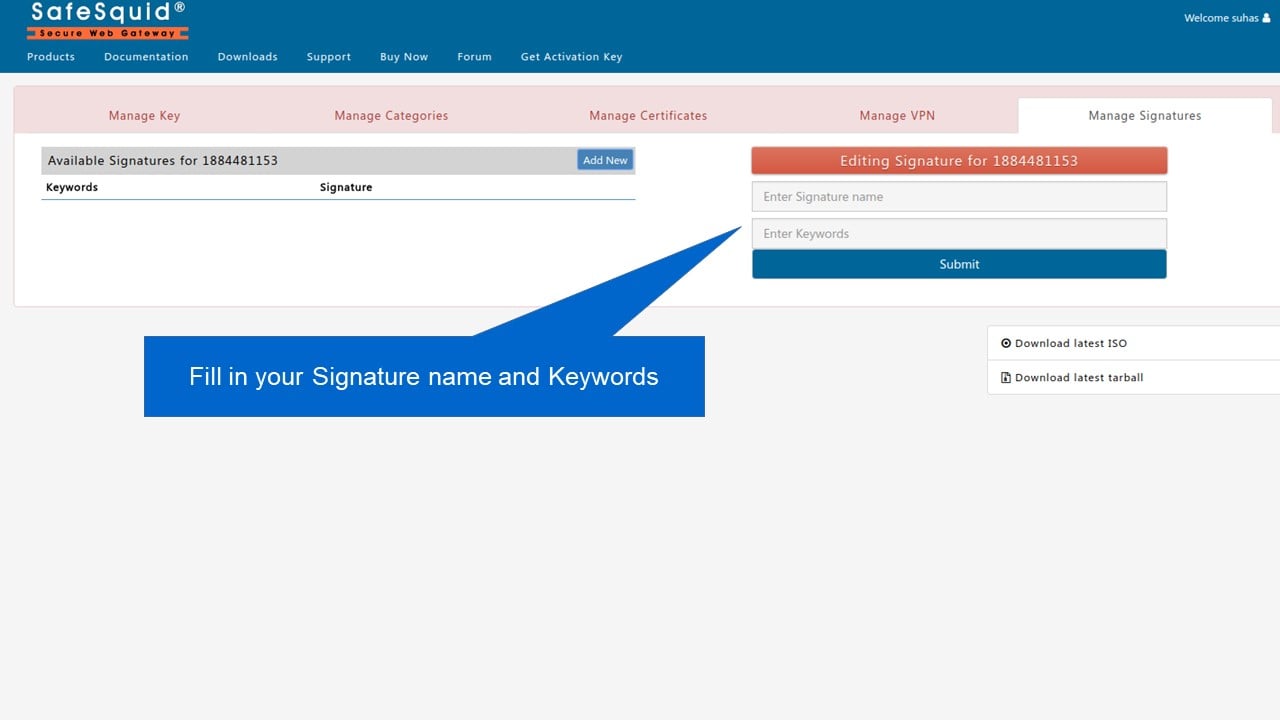
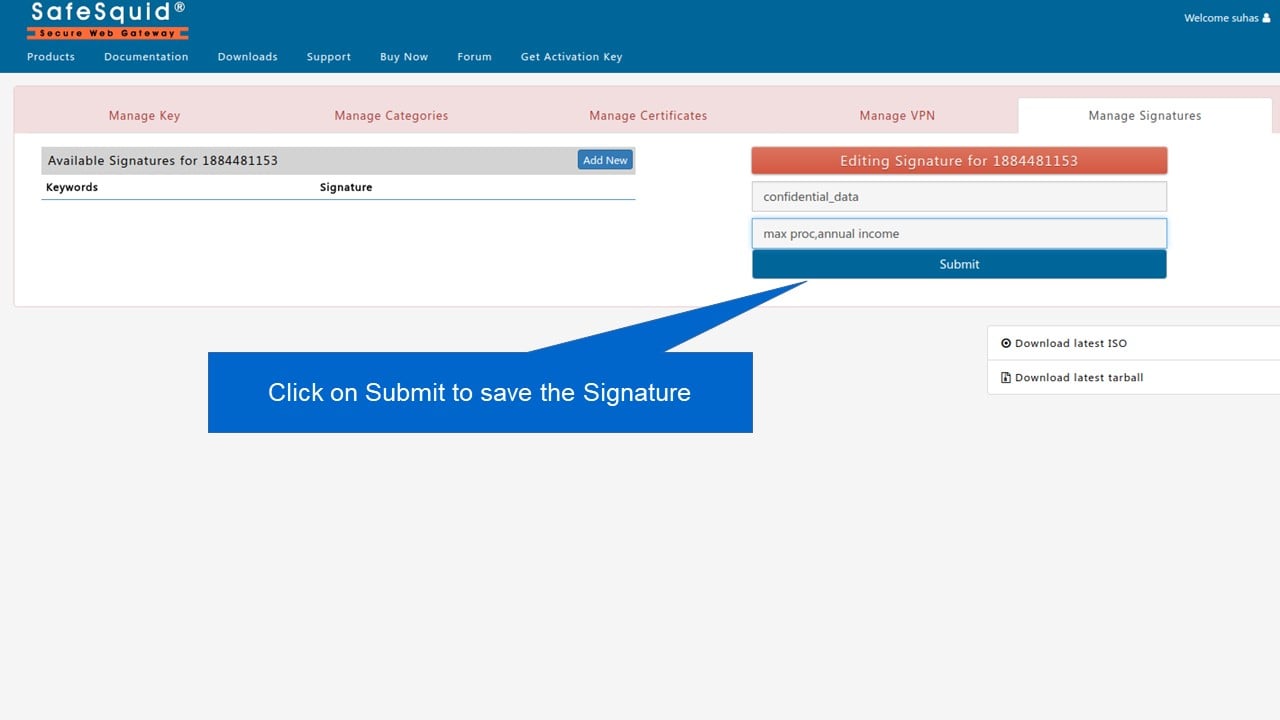
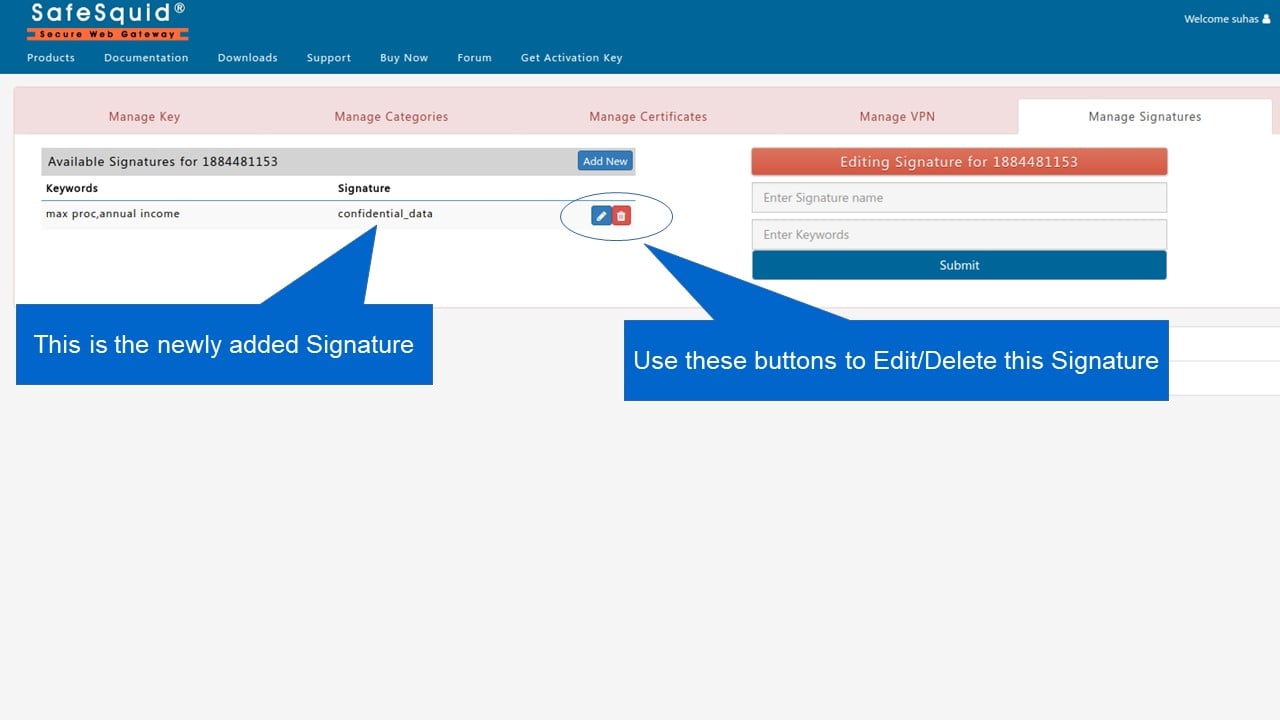
You can manage malware signatures using the SafeSquid Self-Service Portal. This allows you to add custom signatures to block specific threats.

You need an active SafeSquid account with at least one activation key. Register at [https://key.safesquid.com/](https://key.safesquid.com/) if needed. Log in to the Self-Service Portal at [https://key.safesquid.com/](https://key.safesquid.com/).
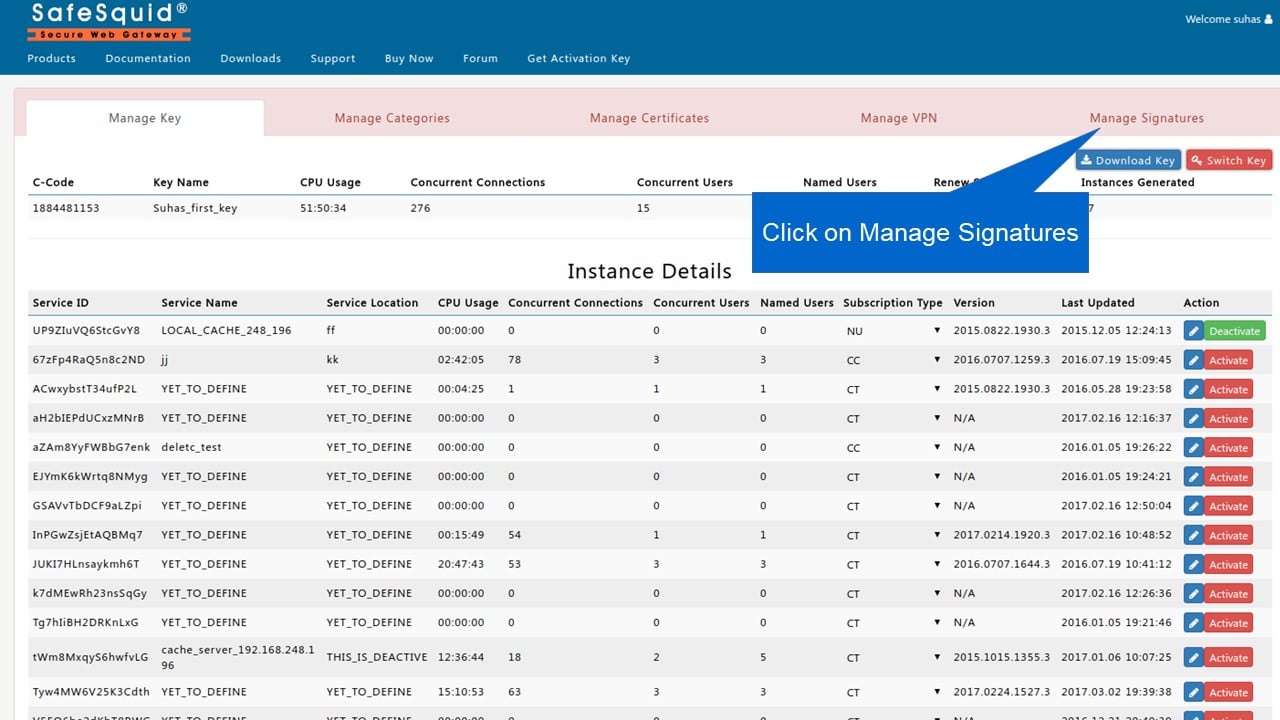
<img src="https://mintcdn.com/safe-squid-labs-12a0916f/MoDjed1u2_at-9B3/images/How_To/Manage_Keyword_Signatures_using_Self_Service_portal/image1.webp?fit=max&auto=format&n=MoDjed1u2_at-9B3&q=85&s=9f03b9e19d2225c57e677835198cce2a" alt="Select manage signatures option to Manage Malware Signatures using Self Service portal (https://key.safesquid.com/)" width="1280" height="720" data-path="images/How_To/Manage_Keyword_Signatures_using_Self_Service_portal/image1.webp" />

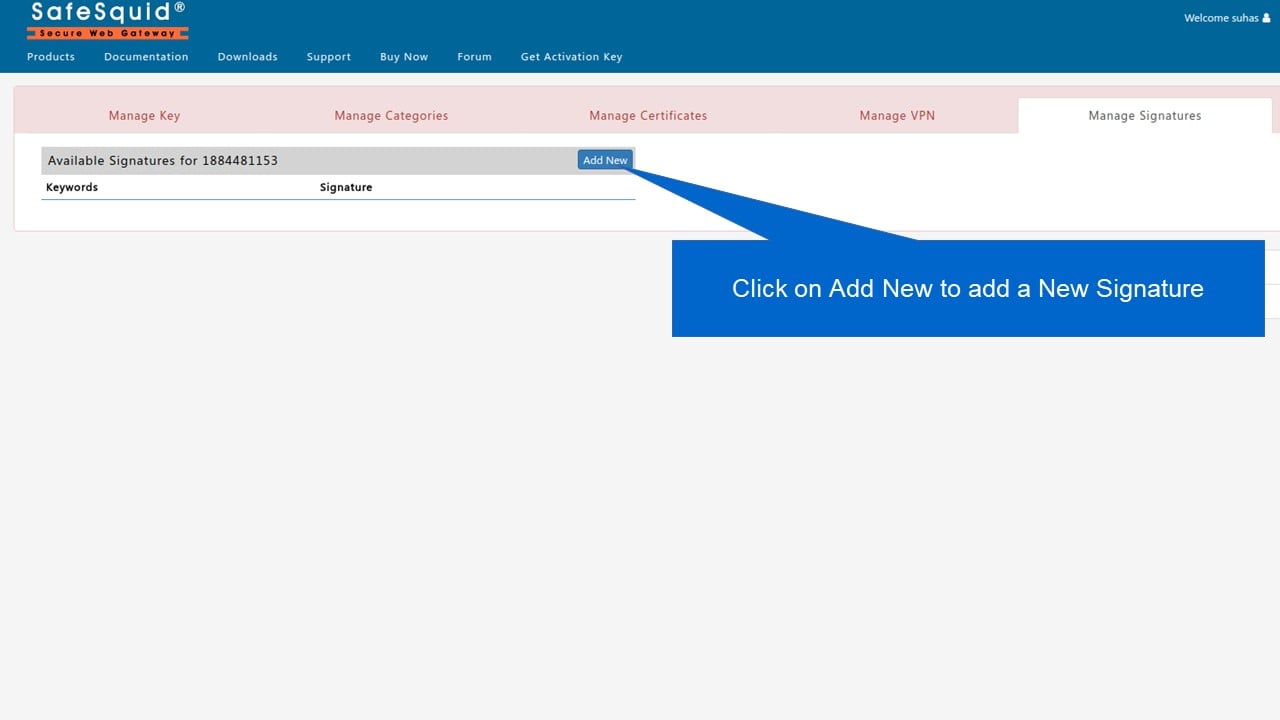
<img src="https://mintcdn.com/safe-squid-labs-12a0916f/MoDjed1u2_at-9B3/images/How_To/Manage_Keyword_Signatures_using_Self_Service_portal/image2.webp?fit=max&auto=format&n=MoDjed1u2_at-9B3&q=85&s=4989de2259135ae81491596c651fc81f" alt="Click on Add to add New signature using Self Service portal " width="1280" height="720" data-path="images/How_To/Manage_Keyword_Signatures_using_Self_Service_portal/image2.webp" />

<img src="https://mintcdn.com/safe-squid-labs-12a0916f/MoDjed1u2_at-9B3/images/How_To/Manage_Keyword_Signatures_using_Self_Service_portal/image3.webp?fit=max&auto=format&n=MoDjed1u2_at-9B3&q=85&s=1080705c5a98a441beaef237a0f67b59" alt="Fill up signature name and keywords to manage malware signatures using self service portal" width="1280" height="720" data-path="images/How_To/Manage_Keyword_Signatures_using_Self_Service_portal/image3.webp" />

<img src="https://mintcdn.com/safe-squid-labs-12a0916f/MoDjed1u2_at-9B3/images/How_To/Manage_Keyword_Signatures_using_Self_Service_portal/image4.webp?fit=max&auto=format&n=MoDjed1u2_at-9B3&q=85&s=a89e8a69dd17b5ffe0ba212c93940f8d" alt="Click on submit to save the signature to manage malware signatures using self service portal" width="1280" height="720" data-path="images/How_To/Manage_Keyword_Signatures_using_Self_Service_portal/image4.webp" />

<img src="https://mintcdn.com/safe-squid-labs-12a0916f/MoDjed1u2_at-9B3/images/How_To/Manage_Keyword_Signatures_using_Self_Service_portal/image5.webp?fit=max&auto=format&n=MoDjed1u2_at-9B3&q=85&s=4b9e43b9dd5732e9b6667c14998999d7" alt="Newly added signature can be view after click on submit to save the signature" width="1280" height="720" data-path="images/How_To/Manage_Keyword_Signatures_using_Self_Service_portal/image5.webp" />

To know more about this feature follow link [Block Emails or Files including archives or Social Posts using Keywords](/Block_Emails_or_Files_including_archives_or_Social_Posts_using_Keywords)


## Related topics

- [Threat Intelligence Feeds](/use_cases/malware_scanning/threat_intelligence_feeds.md)
- [Self-Service Portal](/safesquid_swg/interface/self_service_portal.md)
- [Application Signatures](/use_cases/profiling_engine/application_signatures.md)
- [FAQs](/faqs/faqs.md)