> ## Documentation Index
> Fetch the complete documentation index at: https://docs.safesquid.com/llms.txt
> Use this file to discover all available pages before exploring further.
# Caching and Prefetching
> Configure SafeSquid content caching and prefetching to cut bandwidth and latency, and verify objects are actually being served from the local store.
# Serve Repeated Requests Locally
Every request that reaches the origin costs bandwidth and latency the user feels. Caching stores local copies of requested content and serves later requests from disk; prefetching goes further and retrieves resources referenced in an HTML page before the user asks for them.
They are complementary, and they are configured separately. Caching is the store; prefetching is what fills it ahead of demand.
## Choose which to enable
| | Content caching | Prefetching |
| -------------- | ------------------------------------------------ | ------------------------------------------------------- |
| What it stores | Pages and files that were requested | Resources referenced in HTML, before they are requested |
| Best for | Repeated access to the same content across users | Pages with many embedded assets |
| Main cost | Disk on the write path | Origin requests for resources nobody opens |
| Depends on | A store policy and a matching access profile | Caching being configured first |
Enable caching first and confirm objects land in the store. Prefetching without a working cache generates origin traffic and discards it.
Cache and prefetch policy interacts with inspection and privacy scope. Do not cache content from destinations excluded from inspection, or from categories where a shared local copy would expose one user's content to another. Confirm the scope with the policy owner before enabling either.
## Configure content caching
### Create the access policy
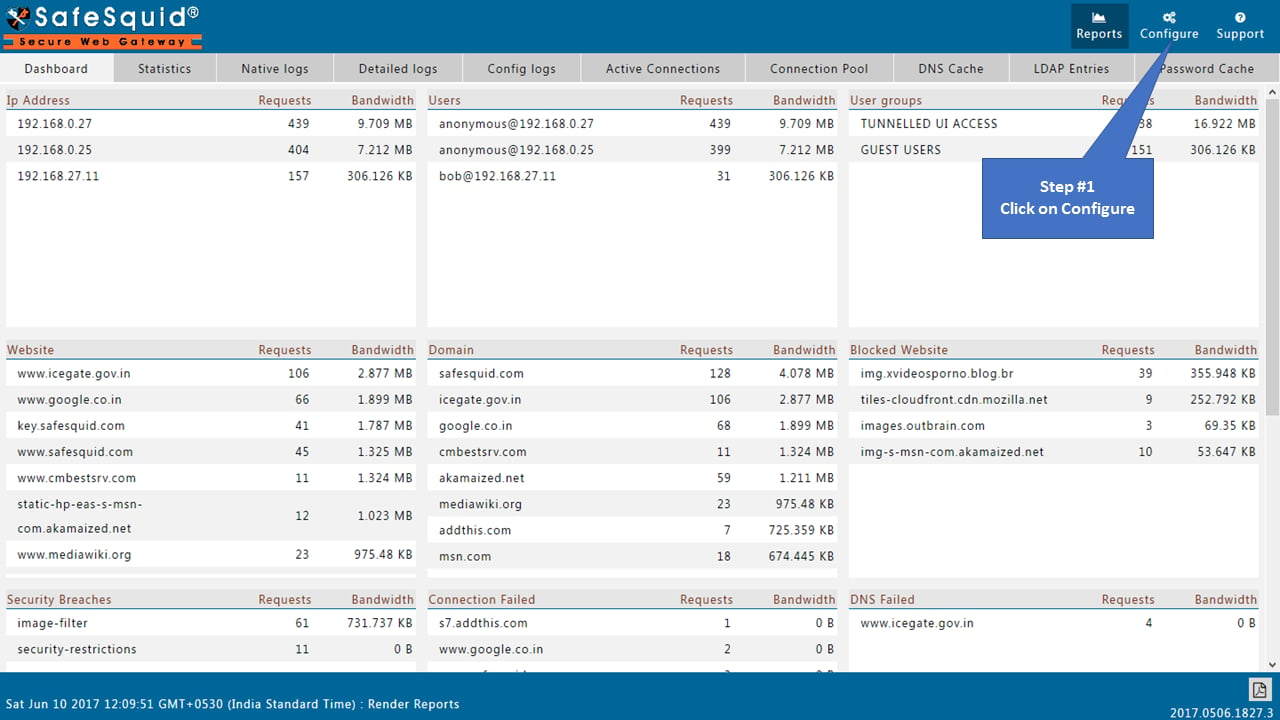
1. Access the [SafeSquid User Interface](/safesquid_swg/interface/configuration_portal) and click **Configure**.
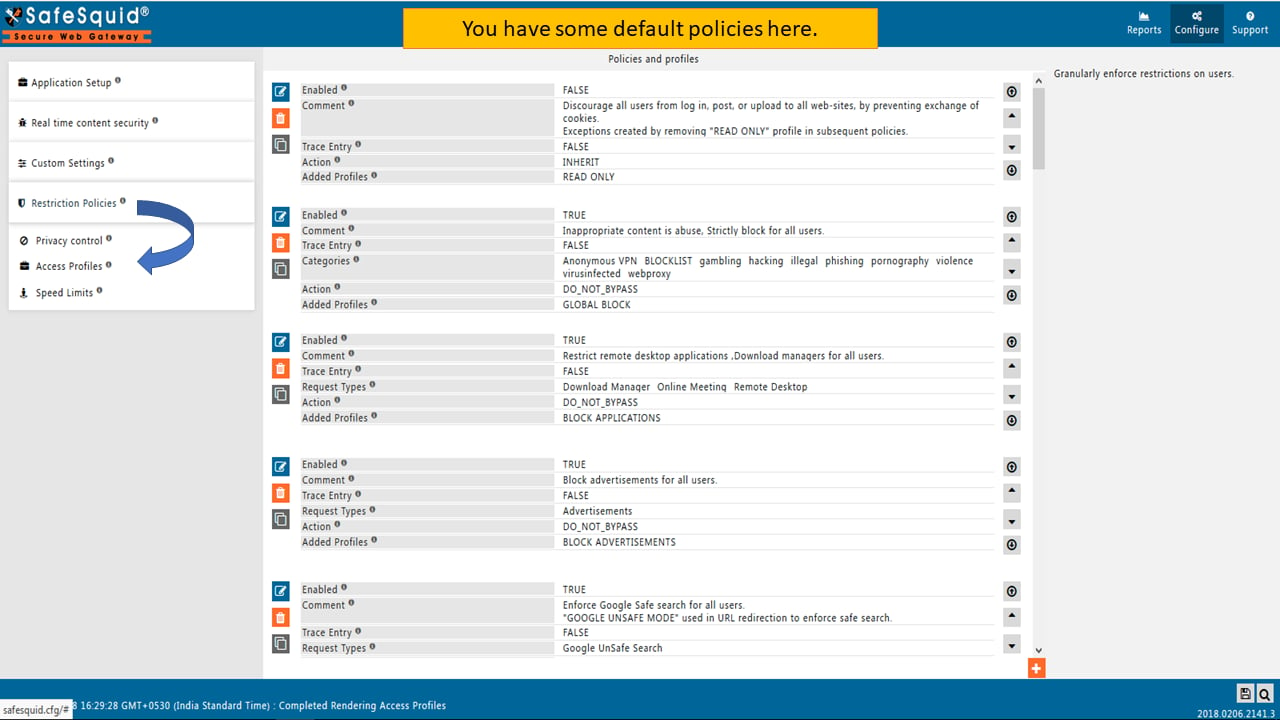
 2. Navigate to **Access Policies** under Restriction Policies.
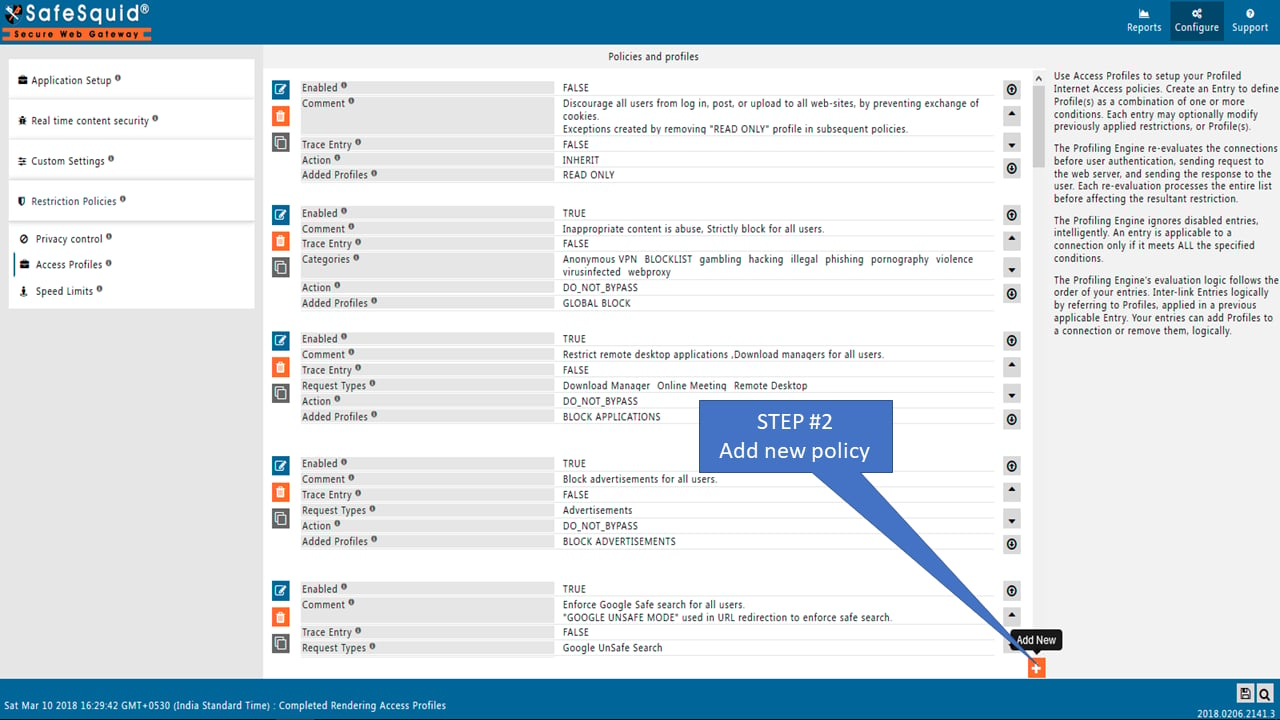
 3. Click **Add New** to create a new policy.
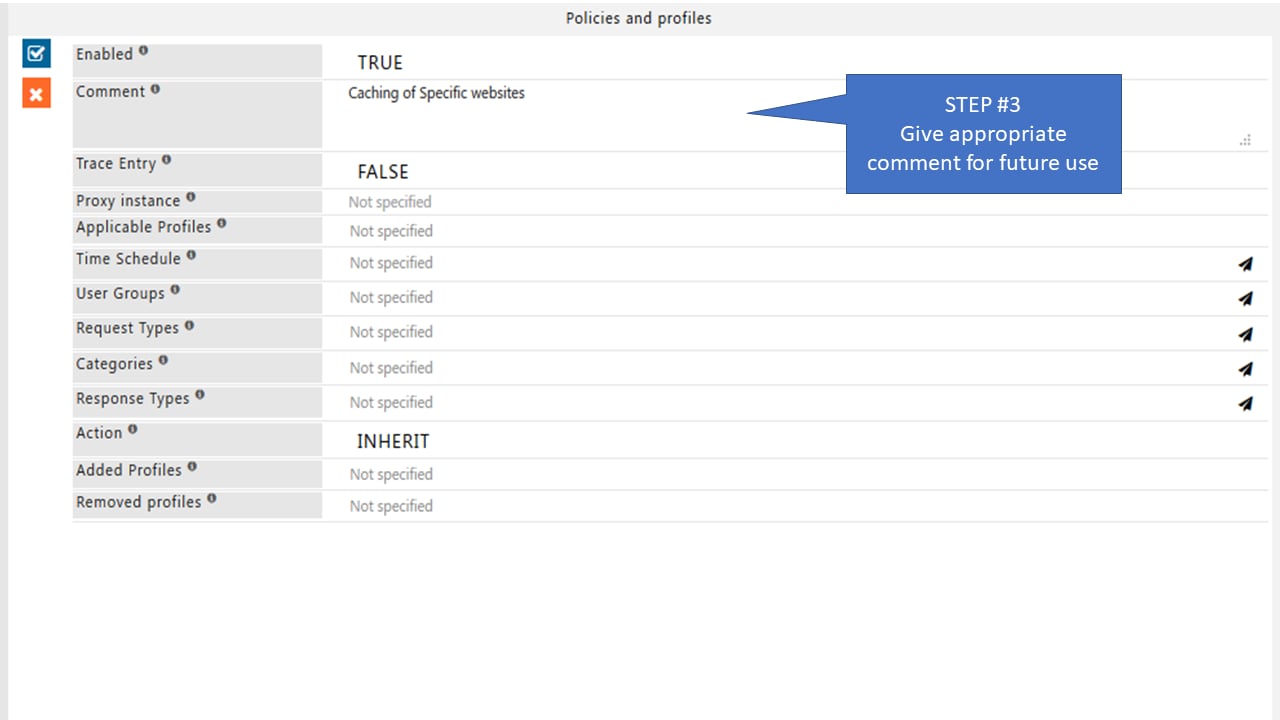
 4. Enter a descriptive comment for reference.
 5. Select the desired categories from the **Categories** dropdown.
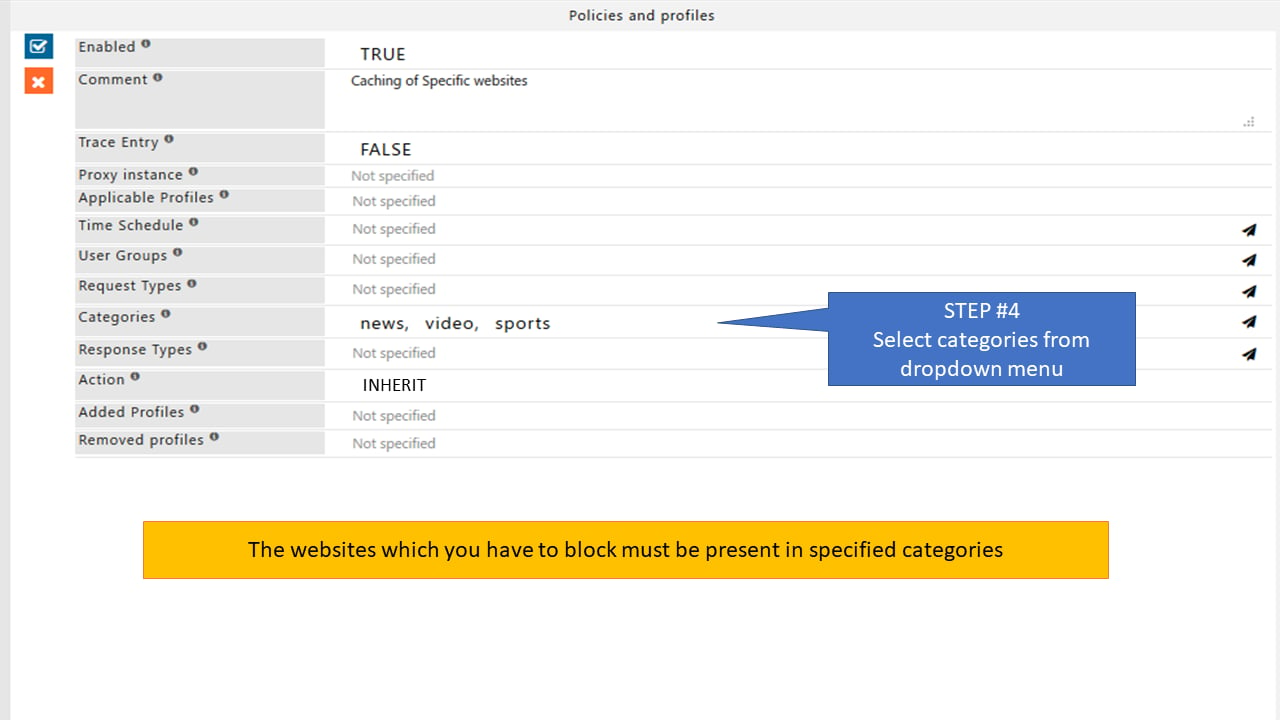 6. Set **Action** to **Allow**.
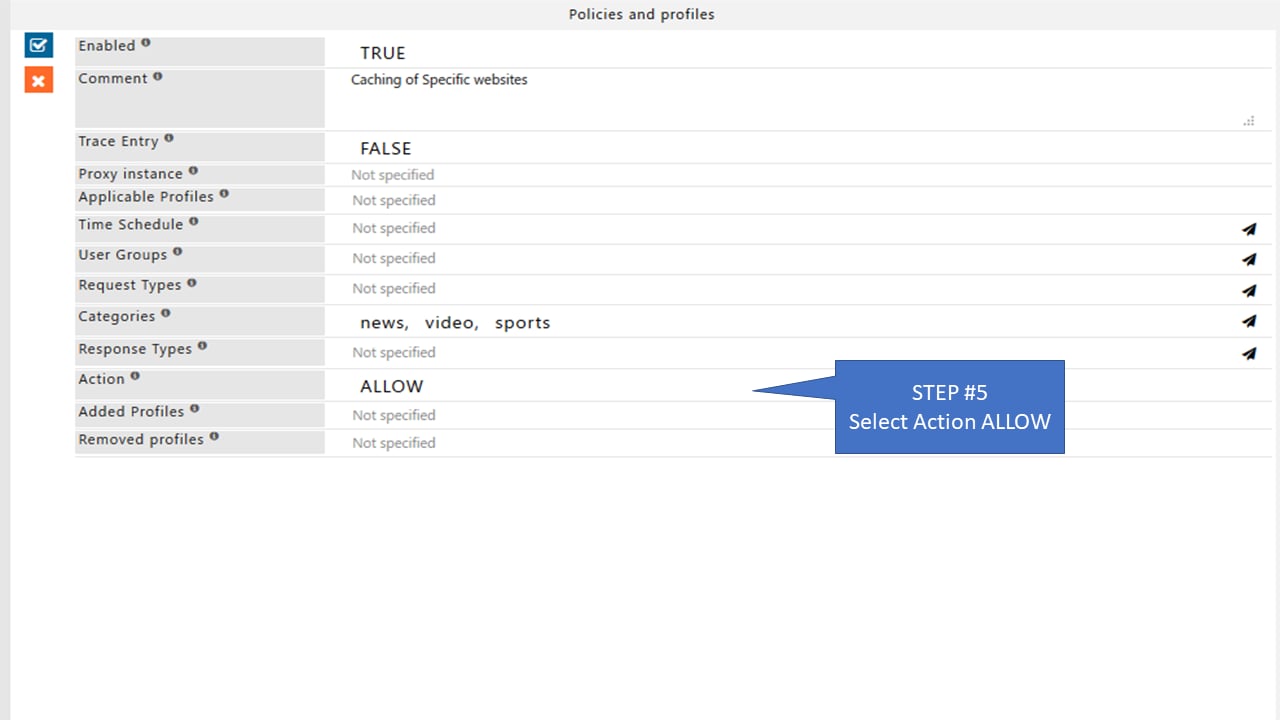 7. Assign a unique name in **Added Profiles**.
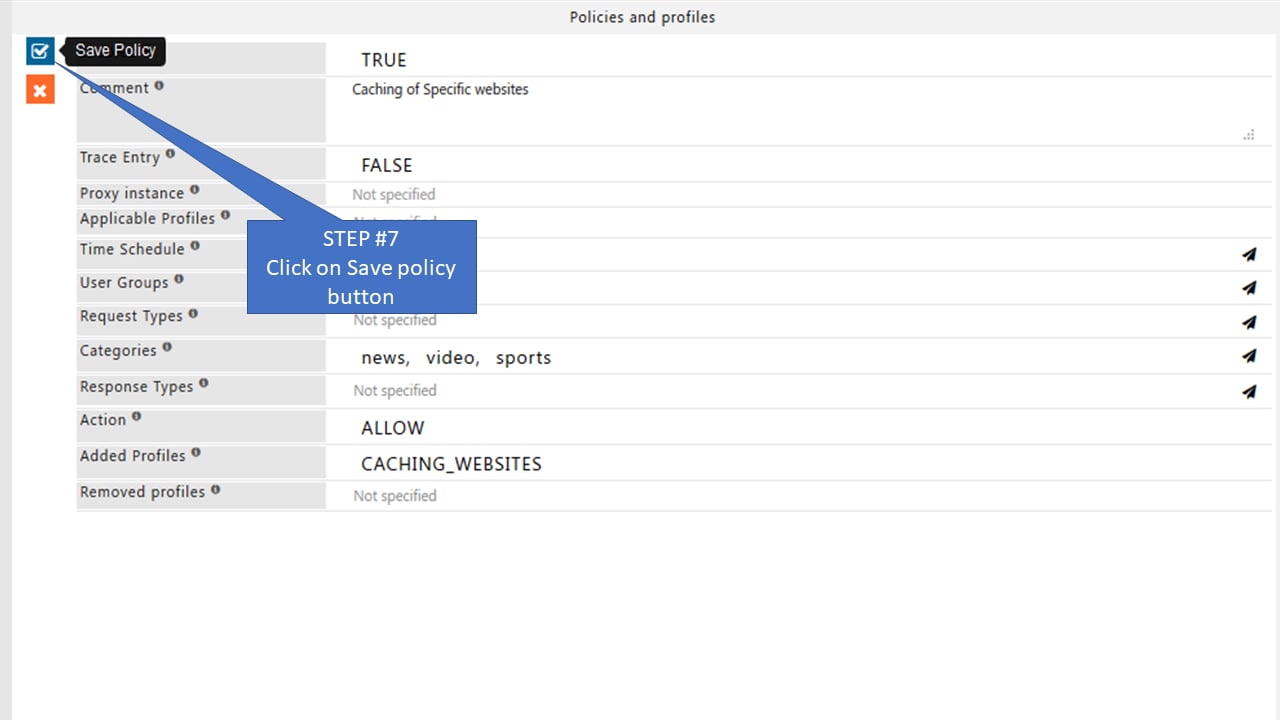
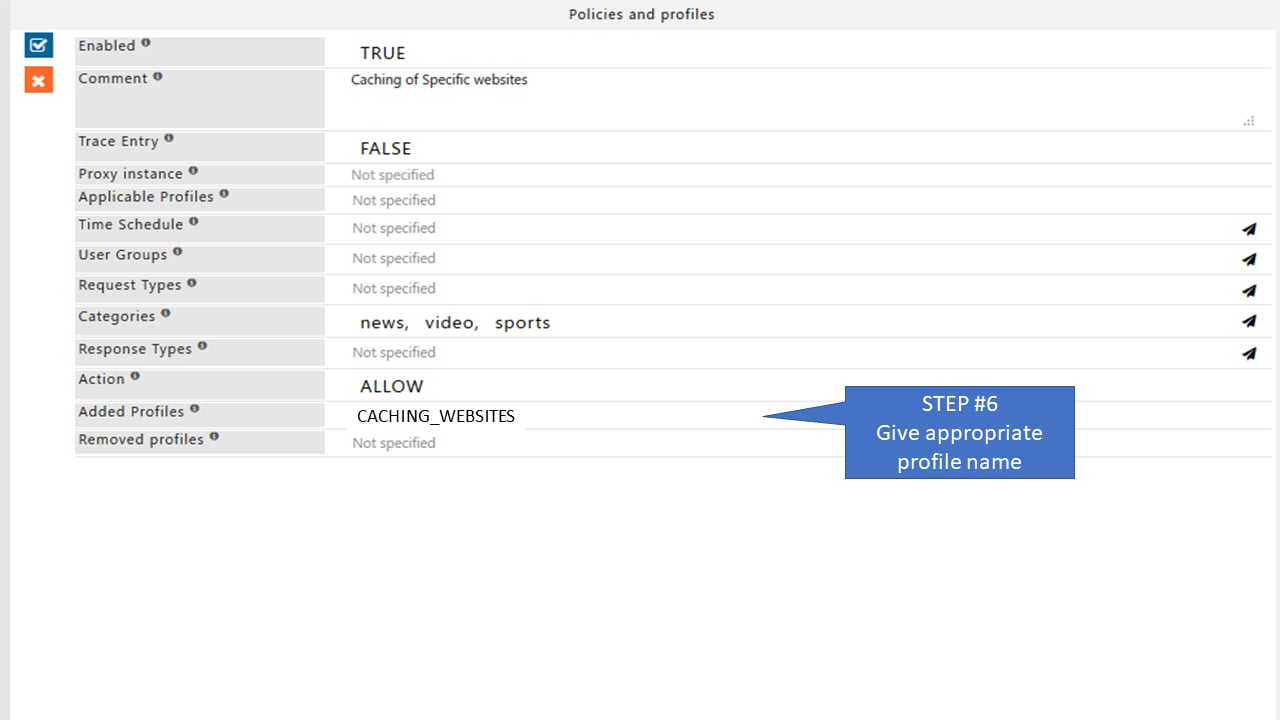 8. Click **Save Policy**.
 ### Configure the caching store
9. Navigate to **Caching** under Application Setup.
### Configure the caching store
9. Navigate to **Caching** under Application Setup.
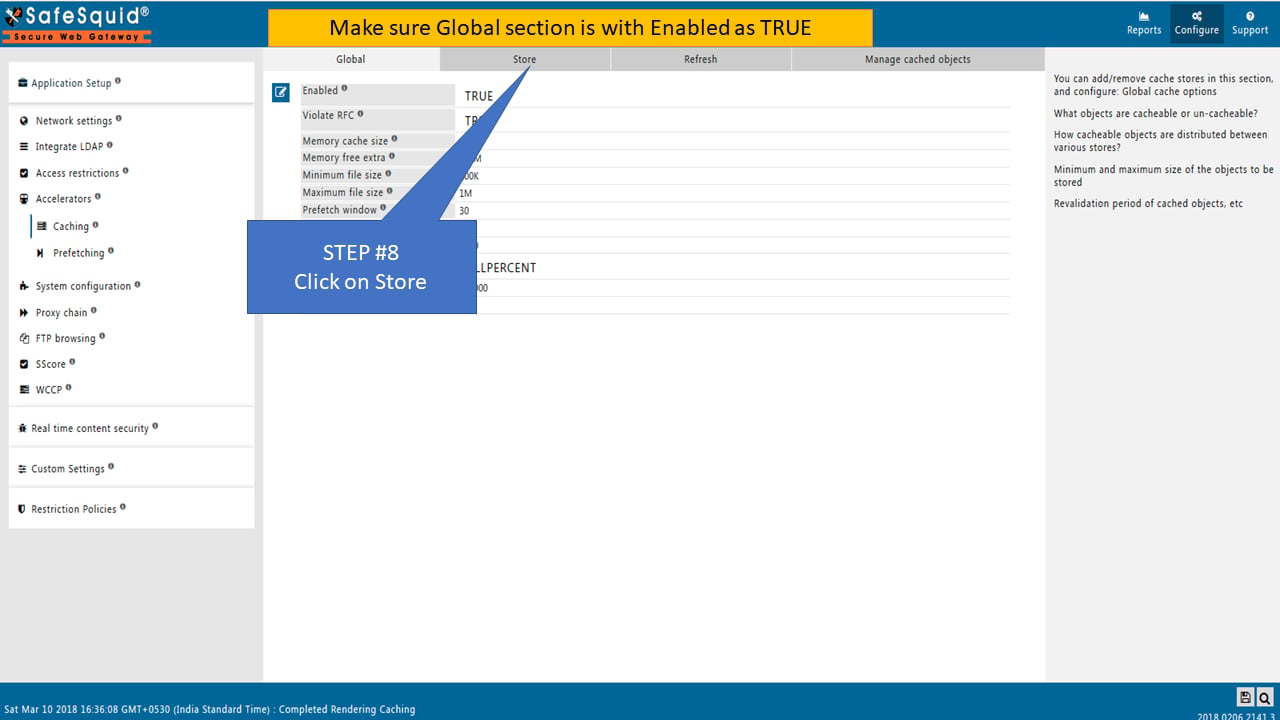
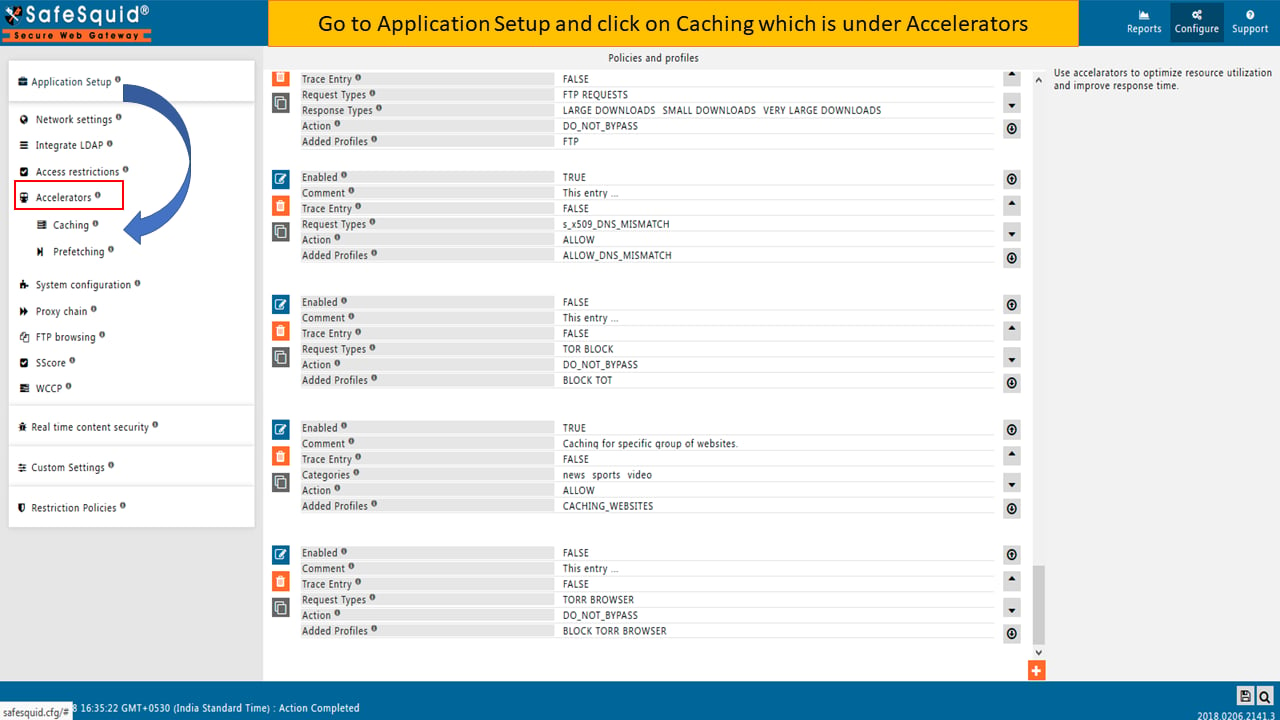 10. Click the **Store** tab.
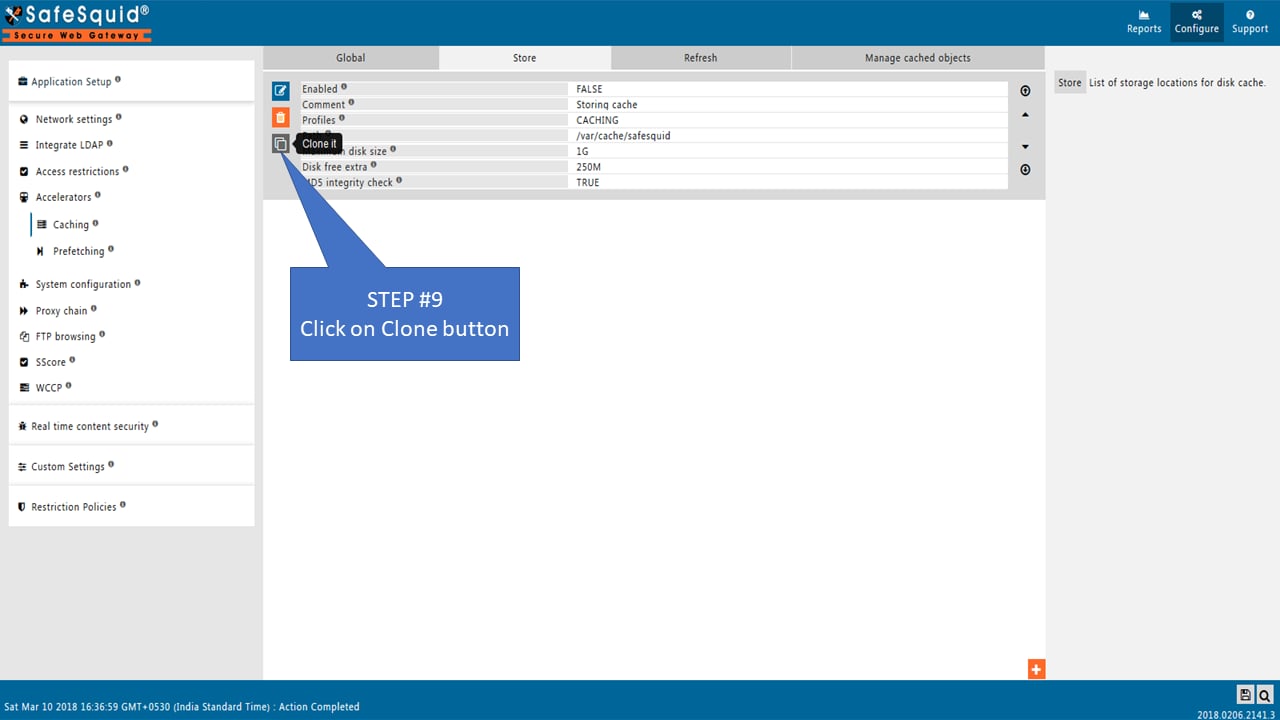
 11. Click **Clone** to duplicate an existing policy.
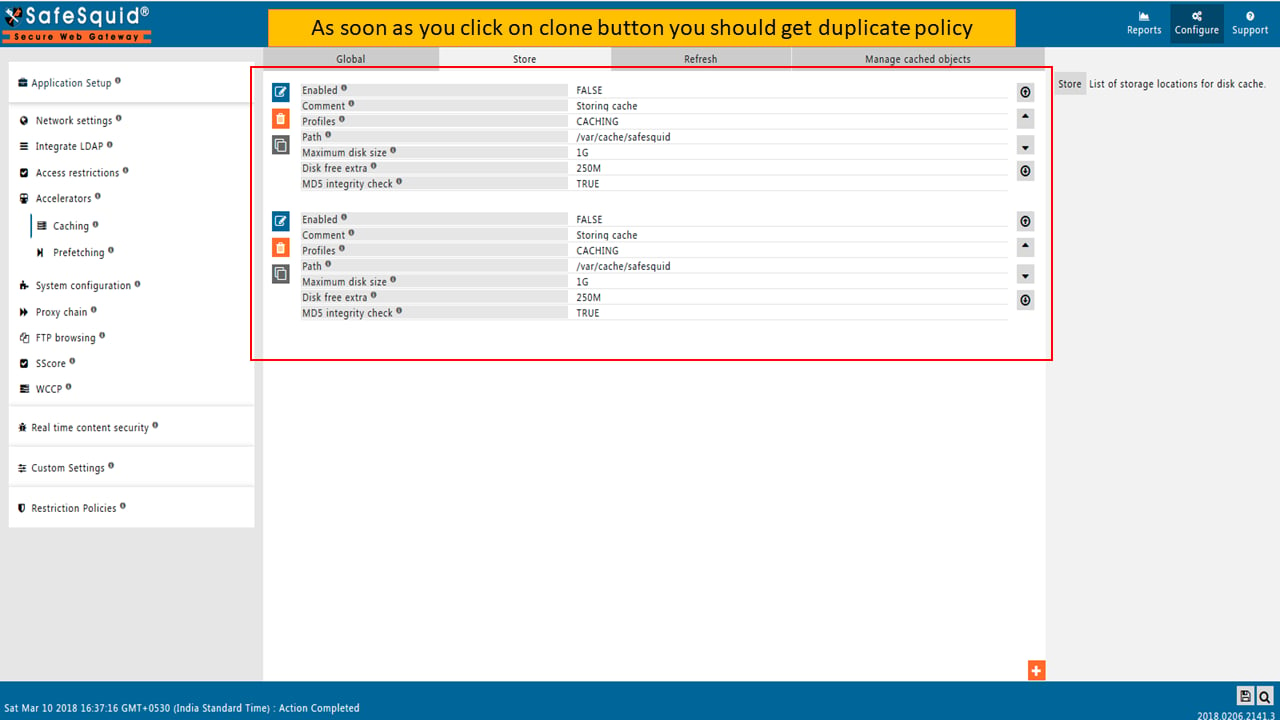 12. Click **Edit Policy** on the cloned entry.
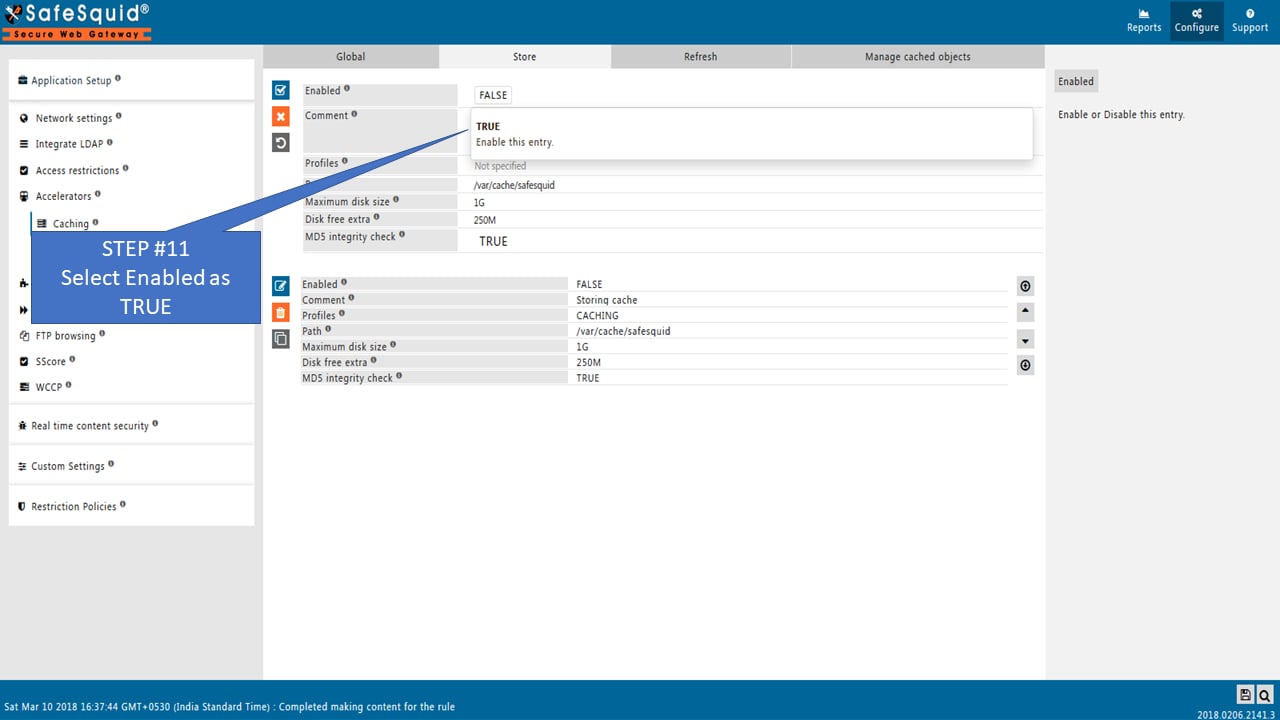
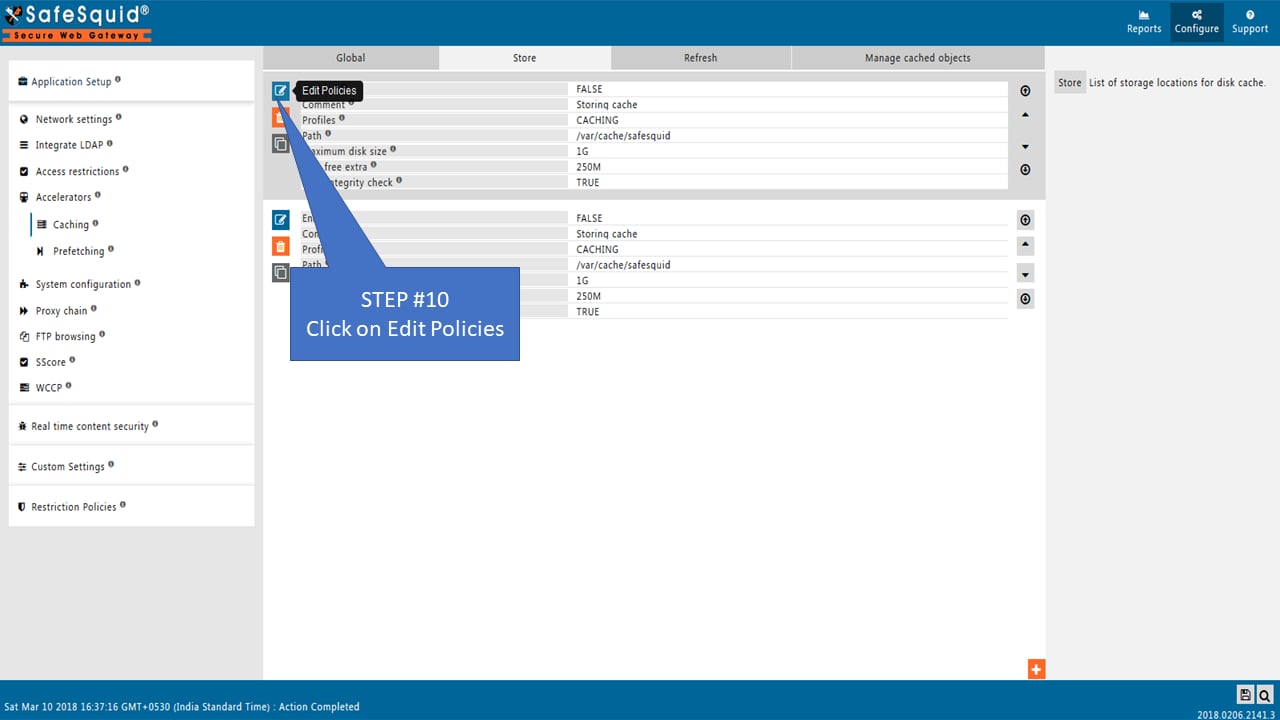 13. Set **Enabled** to **True**.
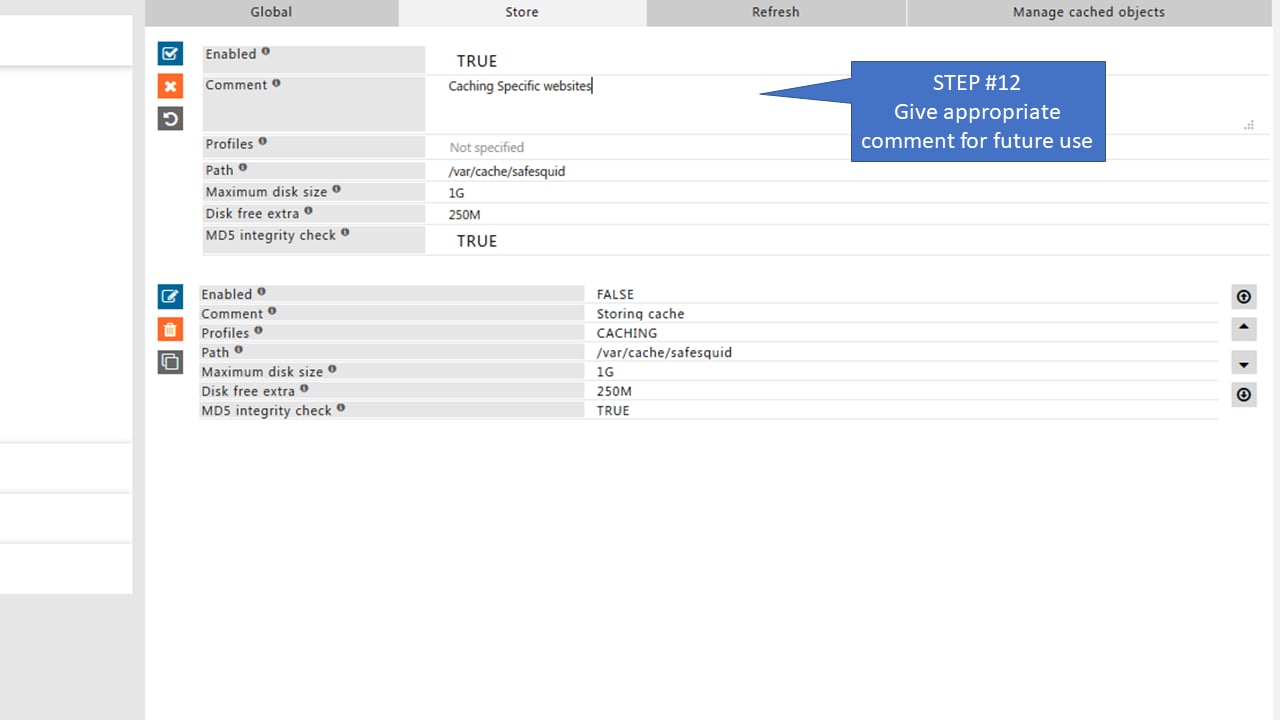
 14. Add an appropriate comment for future reference.
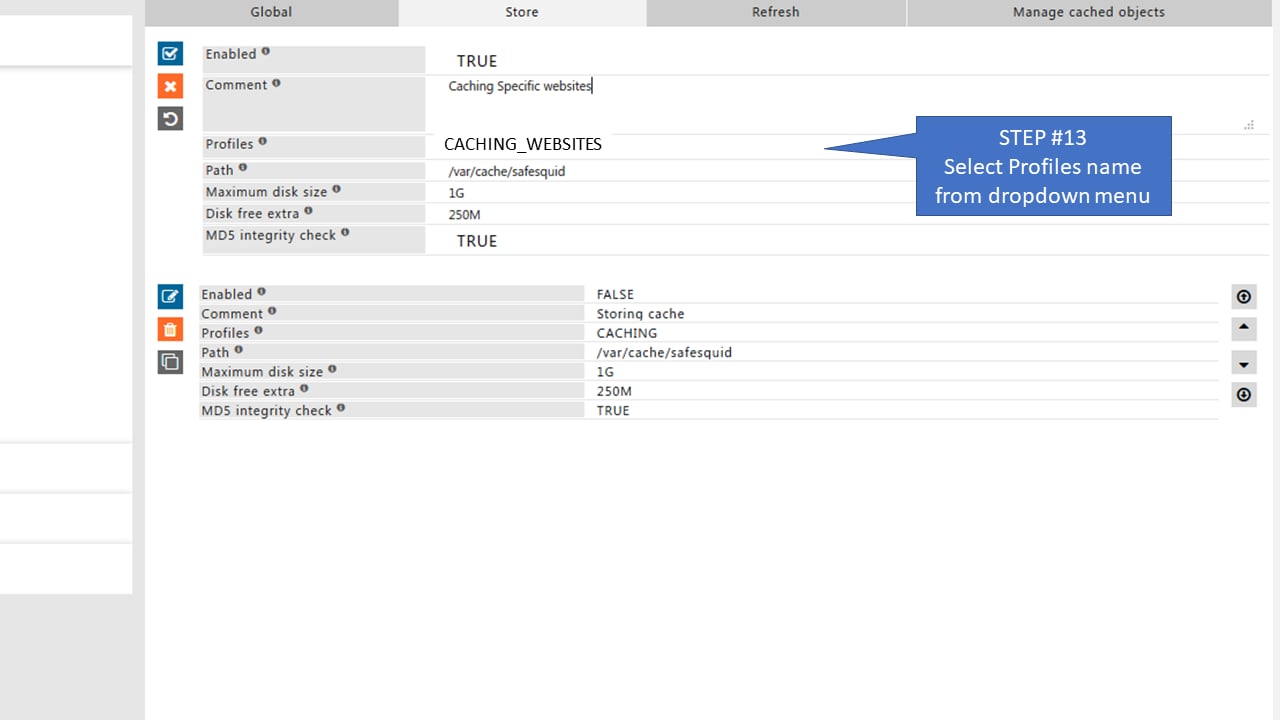
 15. Select the profile created earlier from the **Profiles** dropdown.
 16. Click **Save Policy**.
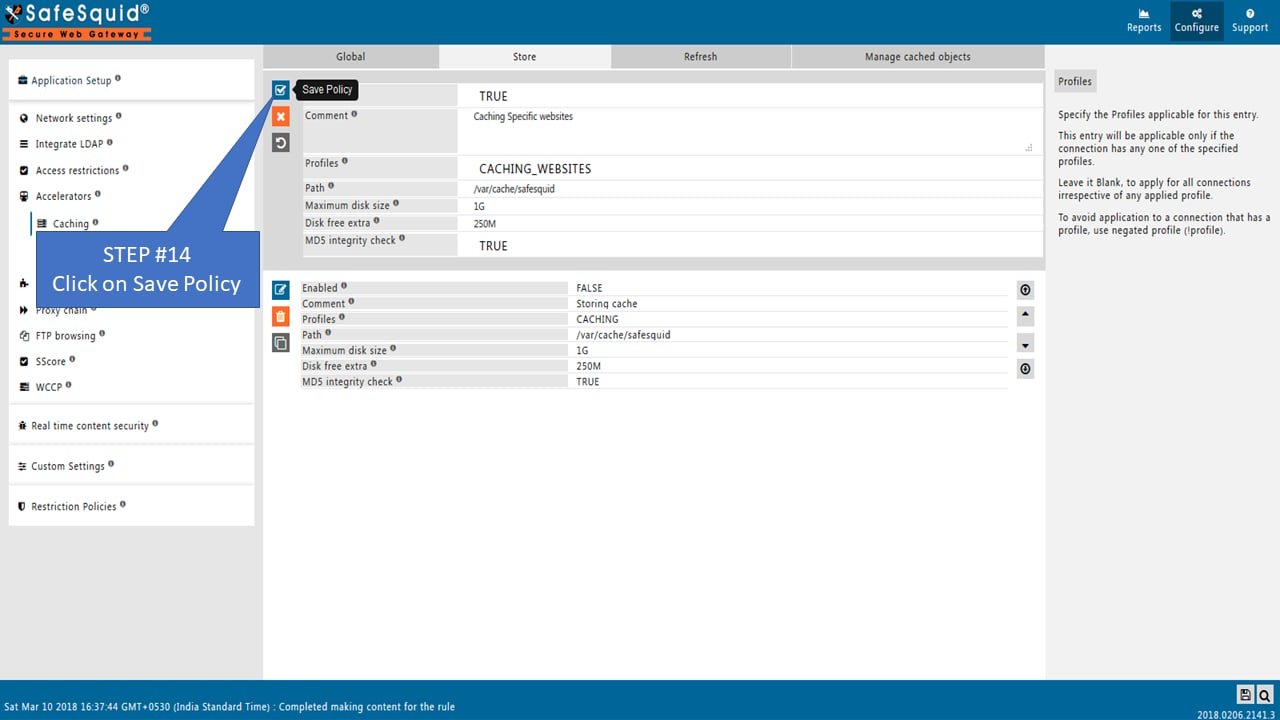 17. Click **Save** to apply the configuration globally.
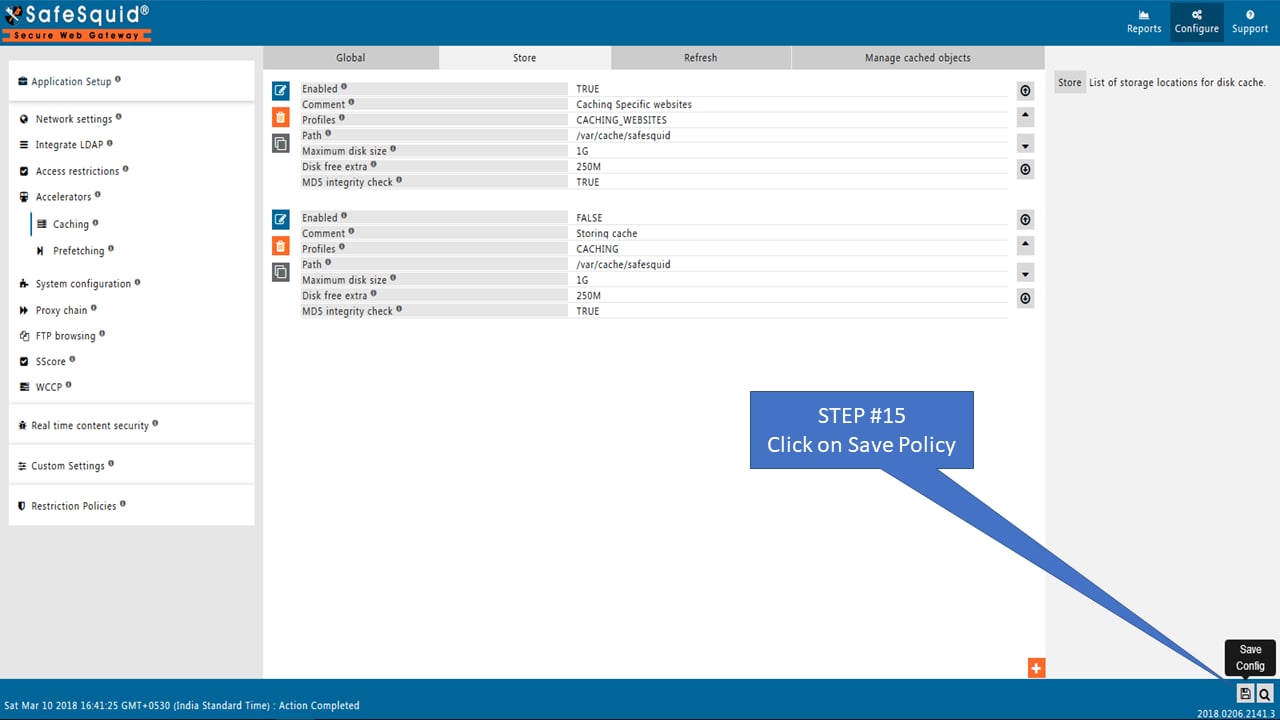 ## Configure prefetching
Prefetching fetches and caches files referenced in HTML before the user requests them. It applies to a wider set of resources than caching alone.
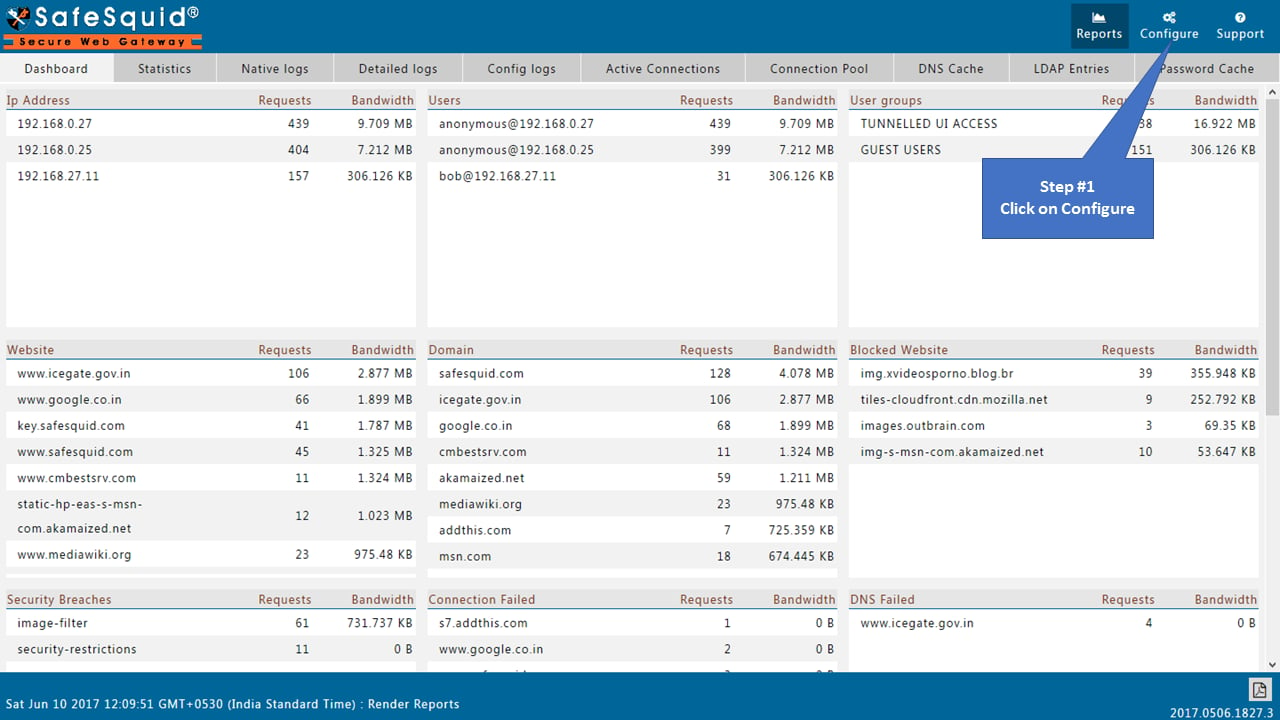
1. Access the [SafeSquid User Interface](/safesquid_swg/interface/configuration_portal) and click **Configure**.
## Configure prefetching
Prefetching fetches and caches files referenced in HTML before the user requests them. It applies to a wider set of resources than caching alone.
1. Access the [SafeSquid User Interface](/safesquid_swg/interface/configuration_portal) and click **Configure**.
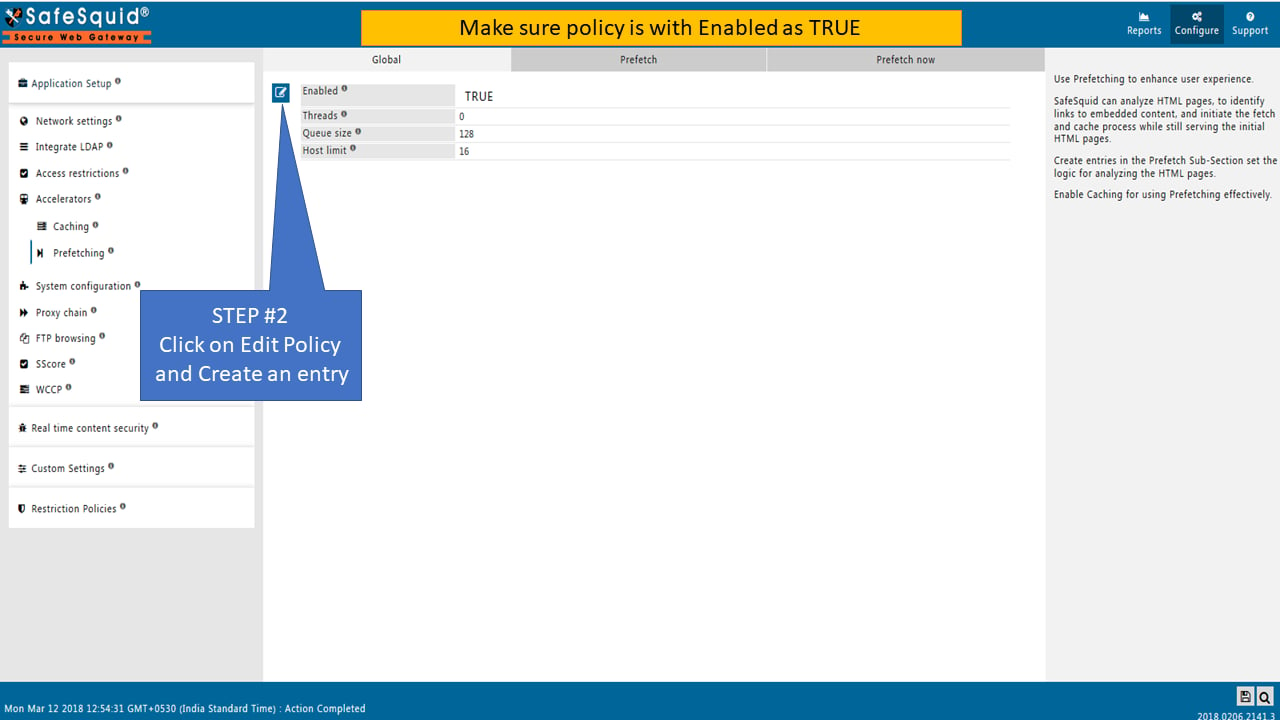
 2. Navigate to **Prefetching** under Application Setup.
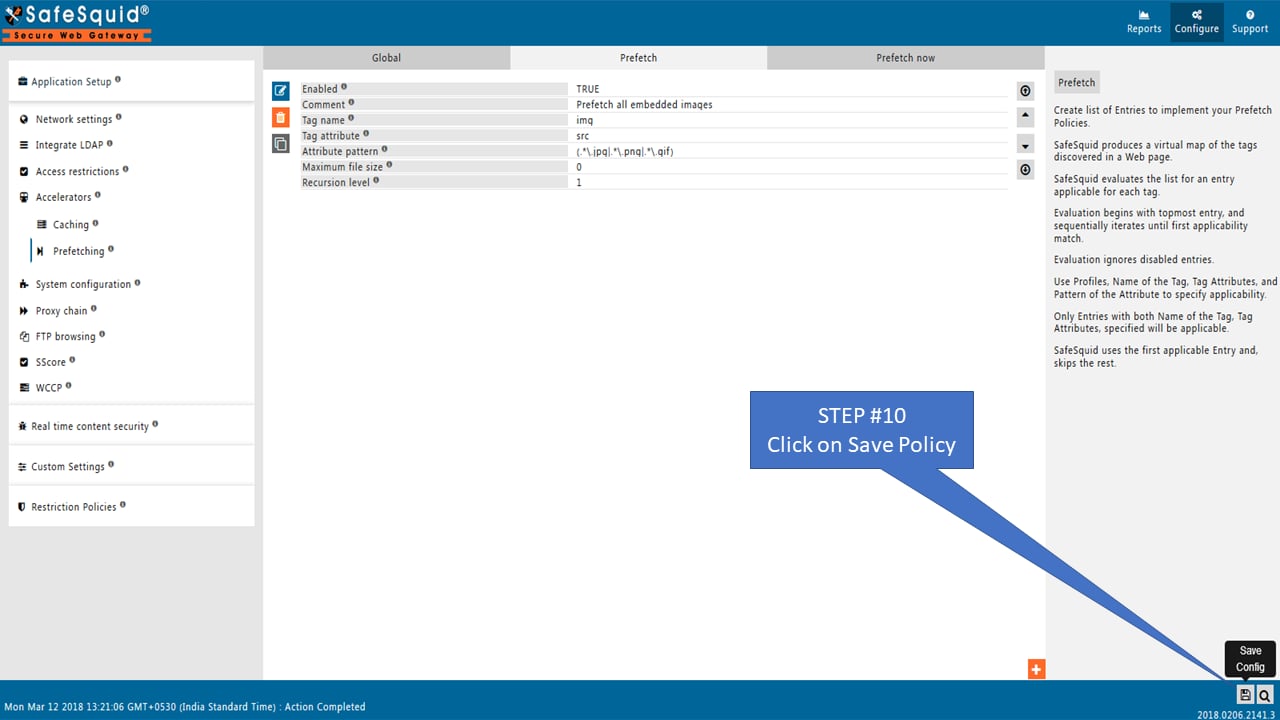
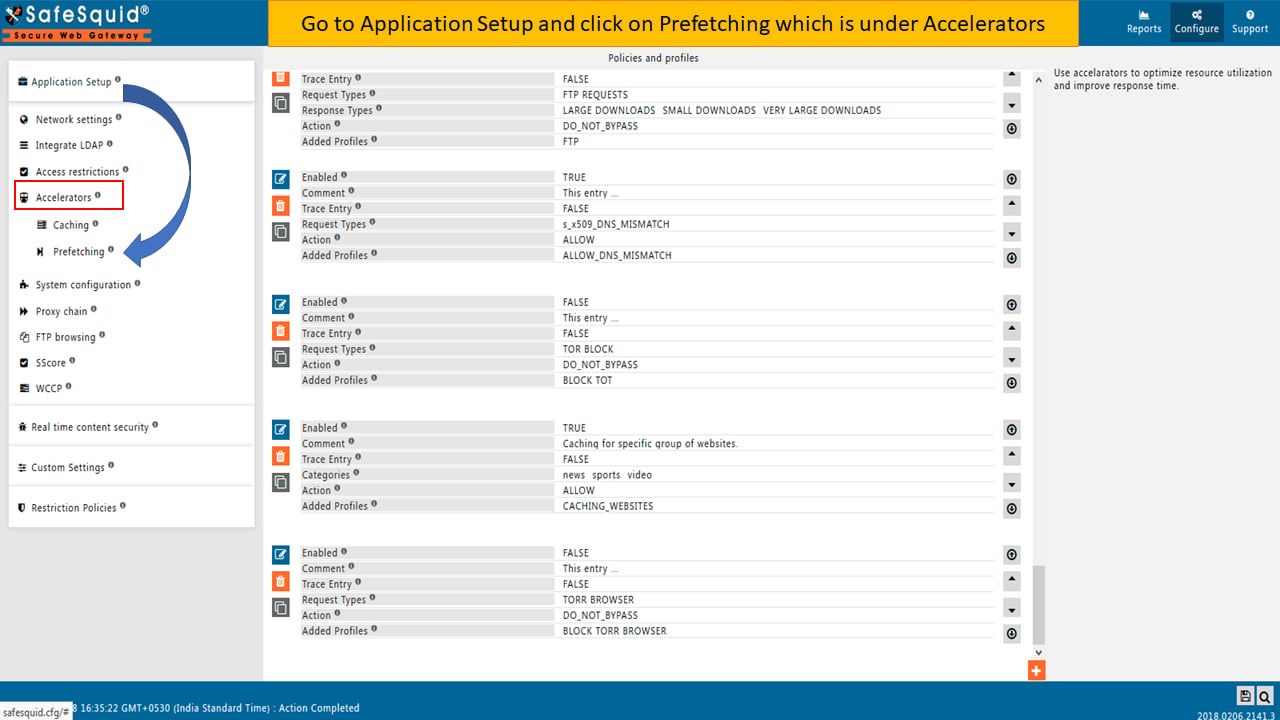 3. Ensure the **Global** section has **Enabled** set to **True**.
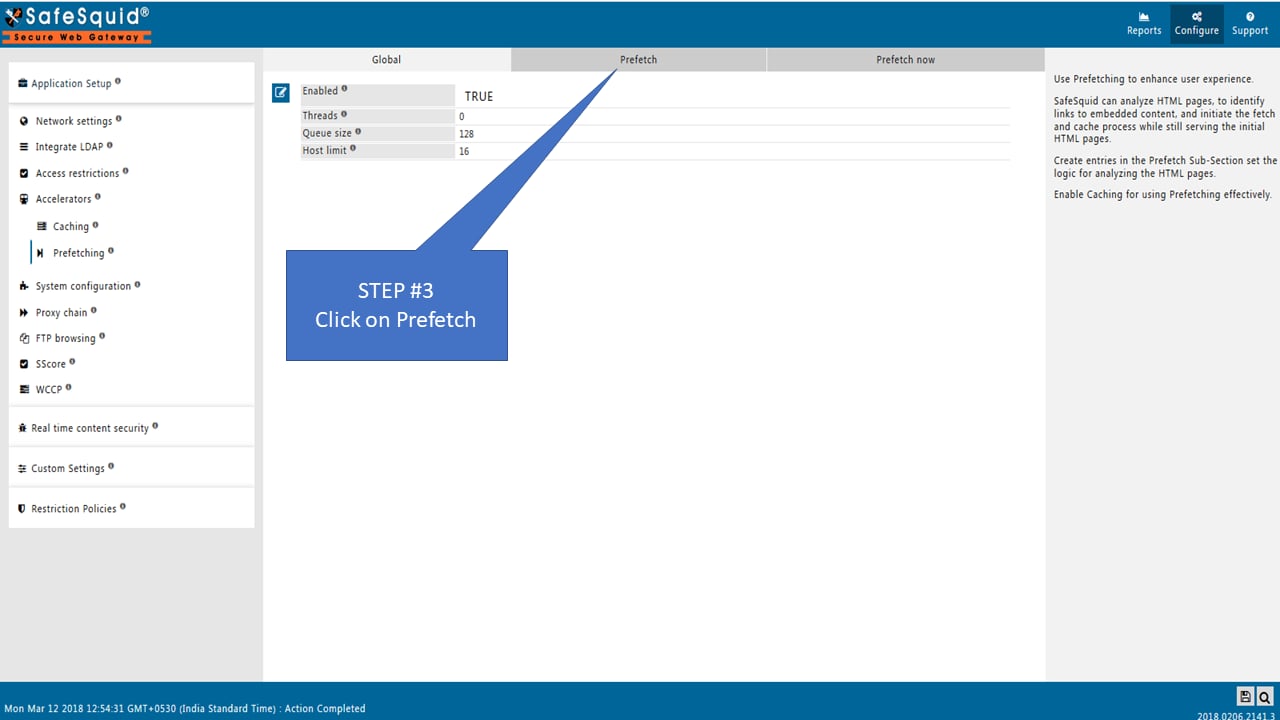
 4. Click the **Prefetch** tab.
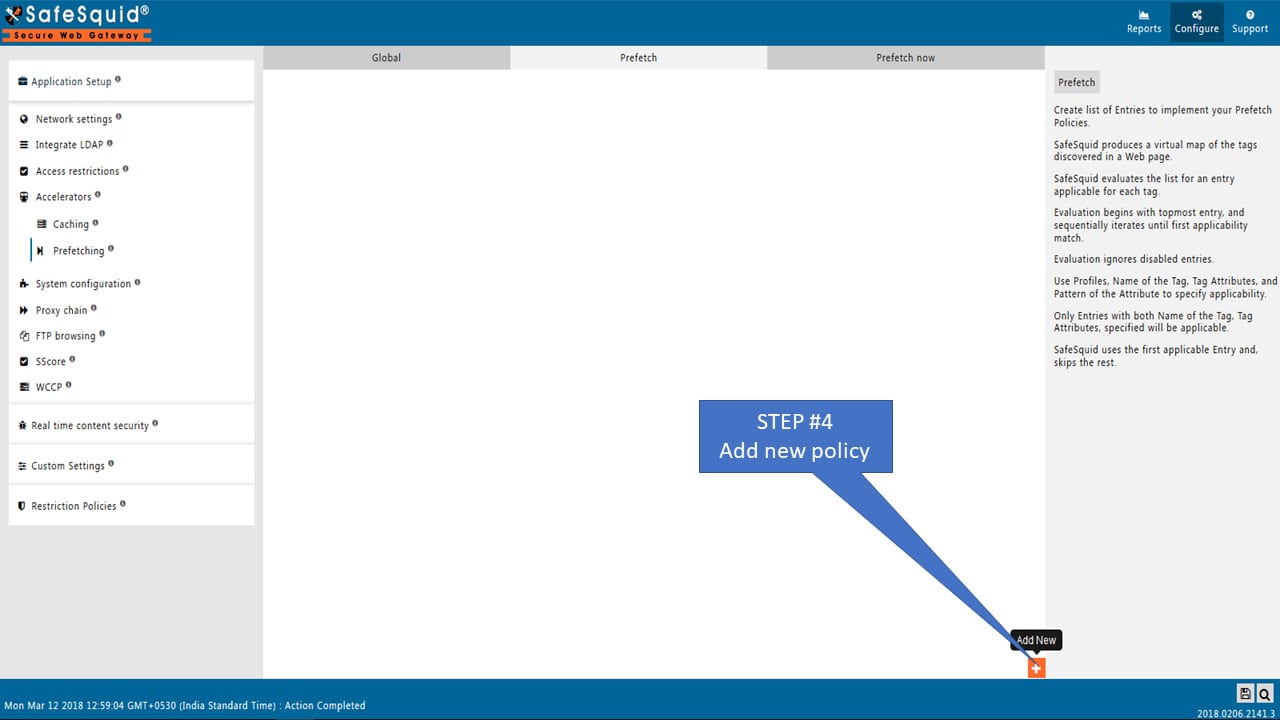
 5. Click **Add New** to create a new policy.
 6. Enter an appropriate comment for future reference.
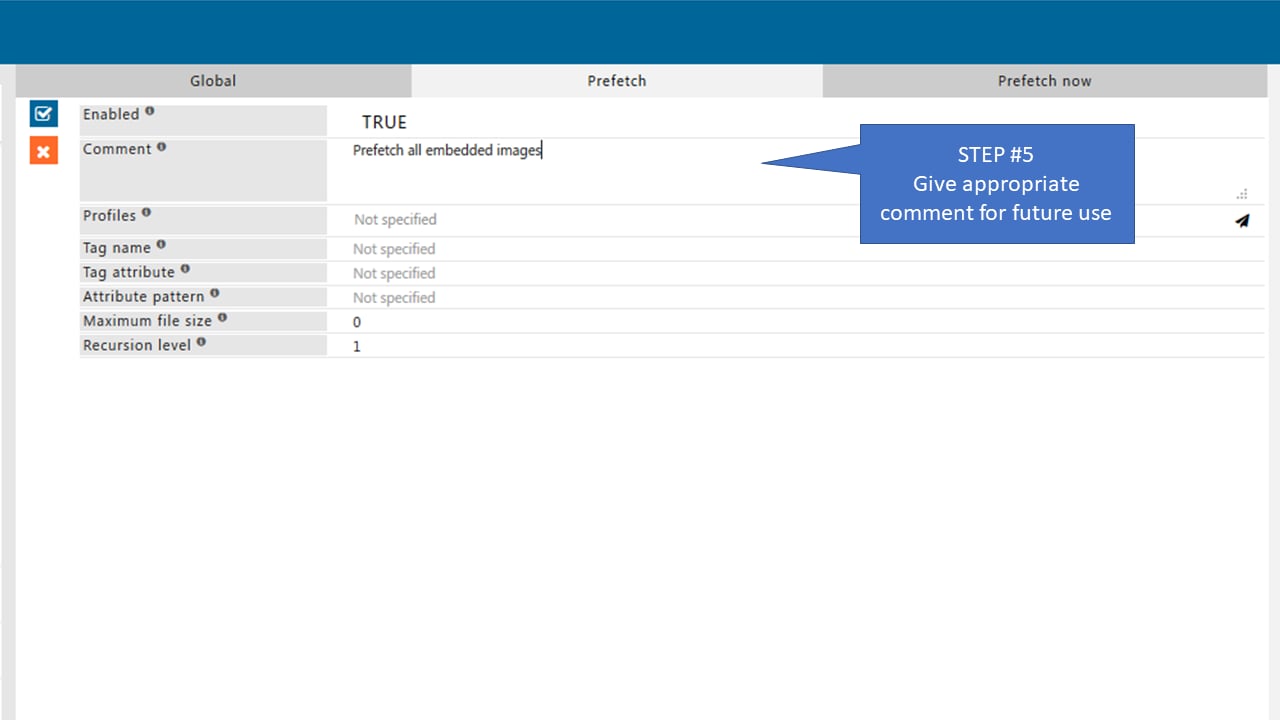 7. Specify the HTML tag to analyze for prefetchable URLs.
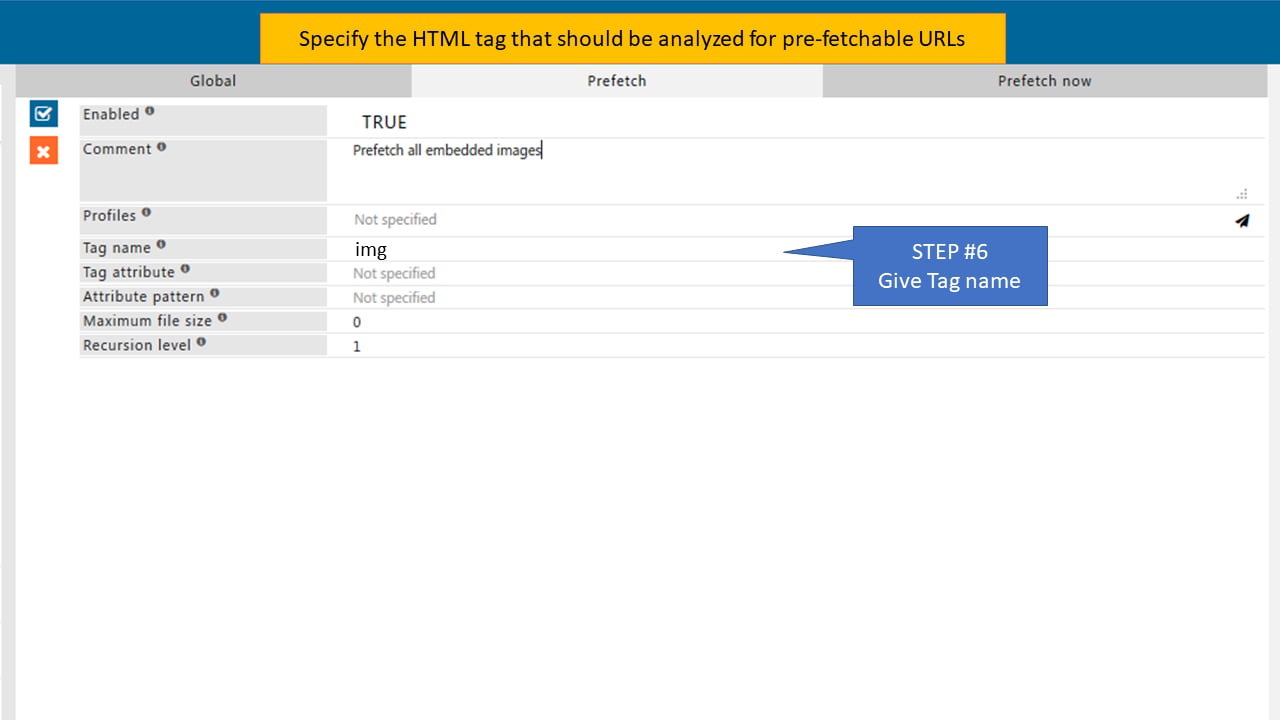 8. Specify the attribute of the HTML tag holding the URL to prefetch.
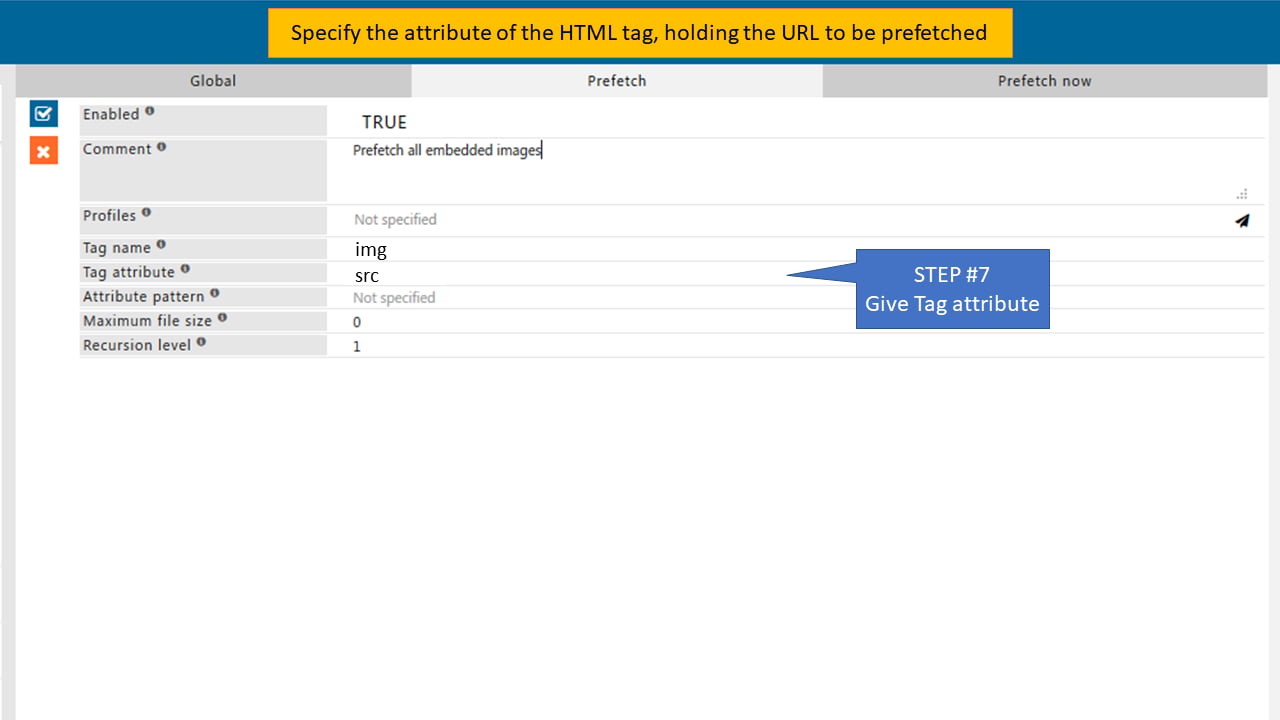 9. Specify the regular expression to evaluate discovered URLs in the tag attribute.
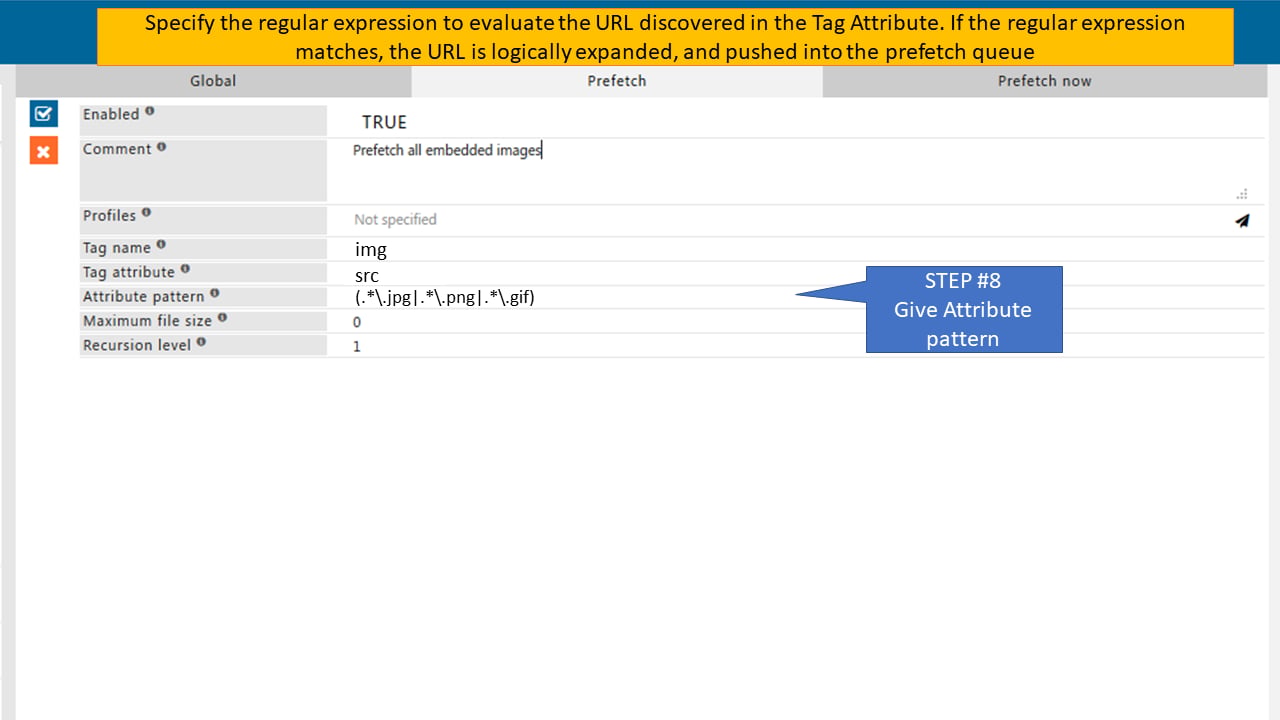 10. Click **Save Policy**.
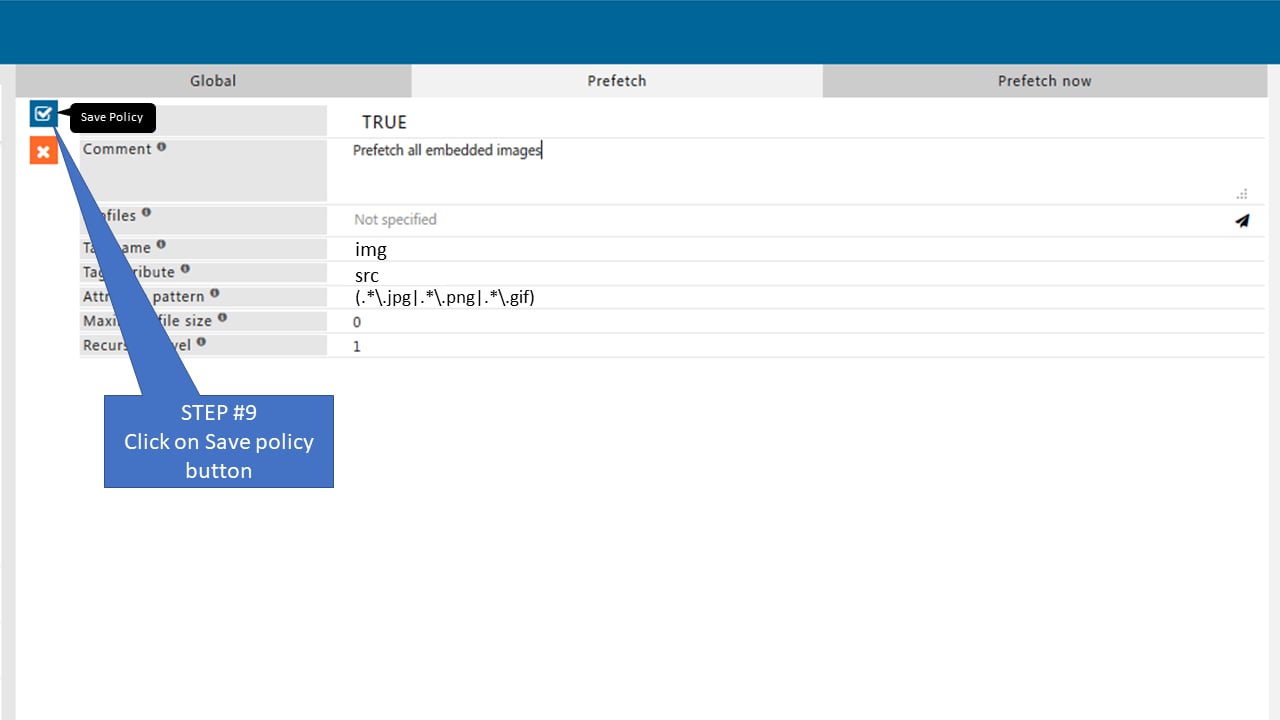 11. Click **Save Config** to apply the configuration.
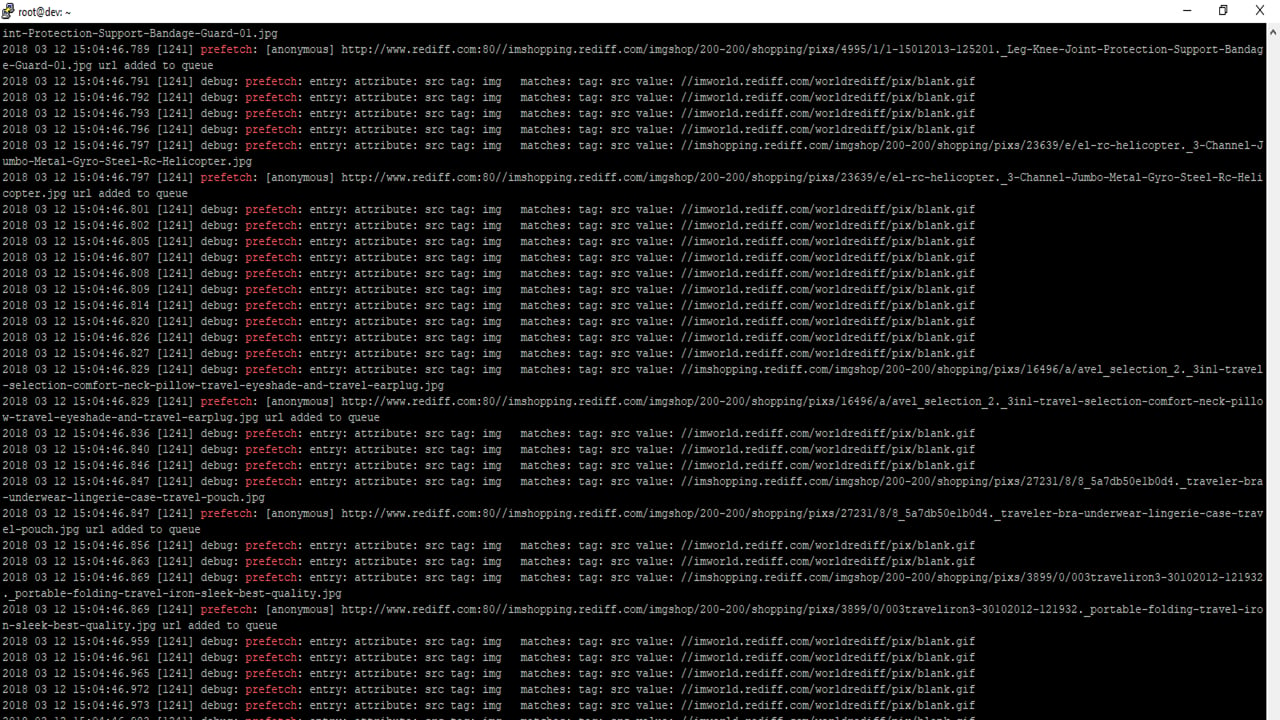 Keep the regular expression narrow. A broad pattern prefetches every URL the tag attribute can hold, which turns a latency optimisation into an origin-traffic multiplier.
## Verify objects are cached
1. Navigate to **Manage Cached Objects** in the Caching section.
Keep the regular expression narrow. A broad pattern prefetches every URL the tag attribute can hold, which turns a latency optimisation into an origin-traffic multiplier.
## Verify objects are cached
1. Navigate to **Manage Cached Objects** in the Caching section.
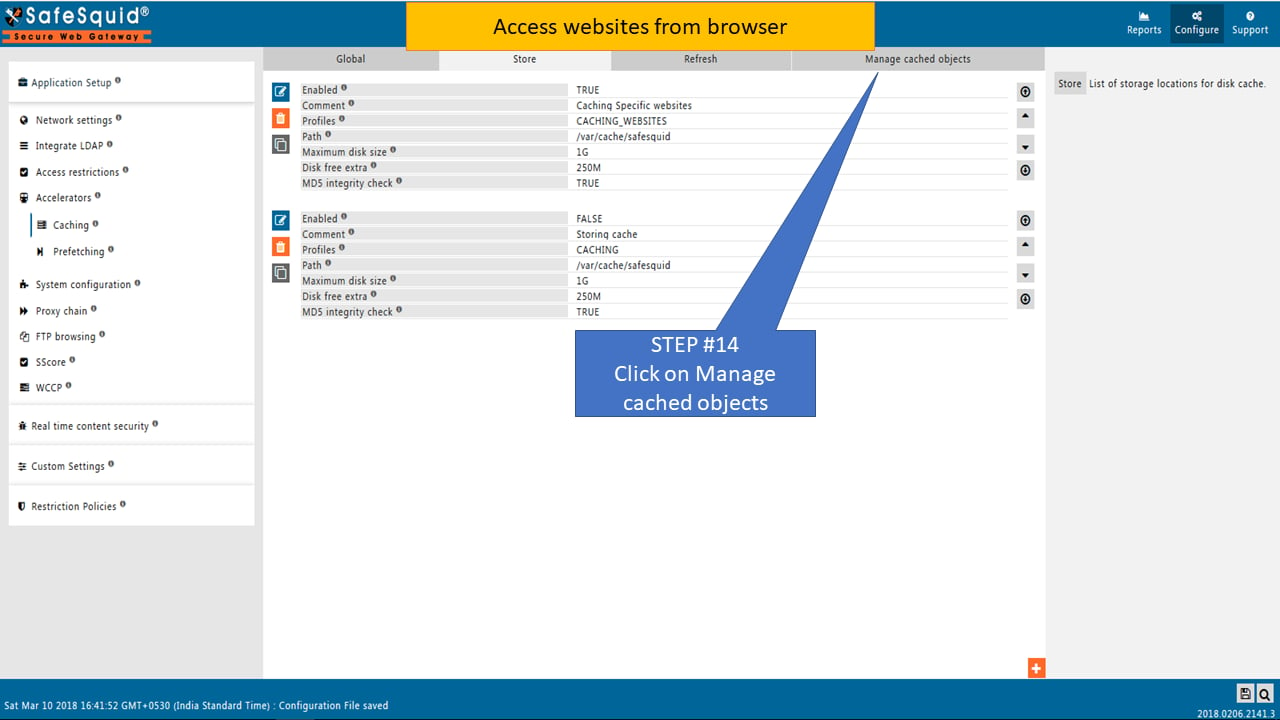 2. Verify cached websites appear under disk cache.
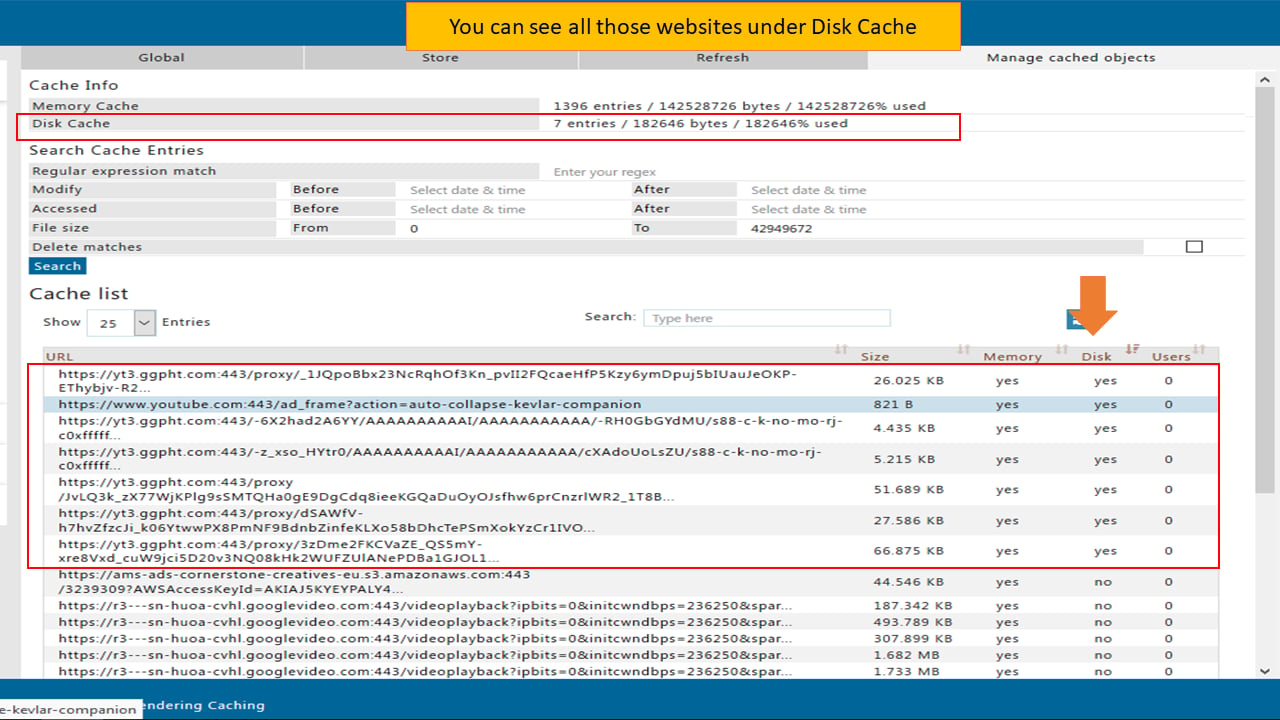 Expected result: content from the categories in the access profile appears in the disk cache after a client requests it.
An empty store after browsing means the access profile is not matching, or the store policy is not enabled — check the profile name in both places before adjusting cache size.
## Capture caching evidence
Store these artifacts with the change record:
* The access profile name and the categories it matches.
* Confirmation that the store policy references that same profile.
* A **Manage Cached Objects** listing showing entries after a test browse.
* The prefetch tag, attribute, and regular expression used.
* Confirmation from the policy owner that cached categories are appropriate to share.
## Troubleshoot caching and prefetching
| Symptom | Likely cause | Fix |
| -------------------------------------------- | --------------------------------------------------------------- | ------------------------------------------------------------------------------------ |
| Disk cache stays empty | Store policy is not enabled, or references the wrong profile | Confirm **Enabled** is `True` and the profile name matches the access policy exactly |
| Cache fills but hit rate stays low | Categories cached do not match what users request | Re-scope the access profile to the categories actually in demand |
| Origin traffic rises after enabling prefetch | Regular expression is too broad | Narrow the pattern; prefetching every matched URL costs more than it saves |
| Users see another user's content | Cached content from a personalised or authenticated destination | Exclude those categories from the store policy immediately |
| Disk I/O wait rises sharply | Cache on a SATA-attached volume | Move the cache path to NVMe; see [Sizing](/deployment/sizing) |
## Next steps
* [Manage Bandwidth](/use_cases/performance_acceleration/manage_bandwidth) - shape traffic once caching is in place.
* [Performance Plot](/use_cases/performance_acceleration/performance_plot) - measure the effect on latency.
* [Sizing](/deployment/sizing) - confirm the cache volume is on the right storage.
## Related topics
- [Performance Accelerators](/use_cases/performance_acceleration/performance_accelerators.md)
- [Prefetch](/admin_guide/performance/prefetching.md)
- [Security Logs](/use_cases/audit_and_forensics/security_logs.md)
- [Architecture and request pipeline](/admin_guide/start_here/architecture.md)
- [BIND Local DNS Resolver](/safesquid_swg/interface/bind.md)
Expected result: content from the categories in the access profile appears in the disk cache after a client requests it.
An empty store after browsing means the access profile is not matching, or the store policy is not enabled — check the profile name in both places before adjusting cache size.
## Capture caching evidence
Store these artifacts with the change record:
* The access profile name and the categories it matches.
* Confirmation that the store policy references that same profile.
* A **Manage Cached Objects** listing showing entries after a test browse.
* The prefetch tag, attribute, and regular expression used.
* Confirmation from the policy owner that cached categories are appropriate to share.
## Troubleshoot caching and prefetching
| Symptom | Likely cause | Fix |
| -------------------------------------------- | --------------------------------------------------------------- | ------------------------------------------------------------------------------------ |
| Disk cache stays empty | Store policy is not enabled, or references the wrong profile | Confirm **Enabled** is `True` and the profile name matches the access policy exactly |
| Cache fills but hit rate stays low | Categories cached do not match what users request | Re-scope the access profile to the categories actually in demand |
| Origin traffic rises after enabling prefetch | Regular expression is too broad | Narrow the pattern; prefetching every matched URL costs more than it saves |
| Users see another user's content | Cached content from a personalised or authenticated destination | Exclude those categories from the store policy immediately |
| Disk I/O wait rises sharply | Cache on a SATA-attached volume | Move the cache path to NVMe; see [Sizing](/deployment/sizing) |
## Next steps
* [Manage Bandwidth](/use_cases/performance_acceleration/manage_bandwidth) - shape traffic once caching is in place.
* [Performance Plot](/use_cases/performance_acceleration/performance_plot) - measure the effect on latency.
* [Sizing](/deployment/sizing) - confirm the cache volume is on the right storage.
## Related topics
- [Performance Accelerators](/use_cases/performance_acceleration/performance_accelerators.md)
- [Prefetch](/admin_guide/performance/prefetching.md)
- [Security Logs](/use_cases/audit_and_forensics/security_logs.md)
- [Architecture and request pipeline](/admin_guide/start_here/architecture.md)
- [BIND Local DNS Resolver](/safesquid_swg/interface/bind.md)