> ## Documentation Index
> Fetch the complete documentation index at: https://docs.safesquid.com/llms.txt
> Use this file to discover all available pages before exploring further.
# Forward Proxy
> Configure web browsers to use SafeSquid proxy server, including detailed steps for Chrome and Firefox proxy settings to access the SafeSquid WebGUI.
# Forward proxy requires explicit client configuration
## Why explicit proxy is used
Uncontrolled direct internet access increases malware, data loss, and compliance risk. SafeSquid provides a browser-based WebGUI at `http://safesquid.cfg` (an embedded Rest UI interface built into SafeSquid; accessible via proxy, NOT resolved by DNS) for configuration and management. Clients must send traffic through SafeSquid by configuring the browser or system proxy. Forward (explicit) proxy gives administrators clear control over which applications use the proxy and supports per-browser or per-application rollout.
## Benefits of forward proxy mode
Explicit configuration ensures only intended traffic is inspected. Policy enforcement and logging apply to configured clients. No network-layer redirection is required; deployment fits environments where endpoint configuration is manageable. **Limitation:** Applications that do not use the configured proxy bypass SafeSquid unless system-wide or PAC-based proxy is used.
## Prerequisites
**Client-side:** Browser supporting manual proxy configuration (Chrome, Firefox, or equivalent). SafeSquid proxy IP and port (default 8080). **SafeSquid-side:** SafeSquid deployed and listening on the proxy port; WebGUI reachable via proxy at `http://safesquid.cfg` (embedded interface, NOT DNS-resolved).
## Configure proxy in Chrome (system settings)
1. Open Chrome browser settings from the toolbar.

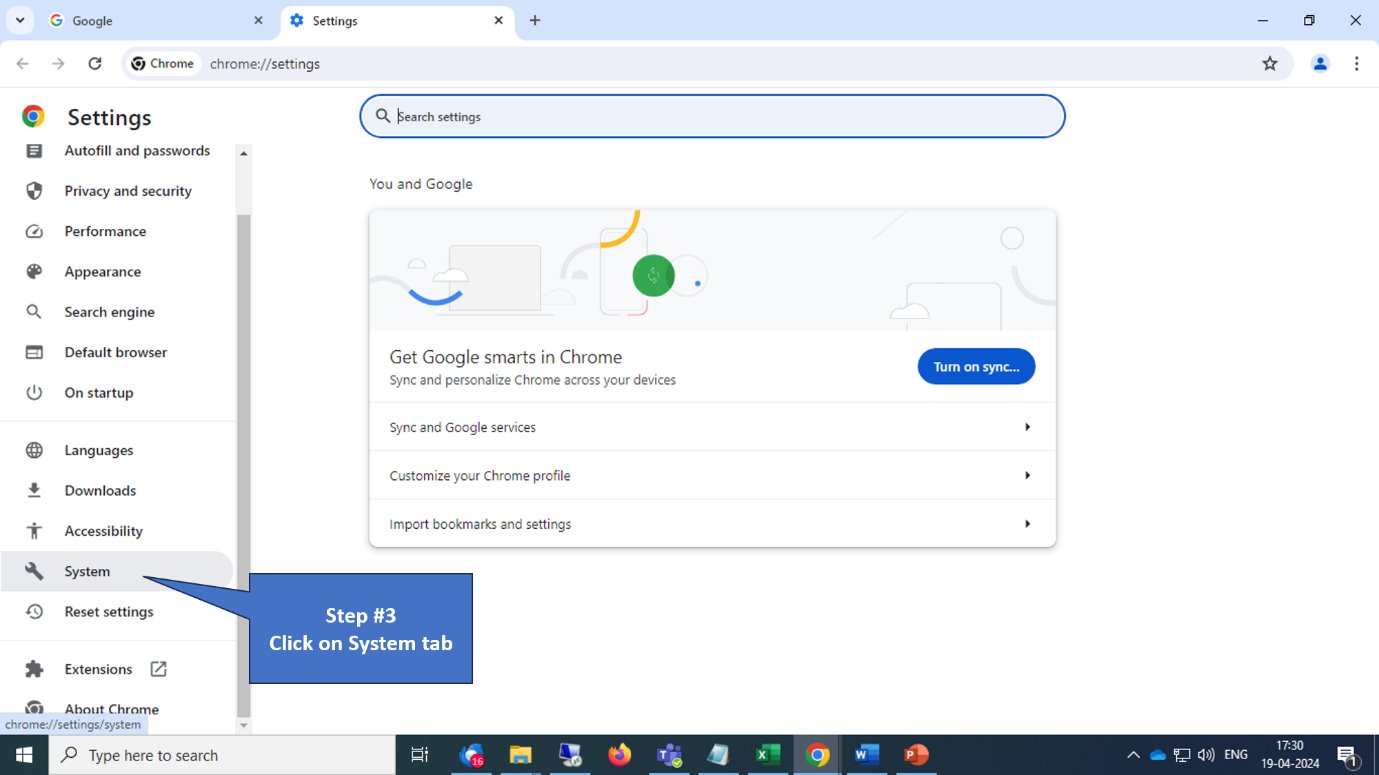
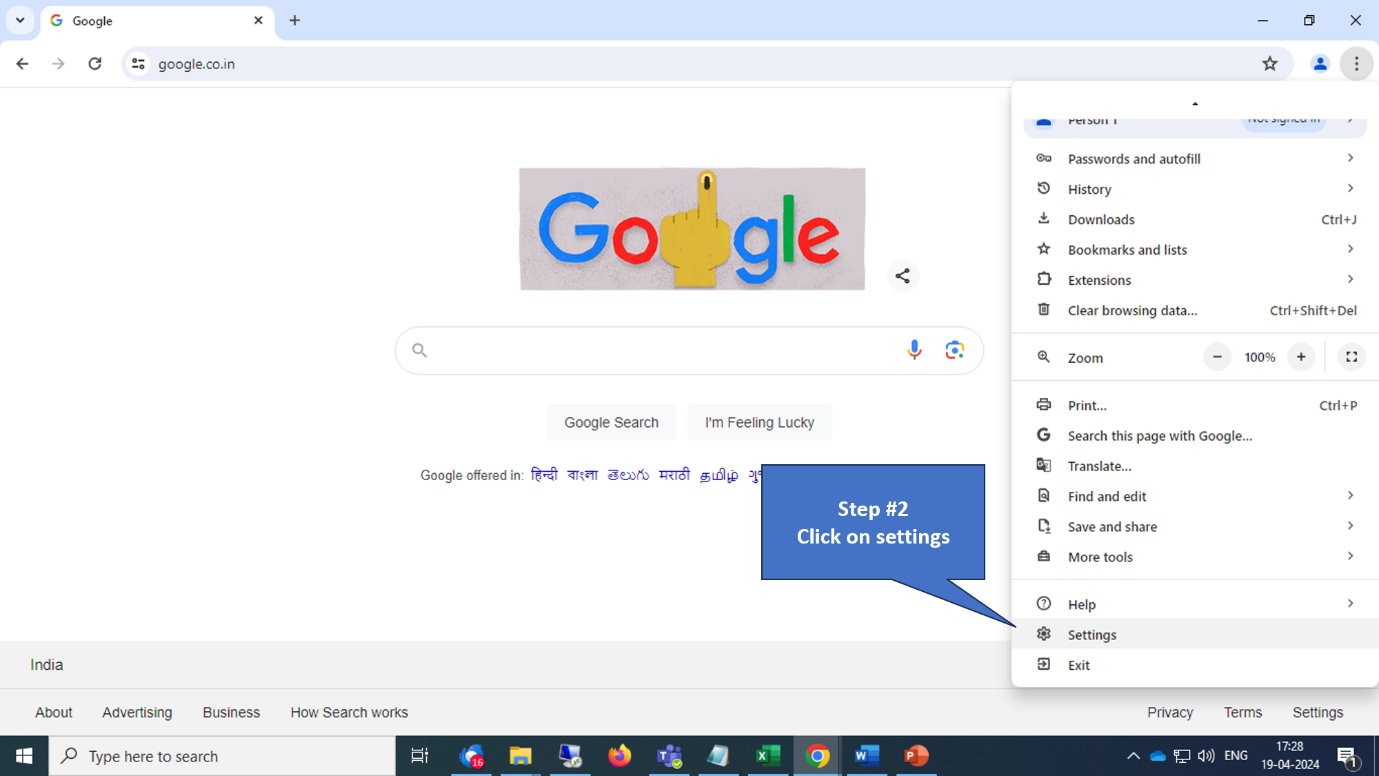 2. Click the **System** tab in Settings, or search for "proxy" in the search bar.
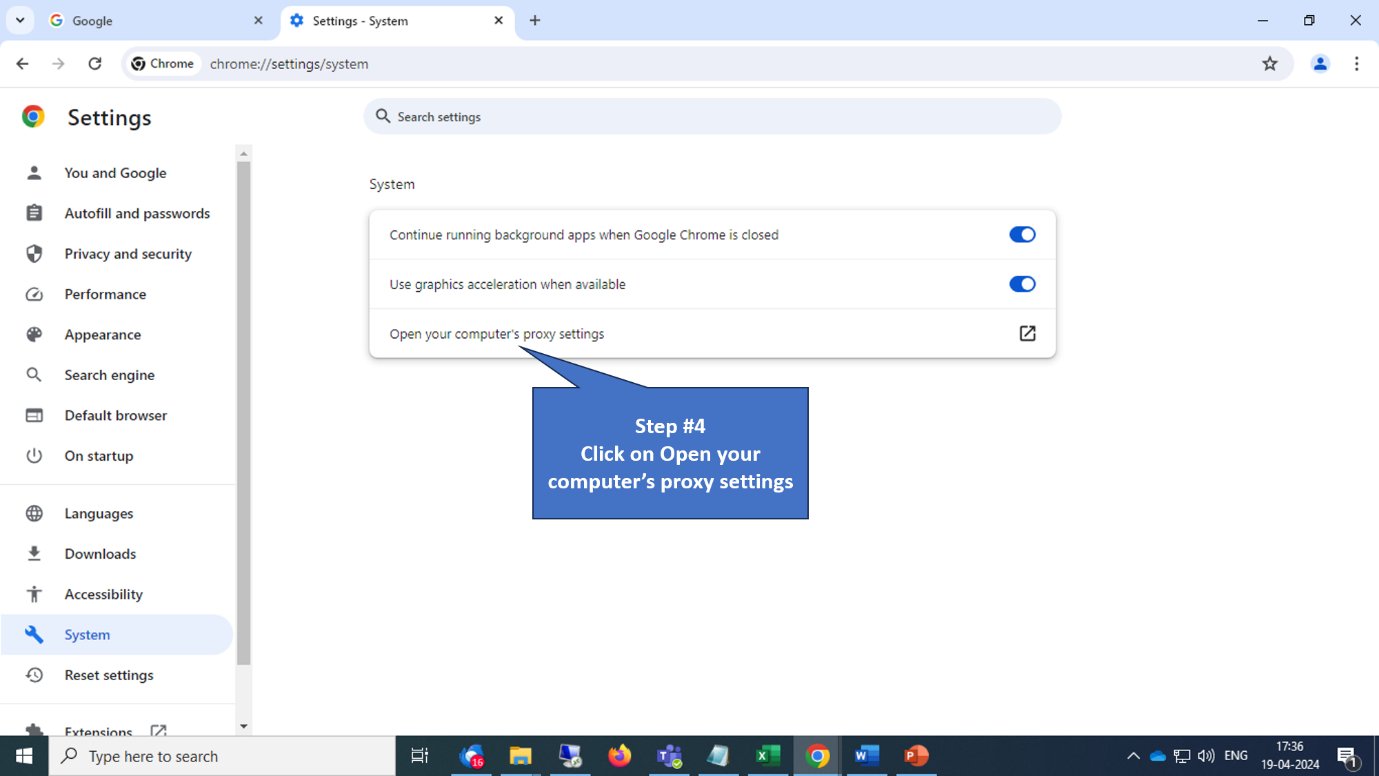
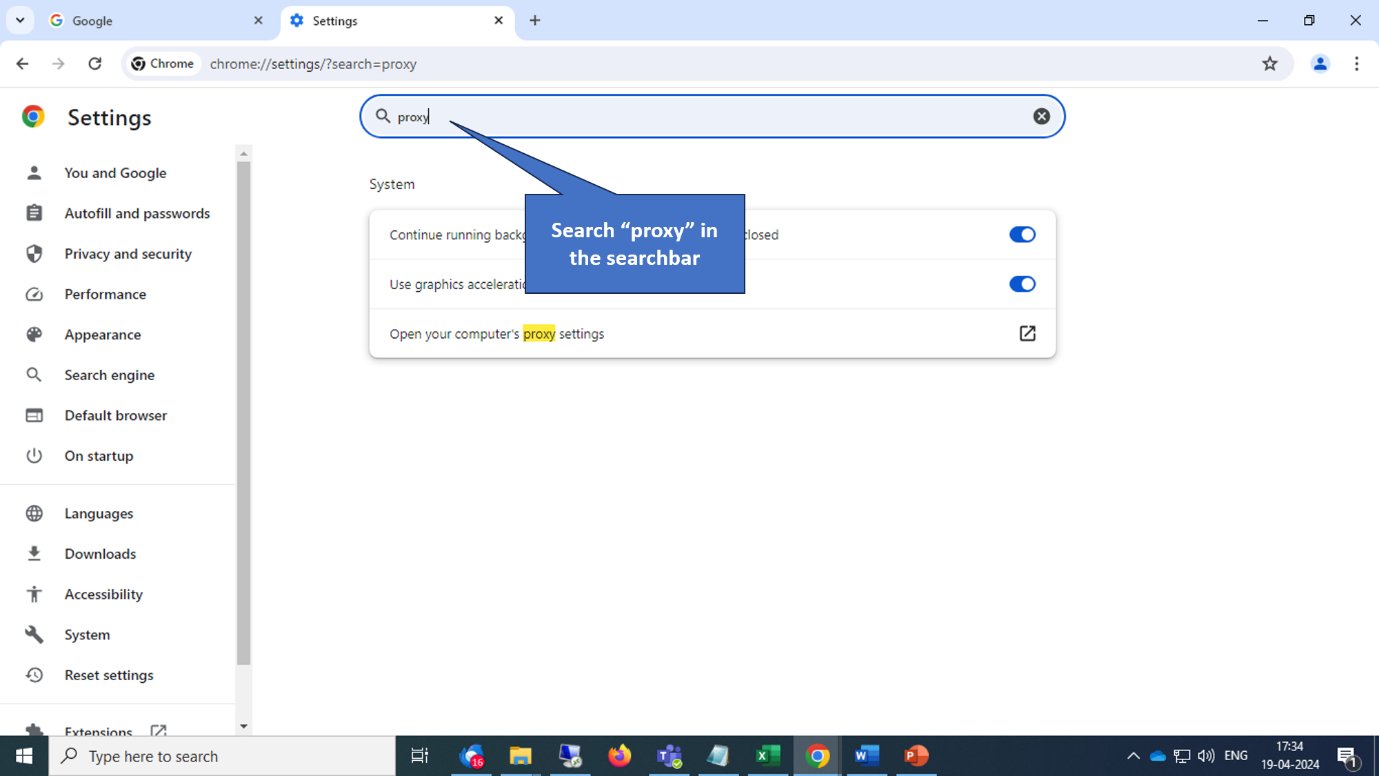 3. Click **Open your computer's proxy settings**.
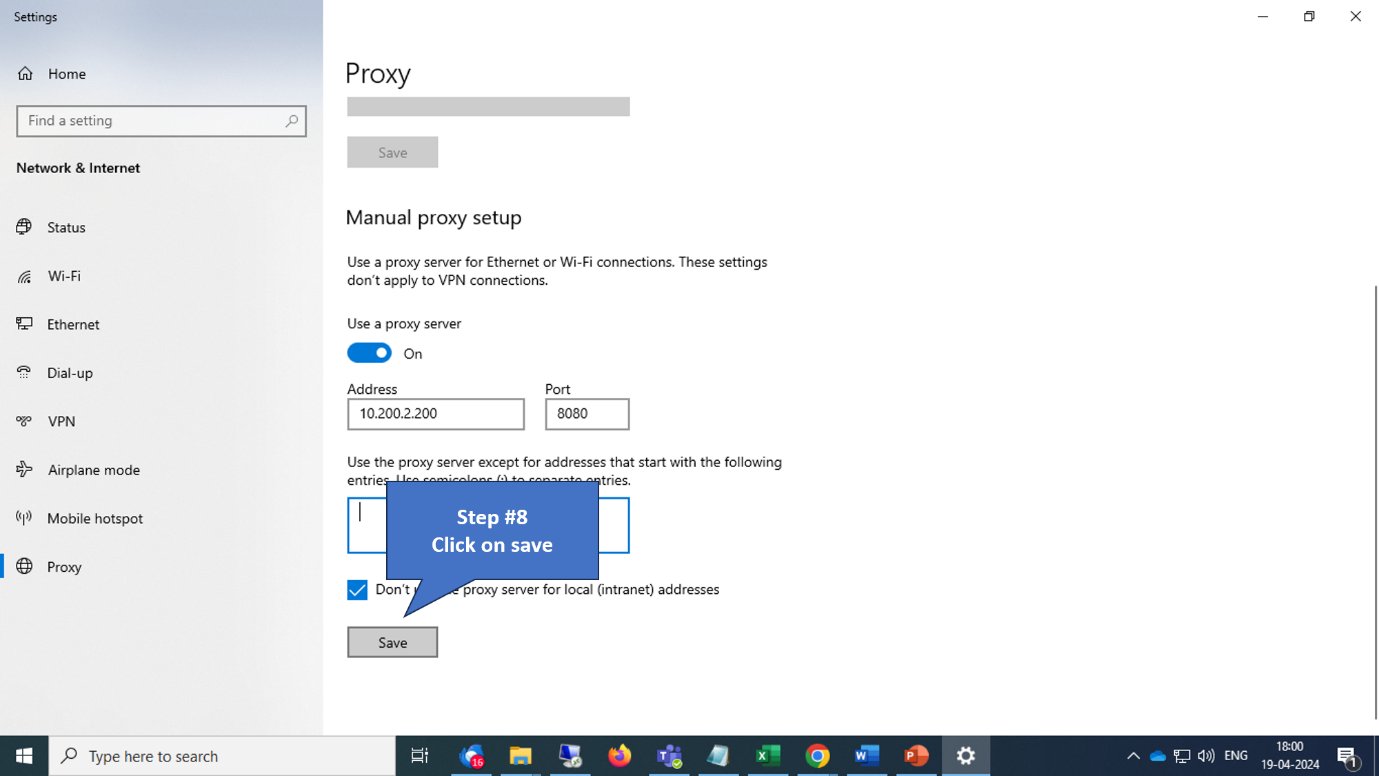
 4. Enable **Use a proxy server**.
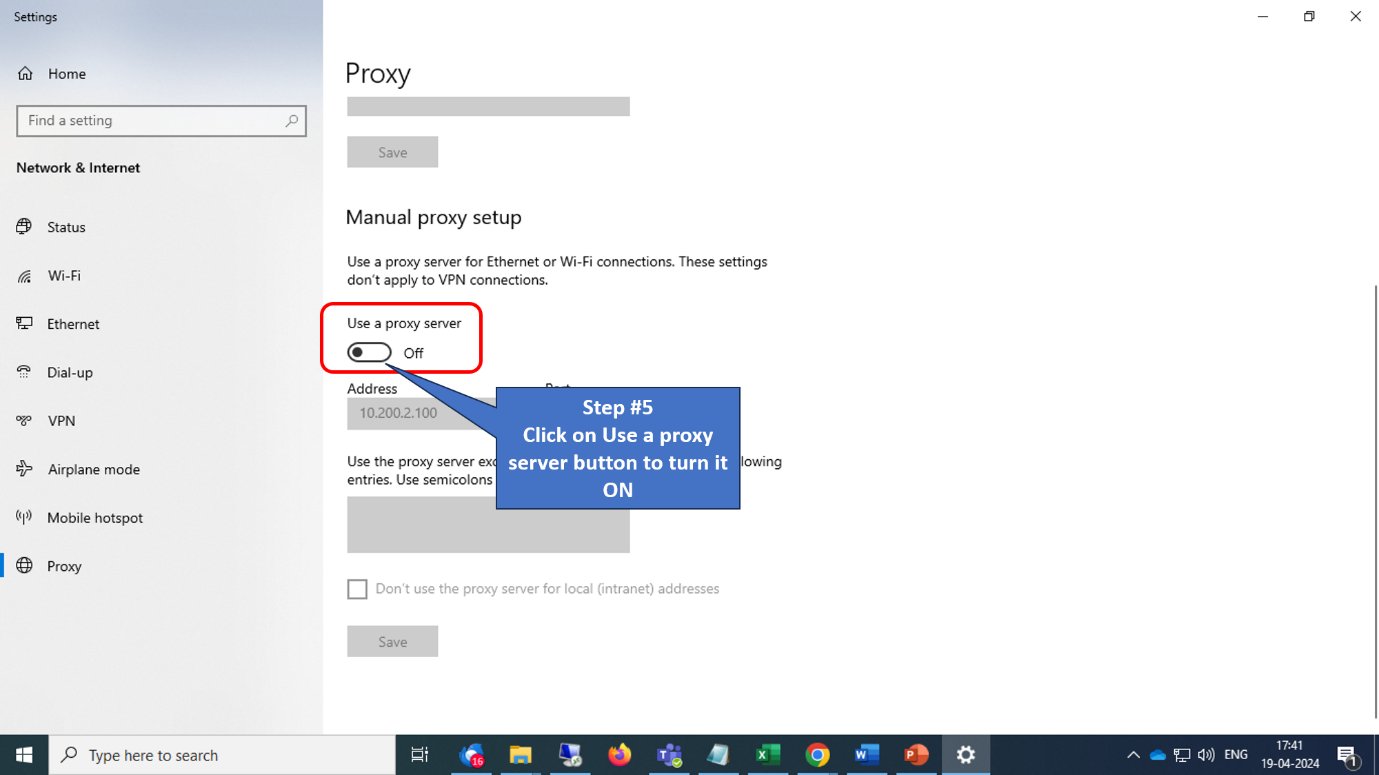
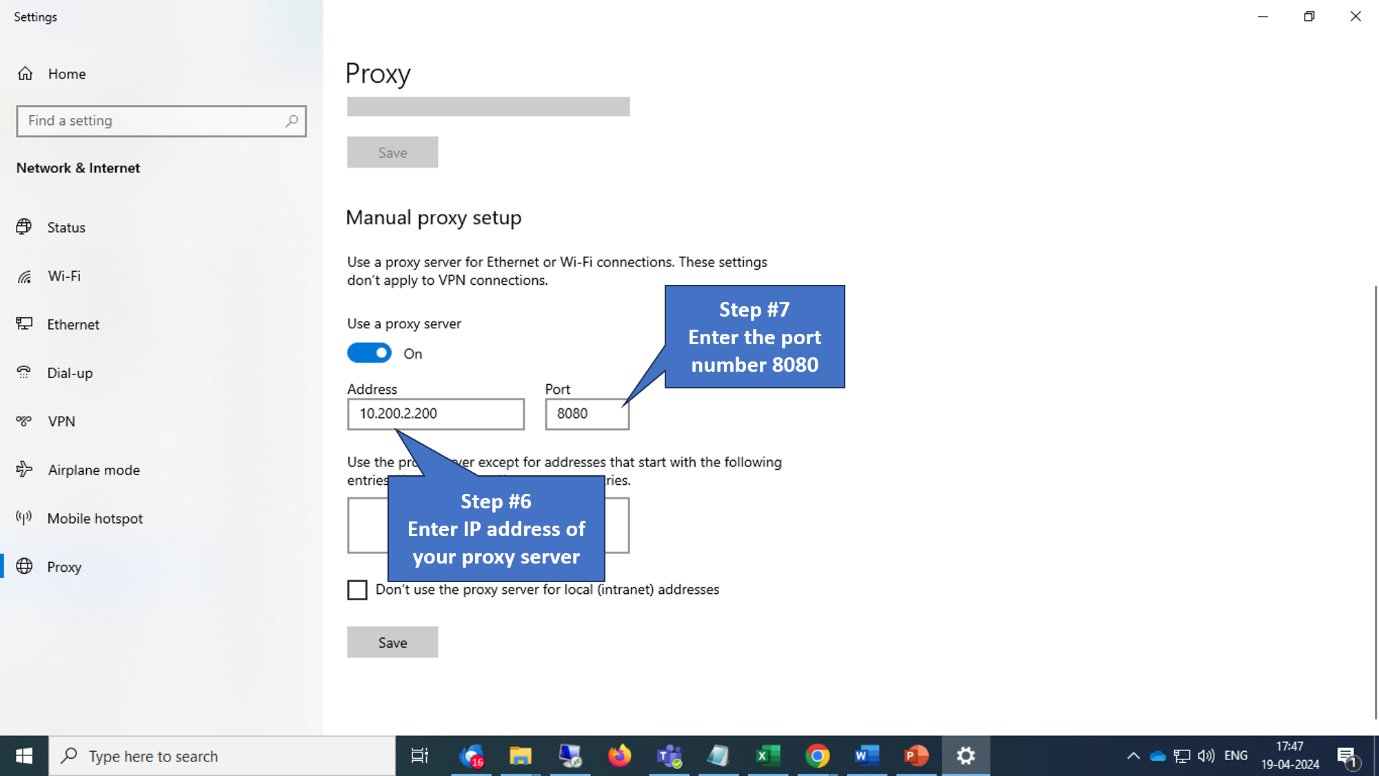
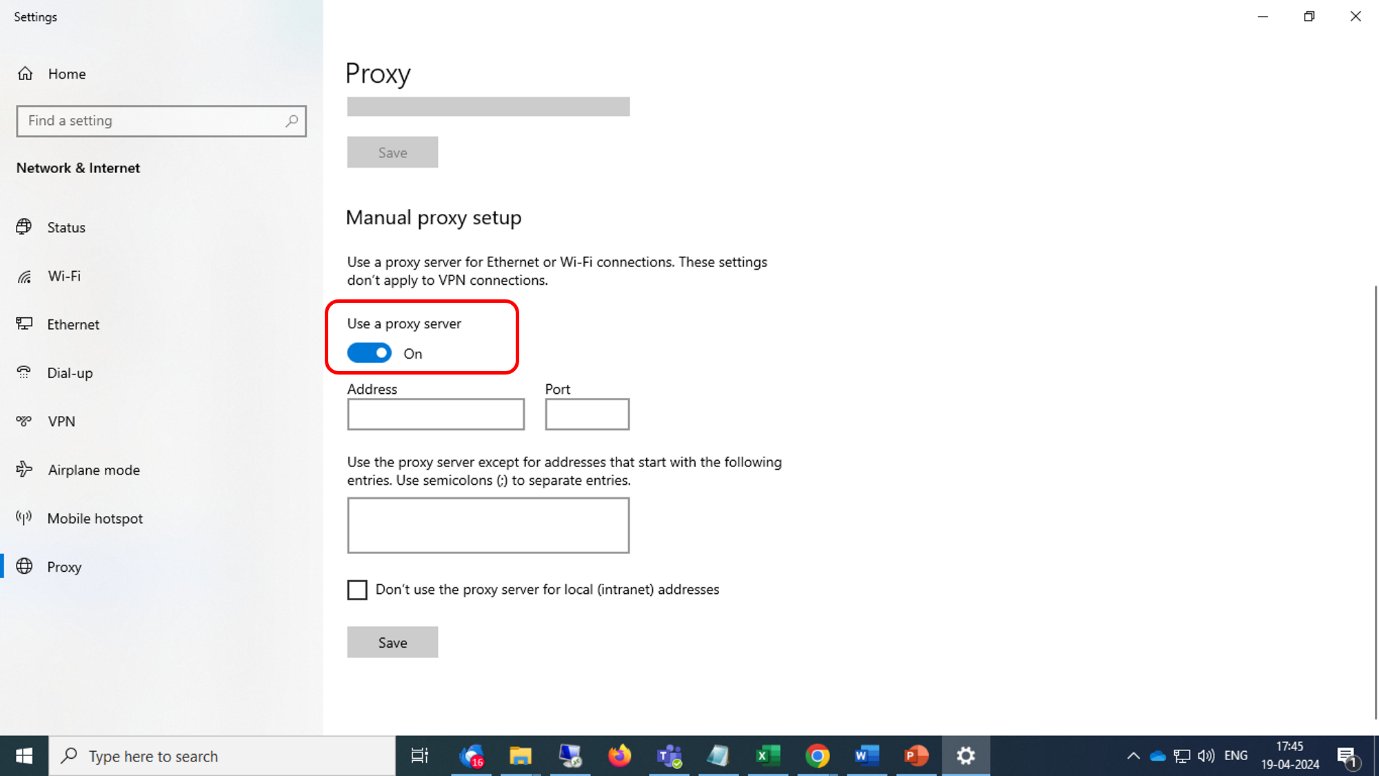 5. Enter the proxy server IP address and port **8080**.
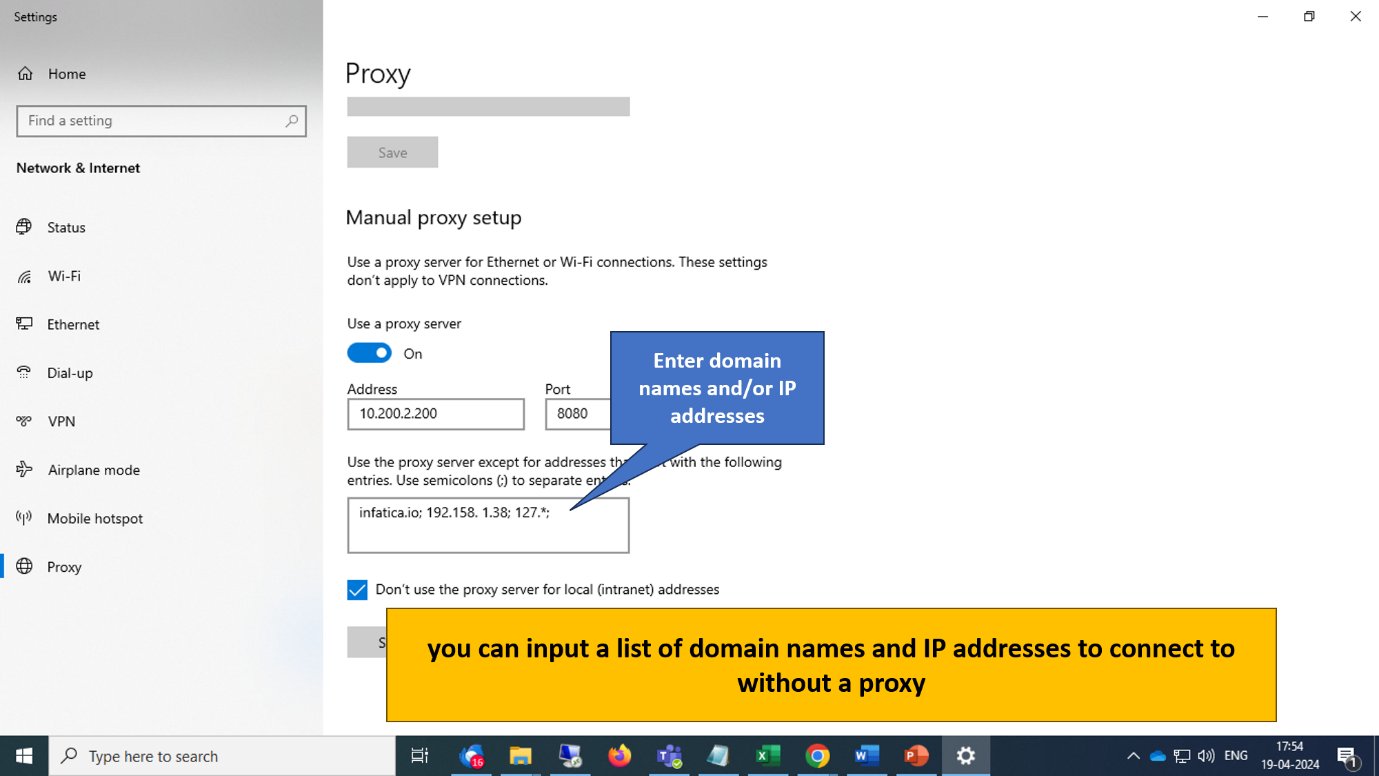
 6. (Optional) Enter domains and IP addresses to bypass the proxy in the exclusion field:
* Example: `infatica.io`, `192.158.1.38`, addresses starting with `127.`
6. (Optional) Enter domains and IP addresses to bypass the proxy in the exclusion field:
* Example: `infatica.io`, `192.158.1.38`, addresses starting with `127.`
 7. Click **Save**.
 ## Configure Proxy in Firefox
Firefox allows browser-specific proxy configuration without affecting system-wide settings.
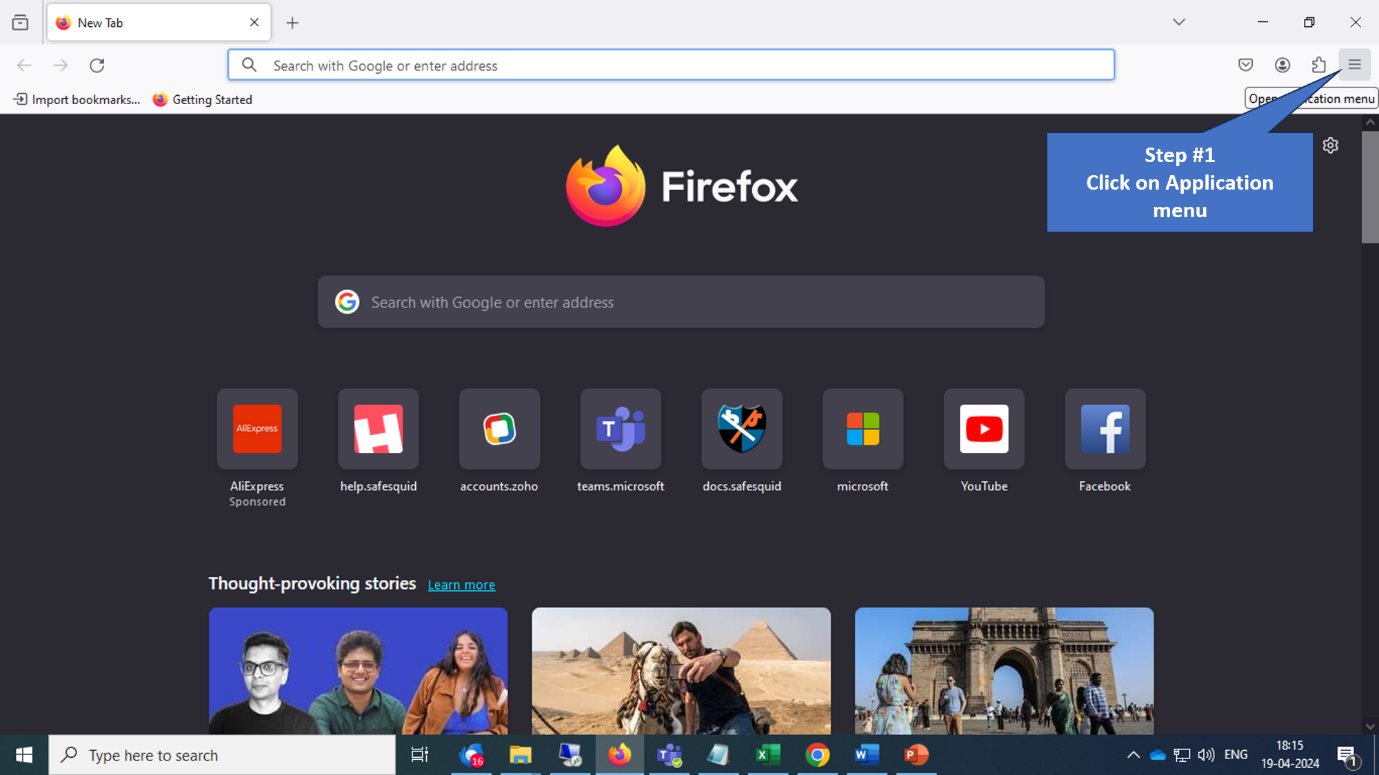
1. Open Firefox and click the **menu button** (three horizontal lines) in the top right corner.
## Configure Proxy in Firefox
Firefox allows browser-specific proxy configuration without affecting system-wide settings.
1. Open Firefox and click the **menu button** (three horizontal lines) in the top right corner.
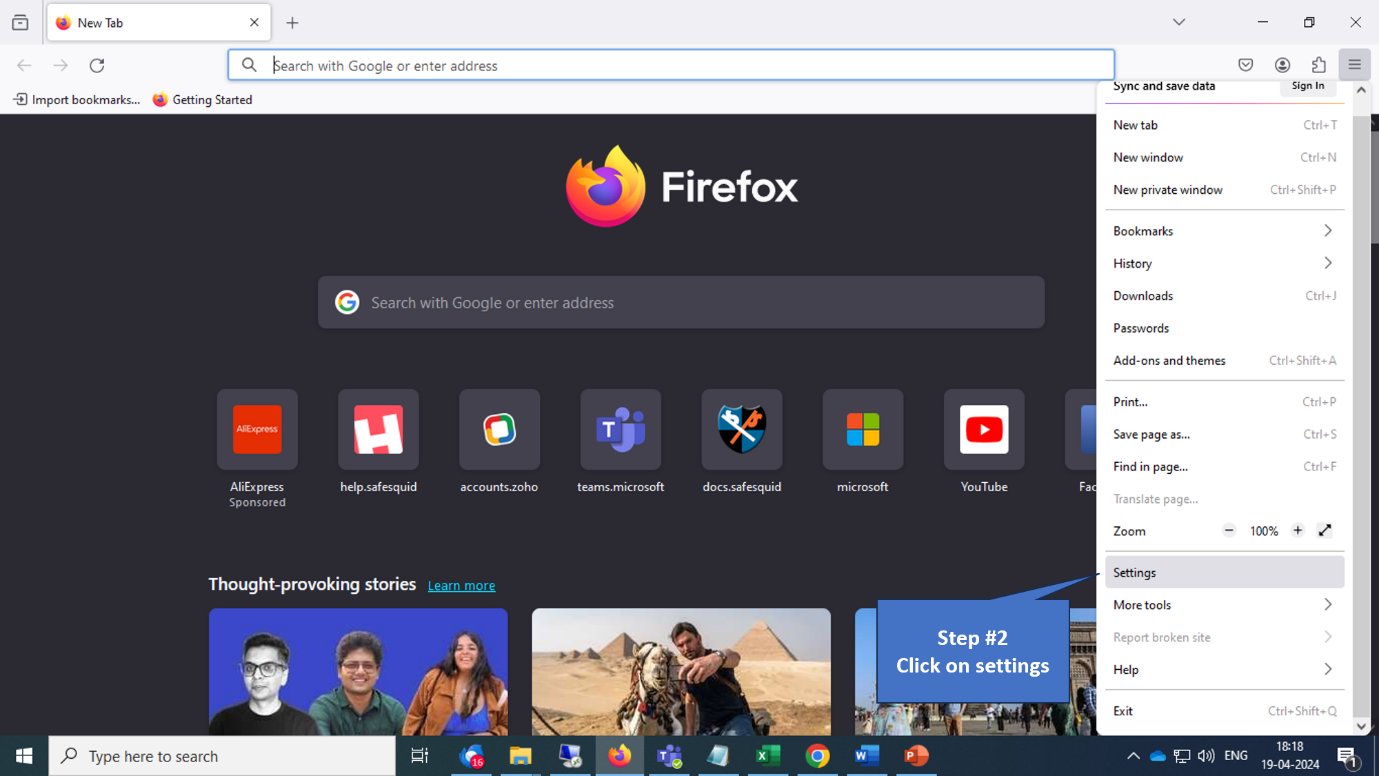
 2. Click **Settings**.
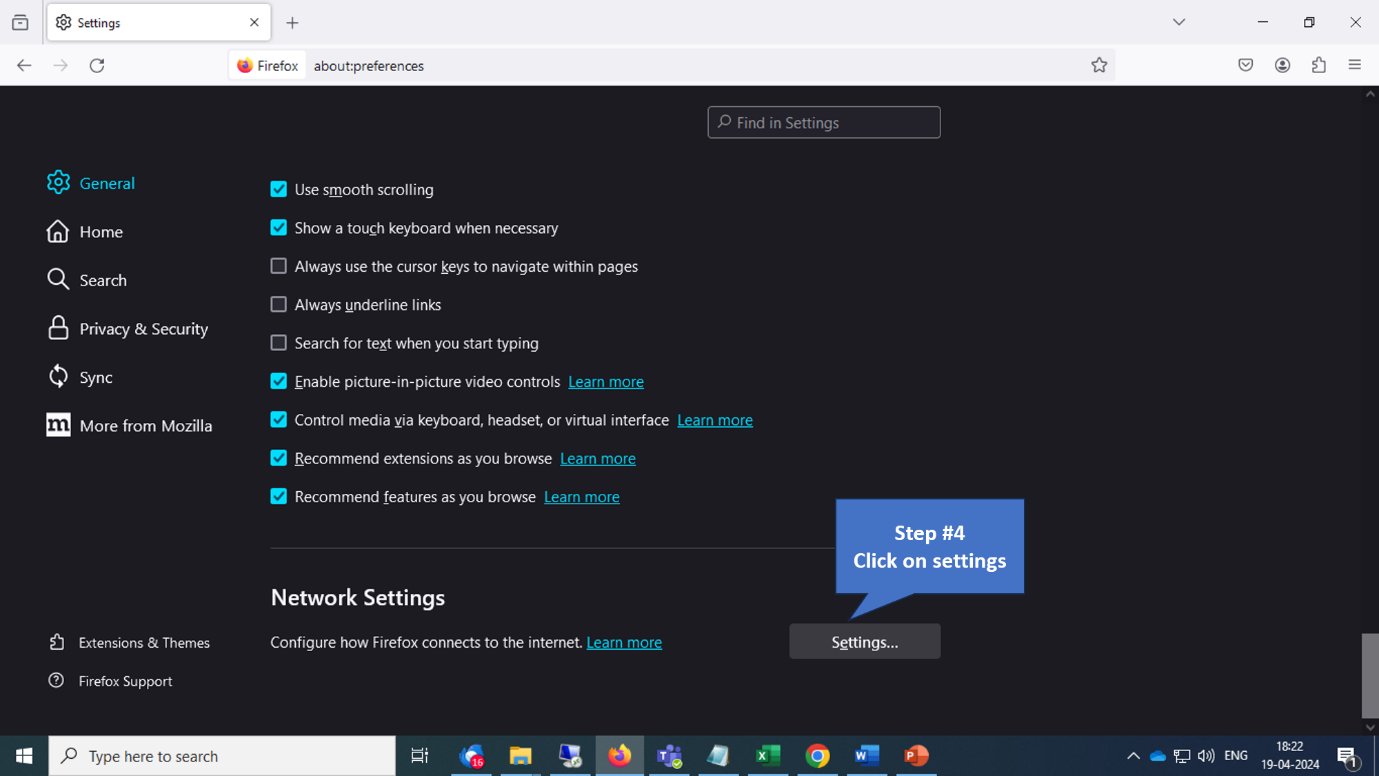
 3. Scroll down to **Network Settings** in the General section.
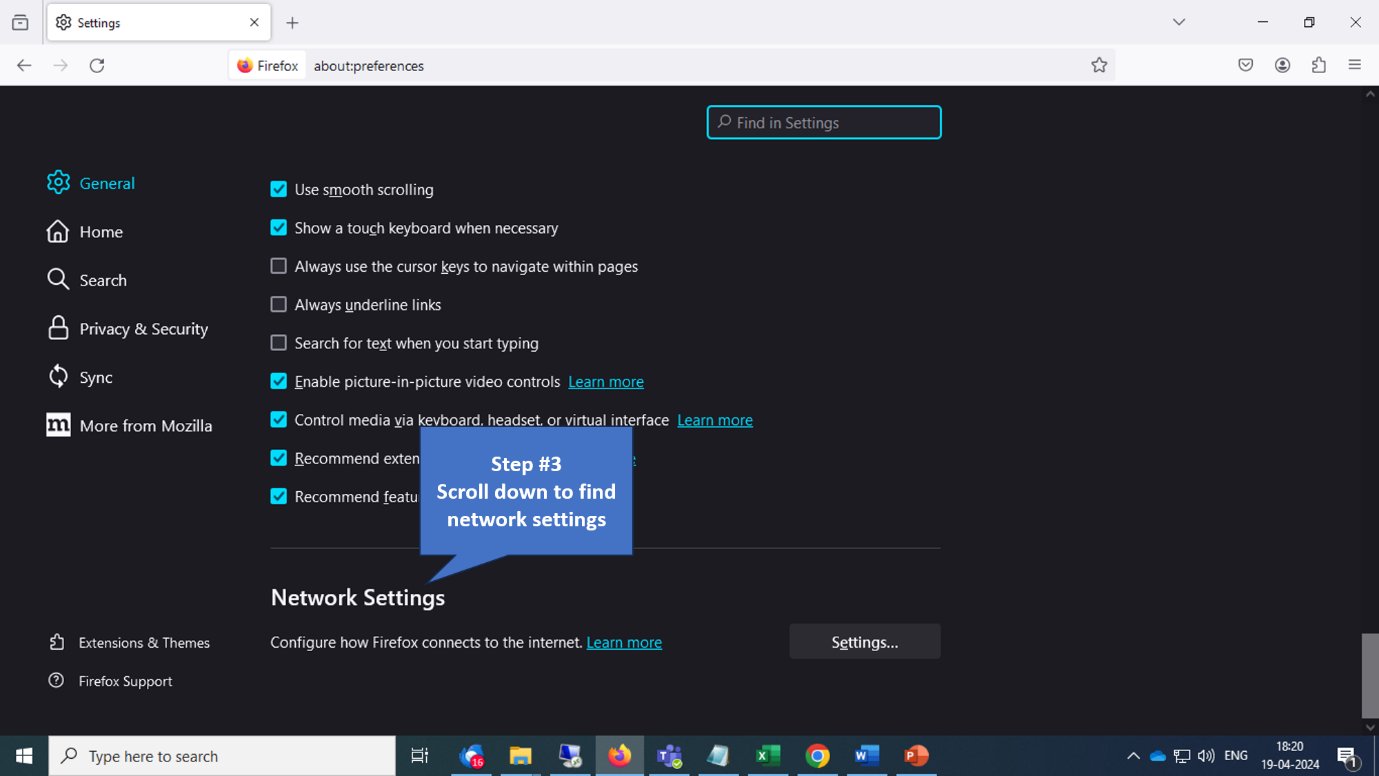 4. Click the **Settings** button.
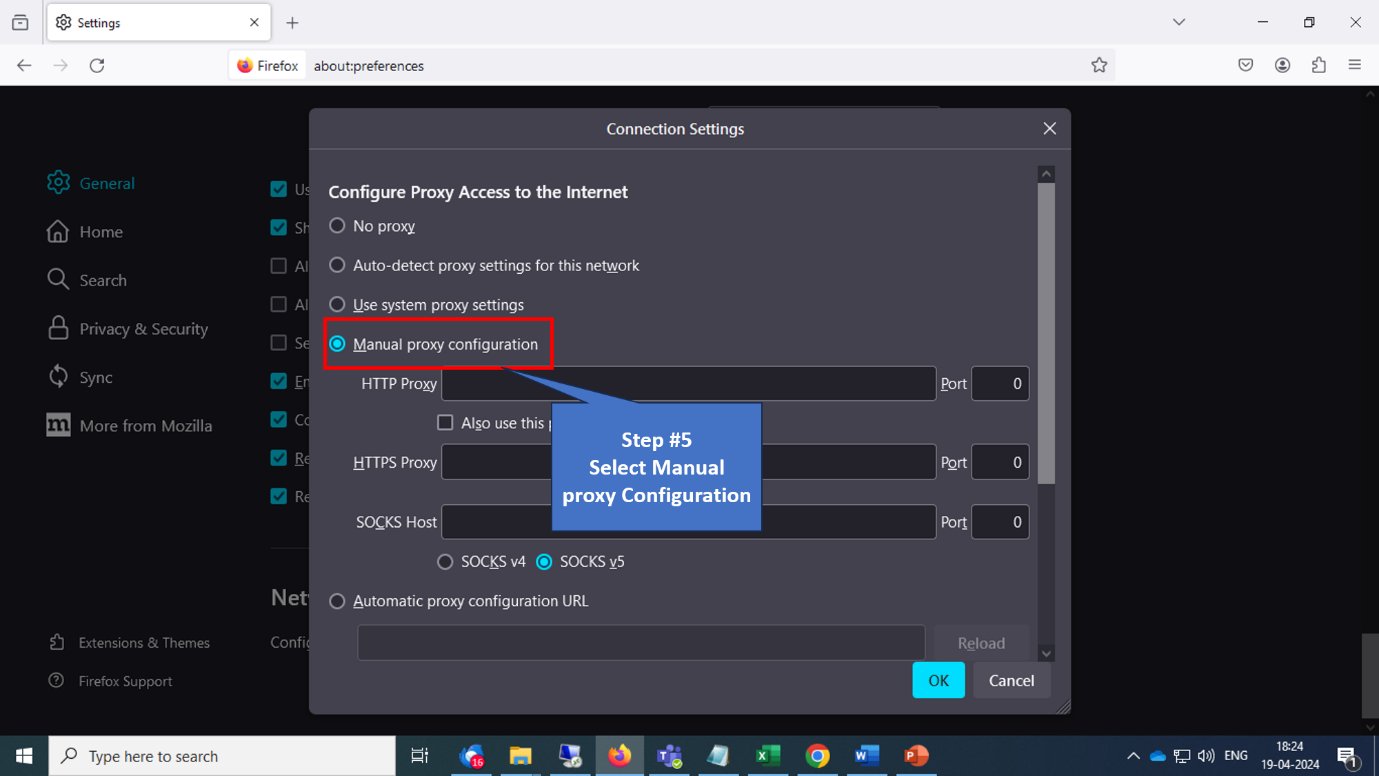
 5. Select **Manual proxy configuration**.
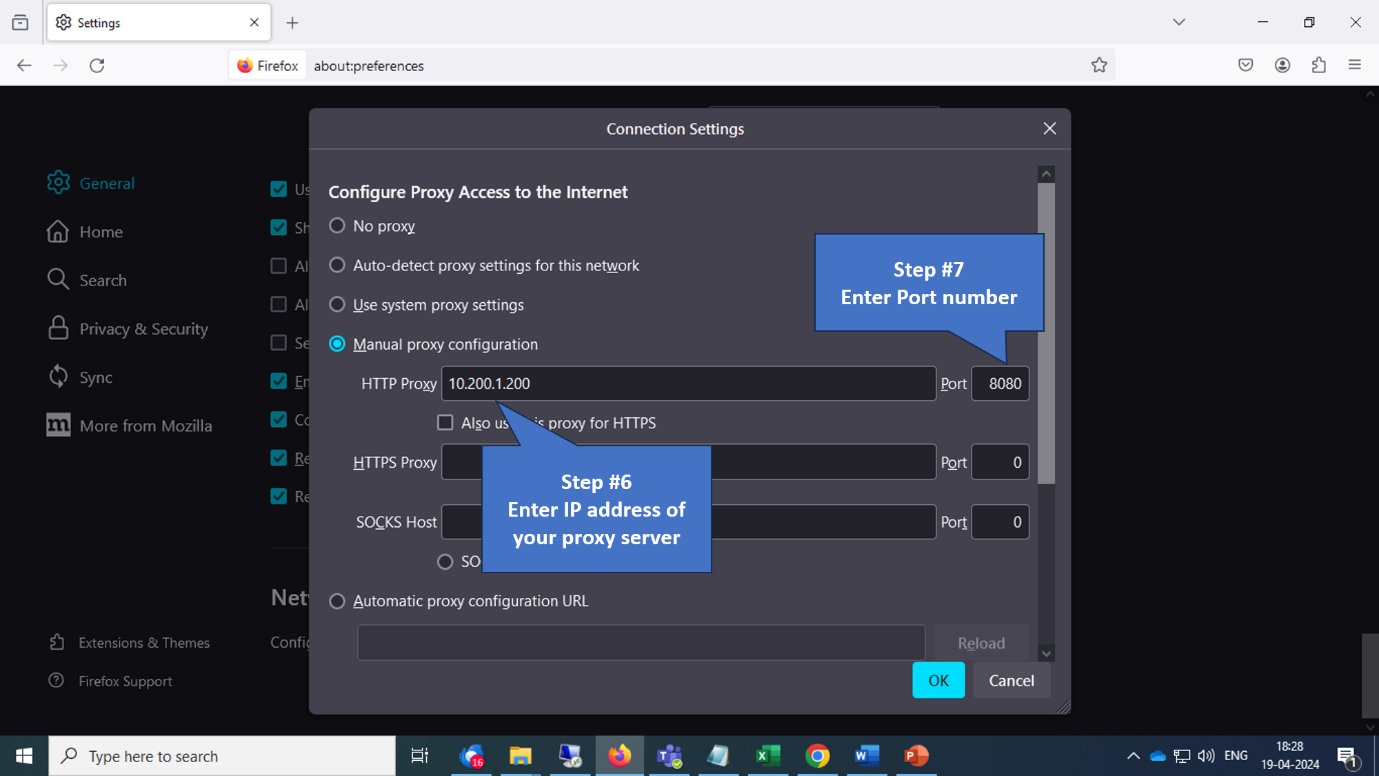
 6. Enter the proxy server address and port number.
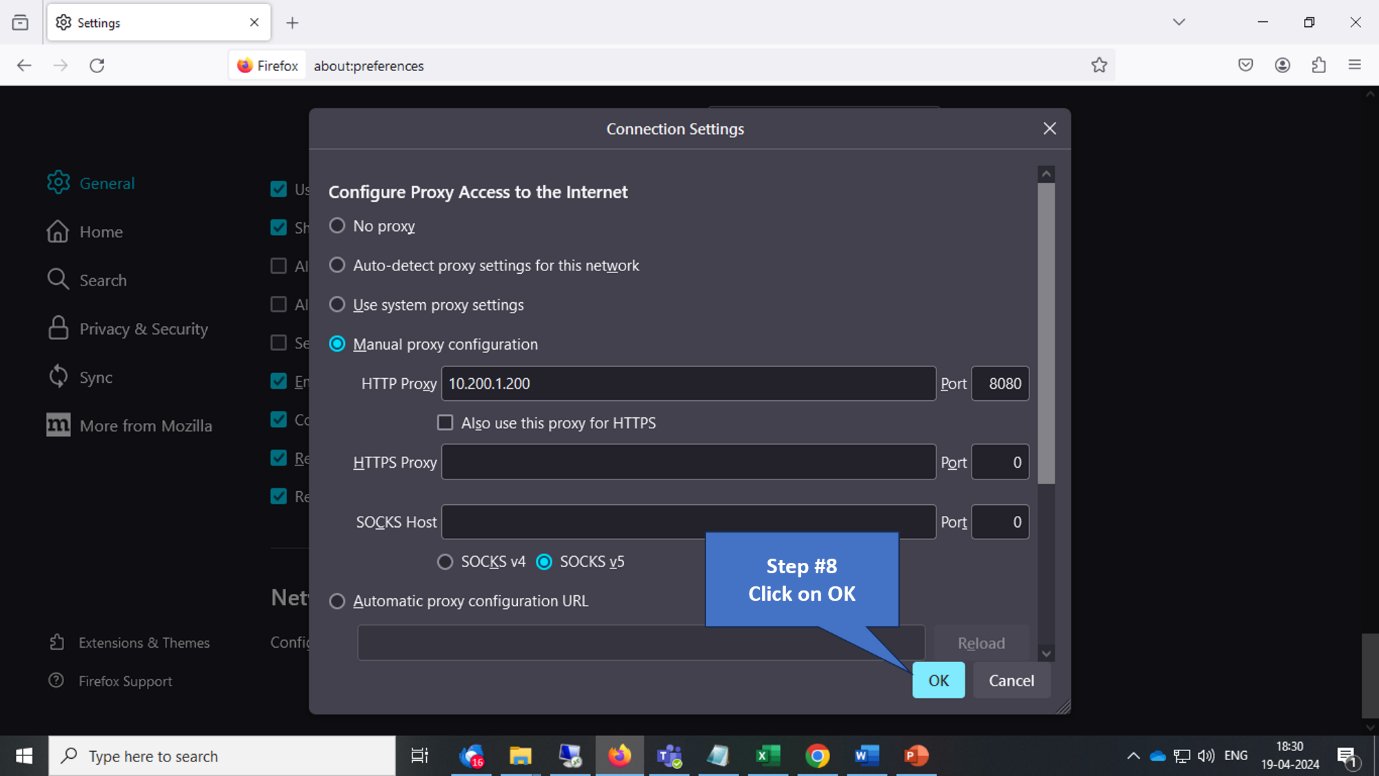
 7. Click **OK** to save changes.
 ## Verify configuration
Open `http://safesquid.cfg` through the proxy; the SafeSquid WebGUI loads. Browse an external site; traffic appears in SafeSquid access logs from the client IP. **Interface:** Confirm proxy IP and port in browser or system proxy settings. **Logs:** Check `access.log` or Reporting for requests from the client.
## Troubleshooting
| Symptom | Likely cause | Resolution |
| ------------------------------ | ----------------------------------- | ---------------------------------------------------------------------- |
| WebGUI or sites do not load | Wrong proxy IP/port or proxy down | Verify SafeSquid is listening on 8080; confirm IP and port in browser. |
| Some sites work, others fail | Bypass list or policy blocking | Review bypass list and access restriction rules. |
| Firefox works, Chrome does not | Chrome using system proxy vs manual | Ensure Chrome proxy settings match intended proxy (system or manual). |
**Escalation:** If connectivity fails after correct configuration, check firewall and SafeSquid service status; contact support with access log excerpts.
## Next steps
* [Transparent Proxy](/Transparent_Proxy) for interception without client proxy configuration.
* [Connect Your Client](/Connect_Your_Client) for PAC file, system-wide, and enterprise deployment.
* Verify your setup to confirm end-to-end connectivity.
## Related topics
- [Forward proxy](/admin_guide/infrastructure_and_access/proxy_chain.md)
- [Proxy Chain](/use_cases/scaling_and_high_availability/proxy_chain.md)
- [TCP Proxy](/use_cases/scaling_and_high_availability/tcp_proxy.md)
- [Reverse Proxy](/use_cases/scaling_and_high_availability/reverse_proxy.md)
- [Choose an Architecture](/deployment/choose_an_architecture.md)
## Verify configuration
Open `http://safesquid.cfg` through the proxy; the SafeSquid WebGUI loads. Browse an external site; traffic appears in SafeSquid access logs from the client IP. **Interface:** Confirm proxy IP and port in browser or system proxy settings. **Logs:** Check `access.log` or Reporting for requests from the client.
## Troubleshooting
| Symptom | Likely cause | Resolution |
| ------------------------------ | ----------------------------------- | ---------------------------------------------------------------------- |
| WebGUI or sites do not load | Wrong proxy IP/port or proxy down | Verify SafeSquid is listening on 8080; confirm IP and port in browser. |
| Some sites work, others fail | Bypass list or policy blocking | Review bypass list and access restriction rules. |
| Firefox works, Chrome does not | Chrome using system proxy vs manual | Ensure Chrome proxy settings match intended proxy (system or manual). |
**Escalation:** If connectivity fails after correct configuration, check firewall and SafeSquid service status; contact support with access log excerpts.
## Next steps
* [Transparent Proxy](/Transparent_Proxy) for interception without client proxy configuration.
* [Connect Your Client](/Connect_Your_Client) for PAC file, system-wide, and enterprise deployment.
* Verify your setup to confirm end-to-end connectivity.
## Related topics
- [Forward proxy](/admin_guide/infrastructure_and_access/proxy_chain.md)
- [Proxy Chain](/use_cases/scaling_and_high_availability/proxy_chain.md)
- [TCP Proxy](/use_cases/scaling_and_high_availability/tcp_proxy.md)
- [Reverse Proxy](/use_cases/scaling_and_high_availability/reverse_proxy.md)
- [Choose an Architecture](/deployment/choose_an_architecture.md)