> ## Documentation Index
> Fetch the complete documentation index at: https://docs.safesquid.com/llms.txt
> Use this file to discover all available pages before exploring further.

# TCP Proxy

> Configure SafeSquid TCP Proxy mode to handle non-HTTP TCP connections, enabling secure proxying of various TCP-based protocols and applications.

# TCP proxy handles non-HTTP protocols

## When to use TCP proxy

HTTP/HTTPS traffic is handled by SafeSquid's HTTP proxy. Applications using other TCP-based protocols (e.g. custom ports, non-web services) need a way to route through the proxy. TCP Proxy mode enables SafeSquid to accept and forward non-HTTP TCP connections so all TCP traffic can be funneled through the gateway. Clients still configure the proxy (e.g. browser or system proxy); SafeSquid forwards the TCP stream to the destination.

## Configure TCP proxy in browser

### Chrome (System Settings)

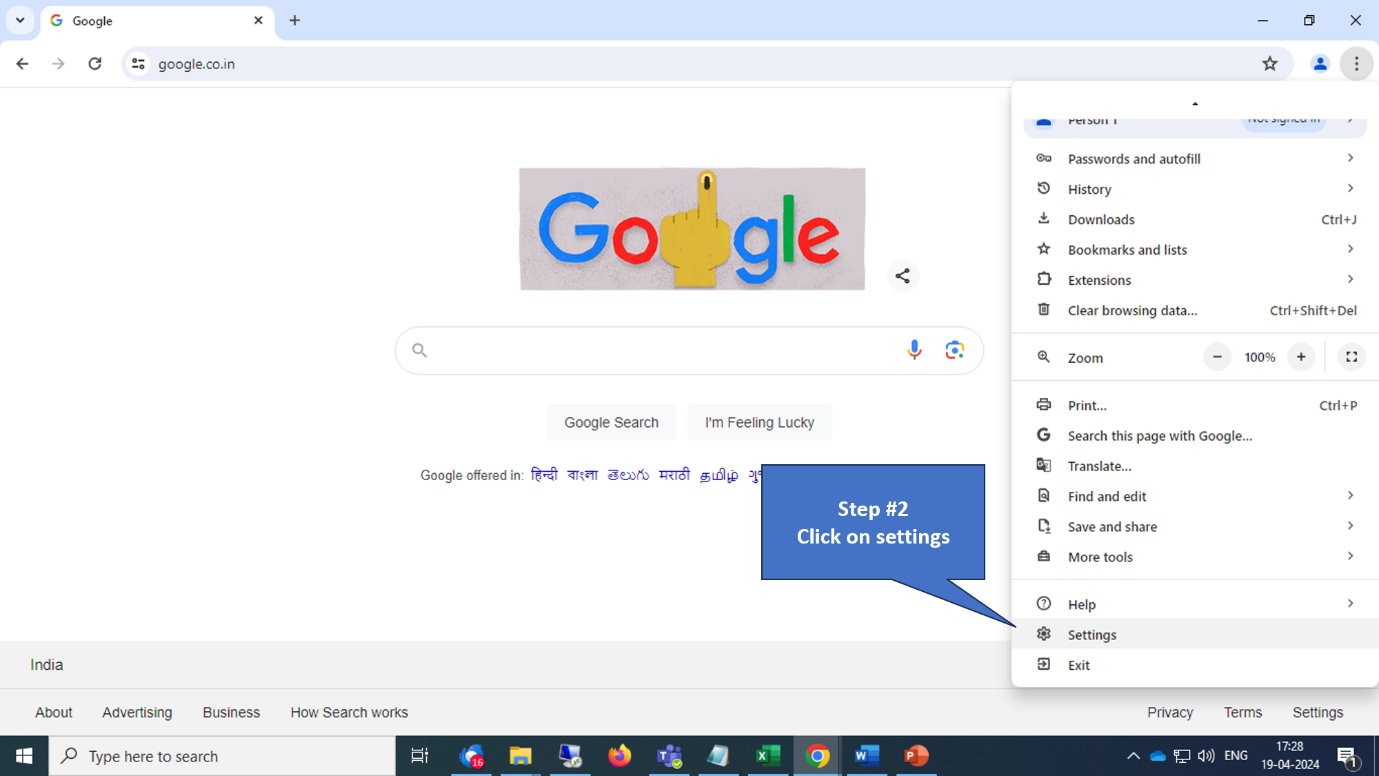
1. Open Chrome browser settings from the toolbar.
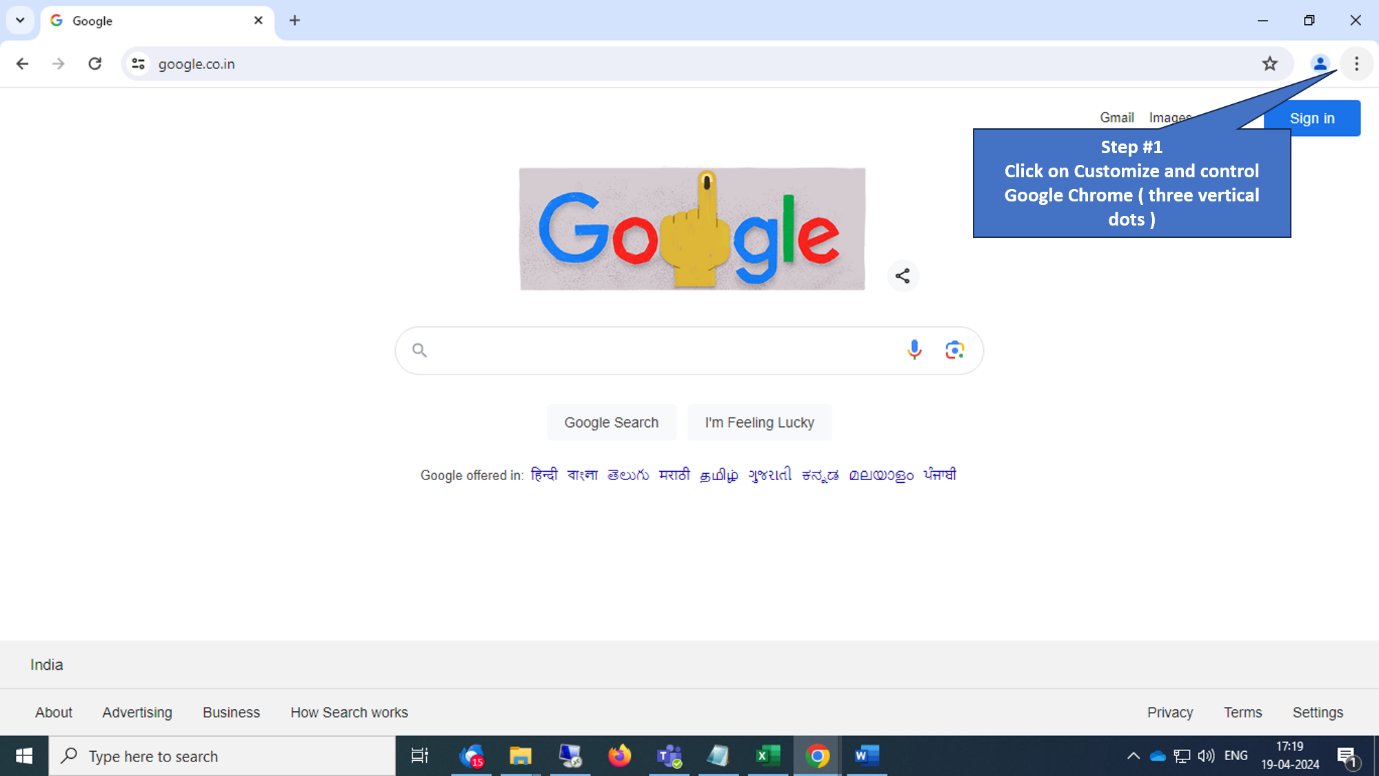
   <img src="https://mintcdn.com/safe-squid-labs-12a0916f/mWo6q6ffjJZSjew5/images/How_To/How_To_configure_Proxy_In_a_Browser/image1.webp?fit=max&auto=format&n=mWo6q6ffjJZSjew5&q=85&s=710763b2b70e53df43f2a401972a0314" alt="Chrome menu" width="1379" height="776" data-path="images/How_To/How_To_configure_Proxy_In_a_Browser/image1.webp" />

   <img src="https://mintcdn.com/safe-squid-labs-12a0916f/mWo6q6ffjJZSjew5/images/How_To/How_To_configure_Proxy_In_a_Browser/image2.webp?fit=max&auto=format&n=mWo6q6ffjJZSjew5&q=85&s=86cd64c1f6c41d7f78accfbdcbf25c42" alt="Settings option" width="1379" height="776" data-path="images/How_To/How_To_configure_Proxy_In_a_Browser/image2.webp" />

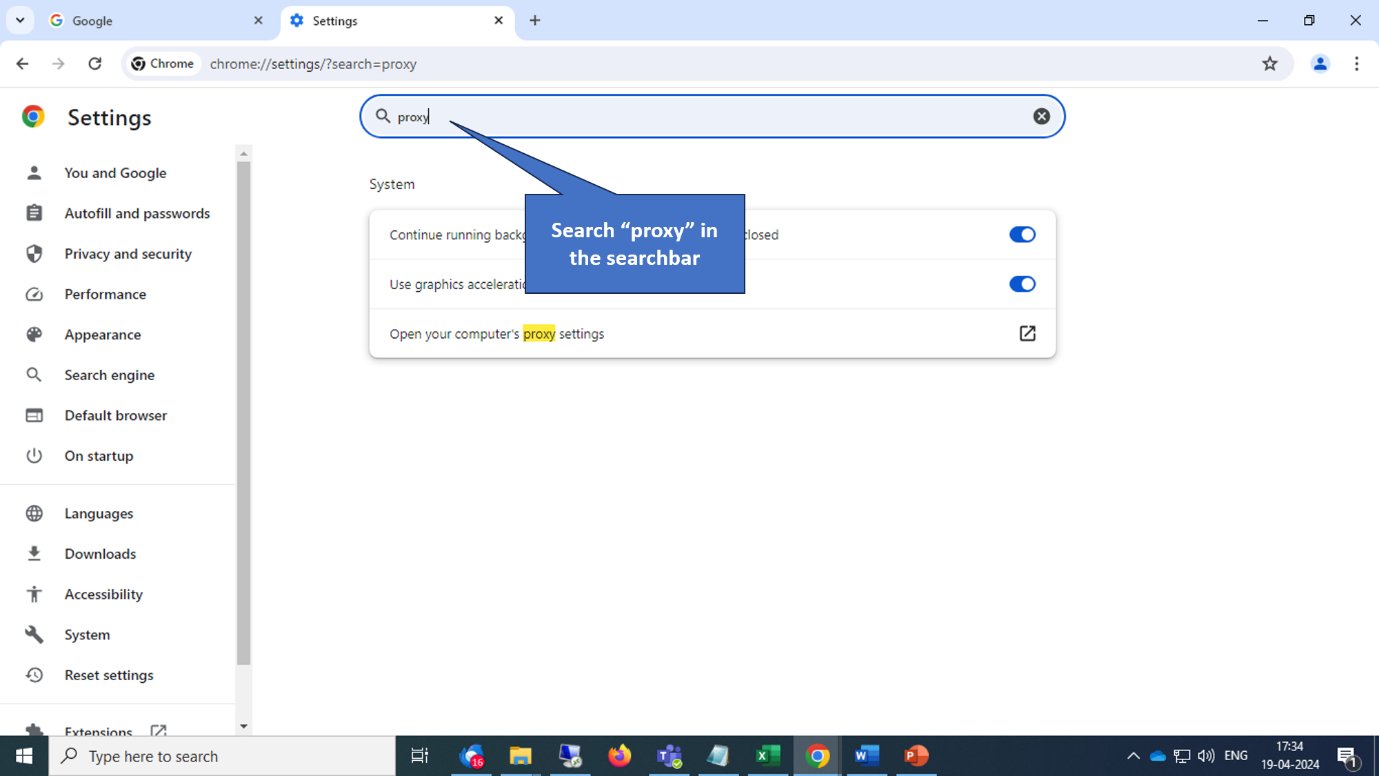
2. Click the **System** tab or search for "proxy".
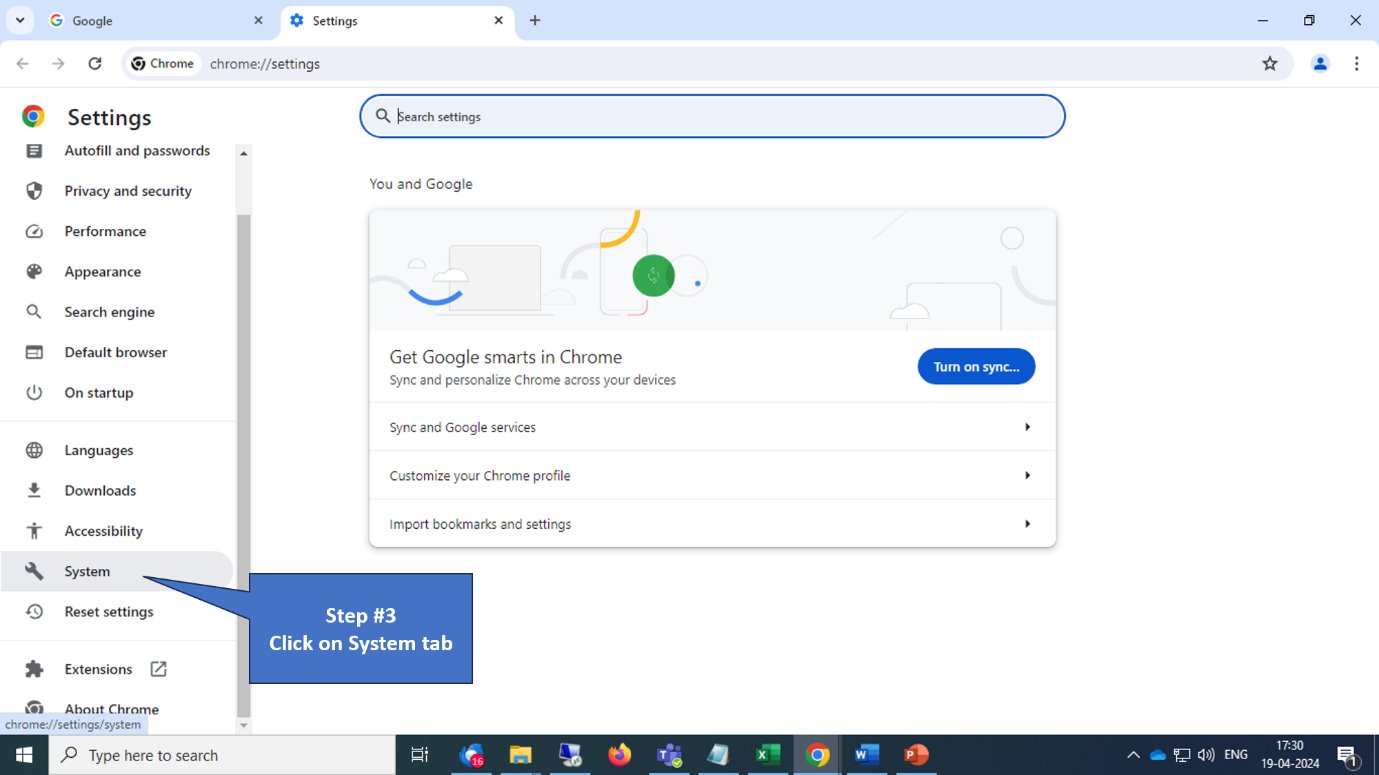
   <img src="https://mintcdn.com/safe-squid-labs-12a0916f/mWo6q6ffjJZSjew5/images/How_To/How_To_configure_Proxy_In_a_Browser/image3.webp?fit=max&auto=format&n=mWo6q6ffjJZSjew5&q=85&s=c82ed29eaa25fef963324dd822c60581" alt="System tab" width="1379" height="775" data-path="images/How_To/How_To_configure_Proxy_In_a_Browser/image3.webp" />

   <img src="https://mintcdn.com/safe-squid-labs-12a0916f/mWo6q6ffjJZSjew5/images/How_To/How_To_configure_Proxy_In_a_Browser/image4.webp?fit=max&auto=format&n=mWo6q6ffjJZSjew5&q=85&s=4b7303a301a3ce541460c56bc3ee9457" alt="Search proxy" width="1379" height="776" data-path="images/How_To/How_To_configure_Proxy_In_a_Browser/image4.webp" />

3. Click **Open your computer's proxy settings**.
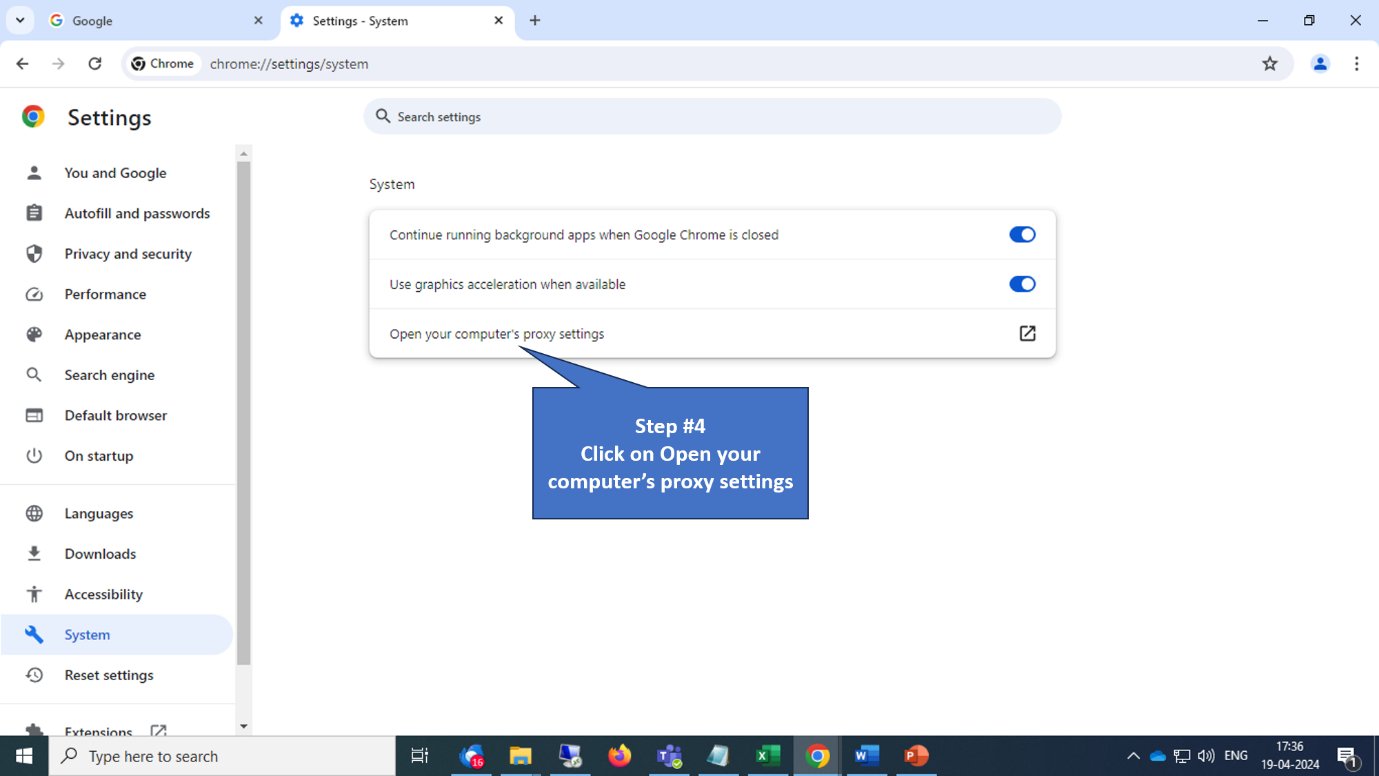
   <img src="https://mintcdn.com/safe-squid-labs-12a0916f/mWo6q6ffjJZSjew5/images/How_To/How_To_configure_Proxy_In_a_Browser/image5.webp?fit=max&auto=format&n=mWo6q6ffjJZSjew5&q=85&s=c5980e7ad86da41d157769f761bd815b" alt="Proxy settings" width="1379" height="776" data-path="images/How_To/How_To_configure_Proxy_In_a_Browser/image5.webp" />

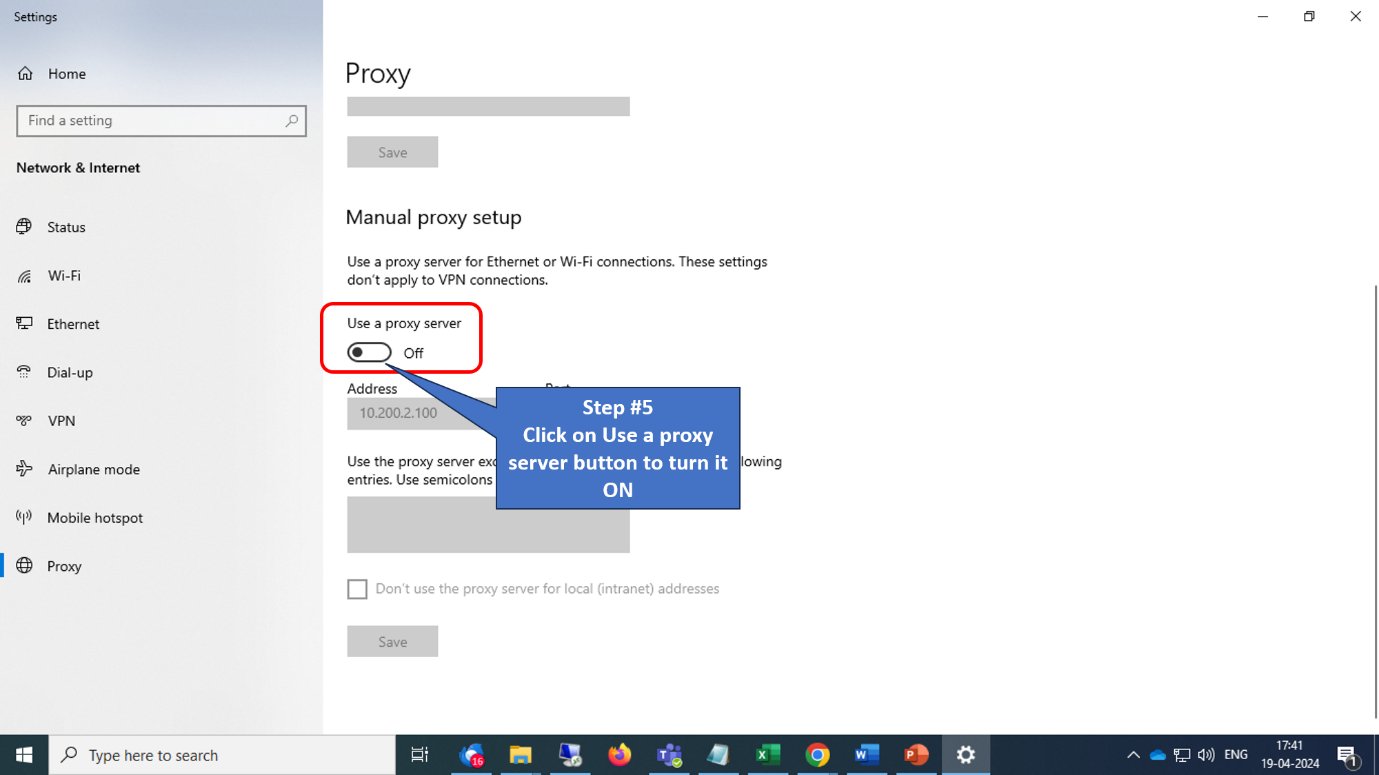
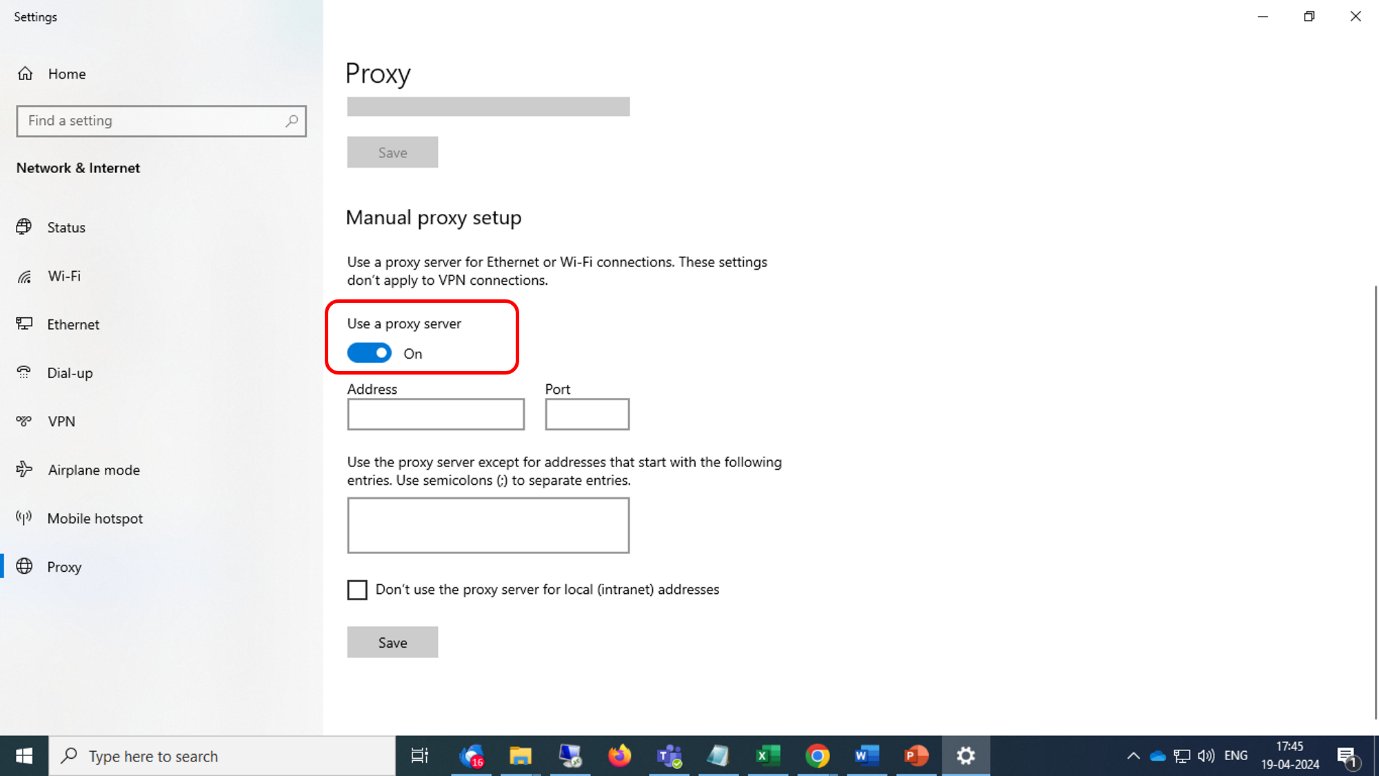
4. Enable **Use a proxy server**.

   <img src="https://mintcdn.com/safe-squid-labs-12a0916f/mWo6q6ffjJZSjew5/images/How_To/How_To_configure_Proxy_In_a_Browser/image6.webp?fit=max&auto=format&n=mWo6q6ffjJZSjew5&q=85&s=dd27f8efdc3ac49fd83aecb107eeaad4" alt="Enable proxy" width="1379" height="775" data-path="images/How_To/How_To_configure_Proxy_In_a_Browser/image6.webp" />

   <img src="https://mintcdn.com/safe-squid-labs-12a0916f/mWo6q6ffjJZSjew5/images/How_To/How_To_configure_Proxy_In_a_Browser/image7.webp?fit=max&auto=format&n=mWo6q6ffjJZSjew5&q=85&s=7e207fa4bc62d897e24266036f5c4cba" alt="Proxy toggle" width="1379" height="776" data-path="images/How_To/How_To_configure_Proxy_In_a_Browser/image7.webp" />

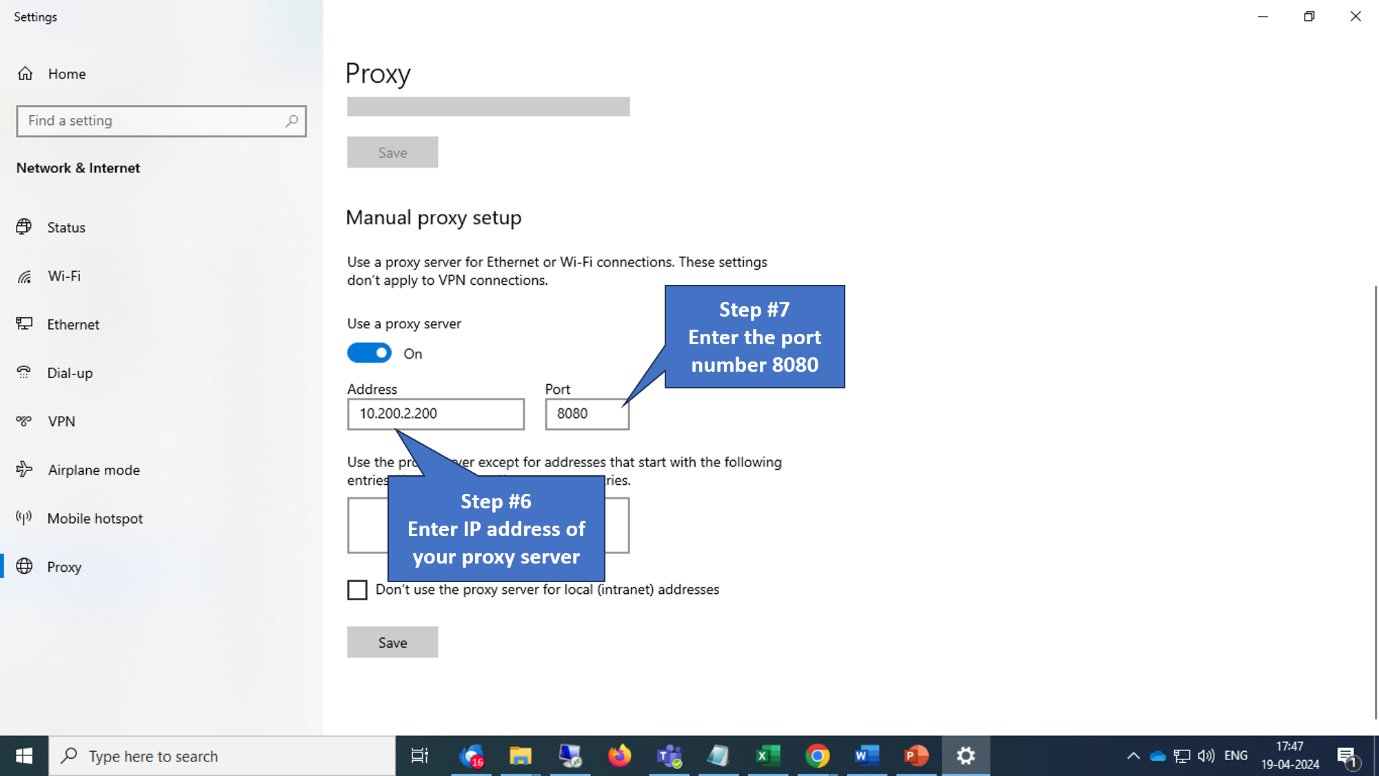
5. Enter the proxy server IP address and port **8080**.
   <img src="https://mintcdn.com/safe-squid-labs-12a0916f/mWo6q6ffjJZSjew5/images/How_To/How_To_configure_Proxy_In_a_Browser/image8.webp?fit=max&auto=format&n=mWo6q6ffjJZSjew5&q=85&s=a708247980f2c1aaf5875844649c72b0" alt="Proxy address" width="1379" height="776" data-path="images/How_To/How_To_configure_Proxy_In_a_Browser/image8.webp" />

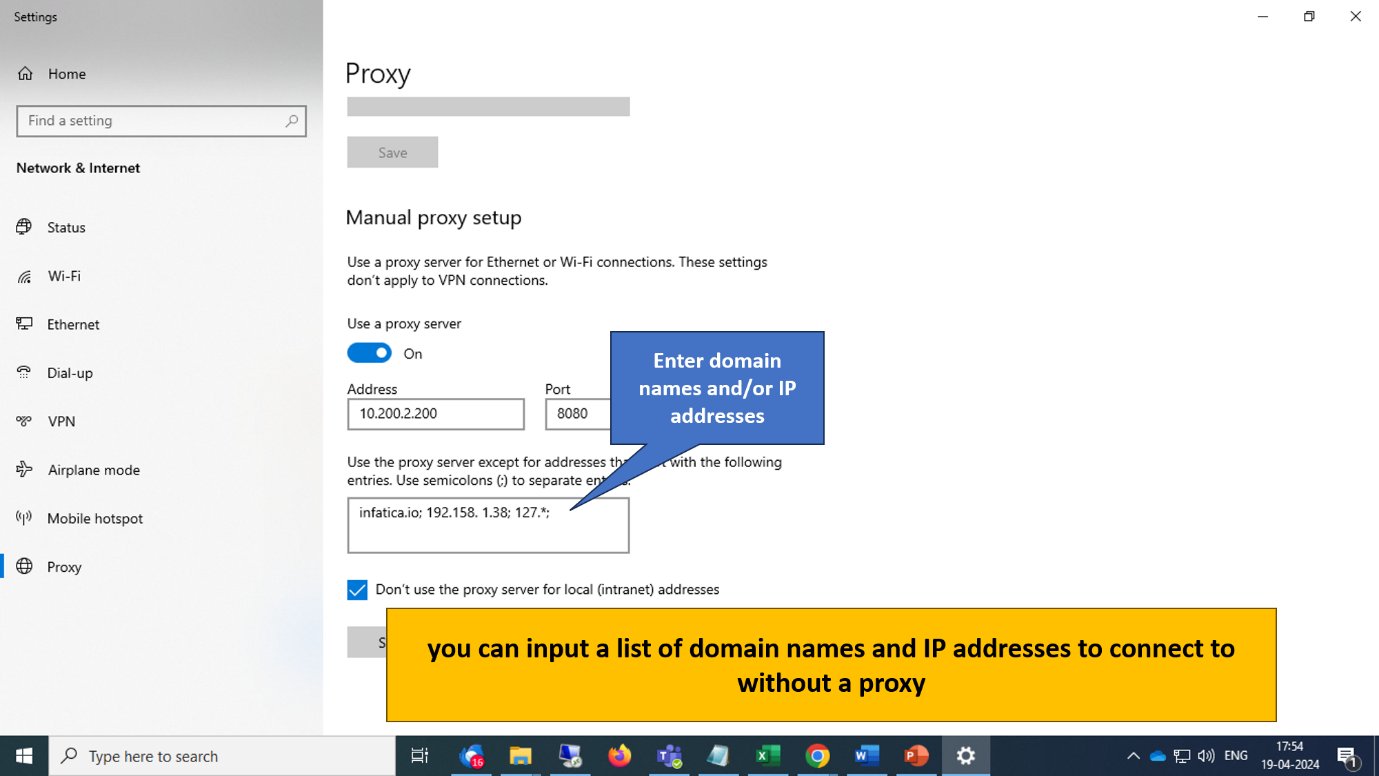
6. (Optional) Enter bypass addresses.

   <img src="https://mintcdn.com/safe-squid-labs-12a0916f/mWo6q6ffjJZSjew5/images/How_To/How_To_configure_Proxy_In_a_Browser/image9.webp?fit=max&auto=format&n=mWo6q6ffjJZSjew5&q=85&s=dffe7aaeab10de29b05d9264ae51a9a2" alt="Bypass list" width="1379" height="776" data-path="images/How_To/How_To_configure_Proxy_In_a_Browser/image9.webp" />

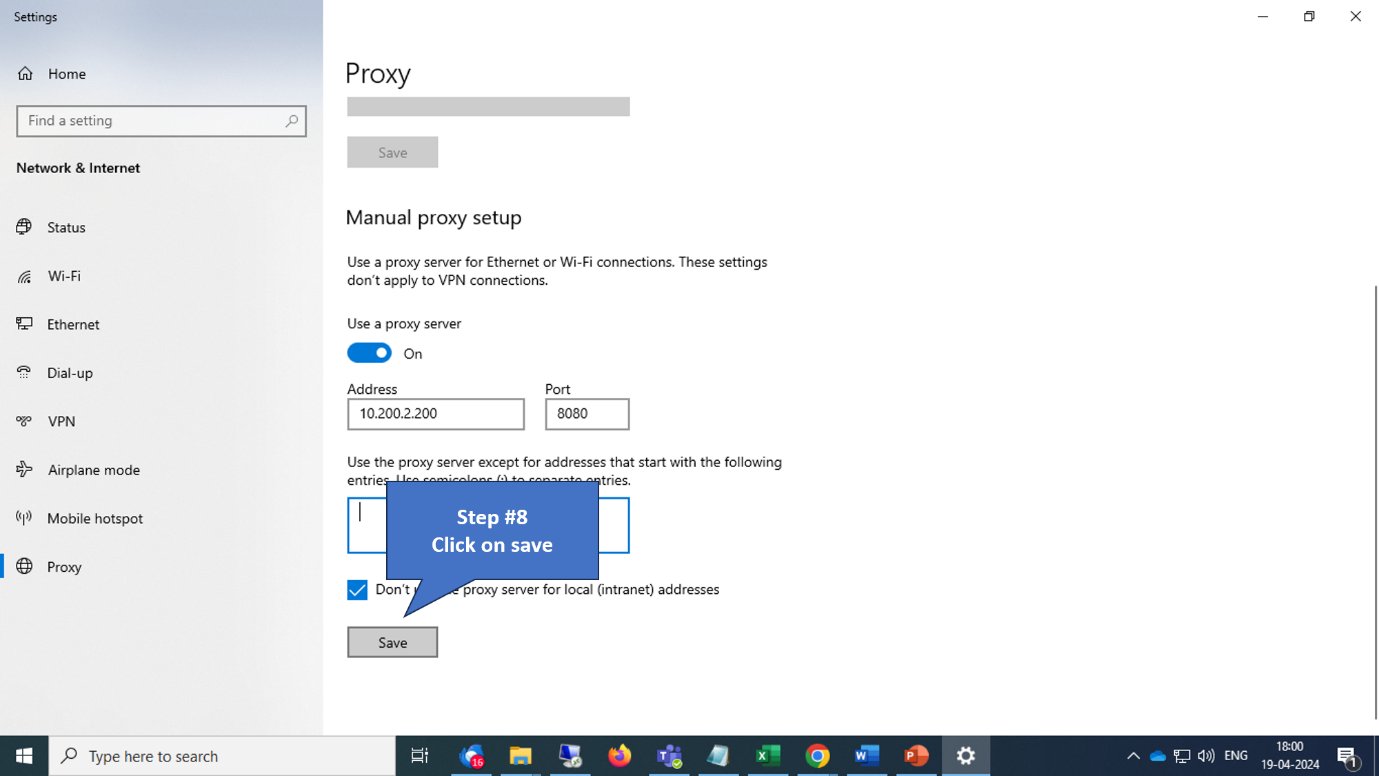
7. Click **Save**.

   <img src="https://mintcdn.com/safe-squid-labs-12a0916f/mWo6q6ffjJZSjew5/images/How_To/How_To_configure_Proxy_In_a_Browser/image10.webp?fit=max&auto=format&n=mWo6q6ffjJZSjew5&q=85&s=c5cf0c5a11fbf51f380a25d101e1ddbf" alt="Save settings" width="1379" height="776" data-path="images/How_To/How_To_configure_Proxy_In_a_Browser/image10.webp" />

### Firefox

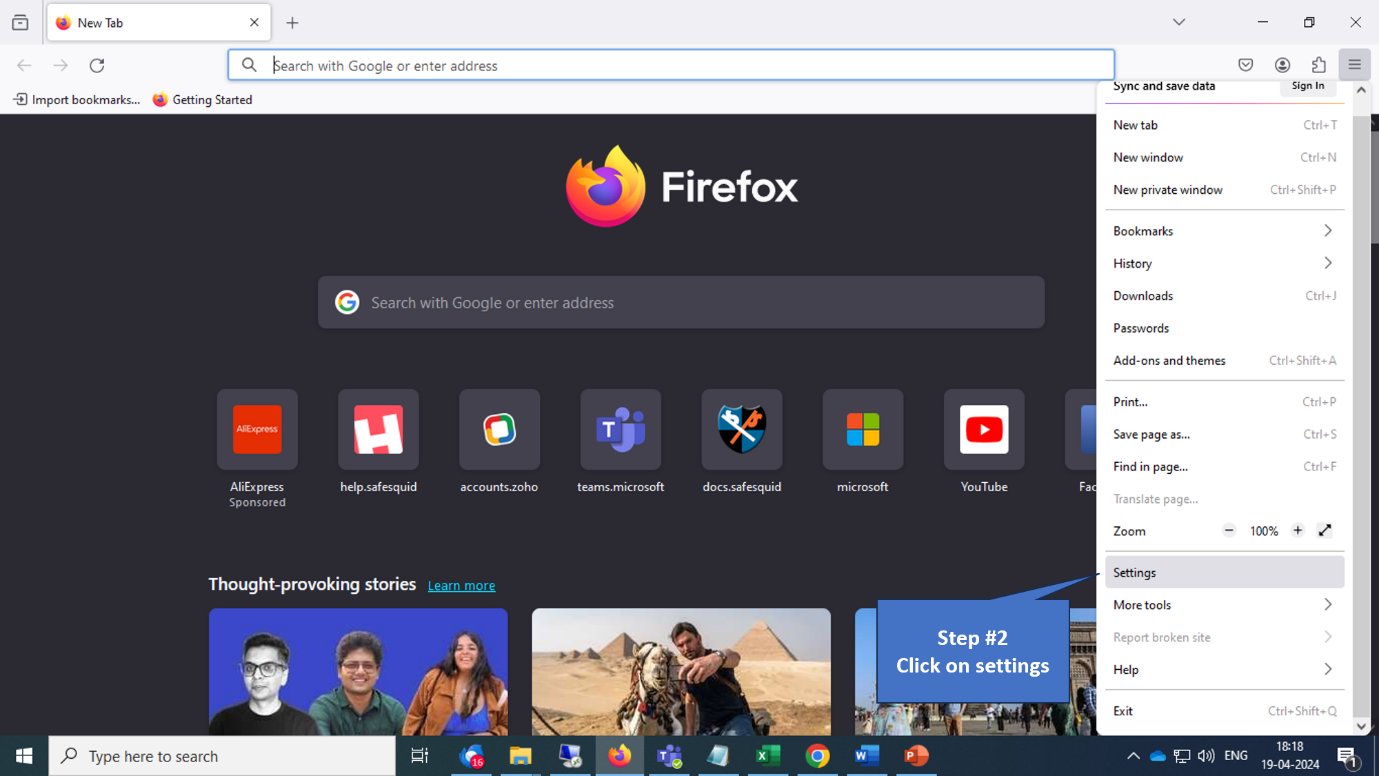
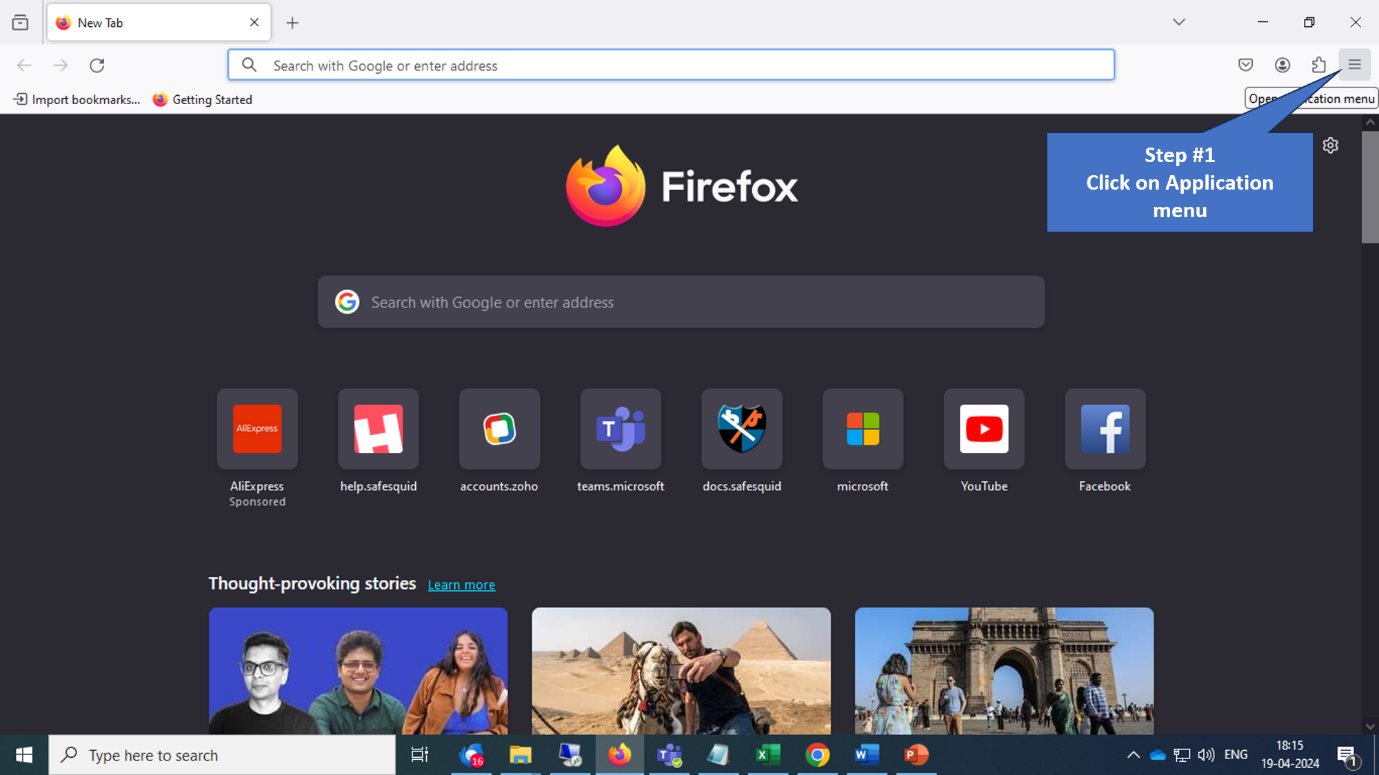
1. Open Firefox menu and click **Settings**.
   <img src="https://mintcdn.com/safe-squid-labs-12a0916f/mWo6q6ffjJZSjew5/images/How_To/How_To_configure_Proxy_In_a_Browser/image11.webp?fit=max&auto=format&n=mWo6q6ffjJZSjew5&q=85&s=10741ab6e98a111d3399f277c89c235c" alt="Firefox menu" width="1379" height="775" data-path="images/How_To/How_To_configure_Proxy_In_a_Browser/image11.webp" />

   <img src="https://mintcdn.com/safe-squid-labs-12a0916f/mWo6q6ffjJZSjew5/images/How_To/How_To_configure_Proxy_In_a_Browser/image12.webp?fit=max&auto=format&n=mWo6q6ffjJZSjew5&q=85&s=9da77158c4413929c3f44328aaa4c81c" alt="Firefox settings" width="1379" height="776" data-path="images/How_To/How_To_configure_Proxy_In_a_Browser/image12.webp" />

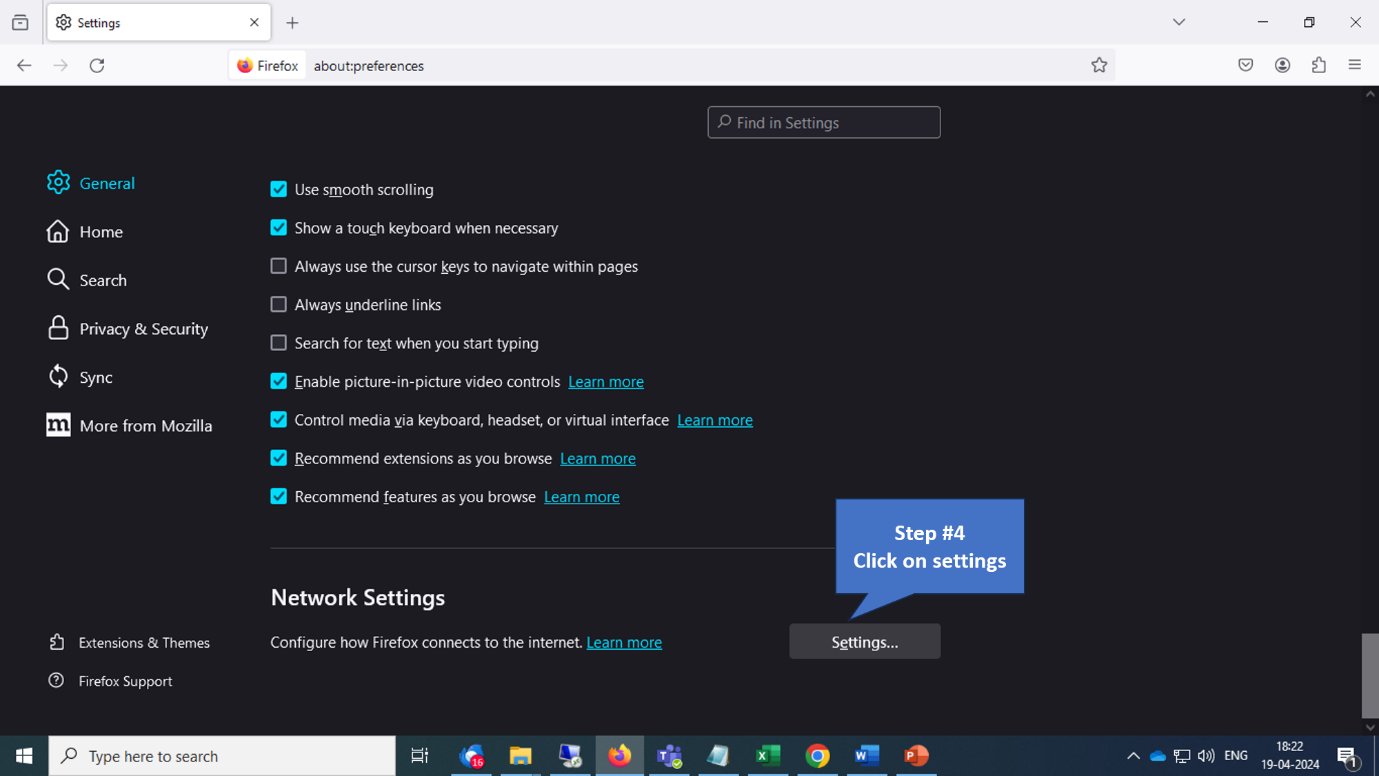
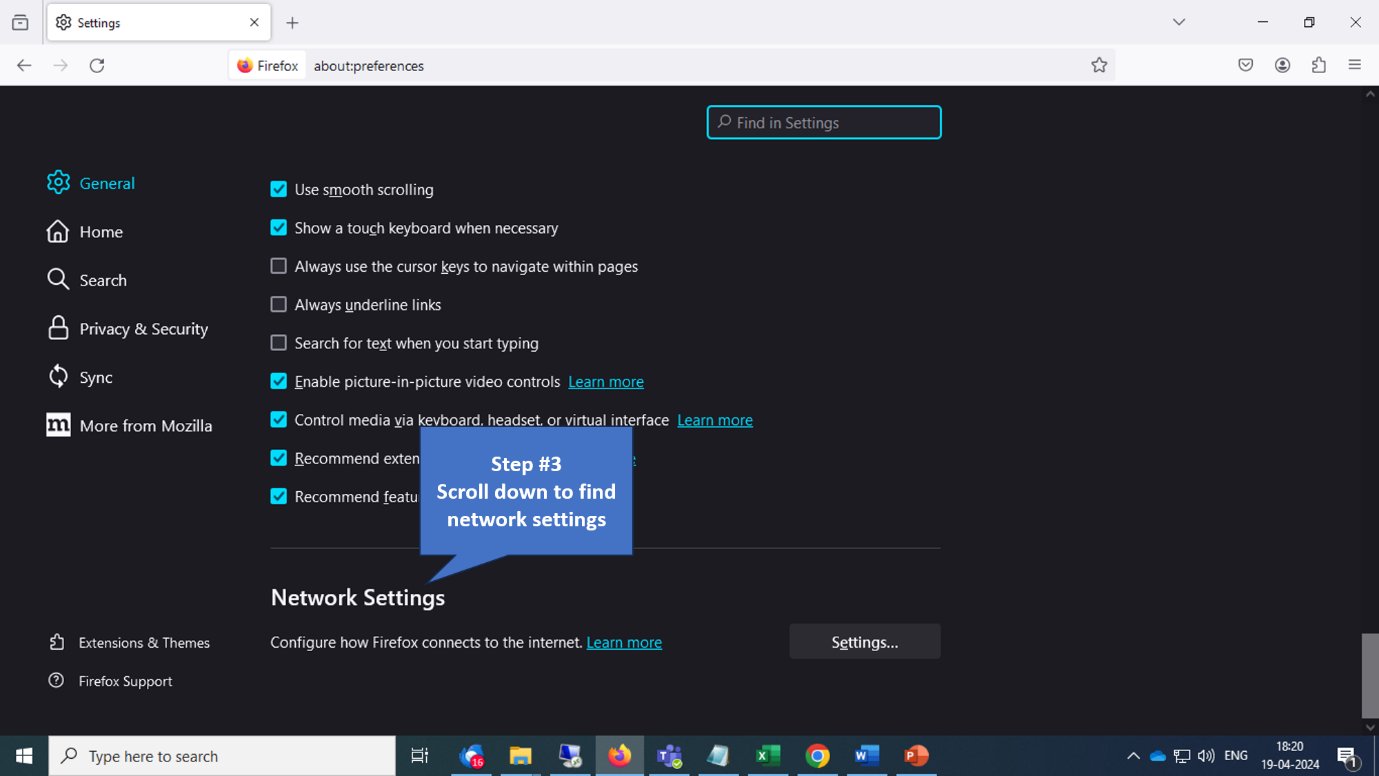
2. Navigate to **Network Settings** in General section.
   <img src="https://mintcdn.com/safe-squid-labs-12a0916f/mWo6q6ffjJZSjew5/images/How_To/How_To_configure_Proxy_In_a_Browser/image13.webp?fit=max&auto=format&n=mWo6q6ffjJZSjew5&q=85&s=0ea86b2892b5953af73068e387ac35da" alt="Network Settings" width="1379" height="776" data-path="images/How_To/How_To_configure_Proxy_In_a_Browser/image13.webp" />

3. Click **Settings**.

   <img src="https://mintcdn.com/safe-squid-labs-12a0916f/mWo6q6ffjJZSjew5/images/How_To/How_To_configure_Proxy_In_a_Browser/image14.webp?fit=max&auto=format&n=mWo6q6ffjJZSjew5&q=85&s=99441d6ccbf07c3a8af4bd21a65c48a9" alt="Settings button" width="1379" height="776" data-path="images/How_To/How_To_configure_Proxy_In_a_Browser/image14.webp" />

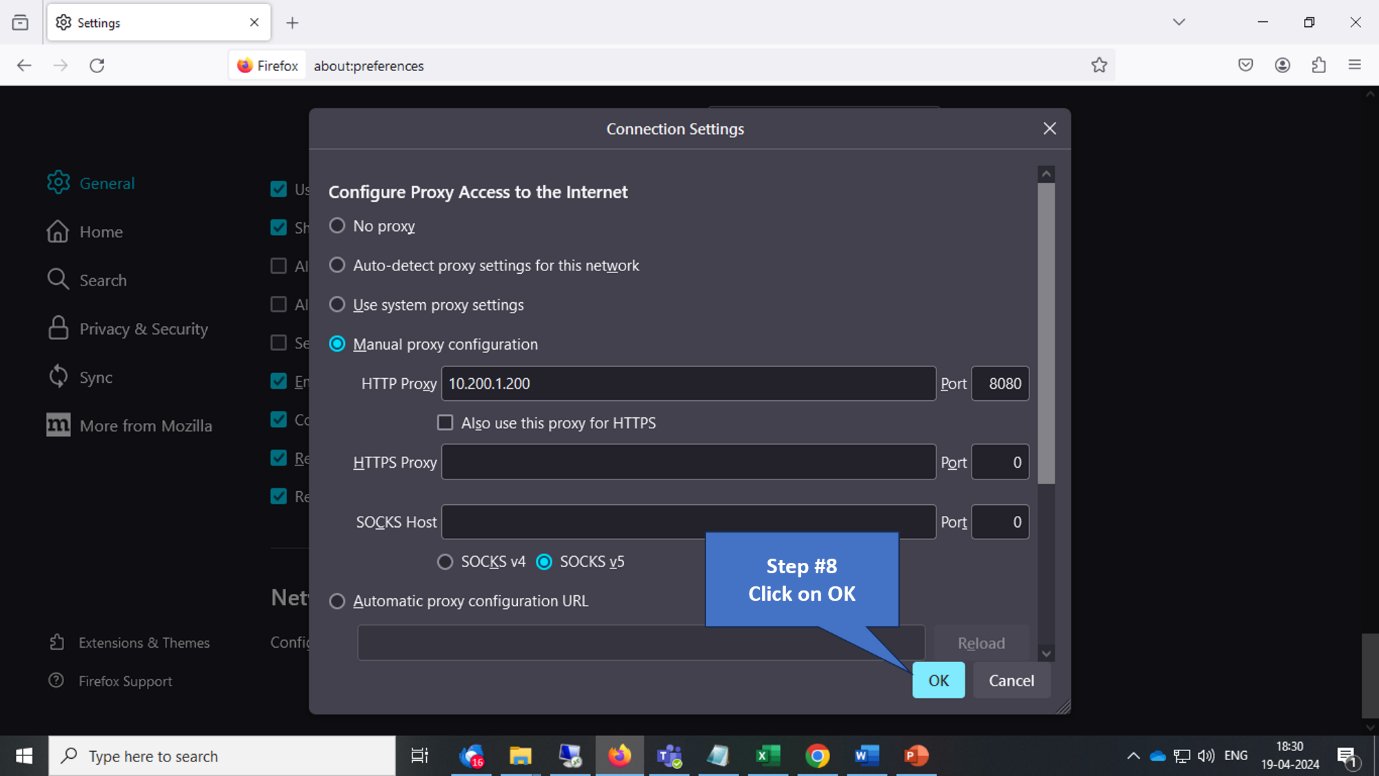
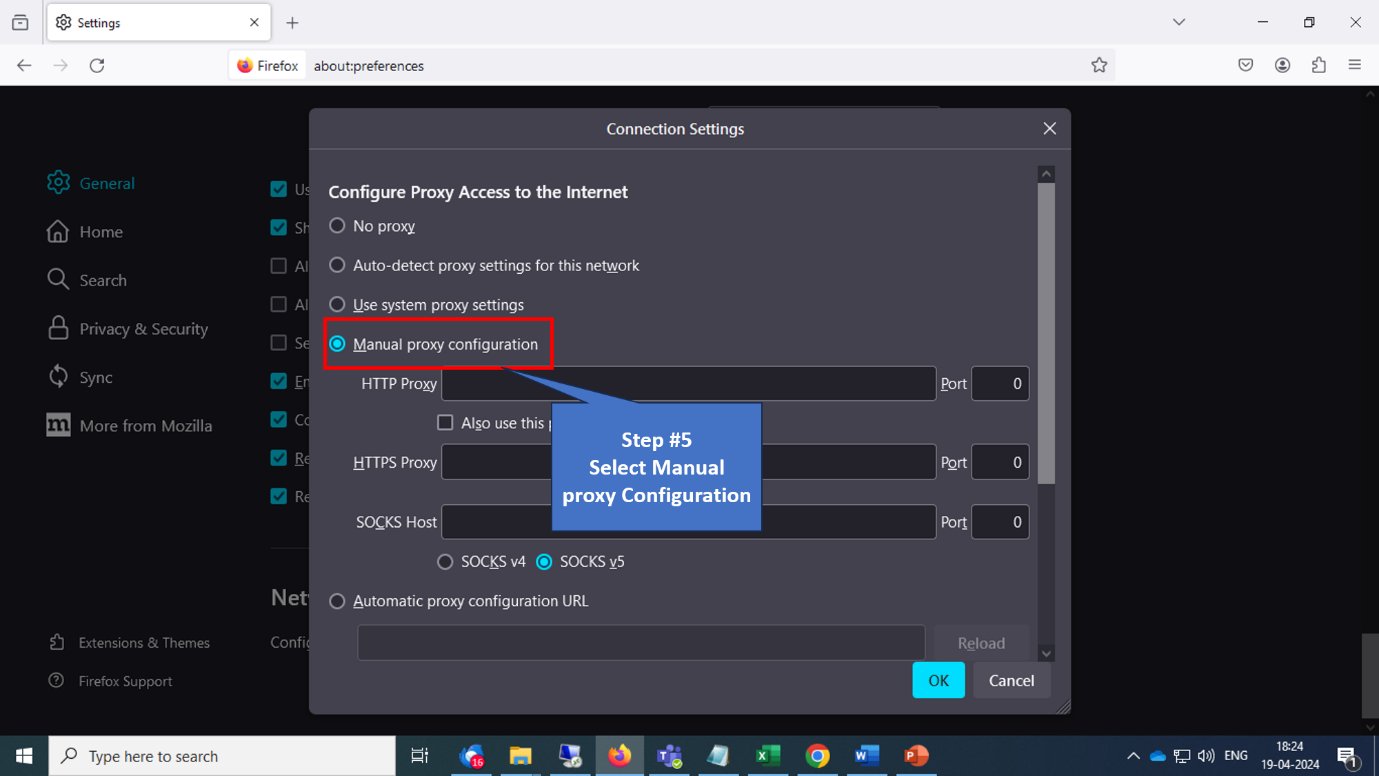
4. Select **Manual proxy configuration** and enter proxy details.
   <img src="https://mintcdn.com/safe-squid-labs-12a0916f/mWo6q6ffjJZSjew5/images/How_To/How_To_configure_Proxy_In_a_Browser/image15.webp?fit=max&auto=format&n=mWo6q6ffjJZSjew5&q=85&s=ff9540691742815c2e2500073abc088f" alt="Manual proxy" width="1379" height="776" data-path="images/How_To/How_To_configure_Proxy_In_a_Browser/image15.webp" />

5. Click **OK** to save.

   <img src="https://mintcdn.com/safe-squid-labs-12a0916f/mWo6q6ffjJZSjew5/images/How_To/How_To_configure_Proxy_In_a_Browser/image17.webp?fit=max&auto=format&n=mWo6q6ffjJZSjew5&q=85&s=c8d8a54284e5961759d18e93201dee3e" alt="Save" width="1379" height="776" data-path="images/How_To/How_To_configure_Proxy_In_a_Browser/image17.webp" />

## Next steps

* [Forward Proxy](/Forward_Proxy) for HTTP/HTTPS explicit proxy.
* [Transparent Proxy](/Transparent_Proxy) for interception without client config.
* [Proxy Chain](/Proxy_Chain) for forwarding to a parent proxy.


## Related topics

- [Transparent Proxy](/use_cases/scaling_and_high_availability/transparent_proxy.md)
- [Choose an Architecture](/deployment/choose_an_architecture.md)
- [Welcome to SafeSquid](/getting_started/welcome.md)
- [Ports and Firewall Rules](/deployment/ports_and_firewall_rules.md)
- [Deployment Checklist](/getting_started/install_safesquid/prerequisites.md)