> ## Documentation Index
> Fetch the complete documentation index at: https://docs.safesquid.com/llms.txt
> Use this file to discover all available pages before exploring further.
# Import Certificate into Chrome or Internet Explorer
> Step-by-step import of SafeSquid SSL certificate into Chrome or Internet Explorer for HTTPS inspection trust.
# Import SafeSquid Root CA into Chrome or Internet Explorer
Chrome, Edge, and Internet Explorer use the Windows certificate store. Follow this guide to import the SafeSquid Root CA into **Trusted Root Certification Authorities** so HTTPS inspection works without certificate warnings.
**Time to complete:** 2-5 minutes per machine
## Problem statement
HTTPS inspection fails visibly on Windows clients if the SafeSquid Root CA is not trusted. The result is certificate warnings, failed browsing, and a rollout that looks broken even when the proxy-side configuration is correct.
:::tip
**Automated Deployment**
For enterprise environments, deploy the certificate via **Group Policy (GPO)** instead of manual installation:
1. Copy certificate to `\\domain.com\SYSVOL\domain.com\Policies\`
2. GPO → Computer Configuration → Policies → Windows Settings → Security Settings → Public Key Policies → Trusted Root Certification Authorities
3. Import → Select SafeSquid certificate → Apply
:::
:::note
**Firefox Users**
Firefox uses its own certificate store and ignores the Windows trust store. See [Import certificate into Firefox](/Configure_HTTPS_Inspection#import-certificate-into-firefox).
:::
***
## Prerequisites
:::note
**Before You Start**
* SafeSquid Root CA certificate downloaded (from [Self-Service Portal](https://key.safesquid.com) or SafeSquid Configuration Portal)
* Windows machine with administrative privileges
* Chrome, Edge, or Internet Explorer installed
* SafeSquid HTTPS inspection already enabled on the proxy side
:::
***
## Import Steps
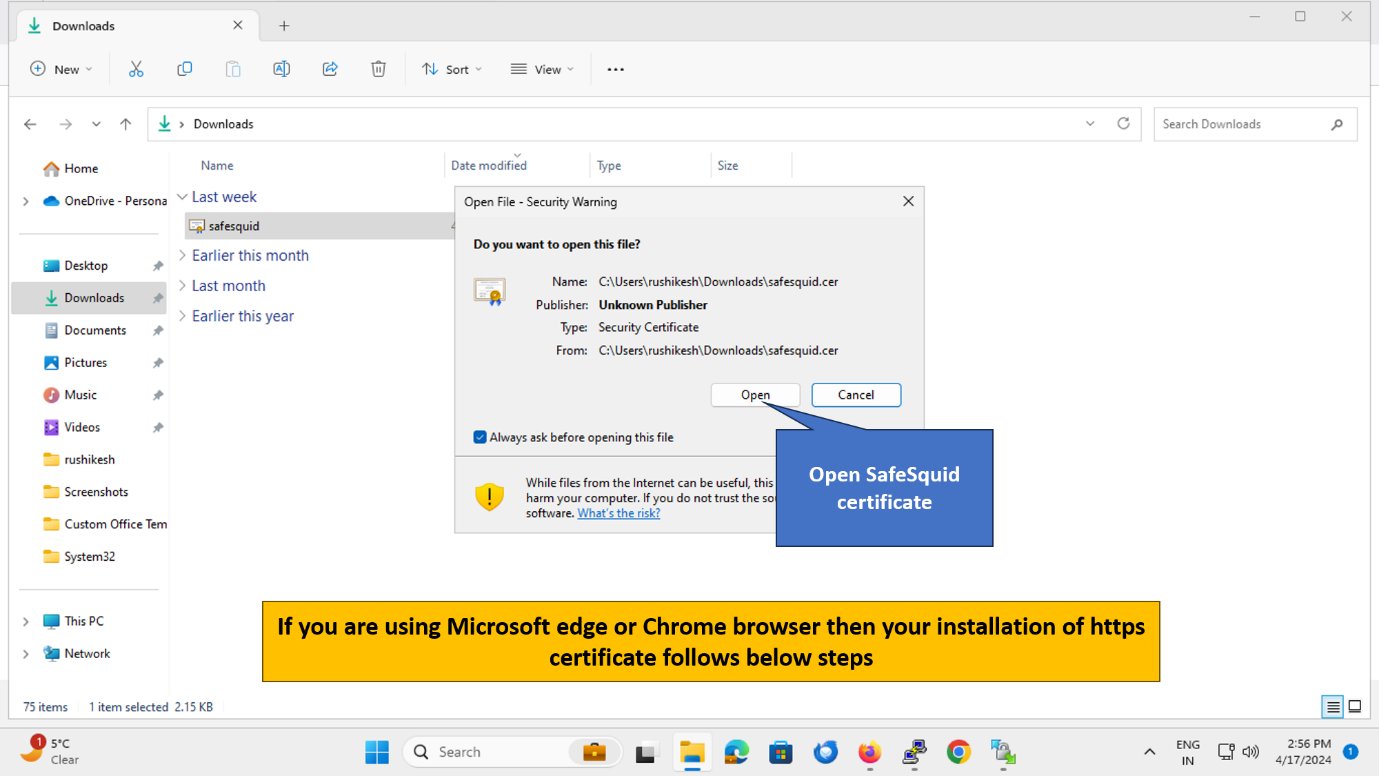
### 1. Open the Certificate File
Double-click the downloaded SafeSquid certificate file (usually `safesquid.crt` or `safesquid.cer`).
 ***
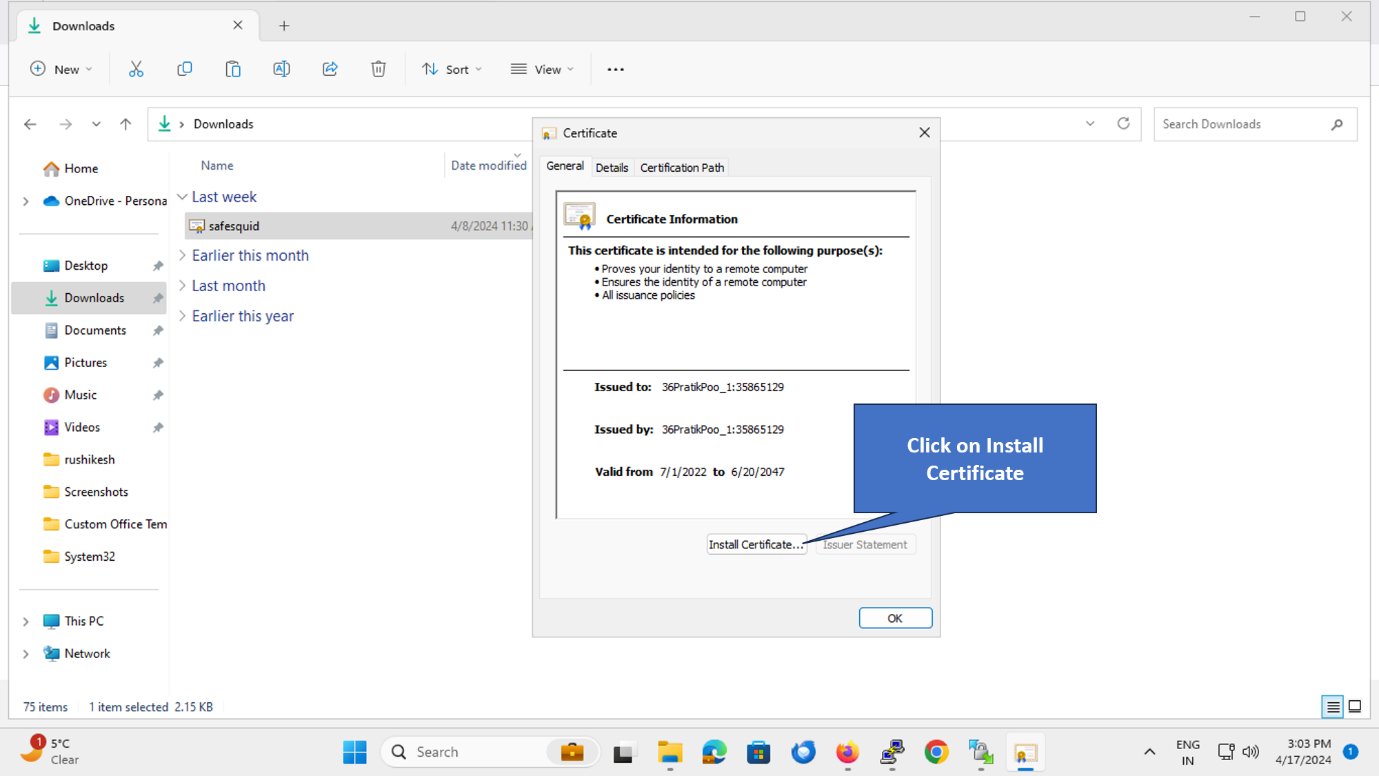
### 2. Click "Install Certificate"
***
### 2. Click "Install Certificate"
 ***
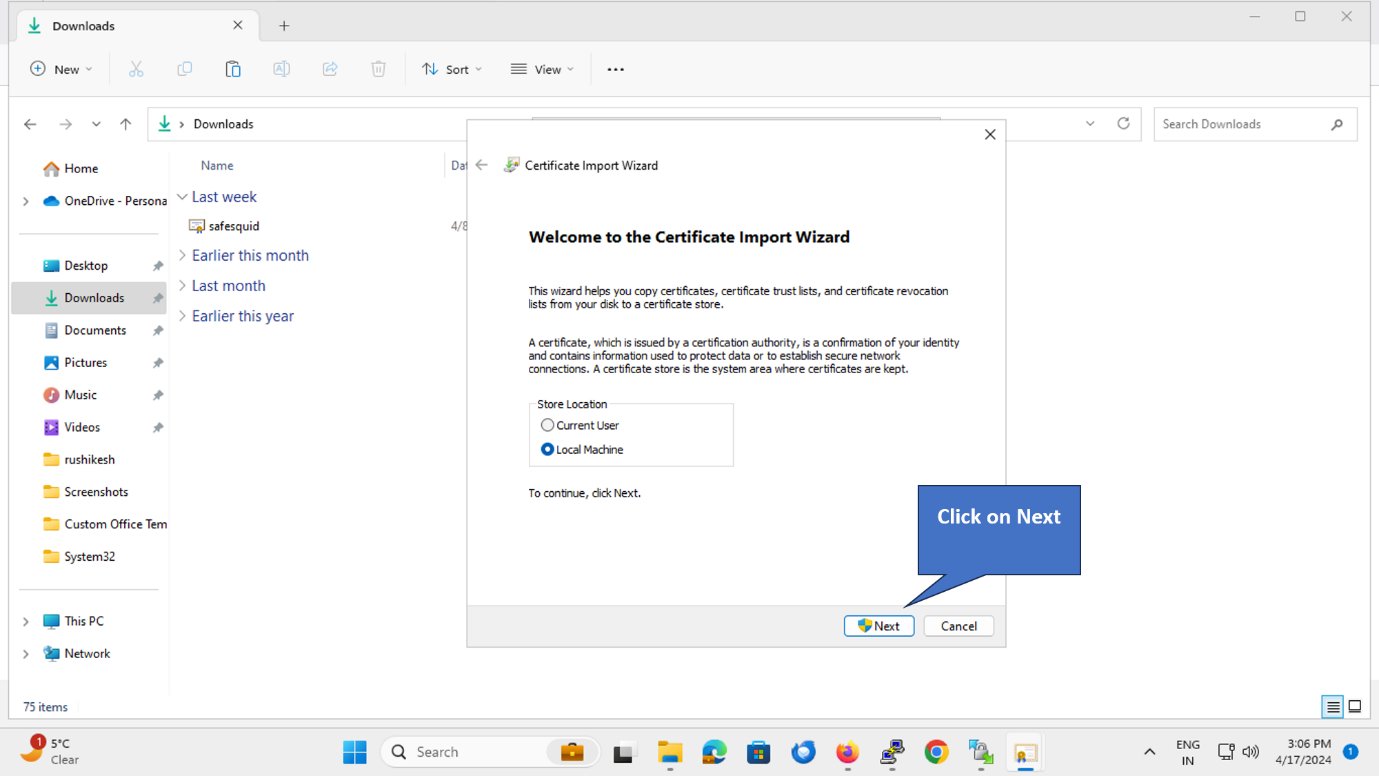
### 3. Select Store Location
Choose **"Local Machine"** (for all users on this computer) or **"Current User"** (for your account only).
**Recommended:** Local Machine (requires admin rights, applies to all users)
Click **Next**.
***
### 3. Select Store Location
Choose **"Local Machine"** (for all users on this computer) or **"Current User"** (for your account only).
**Recommended:** Local Machine (requires admin rights, applies to all users)
Click **Next**.
 ***
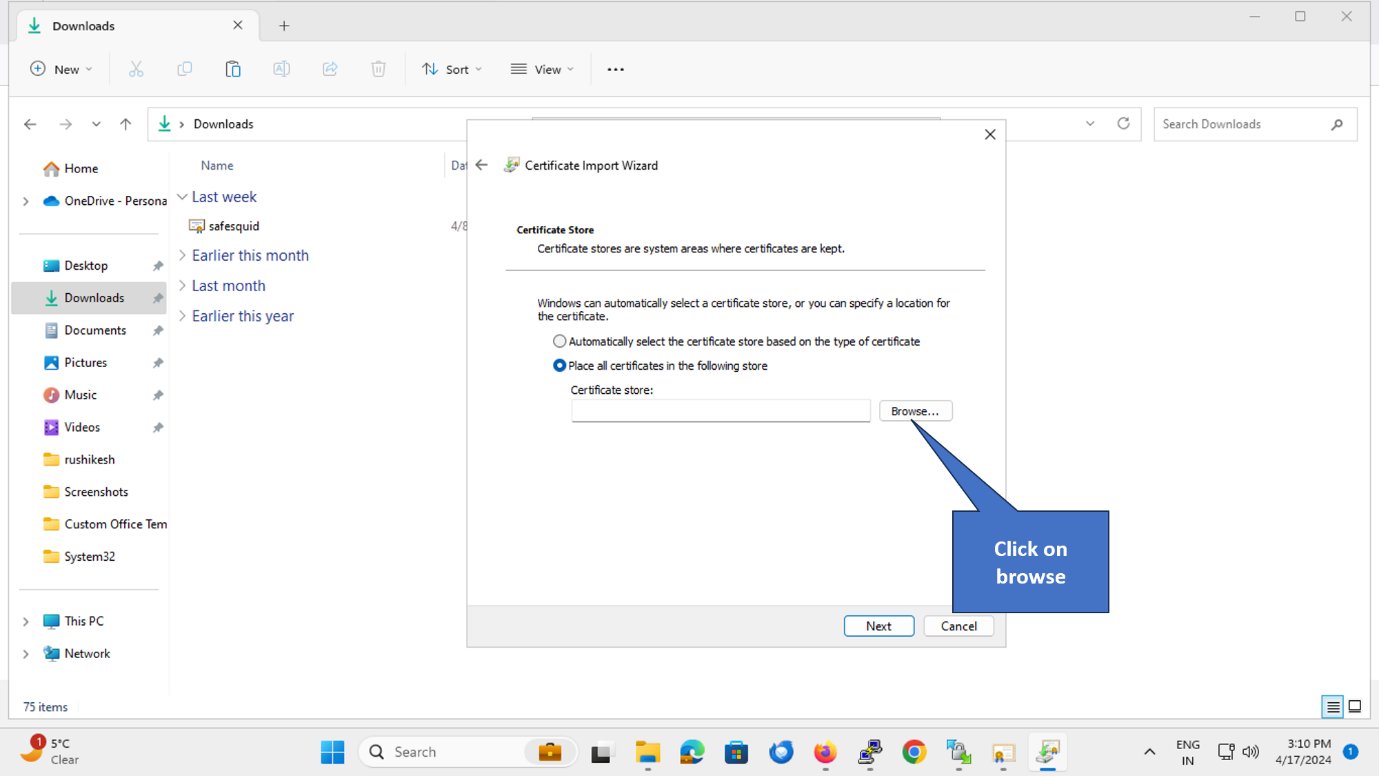
### 4. Select Certificate Store
Click **"Browse"** to select the certificate store.
***
### 4. Select Certificate Store
Click **"Browse"** to select the certificate store.
 ***
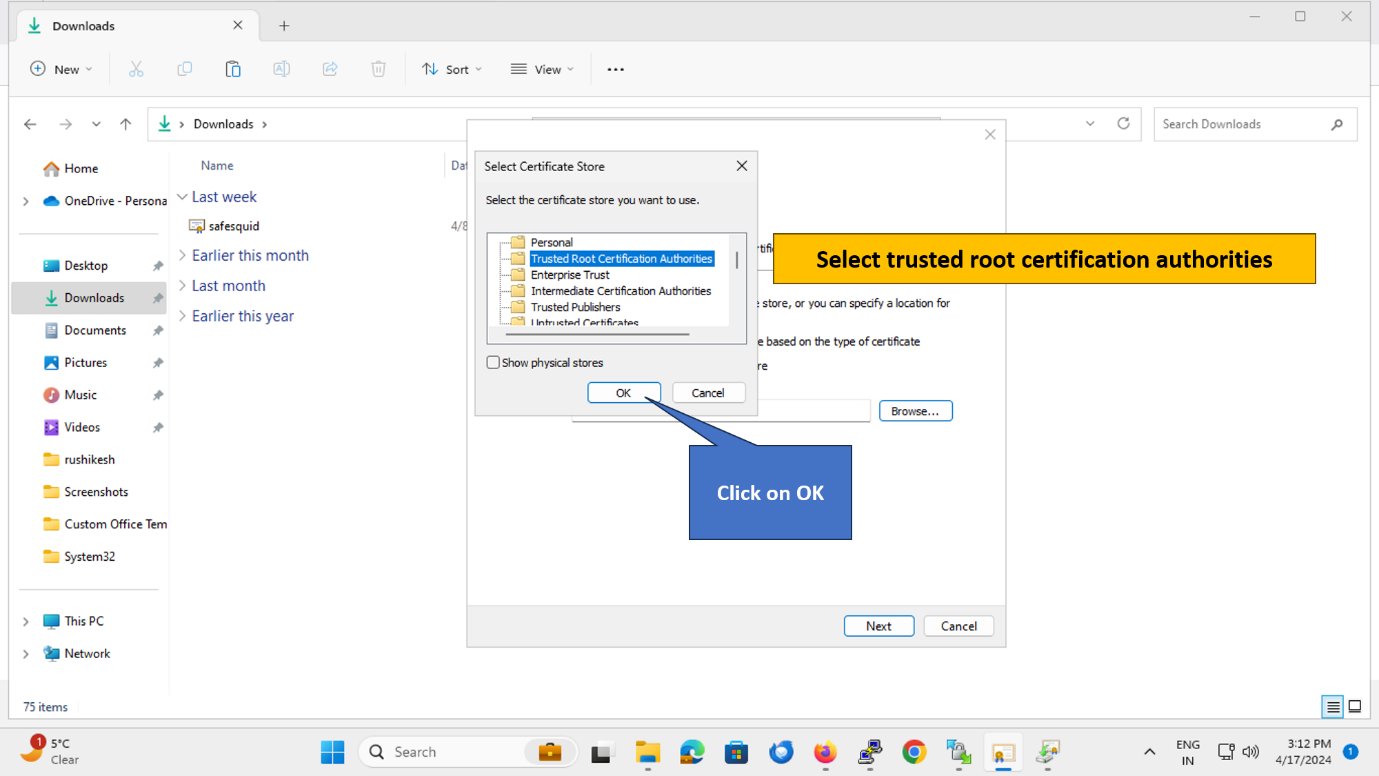
### 5. Choose "Trusted Root Certification Authorities"
**Important:** Select **"Trusted Root Certification Authorities"** (NOT "Intermediate Certification Authorities").
Click **OK**.
***
### 5. Choose "Trusted Root Certification Authorities"
**Important:** Select **"Trusted Root Certification Authorities"** (NOT "Intermediate Certification Authorities").
Click **OK**.
 ***
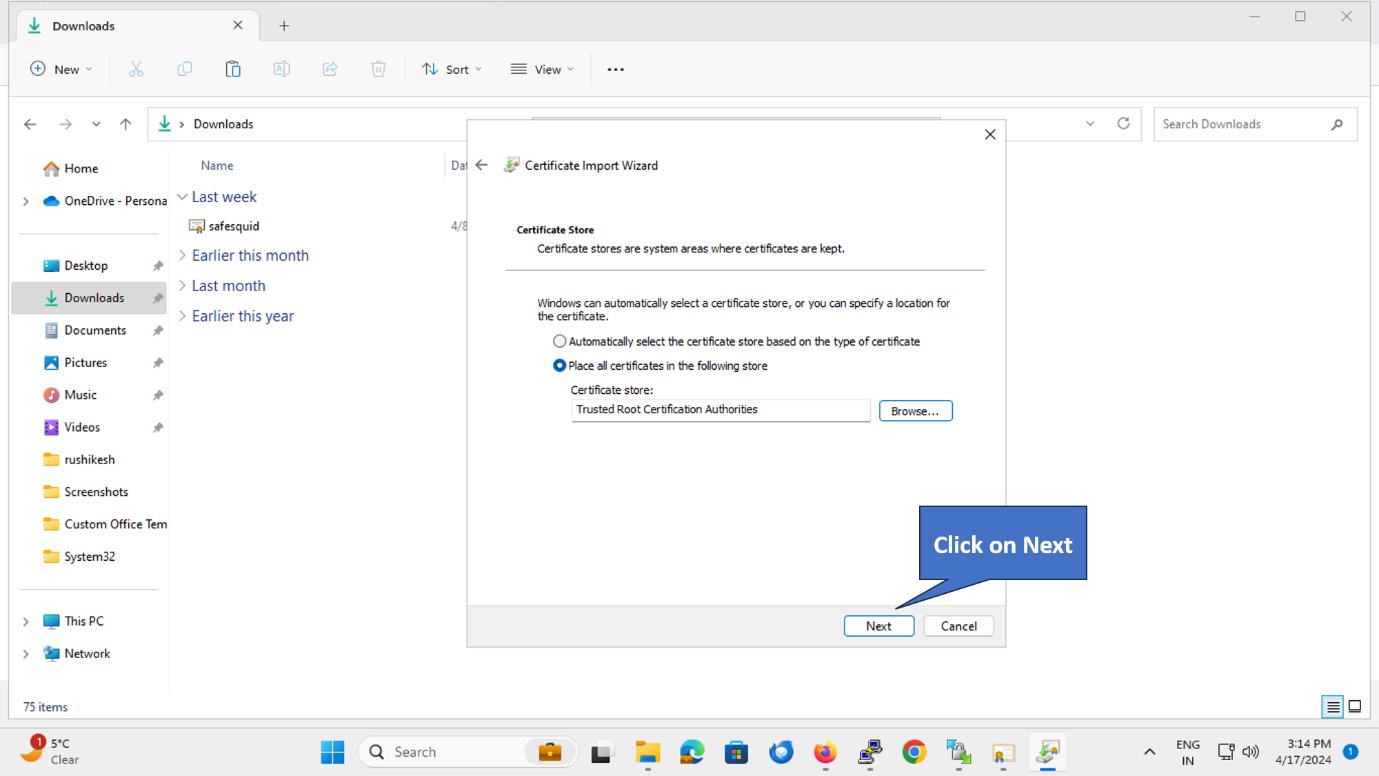
### 6. Continue with Import
Click **Next** to continue.
***
### 6. Continue with Import
Click **Next** to continue.
 ***
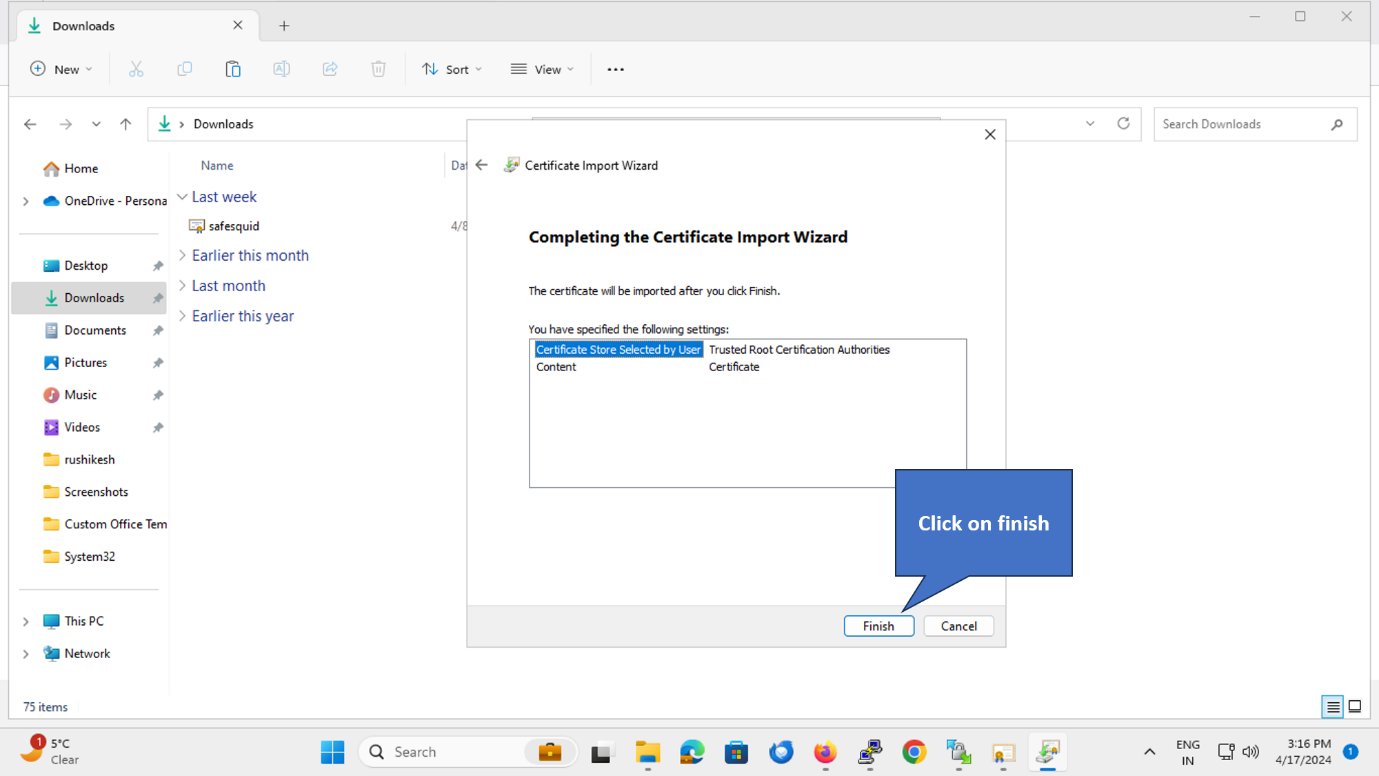
### 7. Finish Import
Click **Finish** to complete the import.
***
### 7. Finish Import
Click **Finish** to complete the import.
 ***
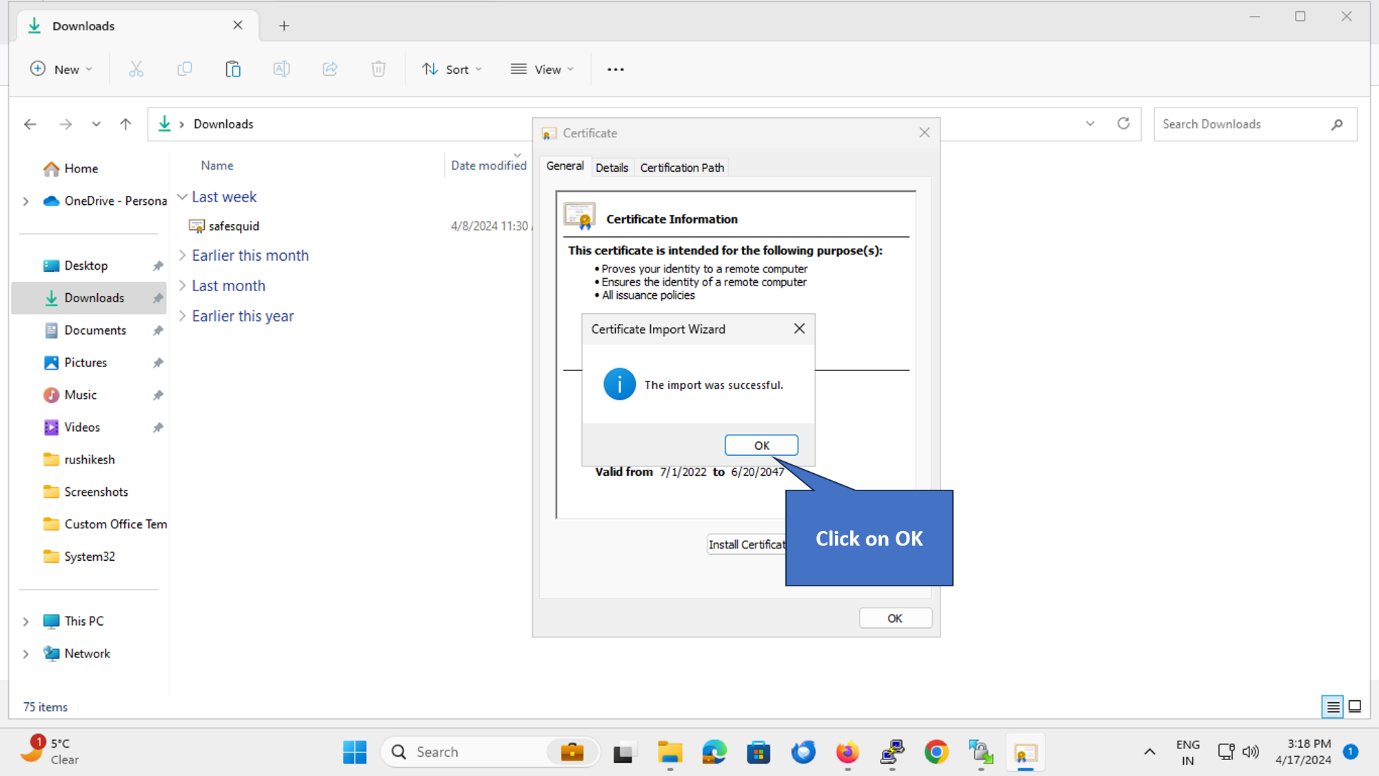
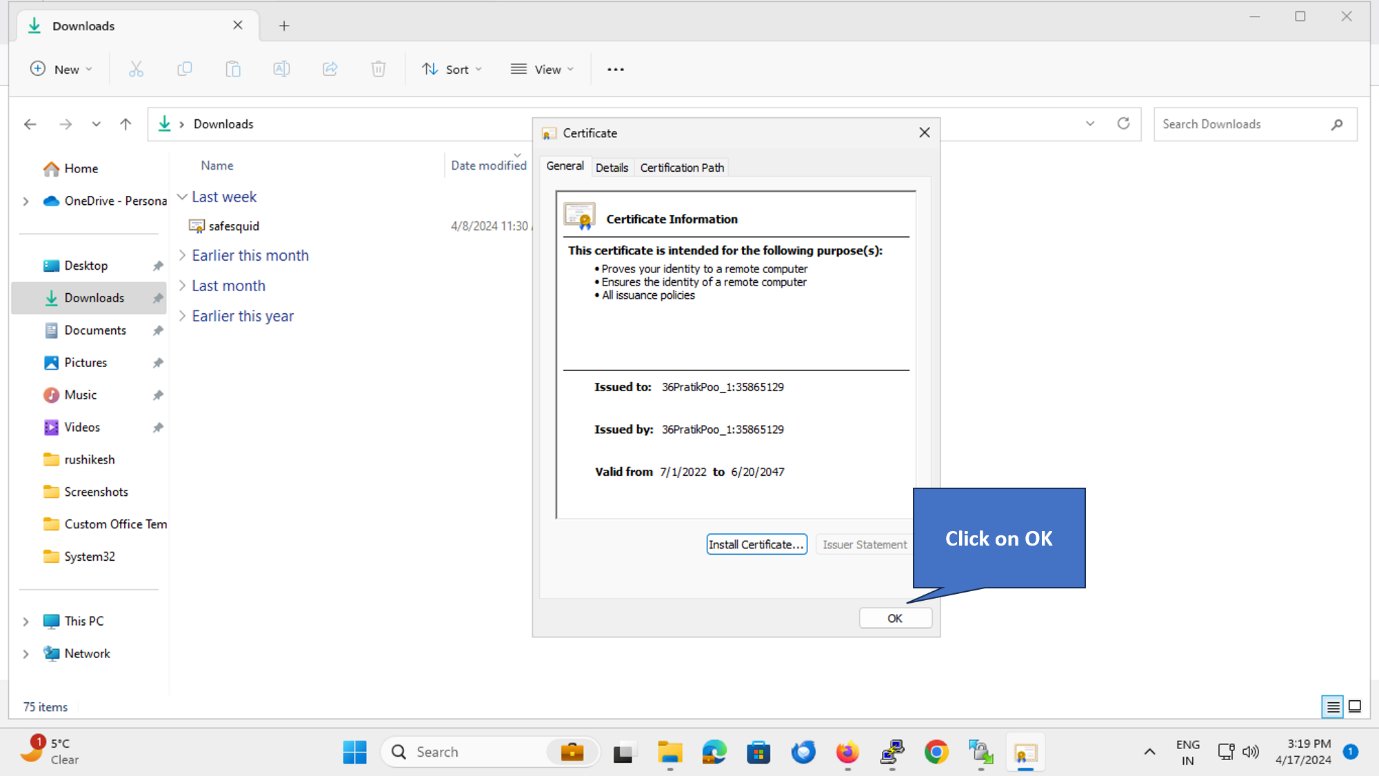
### 8. Confirm Success
A confirmation message appears: **"The import was successful."**
Click **OK**.
***
### 8. Confirm Success
A confirmation message appears: **"The import was successful."**
Click **OK**.
 ***
## Verify Installation
### Test in Chrome/Edge
1. **Open Chrome or Edge**
2. **Browse to** `https://www.google.com` (via SafeSquid proxy)
3. **Click the padlock** in the address bar → **Connection is secure** → **Certificate**
4. **Verify:** Certificate chain shows SafeSquid Root CA as the issuer
**Expected:** No certificate warnings, padlock shows secure connection.
***
### Verify Certificate is in Trust Store
1. **Press Windows + R** → Type `certmgr.msc` → **Enter**
2. **Expand** "Trusted Root Certification Authorities" → **Certificates**
3. **Find** "SafeSquid" (or your organization name) in the list
**Expected:** SafeSquid certificate appears with expiry date and issuer information.
## Operational note
For enterprise rollouts, GPO or another managed certificate-deployment path is safer than manual import because it reduces inconsistency across users and machines.
***
## Troubleshooting
| **Issue** | **Likely Cause** | **Fix** |
| ------------------------------------ | --------------------------------------------------- | -------------------------------------------------------------------------------------- |
| Still seeing certificate warnings | Certificate installed in wrong store | Verify certificate is in **Trusted Root Certification Authorities** (not Intermediate) |
| "Windows cannot access the file" | No admin privileges | Right-click certificate → **Run as administrator** |
| Import succeeds but warnings persist | Browser cache | Clear browser cache and restart browser: `chrome://settings/clearBrowserData` |
| Certificate not visible in certmgr | Installed for Current User instead of Local Machine | Re-install, select "Local Machine" in step 3 |
| Some sites work, others don't | HTTPS Inspection not enabled or partial bypass | Check SafeSquid Configuration Portal → HTTPS Inspection → Global = True |
**Still not working?**
1. **Restart browser completely** (close all windows)
2. **Check proxy settings:**
* Chrome: `chrome://net-internals/#proxy`
* Edge: `edge://net-internals/#proxy`
3. **Verify SafeSquid HTTPS Inspection is enabled:**
* Navigate to SafeSquid Configuration Portal
* Real-time Content Security → HTTPS Inspection → Global → Enabled = True
***
## Source register
| Topic | Status | Source |
| -------------------------------- | ------------- | ------------------------------------------------------------------------- |
| Windows Trusted Root import path | **Confirmed** | This guide, `certmgr.msc` |
| GPO deployment (tip) | **Draft** | Standard Windows CA deployment pattern; validate against org GPO practice |
***
## Next Steps
1. **[Configure HTTPS Inspection](/Configure_HTTPS_Inspection)** — Complete setup guide (if you haven't enabled inspection yet)
2. **[Import certificate into Firefox](/Configure_HTTPS_Inspection#import-certificate-into-firefox)** — Firefox uses separate trust store
3. **Deploy to all clients:**
* **Windows enterprise:** Use GPO (see tip at top of page)
* **macOS:** Use MDM or manual Keychain import
* **Mobile:** Use MDM or manual installation
4. **Verify your setup** — Confirm proxy and SSL Inspection are working
**Related:** [SSL Inspection Overview](/SSL_Inspection) | [Troubleshooting](/Troubleshooting)
## Related topics
- [SSL Inspection](/use_cases/ssl_inspection/ssl_inspection.md)
- [Configure HTTPS Inspection](/use_cases/ssl_inspection/configure_https_inspection.md)
- [SSL Certification Errors](/troubleshooting/ssl_inspection_issues.md)
- [Allow Outlook to Work Through SafeSquid](/use_cases/access_restriction/allow_outlook_to_work_through_safesquid.md)
- [Configure Cloud Restore](/use_cases/customisation/configure_cloud_restore.md)
***
## Verify Installation
### Test in Chrome/Edge
1. **Open Chrome or Edge**
2. **Browse to** `https://www.google.com` (via SafeSquid proxy)
3. **Click the padlock** in the address bar → **Connection is secure** → **Certificate**
4. **Verify:** Certificate chain shows SafeSquid Root CA as the issuer
**Expected:** No certificate warnings, padlock shows secure connection.
***
### Verify Certificate is in Trust Store
1. **Press Windows + R** → Type `certmgr.msc` → **Enter**
2. **Expand** "Trusted Root Certification Authorities" → **Certificates**
3. **Find** "SafeSquid" (or your organization name) in the list
**Expected:** SafeSquid certificate appears with expiry date and issuer information.
## Operational note
For enterprise rollouts, GPO or another managed certificate-deployment path is safer than manual import because it reduces inconsistency across users and machines.
***
## Troubleshooting
| **Issue** | **Likely Cause** | **Fix** |
| ------------------------------------ | --------------------------------------------------- | -------------------------------------------------------------------------------------- |
| Still seeing certificate warnings | Certificate installed in wrong store | Verify certificate is in **Trusted Root Certification Authorities** (not Intermediate) |
| "Windows cannot access the file" | No admin privileges | Right-click certificate → **Run as administrator** |
| Import succeeds but warnings persist | Browser cache | Clear browser cache and restart browser: `chrome://settings/clearBrowserData` |
| Certificate not visible in certmgr | Installed for Current User instead of Local Machine | Re-install, select "Local Machine" in step 3 |
| Some sites work, others don't | HTTPS Inspection not enabled or partial bypass | Check SafeSquid Configuration Portal → HTTPS Inspection → Global = True |
**Still not working?**
1. **Restart browser completely** (close all windows)
2. **Check proxy settings:**
* Chrome: `chrome://net-internals/#proxy`
* Edge: `edge://net-internals/#proxy`
3. **Verify SafeSquid HTTPS Inspection is enabled:**
* Navigate to SafeSquid Configuration Portal
* Real-time Content Security → HTTPS Inspection → Global → Enabled = True
***
## Source register
| Topic | Status | Source |
| -------------------------------- | ------------- | ------------------------------------------------------------------------- |
| Windows Trusted Root import path | **Confirmed** | This guide, `certmgr.msc` |
| GPO deployment (tip) | **Draft** | Standard Windows CA deployment pattern; validate against org GPO practice |
***
## Next Steps
1. **[Configure HTTPS Inspection](/Configure_HTTPS_Inspection)** — Complete setup guide (if you haven't enabled inspection yet)
2. **[Import certificate into Firefox](/Configure_HTTPS_Inspection#import-certificate-into-firefox)** — Firefox uses separate trust store
3. **Deploy to all clients:**
* **Windows enterprise:** Use GPO (see tip at top of page)
* **macOS:** Use MDM or manual Keychain import
* **Mobile:** Use MDM or manual installation
4. **Verify your setup** — Confirm proxy and SSL Inspection are working
**Related:** [SSL Inspection Overview](/SSL_Inspection) | [Troubleshooting](/Troubleshooting)
## Related topics
- [SSL Inspection](/use_cases/ssl_inspection/ssl_inspection.md)
- [Configure HTTPS Inspection](/use_cases/ssl_inspection/configure_https_inspection.md)
- [SSL Certification Errors](/troubleshooting/ssl_inspection_issues.md)
- [Allow Outlook to Work Through SafeSquid](/use_cases/access_restriction/allow_outlook_to_work_through_safesquid.md)
- [Configure Cloud Restore](/use_cases/customisation/configure_cloud_restore.md)