> ## Documentation Index
> Fetch the complete documentation index at: https://docs.safesquid.com/llms.txt
> Use this file to discover all available pages before exploring further.
# Upgrade SafeSquid
> Upgrade SafeSquid SWG via Web GUI: prerequisites, cleanup, and applying the new tarball package.
# Upgrade SafeSquid application via Web GUI
## Choose the upgrade path
There are two upgrade paths, and they answer different problems. Run the OS upgrade first
where both are due — a SafeSquid version that needs newer kernel or library versions will
not install cleanly on an end-of-life base.
| Path | Use when | Guide |
| --------------- | ------------------------------------------------------------------------ | ----------------------------------------------- |
| Version upgrade | The OS is current and only the SafeSquid application needs updating | This page |
| OS upgrade | The base OS is end-of-life, or lacks versions a newer SafeSquid requires | [Upgrade Ubuntu](/use_cases/upgrade/os_upgrade) |
## Version upgrade scope and procedure
SafeSquid SWG upgrade is a newer version of the SafeSquid that offers a significant change or major improvement over your current version. Upgrade your SafeSquid to the latest version which may consists of bugfixes and enhancements. When you upload latest tarball of SafeSquid SWG from WebGUI monit service will automatically restart the SafeSquid service.
## Prerequisites
Monit service should be running and started on your SafeSquid server, you can check it by using below command from your SafeSquid server
```bash theme={null}
pidof monit
```
If you did not find pid of monit, run below command to Start the Monit service
```bash theme={null}
/etc/init.d/monit start
```
The partition size of /tmp/safesquid used must be less than 4%, you can check it by using below command
```bash theme={null}
df -kh
```
After executing the command last line of the output will be similar as shown below
```bash theme={null}
/dev/ram1 62M 1.3M 58M 3% /tmp/safesquid
```
Check the highlighted number which shows the actual usage, if it is greater than 4%, then remove the files from the folder /tmp/safesquid
You can remove files from /tmp/safesquid by going to that folder location using the command:
```bash theme={null}
cd /tmp/safesquid
```
Further delete all the files from the folder by using the command:
```bash theme={null}
rm -rf *
```
## Steps
### [Access the SafeSquid User Interface](/safesquid_swg/interface/configuration_portal)
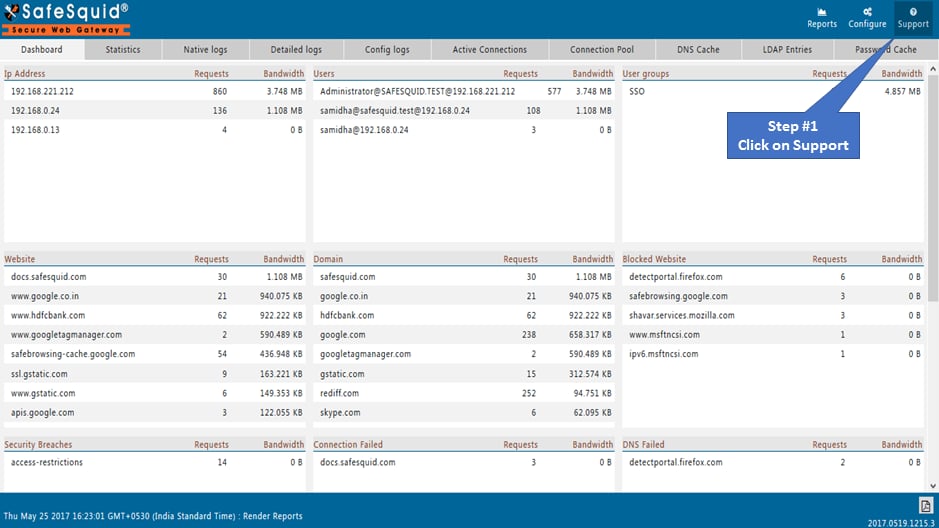
 ### Go to Support Page
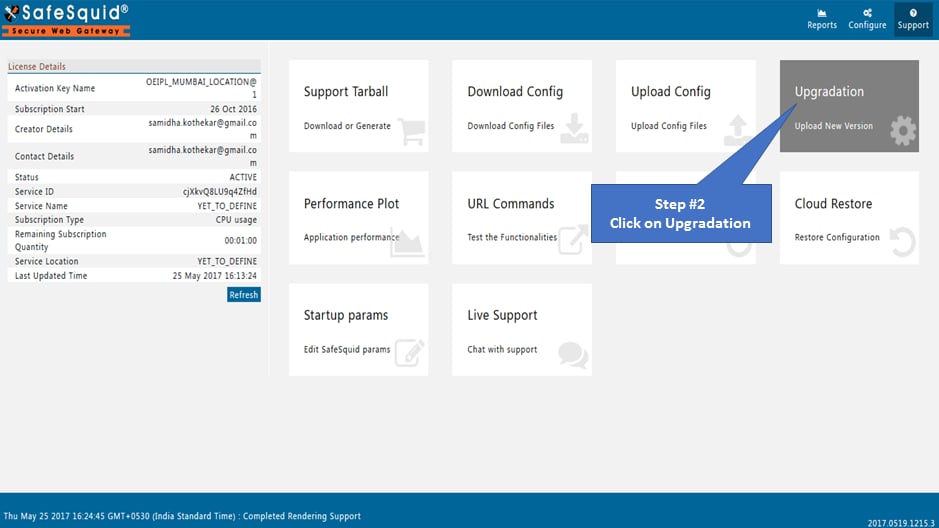
 ### Go to upgradation
:::note
Download the latest SafeSquid SWG tarball from here and save into your machine.
:::
### Go to upgradation
:::note
Download the latest SafeSquid SWG tarball from here and save into your machine.
:::
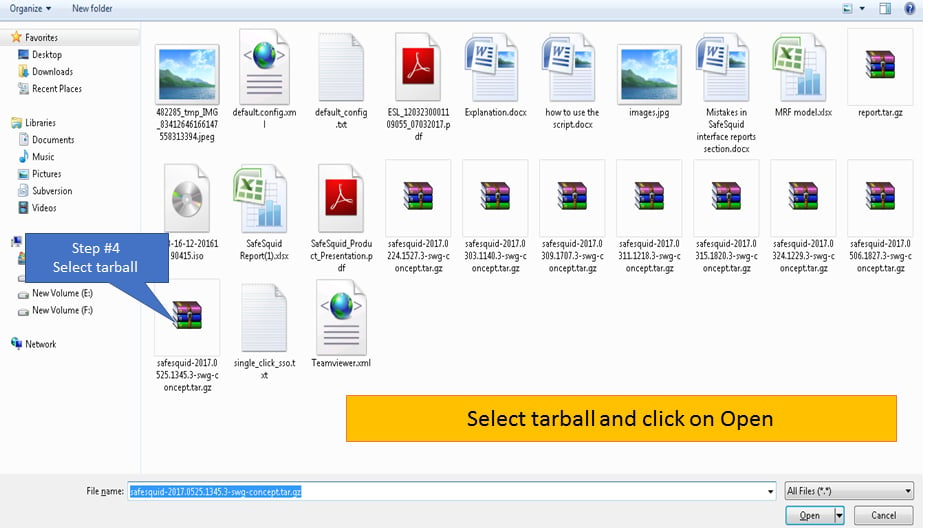
 ### Select new tarball
Select the latest SafeSquid tarball downloaded and saved in your machine before.
### Select new tarball
Select the latest SafeSquid tarball downloaded and saved in your machine before.
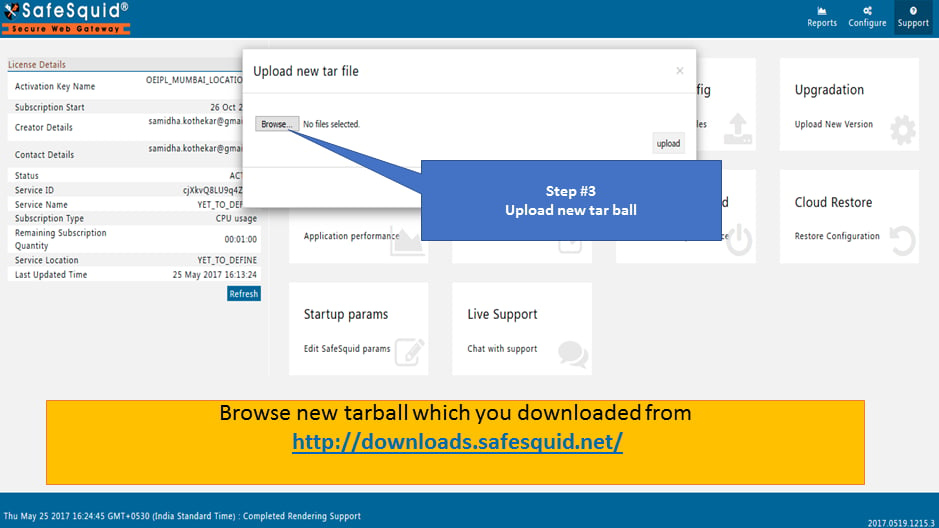
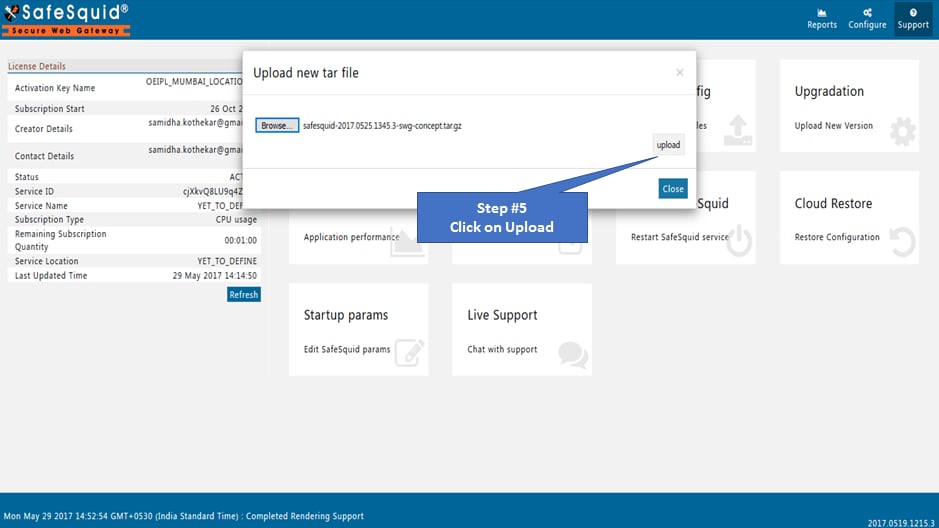
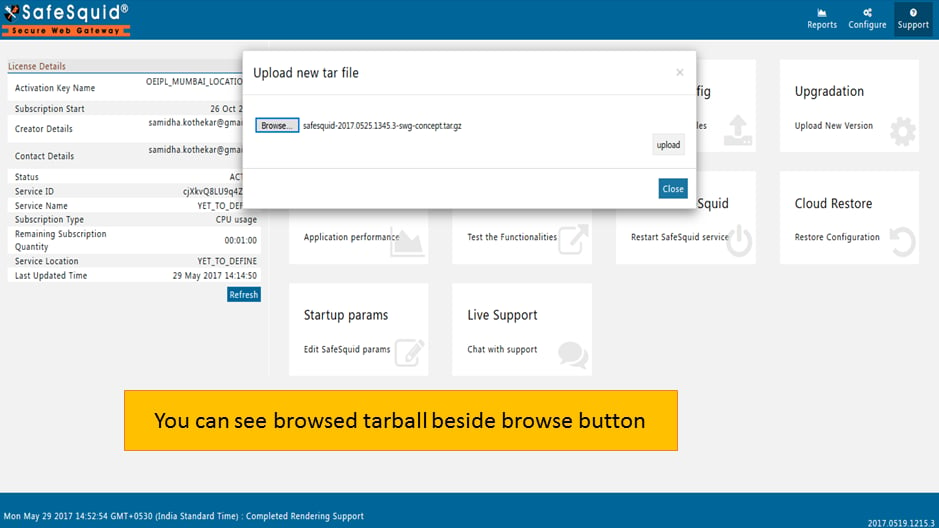 Click on upload button to upload new tar file.
 ## Testing Upgradation
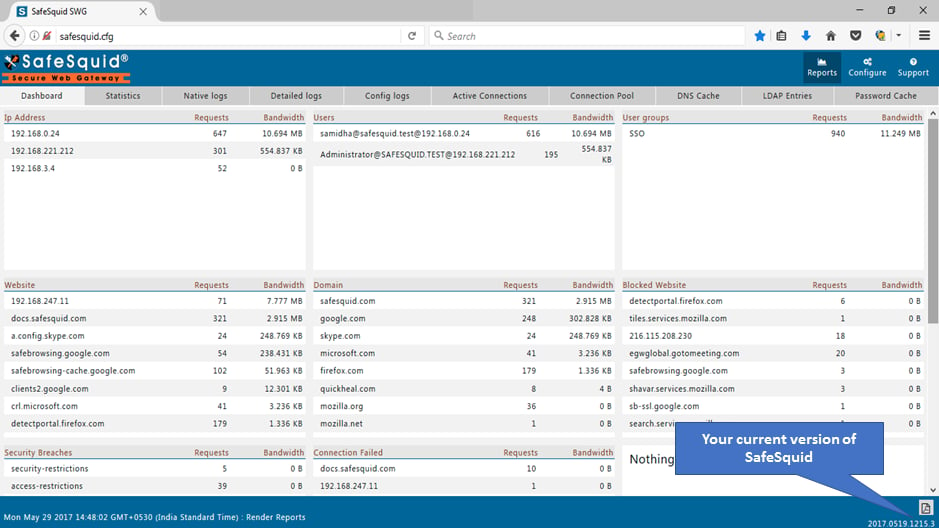
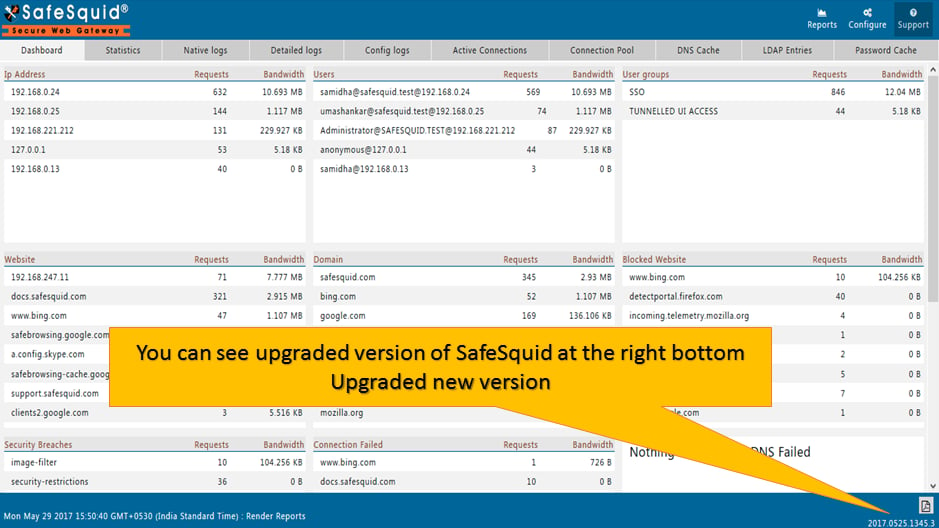
You can see upgraded version number of SafeSquid SWG at the bottom right corner of interface.
## Testing Upgradation
You can see upgraded version number of SafeSquid SWG at the bottom right corner of interface.
 ## Where should I get the latest version of SafeSquid to upgrade?
You can download **SafeSquid SWG for Windows** package from - [http://downloads.safesquid.net/SWG/windows/setup\_safesquid\_swg\_latest.exe](http://downloads.safesquid.net/SWG/windows/setup_safesquid_swg_latest.exe)
You can download **SafeSquid SWG for Linux** package from - [http://downloads.safesquid.net/appliance/binary/safesquid\_latest.tar.gz](http://downloads.safesquid.net/appliance/binary/safesquid_latest.tar.gz)
## Related topics
- [Welcome to SafeSquid](/getting_started/welcome.md)
- [SafeSquid daemon](/admin_guide/start_here/daemon.md)
- [Upgrade Ubuntu](/use_cases/upgrade/os_upgrade.md)
- [Monit Service Governance](/safesquid_swg/interface/supporting_services_monit.md)
- [Application Binaries and Modules](/safesquid_swg/files_and_folders/application_binaries_and_modules.md)
## Where should I get the latest version of SafeSquid to upgrade?
You can download **SafeSquid SWG for Windows** package from - [http://downloads.safesquid.net/SWG/windows/setup\_safesquid\_swg\_latest.exe](http://downloads.safesquid.net/SWG/windows/setup_safesquid_swg_latest.exe)
You can download **SafeSquid SWG for Linux** package from - [http://downloads.safesquid.net/appliance/binary/safesquid\_latest.tar.gz](http://downloads.safesquid.net/appliance/binary/safesquid_latest.tar.gz)
## Related topics
- [Welcome to SafeSquid](/getting_started/welcome.md)
- [SafeSquid daemon](/admin_guide/start_here/daemon.md)
- [Upgrade Ubuntu](/use_cases/upgrade/os_upgrade.md)
- [Monit Service Governance](/safesquid_swg/interface/supporting_services_monit.md)
- [Application Binaries and Modules](/safesquid_swg/files_and_folders/application_binaries_and_modules.md)