

Fix Whitelisted Websites That Are Still Blocked
Whitelisted Websites Blocked can interrupt web access, policy enforcement, or evidence collection. Use this runbook to restore service, preserve logs, and prove the corrective action during security review.Whitelisted sites still blocked
Company policy blocks the social network category for all employees, but a few social networking sites must be whitelisted. Those sites are added to the whitelist category yet still show a block template. Similarly, after whitelisting the corporate website, employees can still fail to access it.
Note: Whitelist category is the category to allow. Blacklist category is the category to block.
Enable sscore and add site to whitelist category
Ensure the sscore section is enabled and the categorization engine is loaded. Verify from the SafeSquid Statistics page in the interface. See the Reporting Module. Add the corporate website to the whitelist category from Custom Settings -> Categorize Web-sites in the SafeSquid UI.Procedure
- Access the SafeSquid interface
- Go to configure page
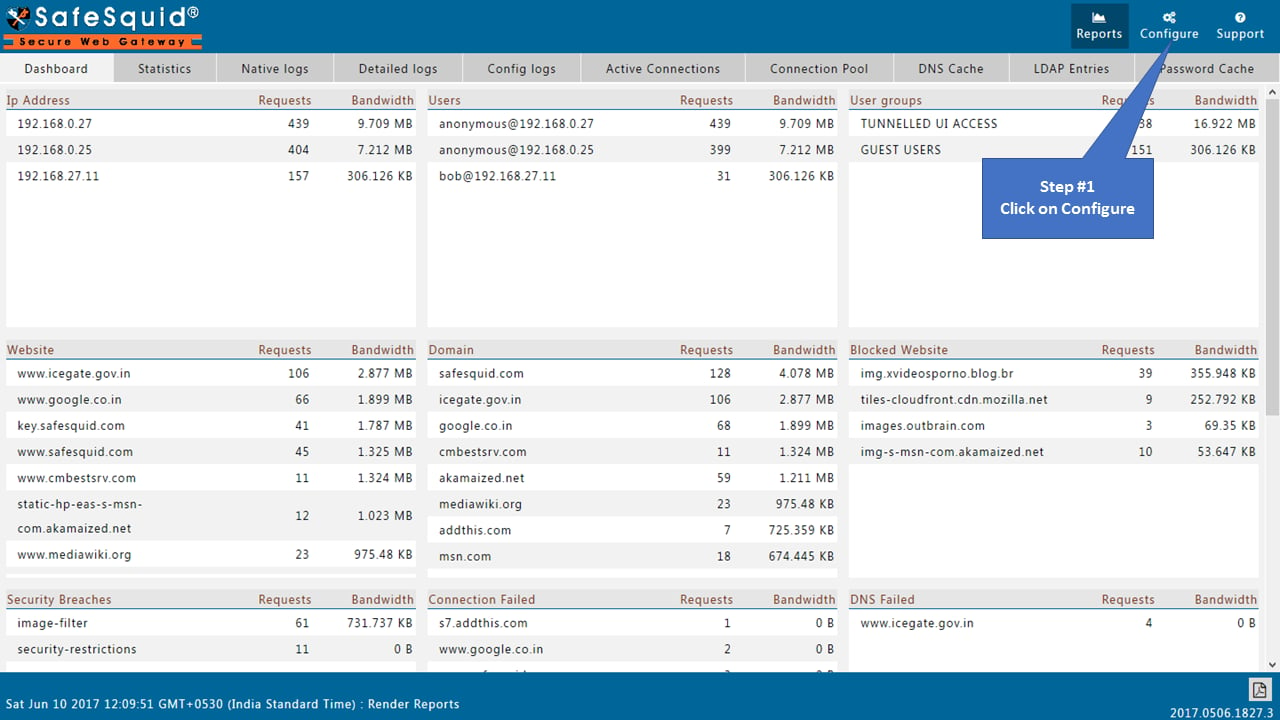
- Go to the Categorize Web-sites section under Custom Settings and search website/domain from the search for category option.
- Modify that website with a whitelist category. (A whitelist is a custom category that is made to allow blocked websites)
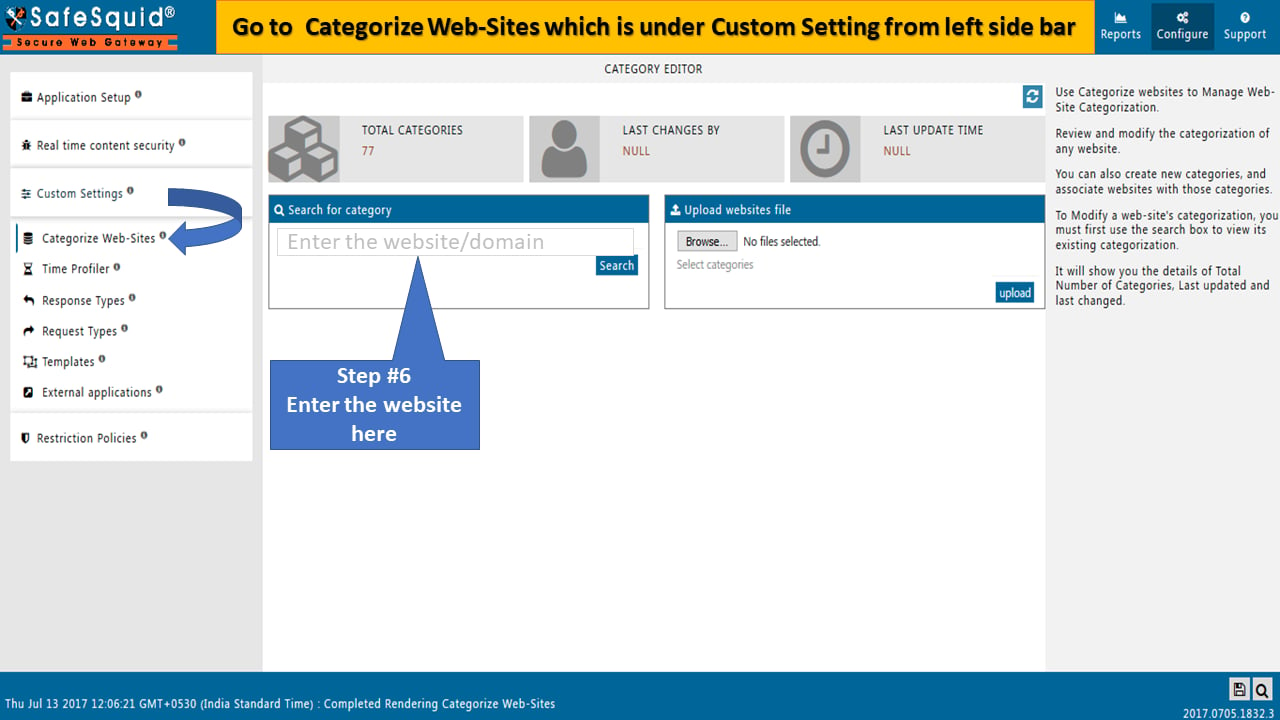
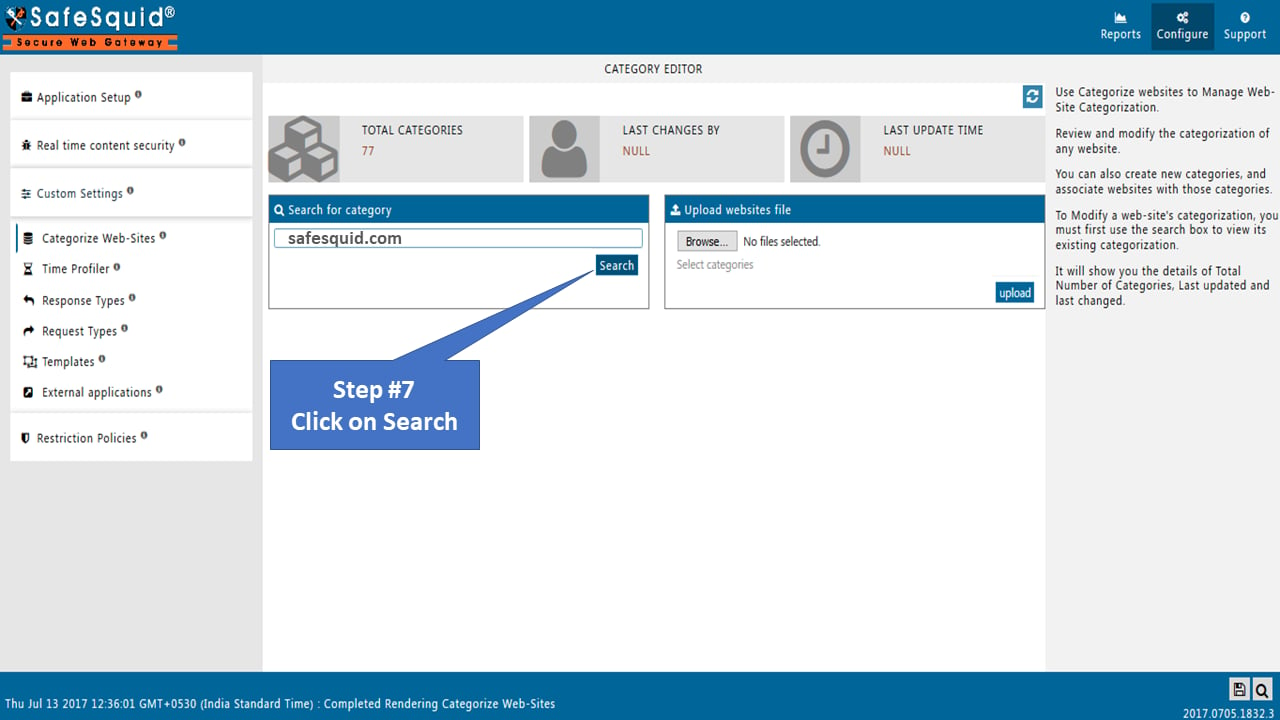
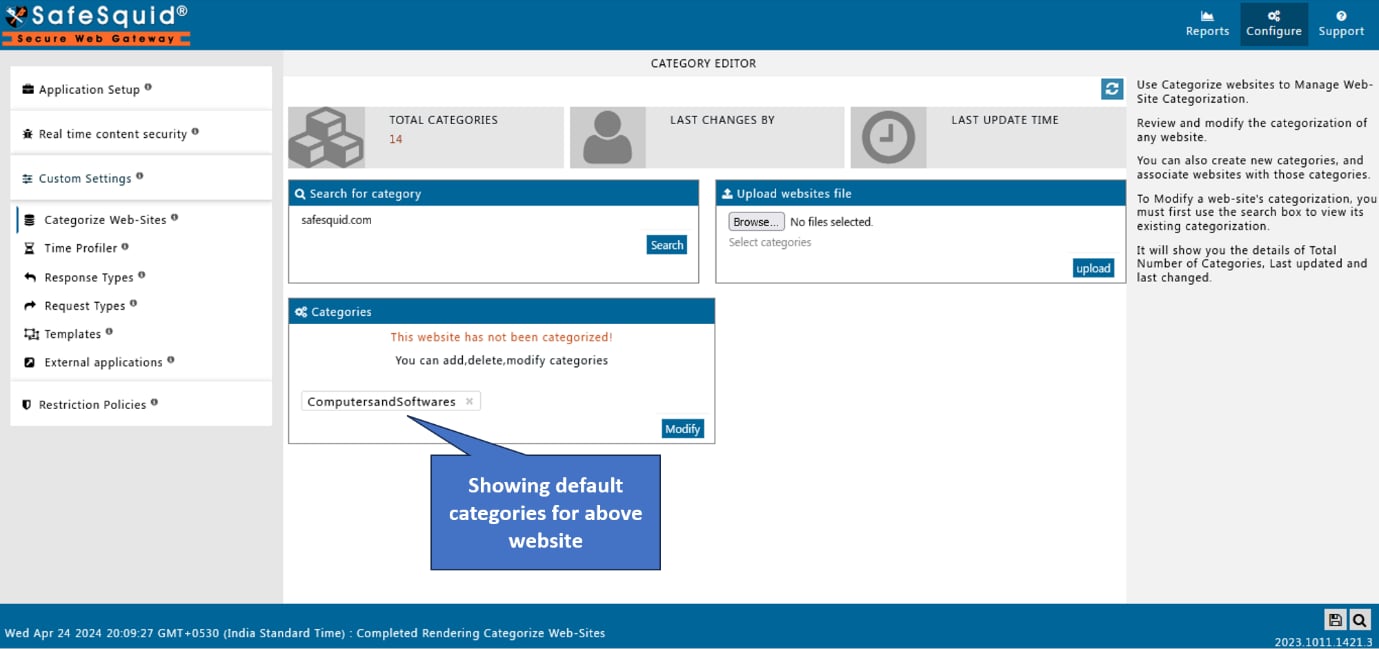
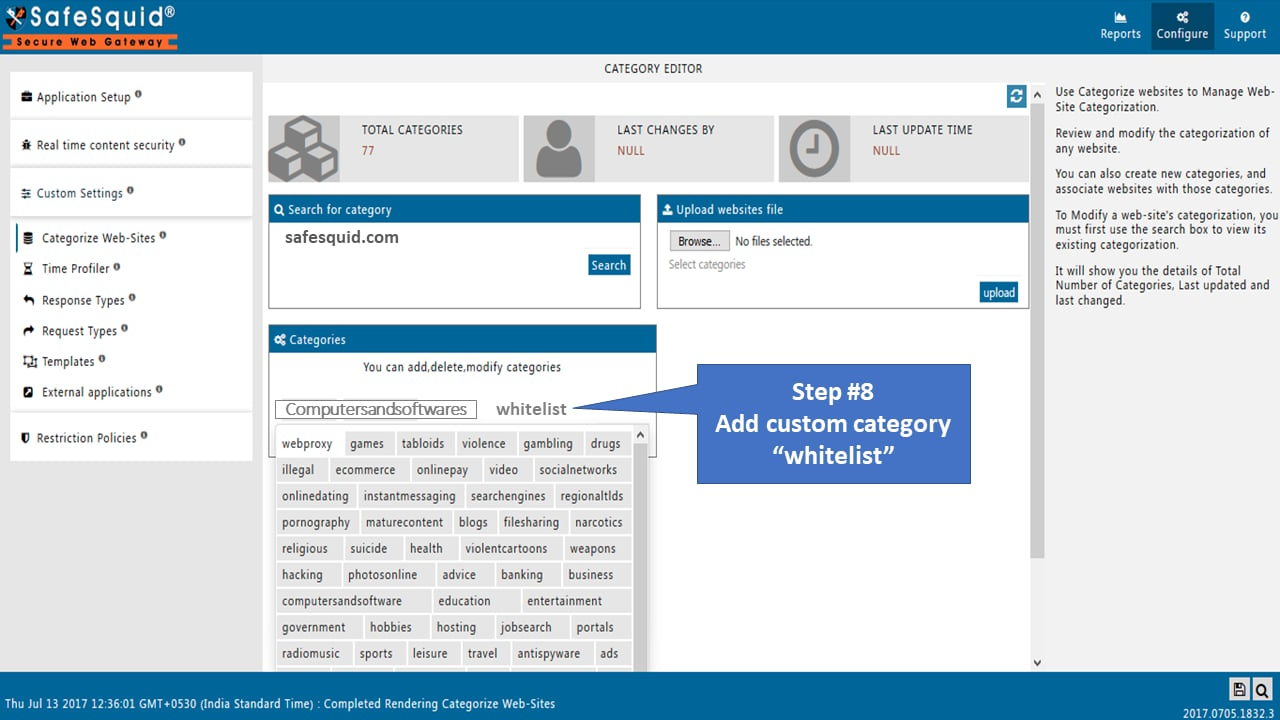
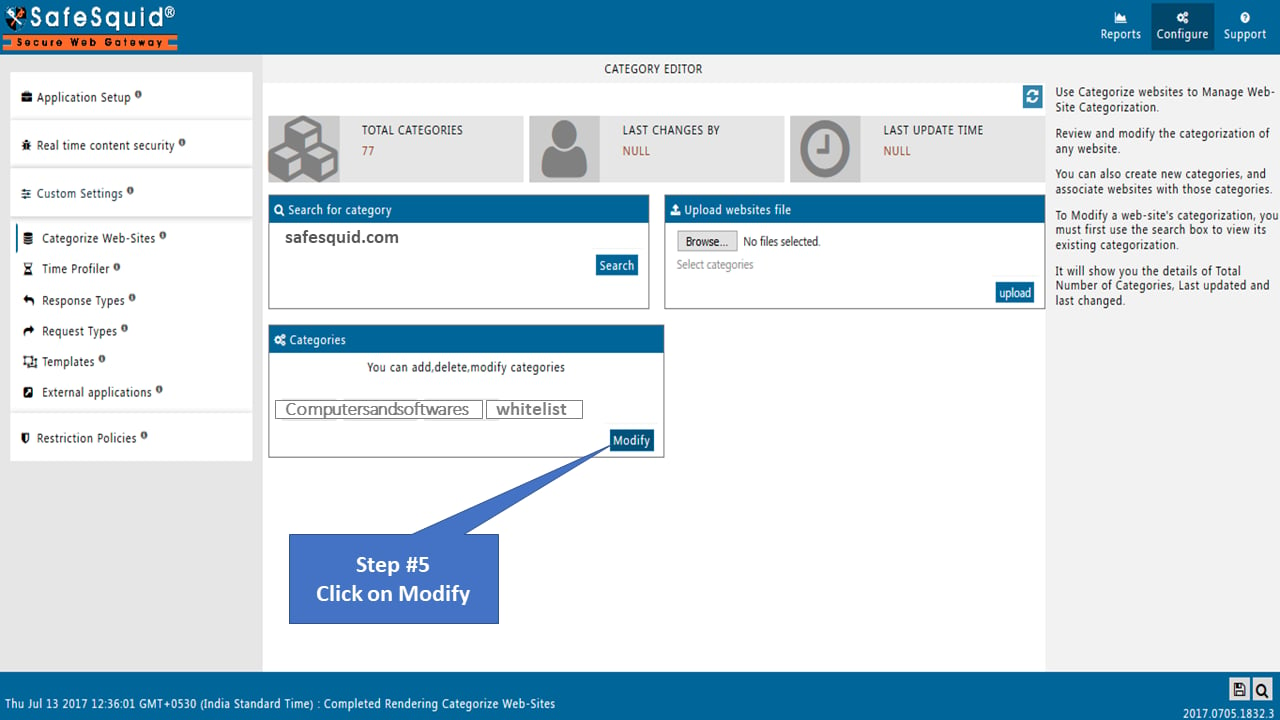
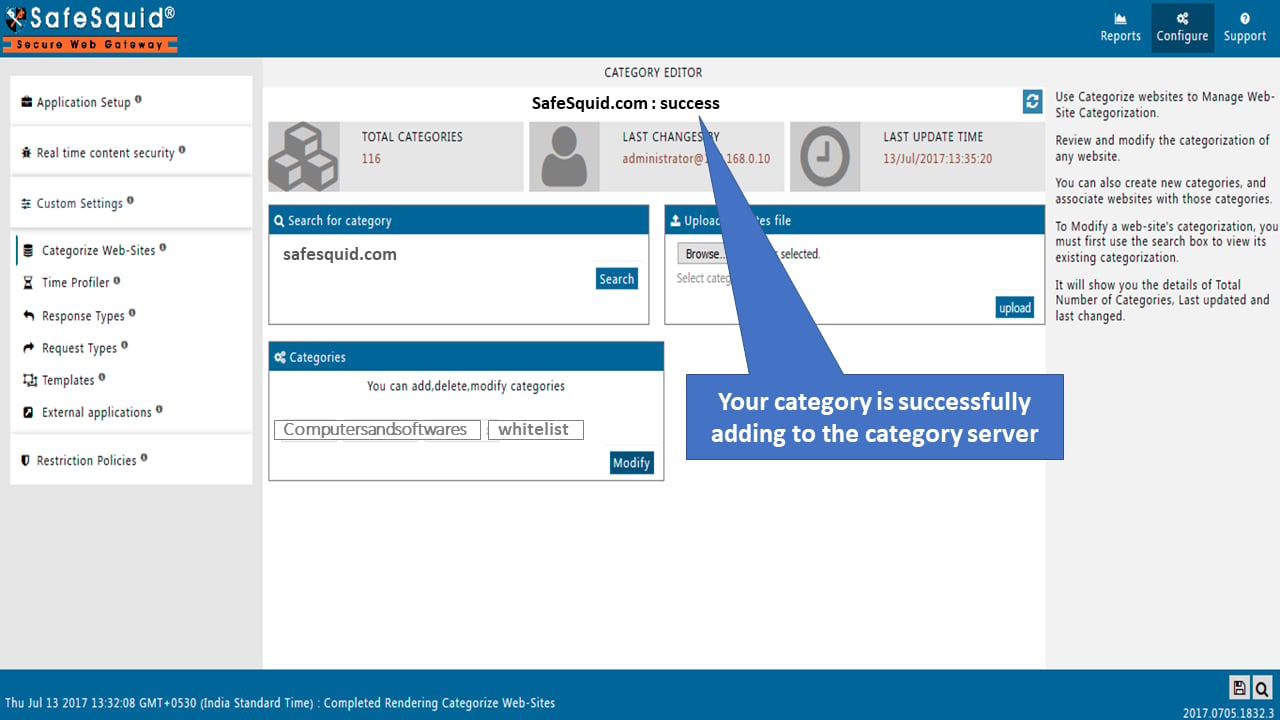
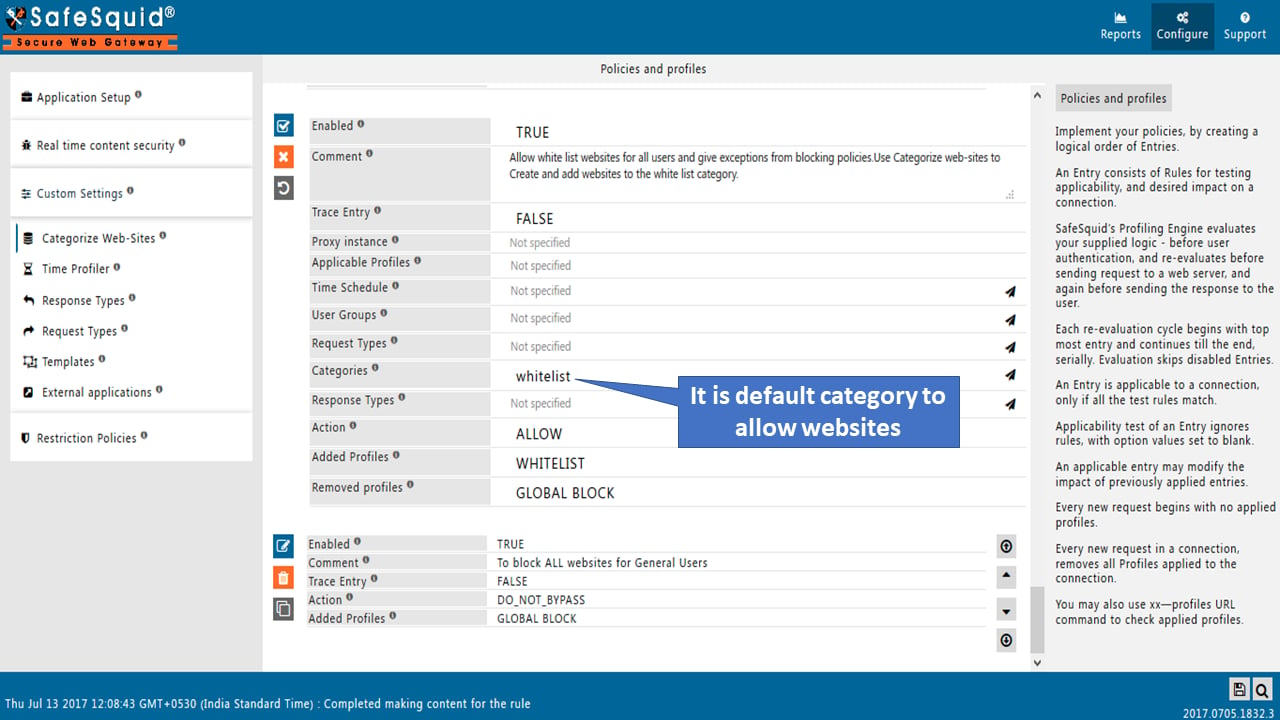
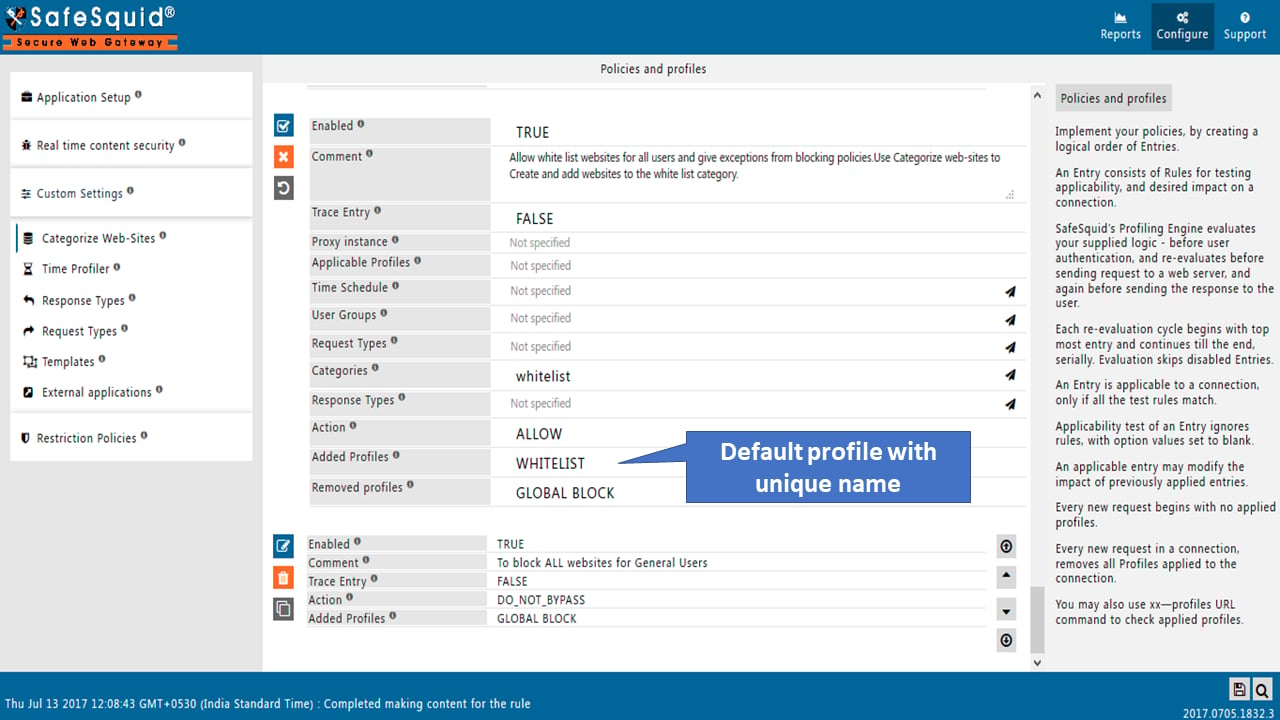
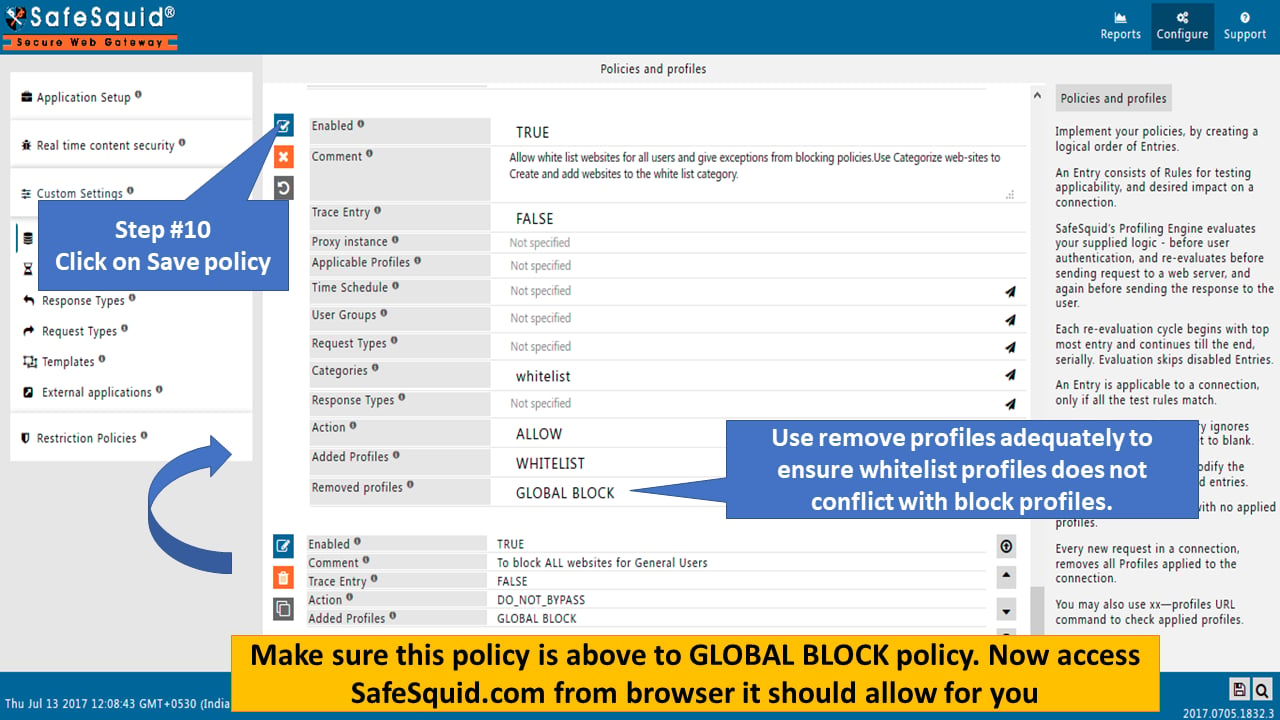
- Go to Access profiles for default policy and verify whether the policy is enabled or not. (Make it enabled)
Verification and Evidence
- Interface Checks: In Configuration Portal, Custom Settings -> Categorize Web-sites: site shows whitelist category. Restriction Policies -> Access profiles: default whitelist policy is enabled and above GLOBAL BLOCK.
- Log Analysis: Access logs show allowed response for the whitelisted URL; no block template or category block for that domain.
- Performance Validation: From a client, open the whitelisted site; page loads without block template.
Capture useful evidence
Collect evidence before restarting services or changing policy. Keep screenshots, command output, and relevant SafeSquid logs with the incident ticket.[thread or request id] and a module name such as network:.
Record the affected user, source IP address, requested URL, timestamp, browser error, SafeSquid policy section changed, and verification result.
Next steps
- Use Find a complete connection log to trace a specific client transaction.
- Use Troubleshooting for the broader diagnostic checklist.
- Use Custom Categorization Not Working to fix custom categorization that does not apply.