

Apply Policy by Time With the Time Profiler
The Time Profiler section tags connections with time labels from the appliance local clock. Access Profiles Time Schedule matches these tags. Every enabled entry that matches applies — this is not first-match-wins — and a later entry’s condition can even depend on a label an earlier entry just added. Time Profiler runs early in request processing, before Request Types and Access Profiles. So its labels are already available by the time those sections evaluate the connection.Core mechanics
Row gate order
- Time Profiles prerequisite tags (
profile_find). - Weekday range — always enforced (Sunday = 0 … Saturday = 6).
- Match mode — ABSOLUTE timestamp window or ALL RANGES (month + day + minutes-from-midnight).
- Add/remove time labels — Added Time profiles apply before Removed Time profiles on the same entry.
Match modes
- ABSOLUTE — Single start/end timestamp from configured month, day, hour, minute fields.
- ALL RANGES — Current month, day-of-month, and time-of-day must each fall in inclusive windows.
Schema Fields
Global fields
- Enabled — off: no labels are added or removed for any connection, and downstream Time Schedule matching has nothing to see.
Entry fields
- Enabled (
enabled) — disabled entries are skipped entirely. - Comment (
comment) — an operator note describing why this entry exists. - Trace Entry (
profile_tracing) — logs each label this entry adds or removes to native logs. - Time Profiles (
timeprofiles) — a prerequisite gate on a label from an earlier entry;!negation supported; blank ignores it. - Month range, Day range, Weekday range, Hour range, Minute range — inclusive bounds. Combine into one minutes-since-midnight window in ALL RANGES mode, or all five together build the single start/end timestamp in ABSOLUTE mode.
- Time match mode — see Match modes above.
- Added Time profiles / Removed Time profiles — labels attached or taken off the connection when this entry matches.
Layering Time Profiles
Because every matching entry applies, a specific label can be built from a general one across several entries. An early entry adds a broad label likeweekend, a later entry restricts itself to connections already carrying weekend in its own Time Profiles field and adds a narrower label like weekend-evening on top. This lets Access Profiles gate on the specific label without repeating the weekday/hour logic downstream.
Examples
Open Configure → Custom Settings → Time Profiler → Time profiles. Row fields are Enabled, Comment, Trace Entry, Month/Day/Weekday/Hour/Minute range, Time match mode, and Added Time profiles.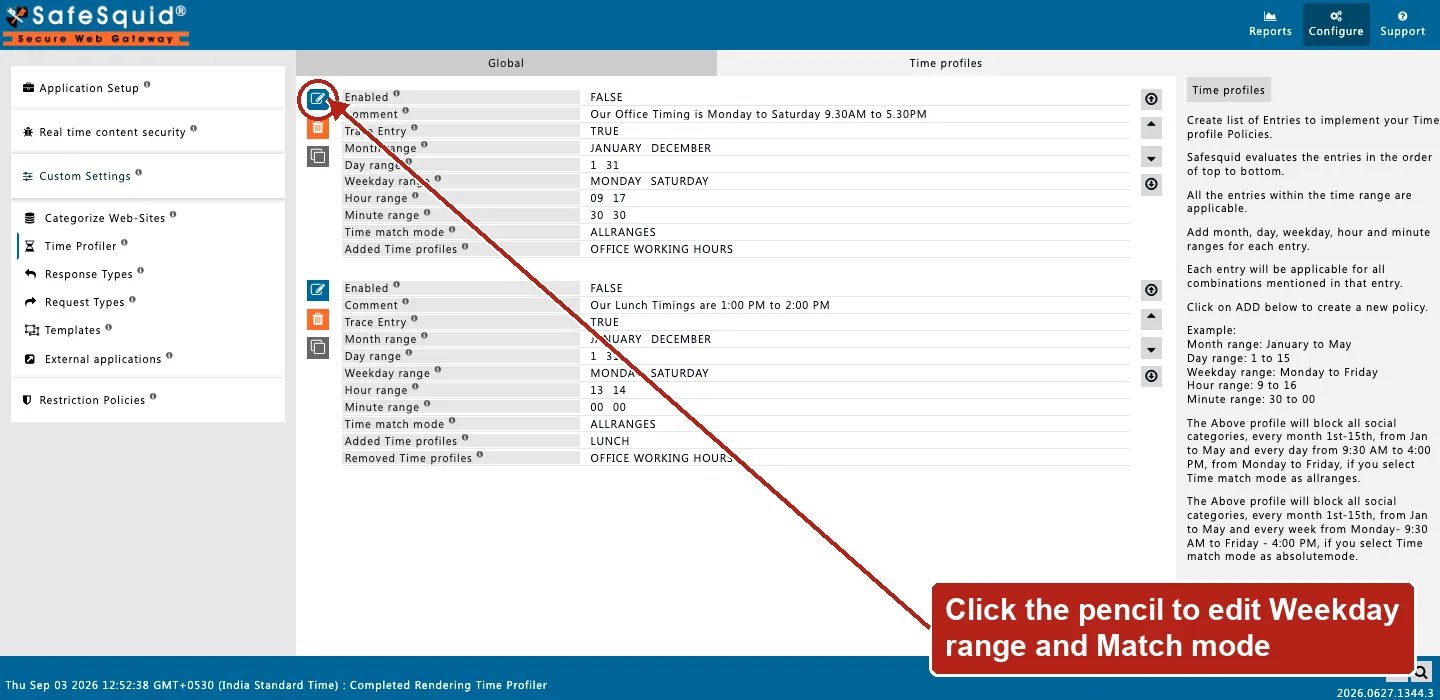
Time Profiler — Time profiles rows
How to verify
- Test inside and outside window with Trace Entry.
- Detailed logs
time_profilescolumn. - Confirm appliance timezone and clock.
Next steps
- Access Profiles - decide what each user can fetch by combining time, request type, response type, category, and group labels into ordered allow and deny rules.