

Block Content With the Text Analyzer
What does this section do?
TheKeywords-filtering section (safesquid-keywords-filtering(5)) scans the textual content of HTTP payloads for specific patterns and assigns scores to determine if the content should be blocked.
Cumulative scoring suits content that no single keyword proves is a problem. But that is clearly objectionable once several related terms appear on the same page — acceptable-use enforcement against gambling, adult, or extremist material.
Core Mechanics (C++ Source Validation)
Cumulative scoring, early exit at threshold.- Cumulative Scoring Engine: Unlike standard first-match modules, the keyword filter evaluates all enabled rules matching the connection profile. When a Regex keyword is matched, its defined
Scoreis added to a cumulative tally for that connection. - Early Exit: If the cumulative score breaches the Global Threshold (
if (x >= threshold)), scanning immediately stops to save CPU. - MIME Filtering: SafeSquid will only scan payloads whose
Content-Typematches the specifiedMime typeregular expression. - Enforcement: Once the threshold is breached, the connection action becomes DO NOT BYPASS, serving the specified block template and populating the
_SCORE_and_REASON_template variables.
Schema Fields
Global Fields
- Enabled (enabled): Turn Text analyzer on or off for all connections, unless the matching Access restrictions entry’s Bypass grants Text analyzer.
- Threshold (threshold): Minimum total score from matching rows to block. Block when total ≥ this value (strictly below = allow).
- Template (templ): Block page template when score ≥ Threshold. Blank uses blocked . Template receives SCORE and THRESHOLD variables.
Rule-Based Fields (Per Connection Tuning)
- Enabled (enabled): Skip this row when disabled. Rows with Score 0 or blank Keyword are never applied.
- Comment (comment): Notes for operators. Logged on match when non-empty.
- Profiles (profiles): Apply only when the connection has one of these profiles. Blank = all connections. Prefix ! to skip connections that have a profile.
- Mime type (mime): Regex on response Content-Type . Blank defaults to matching text (same as built-in text/css/javascript/xml/json family).
- Keyword(s) (keyword) — Regex searched in the response body. Required; blank Keyword skips the row. Example:
\b(gambling|casino)\b. One match adds Score once per scan pass for this row. - Score (score): Points added when this row’s keyword regex matches the body. Use 0 to disable the row. Negative values reduce the running total — useful for a keyword that should offset an otherwise-alarming score in a legitimate context, for example a news article that discusses a sensitive topic responsibly.
How SafeSquid processes the list
- During response processing, if any enabled row matches the response
Content-Type, SafeSquid buffers the body. - After the body is available, rows are walked top to bottom.
- Mime type regex must match
Content-Type. Blank mime defaults to matchingtext(same family as text/css/javascript/xml/json). - Keyword regex is searched in the buffered body; each match adds that row’s Score (negative scores reduce the total).
- Rows with Score 0 or blank Keyword are never applied.
- At or above Threshold: HTTP 451 block page, bypass disallowed, cache code
TCP_DENIED. The connection’s cache entry is marked so the blocked response is never served from cache.
Important entry fields
- Profiles — Apply only when the connection has one of these profiles. Blank = all connections. Prefix
!to skip connections that have a profile. - Mime type — Regex on response
Content-Type. Blank defaults to matchingtext. - Keyword(s) — Regex searched in the response body. Required; blank Keyword skips the row.
- Score — Points added when the keyword regex matches. Use 0 to disable the row. Negative values reduce the running total.
Examples
Open Configure → Real time content security → Text analyzer → Global for Enabled, Threshold, and Template. The Filtering policies row list is not screenshotted here — its shipped default keyword rows contain explicit search terms, unsuitable to publish verbatim.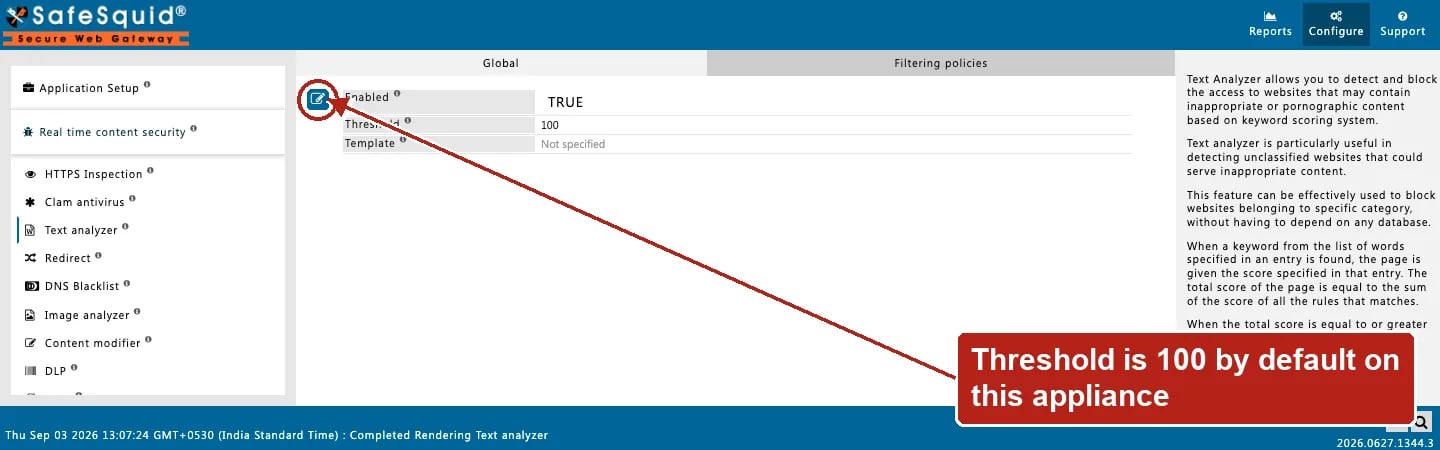
Text analyzer — Global fields
How to verify
- Fetch a test page through the proxy and confirm block vs allow against known body content.
- Check debug response header
X-Text-Analyzer(shows score vs threshold,Buffering Requestedwhen mime matched, orDisabledwhen the section is off for that connection). - Enable TEXT_ANALYZER in
LOG_LEVELfor nativematch:andblocked/allowedlines. - Open Reports → Detailed logs; blocked responses show
filter_namefor text analyzer and the score reason. - If a page you expect to be blocked passes through, check its actual
Content-Typefirst. A Mime type mismatch is the most common reason a response is never scanned.
Next steps
- DLP - inspect uploads and block sensitive data from leaving the network using MIME-based DLP policies and OCR text scoring.
- Image analyzer - score images in downloads and uploads, and replace any image that scores above the threshold with a block template.