

Cap Bandwidth Per Profile With Speed Limits
What does this section do?
TheLimits section allows administrators to constrain bandwidth, connection counts, and data transfer sizes on a per-profile basis.
It shares bandwidth fairly and stops any single user or profile from consuming too much capacity. Unlike Access restrictions (first-match-wins) and System configuration’s Compression and buffering policies (also first-match-wins), Speed Limits is cumulative. Every enabled entry whose Profiles condition matches applies, not just the first.
Core Mechanics (C++ Source Validation)
Token-bucket rate, quota counters, request cap enforcement.- Bandwidth Shaping: SafeSquid utilizes a token-bucket mechanism. Connections are assigned to a specific
LimitGroup. The traffic shaper enforces thedownloadratethrottle globally across all connections in that group. - Quota Tracking: Global and per-user transfer quotas (
maxdownloadbytes,maxuploadbytes,maxrequests) are updated incrementally as payloads are flushed. Cached payloads (CONNECTION_CACHING) can be configured to bypass quota deductions (LIMIT_CACHE). - Enforcement: If a connection violates
maxrequests, the connection action is instantly set to block, serving the block template with aLMS_TOO_MANY_REQUESTSstatus and generating aTCP_DENIEDlog entry.
Schema Fields
Global Fields
- Enabled (enabled): Toggles the entire Limits subsystem on or off.
Rule-Based Fields (Per Connection Tuning)
- Enabled (enabled): Toggles the specific rule.
- Comment (comment): User description of the rule.
- Profiles (profiles): The trigger condition. The rule applies if the connection has this tag. Blank matches every connection; a Profile written with a leading
!matches connections that do not carry it. - Action (action):
AlloworDeny. Verified on this build to have no runtime effect — see the note below. - Template (templ): Name of the block-page template shown when this entry matches. Blank uses
blocked. Built-in examples:maxbandwidth,maxrequests. - Download transfer limit (maxdownloadbytes): Maximum bytes a client can download before being blocked, counted since the last counter reset (~10 s).
0= no cap from this row for that direction. - Upload transfer limit (maxuploadbytes): Maximum bytes a client can upload before being blocked, counted since the last counter reset (~10 s).
0= no cap from this row for that direction. - Request limit (maxrequests): Maximum number of HTTP requests allowed within the tracking window (~10 s).
0= unlimited. Exceeded → HTTP 429. - Download rate (downloadrate): Bandwidth throttle (e.g., bytes per second) applied to downloads.
0= no rate from this row. Lowest non-zero matching rate wins. - Adjust Transfer Limits (flags): Modifier flags for how limits are enforced or tracked.
Troubleshooting
Check/var/log/safesquid/native/safesquid.log for limit enforcement messages. A client hitting a quota will typically receive a 429 with a specific limit-exceeded template.
How SafeSquid processes the list
- On each relevant request, every enabled row matching profiles is evaluated.
- Request limit exceeded → HTTP 429 and the row Template block page, regardless of the row’s Action field — see the note below.
- Download / upload transfer limits — remaining bytes are the tightest cap among matching rows. When remaining reaches 0, further transfer on matching connections is blocked and the row’s Template block page is shown (built-in example:
maxbandwidth). - Download rate — lowest non-zero rate among matching rows wins for throttling.
- Adjust Transfer Limits flags: Limit cache transfers (count cached responses), Per-request limit (do not accumulate row counters at connection end — each request gets full quota), Group limit (share download rate bucket across matching connections).
- After connections complete, byte and request counters increment for matching rows (unless Per-request limit or cache exclusion applies). Counters clear on the periodic reset.
Action has no runtime effect. The console’s own field help describes Action as enforced — set
Deny and matching requests are blocked outright, set Allow and limits apply until a cap is reached — but a live behavioural test (a disposable profile tag, Action set to Deny, numeric caps set high enough to never trigger) showed the connection tagged and evaluated correctly, then proceeding past this section entirely rather than being blocked. Only the numeric caps (Download/Upload transfer limit, Request limit, Download rate) actually gate a connection. Set Action to whichever value documents your intent, since either behaves identically.Important entry fields
- Profiles — Limit to connections with these Access Profile tags. Typical tags:
RESTRICTED DOWNLOAD TRANSFER RATES,RESTRICTED UPLOAD TRANSFER RATES. - Action — Verified to have no runtime effect on this build. The console’s own field help describes it as enforced, but only the numeric caps below actually block a connection. See the note above.
- Template — Block page shown when this entry matches. Blank uses
blocked. This same field also covers download/upload transfer-limit overruns: the console names amaxbandwidthtemplate for excessive bandwidth, paired withmaxrequestsfor excessive requests. Both are shown to the user through this field, not a separate default/bypass path. - Download / Upload transfer limit — Maximum bytes counted against this row since last counter reset (~10 s).
0= no cap from this row for that direction. - Request limit — Maximum requests counted since last reset.
0= unlimited. Exceeded → HTTP 429. - Download rate — Throttle in bytes/sec.
0= no rate from this row. Lowest non-zero matching rate wins. - Adjust Transfer Limits — Limit cache transfers, Per-request limit, Group limit — see processing order above.
Examples
Open Configure → Restriction Policies → Speed Limits → Set limits. Each row shows Enabled, Comment, Profiles, Action, Download/Upload transfer limit, Request limit, Download rate, and Adjust Transfer Limits.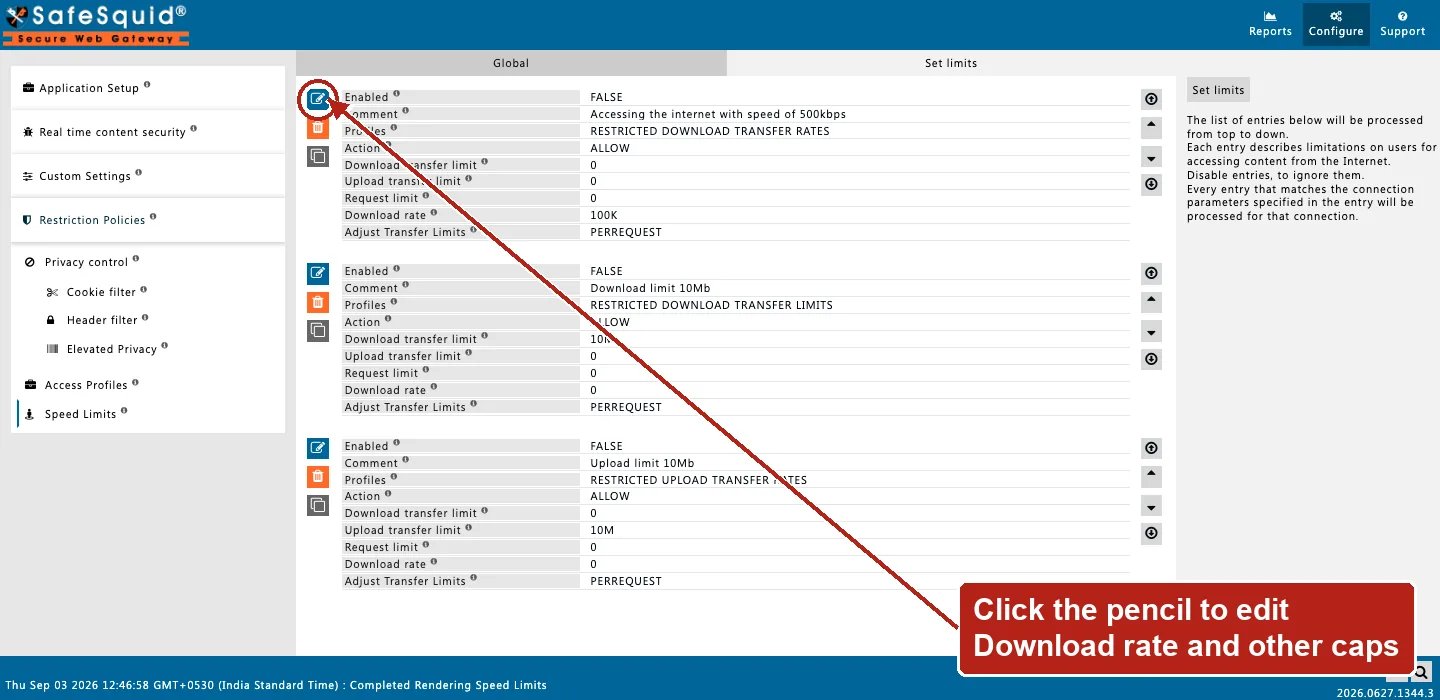
Speed Limits — Set limits rows
How to verify
- Assign a test profile and reproduce large download or many parallel requests.
- Enable LIMITS in
LOG_LEVELfor nativelimits:download/upload limit and rate lines. - Open Reports → Detailed logs. Blocked transfers show
filter_namefor limits and reason such asMax Requestsor upload limit text. - Confirm counter reset behaviour by waiting ~10 seconds and retrying after hitting a window cap.
- If an entry seems to have no effect at all, check the section-wide Enabled switch first, then confirm the entry’s Profiles actually matches the connection under test — and remember Action has no bearing on whether the entry is active.
Next steps
- Access Profiles - decide what each user can fetch by combining time, request type, response type, category, and group labels into ordered allow and deny rules.