

Allow a Specific YouTube Channel and Its Playlists
Problem
Security teams need predictable control over app and web usage to reduce policy bypass and data-risk exposure.Benefits
You can enforce policy decisions consistently with SafeSquid while preserving legitimate business workflows.Advantages
You keep actionable policy control close to operations, with verifiable outcomes in logs and policy behavior.Call to action
Use the steps in this guide to implement the control, then validate behavior with a real user-flow test.Client Scenario
Ganpat University provides graduate programs to various colleges. Ganpat University distributes the internet to its students. Ganpat University wants to block entire www.youtube.com for their students. But wants some of the YouTube channels allowed which are helpful for students. Ganpat University’s challenges are: All Students should not be allowed to access www.youtube.com. If any student tries to access YouTube, the student receives a blocked template. Only a few of the specified YouTube channels and their playlists should be allowed. This YouTube channel contains educational and knowledge-sharing videos.Solution
You can achieve this by creating a policy in the Request Profiles Section and binding it with policies in the Access Profiles Section.Prerequisites
HTTPS Inspection should be enabled in SafeSquid. If not enabled, refer to the document - How to enable HTTPS Inspection. You need the YouTube Channel-ID and List-ID of the playlist you want to allow. You have to extract the Channel-ID and List-ID of the playlist from the YouTube URL before creating rules in SafeSquid.Channel-ID and List-ID Extraction
Extract Channel-ID from YouTube channel
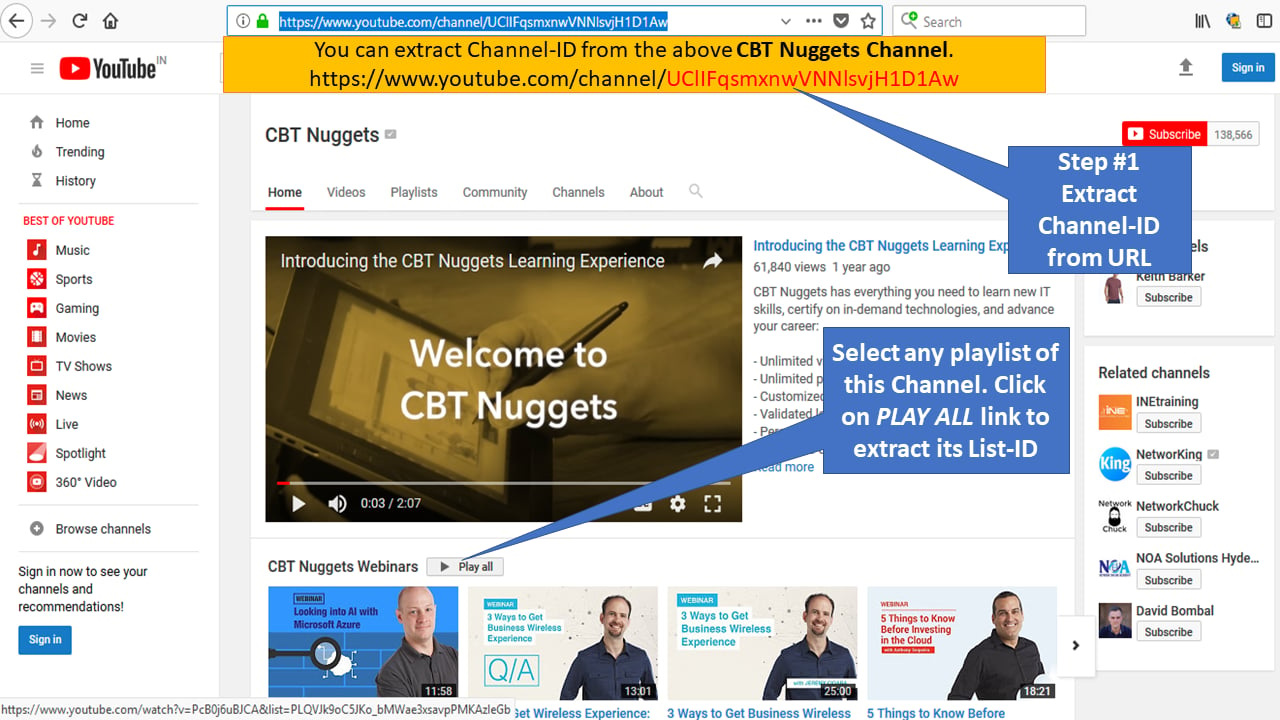
- Open the YouTube channel to allow. This example uses the CBT Nuggets channel. The Channel-ID appears in the referrer URL as the portion after ‘channel/’. Save it for reference.
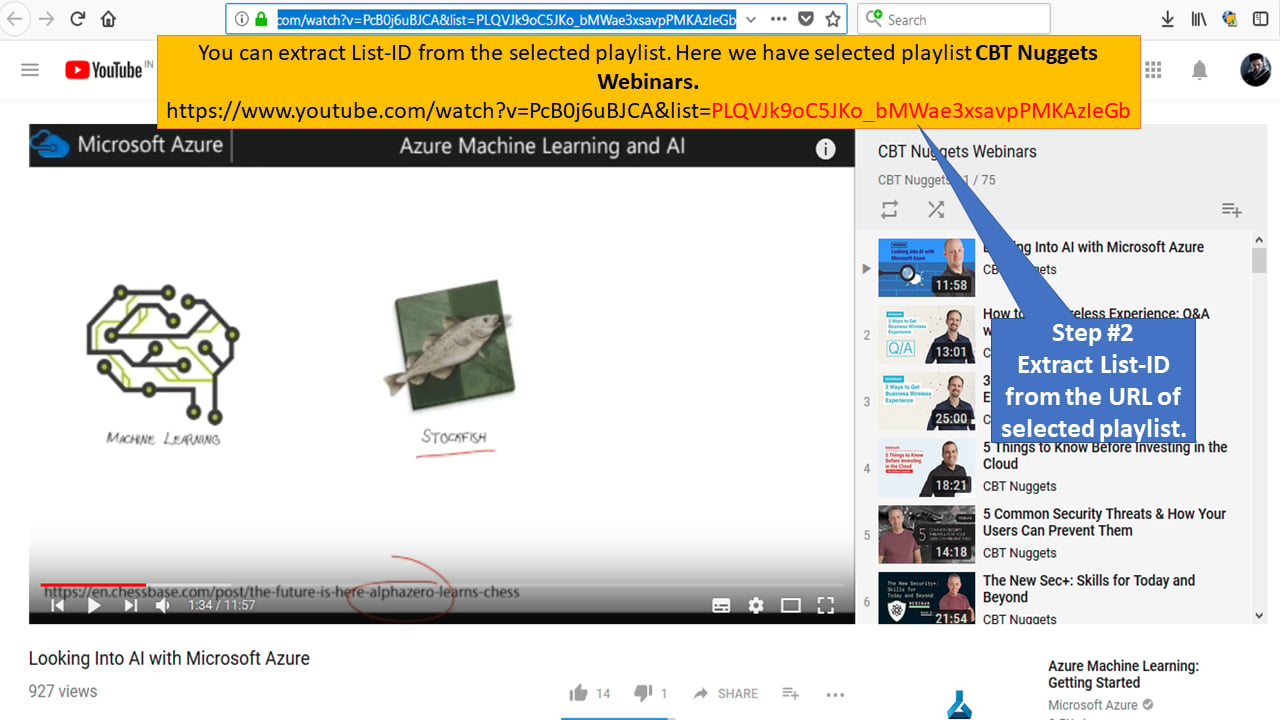
- You can extract List-ID from the selected playlist.
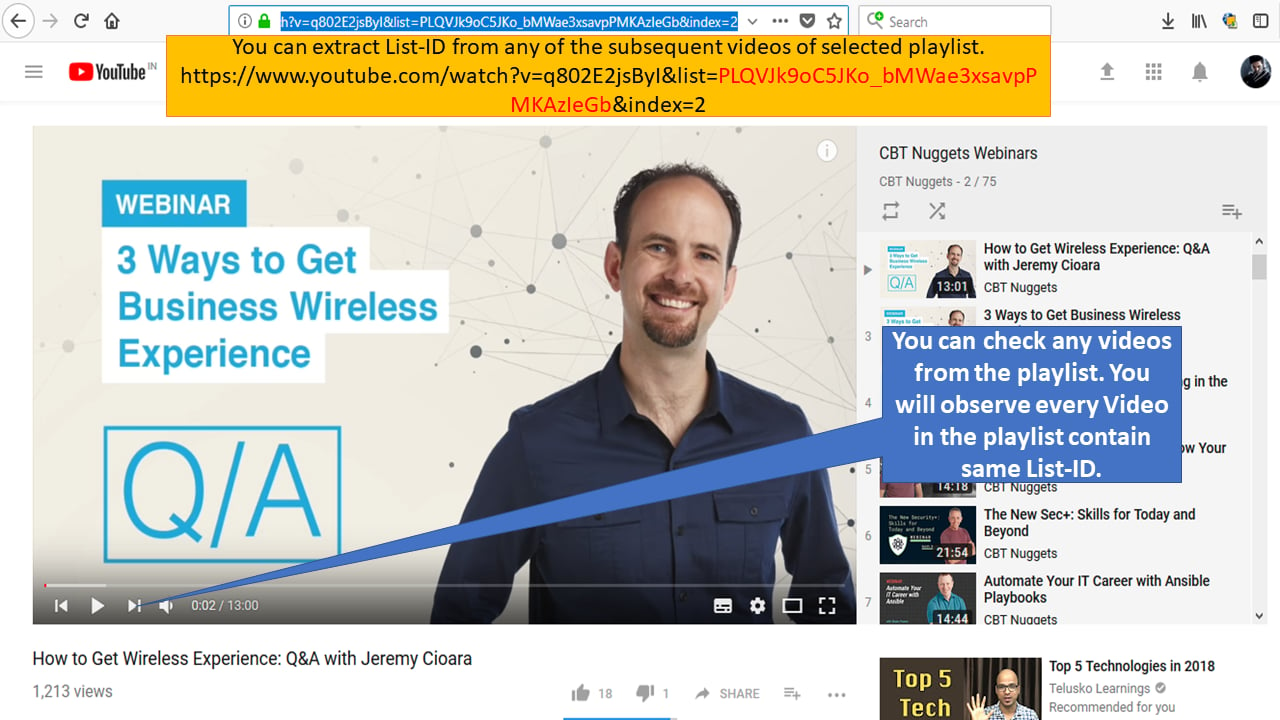
Policy Creation
Create policy in Request Types section
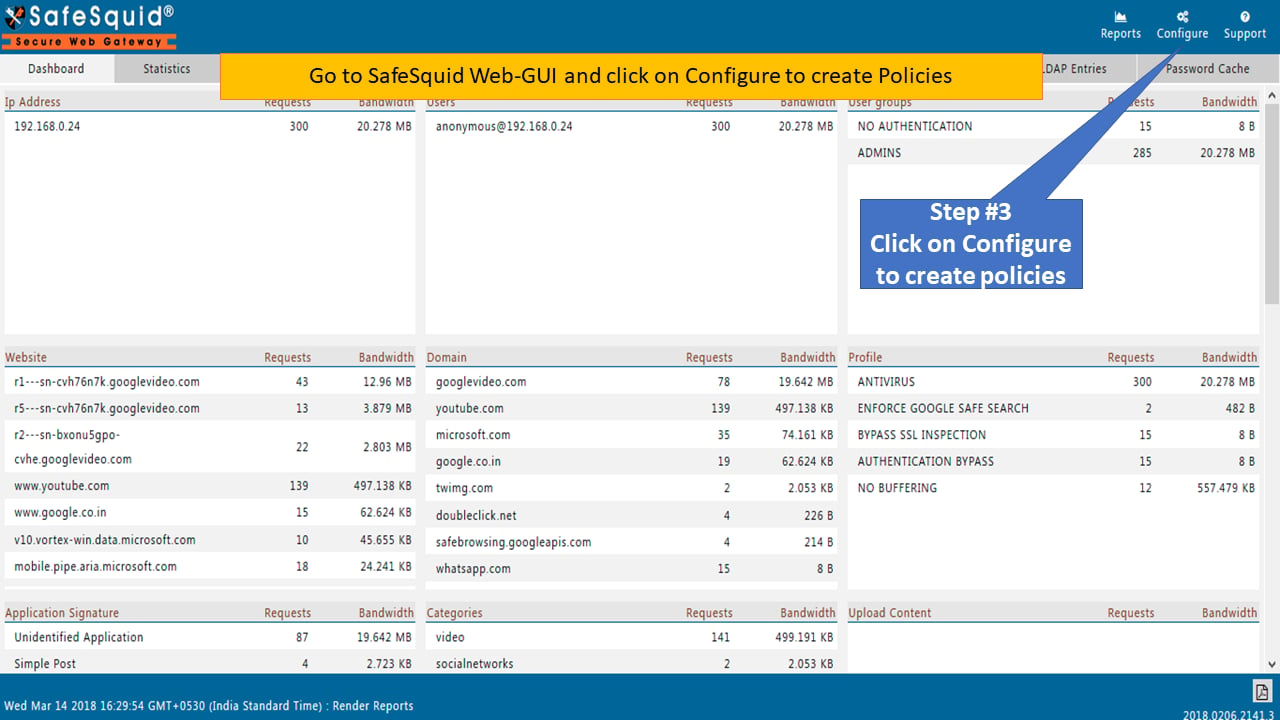
- After extracting Channel-ID and List-ID, create policies in SafeSquid.
-
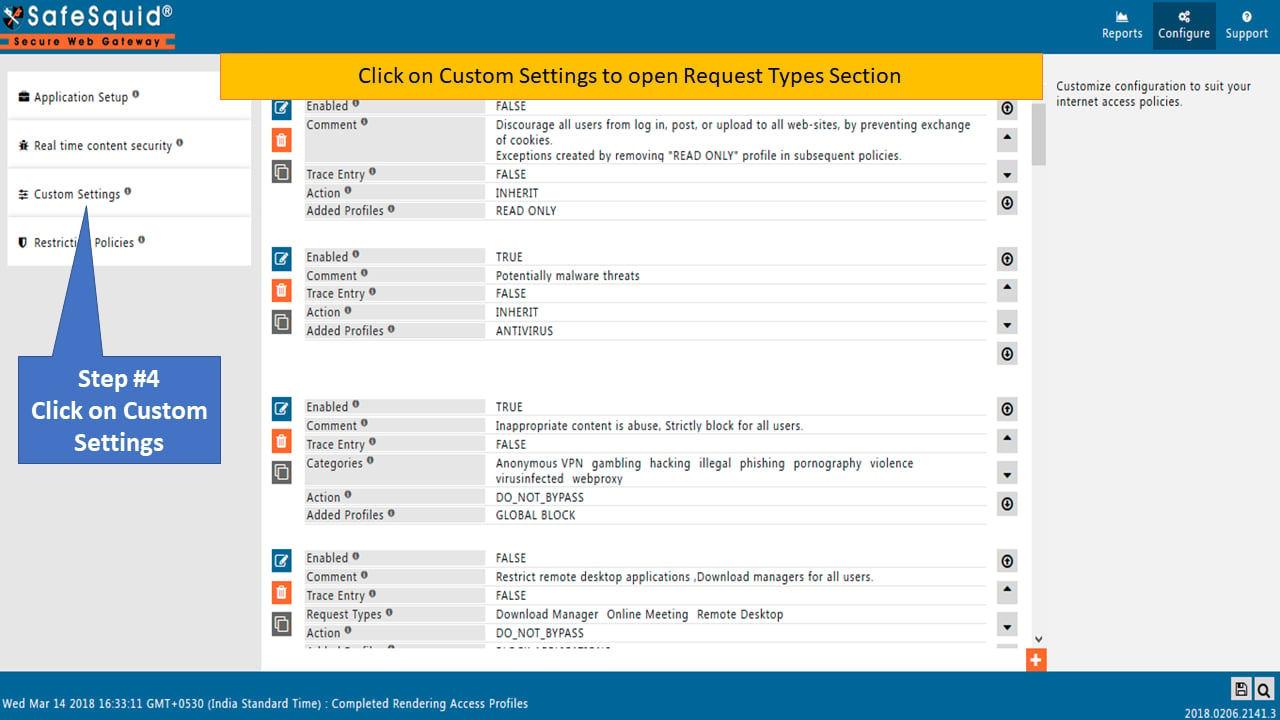
Click on Custom Settings to open the Request Types Section.
-
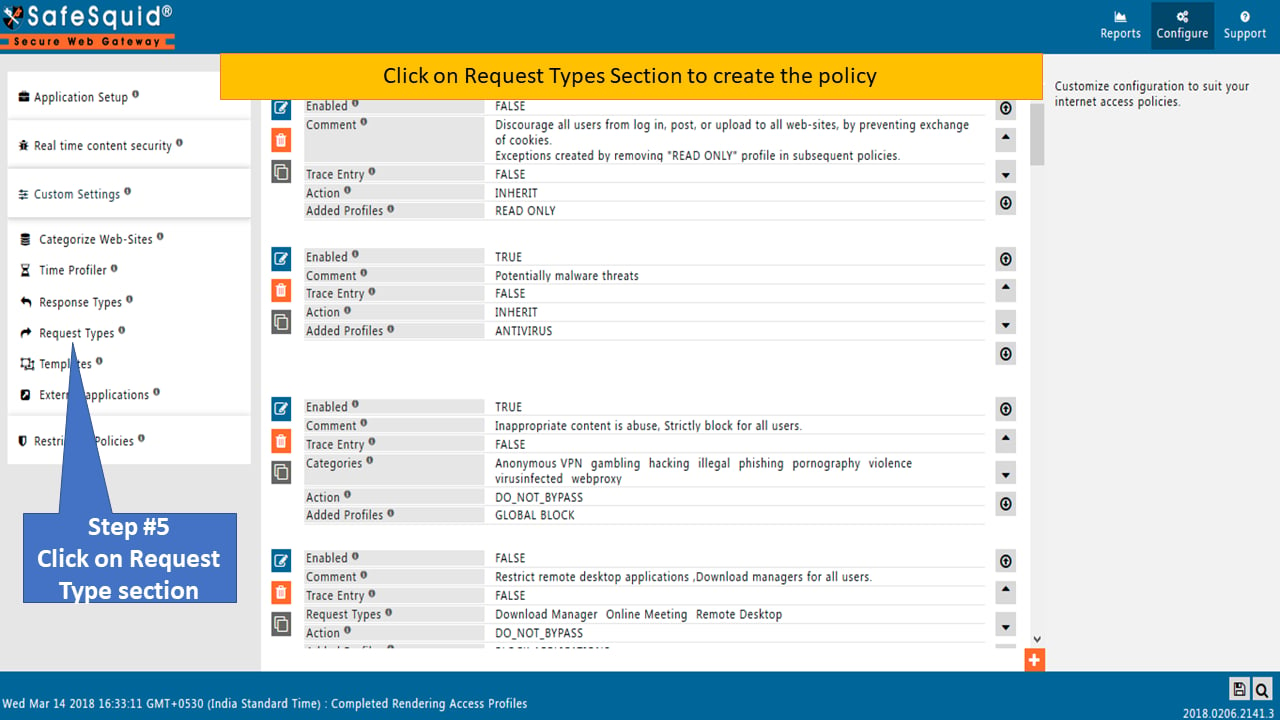
Click on the Request Types Section to create the policy.
-
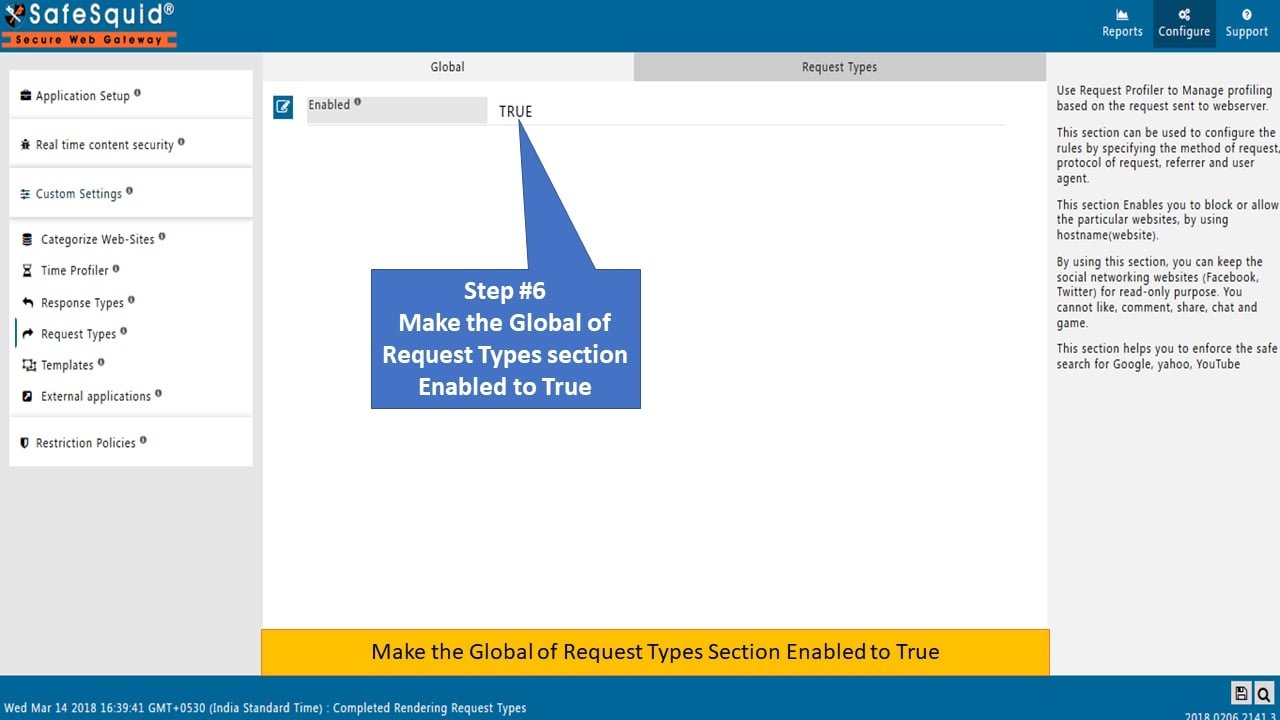
Make sure the Global of Request Types Section is Enabled to True.
-
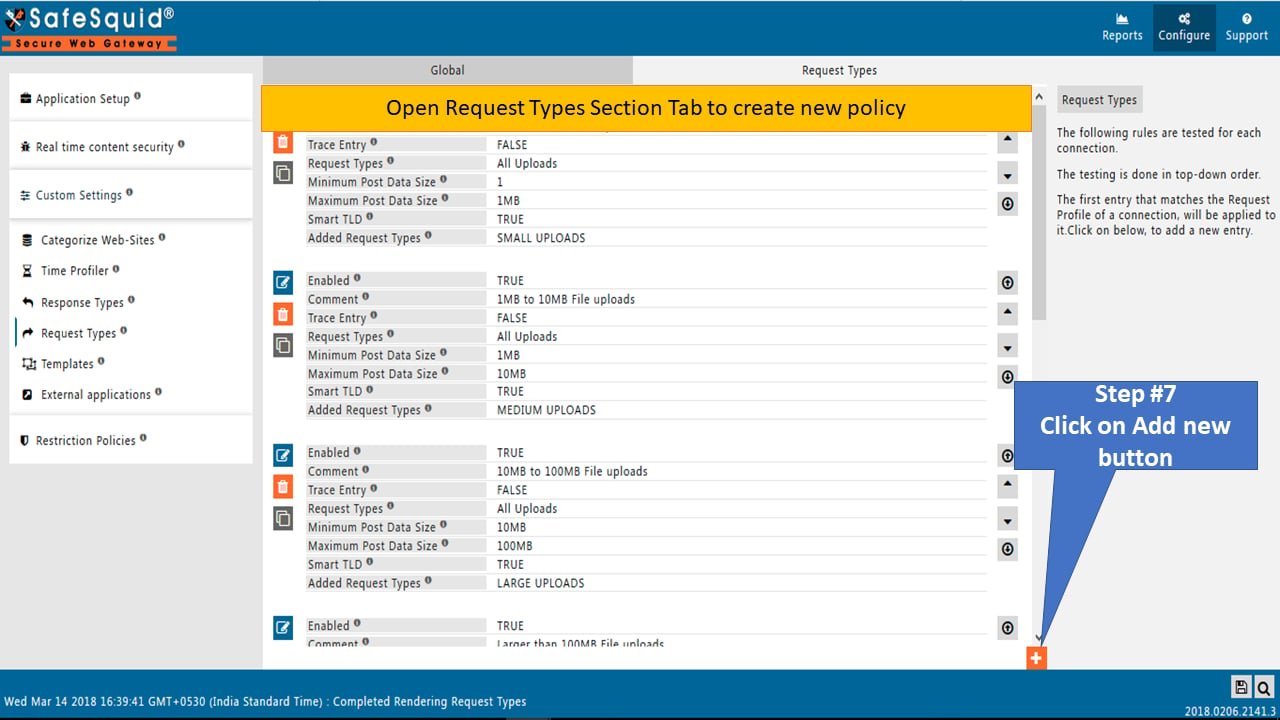
Click on the Request Types tab to create a new policy.
-
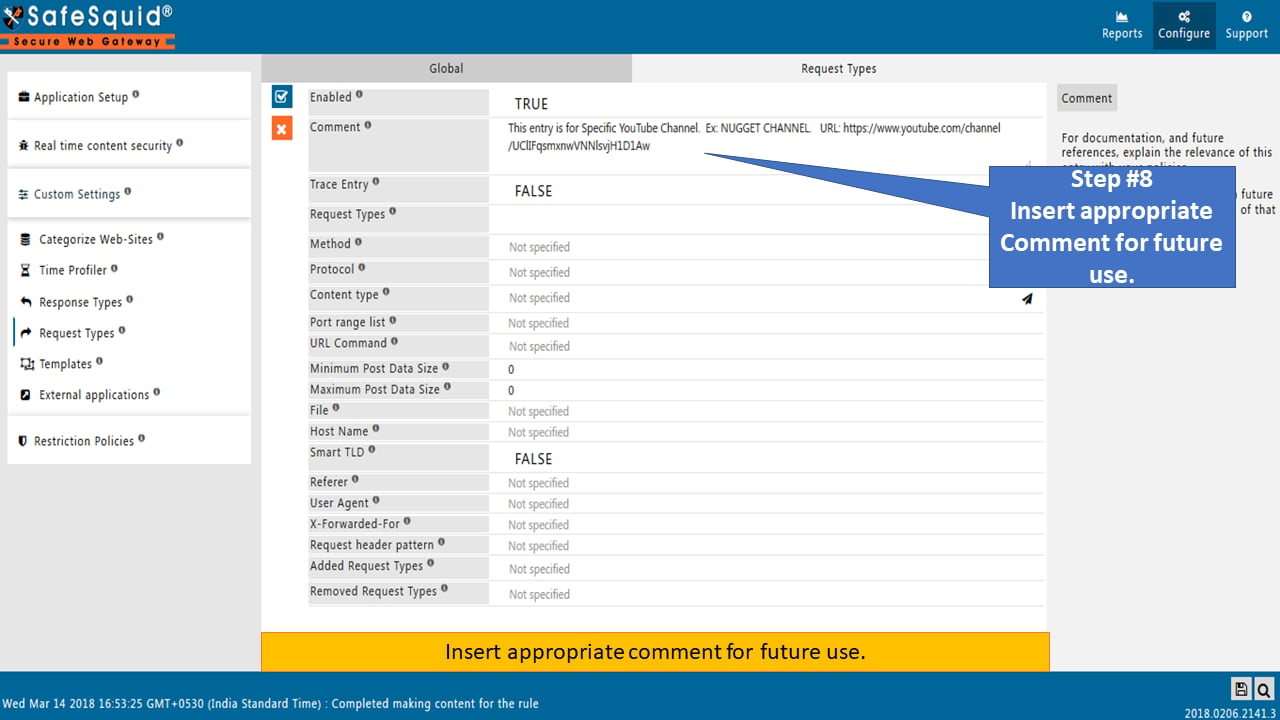
Insert appropriate comments for future use.
-
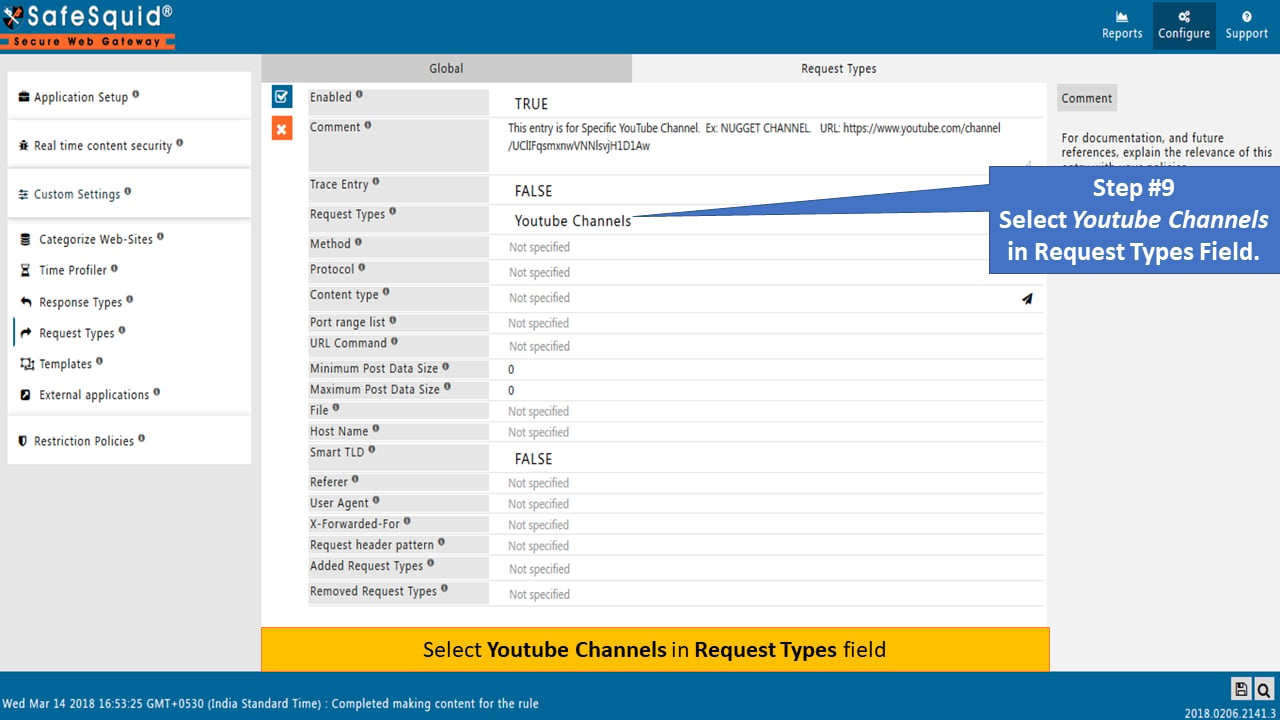
Select YouTube Channels in the Request Types field.
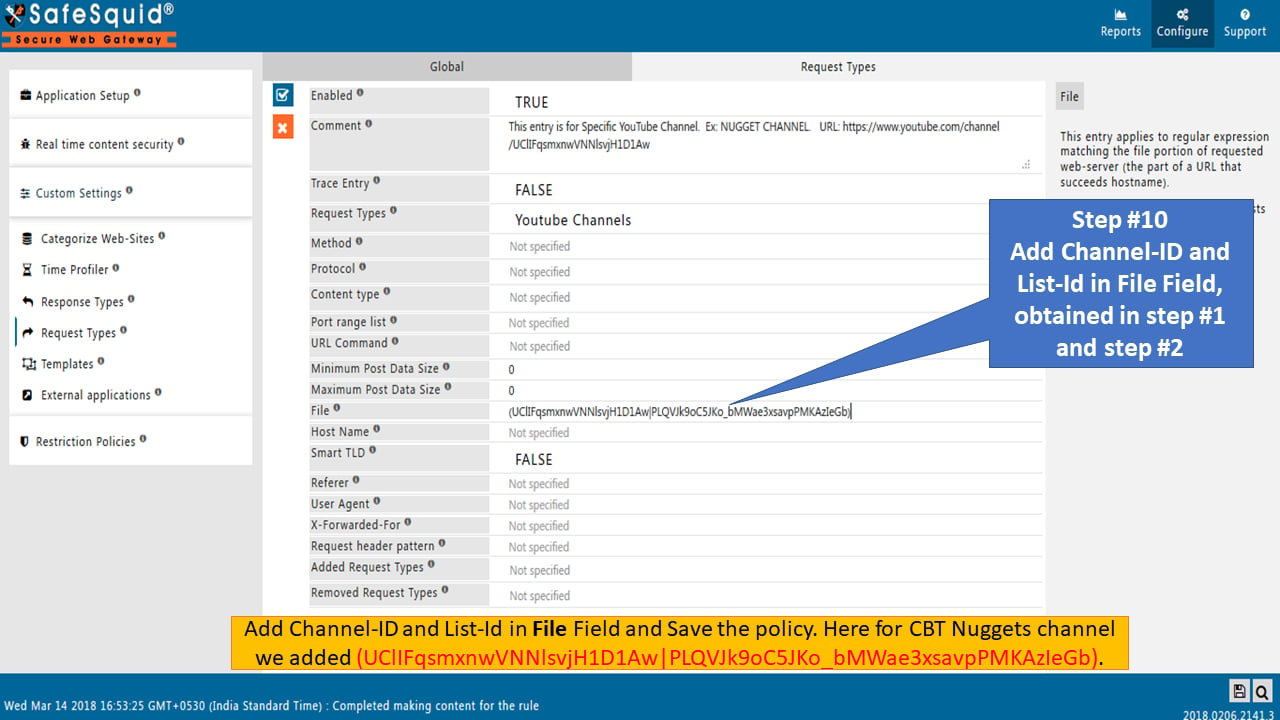
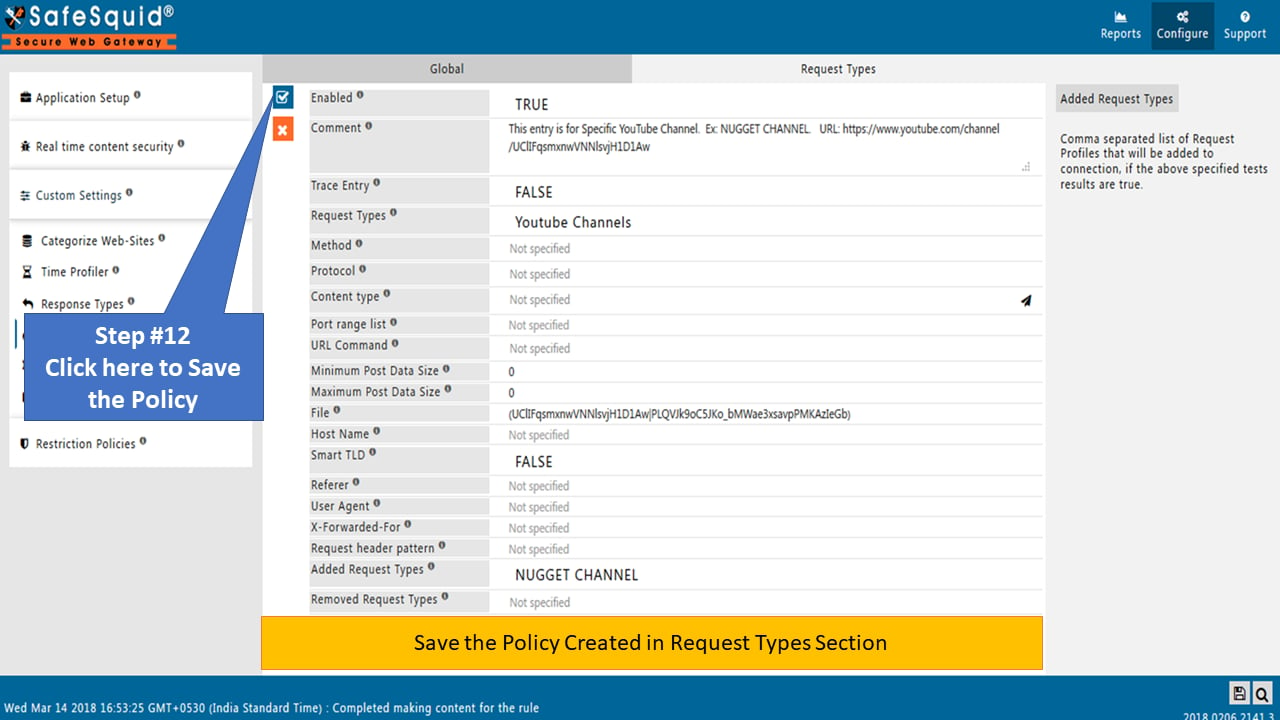
- Add Channel-ID and List-ID in the File field and save the policy. Use the values saved earlier. For the CBT Nuggets channel example, use (UClIFqsmxnwVNNlsvjH1D1Aw|PLQVJk9oC5JKo_bMWae3xsavpPMKAzIeGb) in the File field.
-
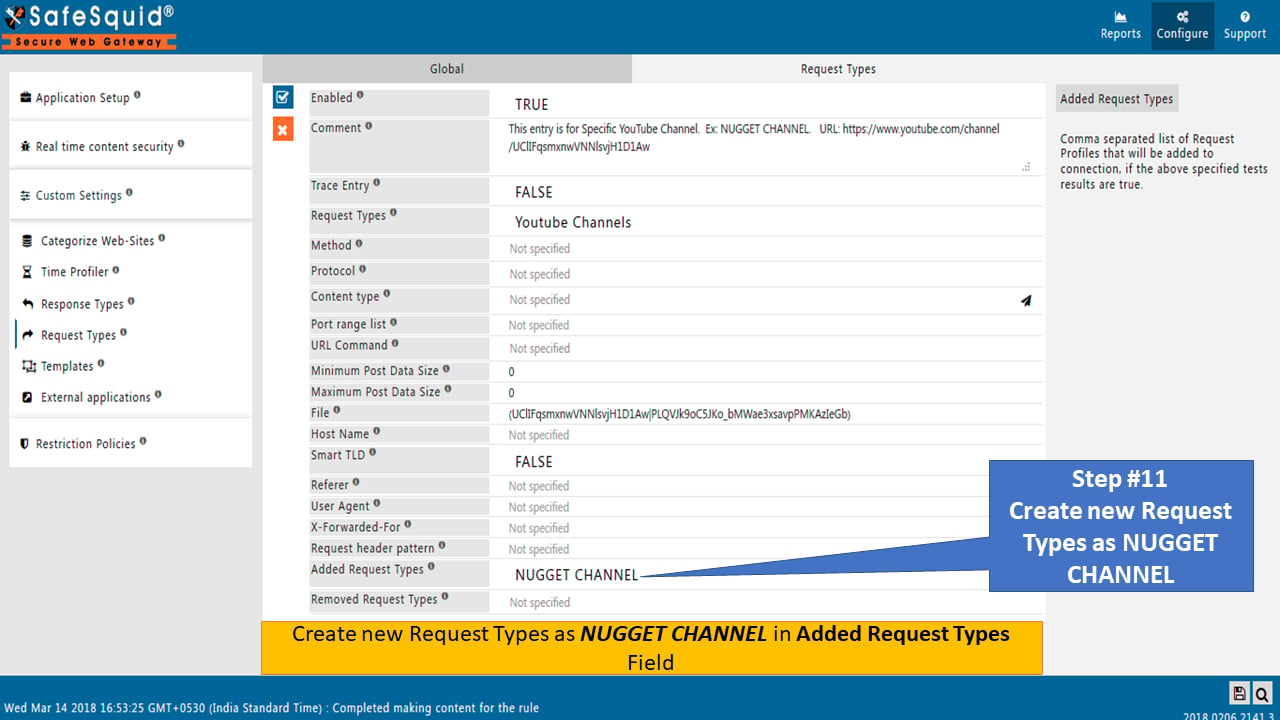
Create new Request Types as NUGGET CHANNEL in the Added Request Types Field.
-
Save the Policy Created in the Request Types Section.
Create policy in Access Profiles section
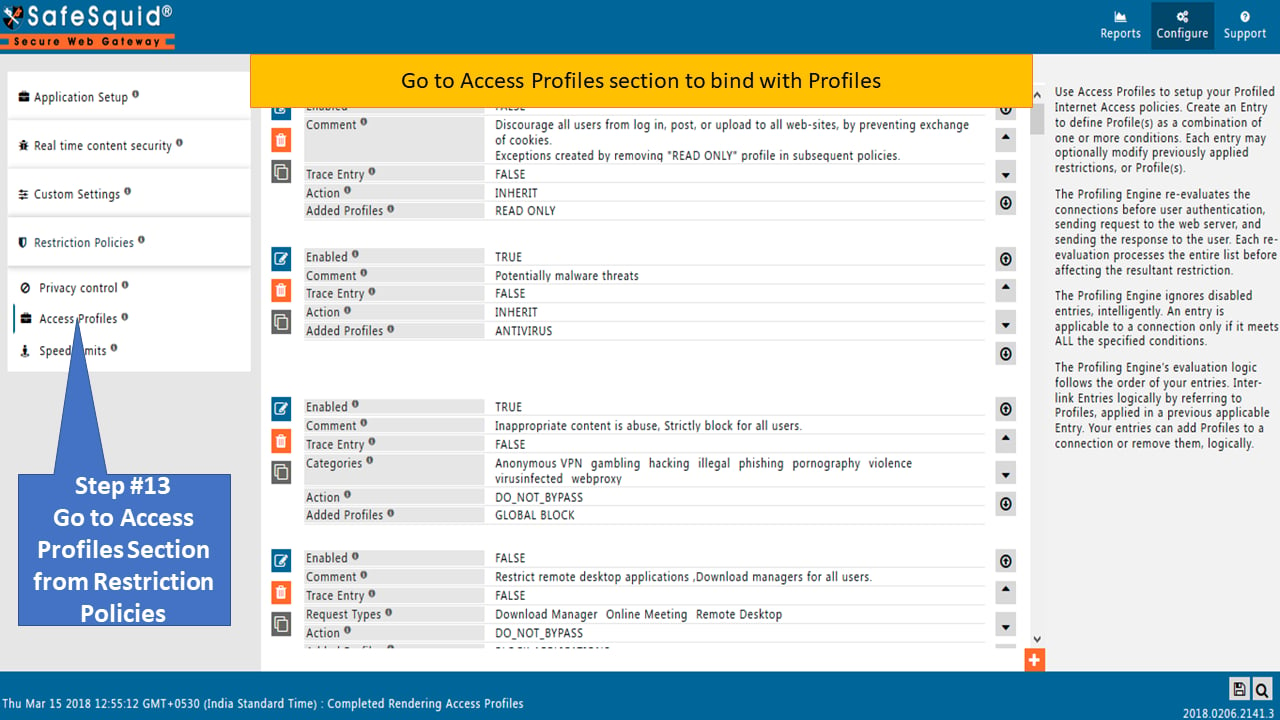
- Go to the Access Profiles section to bind with Profiles.
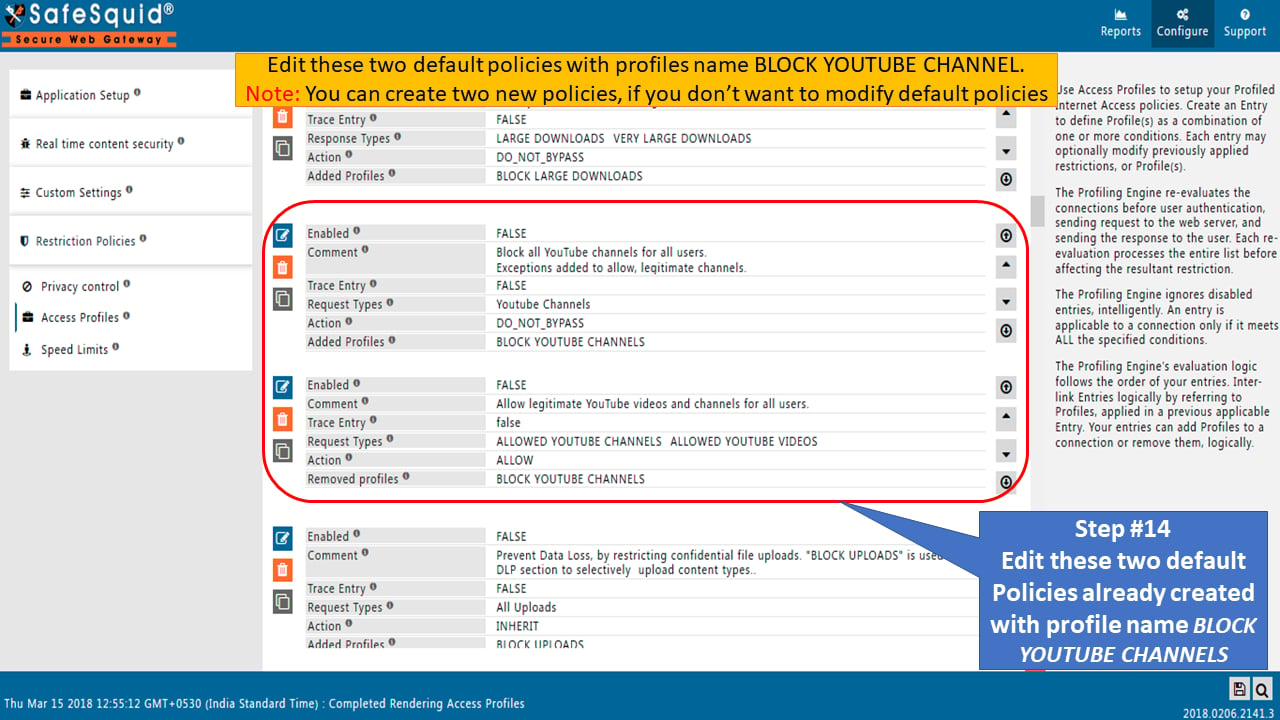
- Edit these two default policies with the profile name BLOCK YOUTUBE CHANNEL as shown below.
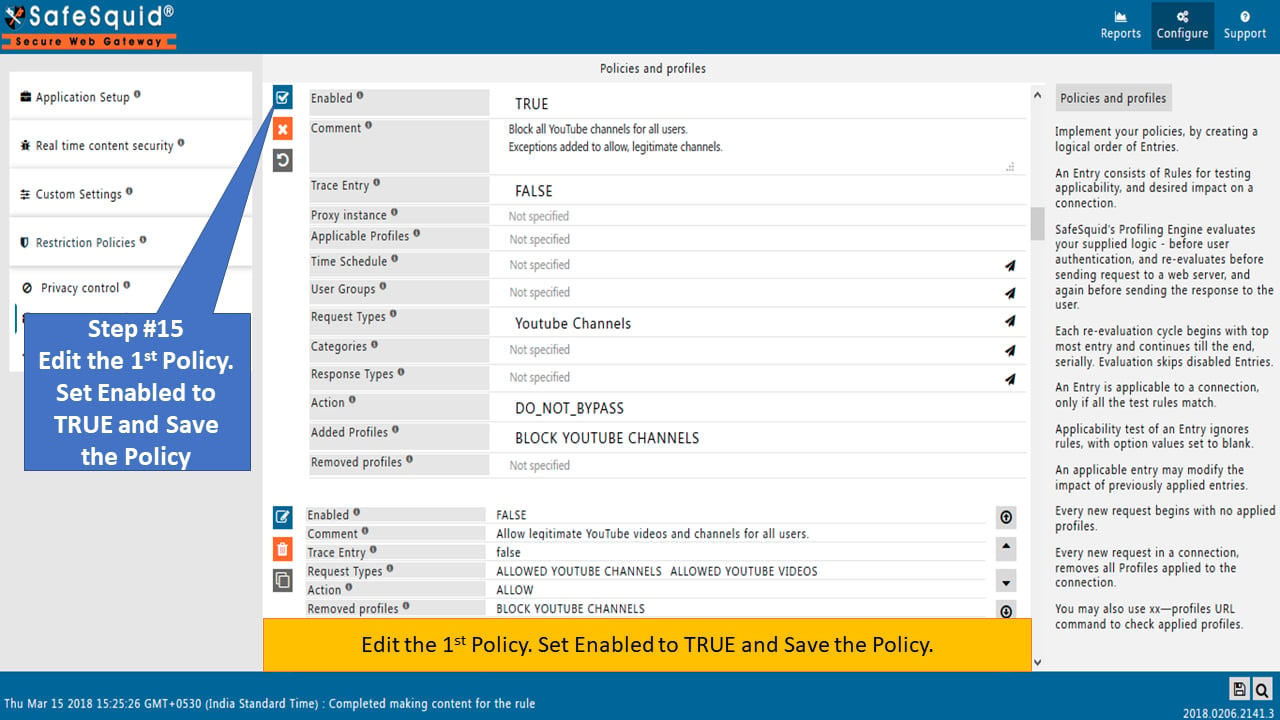
- Edit the 1st, Policy. Set Enabled to TRUE and Save the Policy.
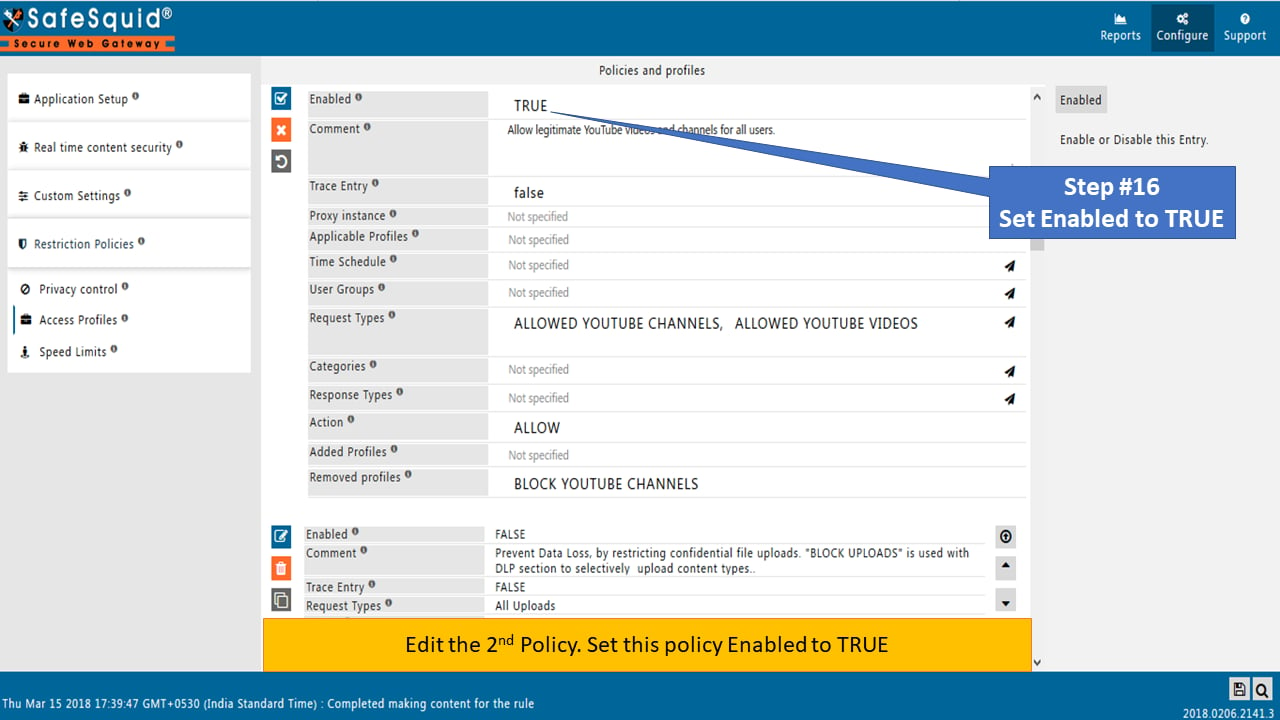
- Edit the 2nd, Policy. Set this policy Enabled to TRUE.
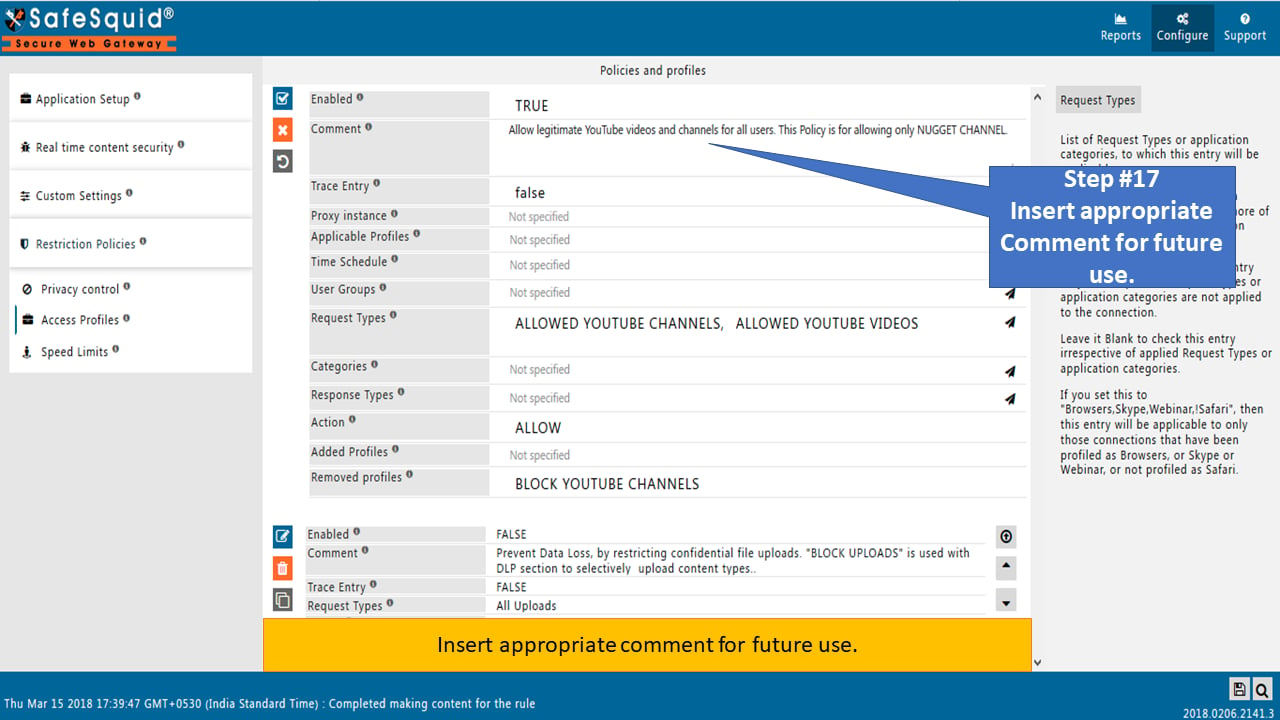
- Insert appropriate comments for future use.
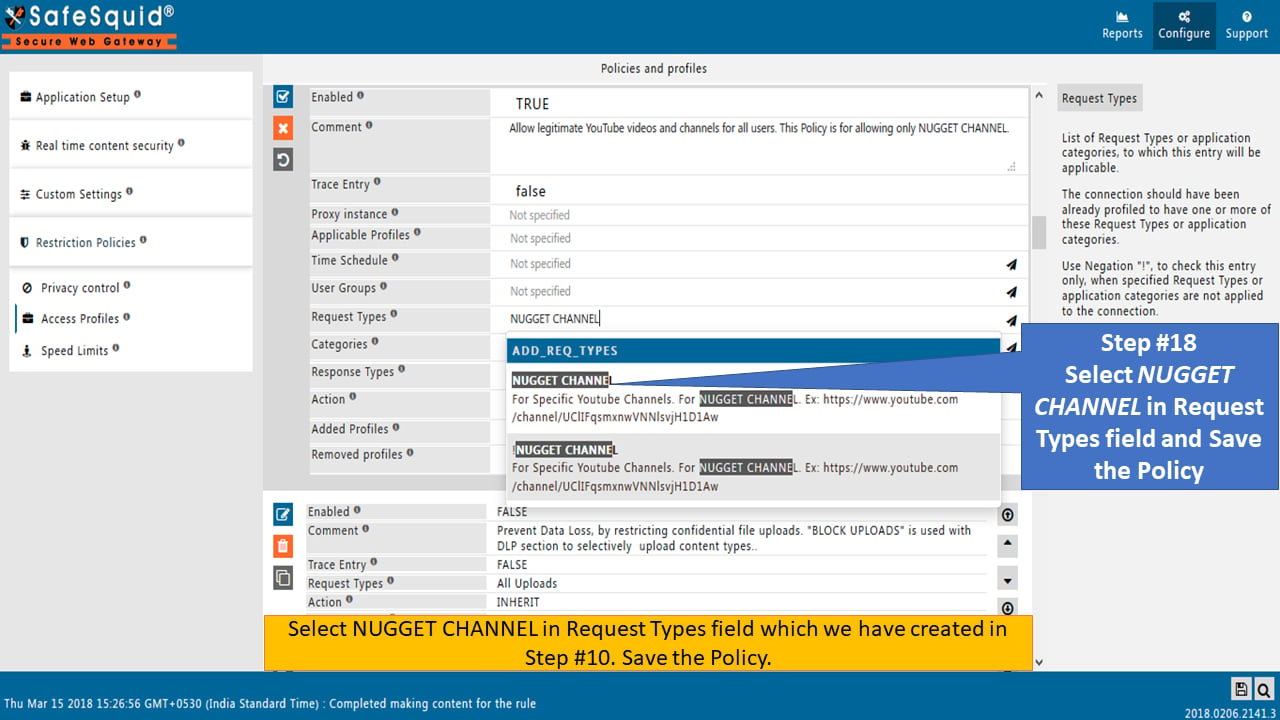
- Select NUGGET CHANNEL in the Request Types field (created in Step 10). Save the policy.
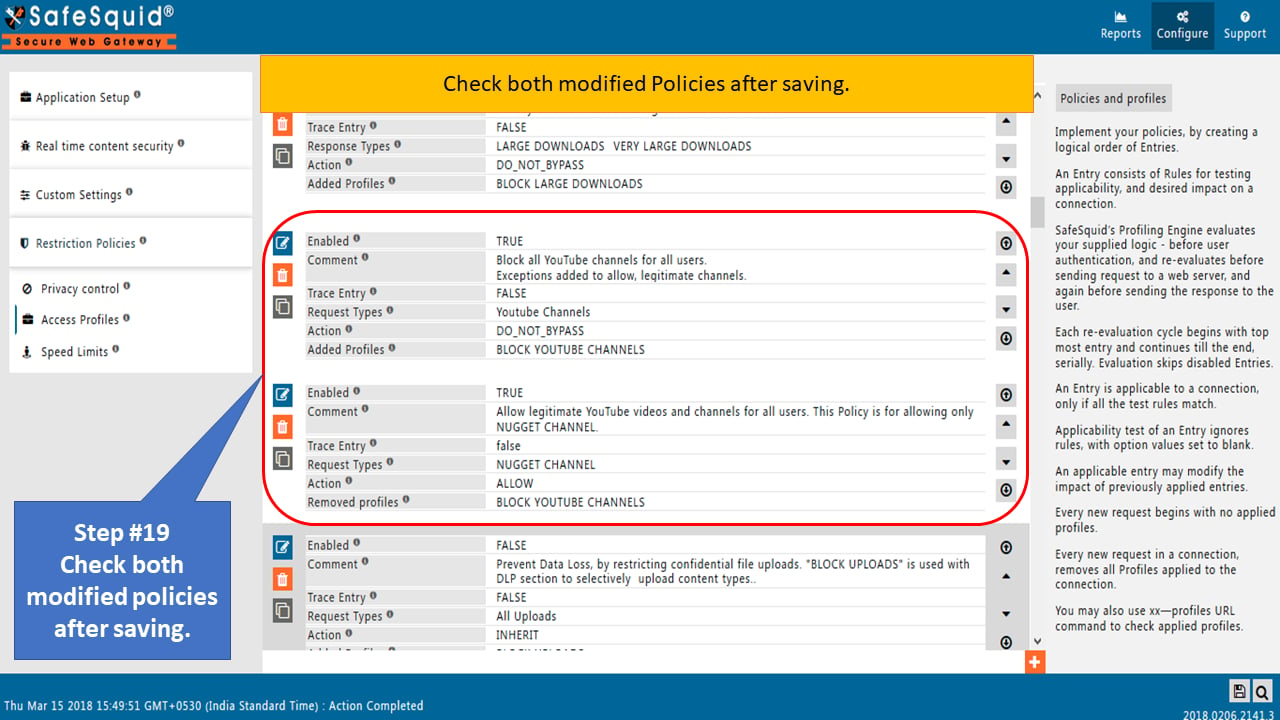
- After saving, verify the modified policies to confirm they were created correctly.
Test the Scenario
Now try to open videos other than the CBT Nuggets Webinars playlist of the YouTube Channel CBT Nuggets. All the other videos will be blocked and the below template will be shown.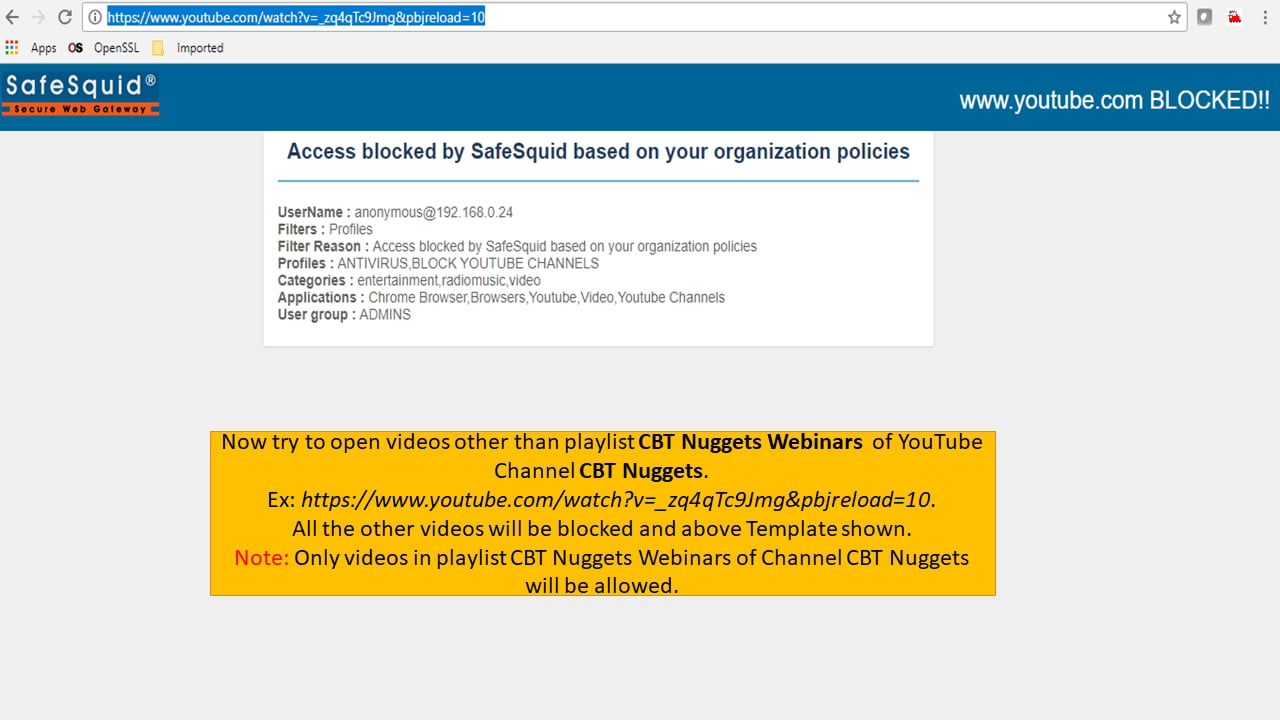
Next steps
- SSL Inspection - configure HTTPS inspection in SafeSquid to decrypt and analyze encrypted traffic for web security, malware detection, and policy enforcement.