

BASIC Authentication
Browser-prompt authentication with usernames and passwords stored locally in SafeSquid. No directory infrastructure required; credentials are managed locally in SafeSquid or via OS users. Use when you need identity-based access control without Active Directory or LDAP.Problems addressed
Some sites lack Active Directory or LDAP. Operators still need named identities in logs and access rules instead of anonymous client IPs.Outcomes operators expect
- Browser prompts and successful binds recorded in
identity.logwhen configured correctly. - Identity-aware Allow List rules without directory infrastructure.
Advantages vs directory-backed authentication
BASIC avoids directory rollout cost and suits small or isolated footprints. Trade-off: local credential hygiene, no central SSO, and transport caveats in Security consideration below.Acquire, deploy, use
Follow Enable browser authentication through Verification; then combine with Access Restriction and optional SSL Inspection.When to use BASIC authentication
:::caution
Security consideration
BASIC authentication sends credentials in base64 encoding (not encrypted). Use only on:
- Internal networks, or
- HTTPS proxy connections, or
- With SSL inspection enabled
- SafeSquid deployed and operational
- Admin access to SafeSquid configuration interface (
http://safesquid.cfg/— embedded Rest UI, NOT DNS-resolved) - Browser configured to use SafeSquid as proxy (see Connect Your Client) :::
Enable browser authentication
-
Access SafeSquid Configuration
Openhttp://safesquid.cfg/through a browser using the SafeSquid proxy. -
Navigate to Access Restrictions
Application Setup → Access Restrictions → Allow List
Click the orange + icon to add a new entry.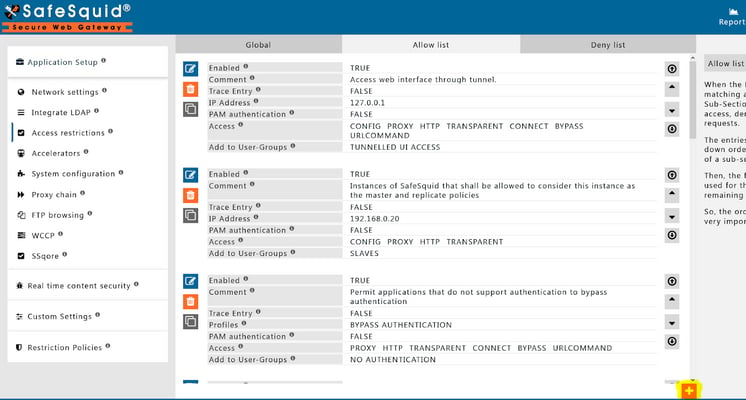
-
Configure Authentication
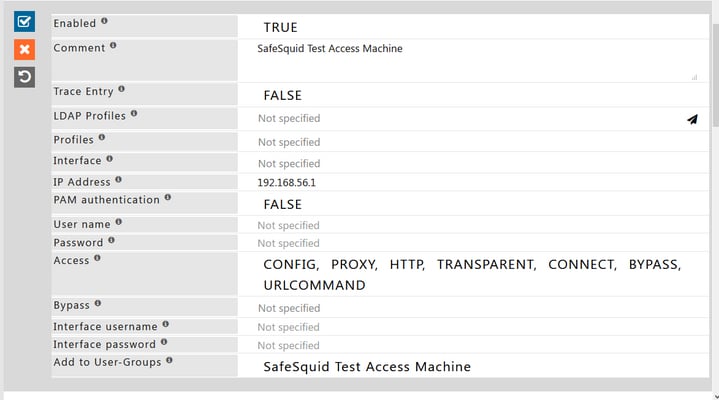
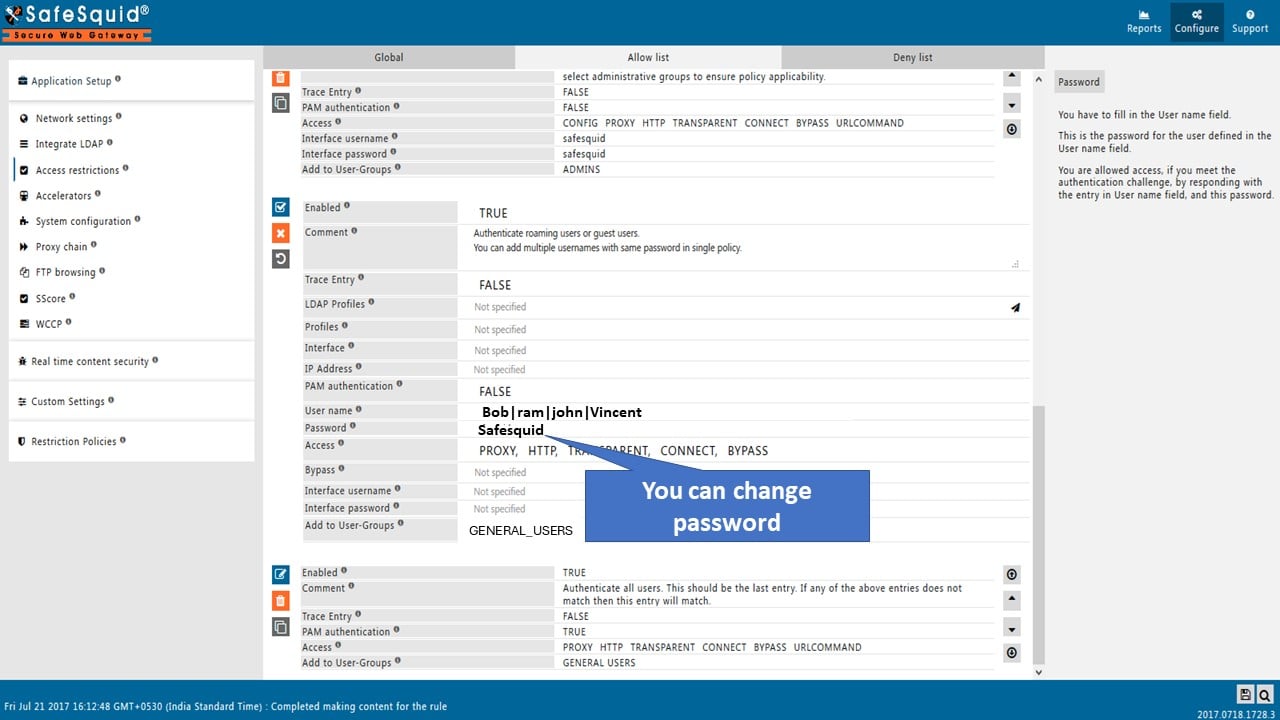
In the new rule window:- Set PAM Authentication to FALSE (we’re using local credentials, not OS PAM)
- Leave Username and Password empty to apply authentication to all users (or enter specific username/password to restrict this rule to a single user)
-
Save the Configuration
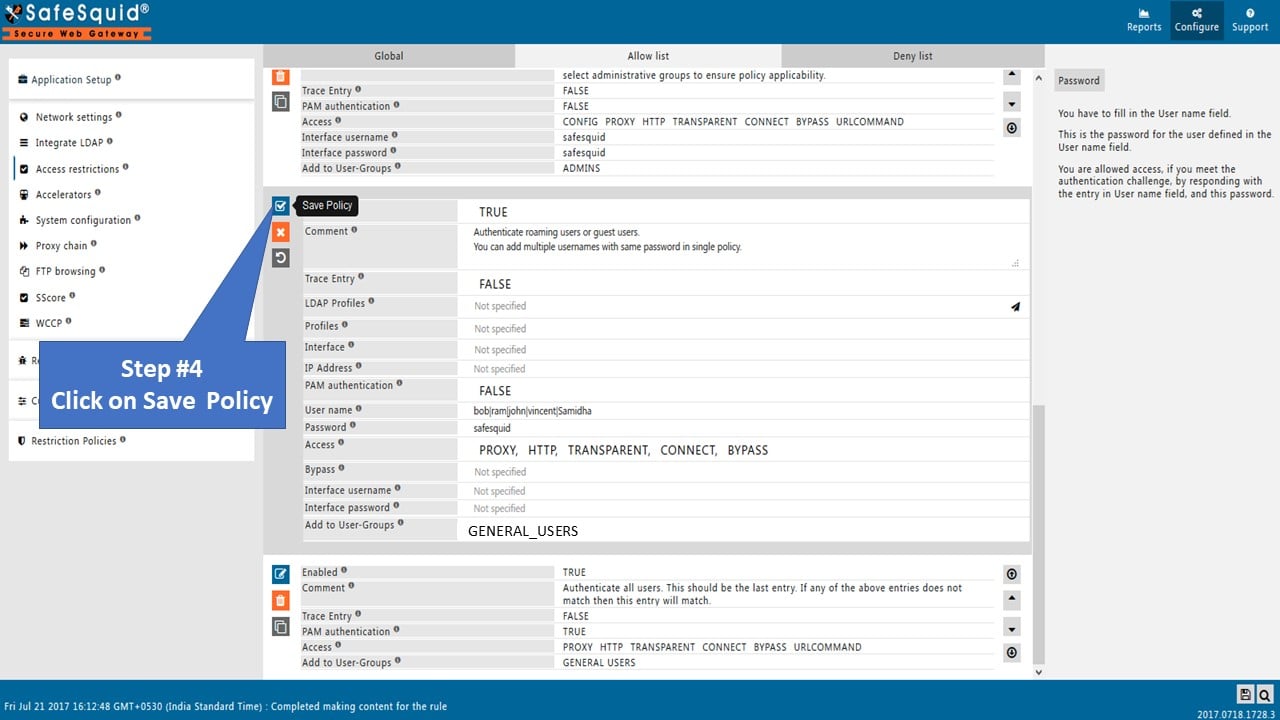
Click the checkmark to save the rule.
Add users
- SafeSquid Credential Store
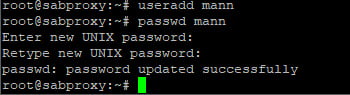
- OS User Accounts (PAM)
Best for: Adding individual users with SafeSquid-only access
-
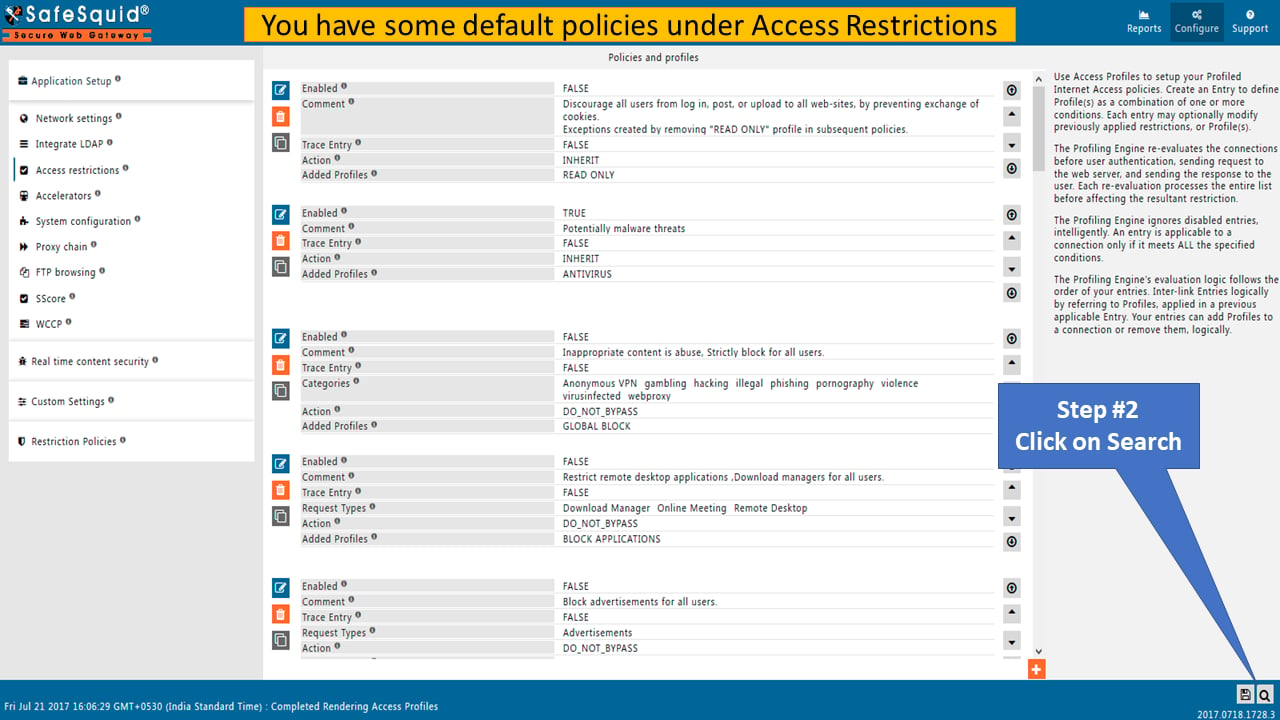
Navigate to Access Profiles
Click Configure → Search → Access Profiles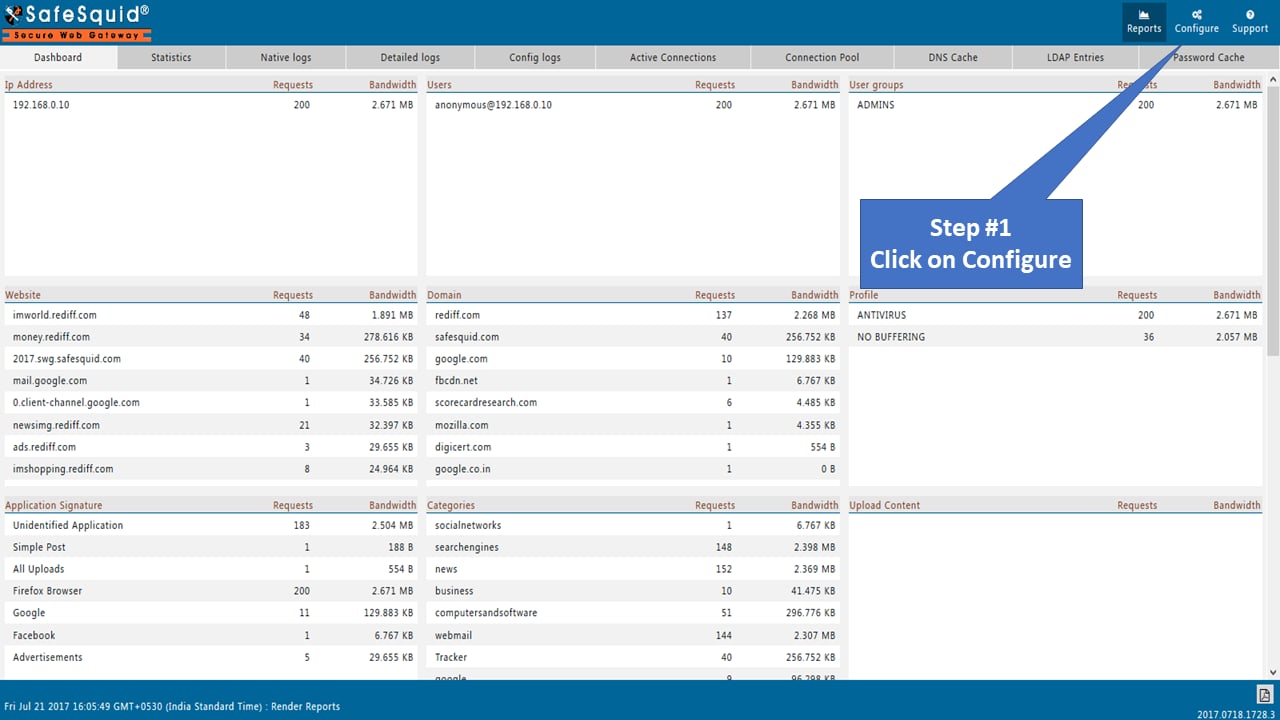
-
Create User Entry
Click Add New → Select BASIC authentication type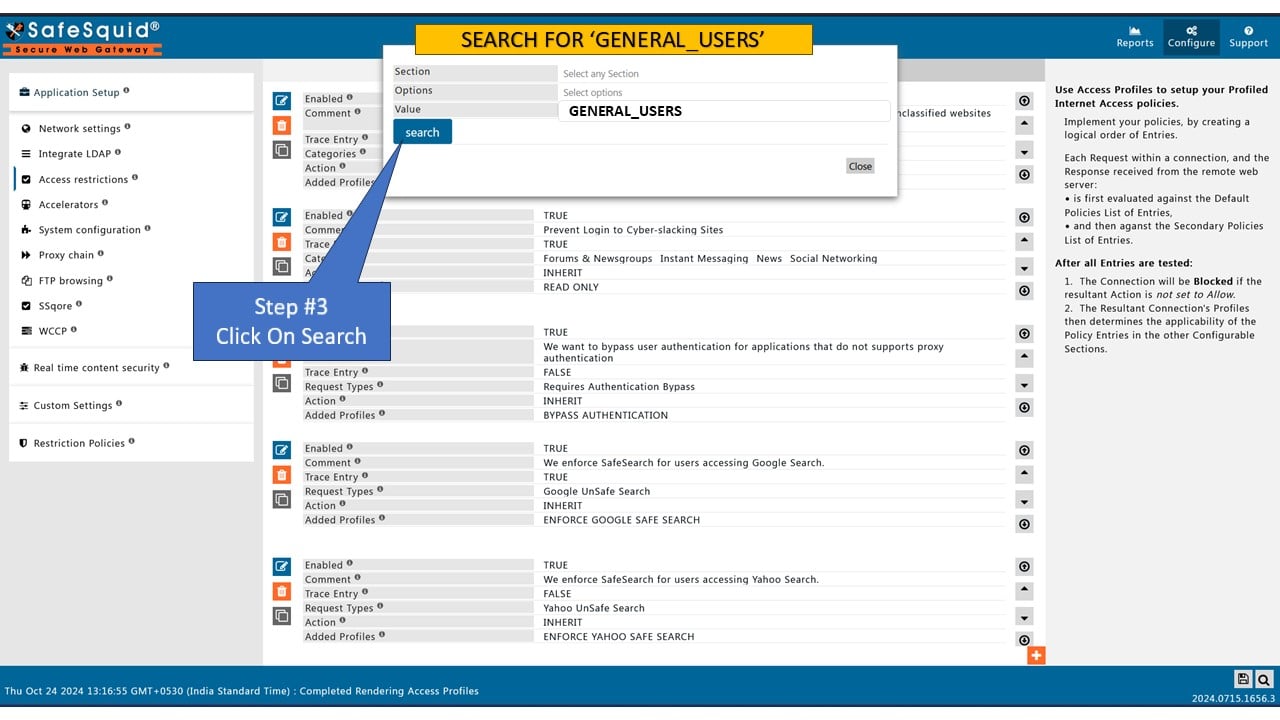
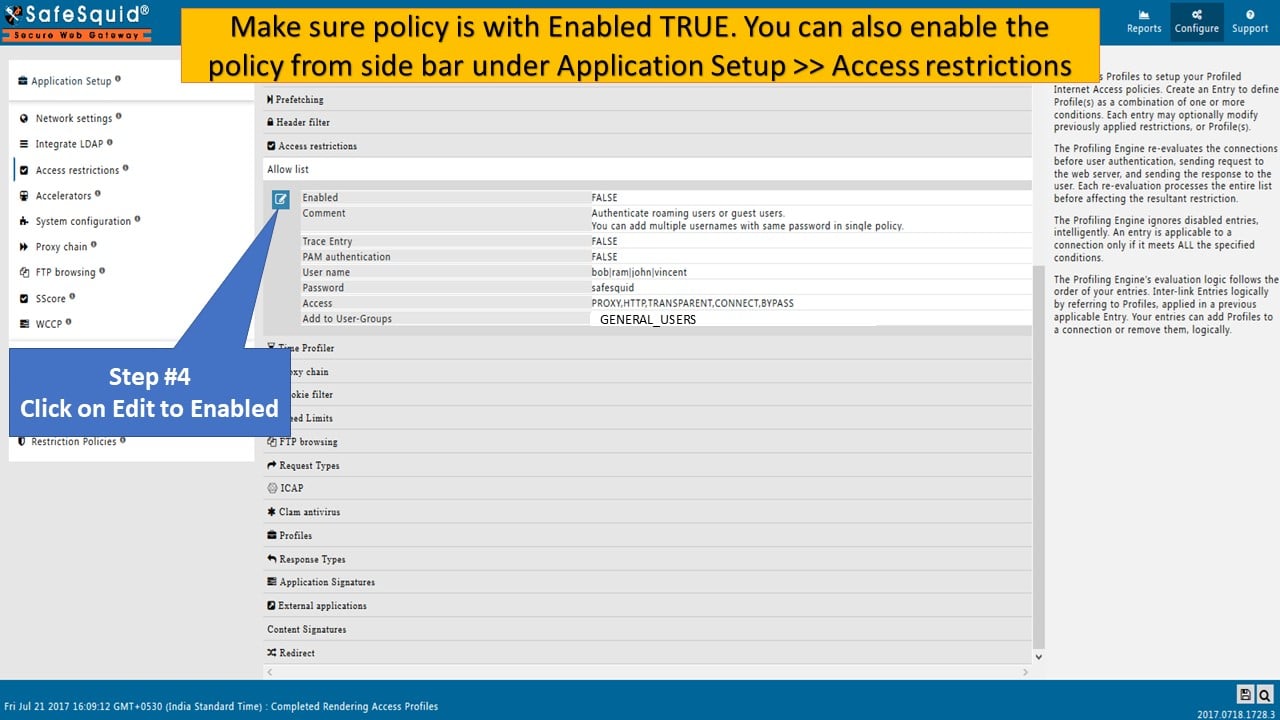
-
Enter Credentials
Add username and password for the user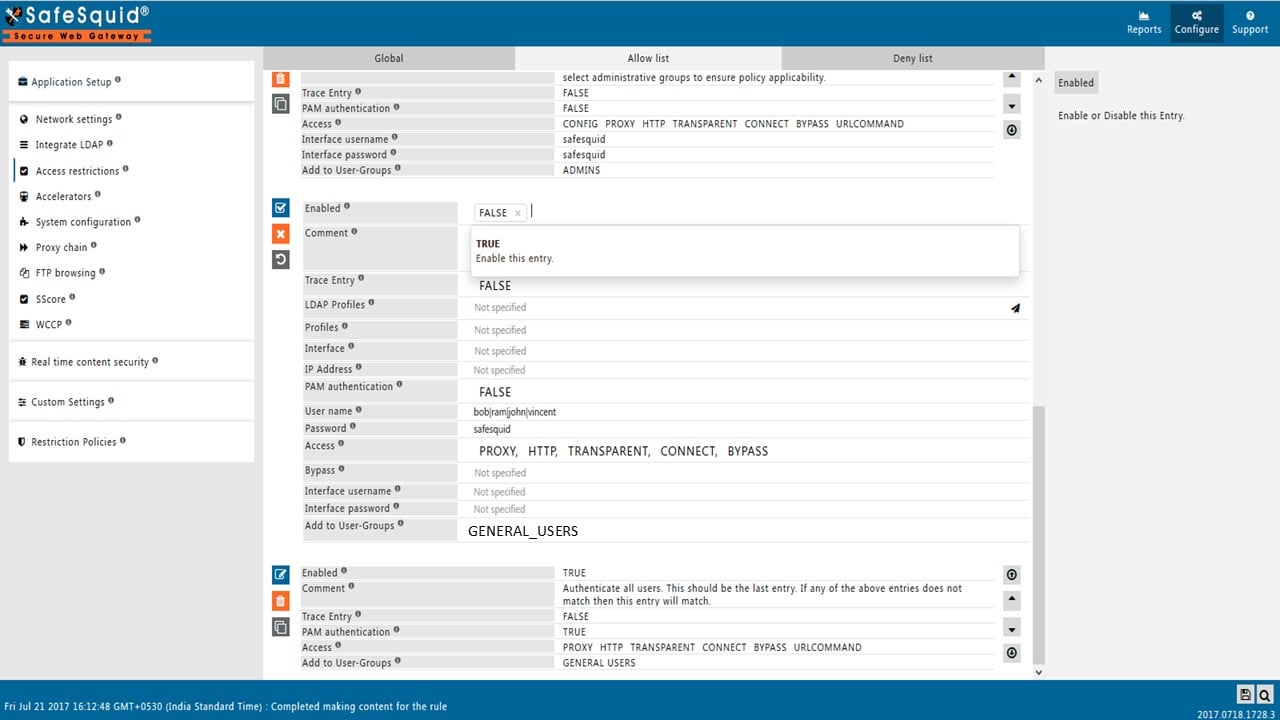
-
Save and Apply
Save the user entry and apply to the access restriction rule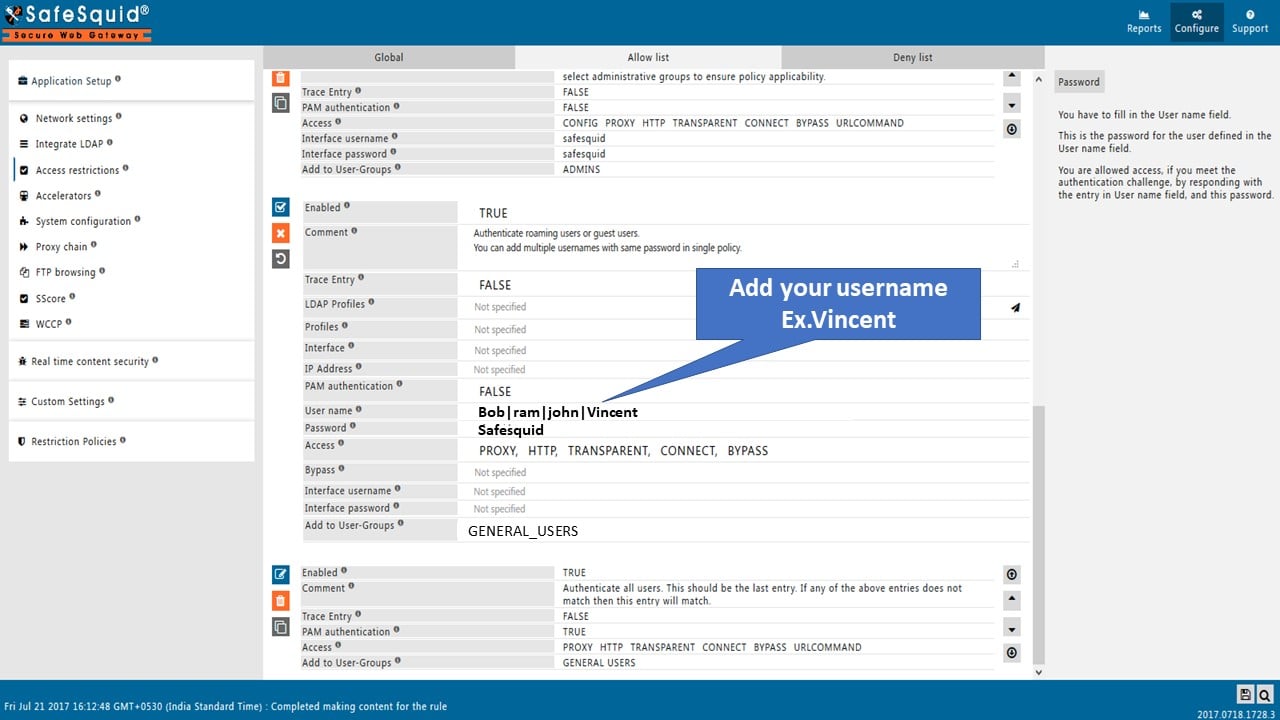
Verification
-
Test Authentication Flow
- Open a browser configured to use SafeSquid as proxy
- Browse to any external site (e.g.,
http://example.com) - Authentication prompt should appear
- Enter configured credentials
- Access is granted when authentication succeeds
-
Verify in Interface
Access Restrictions → Allow List shows the rule with authentication enabled -
Check Logs
You should see entries with authenticated usernames for proxied requests.
Troubleshooting
Credential management best practices
SafeSquid’s local credential store does not enforce password policies automatically. Implement these manually:- Password strength: Require min 12 chars with complexity when creating accounts
- Rotation: Manually update credentials every 90 days for compliance
- Audit: Review
/var/log/safesquid/identity.logmonthly for unauthorized attempts - Segregation: Create separate user accounts for different roles/groups
Source register
Next steps
- Add group-based policies: Combine authentication with Access Restriction to enforce different rules per user or group
- Attribute HTTPS traffic: Enable SSL Inspection so encrypted traffic shows authenticated usernames in logs
- Upgrade to directory: Migrate to Directory Services when user count grows or centralized identity is required
- IP-based fallback: Use the Architecture hub for devices that cannot authenticate
- Bypass apps: Configure Bypass Authentication for OS updates and automatic processes