

AD SSO Authentication (Kerberos)
Kerberos-based SSO provides a seamless user experience for domain-joined workstations. Users are authenticated transparently via their domain ticket, eliminating browser credential prompts.Problem statement
Corporate Windows fleets need transparent authentication so the proxy can enforce identity-aware policy without constant credential prompts. Kerberos SSO is the documented path for that experience in Active Directory environments.How Kerberos SSO Works
:::note Prerequisites- Setup Active Directory Integration completed.
- Time Sync: SafeSquid and AD server time must match (max skew 5 mins).
- DNS: SafeSquid must resolve the AD domain; AD must have a DNS entry for SafeSquid.
- Monit: The Monit service must be running (
pidof monit). - Clients must actually be domain-joined and eligible for Kerberos-based transparent authentication. :::
Configure SSO Authentication
- Access SafeSquid Interface: Go to Application Setup → Integrate LDAP.
- Configure LDAP Server:
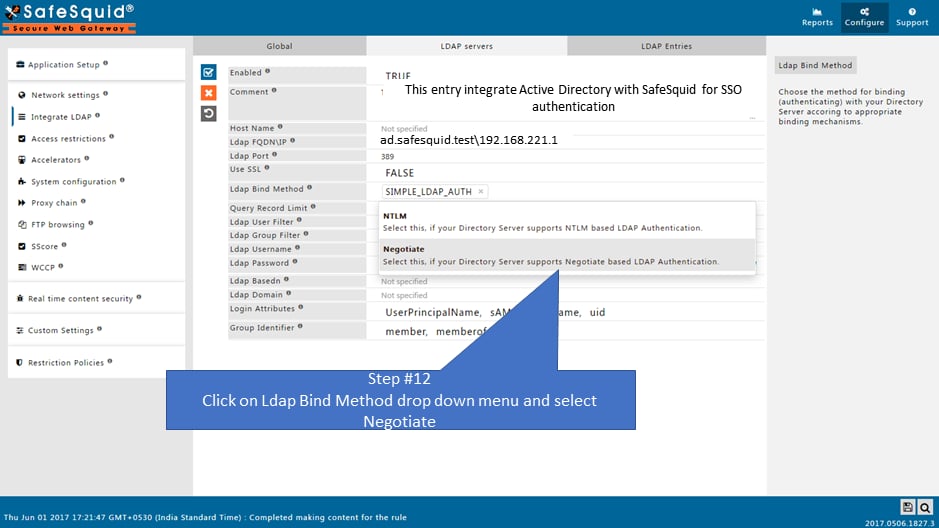
- Go to LDAP Servers tab and edit your entry.
- LDAP Bind Method: Select NEGOTIATE (this enables Kerberos SSO).
- Bind DN: Ensure this is a domain admin or account with high privileges to create the keytab.
- Automatic Keytab Generation:
When you save with NEGOTIATE, SafeSquid automatically generates:
HTTP.keytabkrb5.confkrb.tktVerify these in/usr/local/safesquid/security/.
- DNS Stub Zone: SafeSquid creates a stub zone for AD resolution in
/etc/bind/safesquid.dns.conf. Ensure this is active.
Operational notes
- This page is the documented transparent-authentication path for AD. Do not generalize the same SSO claim to non-AD directory flows without proof.
- Browser and zone configuration matter. A technically correct Kerberos setup can still appear broken if the client refuses to send the ticket.
- Treat keytab and Kerberos material as operationally sensitive assets.
Enable SSO in Access Rules
- Navigate to Access Restrictions: Application Setup → Access Restrictions → Allow List.
- Configure Rule:
- PAM Authentication: Set to TRUE.
- SSO: Ensure the global SSO field is TRUE (default).
- Save and Apply: Click the checkmark to save.
Verification
Troubleshooting
:::tip
Browser Configuration
For Chrome and Edge to send Kerberos tickets, the SafeSquid proxy URL must be recognized as an intranet site. You can enforce this via GPO:
Administrative Templates → Google Chrome → Kerberos delegation server allowlist
:::
Source register
Next steps
- Access Restriction (Apply policies by AD group)
- SSL Inspection (Attribute HTTPS traffic to AD users)
- Bypass Authentication (For non-browser apps that don’t support Kerberos)