

Set Up Active Directory SSO With RODC
Problem: Kerberos SSO in RODC Environments
In distributed networks where Read-Only Domain Controllers (RODCs) are used, direct configuration of Kerberos identities is impossible due to the read-only nature of the database. Attempts to create computer objects or modify SPNs on an RODC will fail. Users at RODC-controlled sites often face 407 authentication prompts because the RODC is “blind” to the SafeSquid computer object until it is explicitly created on a Writable DC and replicated.Key benefits
- Global Single Sign-On: Authenticated users at RODC sites access the proxy without credential prompts.
- Security Alignment: Enforces AES-256 encryption across all sites.
- Centralized Management: Configure once on the Writable DC (RWDC) and replicate automatically to all RODC locations.
- Zero Admin Overhead: Automation script handles complex AD attribute mapping (UAC Flags, SPNs, Encryption Types).
The Concept: Kerberos Lookup & the “Push”
To understand why the Main DC is vital, consider the Kerberos-RODC flow: Why it matters: The RODC cannot issue a ticket unless it “knows” SafeSquid exists. Since it can’t create the account itself, you must Push the “Source of Truth” from the Main Writable DC.Prerequisites
- Perform all operations on a Writable Domain Controller (RWDC).
- Target the PDC Emulator: To avoid “Referral” or “Unwilling to process” errors, we explicitly find and target the Primary DC.
Configuration Breakdown
Service Principal Names (SPNs)
Seven SPNs are required. The hostname used bymsktutil must match the AD object’s registration exactly.
Placeholder Reference Table
Use this table to identify which values in the commands and scripts need to be replaced with your environment’s specific details.Service Principal Name (SPN) Reference Table
These seven SPNs must be registered on the SafeSquid computer object. Replace placeholders with your actual values.Setup Procedure
Choose the method that fits your administration style.- Manual Steps
- Automated Script
Phase 2: Configure Password Replication Policy (PRP)
Since the RODC is read-only, you must allow it to cache the SafeSquid computer password.- Open AD Users and Computers > Domain Controllers OU.
- Right-click your RODC Object > Properties.
- Go to the Password Replication Policy tab.
- Click Add and select the safesquid computer account.
- Ensure it is set to “Allowed”.
Phase 3: SafeSquid Interface Setup
Navigate to Application Setup > Integrate LDAP > LDAP servers.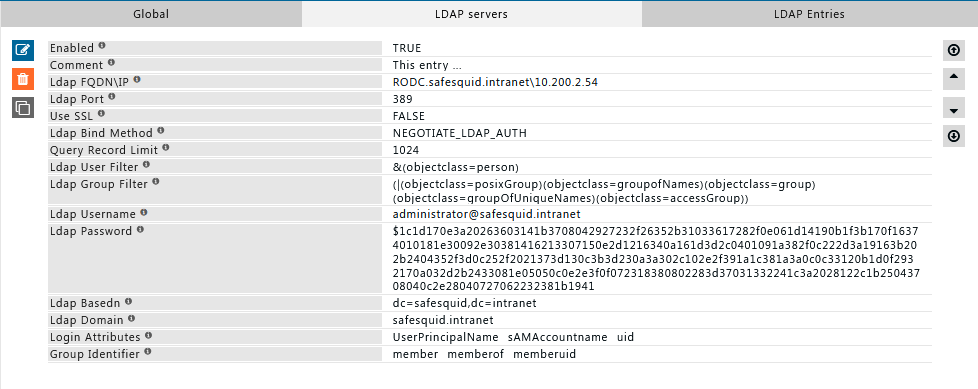
:::warning
Ensure the Ldap Bind Method is set to NEGOTIATE_LDAP_AUTH. This is the trigger that initiates Kerberos ticket exchange.
:::
Troubleshooting
Keytab Generation Fails
- Symptom: Logs show
kerberos: main: Generate Keytab: failed. - Cause: The RODC password replication policy hasn’t synced the computer account yet.
- Fix: Manually initiate a sync on the RODC or wait 15 minutes.
407 Proxy Authentication Required
- Cause: Time drift between AD and SafeSquid.
- Fix: Verify time sync using the
datecommand on both servers. They must be within 5 minutes of each other.
Source register
Next steps
- SSO Authentication for standard RWDC paths.
- NTP for clock sync.
- Authentication hub.