

Restrict AnyDesk Access Through SafeSquid
Problem
Security teams need predictable control over app and web usage to reduce policy bypass and data-risk exposure.Benefits
You can enforce policy decisions consistently with SafeSquid while preserving legitimate business workflows.Advantages
You keep actionable policy control close to operations, with verifiable outcomes in logs and policy behavior.Call to action
Use the steps in this guide to implement the control, then validate behavior with a real user-flow test.Access the SafeSquid User Interface
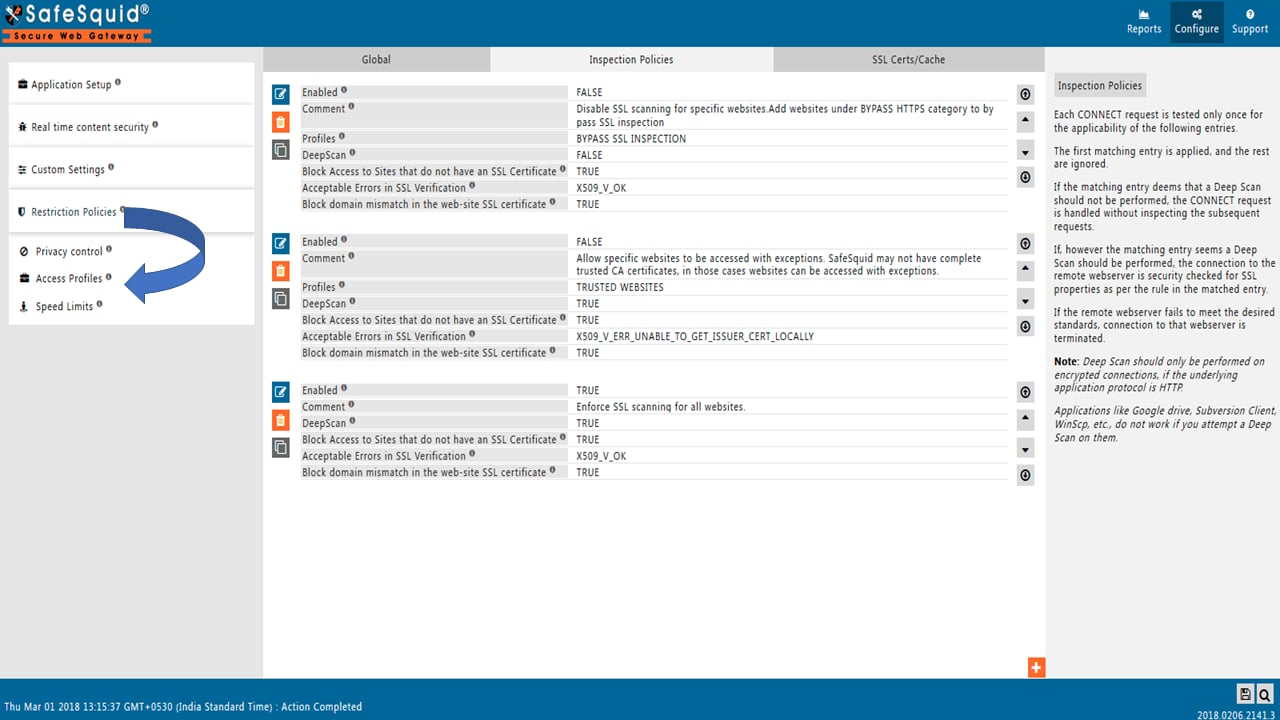
Go to configure page
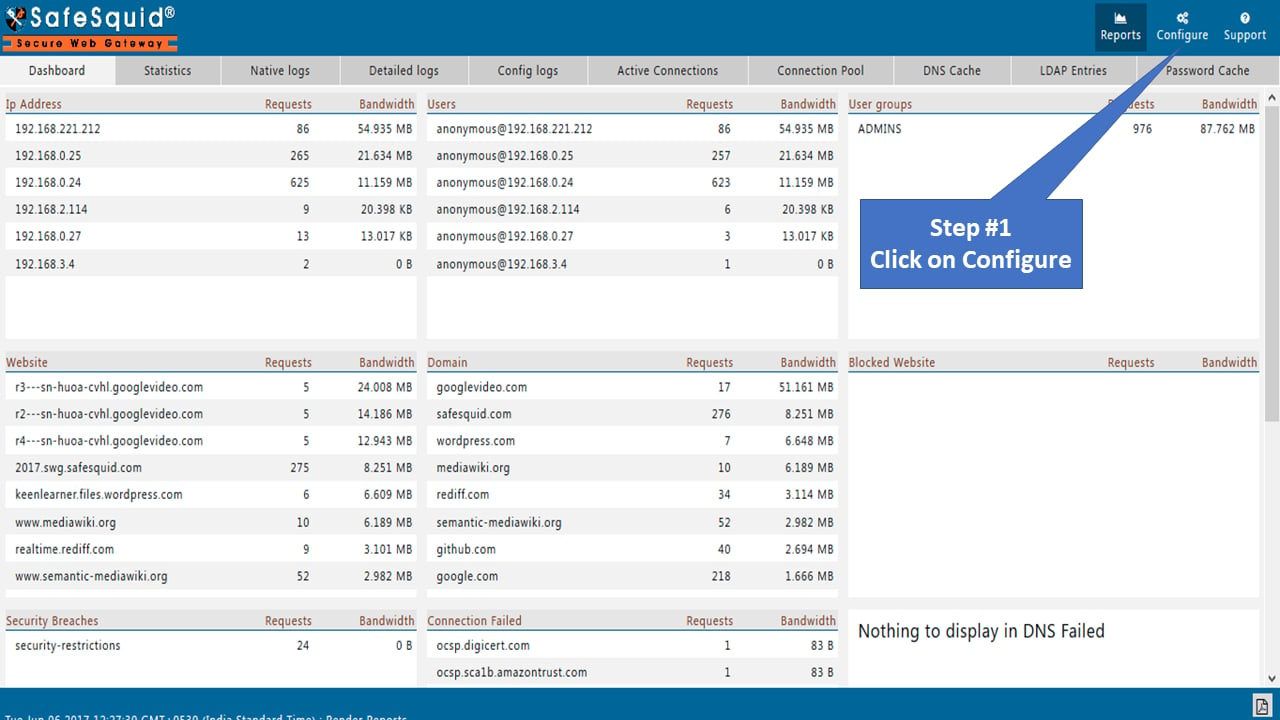
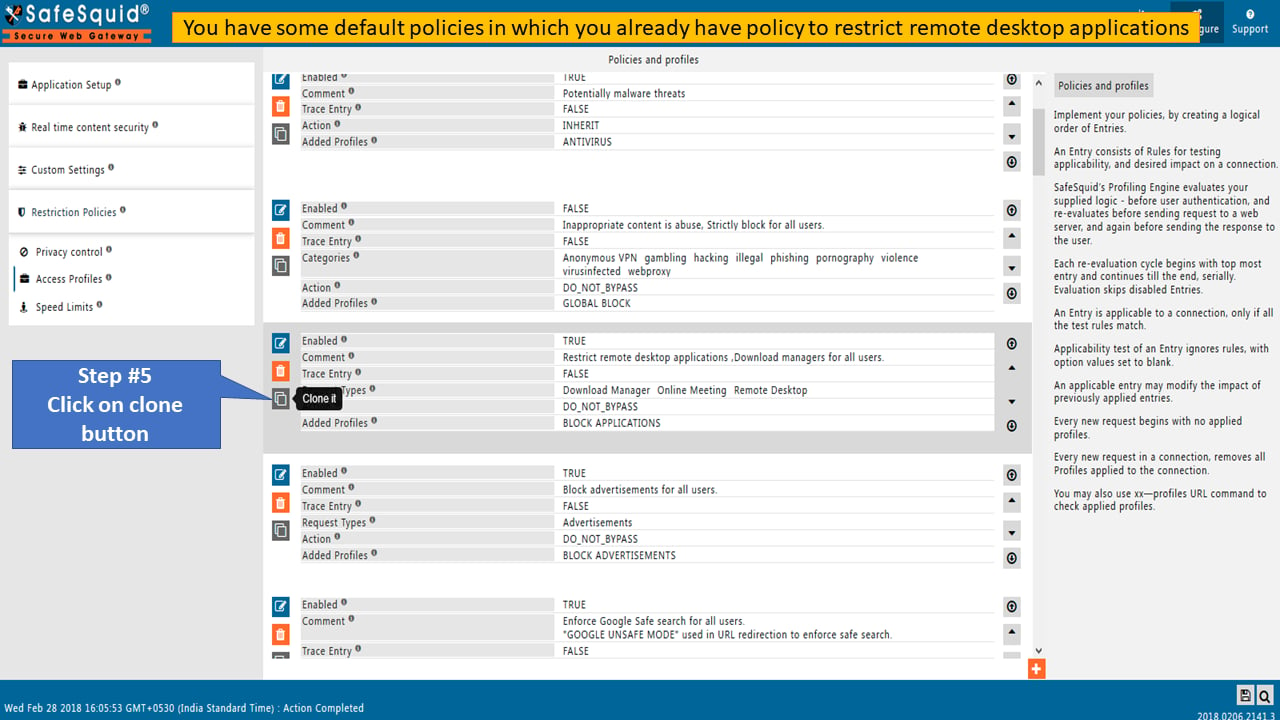
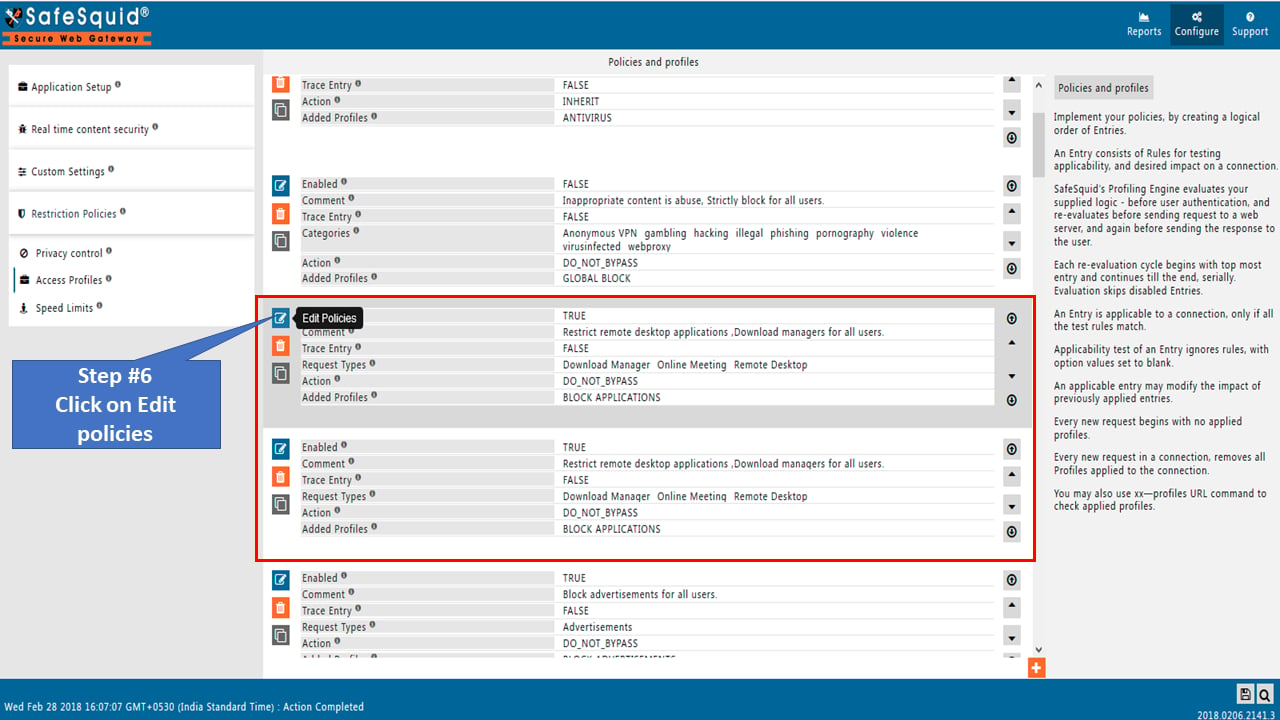
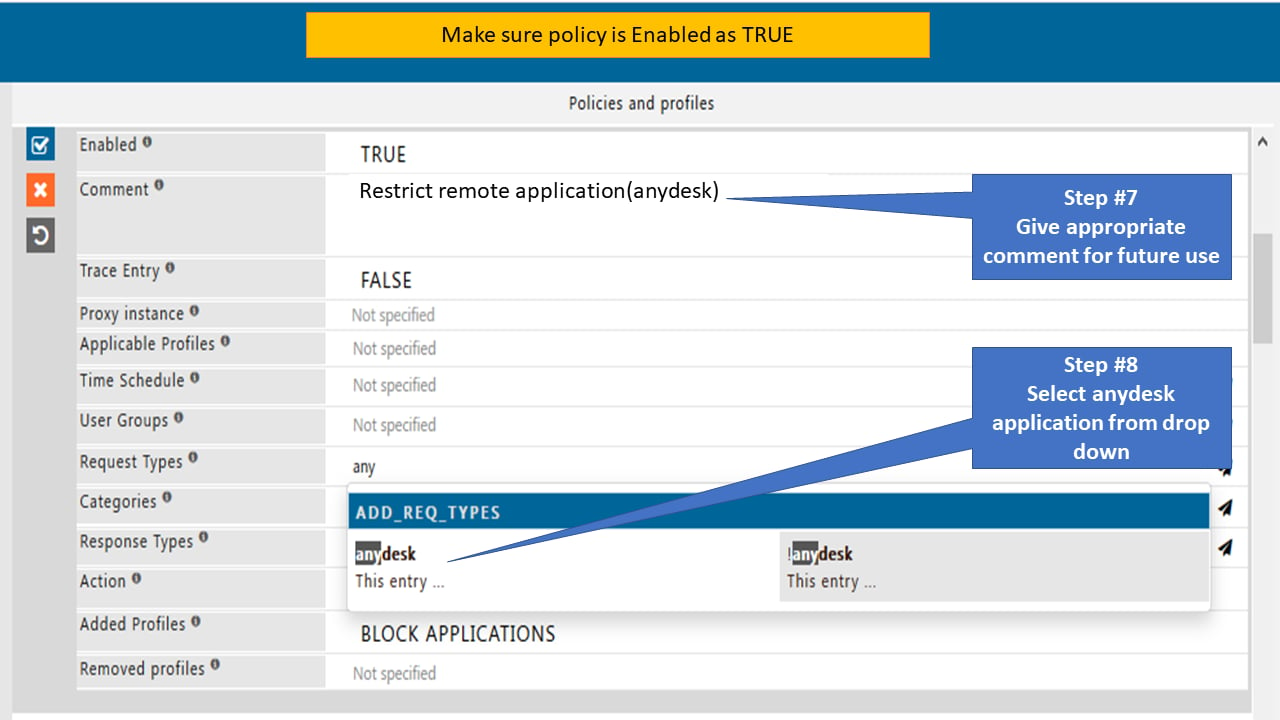
Go to Real time content security
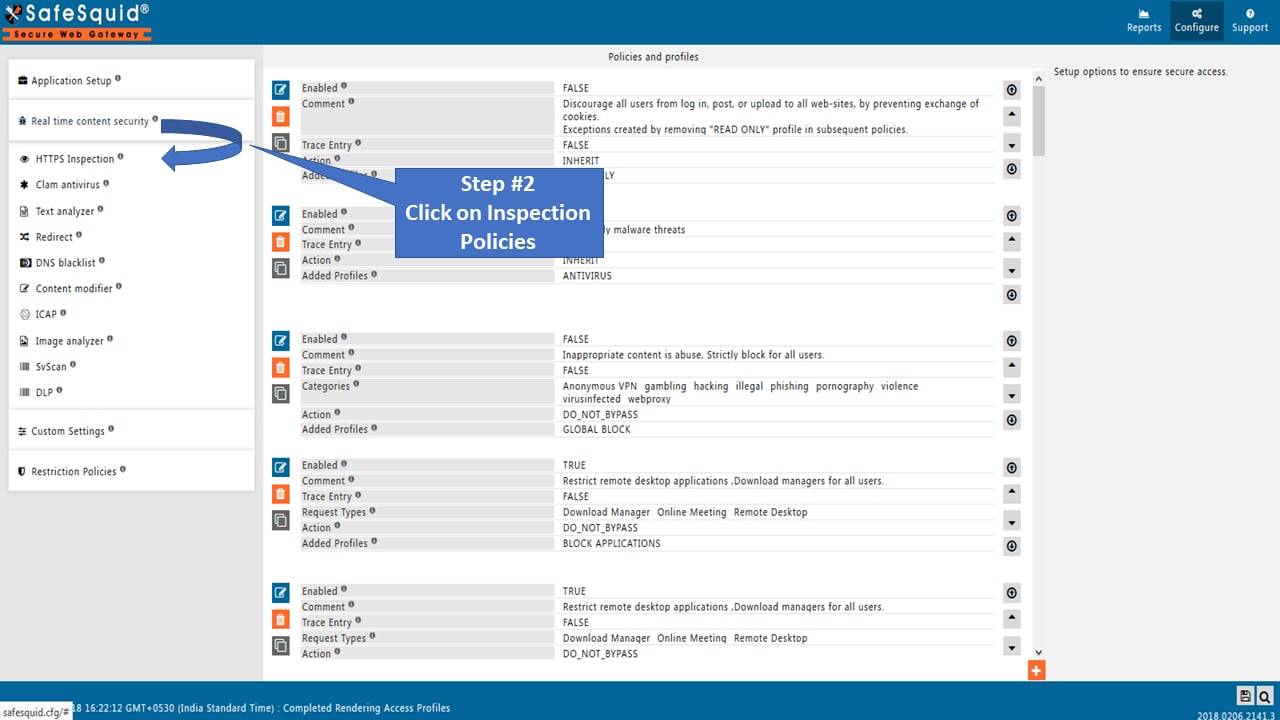
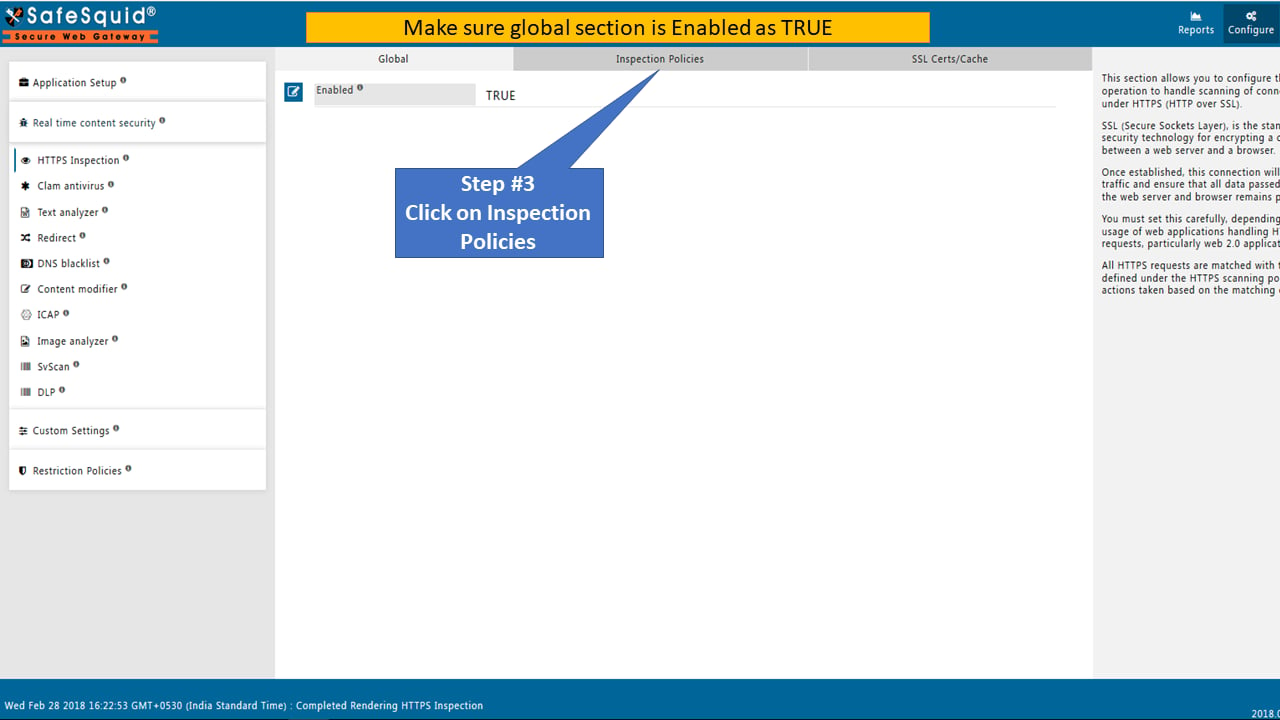
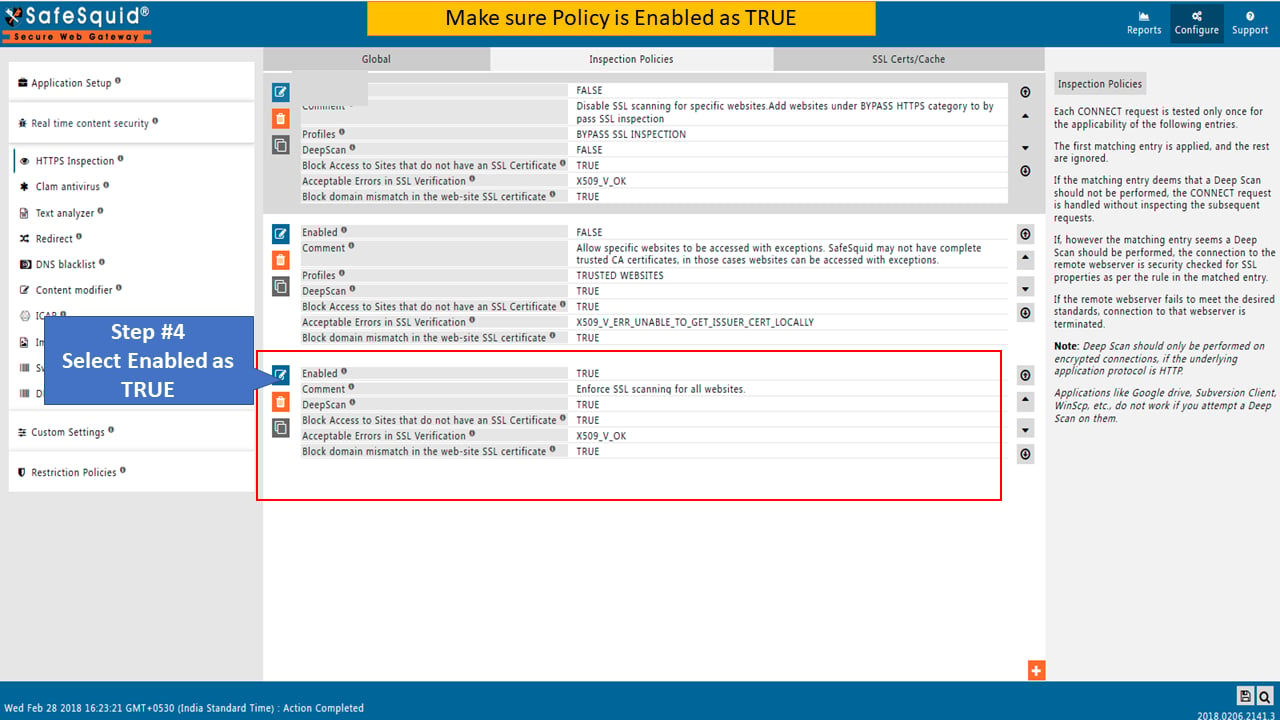
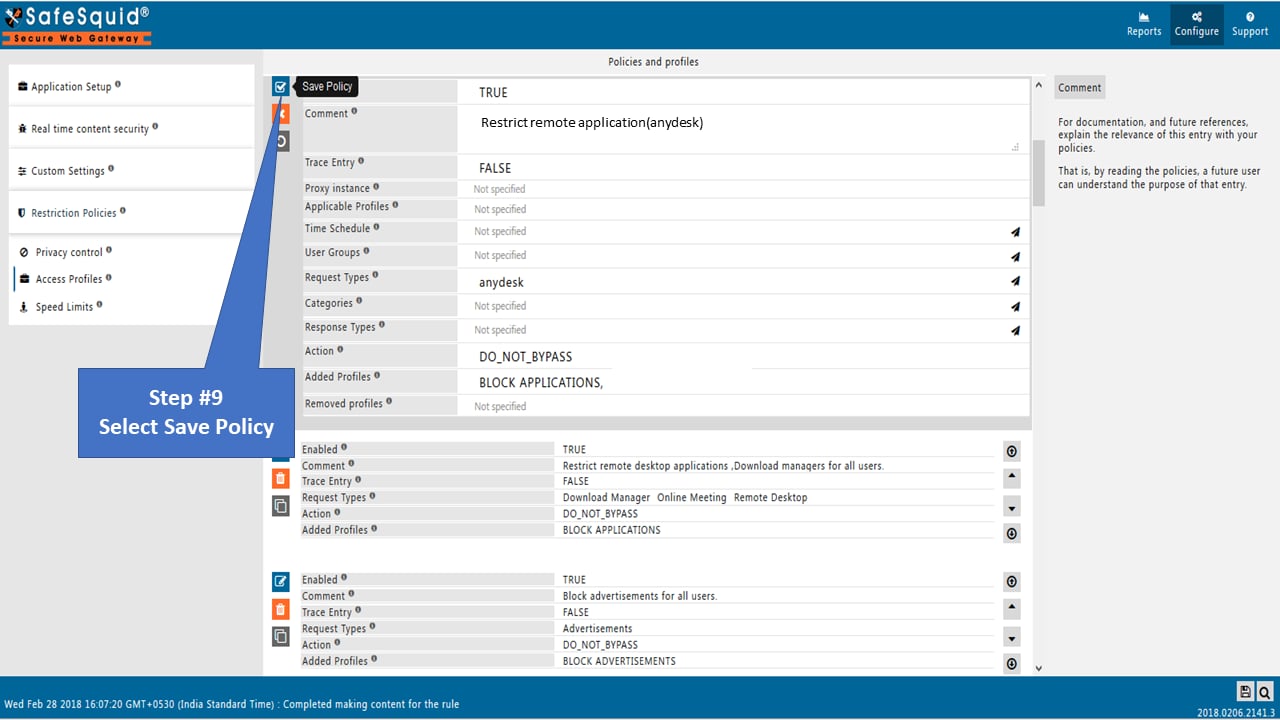
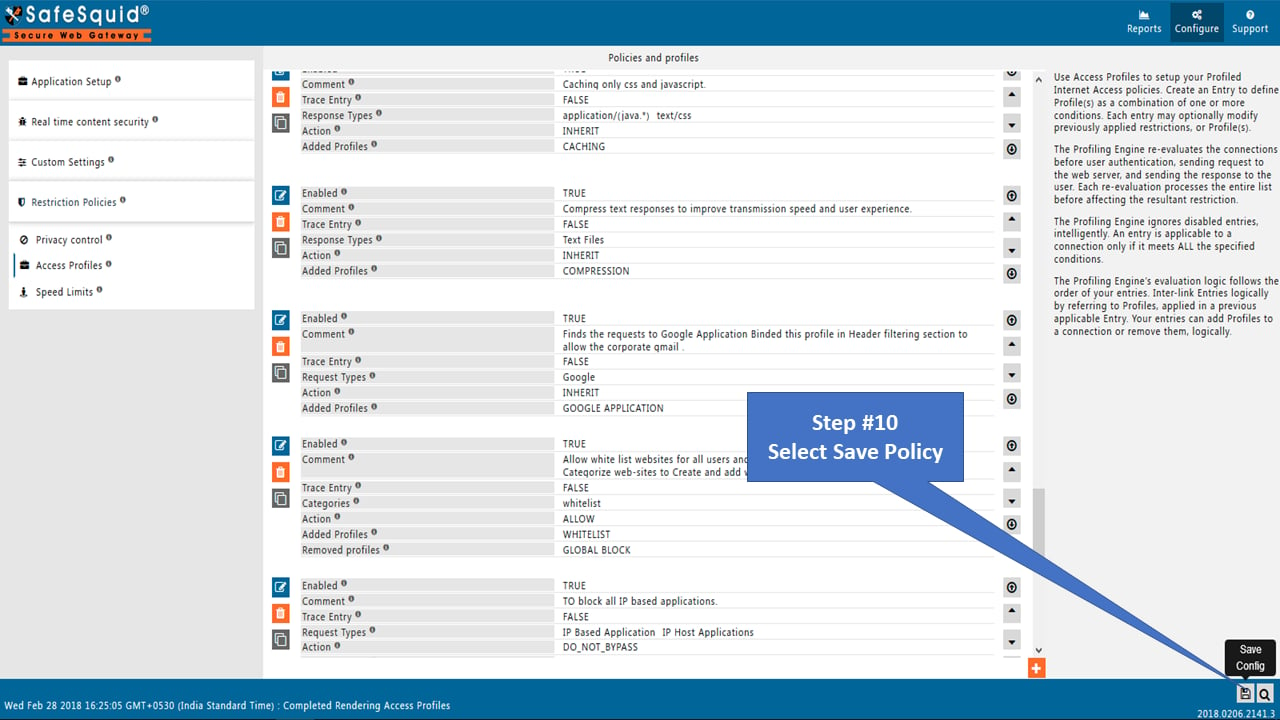
Configuration on anydesk
Set proxy on anydesk application If authentication is enabled you have to specify Username and Password on any desk application. Anydesk should not take auto proxy settings: If you set proxy in IE browser or chrome browser and you select “Try to detect the proxy server” option on anydesk, it should not take proxy automatically. You must have to configure proxy on anydesk application.Next steps
- Policy Management Console - administrative interface for defining, simulating, and enforcing SafeSquid access control, URL filtering, SSL inspection, and DLP policies.