

Problem
Security teams need predictable control over app and web usage to reduce policy bypass and data-risk exposure.Benefits
You can enforce policy decisions consistently with SafeSquid while preserving legitimate business workflows.Advantages
You keep actionable policy control close to operations, with verifiable outcomes in logs and policy behavior.Call to action
Use the steps in this guide to implement the control, then validate behavior with a real user-flow test.Block one YouTube channel while allowing other content
Block access to specific YouTube channels (e.g., T-Series) while allowing other YouTube content. :::note Blocking specific YouTube channels while allowing other videos is a common policy need. The steps below demonstrate blocking a specific channel and its playlist videos. :::Prerequisites
- HTTPS Inspection must be enabled in SafeSquid. See How to enable HTTPS Inspection.
- Extract the YouTube Channel-ID and List-ID from the target channel URL
Extract Channel-ID and List-ID
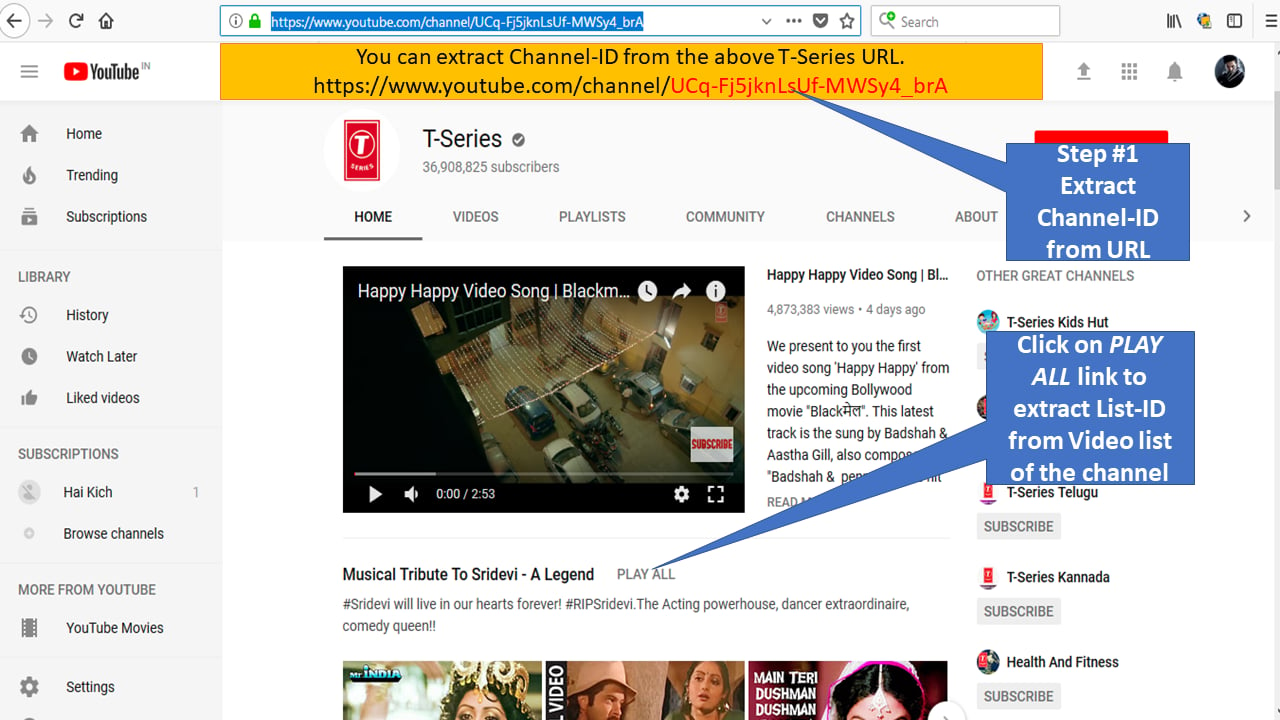
- Open the YouTube channel to block (e.g., T-Series).
-
Extract the Channel-ID from the URL (the portion after
channel/):- URL:
https://www.youtube.com/channel/UCq-Fj5jknLsUf-MWSy4_brA - Channel-ID:
UCq-Fj5jknLsUf-MWSy4_brA
- URL:
- Click PLAY ALL on the channel page to access a playlist.
-
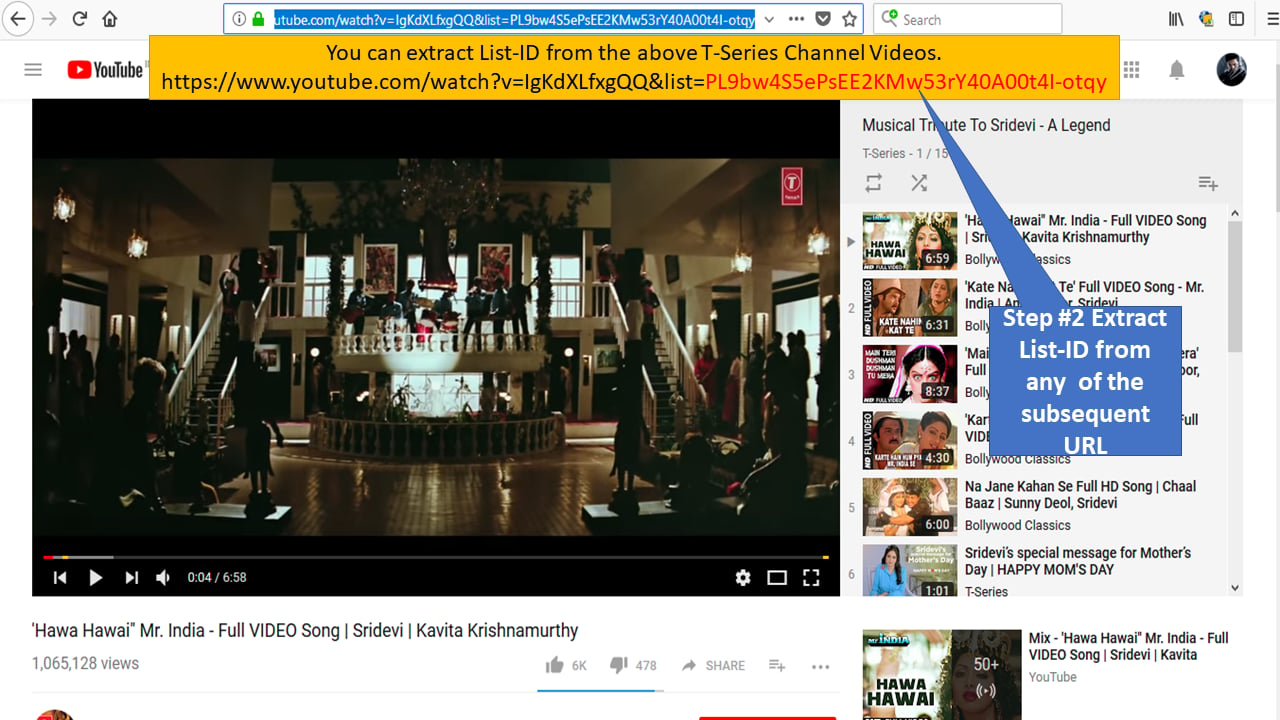
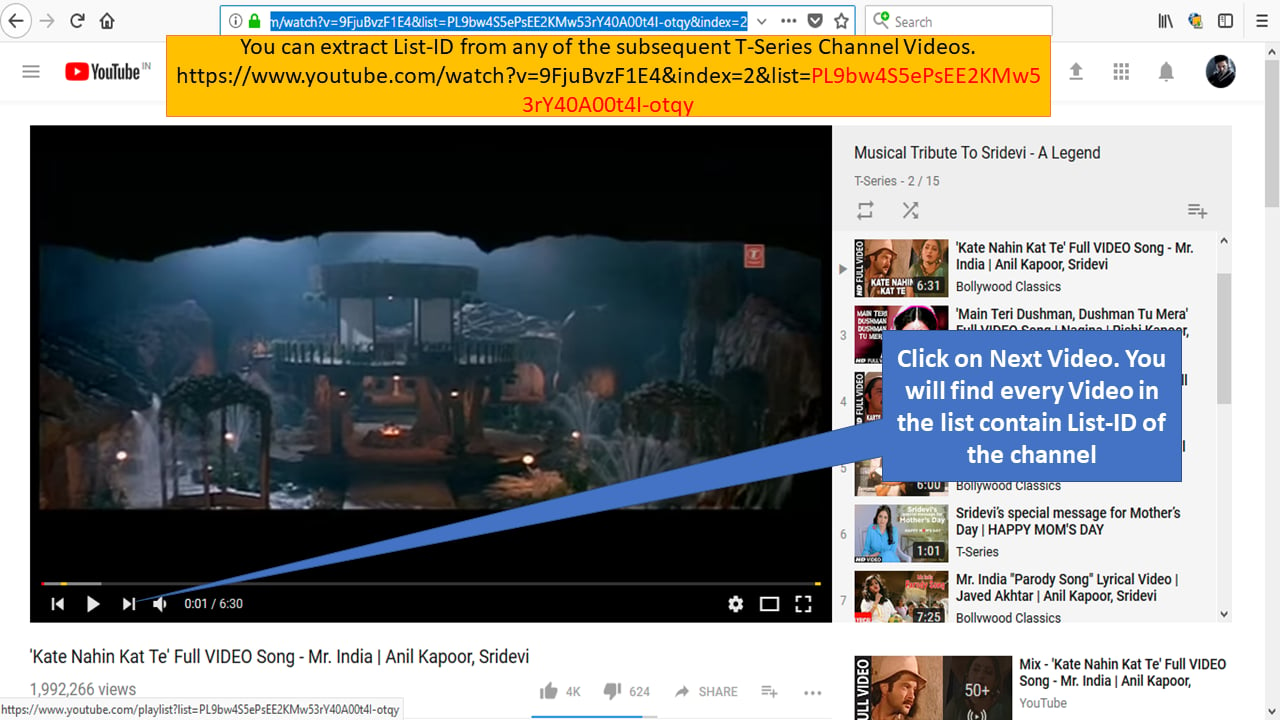
Extract the List-ID from the playlist URL (the portion after
&list=):- URL:
https://www.youtube.com/watch?v=IgKdXLfxgQQ&list=PL9bw4S5ePsEE2KMw53rY40A00t4I-otqy - List-ID:
PL9bw4S5ePsEE2KMw53rY40A00t4I-otqy
- URL:
Create Request Types Policy
-
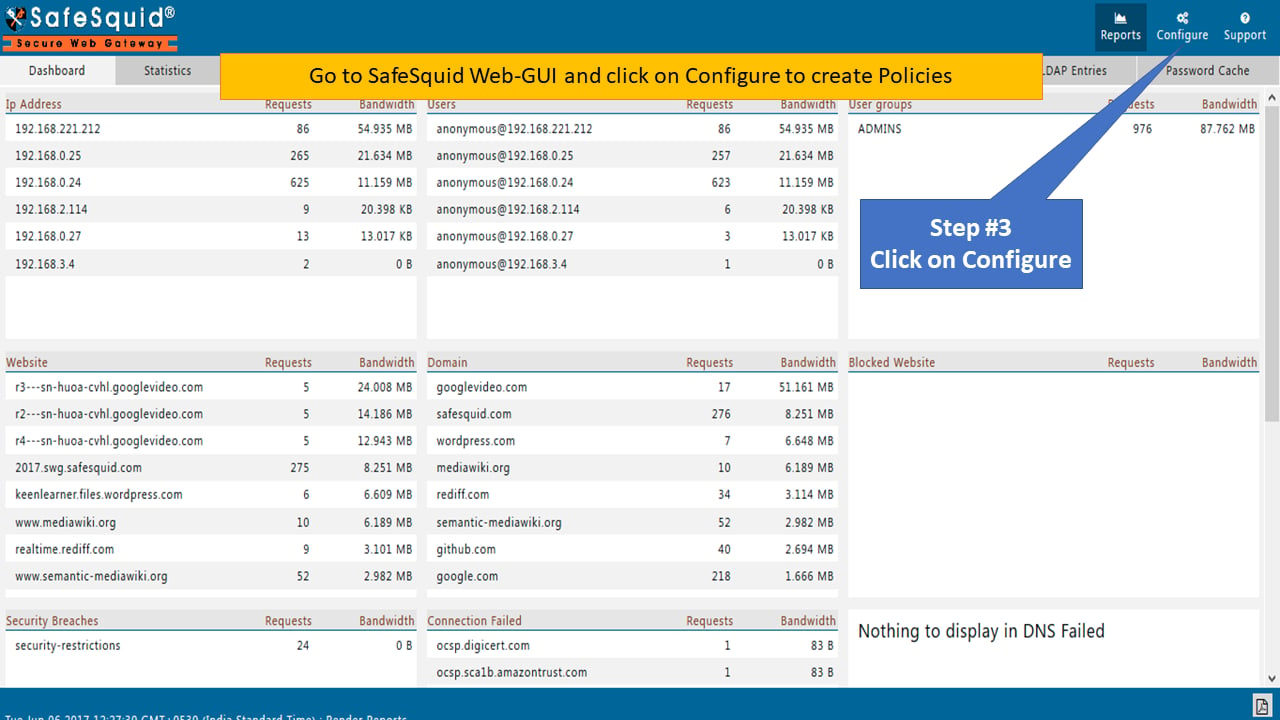
Open SafeSquid WebGUI and click Configure.
-
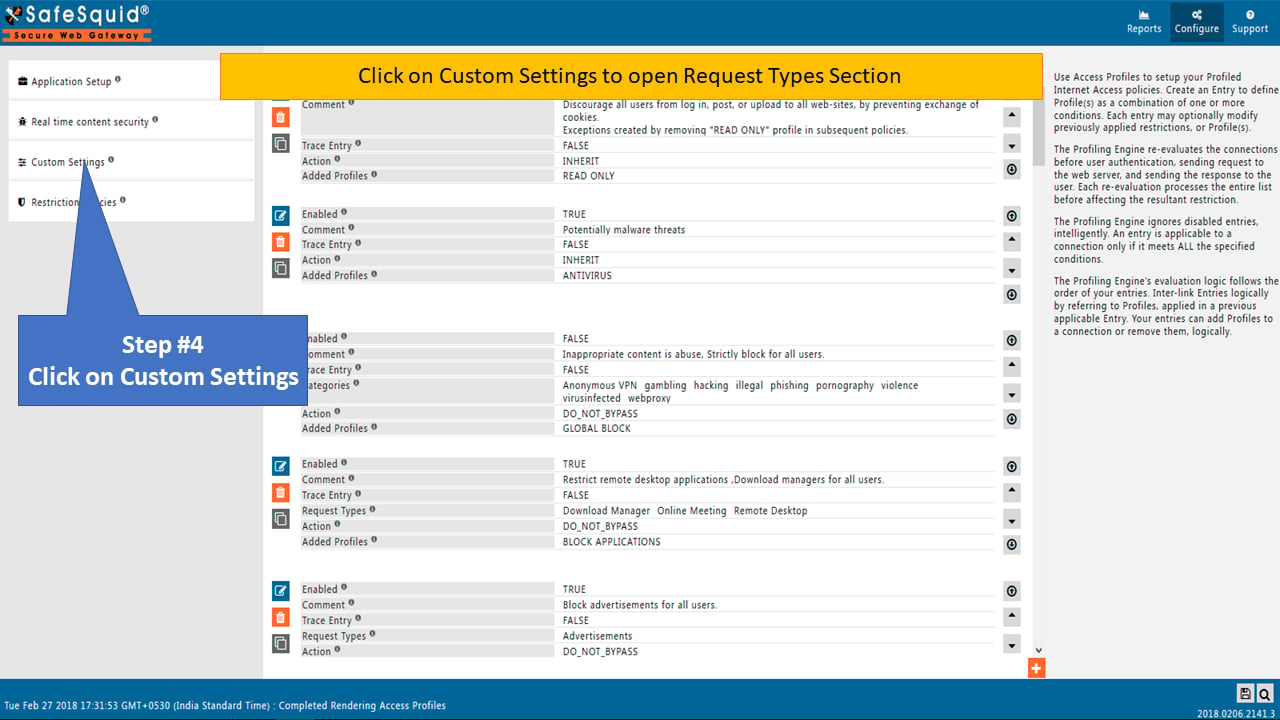
Click Custom Settings to open the Request Types section.
-
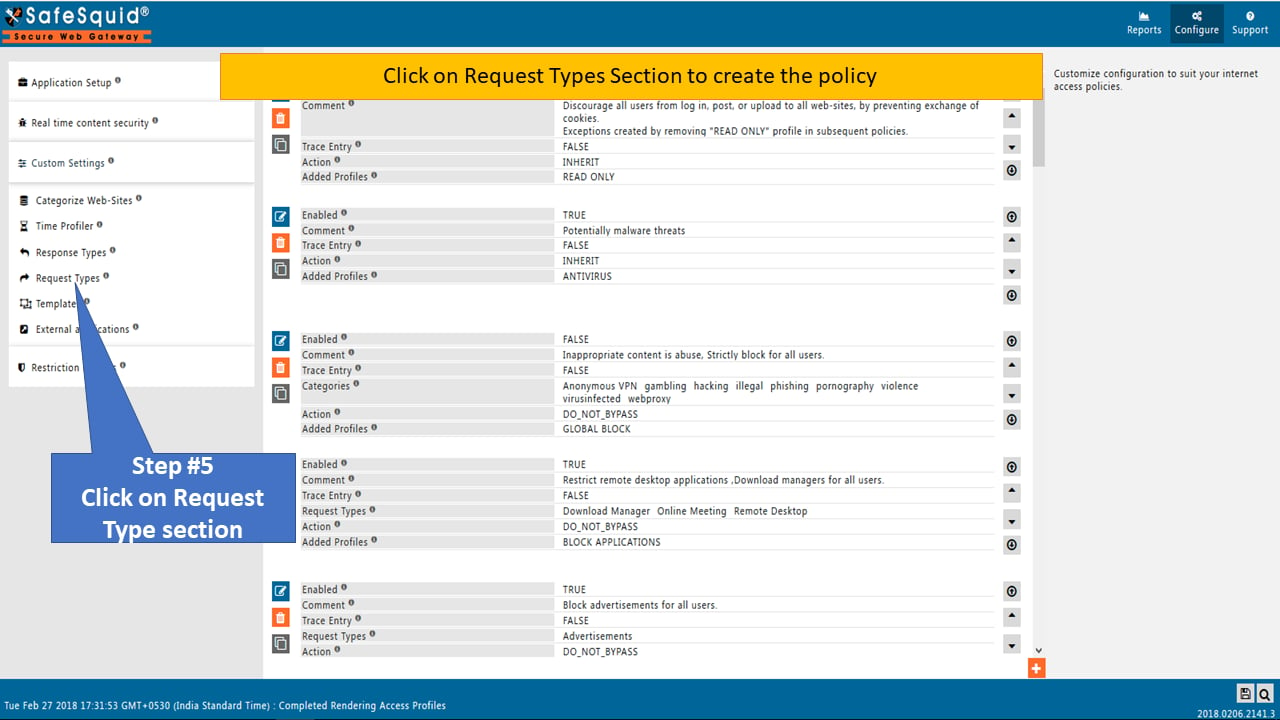
Ensure the Global setting in Request Types is set to True.
-
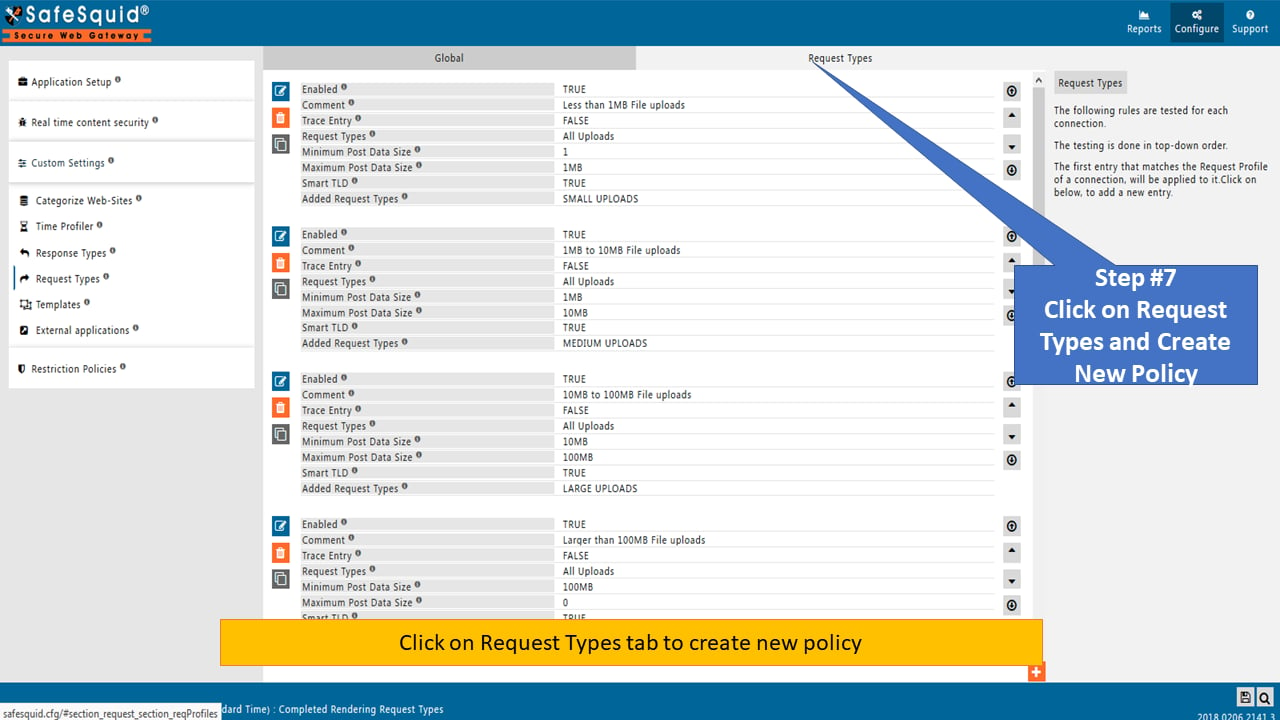
Click the Request Types tab to create a new policy.
-
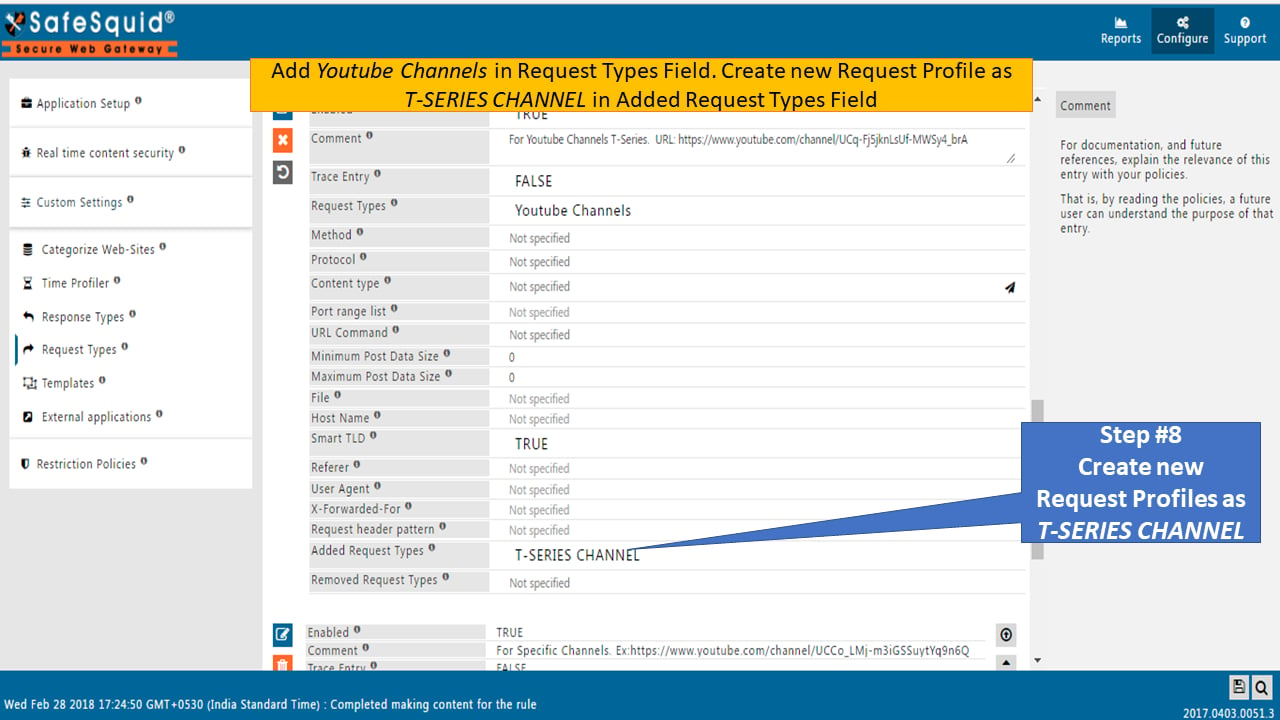
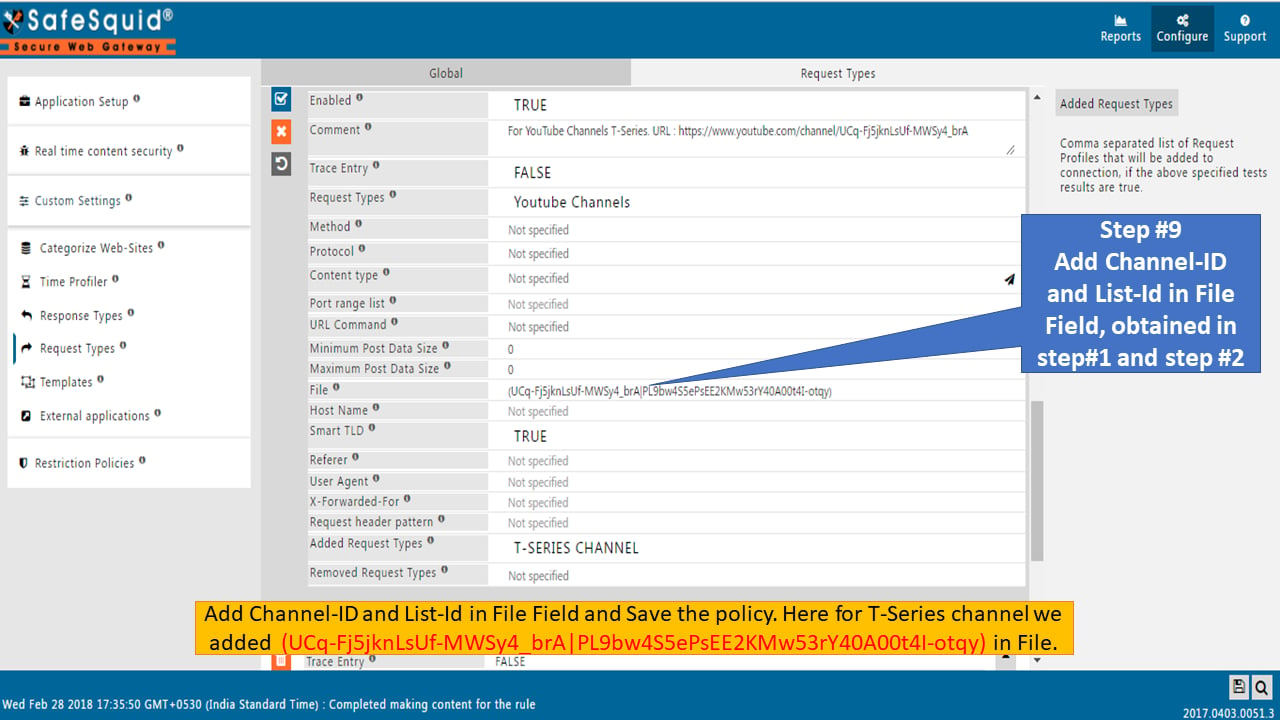
Create a new Request Profile named T-SERIES CHANNEL in the Added Request Types field.
-
Add the Channel-ID and List-ID to the File field using the format:
Save the policy.
Create Access Profiles Policy
-
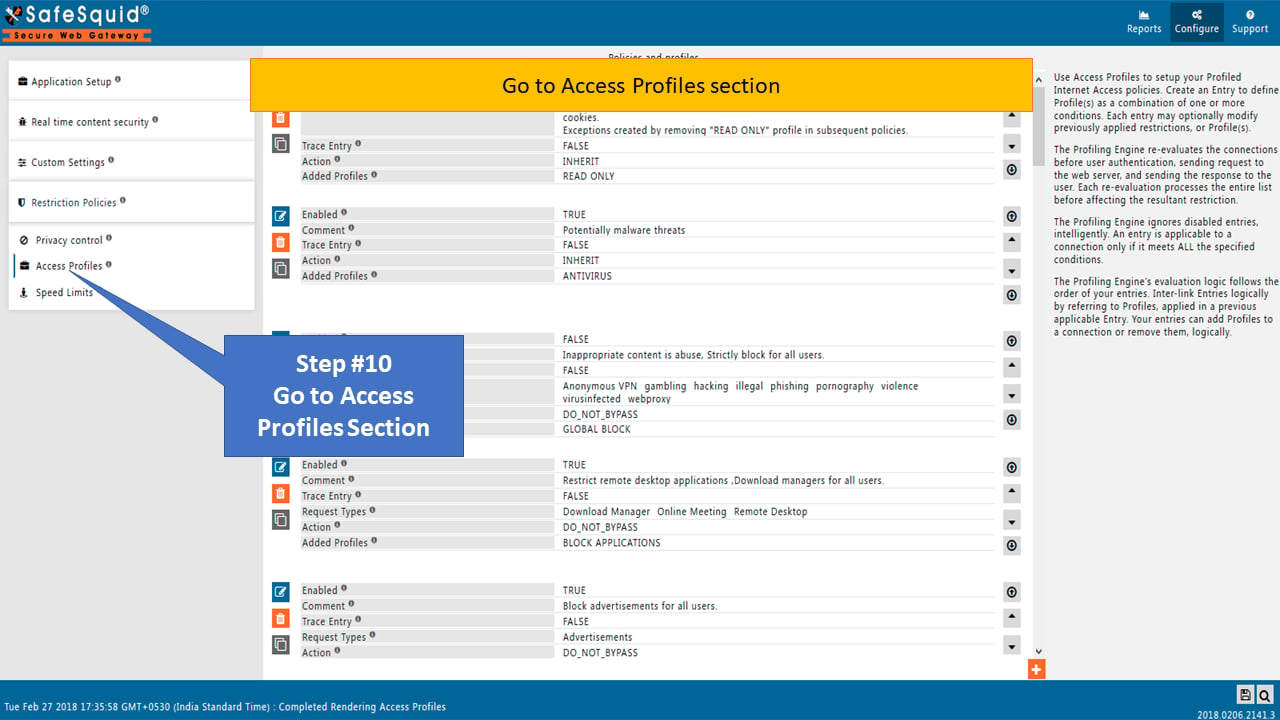
Navigate to the Access Profiles section.
-
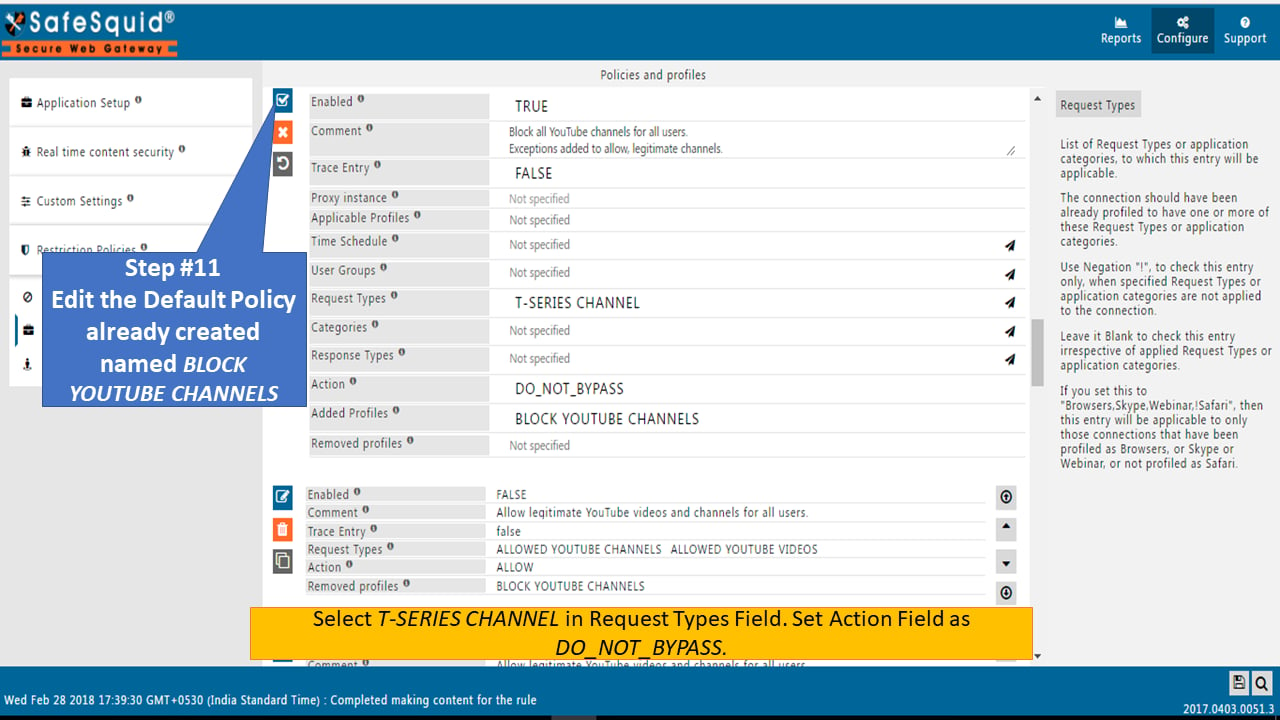
Edit the default policy BLOCK YOUTUBE CHANNELS:
- Select T-SERIES CHANNEL in the Request Types field
- Set Action to DO_NOT_BYPASS
-
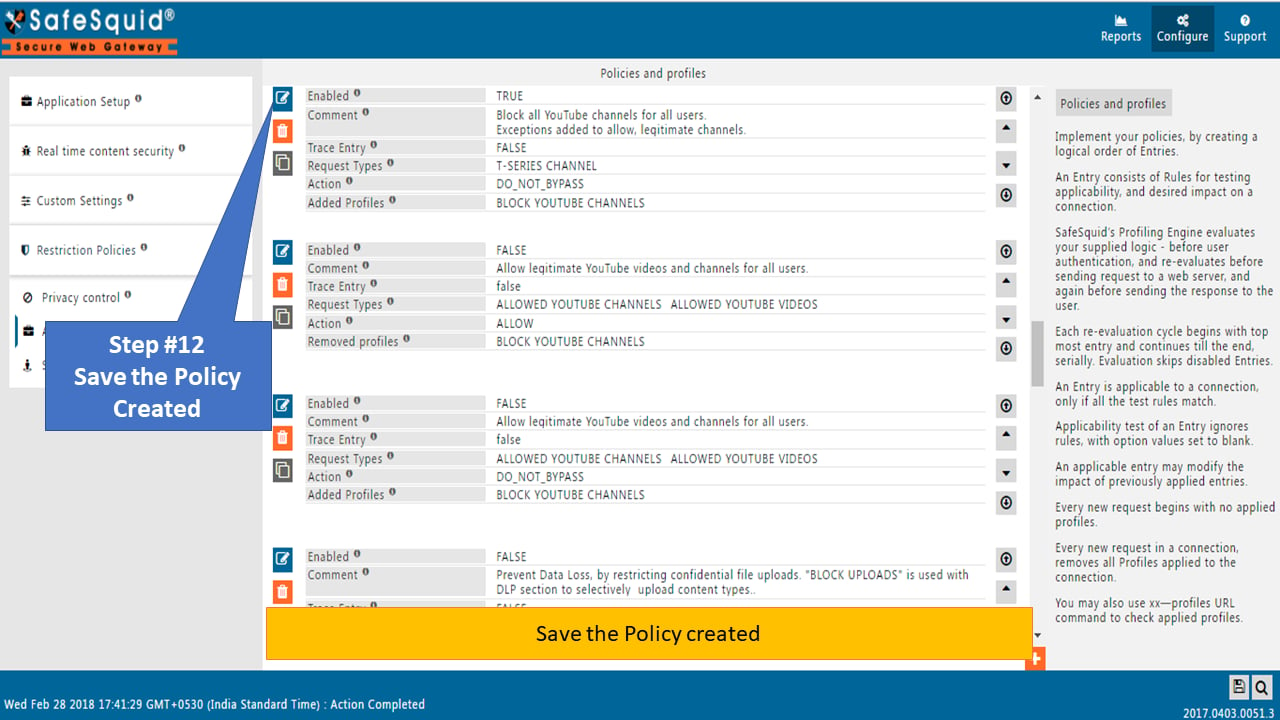
Save the policy.
Verification and Evidence
-
Access the T-Series channel URL:
https://www.youtube.com/channel/UCq-Fj5jknLsUf-MWSy4_brAThe channel displays the Access Blocked template.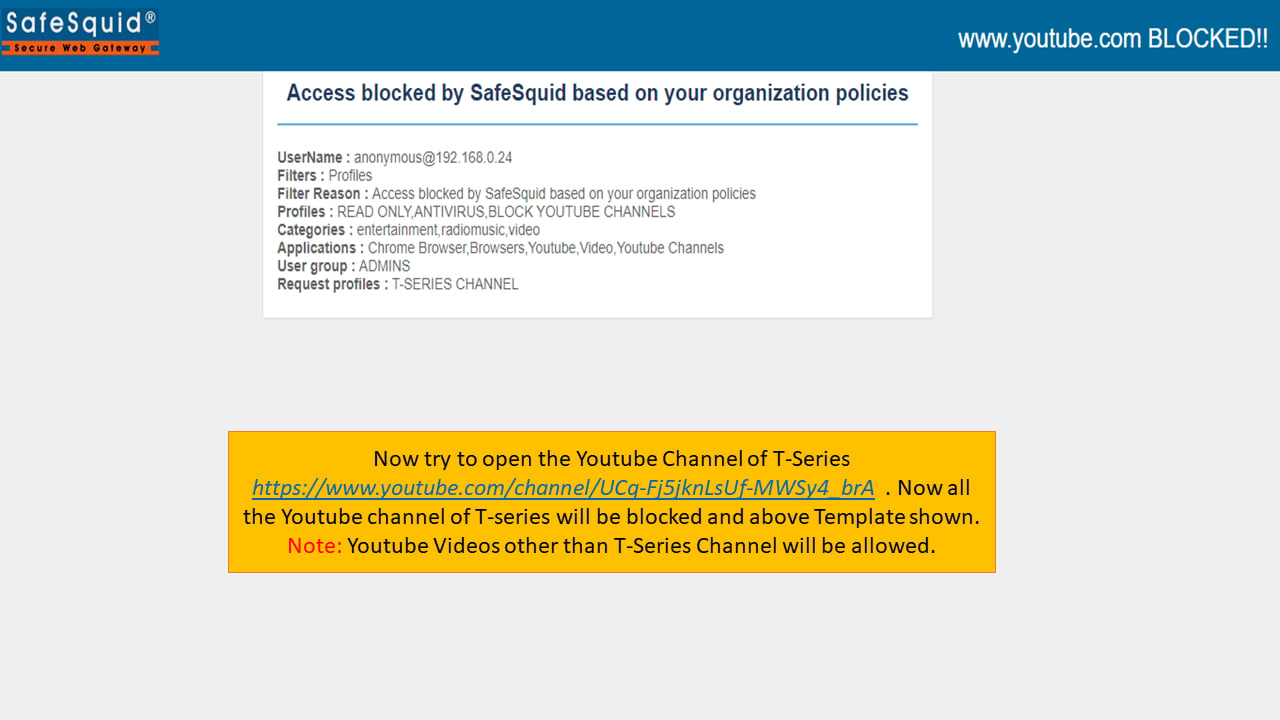
-
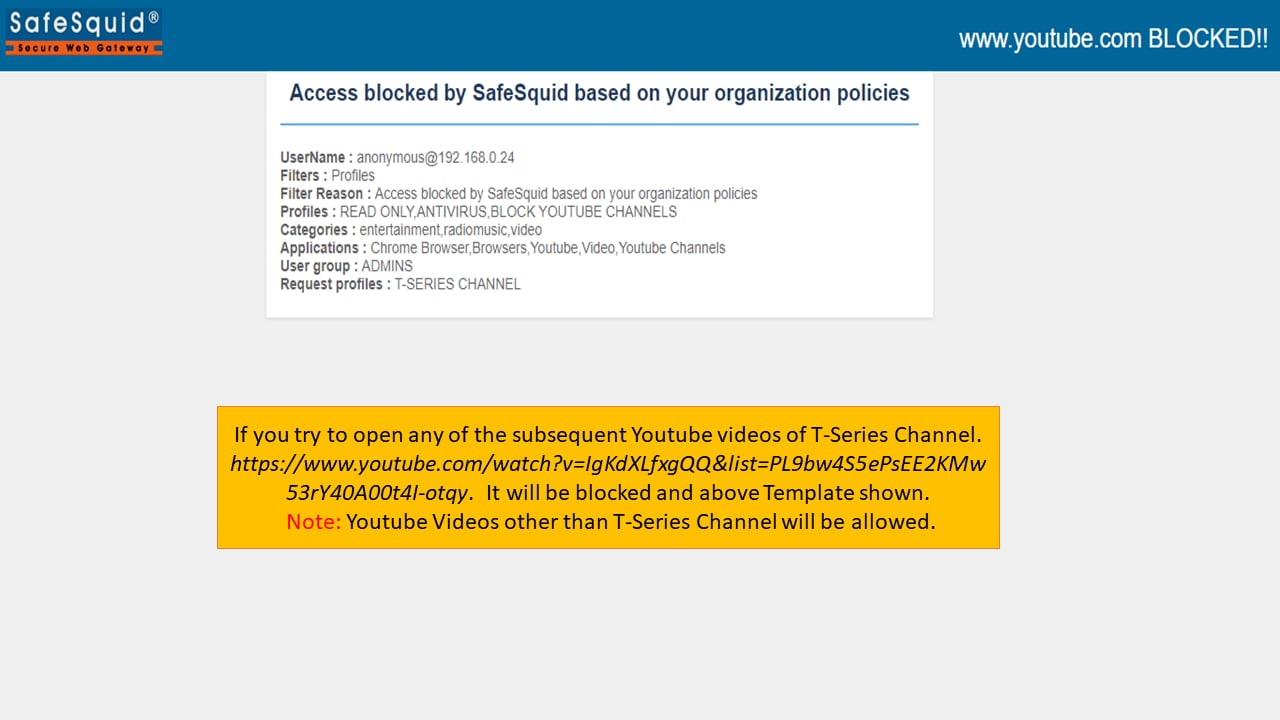
Access any T-Series playlist video to confirm blocking.
Next steps
- Allow Specific YouTube Channel and Its Playlist to allow only approved channels.
- Access Restriction for policy and profile configuration.