

Problems addressed
Unrestricted DNS resolution reaches malicious or abused domains before HTTP policy applies. SOC teams need an early, loggable block at resolution when threat feeds supply DNS-style indicators.Outcomes operators expect
- Block or template-block domains that return configured DNSBL codes before TCP to origin.
- Evidence in Security Logs and reports for audit—see Verify below.
Advantages vs URL-only filtering
DNSBL fails closed earlier in the chain for list-based domain risk. URL and content rules still apply for paths, categories, and payloads.Acquire, deploy, use
Complete Prerequisites, configure Real-time content security → DNS Blacklist as below, then run block tests and log checks.Why use DNS Blacklisting?
Unrestricted DNS resolution allows clients to reach domains listed as malicious in threat feeds. DNSBL blocks these connections at the resolution layer-before any traffic is exchanged-reducing exposure to malware, phishing, and botnet callbacks.Prerequisites
- SafeSquid SWG installed and operational.
- SafeSquid configured as the primary DNS resolver (see Supporting Services: BIND).
- A valid DNSBL service domain (e.g.,
in.dnsbl.orgor a private threat intel list). - Outbound network access to the DNSBL service.
Configure DNSBL in Real-time content security
- Access the SafeSquid User Interface.
- Open the Configure page.
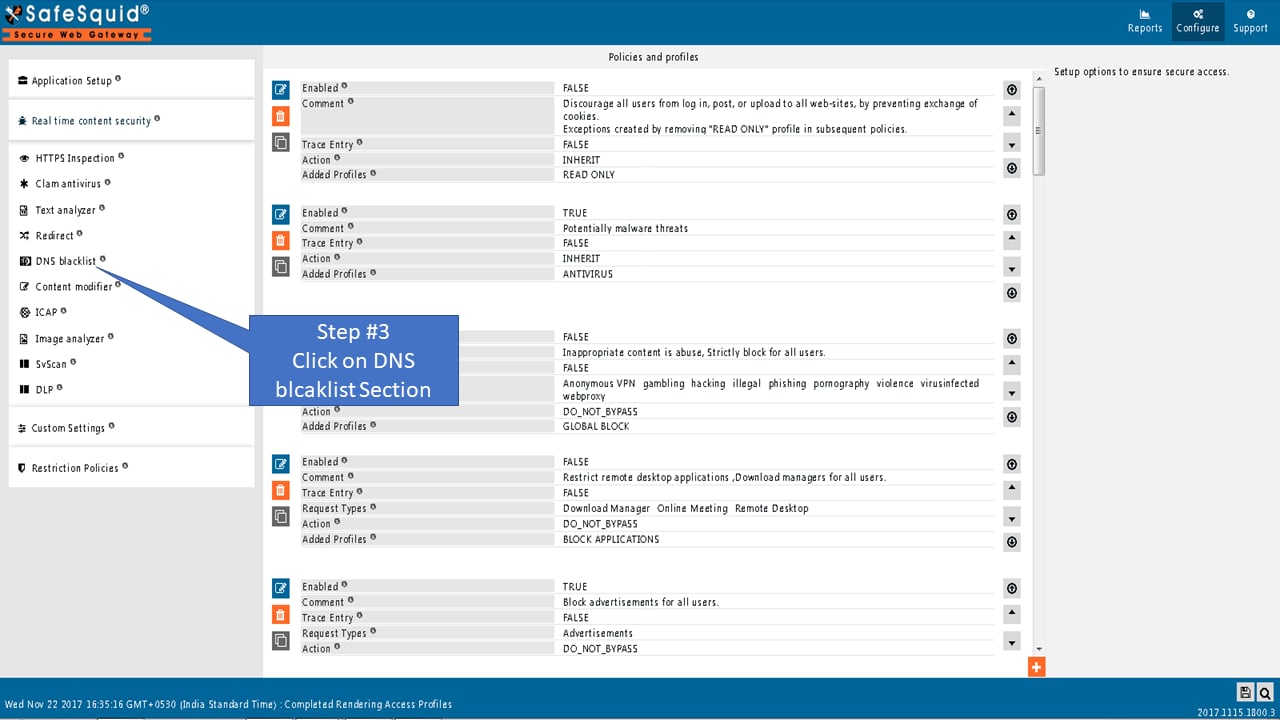
- Go to Real-time content security.
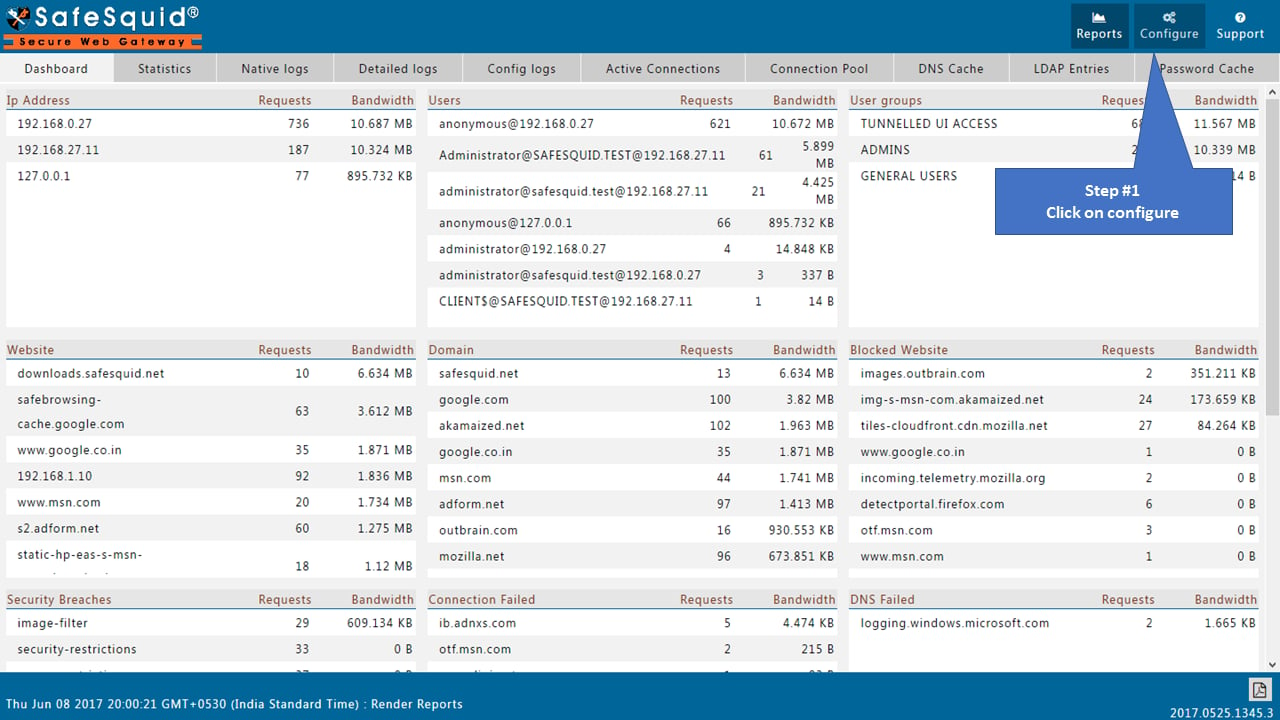
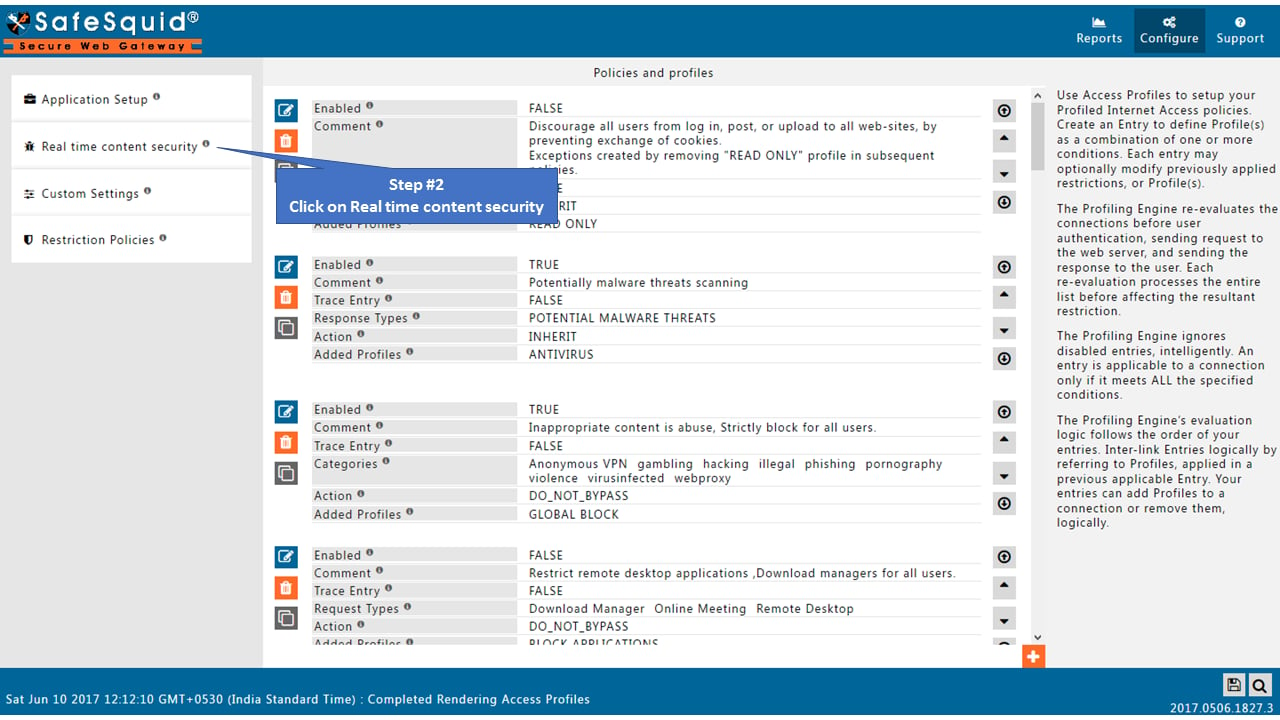
- Open the DNS Blacklist section.
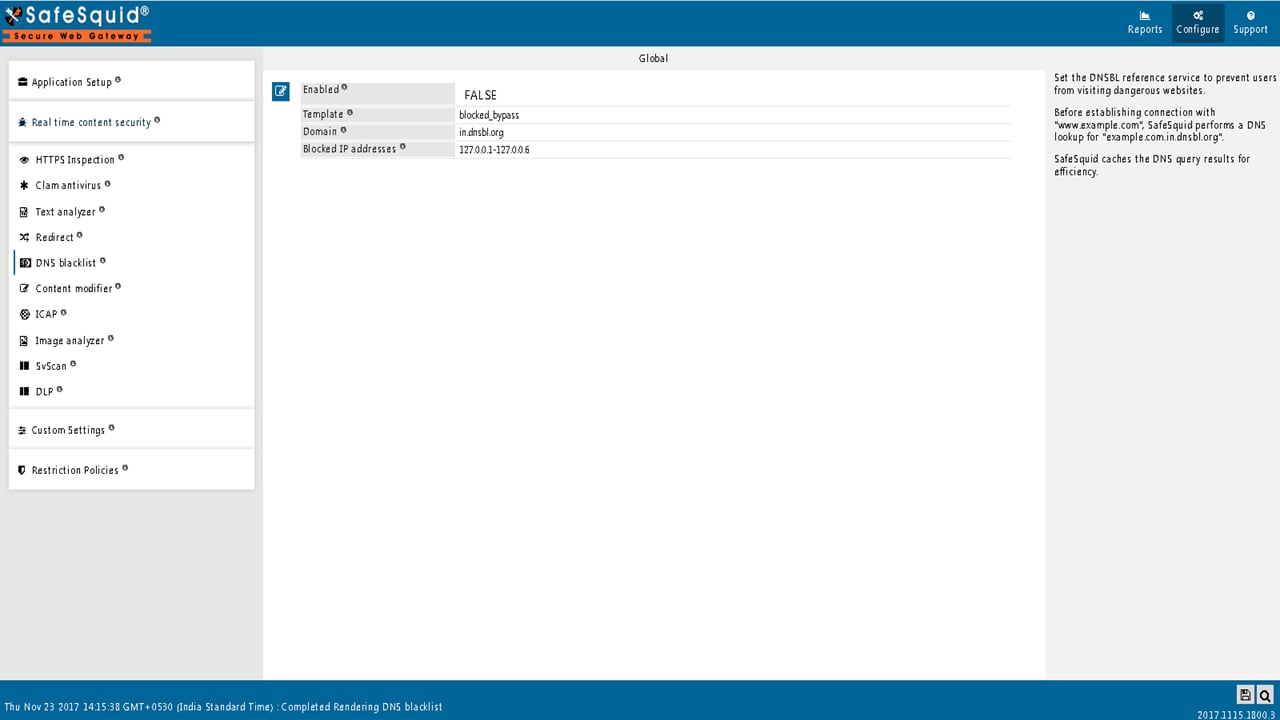
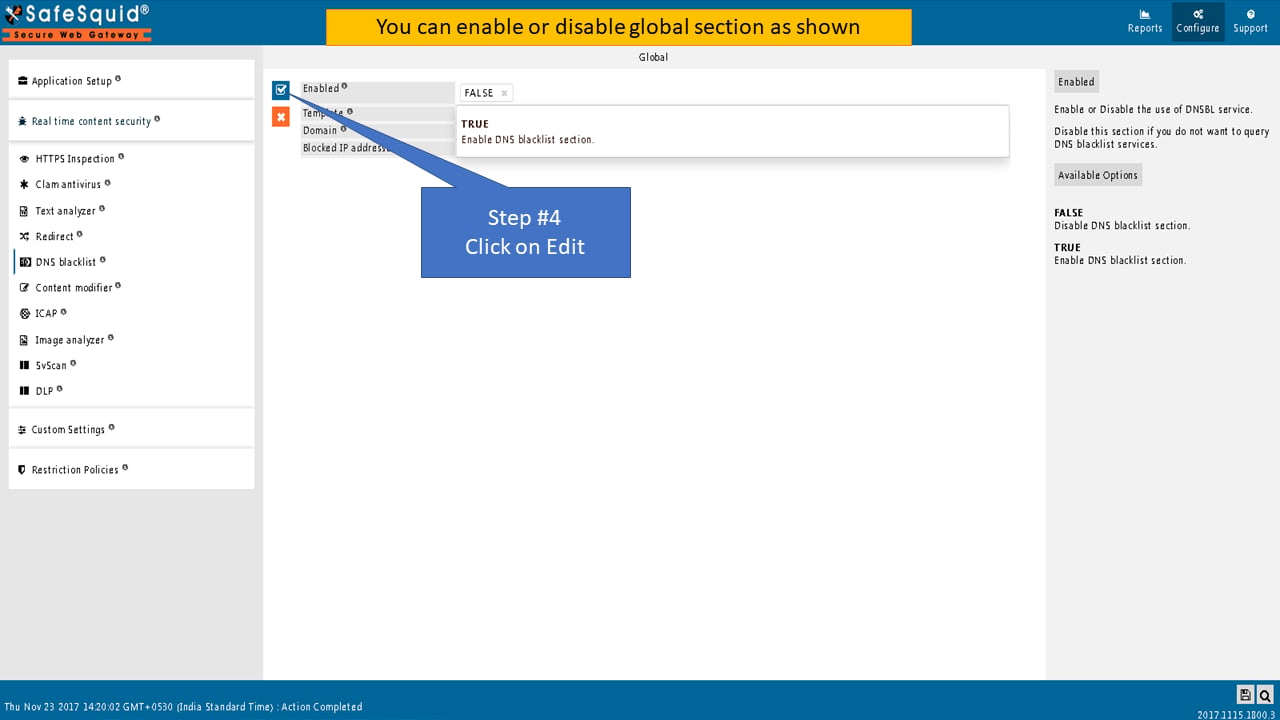
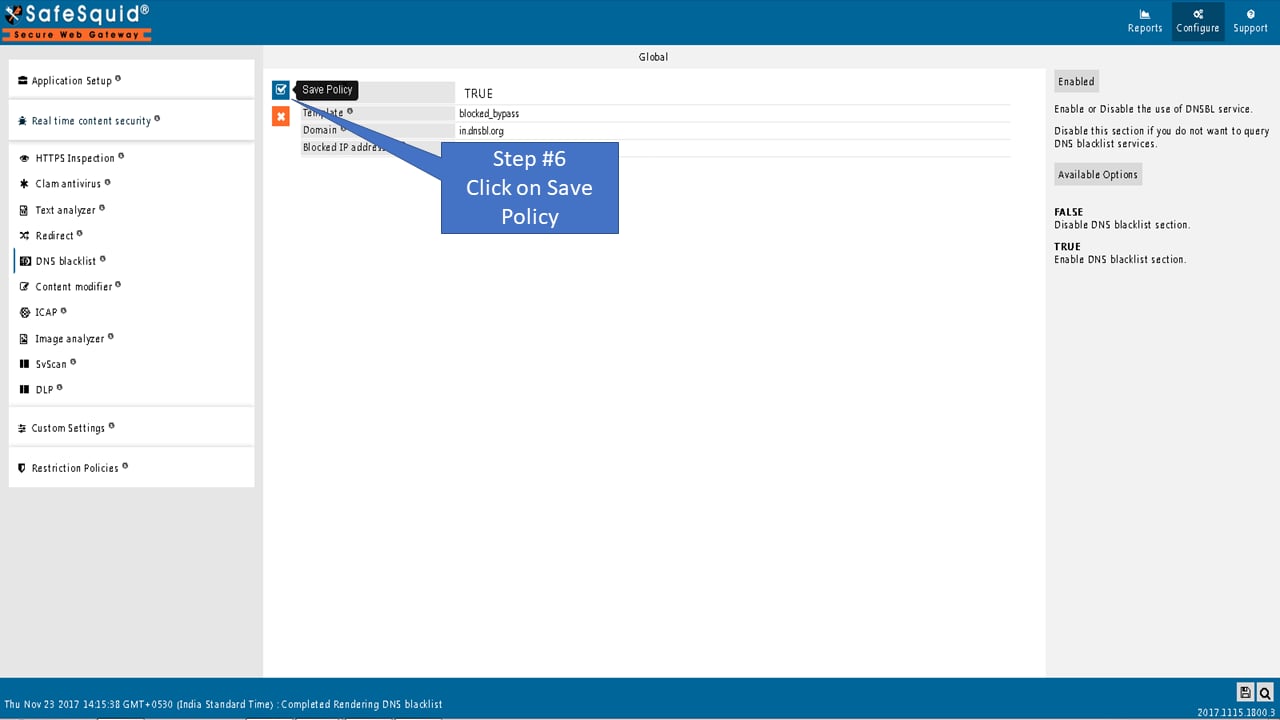
- Set Global options:
- Enabled: TRUE to enable DNSBL; FALSE to skip querying blacklist services.
- Template: Name of the block template displayed when a domain is blocked. Leave blank for default “blocked” message.
- Domain: DNSBL service domain for queries (e.g.,
in.dnsbl.org). SafeSquid appends this to queried domains:example.com.in.dnsbl.org. - Blocked IP addresses: Comma-separated IP ranges that trigger a block when returned by the DNSBL (e.g.,
127.0.0.1-127.0.0.6for in.dnsbl.org).
Understanding Return IP Codes (in.dnsbl.org)
When SafeSquid queriesin.dnsbl.org, the service returns specific IP addresses indicating threat categories:
Configuration: To block all categories, set Blocked IP addresses to
127.0.0.1-127.0.0.8.
- Save. SafeSquid caches DNSBL query results for efficiency.
Example: block sites via DNSBL server
Use blacklisting domain in.dnsbl.org and blocked IP addresses 127.0.0.1-127.0.0.6. SafeSquid blocks all matching domains and displays the blocked template. Use DNSBL when a SOC provides the list or when many domains must be blocked.
Verify configuration and blocked requests
- Interface: Confirm DNS Blacklist is enabled, Domain and Blocked IP addresses are set, and Template is correct.
- Block test: Request a domain known to be listed; expect block page and no connection to origin.
- Logs: In Security Logs, confirm entries for blocked requests (action/result indicating DNSBL block).
- Audit: Run a report filtered by block reason or DNSBL. Export for evidence that the control is active and blocking malicious domains.
Troubleshooting
Still having issues? Contact SafeSquid support with:
- DNSBL service domain you’re using
- Sample blocked domain query results
- Contents of
/var/log/safesquid/native/safesquid.logshowing DNS resolution attempts
Source register
Next steps
- Return to DNS Security.
- Align resolver placement: BIND.